Note: While doing each and every perform into invoice click on apply or remove rounding button for rounding amount.
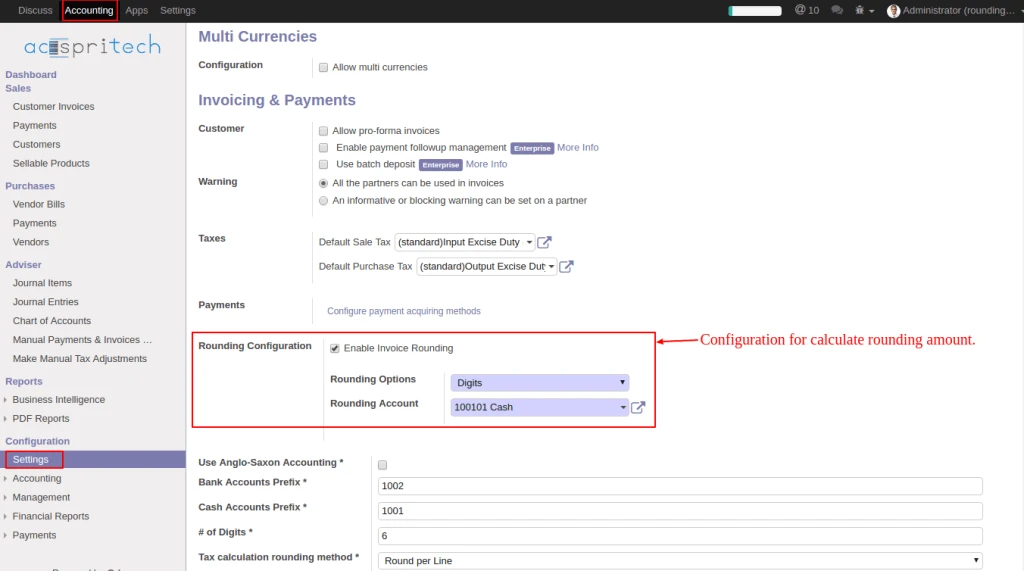
In Accounting configuration, checked “Enable Invoice Rounding”, select the (Rounding option and set Rounding Account).
Odoo account configuration
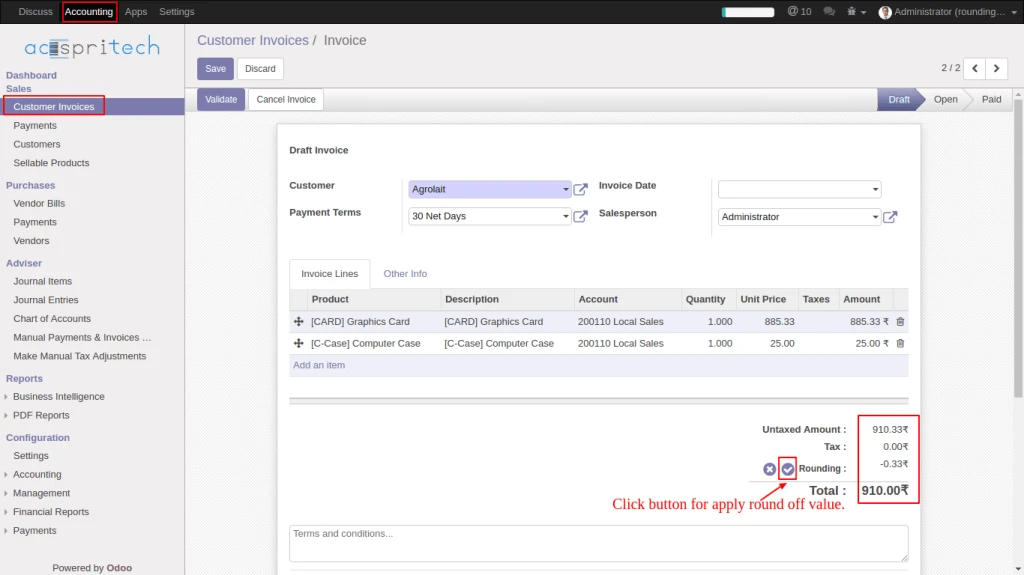
From Customer Invoice click on (rounding apply) button for calculate rounding amount.
Odoo applying round off
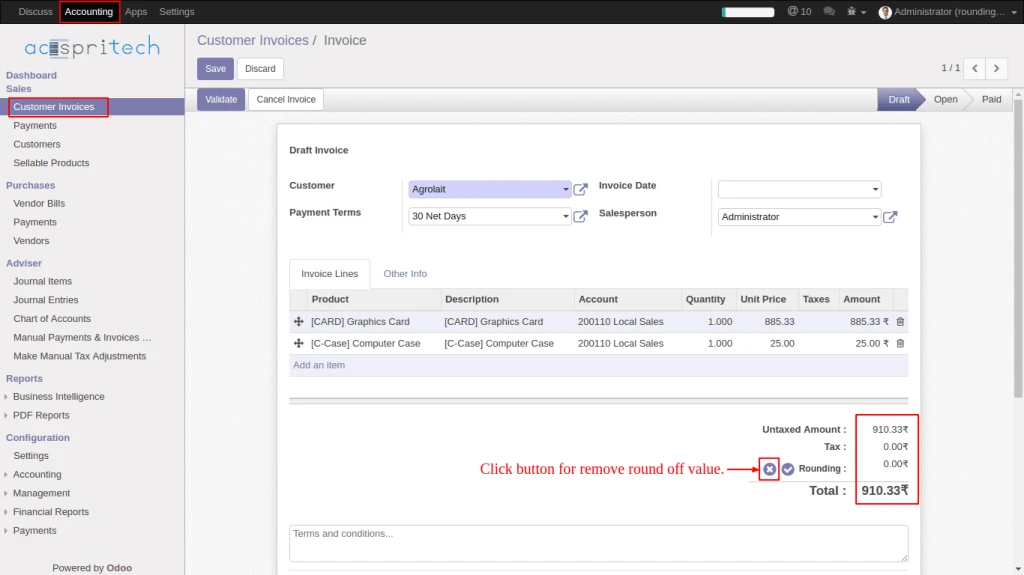
From Customer Invoice click on (rounding remove) button for remove rounding amount.
Odoo invoice remove round off
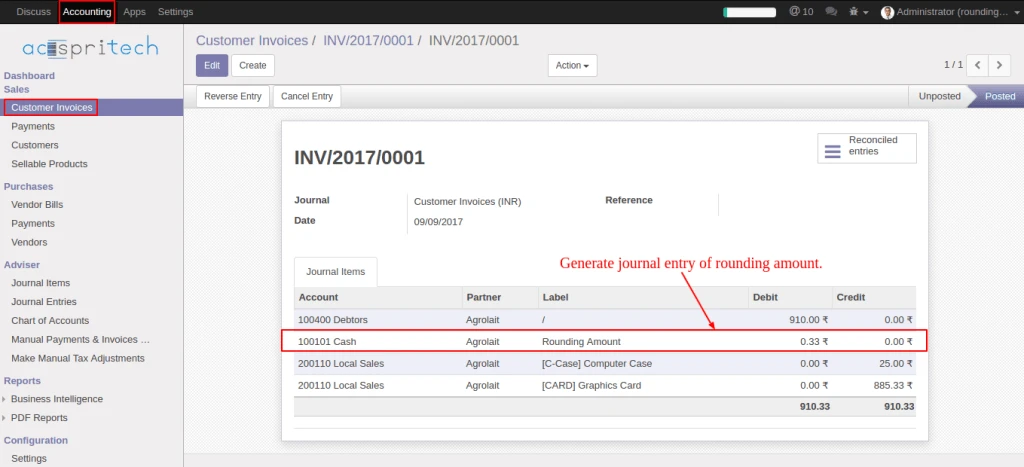
Once invoice validate generate journal entry of rounding amount.
Odoo journal entry
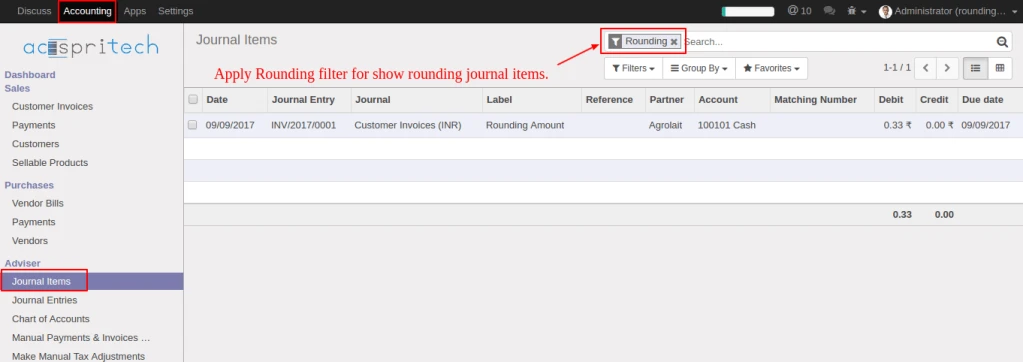
From journal items menu, select filter “Rounding” for display rounding journal entries.
Odoo filter journal entey
Advertisements
Share this:
Click to share on Facebook (Opens in new window)
Click to share on LinkedIn (Opens in new window)
Click to share on Twitter (Opens in new window)
Click to share on Reddit (Opens in new window)
Click to share on Tumblr (Opens in new window)
Click to share on Pocket (Opens in new window)
Click to share on Pinterest (Opens in new window)
More
Click to print (Opens in new window)
Click to email this to a friend (Opens in new window)
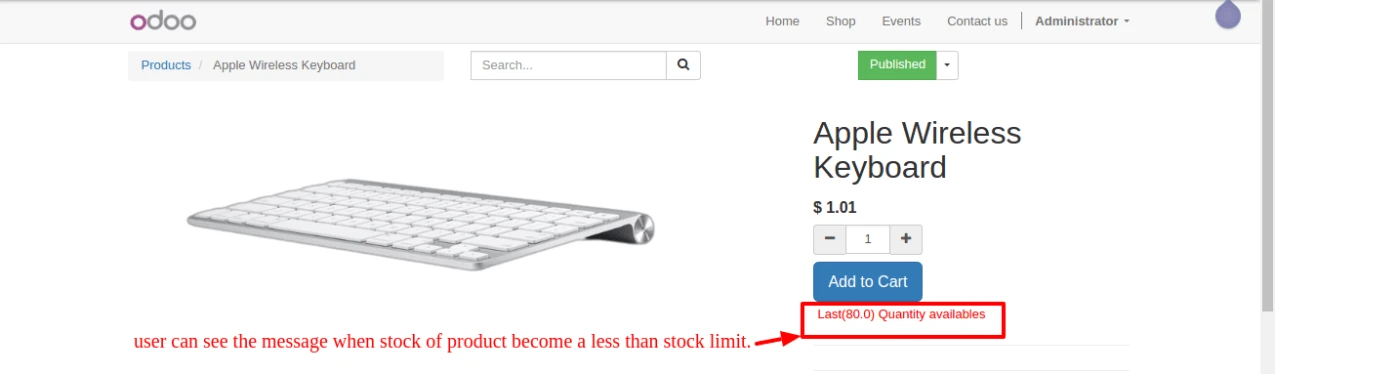
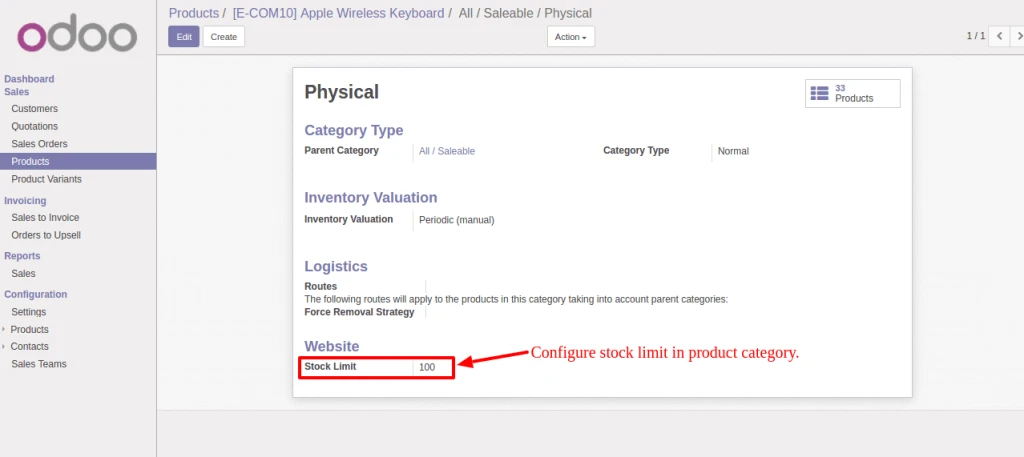
If user will not configure into product category then they will configure stock limit in website configuration and it will take highest priority when user can’t configure in product category.
We have implemented a module “Dynamic Stock Purchase Analysis” which help users to take decision during purchasing products for company from suppliers.
It is displaying sold products (from POS and Sales Order) and current stock level based on selected date duration and product categories. And creating purchase order according to quantity enter by user for selected supplier.
Assign unique serial number when we receive product during purchase process and when we sale from POS, at that time also use the same serial number which we have assigned during receiving.
This is the main feature in this module that we have created in Odoo v8.
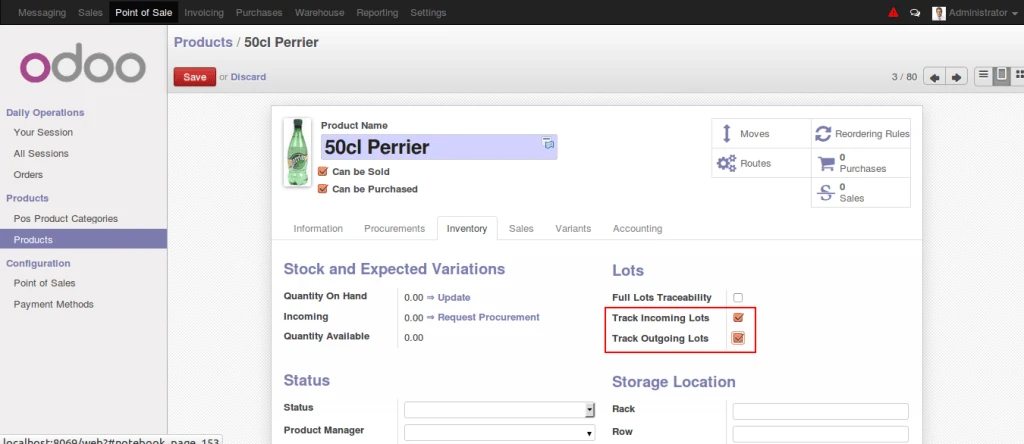
In below screen, we can see that we have marked Incoming, Outgoing tracking using serial number. So now whenever we sale or receive using warehouse module, at that time serial number is compulsory otherwise we can not deliver or receive this particular product.
Odoo Product Configuration for Serial Tracking
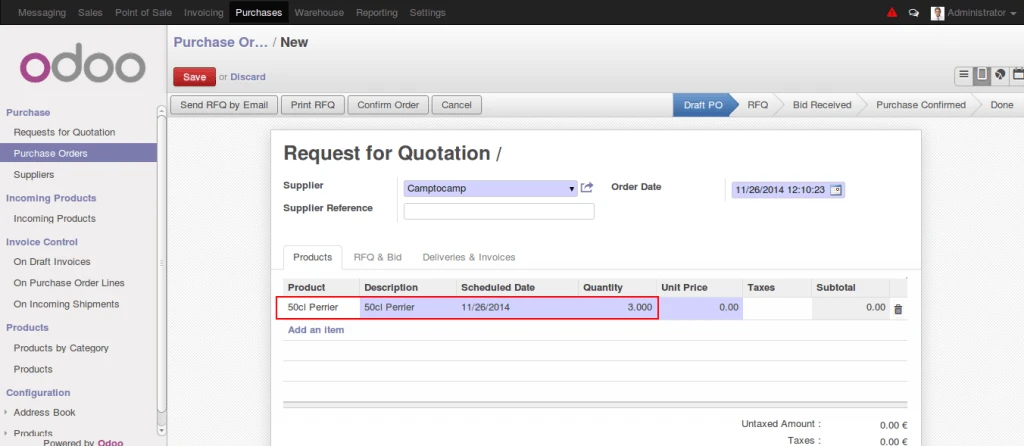
Following screen is normal purchase order screen in which we are taking one product for example and we are purchasing some quantities.
Odoo Purchase Order
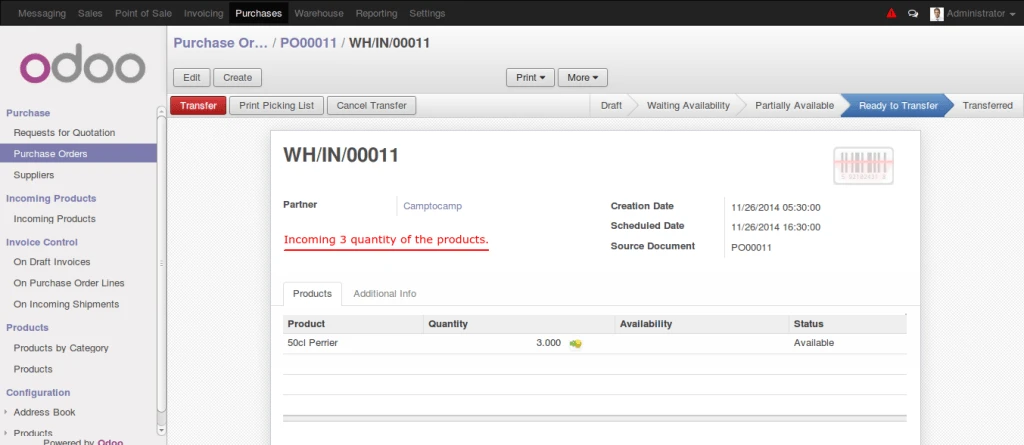
This is incoming shipment form screen from where now we will click on “Transfer” button and lets see next process.
Odoo Incoming Products
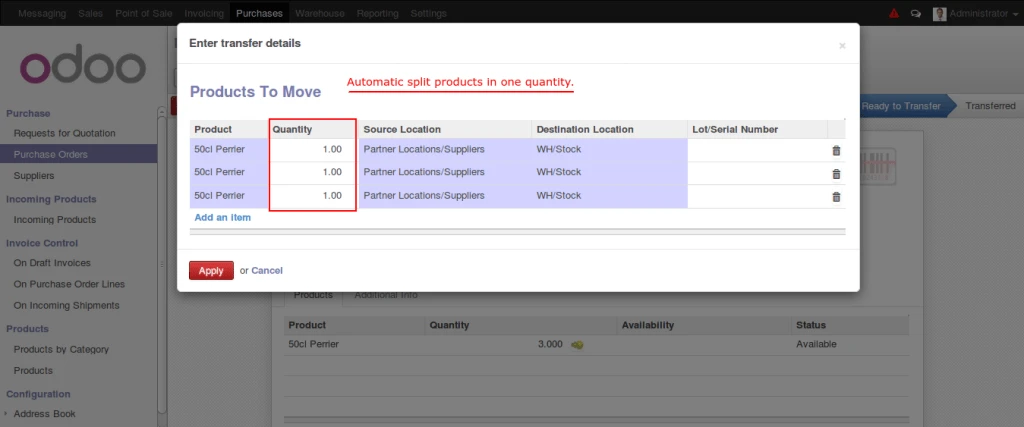
“Transfer” button will open popup with all products splitted by one quantity.
Receiving Products
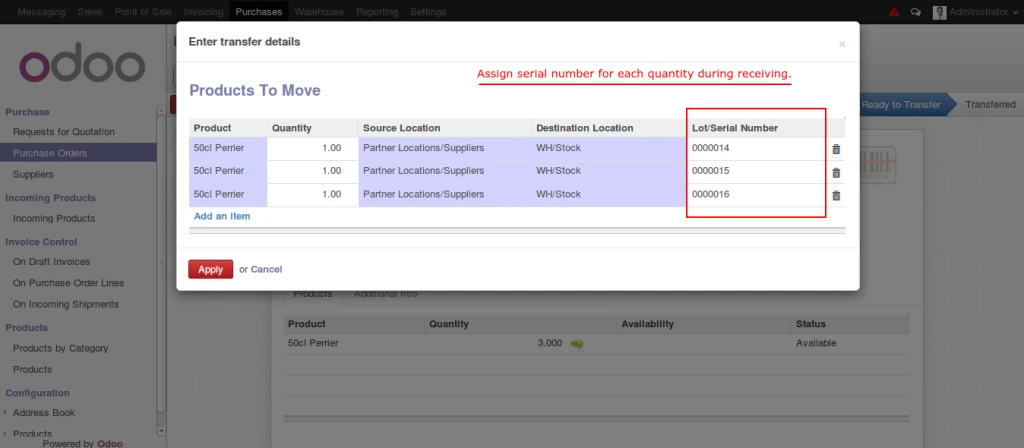
Now we can assign serial number to each different quanaities of particular products.
Assign serial number
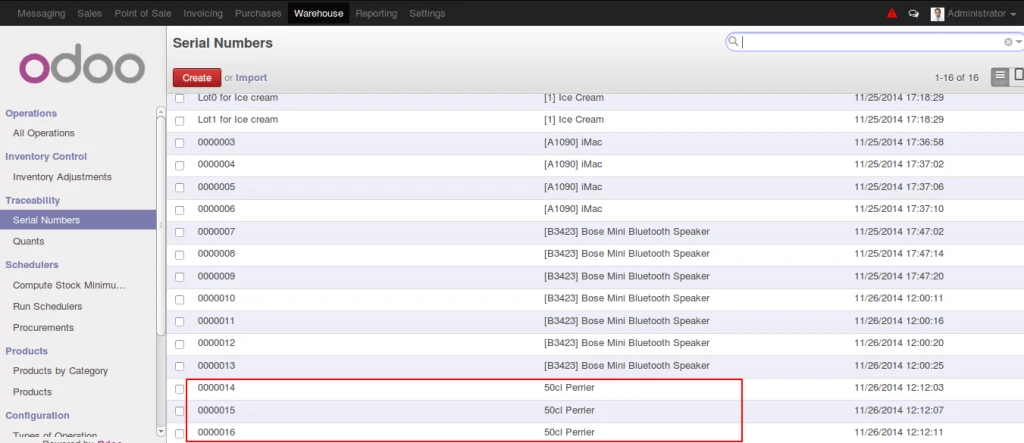
Here is the list of Serial Numbers with products.
Odoo Serial Number List
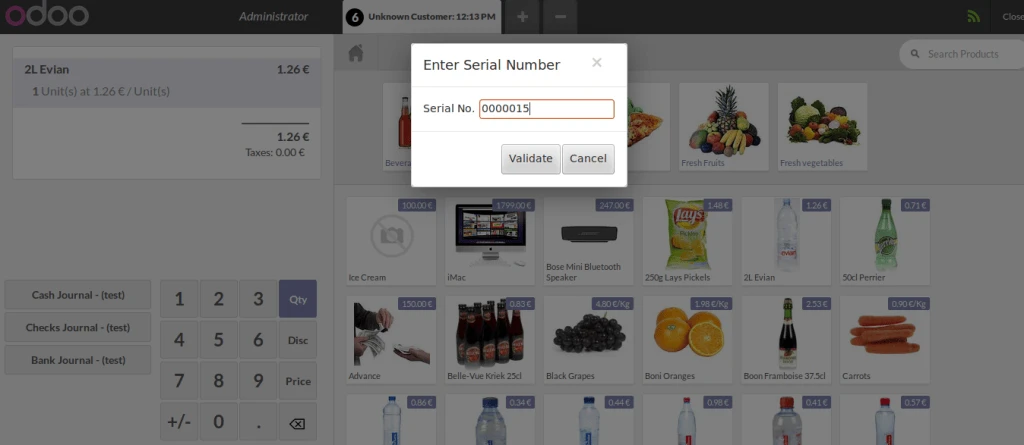
Now its turn for sales. We are salling products from POS Frontend and we are checking that if Outgoing track is required than serial number is required to enter here.
Assign serial number from POS
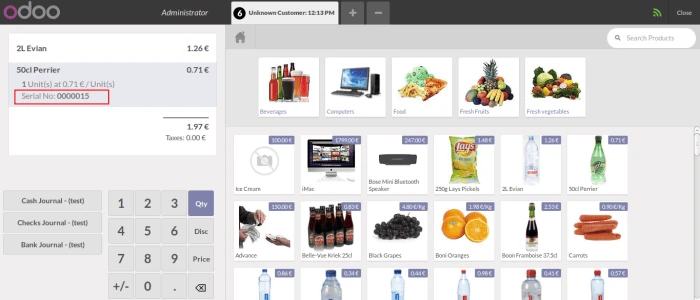
Once we add product with serial number then we can see serial number in product list also.
Products added in pos list
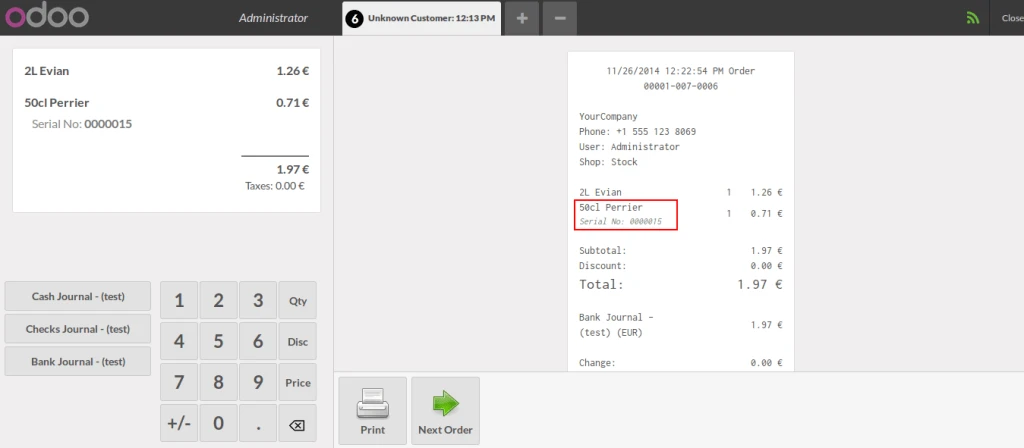
Same serial number we can see in POS Receipt also.
POS Receipt with serial nuber
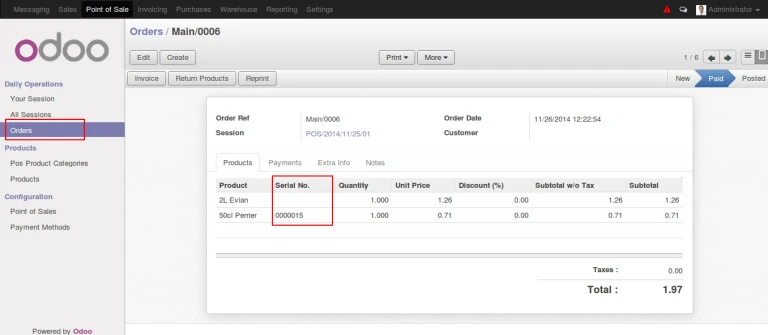
We have added field for Serial Number in POS Backorder too.
POS backorder with serial number
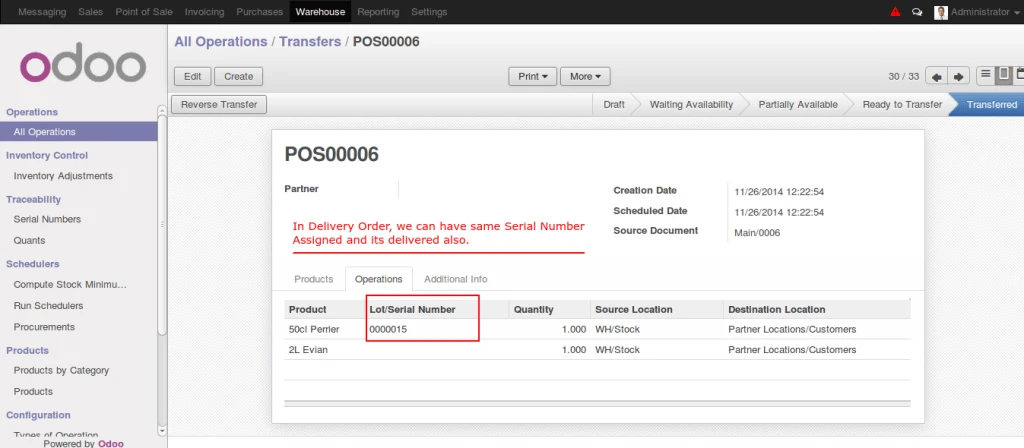
And the order will be delivered successfully with serial number.
Delivery Order with serial number
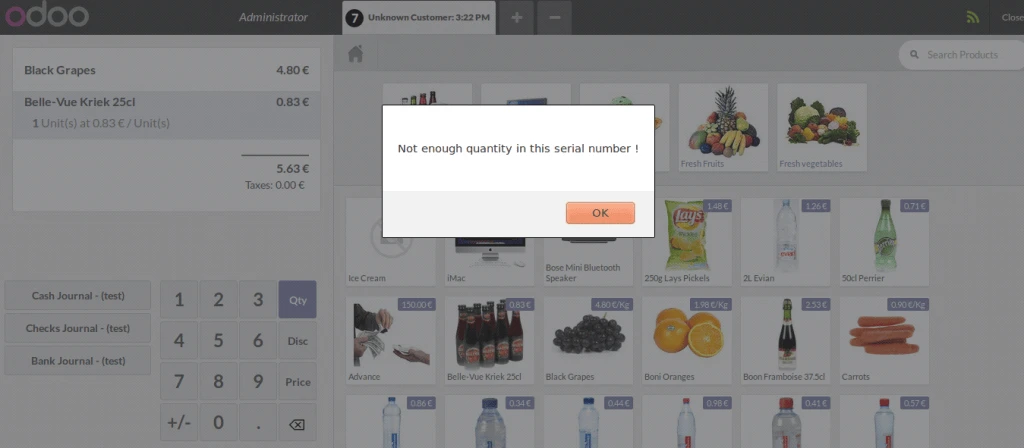
Now if we assign same serial number again for the same product which we already sold then POS will raise an error and will not allow us to do the process as displayed in below screen.
New feature for Odoo android application which will show product variants, stock information.
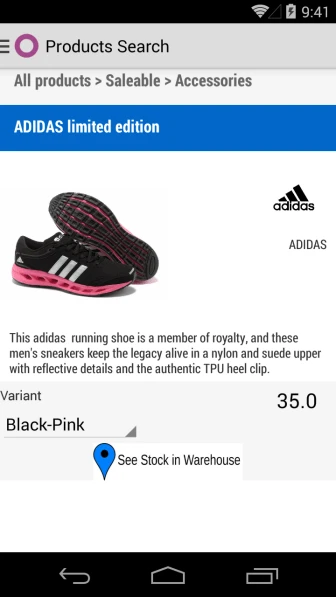
A product variant is a specific item that is grouped with related variants that together forms a product. Variants usually vary from each other in one or more properties. Each product variant is based on the same product definition. Example : Shirt is product with different attributes like color, size etc and create variants based on it.
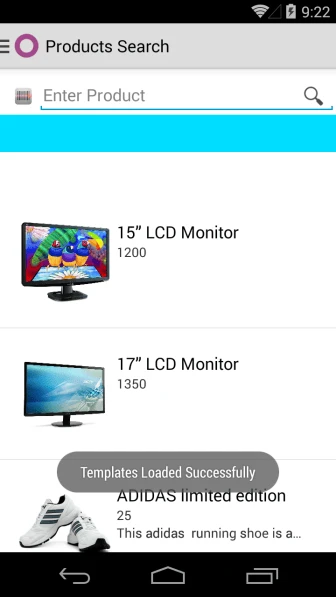
In Odoo, user can define product template and their variants. We are making android application which display templates and their variants and stock of each variants for easy work.
All Products
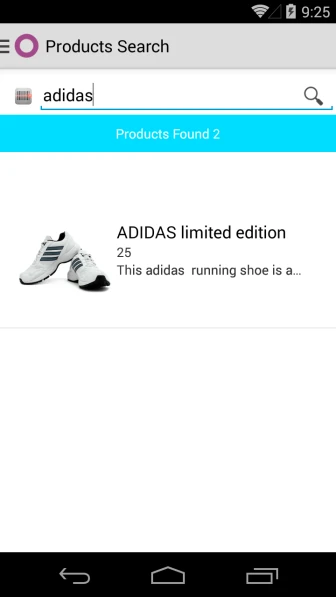
You can search product template by using name or scanning barcode.
Search Product
Once you will click on selected template, it will display complete information with variants.
Product Variants
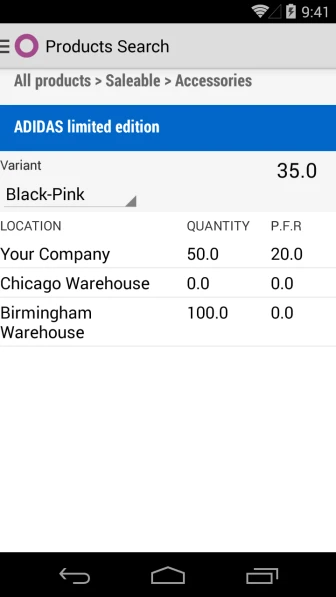
User can check available and incoming qty of each variant of selected template also.
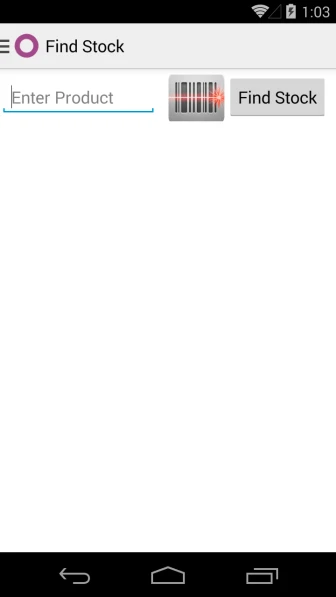
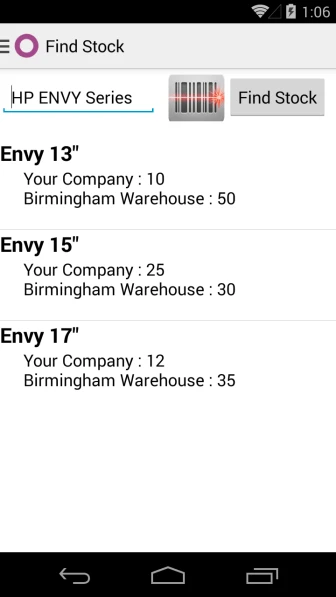
We have implemented application which will be useful to search product by scanning barcode and it will display product stock according to product template and according to different warehouses configured in your database.
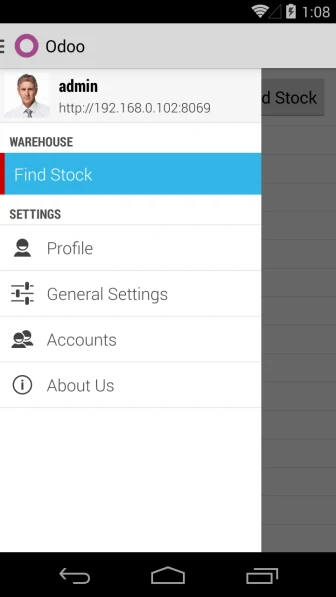
Menu
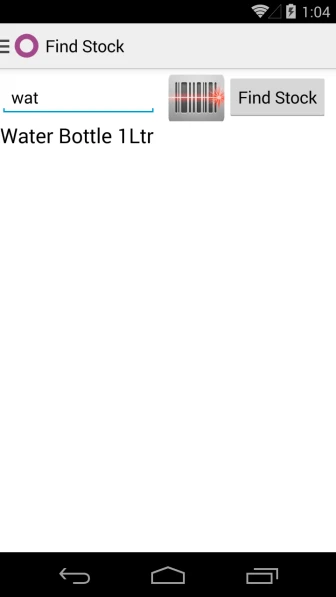
You can search product by writing name or reference of product or scan any barcode and that product or template will be selected automatically.
Main PageSearch Product
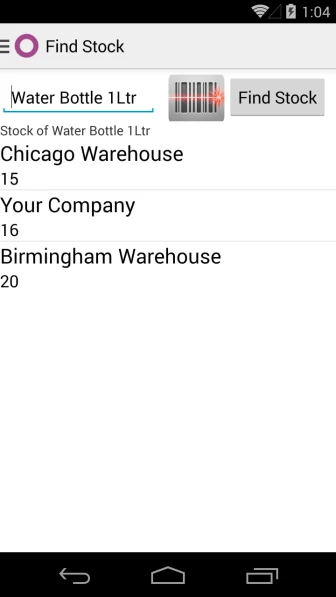
After selecting product, it will display stock information according to warehouses configured into database.
Display Product Search
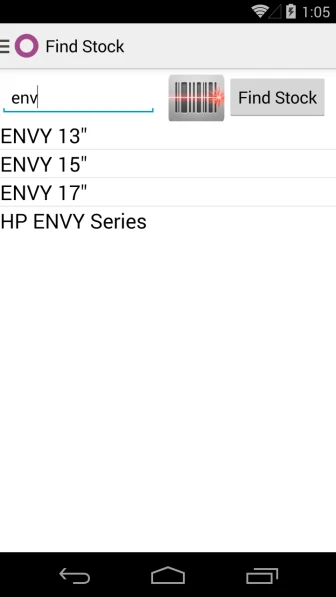
In case of Product Template, it will display all products related with template and display stock.