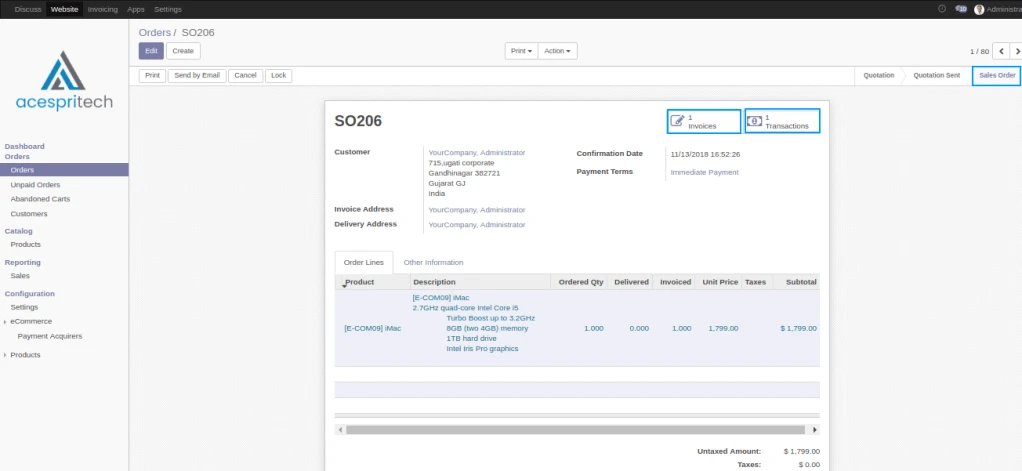
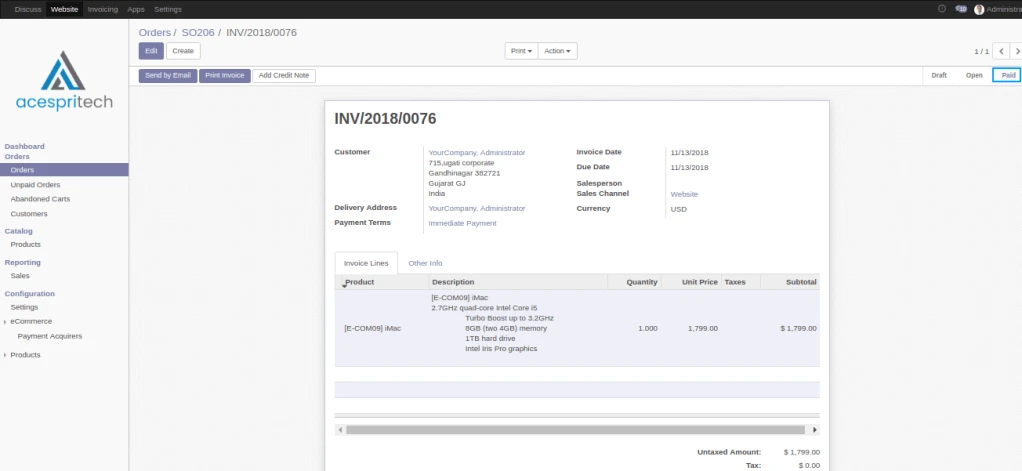
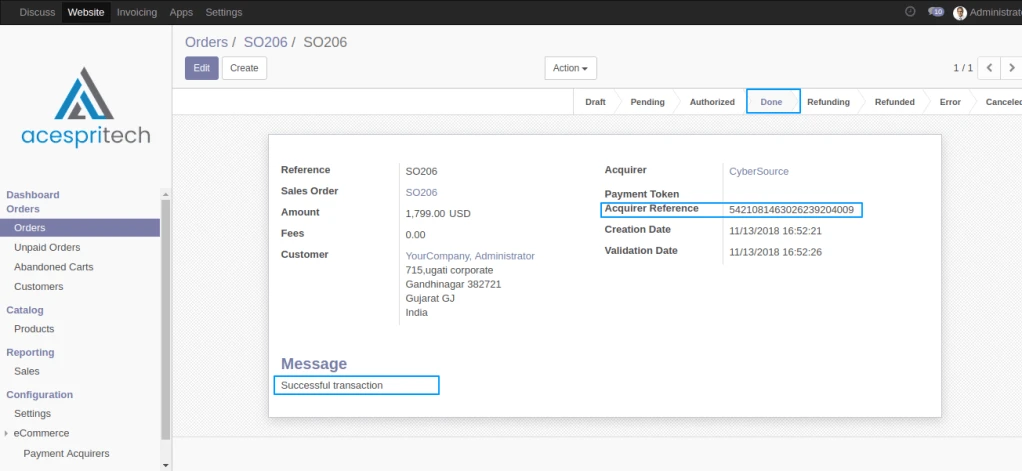
Generate Mass Payment for customer/vendor invoice.
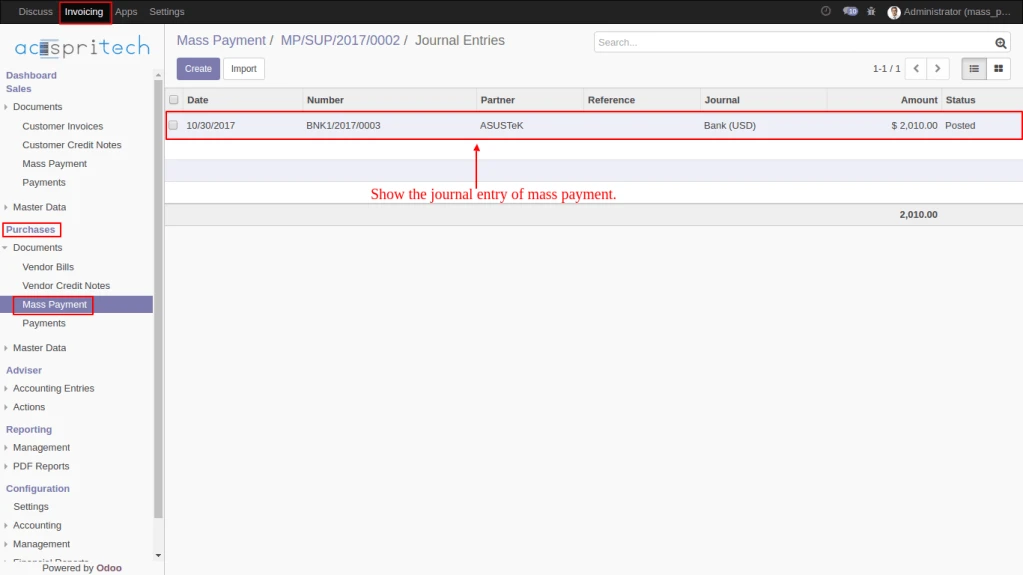
Manage the Journal Entry for mass payment.
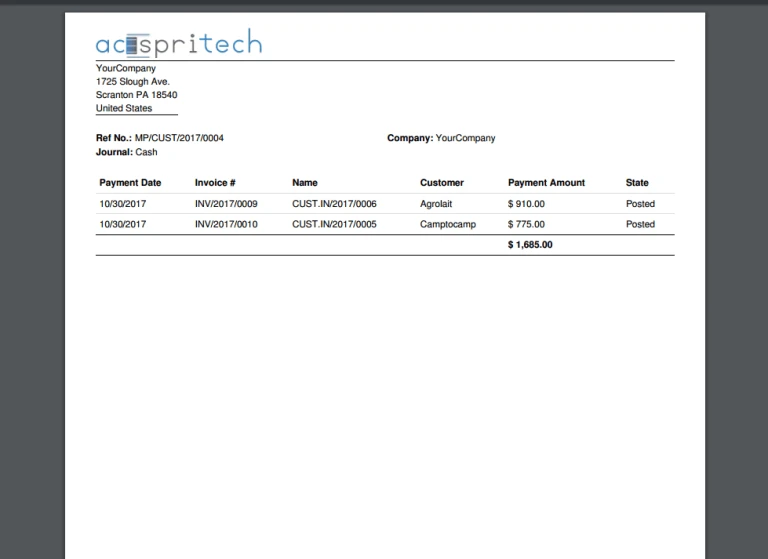
Generate report for mass payment.
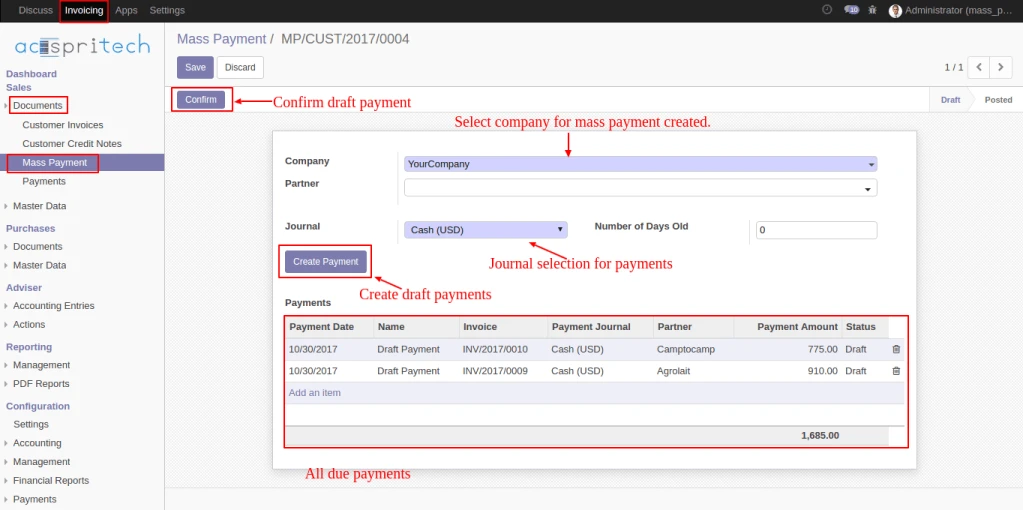
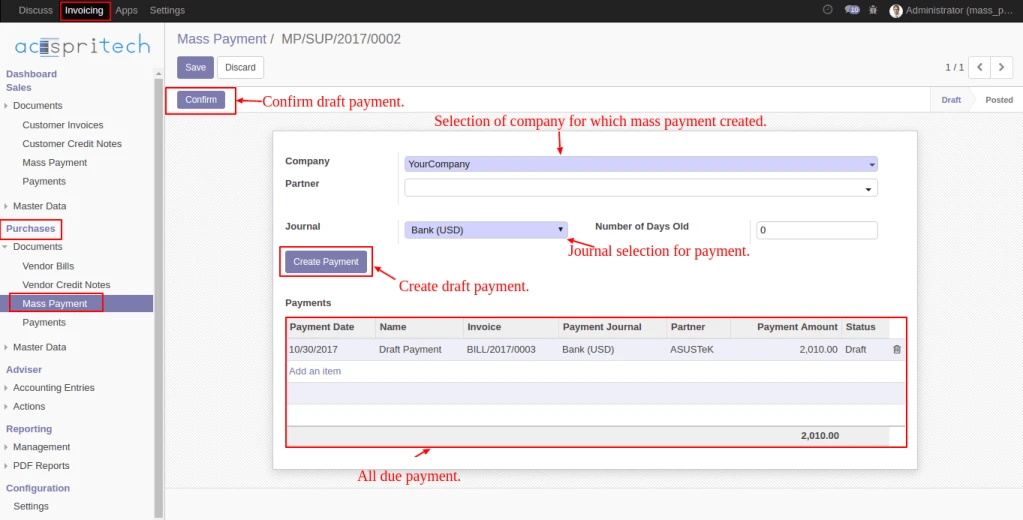
User need to fill appropriate fields and by click on “Create Payment” button.
Draft payments will generate for all due payments. by click on “Confirm” button, all payments
are posted,reconciled and journal entries will be created.
User need to select following fields.
Company – For which mass payment need to create.
Partner(optional) – For which partner(s) mass payment need to create.
Journal – Which journal is used in all payments.
Number of days old(optional) – field take integer. used for how many old days
invoice/bill fetched for payments.
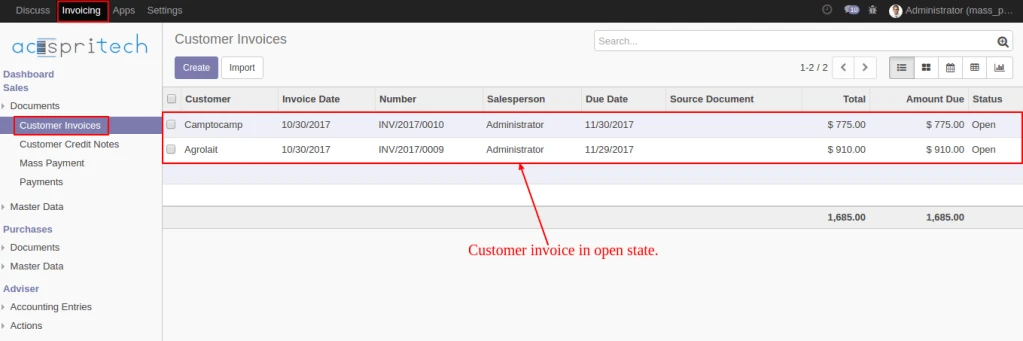
By clicking on “Create Payment” button. its will create draft payments for all due payments of customers whose invoices are in “Open” state.
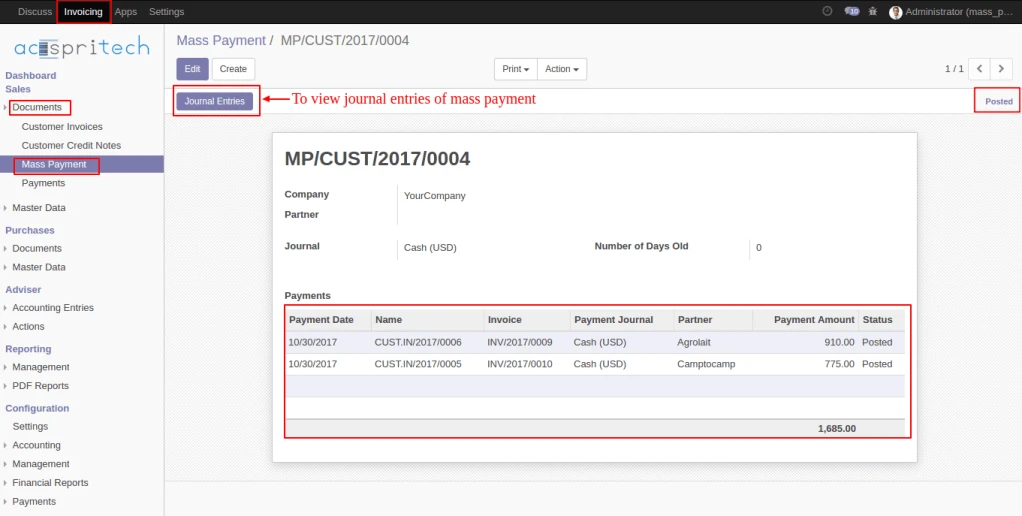
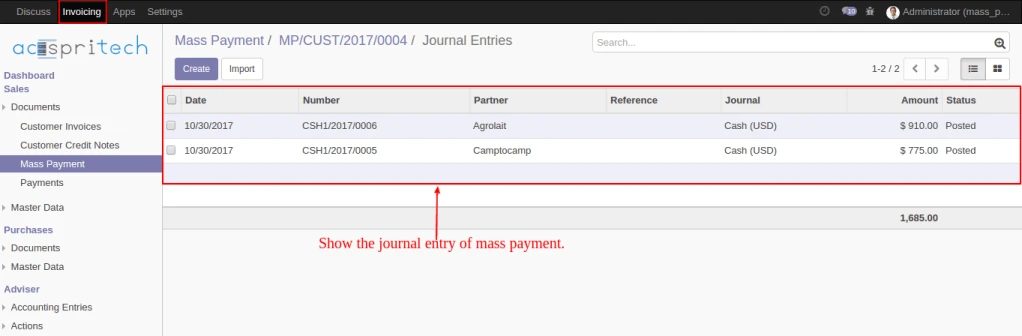
By Clicking on “Confirm” button. all customer payments entries will be posted, and journal entries will be created for each. on click “Journal Entries” button user can see all journal entries.
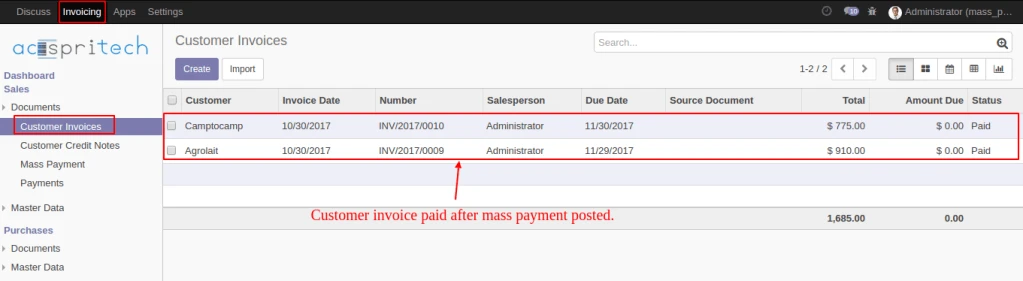
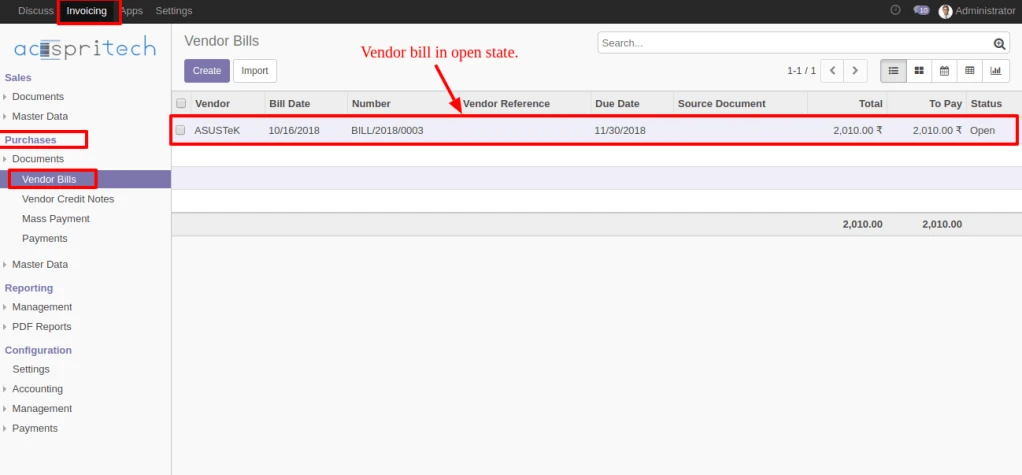
Here, We can see impact of customer mass payment on customer invoice.
User can print report regarding mass payment.
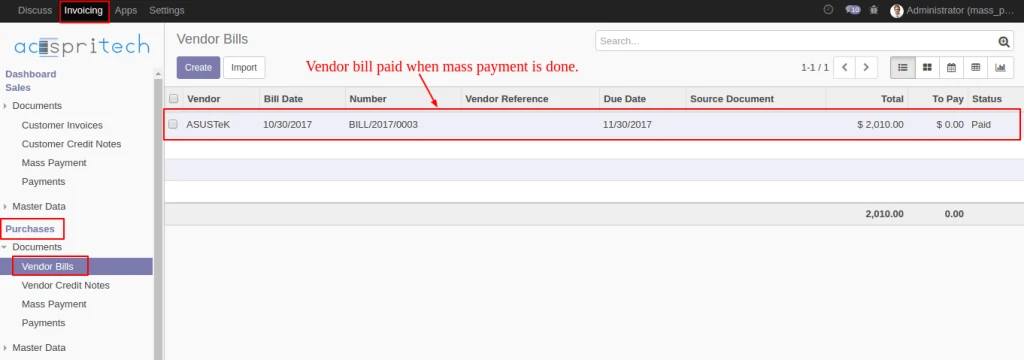
Same thing to do for vendor mass payments. Here all due vendor payment will be fetch.
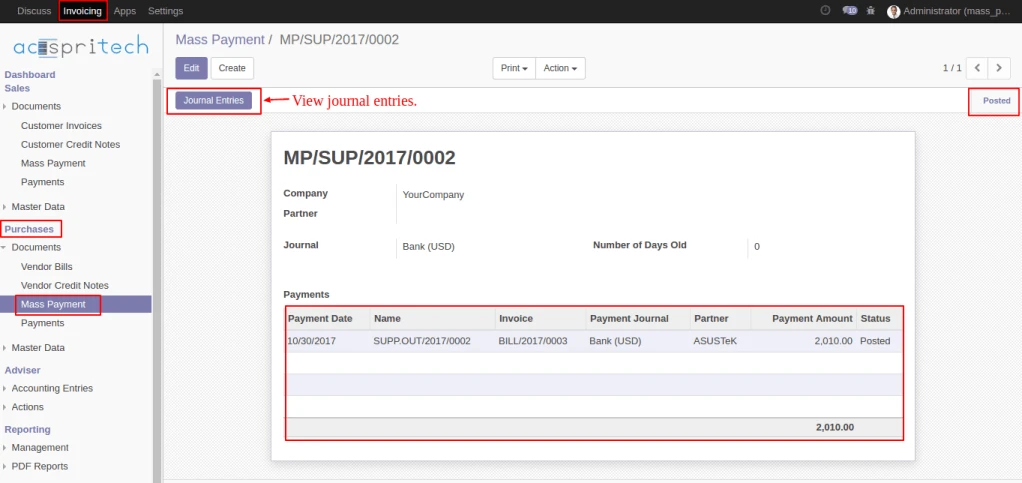
By Clicking on “Confirm” button. all vendor payments entries will be posted and journal entries will be created for each. on click “Journal Entries” button user can see all journal entries.
Here, We can see impact of vendor mass payment on vendor bills.
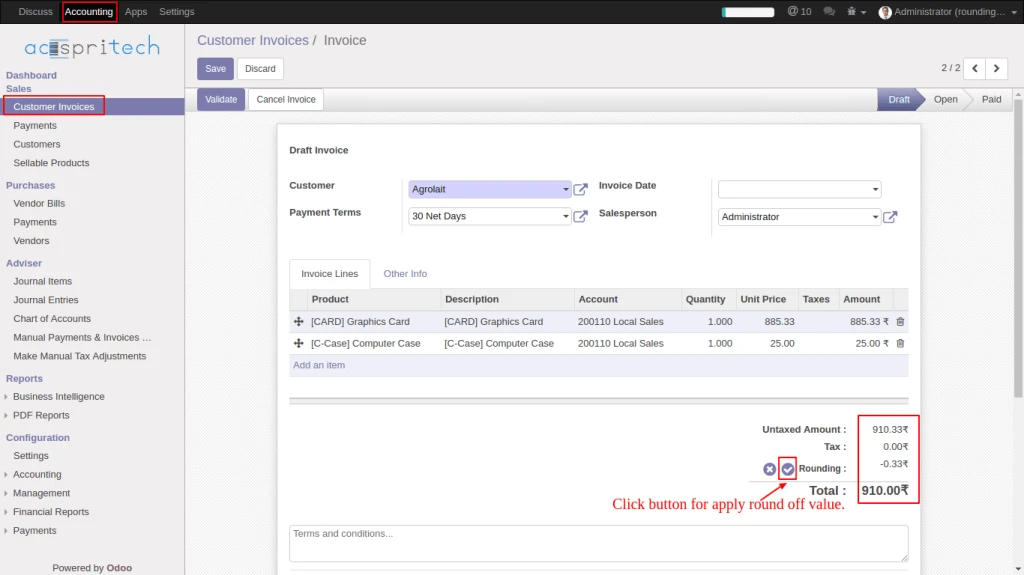
Note: While doing each and every perform into invoice click on apply or remove rounding button for rounding amount.
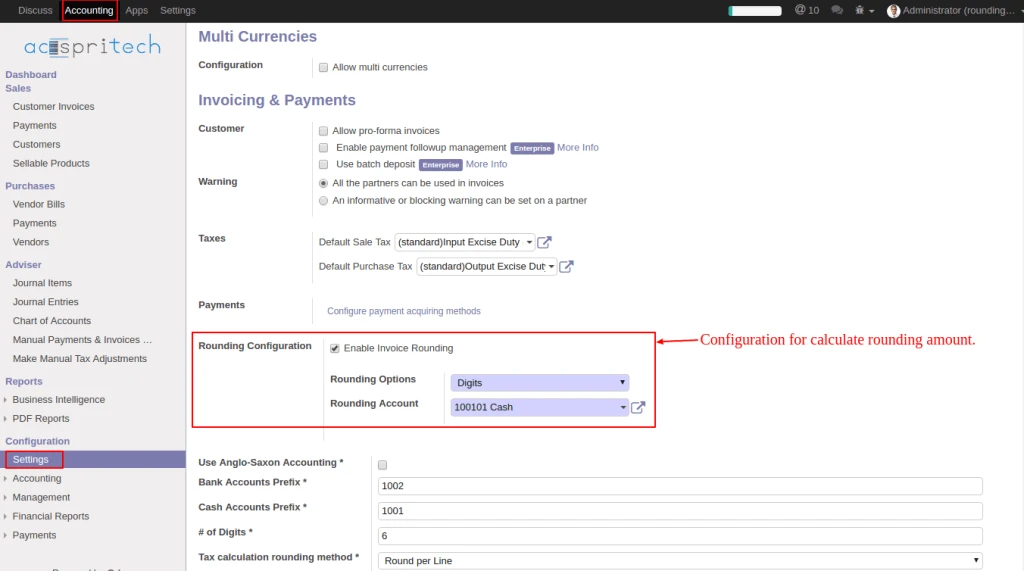
In Accounting configuration, checked “Enable Invoice Rounding”, select the (Rounding option and set Rounding Account).
Odoo account configuration
From Customer Invoice click on (rounding apply) button for calculate rounding amount.
Odoo applying round off
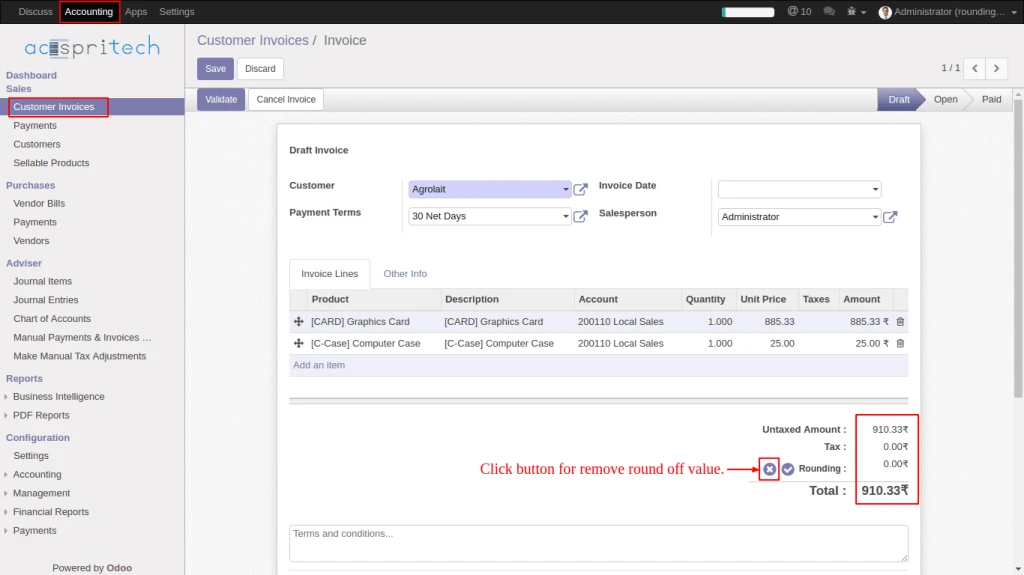
From Customer Invoice click on (rounding remove) button for remove rounding amount.
Odoo invoice remove round off
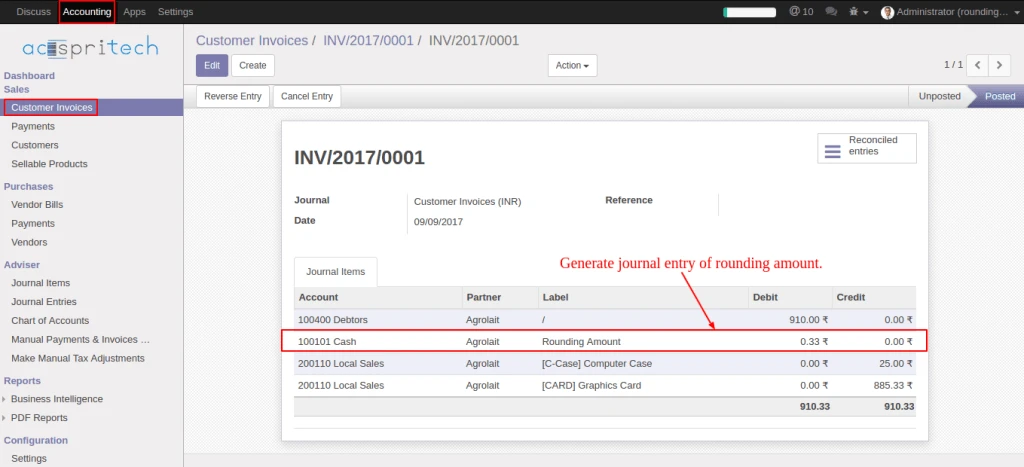
Once invoice validate generate journal entry of rounding amount.
Odoo journal entry
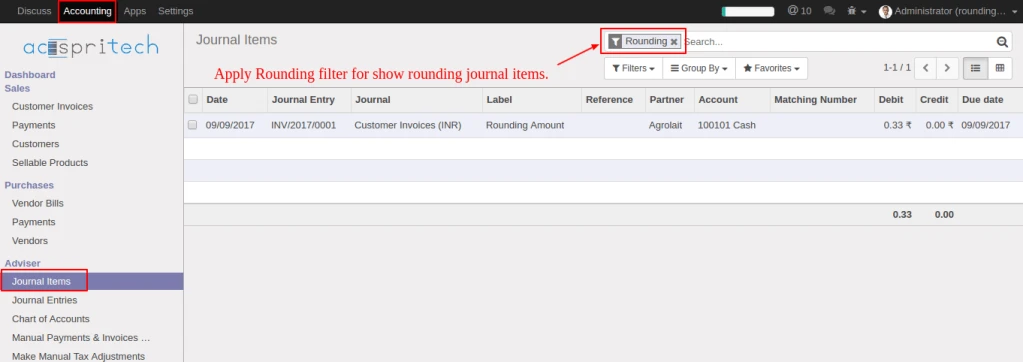
From journal items menu, select filter “Rounding” for display rounding journal entries.
Odoo filter journal entey
Share this:
Click to share on Facebook (Opens in new window)
Click to share on LinkedIn (Opens in new window)
Click to share on Twitter (Opens in new window)
Click to share on Reddit (Opens in new window)
Click to share on Tumblr (Opens in new window)
Click to share on Pocket (Opens in new window)
Click to share on Pinterest (Opens in new window)
More
Click to print (Opens in new window)
Click to email this to a friend (Opens in new window)
We have improved our existing loyalty system and make lots of enhancement. In new system, referral customer and employee will be tracked and get benefits of sales occurred from Sales Order or POS.
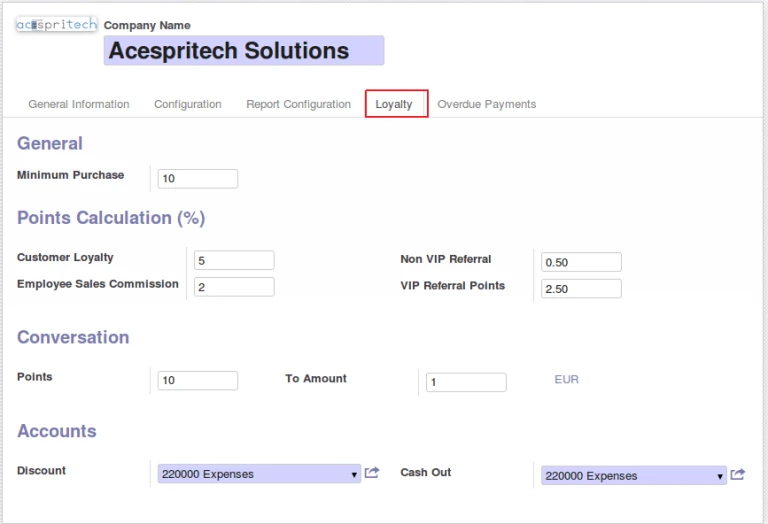
Loyalty point begin when customer start purchasing above Purchase Limit and then after customer will always get point on every purchase. In configuration, there are some general configuration for getting points for each one. It is easy to define accounts for discount and cash out.
Loyalty Global configuration
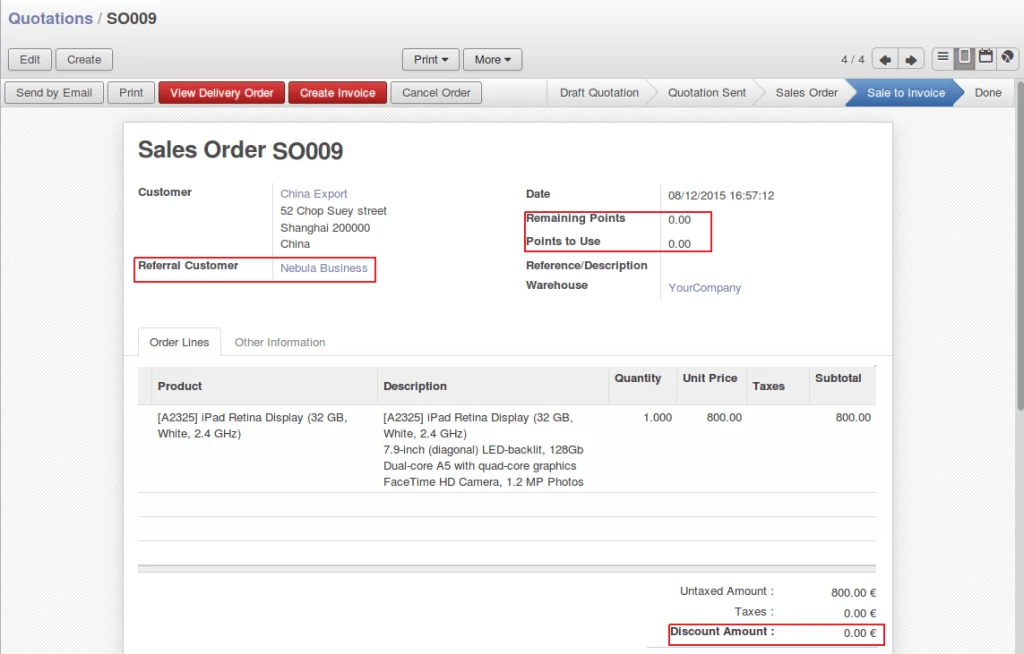
In Sales Order form, you can select Referral Customer and enter how many points to redeem. Redeem points will be automatically converted into discount amount.
Referral Sale Order
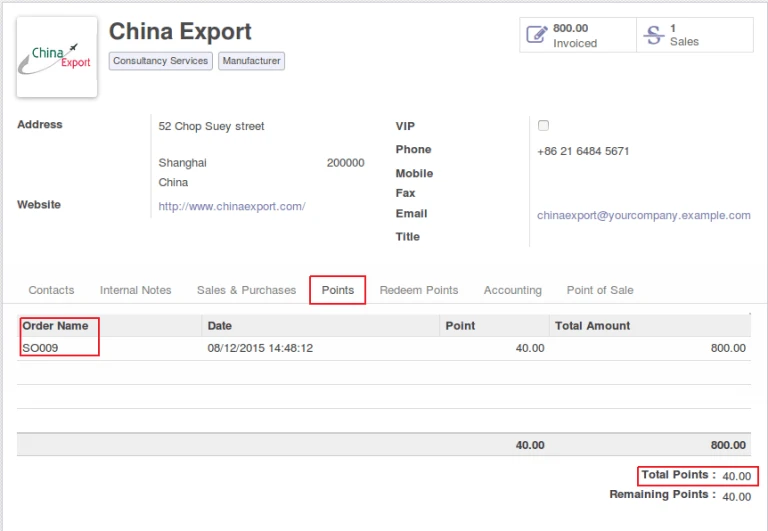
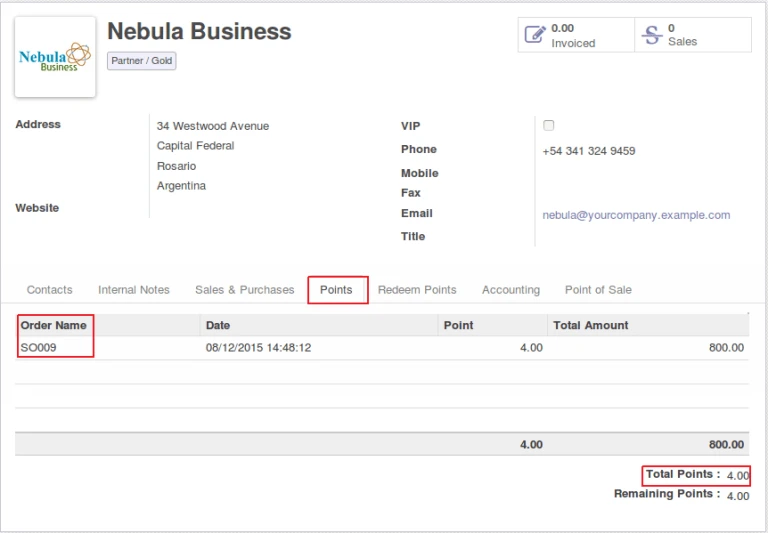
Points will be added in customer after invoice will be paid. (created from sales order).
Customer loyalty points
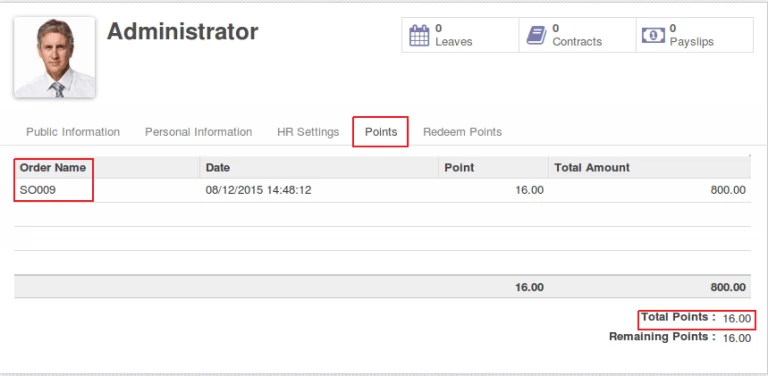
Referral customer and employee (sales person) will earn points.
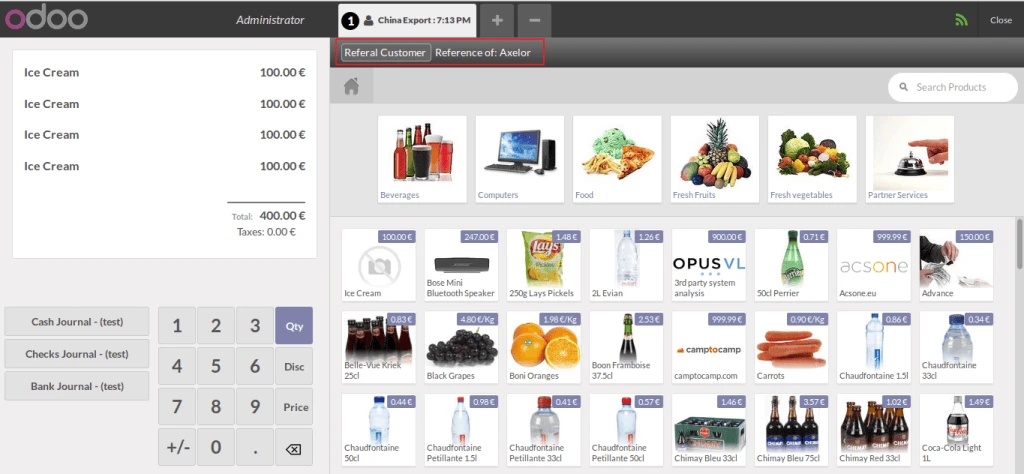
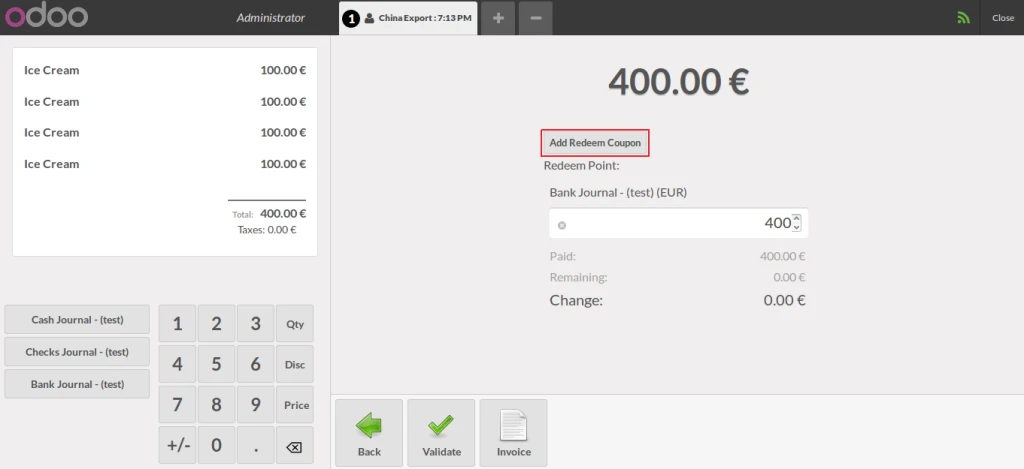
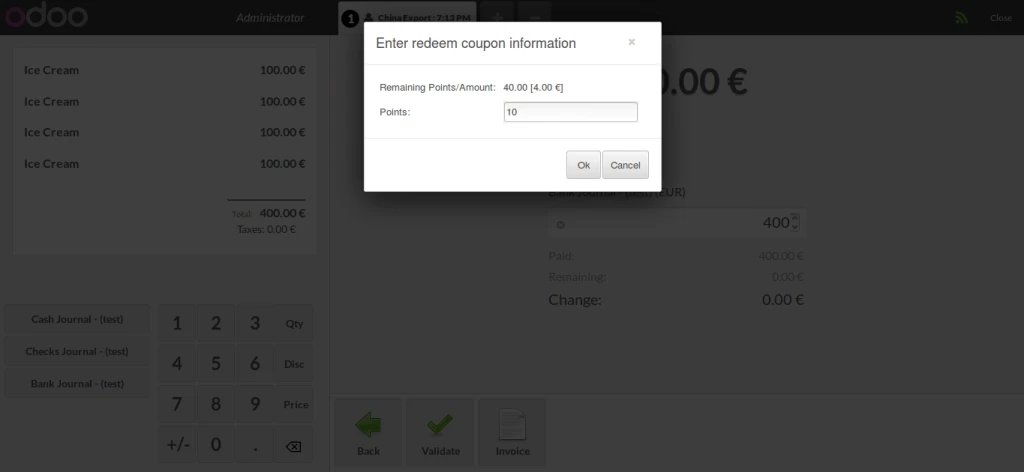
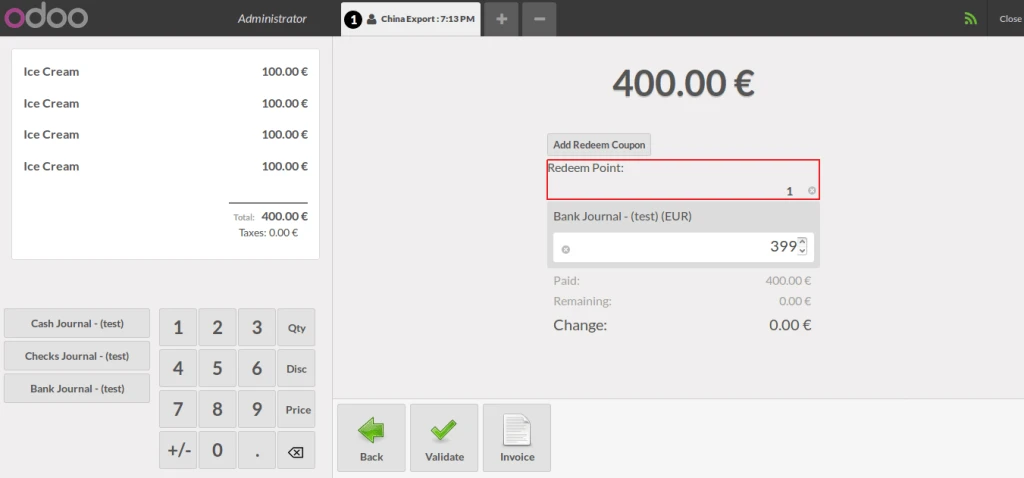
You can select Referral Customer from POS and redeem points.
POS Referral salePOS Payment with earned pointsPOS redeemPOS point to amount
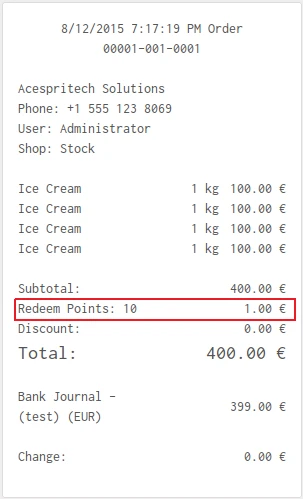
It will print redeem point in POS Receipt.
POS receipt with point information
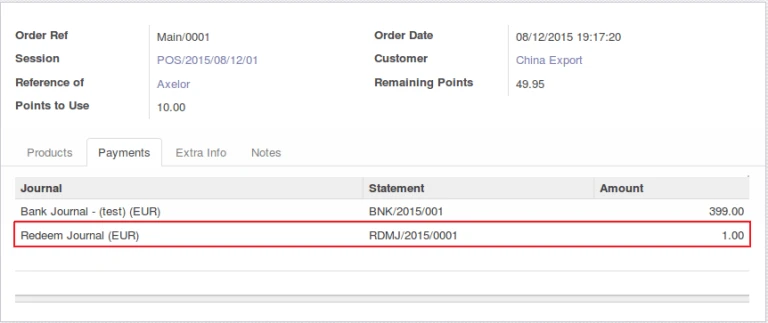
It will make separate journal entry for redeem points entered from POS.
POS Redeem journal
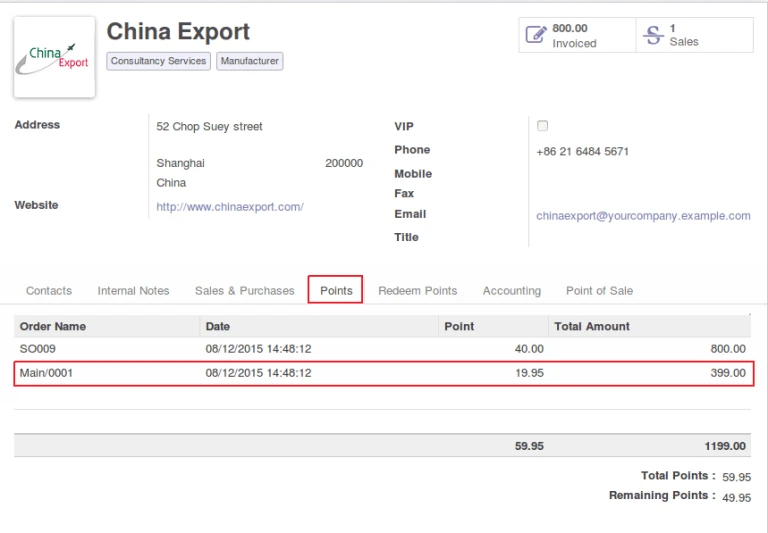
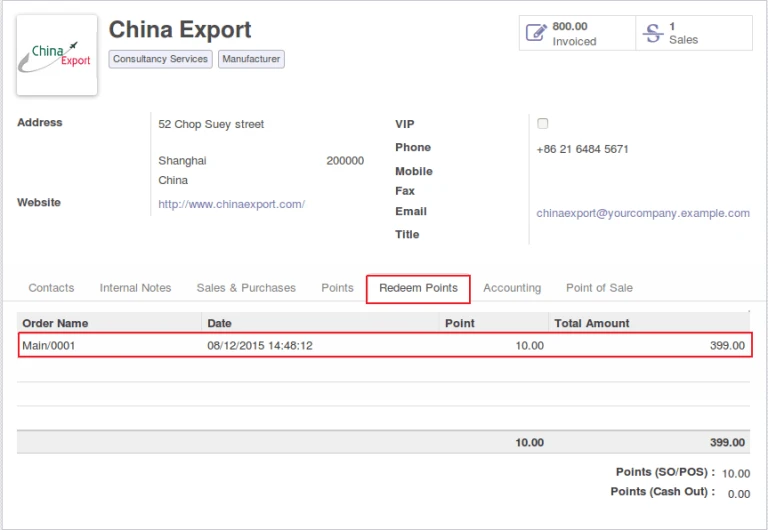
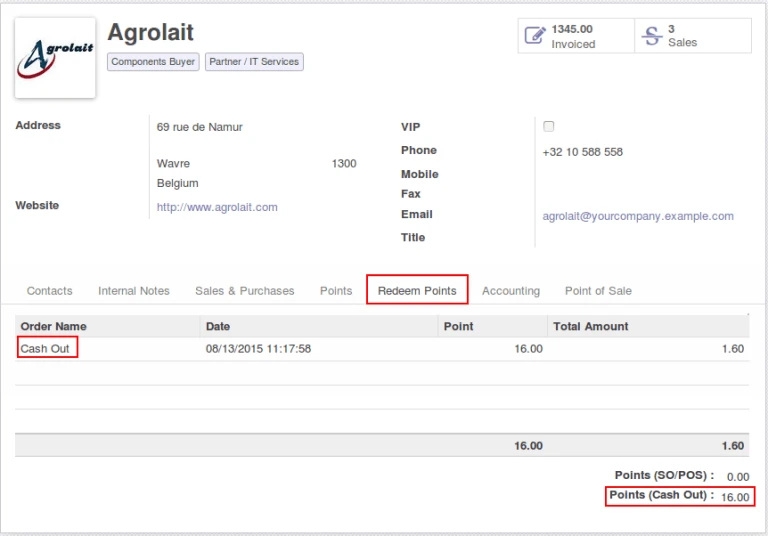
We can have all points information in customer form also like below images.
Points earned from POSOdoo customer’s redeemed point information
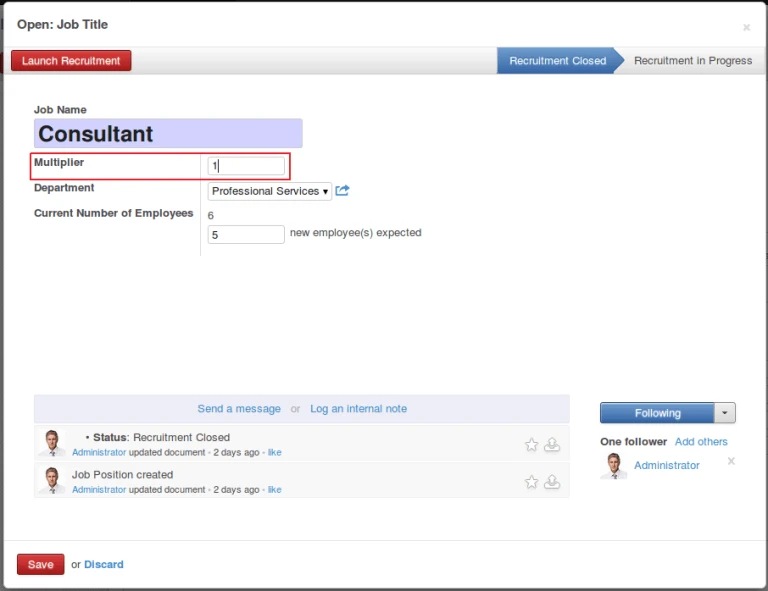
Employee will get commission amount in their salary as per their sales during a month and job position in company. Multiplier value will be use for calculation of monthly commission amount. Employee contract must have Working Schedule define.
Employee job position
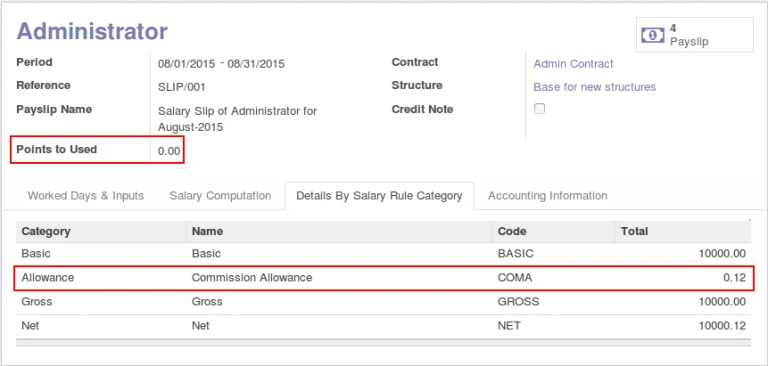
At time of creating employee payslip, employee points will be automatically selected and use in calculation.
Odoo hr payslip
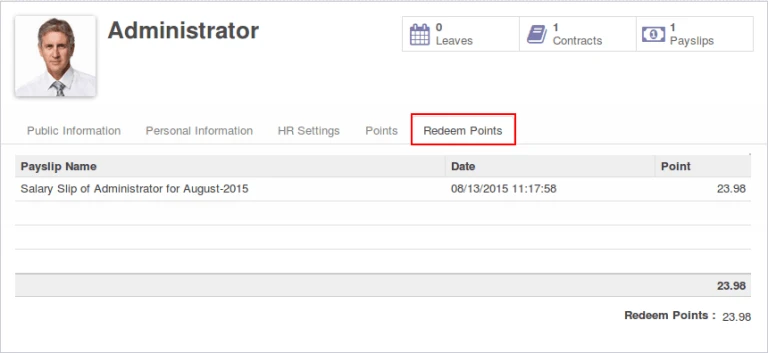
Once employee payslip is confirmed, we will have corresponding points entry in employee form.
Odoo hr employee redeem
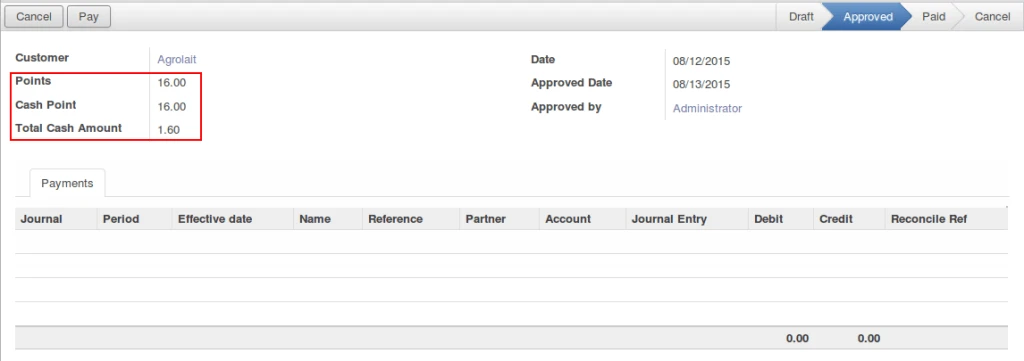
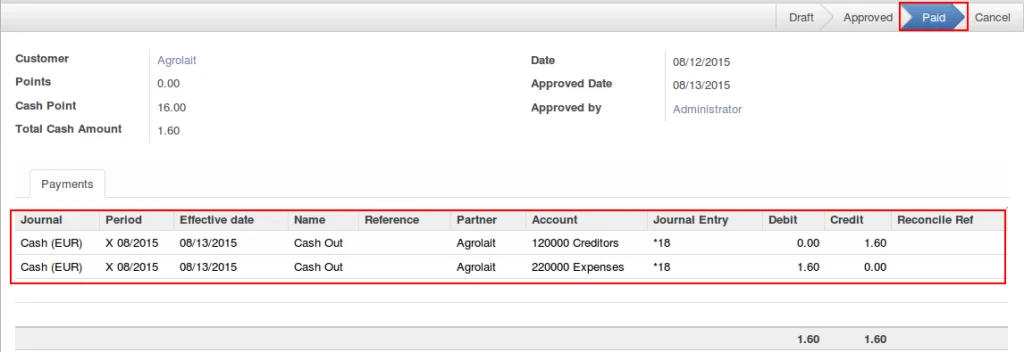
In this system, its possible to provide CASH amount to customer instead of discount during purchase and also generating valid accounting entries.
Cash out approvedCash out paid
Cash Out will make entry same like redeem point for customer.
Odoo customer redeem
Share this:
Click to share on Facebook (Opens in new window)
Click to share on LinkedIn (Opens in new window)
Click to share on Twitter (Opens in new window)
Click to share on Reddit (Opens in new window)
Click to share on Tumblr (Opens in new window)
Click to share on Pocket (Opens in new window)
Click to share on Pinterest (Opens in new window)
More
Click to print (Opens in new window)
Click to email this to a friend (Opens in new window)
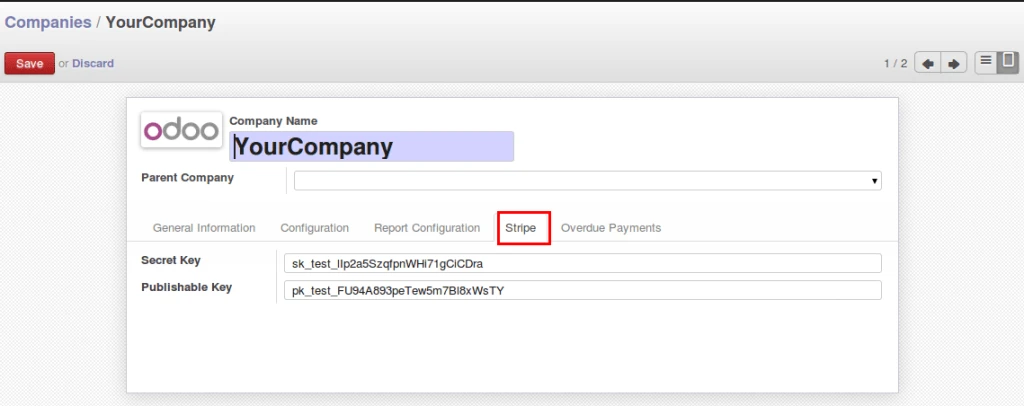
At Acespritech, we have developed many payment gateway integration with Odoo. Here we have one more integration with Odoo i.e Stripe payment integration.
Odoo company configuration
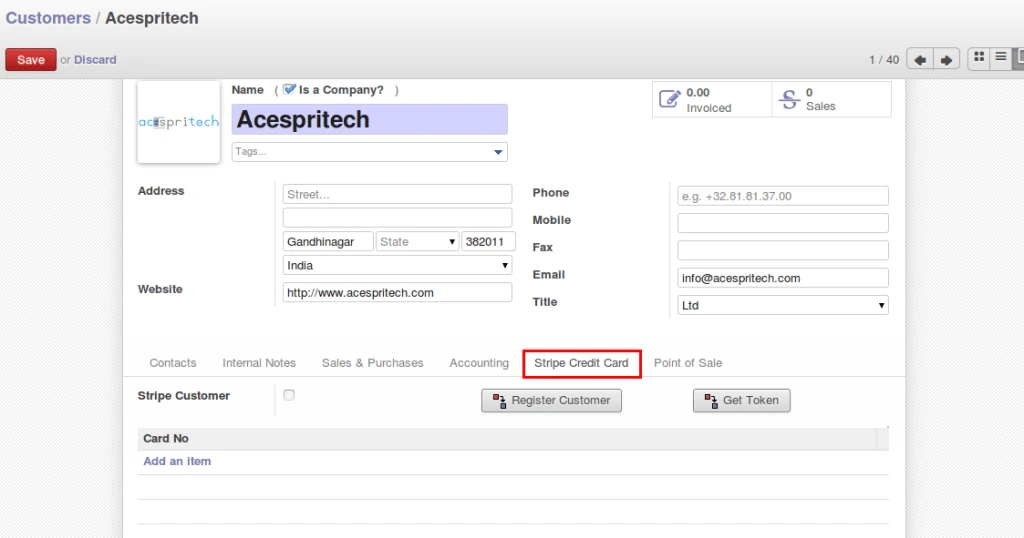
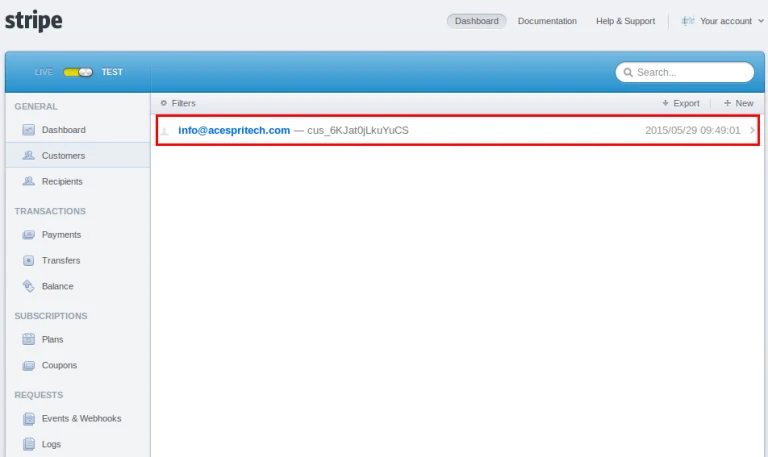
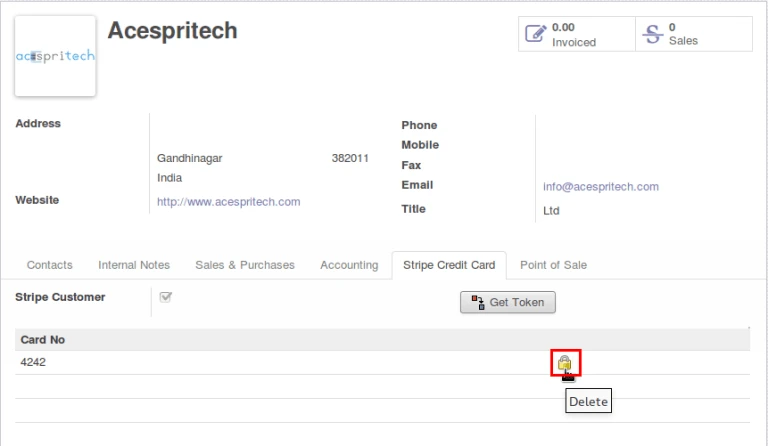
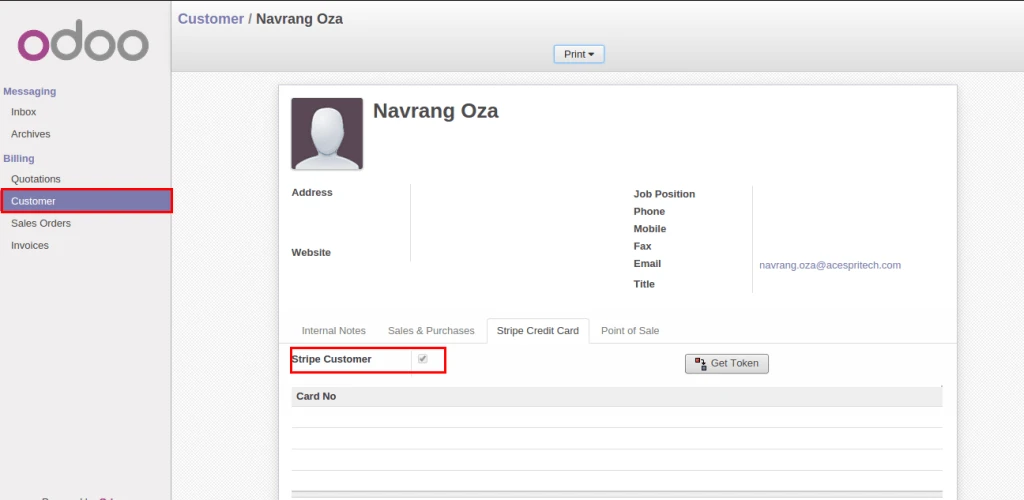
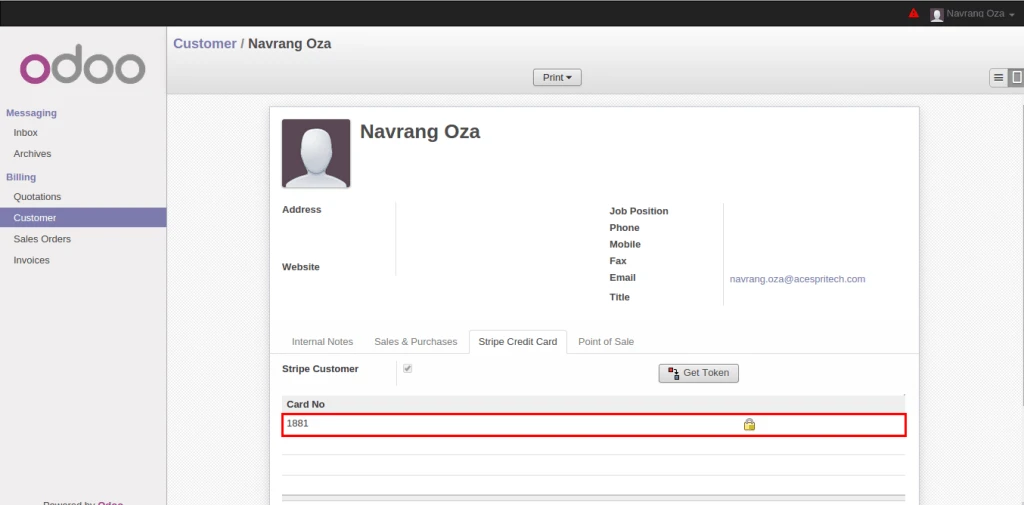
We have added new “Stripe” TAB into customer form where we can register on stripe and generate tokens by registering credit card information. By default when new customer will register into Odoo, it will register on Stripe server also.
Odoo customer formRegistered stripe customer
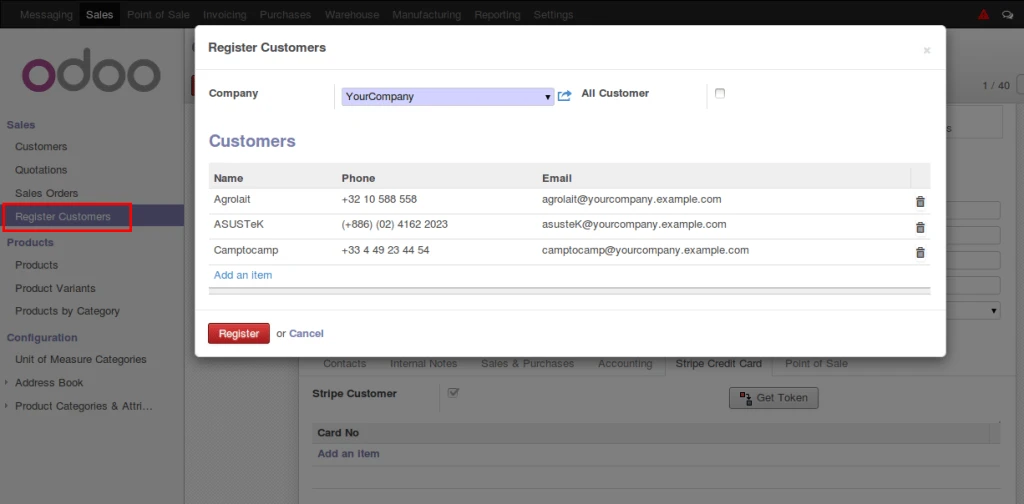
We can register more than one customer easily.
Register odoo customer
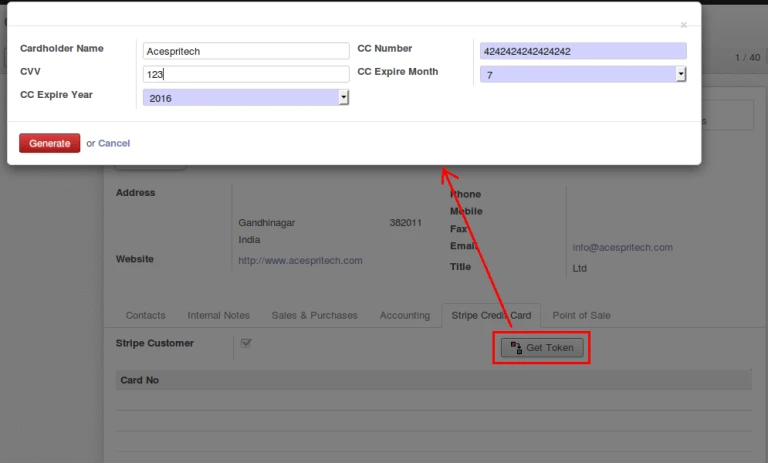
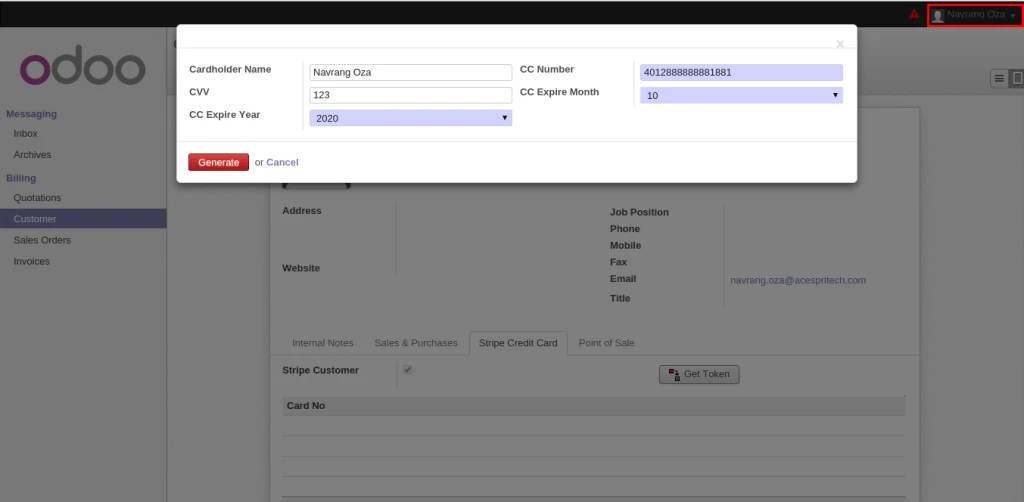
After registering customer successfully on stripe, user can register credit card information and generate tokens. For security reason, we are not storing credit card details into database.
Generate Token
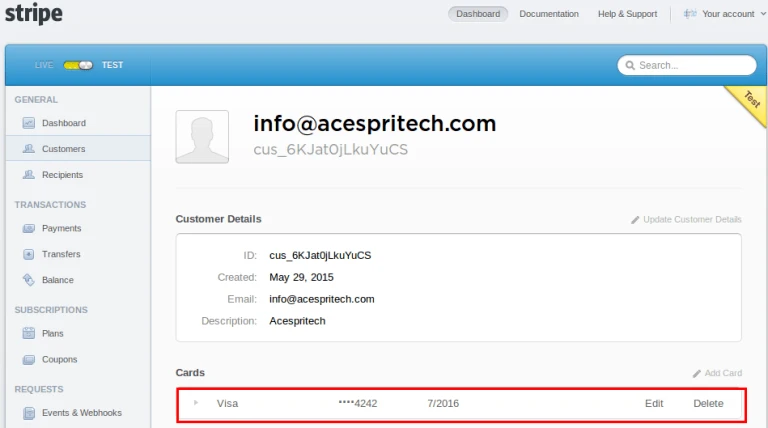
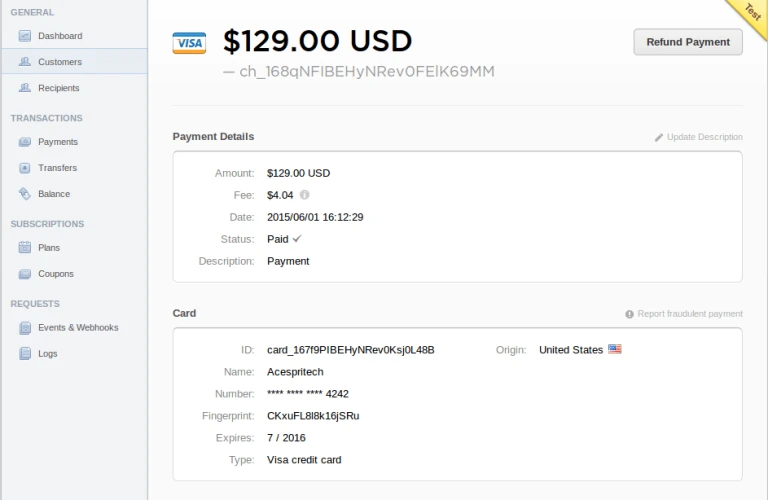
We can check same card information on stripe server.
Stripe Card
It is very easy to delete registered token from Stripe server and Odoo.
Delete Stripe Token
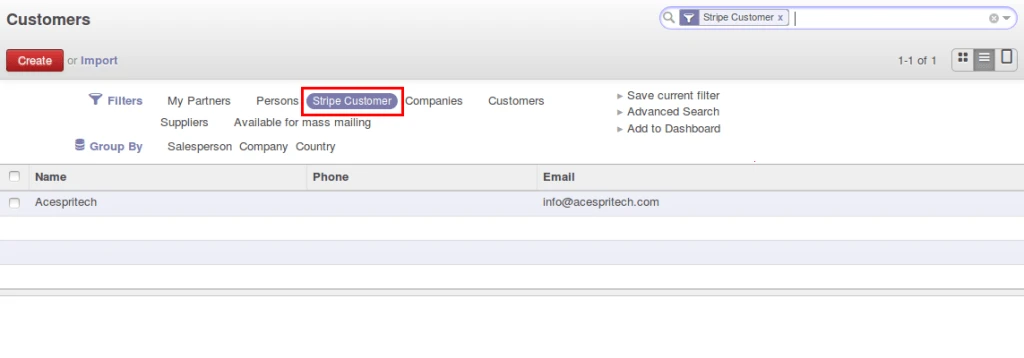
We can easily find registered customer also by applying filter.
Stripe Customer Filter
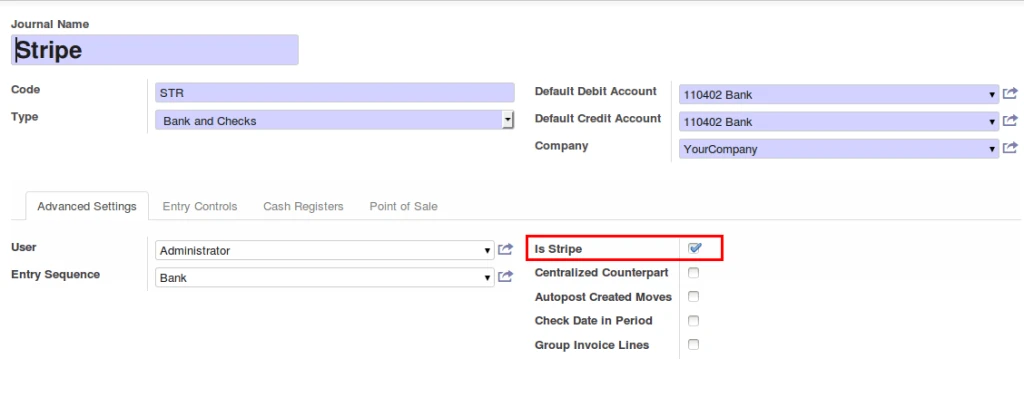
Added new field for processing on stripe server with accounting journals and differentiate with normal transactions.
Stripe Account Journal
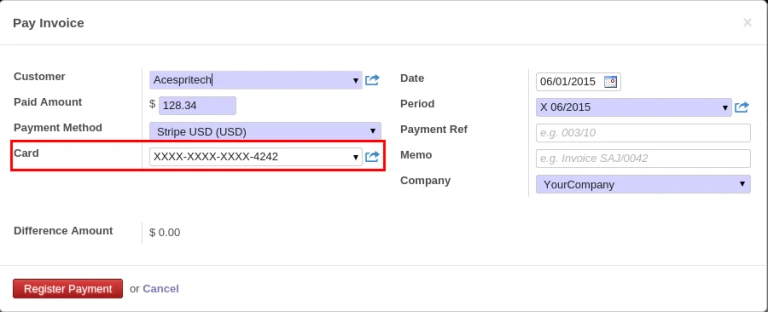
After invoice validation, during payment process in customer invoice, there will be Card selection field available.
Customer Payment
After successful transaction, it will appear on Stripe server as well as complete payment process in odoo.
Stripe Payment
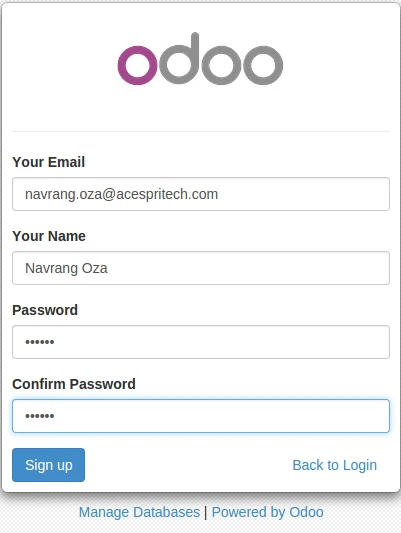
We have implemented Stripe functionality with Portal. Once we sign up by Odoo, it will create
customer and also register it on Stripe server automatically.
Odoo portal partner signupOdoo portal customer
For security purpose, Customer will easily registered their card on Stripe server and generate tokens.
Currently odoo has inbuilt option for providing discount on sales order and invoices. But this feature is flawed as it only lets you give discount on each specific order line. In many cases of retail business, the company needs to give discount on final amount of sale order or invoice. So for this scenario we developed a feature called “Global Discount”
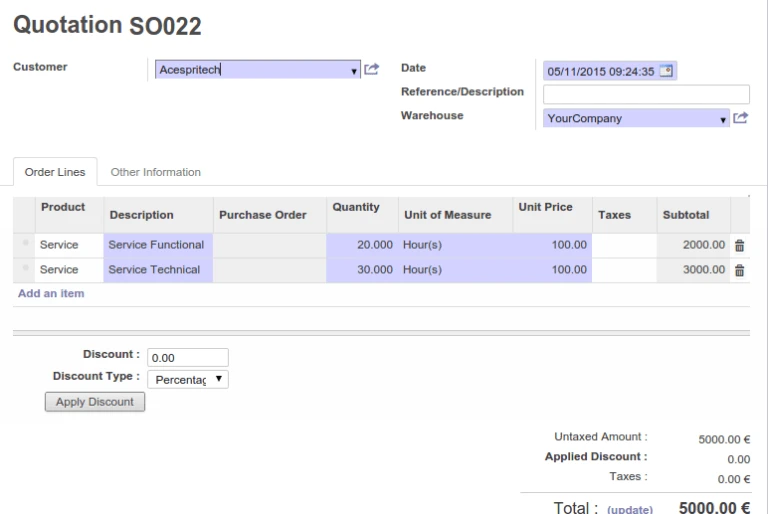
Odoo Sale Order
Above is a simple sale quotation with global discount feature. We can see on the bottom left part, there is option to apply discount on the whole sale order amount. There are two ways to apply discount as mentioned below: Percentage – This will discount the sale order untaxed total by the percentage amount entered in “Discount” field. Fixed – This will deduct the value entered in “Discount” field directly from the Sale Order untaxed total.
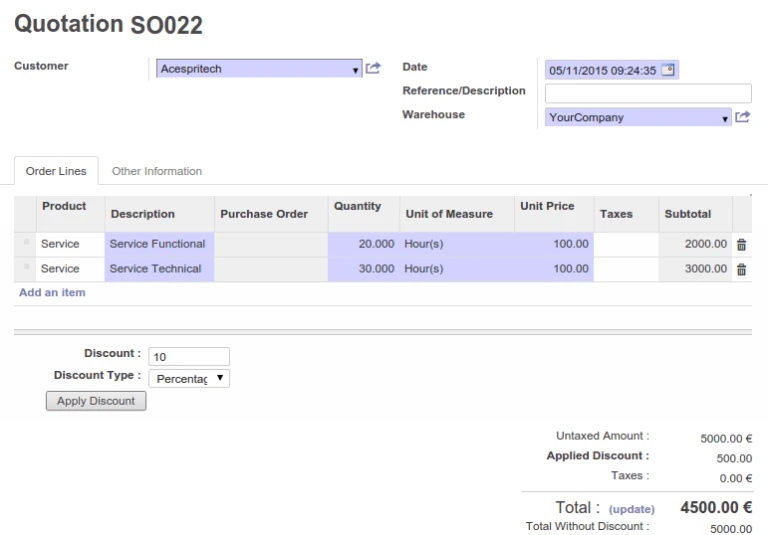
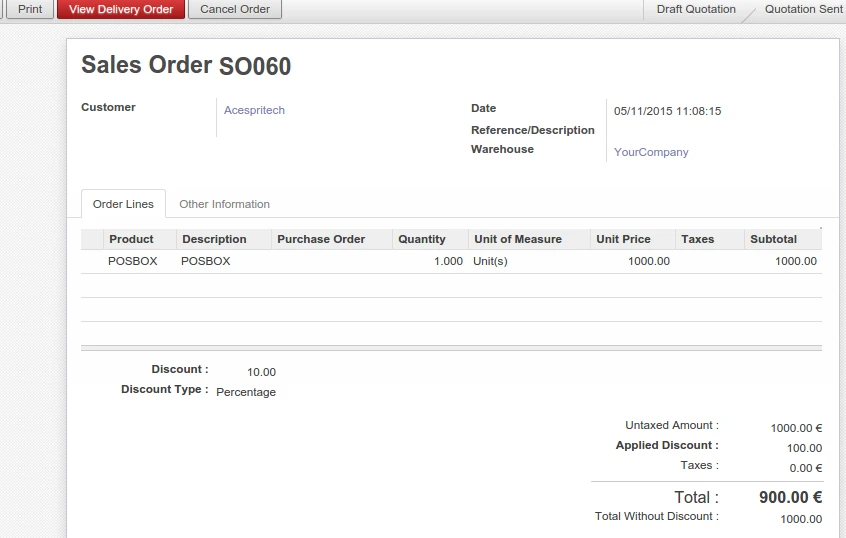
Odoo Sale Order with discount applied
In above shot, we can see a global discount of 10 percent applied to the order, similarly we can also apply a fixed type discount. The flow will also continue when we create an invoice from sale order.
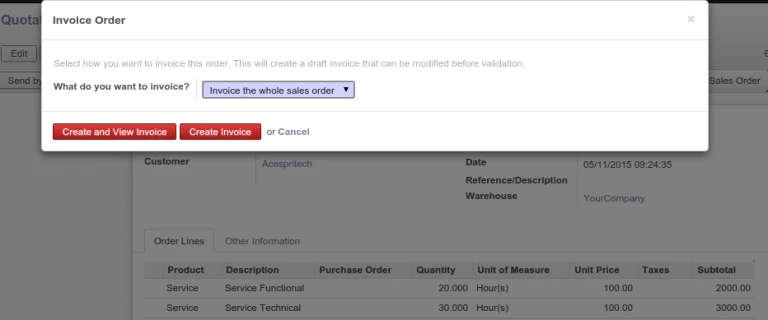
Confirming Sale Order
Now lets confirm and create invoice from sale order.
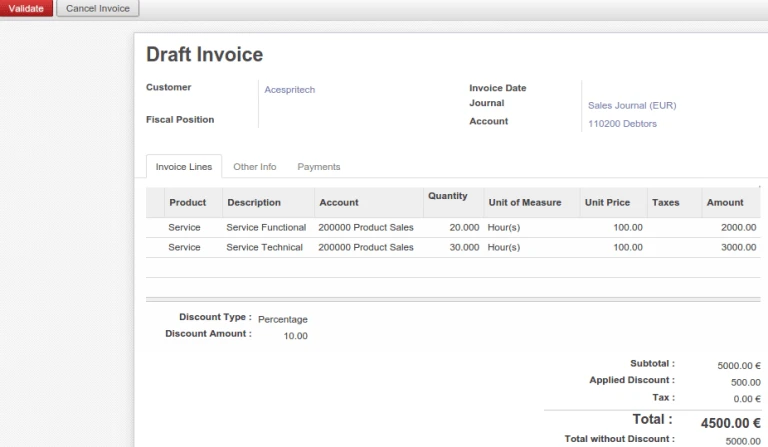
Draft Invoice from Sale Order
We can see that all the details of discount is carried forward to invoice also, so that we can also change them if we like from the invoice also.
Sometimes a business requires that invoice is created after delivery order, in that case also global discount will work when Invoice Mode is “On Delivery Order”.
Sale Order with Invoice after Delivery Order
In above sale order the Invoice mode is “On Delivery Order”, so first we need to finish delivery.
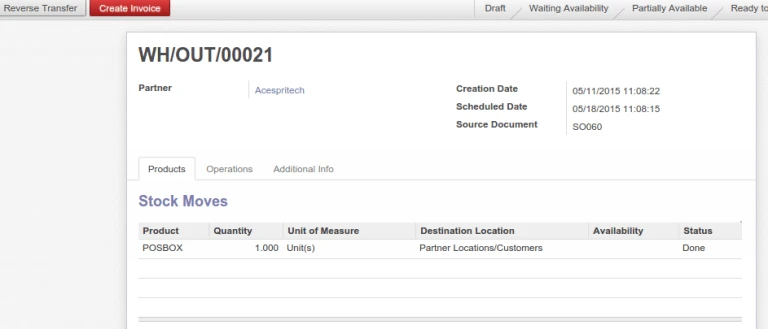
Odoo Delivery Order
Now we confirm Delivery Order and then create Invoice.
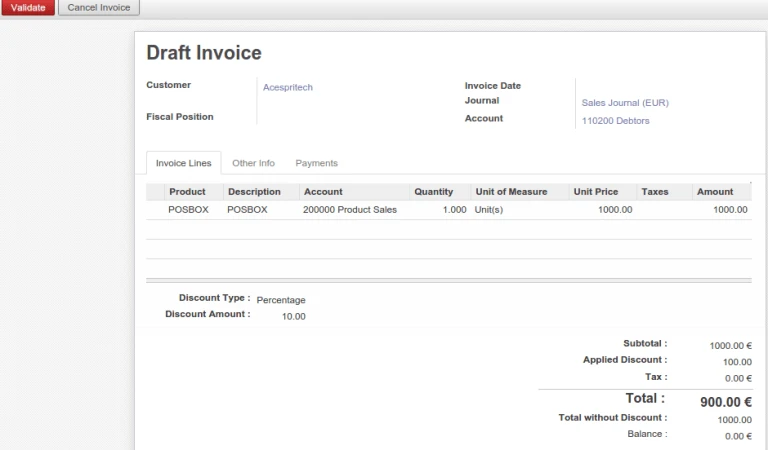
Invoice created from Delivery Order
The invoice created from delivery order will also hold the values for discount that was applied on sale time. So that we can adjust it from invoice also.
Once we validate the Invoice, we would also want to manage the accounting entries related to discount in a proper way. For this we have added an option in the company form as below.
Discount Account defined in company form
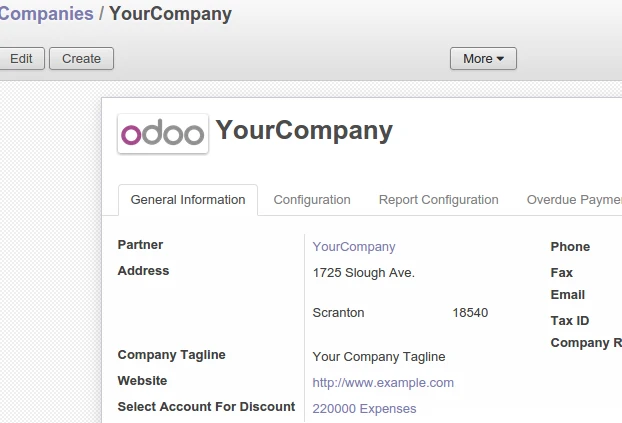
User just need to define which account he wants to use for managing accounting entries for the discounts provided in the field “Select Account for Discount”.
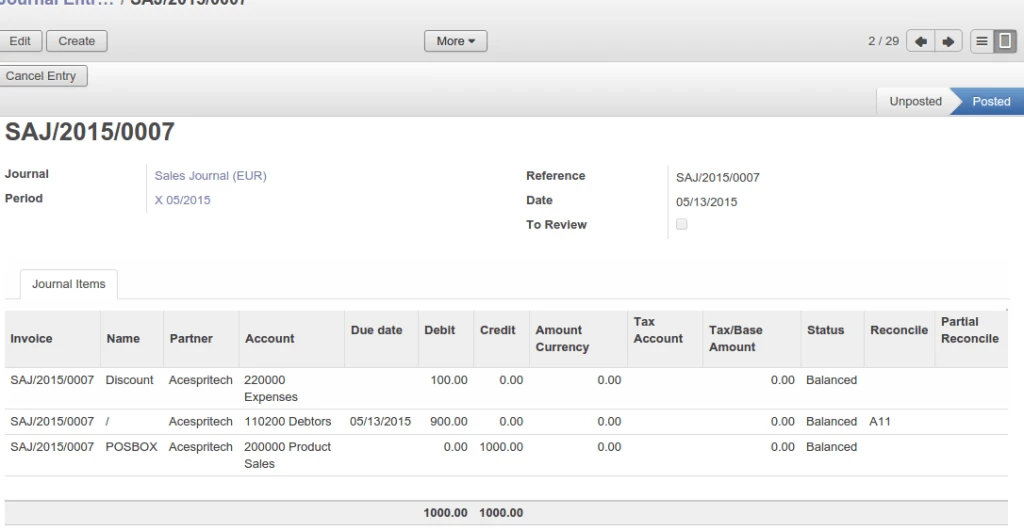
Journal Entry of Invoice Payment with Discount
So when we validate the invoice and register payment, it will use the account defined in Company to create related journal items. So we can keep track of discounts provided to our customers.
For example, you made a sale on credit to a customer, but one week later the client’s business declared bankruptcy and became completely unable to pay off the credit account with you. This uncollectible debt would then be written-off by your company and recorded as an expense by accountants.
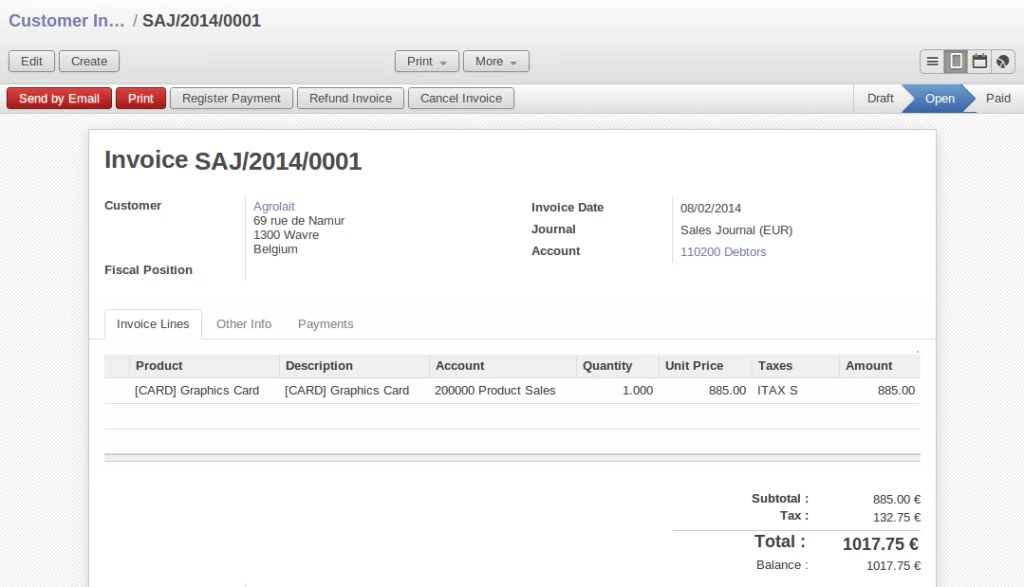
Here we are going to take an example of “write off” for sale in OpenERP. Create customer invoice and validate it.
Validate Customer Invoice
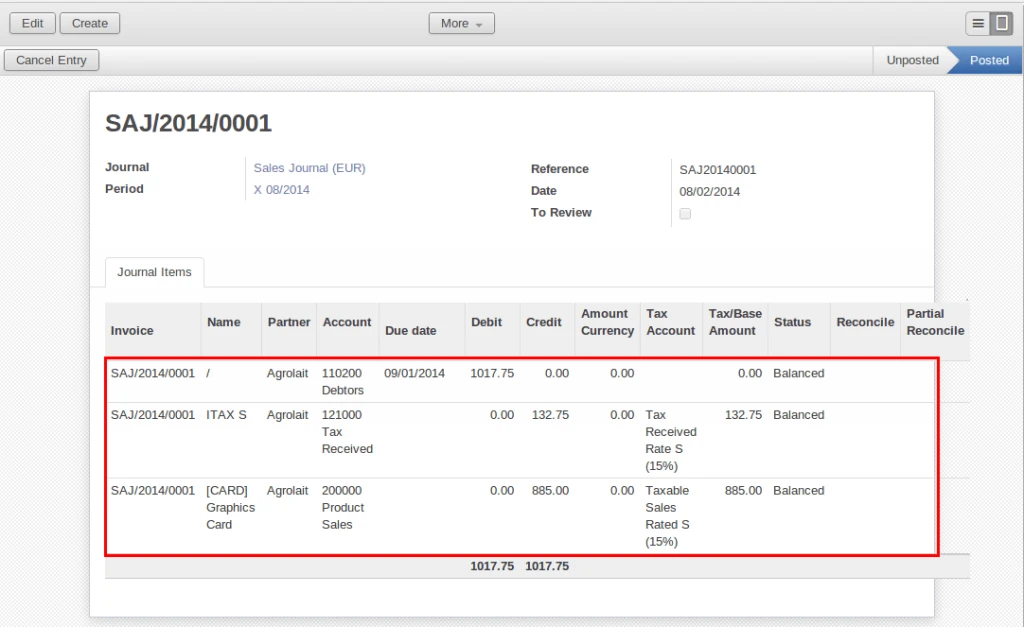
It will create sales accounting entries like below.
OpenERP Journal Entries
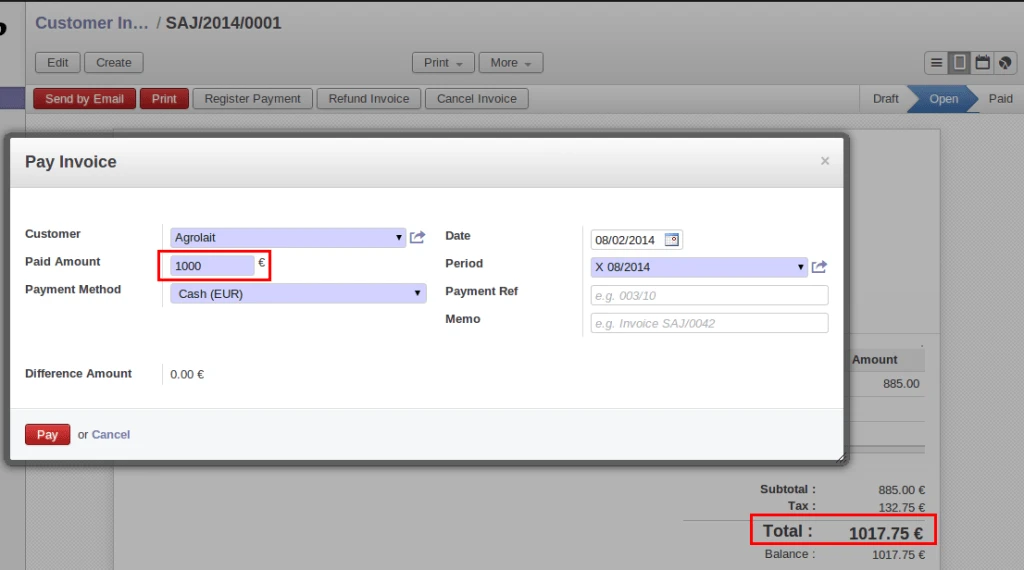
Now we are getting some amount from customer as a part of his invoice.
Invoice Payment
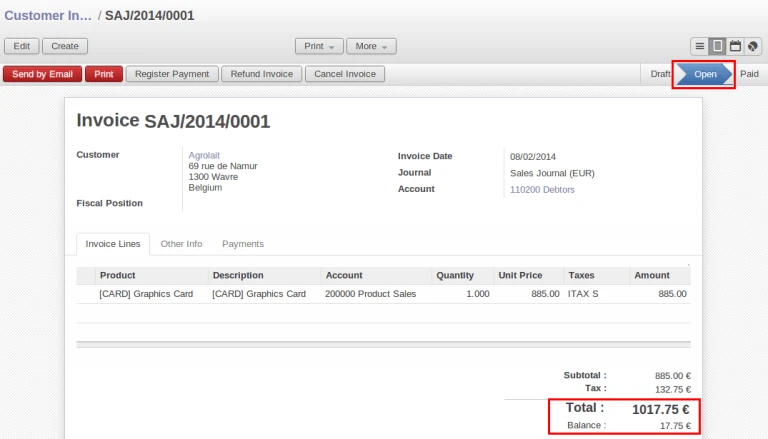
Still there are some balance customer has to pay.
Invoice After Payment
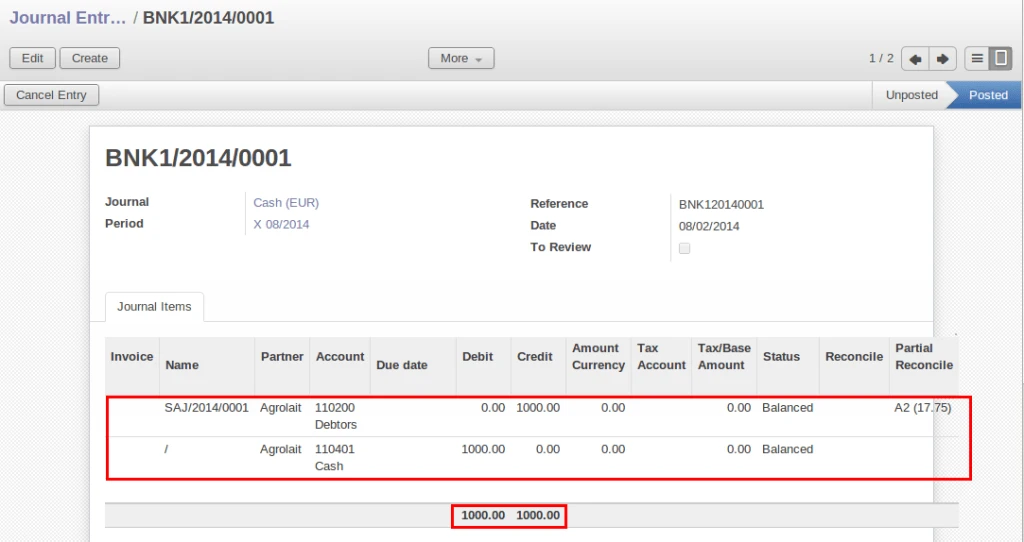
This is customer’s partial payment entry.
Payment Entry
Now, customer is telling that he will not pay remaining amount for any reason. So it require to make settlement for our accounting means make write-off on customer invoice.
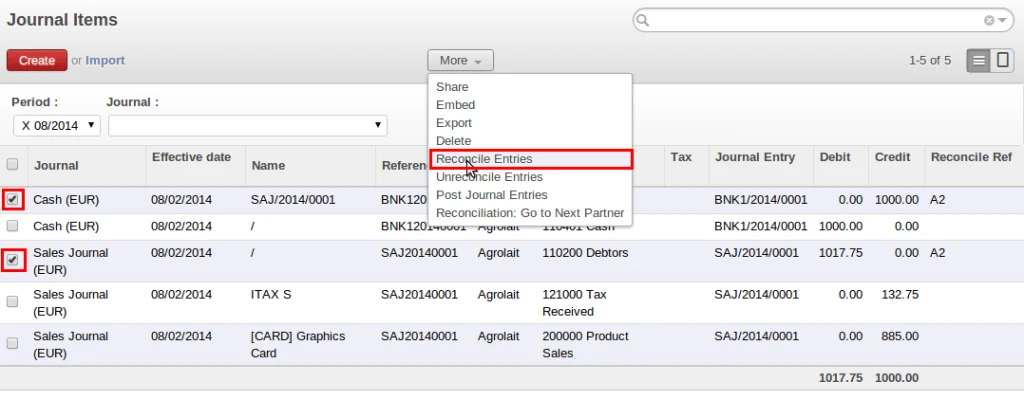
From journal item, we are selecting original sales and payment entries and using “Reconcile Entries” option.
Reconcile Option
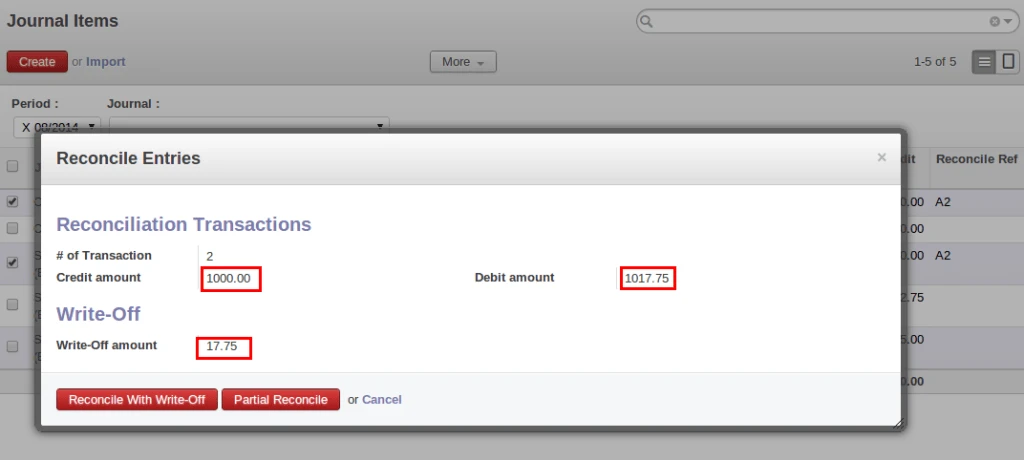
Here we can check remaining balance that we are going to write-off.
Reconcile Window
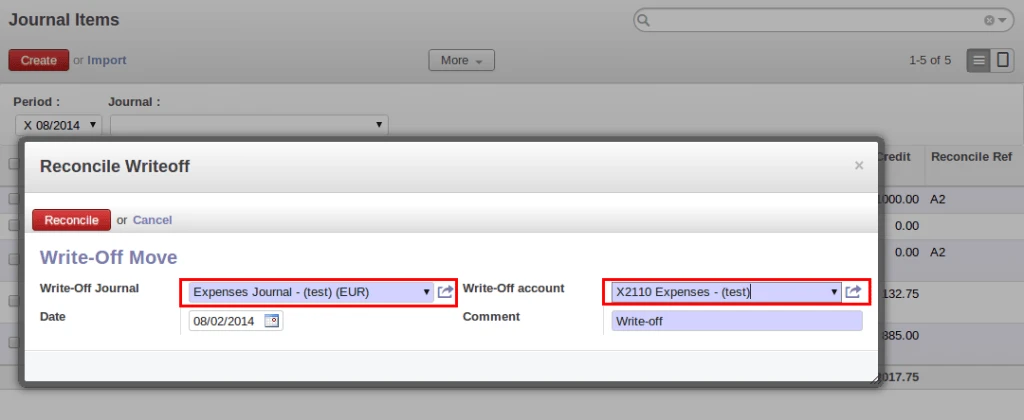
Here we have very important option available. We have to select proper journal and account where entries will occur.
Reconcile Option
After reconcilation, there is no due amount to take from customer and invoice become PAID.
Though its not so complex module but still would like to share with you what we have developed.
As we know that from POS Back Order, we can create invoice one by one. So here we made solution where we can select more than one POS Orders and create invoice at once.
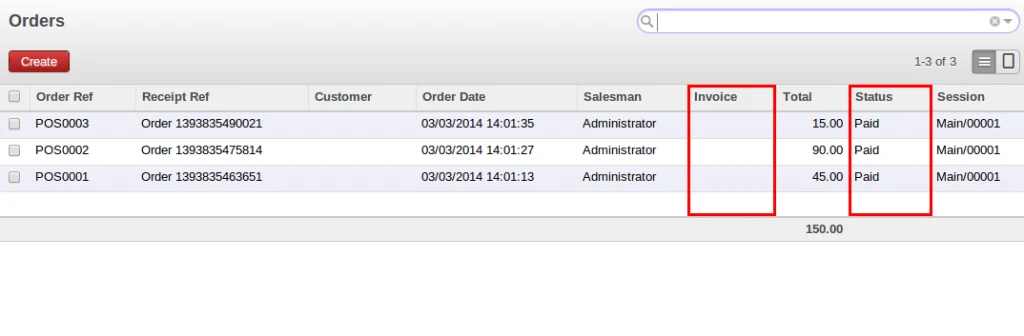
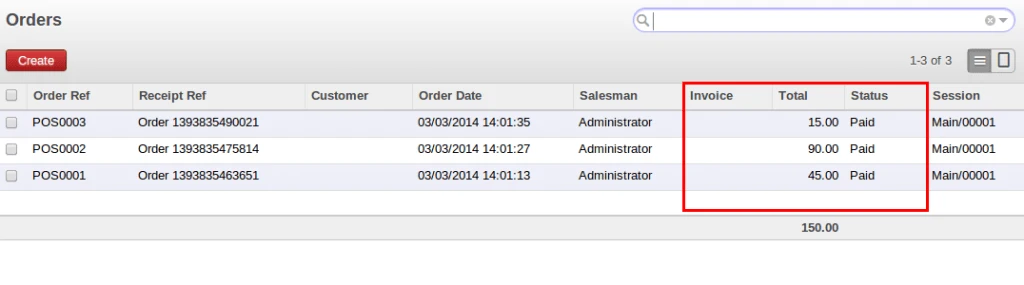
In below screen, we can see that there is no invoice created for these POS Orders.
OpenERP POS Orders
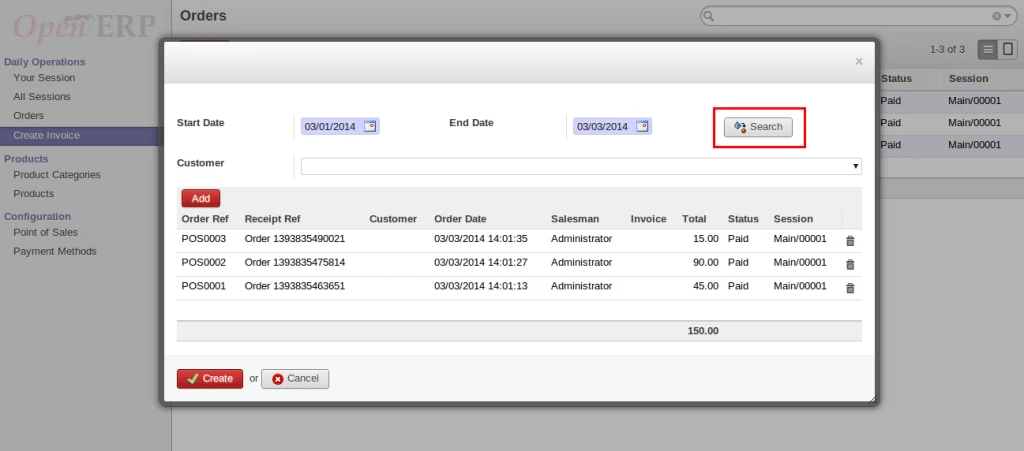
We can easily filter POS Order by dates and it will display order which are not relate with any invoices.
Search POS Orders
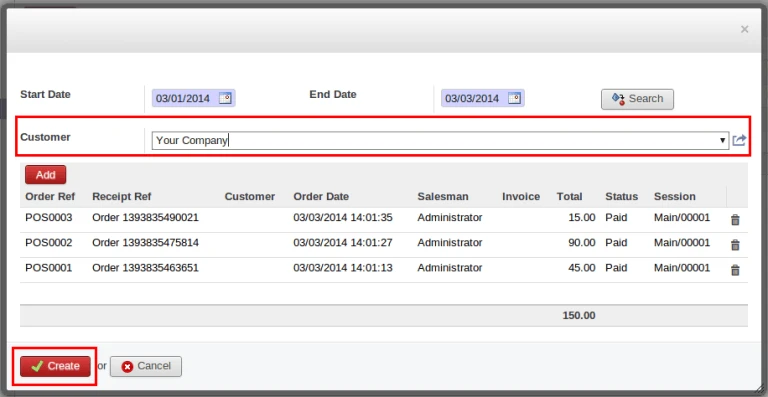
For creating invoice for POS Orders, it requires to select customer.
Create Invoice
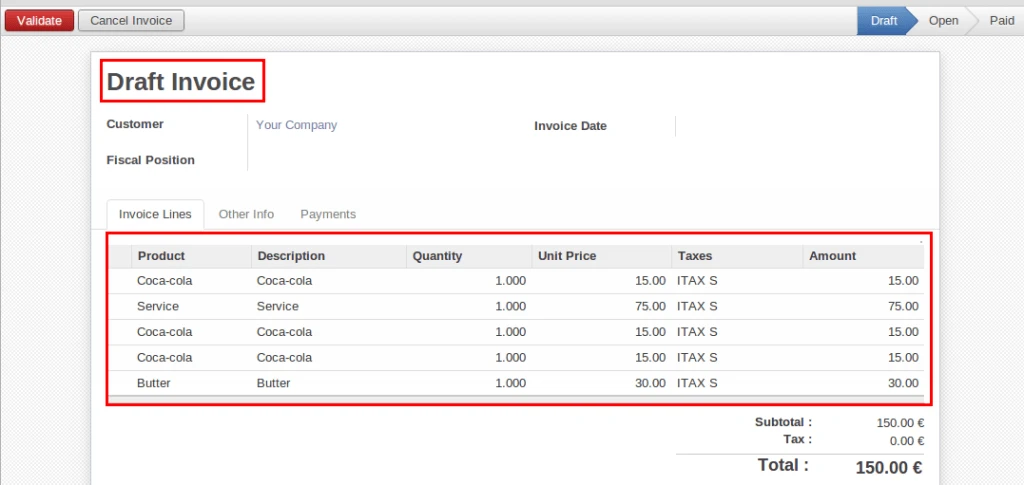
It will take order lines of all selected POS Order and create one customer invoice in DRAFT state.
Selection of Customer
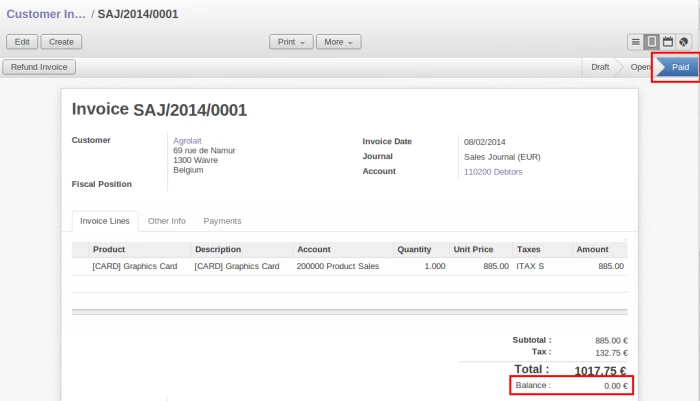
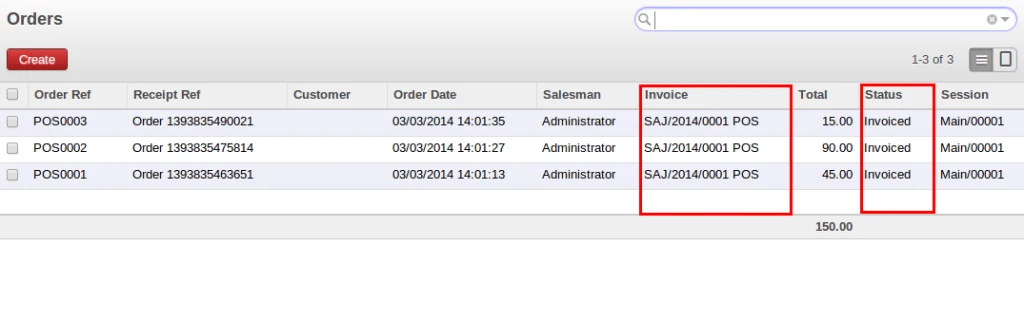
After creating invoice, all selected POS Orders “Status” and “Invoice” fields value will be change.
POS Order after invoice validation
In case of “Cancel” invoice, it will update both fields into POS Orders.