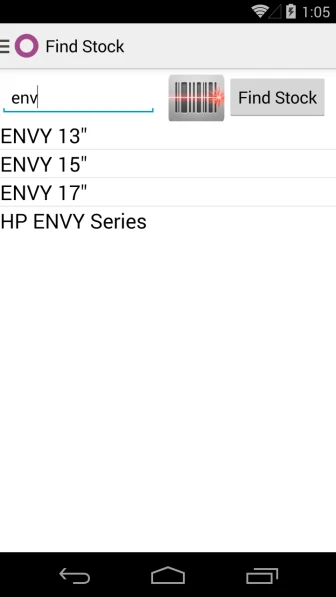
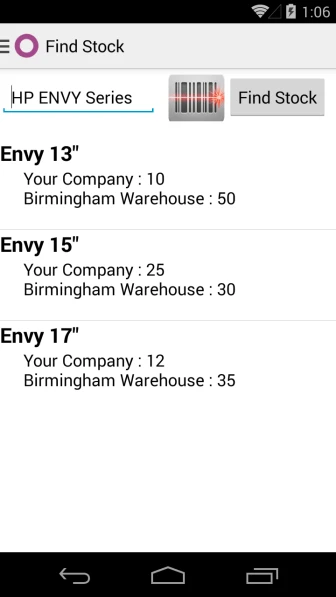
We have implemented application which will be useful to search product by scanning barcode and it will display product stock according to product template and according to different warehouses configured in your database.
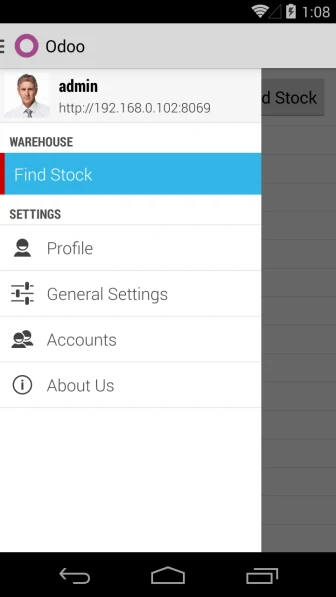
Menu
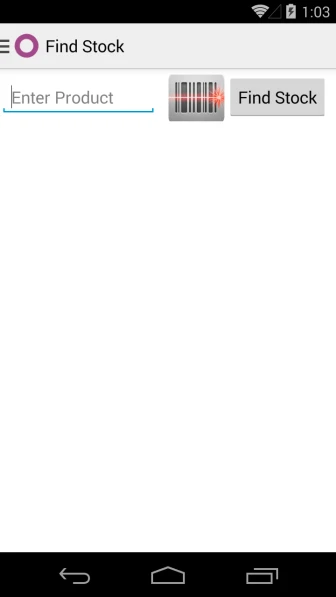
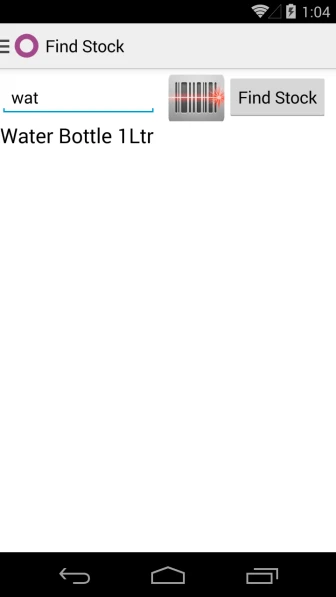
You can search product by writing name or reference of product or scan any barcode and that product or template will be selected automatically.
Main PageSearch Product
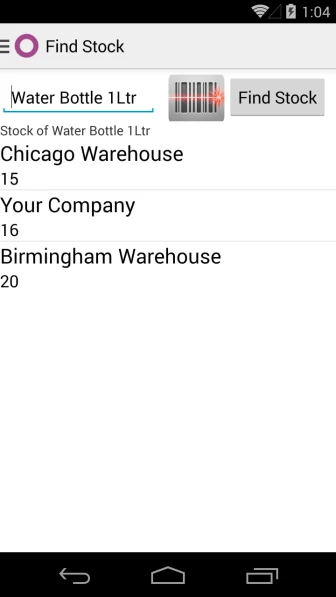
After selecting product, it will display stock information according to warehouses configured into database.
Display Product Search
In case of Product Template, it will display all products related with template and display stock.
One more enhancement in our module “Product quantities in different warehouses” by adding more features.
Here is the old blog version:
V1 – Product Quantity in different Warehouse
V2 – Product Quantity in different Warehouse
So lets start again for new features.
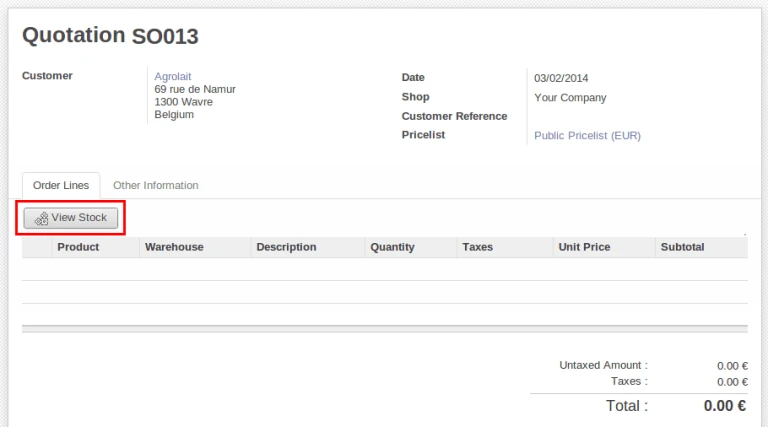
OpenERP Sale Order
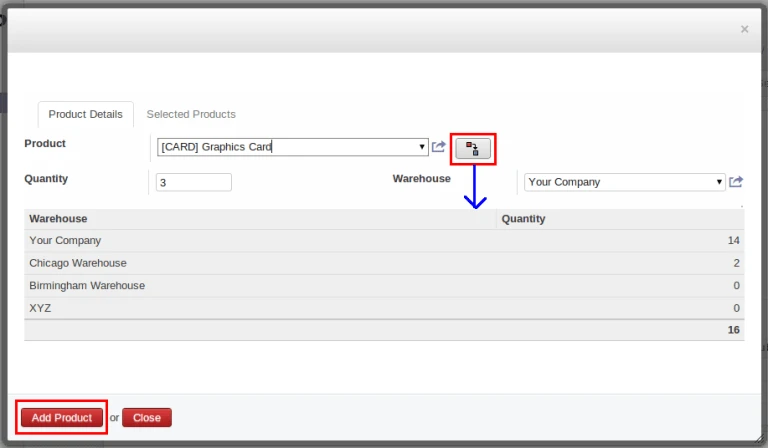
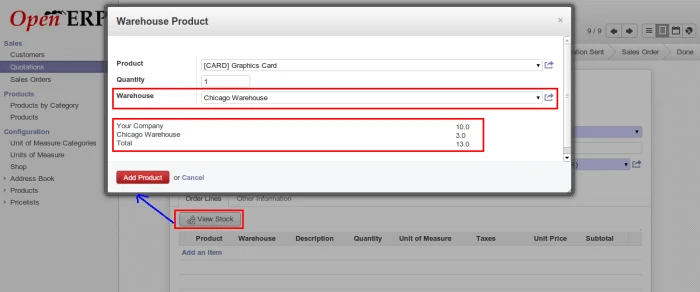
Once we click on “View Stock” button, it will open popup window where we can add multiple products by checking their quantities at different warehouses.
View Product Stock
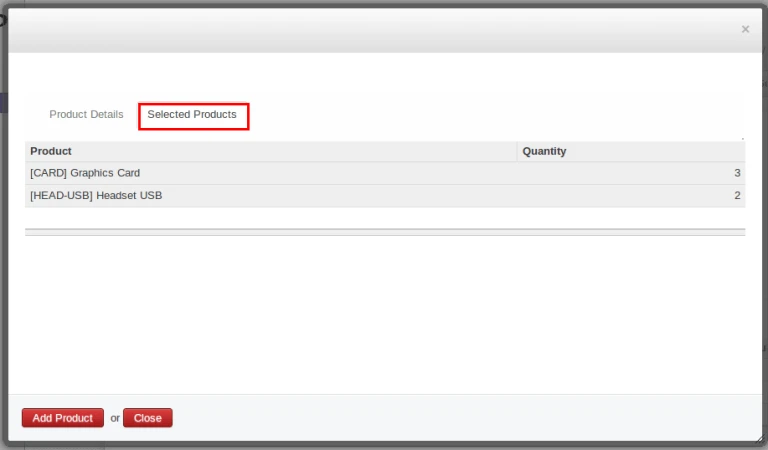
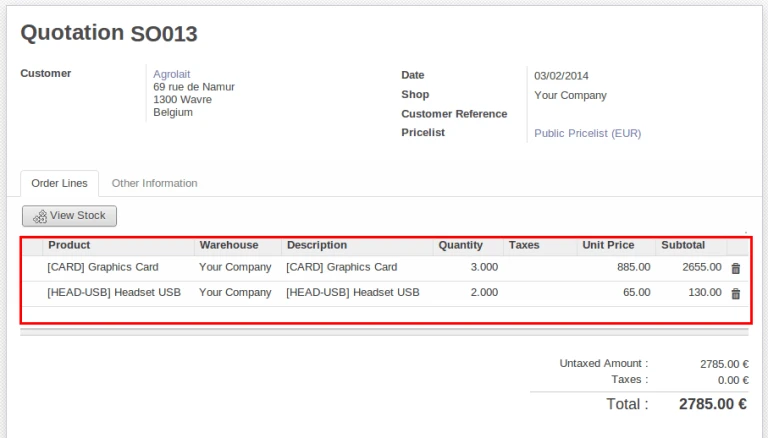
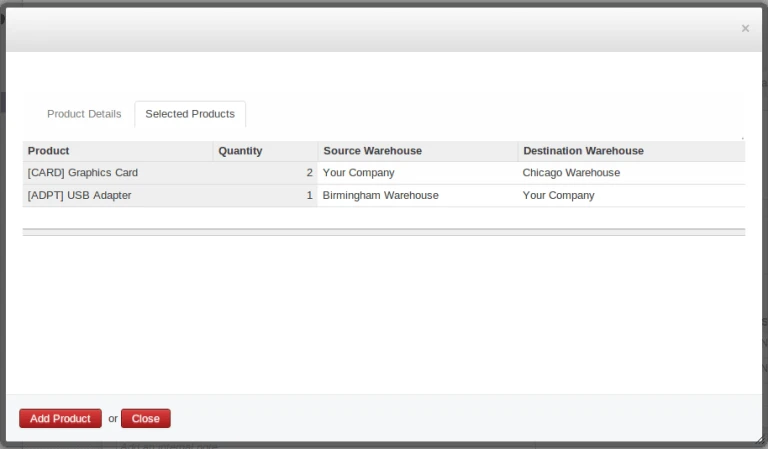
There is a great improvement that when user will click on “Add Product” button, popup window will not close so user will add multiple products and “Selected Products” Tab will display that how many products still now added into order line.
Selected ProductAfter Adding Product
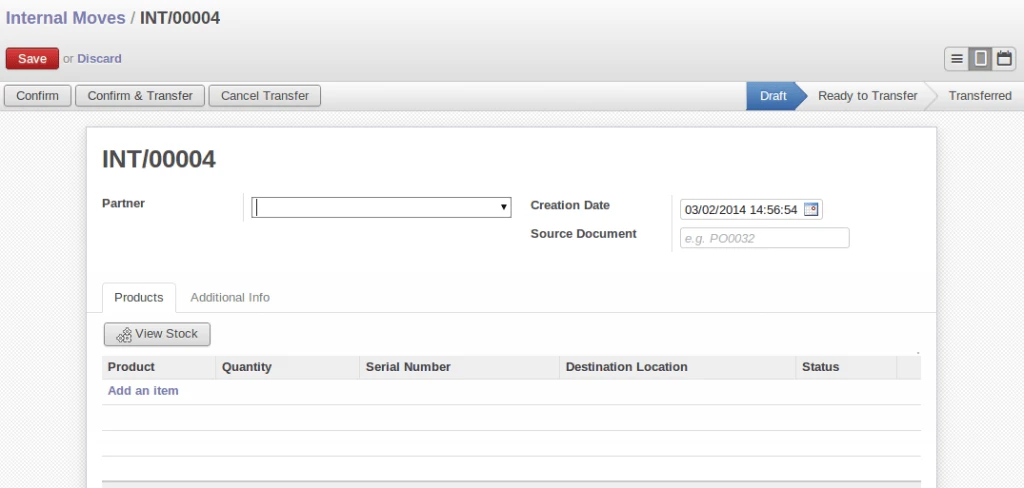
During Internal Movement of stock it is very important to know which warehouse has how much stock for moving it from one warehouse to another. To make this work easy, we have added feature into “Internal Move” of OpenERP.
OpenERP Internal Move
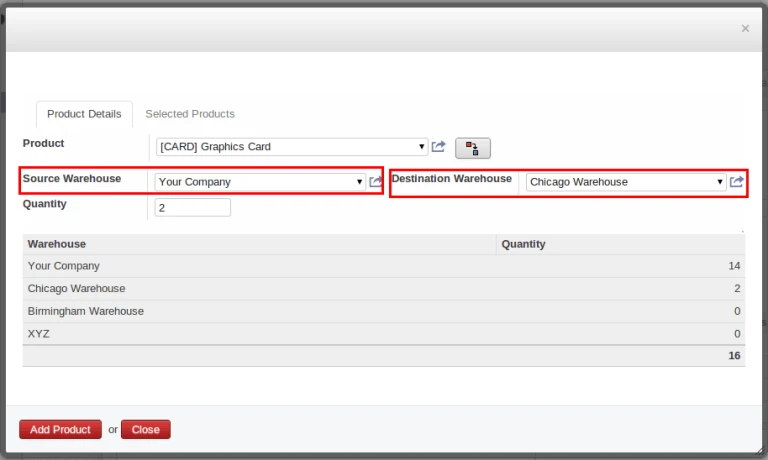
We can select Source Warehouse and Destination Warehouse for each product separately during internal move.
Popup product move
And user can also know that how many products (with warehouse) selected till now for internal move process.
Internal Selected Product
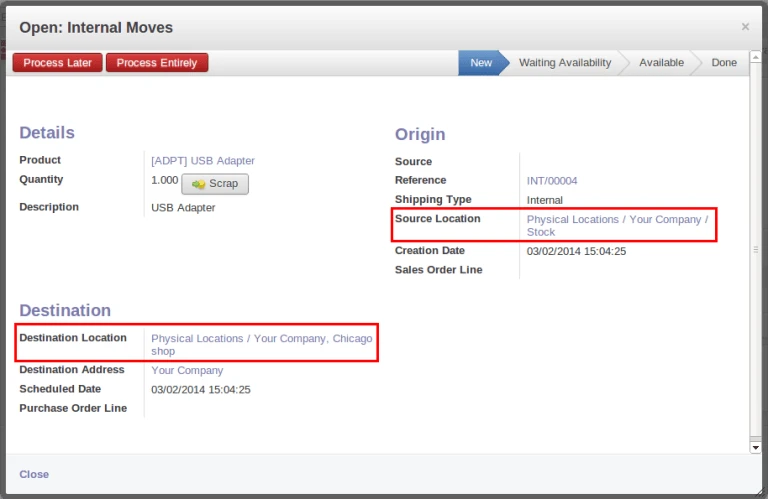
We can see that each move line has source and destination location according warehouse select into popup window.
As we are developing new features in OpenERP Point of Sale, here are some more important features that we have implemented in OpenERP 7 Point of Sale.
In this blog we can see following features:
– Enhancement in discount restriction using password
– Display product quantity in different warehouse from POS.
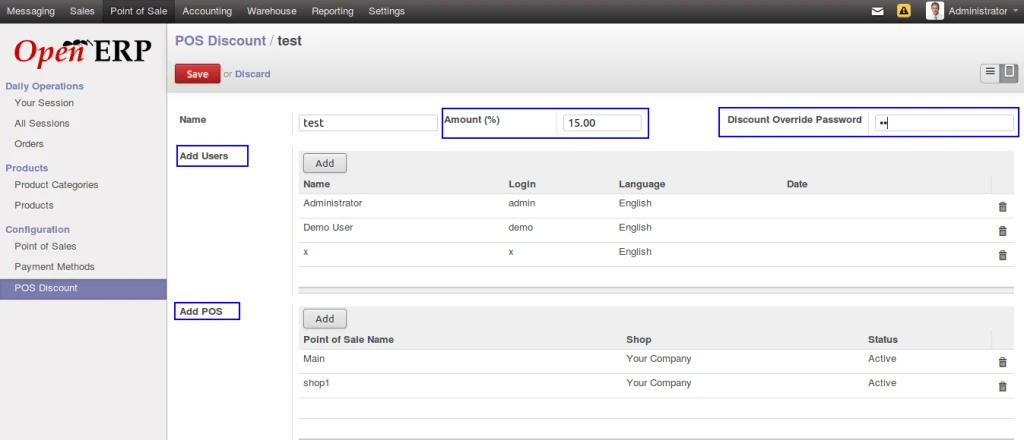
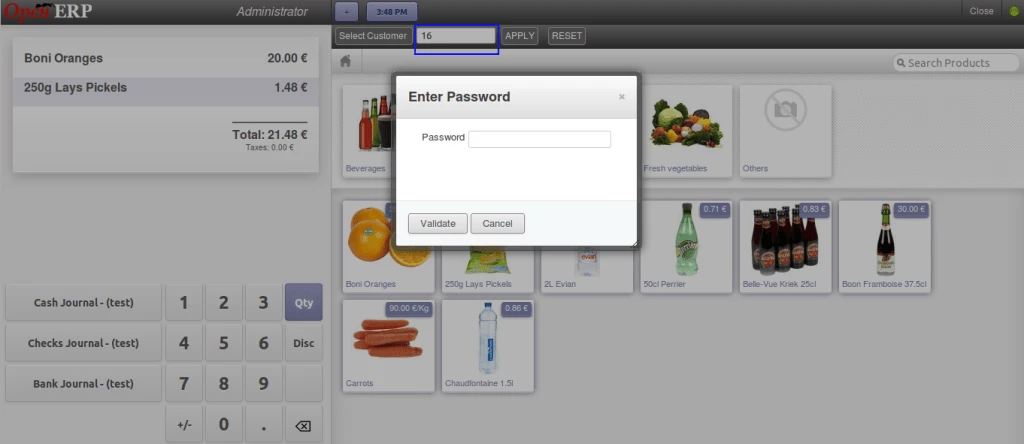
Here in below screen we can see that we can define maximum limit of discount and password.
We can also define users, and point of sale who can access this discount features during point of sale operation.
POS Discount
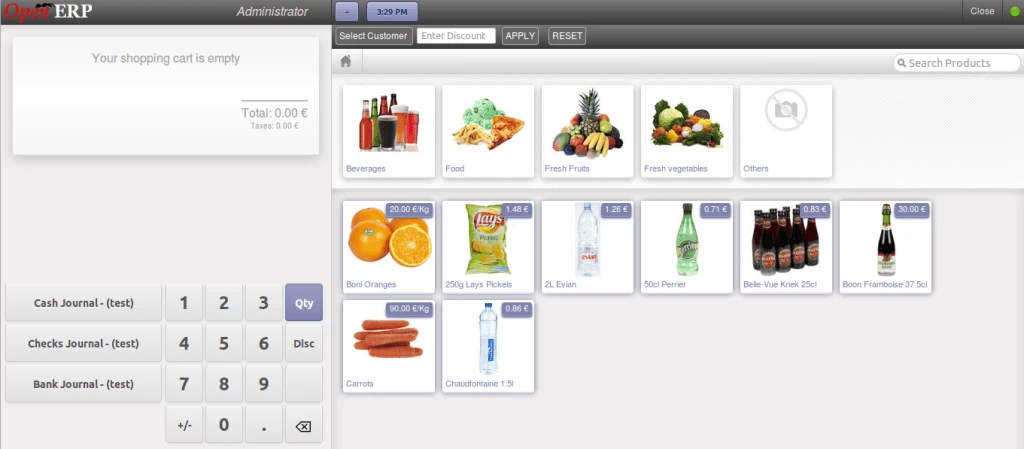
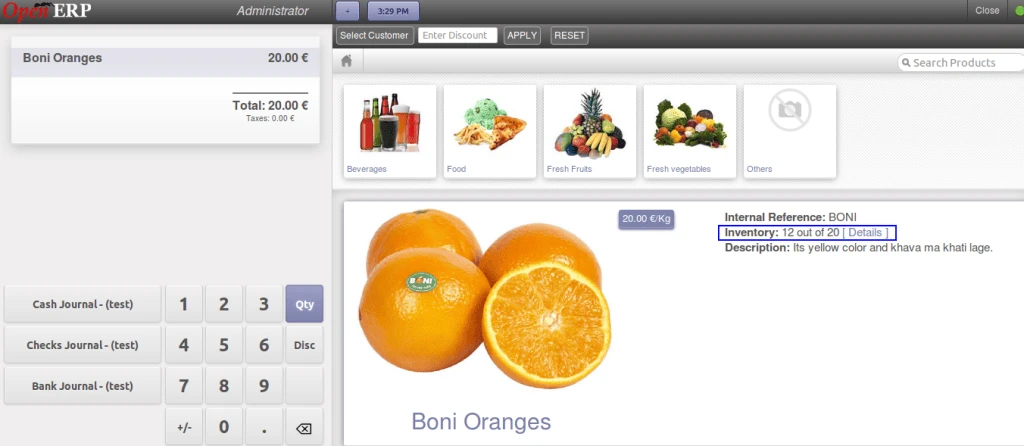
This is a normal screen from where we can define discount and right now we can see that we have displayed products which have quantity > 0.
OpenERP POS
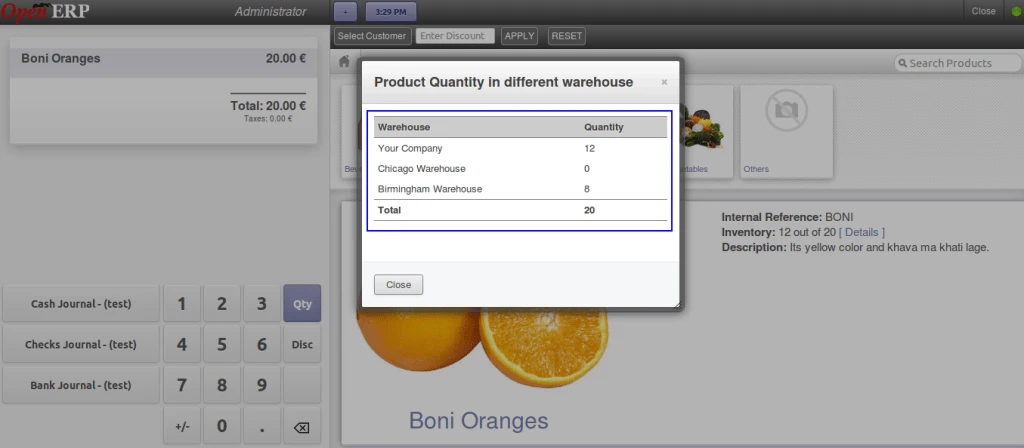
Now when we click on any product, so immediately we will have this kind of view, and we can see big image of that product and we have a link here “Details”, which will open warehouse list with number of quantity of this particular products.
POS Big Product ImageProduct quantity in different warehouse
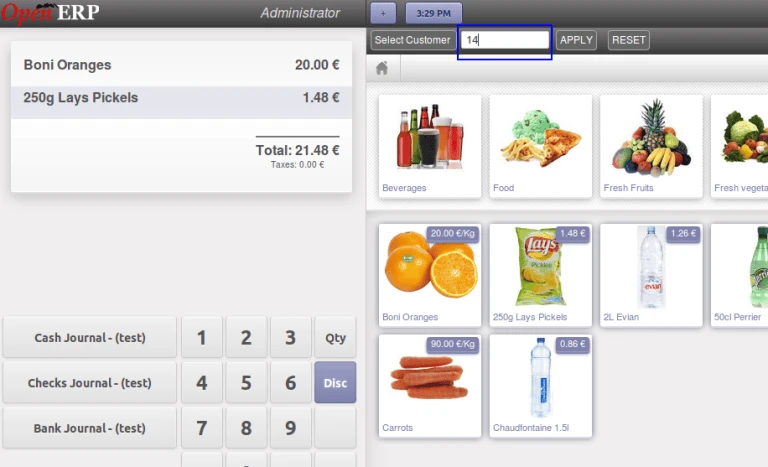
For discount to be apply on all products in the order, we can enter amount in this field.
Apply Discount
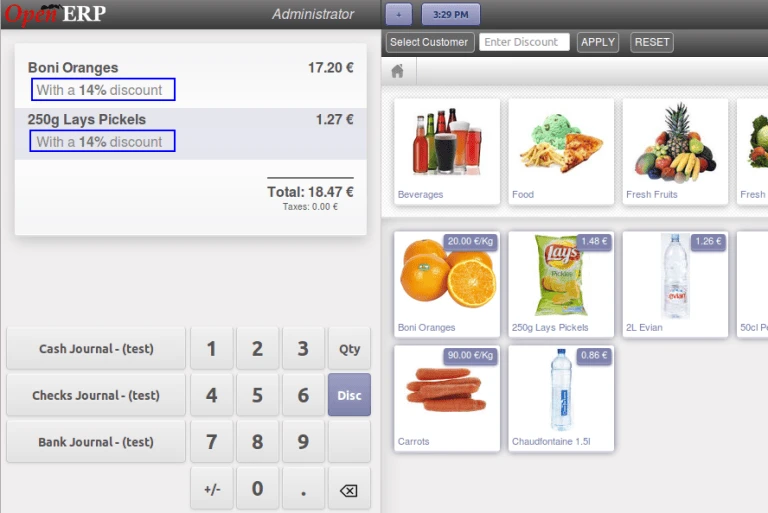
So we have discount applied on all products in the list.
Apply Discount
If user is trying to enter discount more than given limit, then it will ask for password, and if password is correct then only given discount can be applied.
Apply Discount with Password
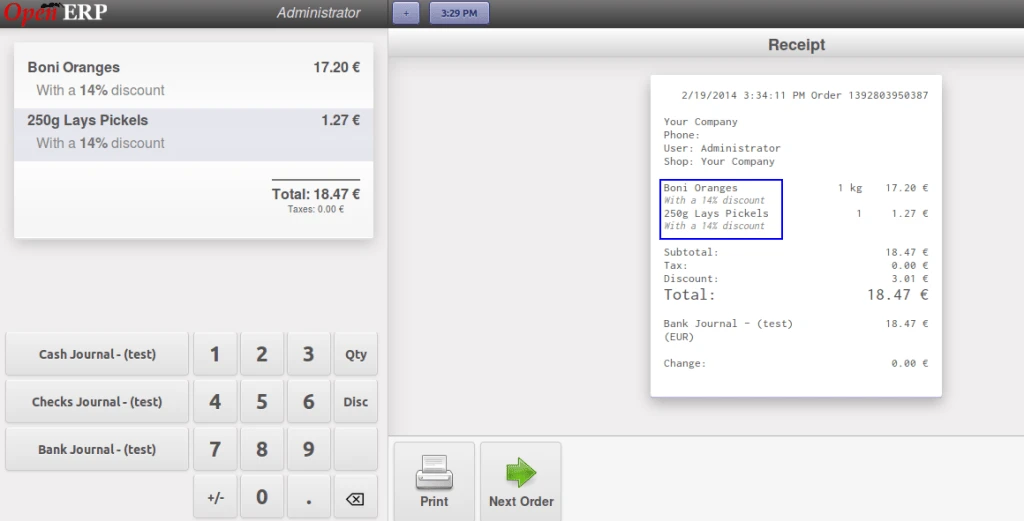
Here is the receipt which has discount amount displayed with each products.
POS Receipt
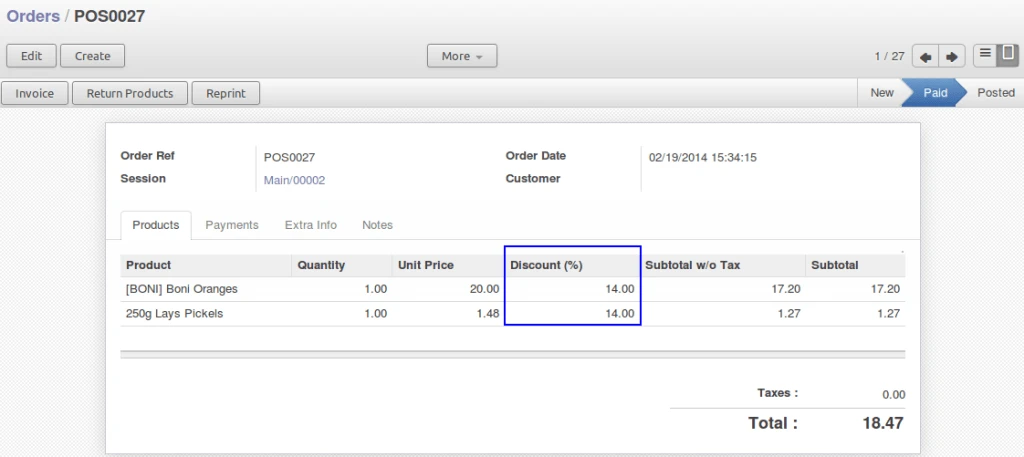
And the same discount is transferred in the backend order also.
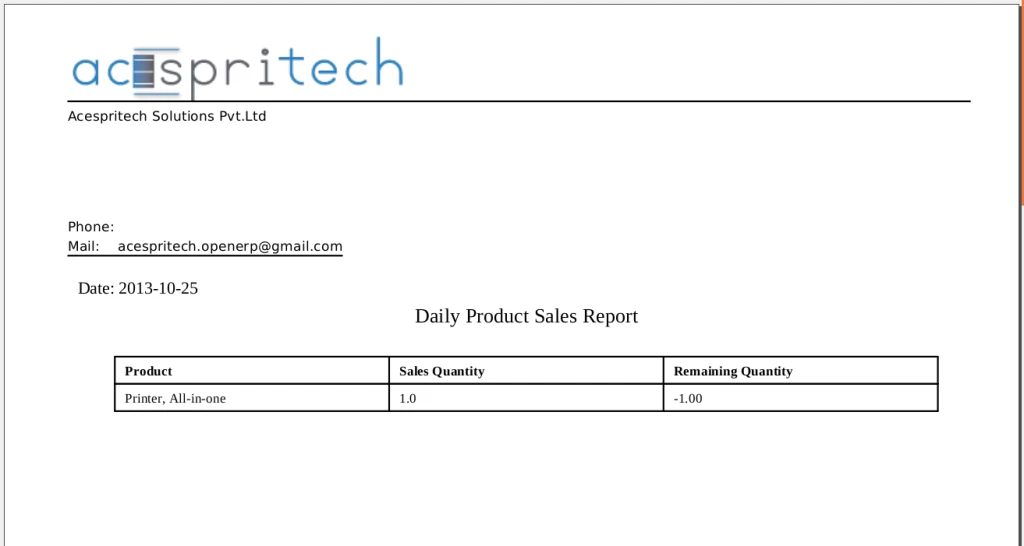
We are discussing about business where company is getting products from suppliers, stores it in warehouse or any other locations, and selling of it. Sometimes it requires to inform supplier that how many daily sales occur for products and how much remain at the end of the day.
Some companies are not buying products from suppliers but keep it in their warehouses and selling on behalf of suppliers.
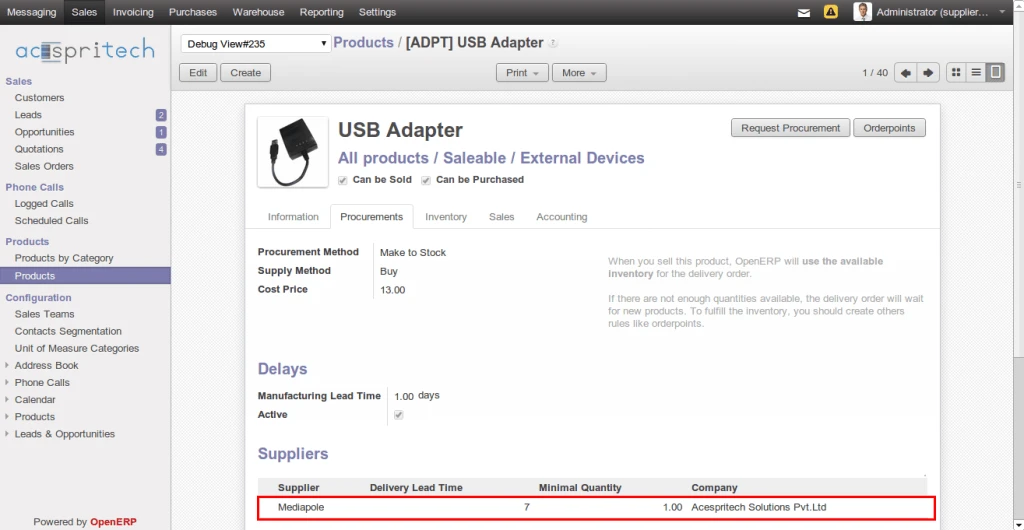
In intial state, we have define and assume that one product is supplied by one supplier only.
OpenERP Product Supplier
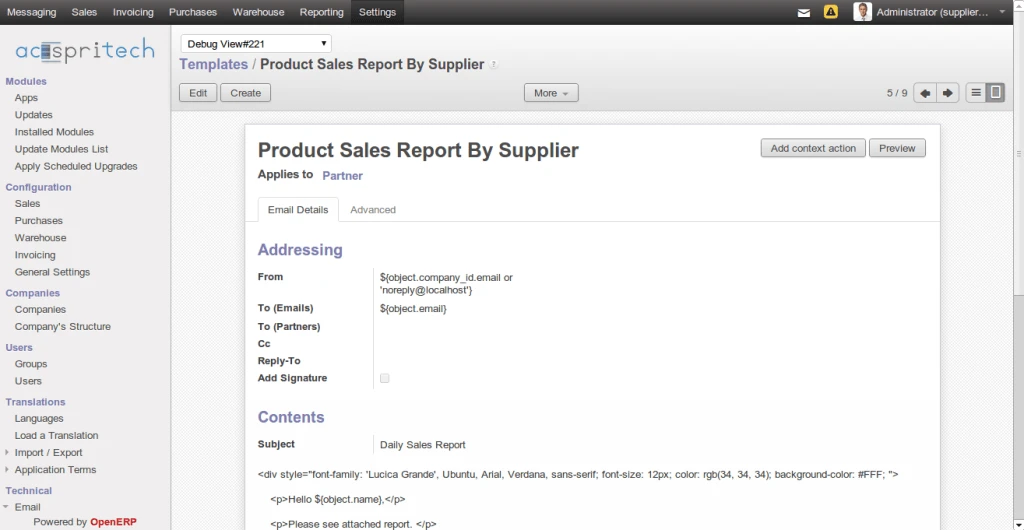
For sending email we have created email template which make it more generic.
OpenERP Email Template
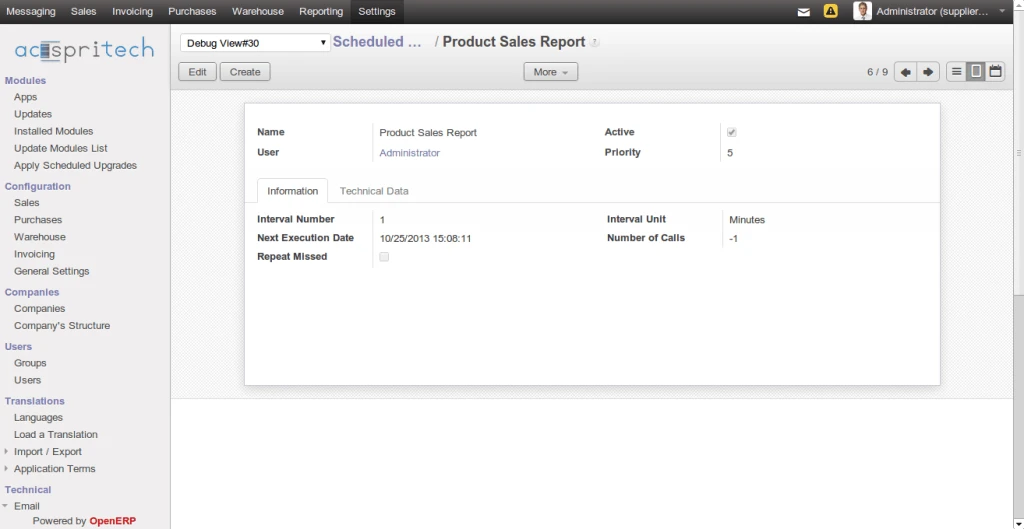
And for automatic sending emails, we used cron jobs which makes work very easy.
OpenERP Schedular
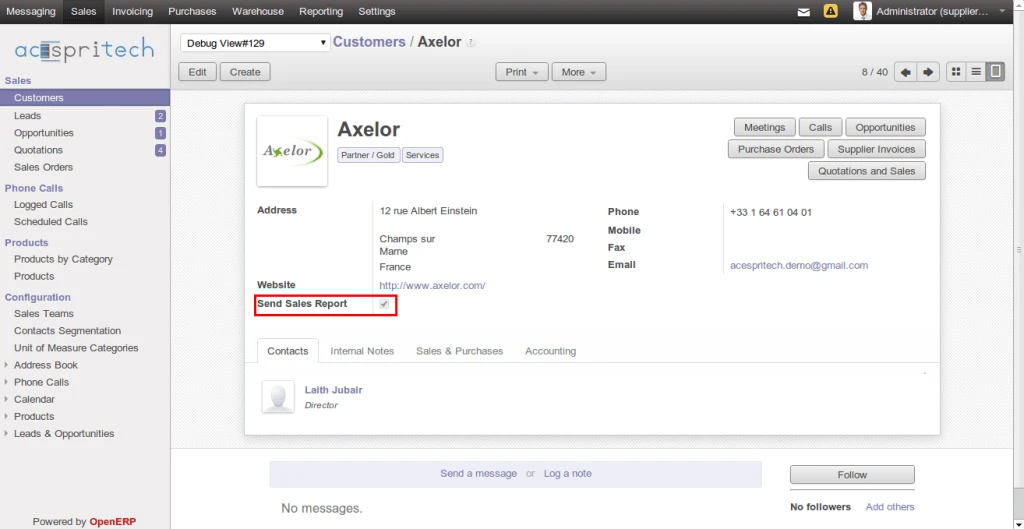
It is possible that all supplier don’t require notification about products those sold today. We make it optional also.
OpenERP Supplier
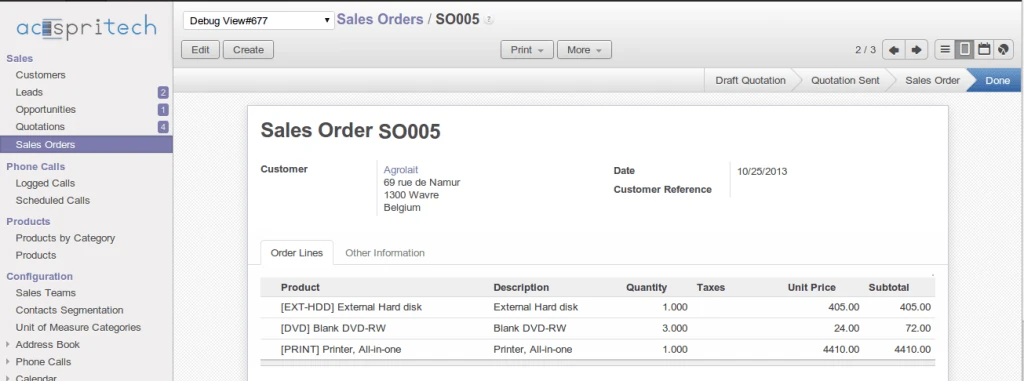
Now going to make sales order where one product has supplier defined and require to get notification about sales.
OpenERP Sales Order
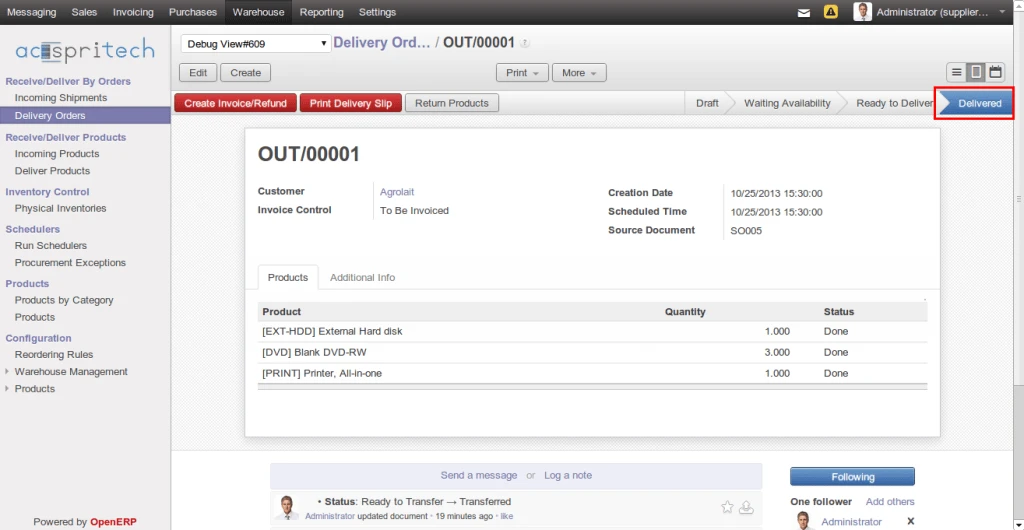
And we have completed all process of delivery order also.
OpenERP Delivery Order
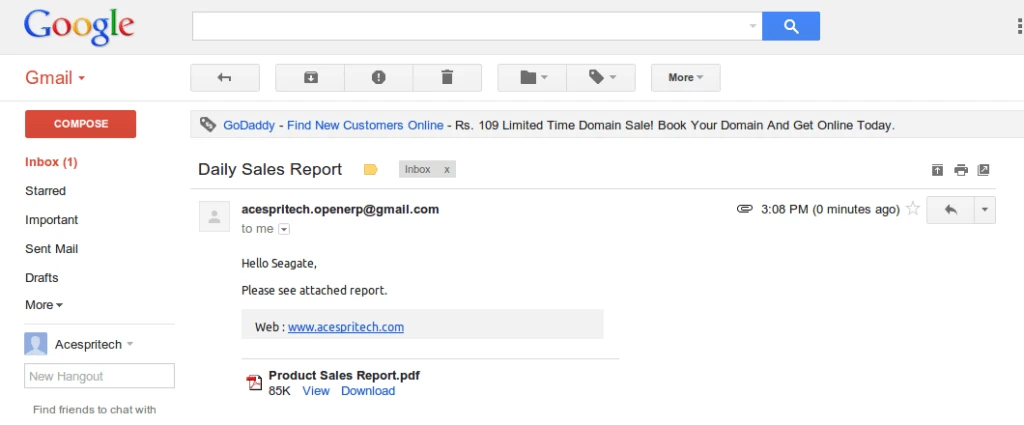
When cron job is going to execute, it is sending email like below:
Here we have done enhancement in our previous development that we made for product quantities in different warehouse.
Here is the link for Original Blog
Now, user can see only those warehouse which has quantity for particular product. There are 3 warehouses configured in database but only 2 warehouses have products available in stock.
OpenERP Product Warehouse
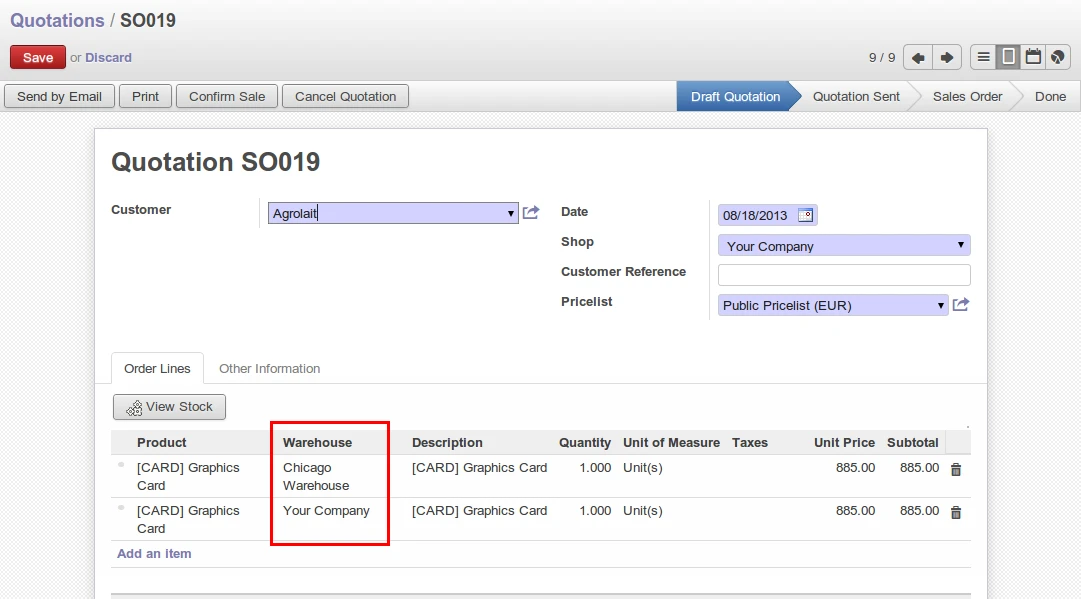
During sales order creating process, we may want to decide that how many quantity can be sold from particular warehouse according to stock availability in our warehouses. So we have implemented easy solution for this. User can know available quantity as well as he can select warehouse also.
OpenERP Sales Order
It’s not compulsory to assign warehouses for each line. In case of empty, it will consider default shop and user can continue his work smoothly.
OpenERP Sales Order
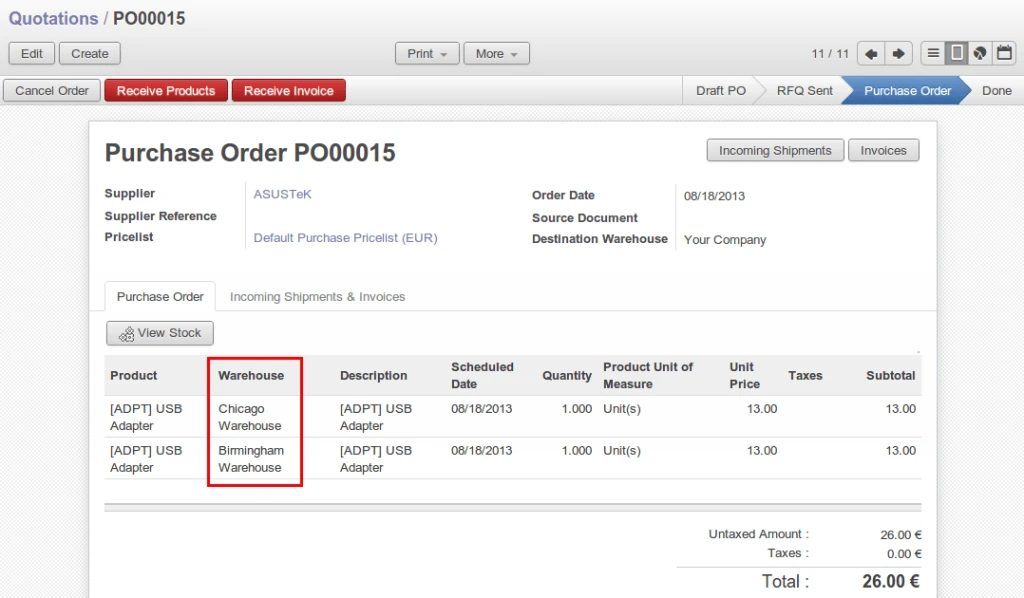
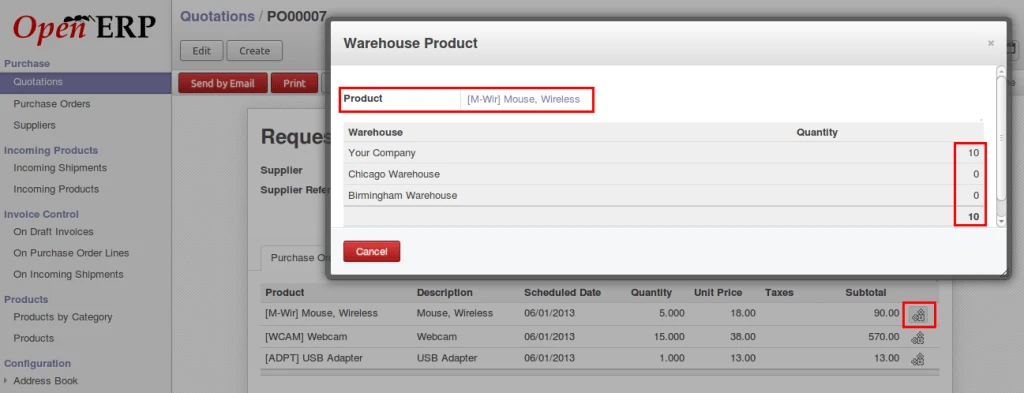
User can perform same process for Purchase Order also which we can see in below screen.
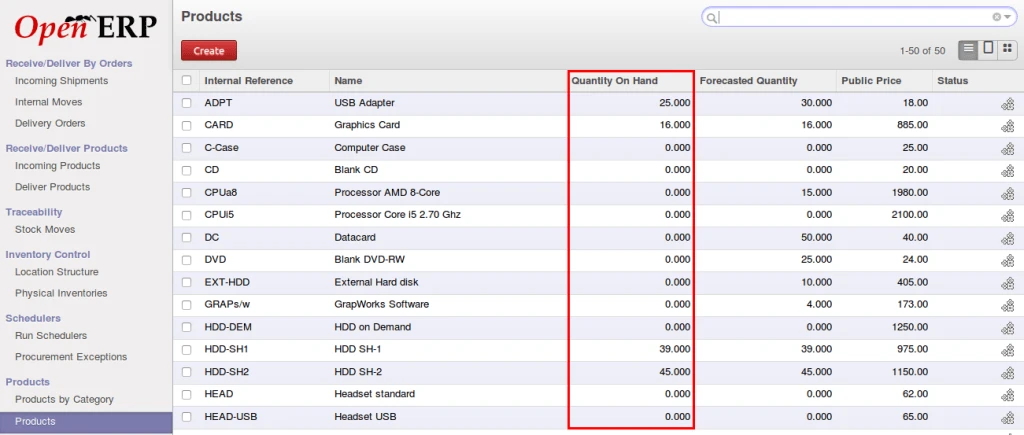
In OpenERP, we already have a list of product quantities that is Quantity on Hand, Forcasted Quantity but it actual shows total quantity available in all our warehouse.
But let suppose if we have to check warehouse wise quantity then we have to check manually. And here we have implemented a module which helps us to get the warehouse wise product quantity.
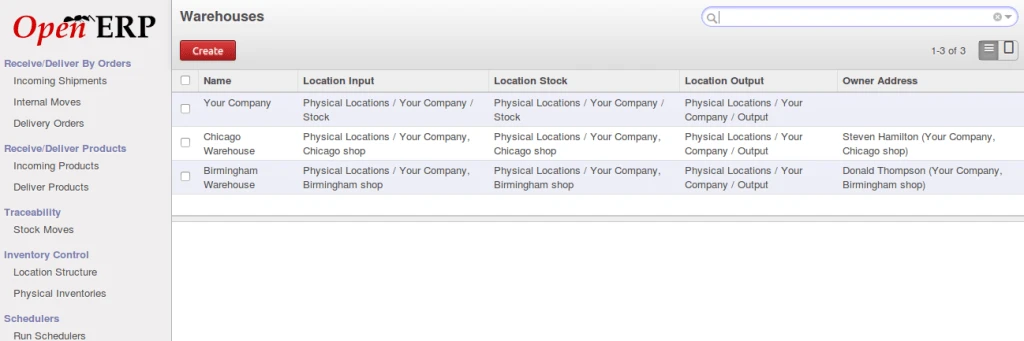
Here is the list of the available warehouse in our database for example.
OpenERP Warehouse list
Below is the product form which shows total quantity available.
OpenERP Product List
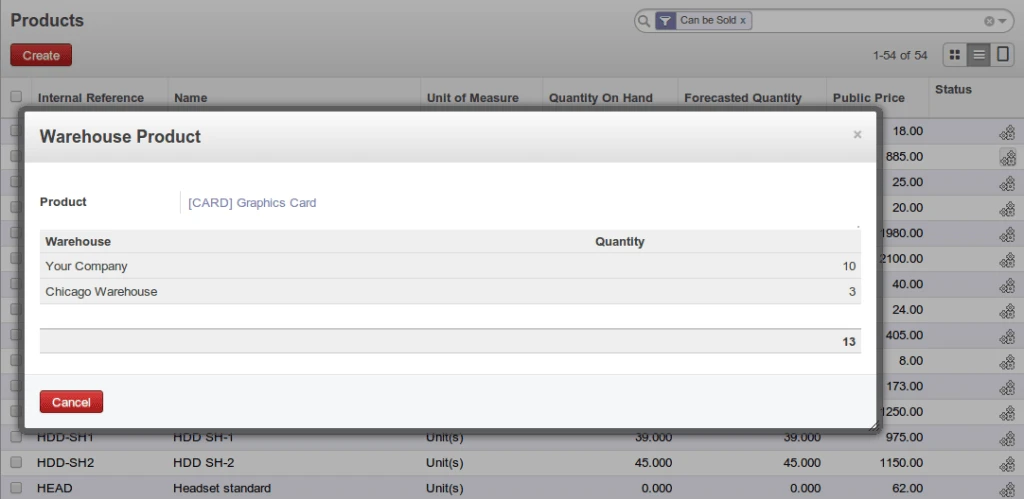
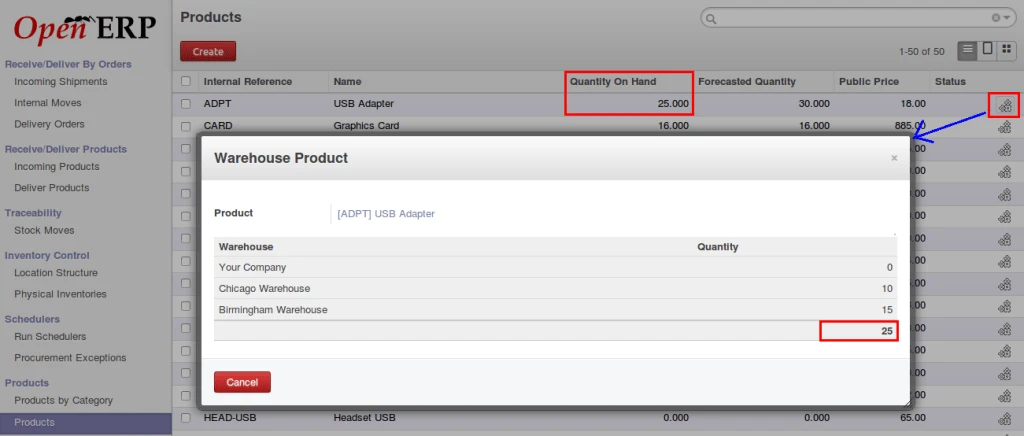
In following screen, we can see that we have added an image field at the last column and when we click on that, one popup will open and that will display all warehouse and quantity for that particular product.
OpenERP Product quantity
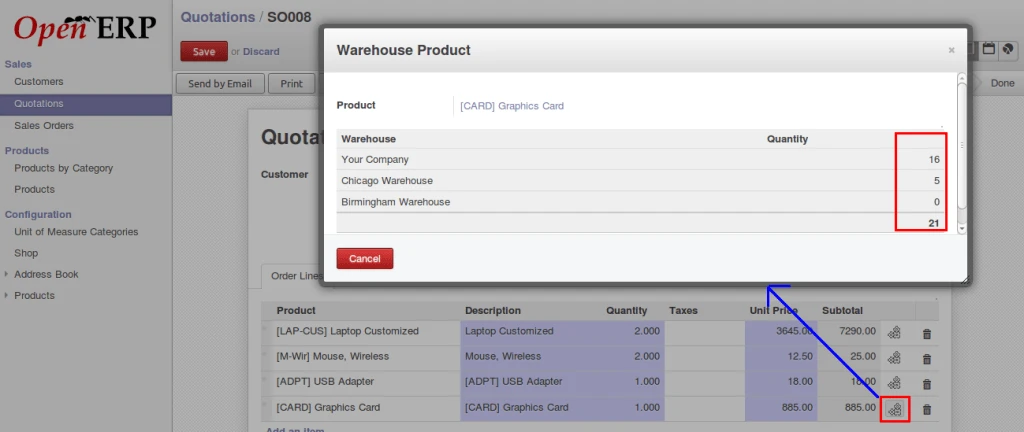
The same thing is possible in Sales Order/Quotation, Purchase Order form also if we want to know the quantity during sales or purchase.
OpenERP product quantity in salesOpenERP product quantity in purchase
So here is the flow that how we can maintain and check product quantities during sales, purchase and overall.