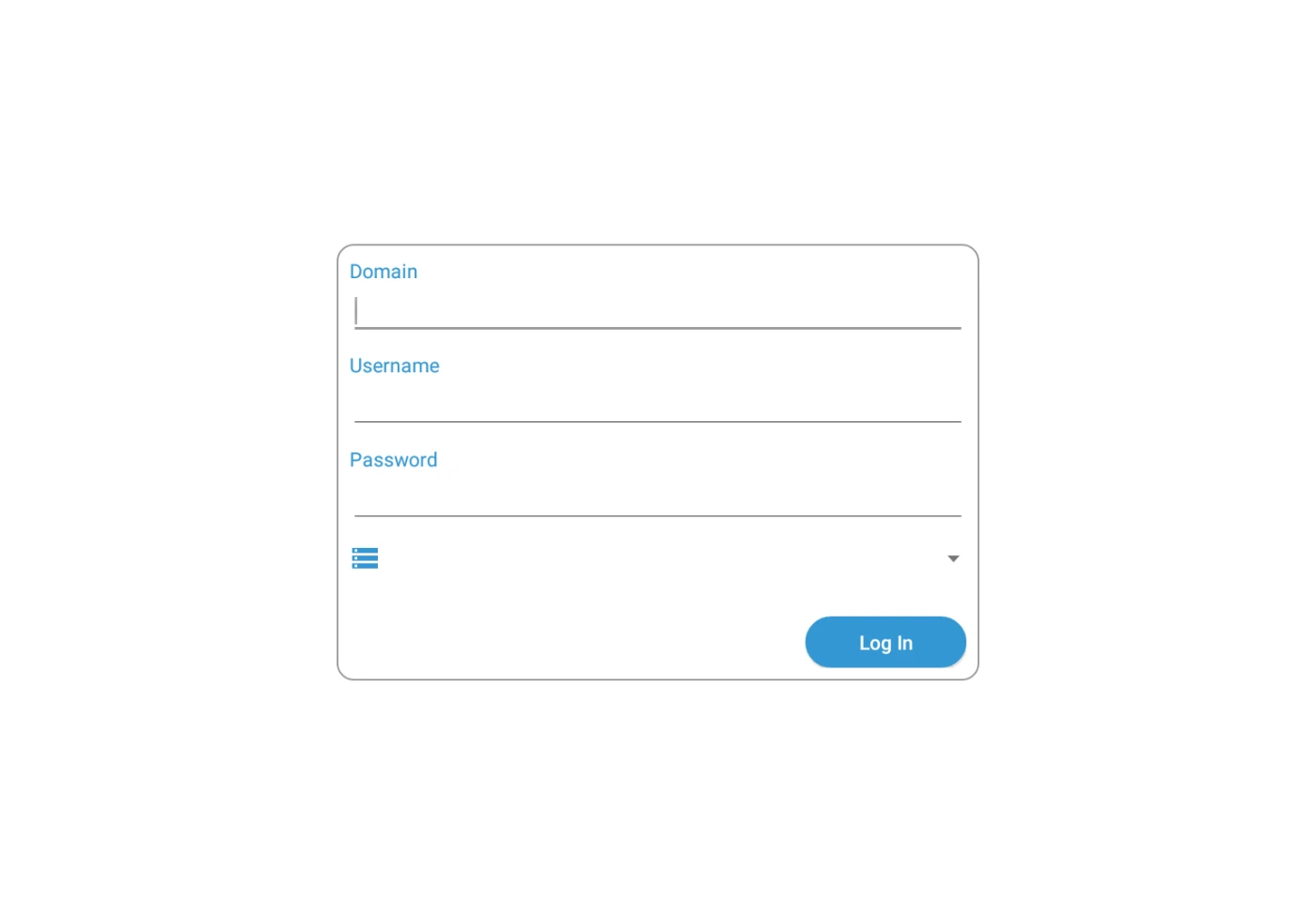
Login Screen
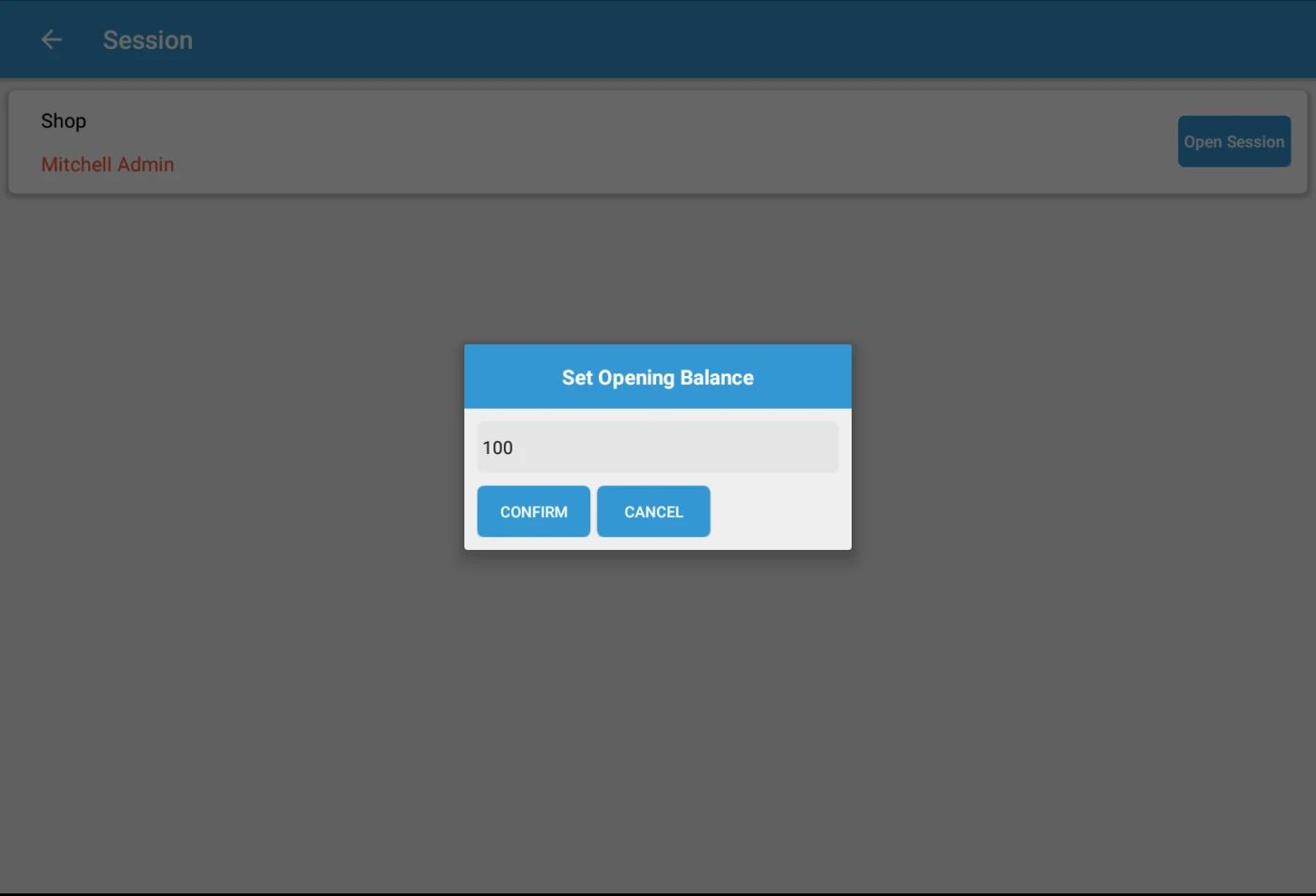
POS Opening Balance
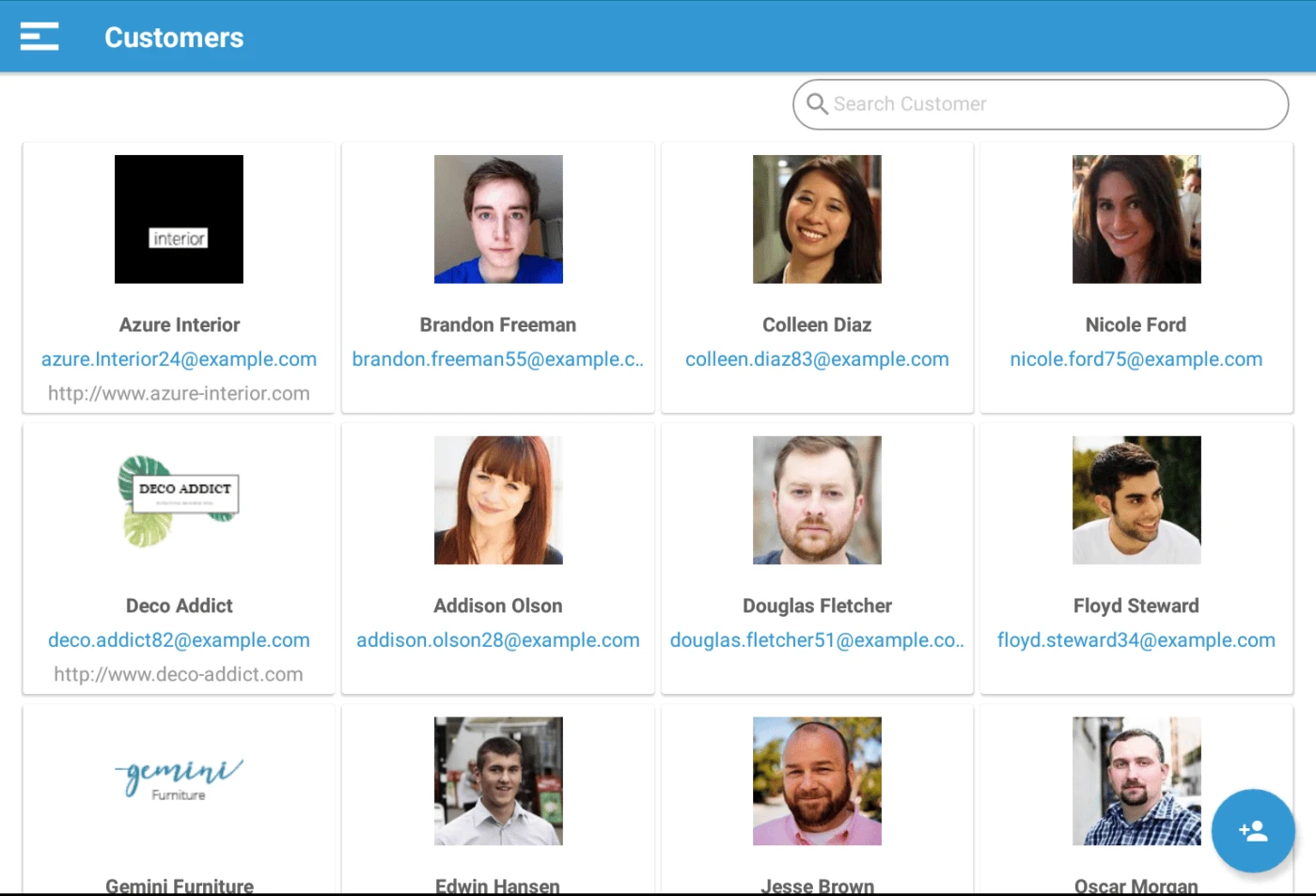
Customer Kanban View
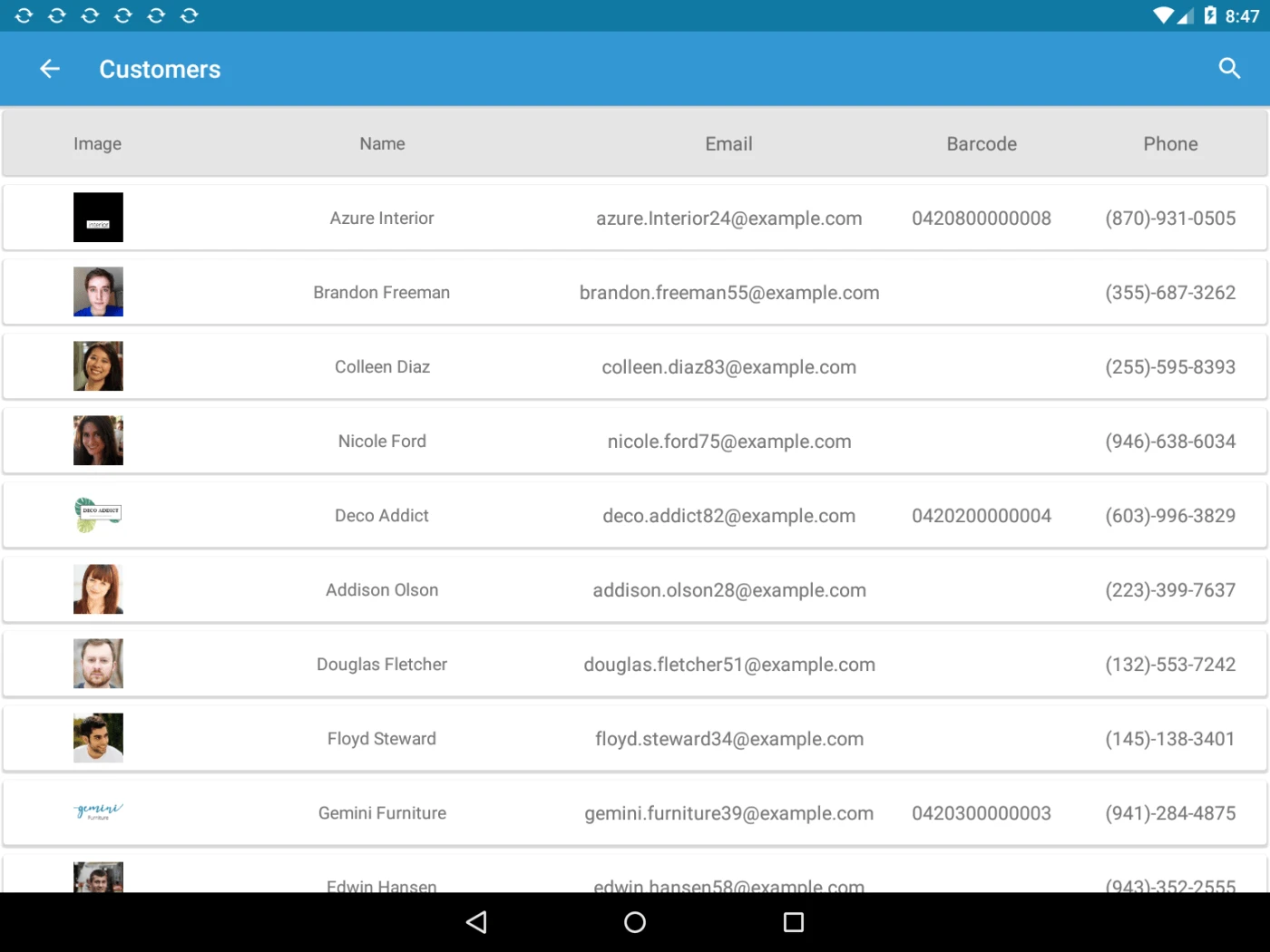
Customer List View
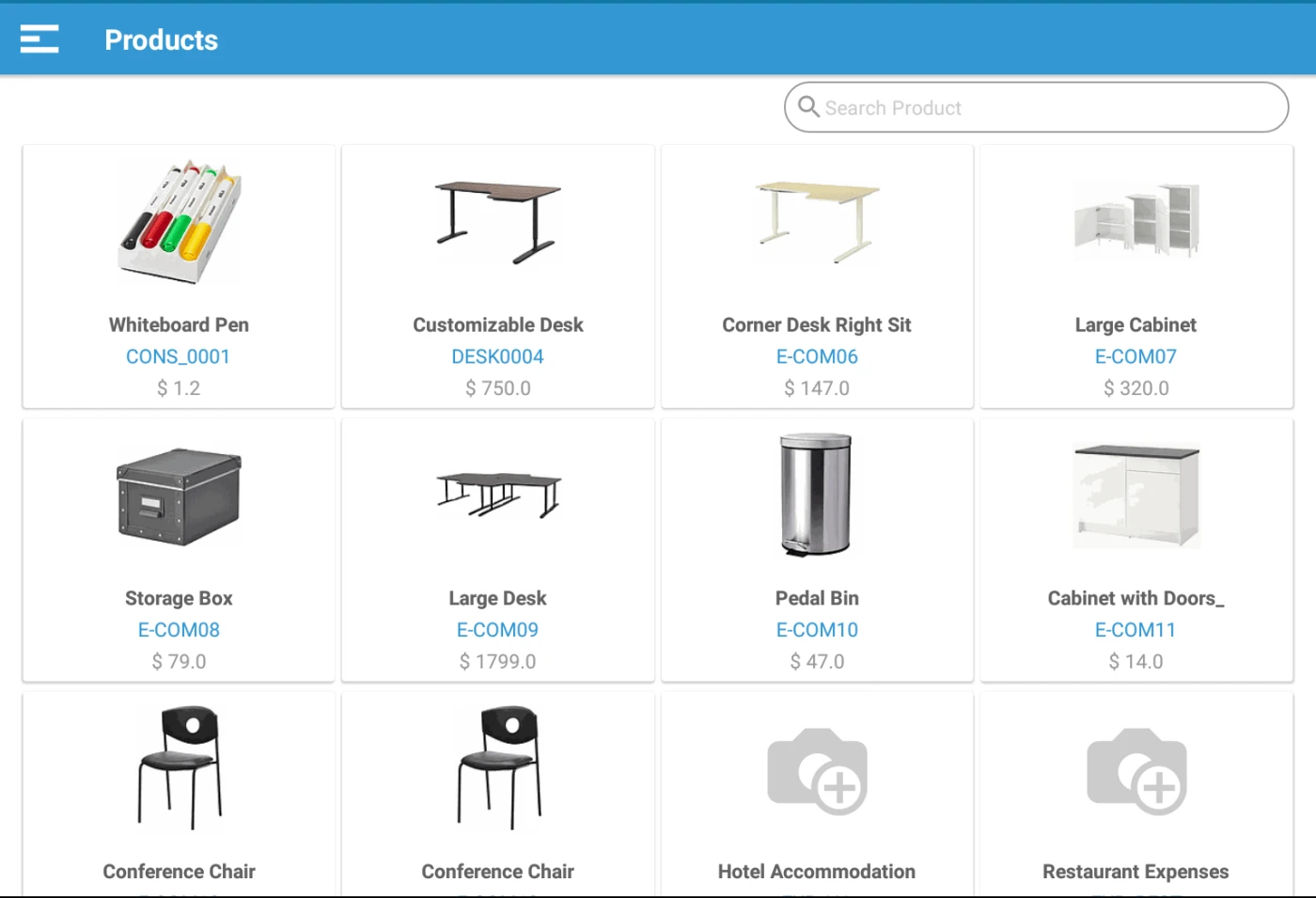
Product Kanban View
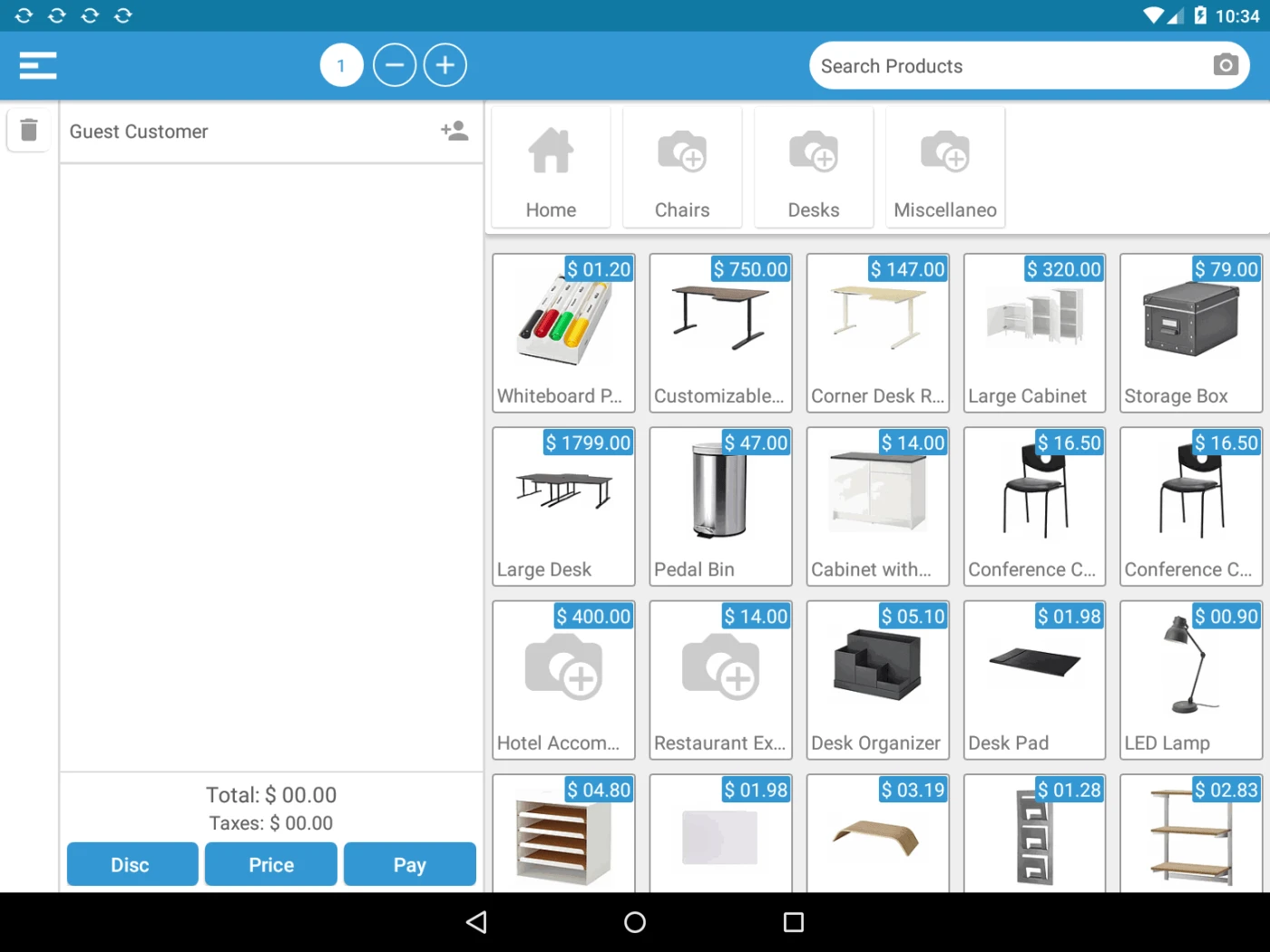
POS Main Screen
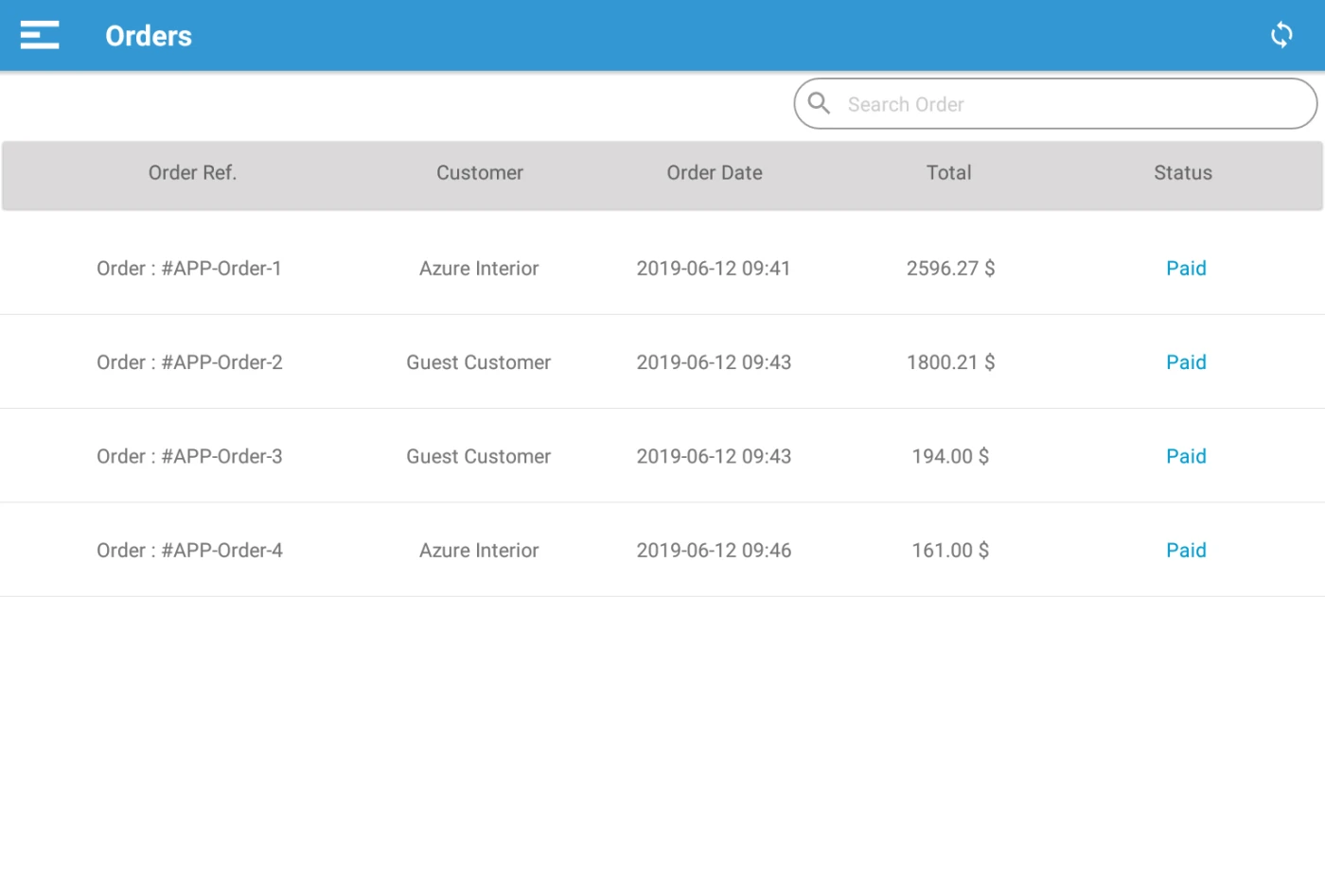
POS Order List
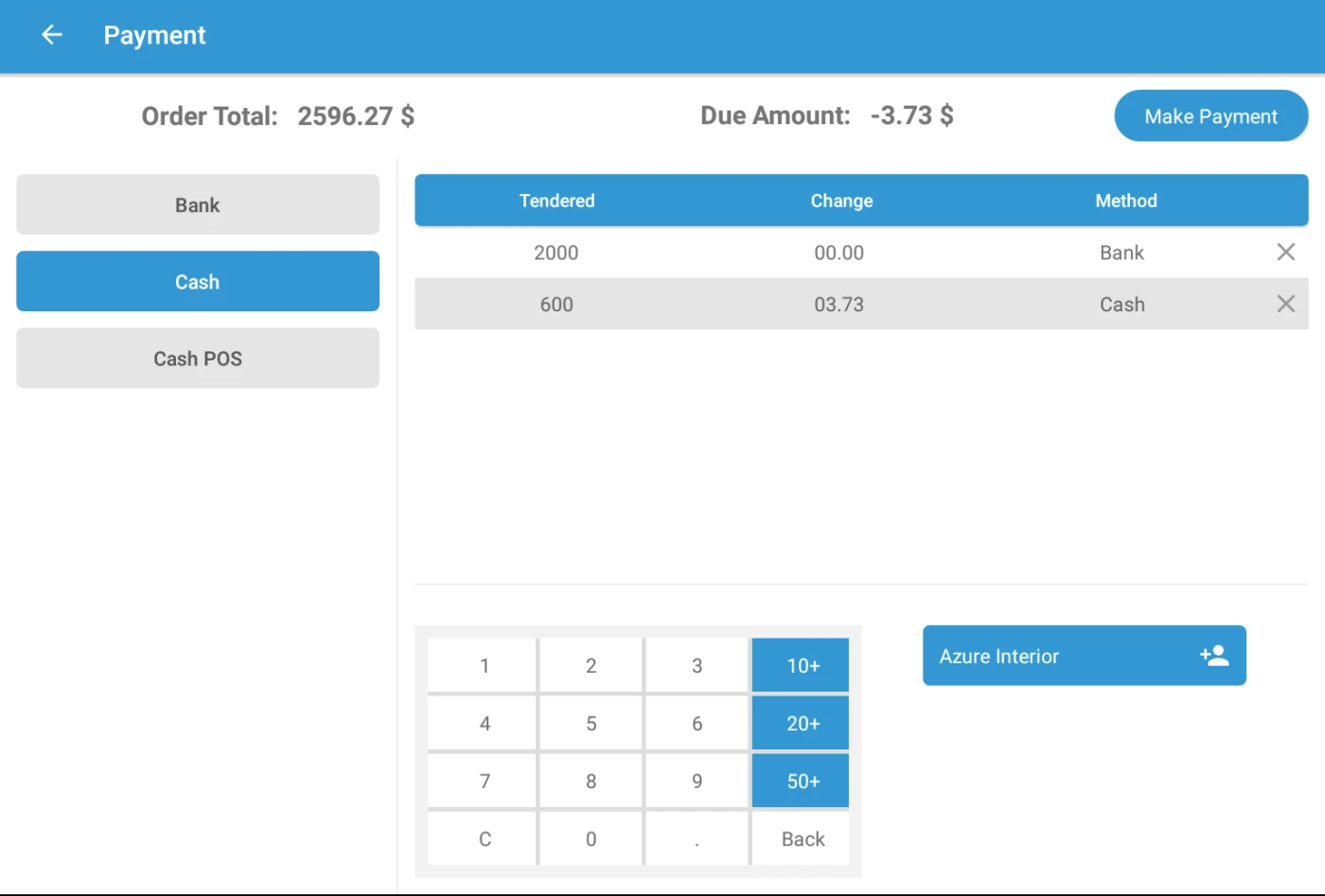
POS Payment Screen
How to use
User can login in app with Self hosted URL, Username, Password and Database. Odoo V12 Enterprise Instance is required.
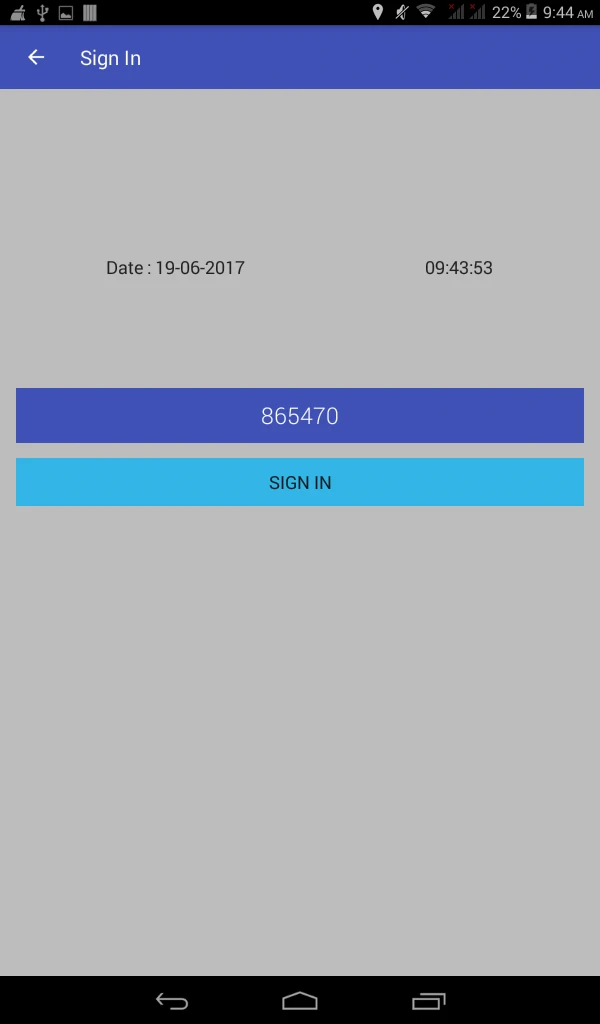
User can check in with PIN number into the Application. Attendance Entry will be calculated to server once user will check in from Application.
Once check in app will store user location latitude and longitude into odoo server.(Custom module is Required)
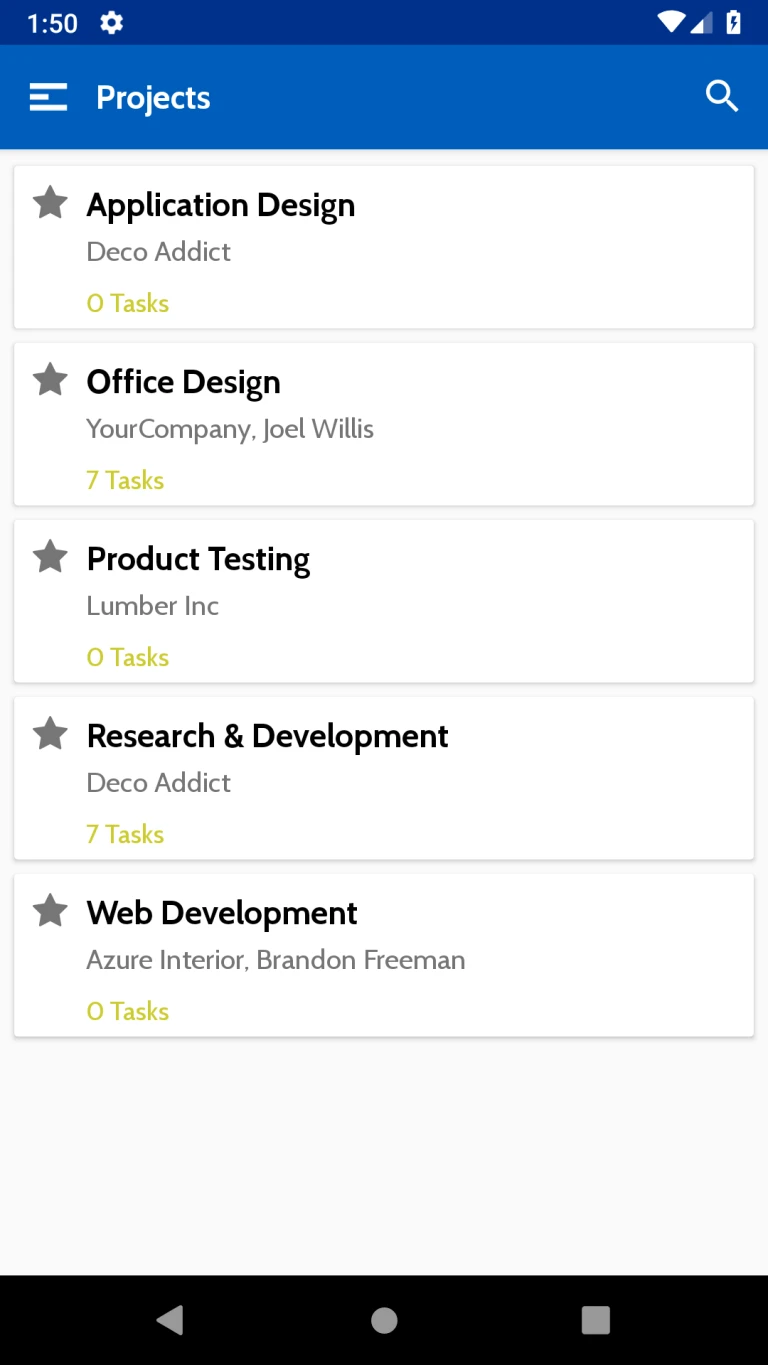
This page will show all Projects which are assigned to User.
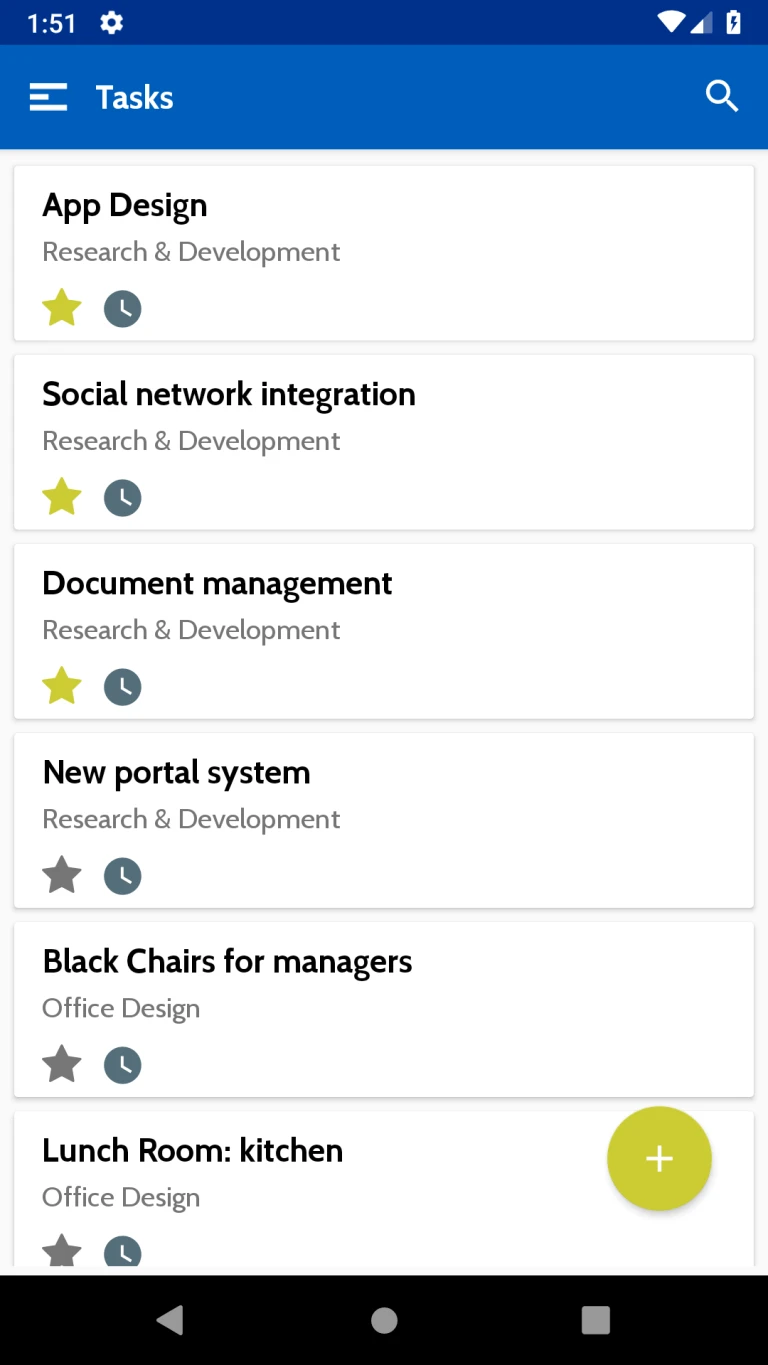
This page will show all Task which are assigned to User.
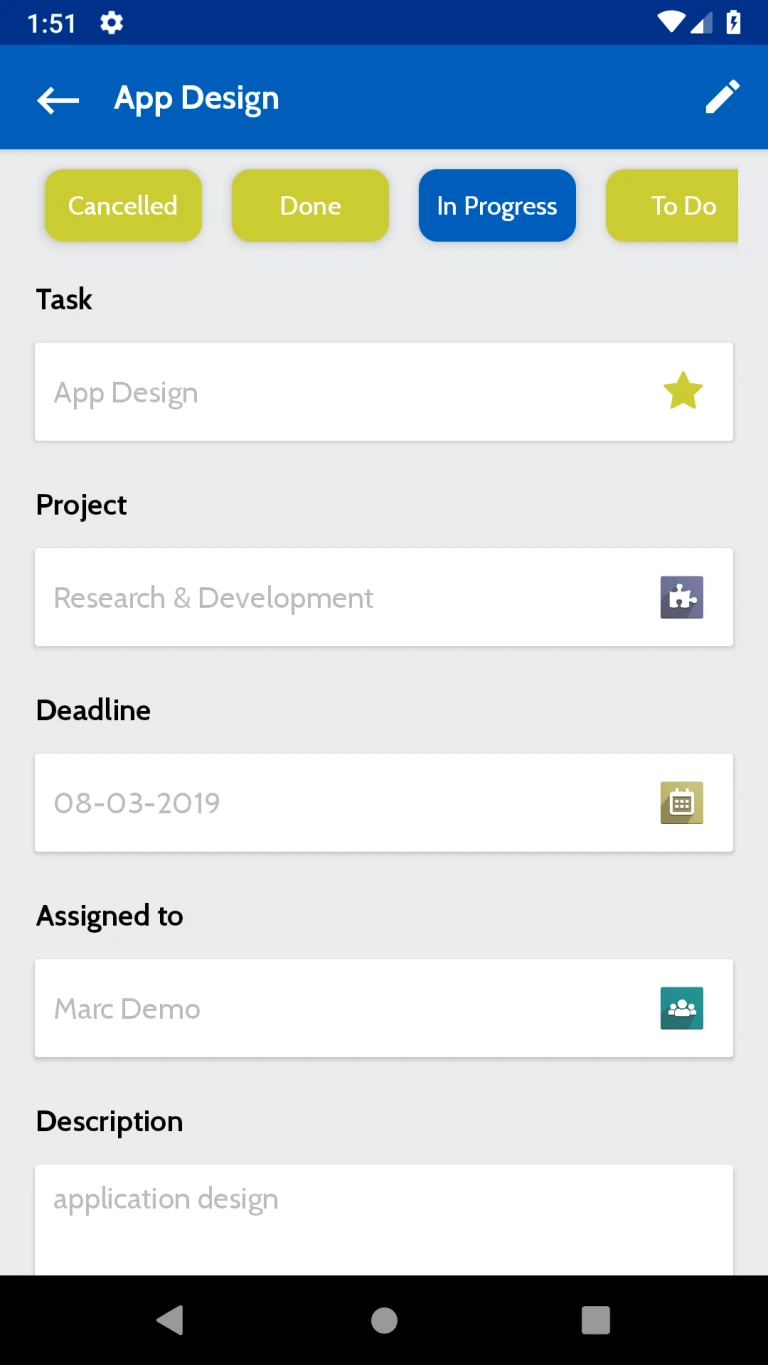
Here Task related infomation will be displayed. Like Task status, Related project, Deadline etc.
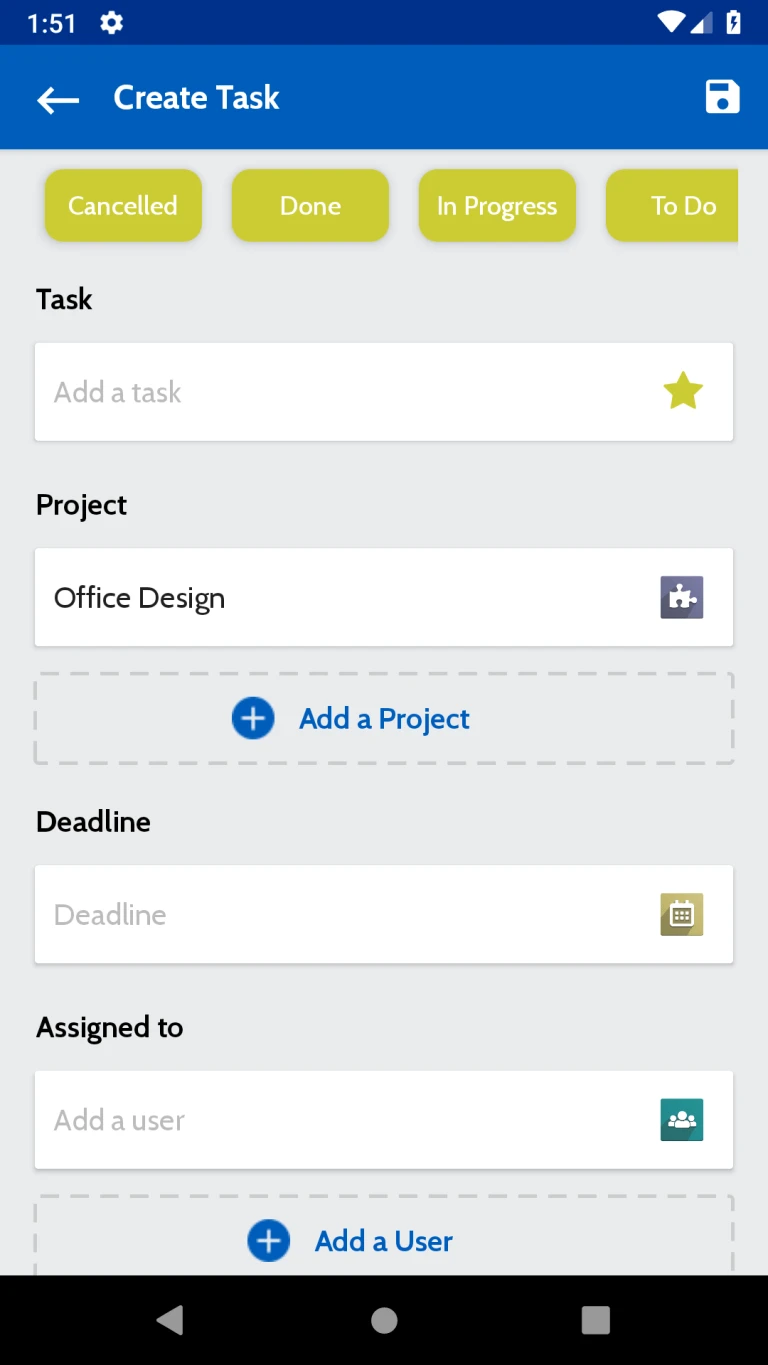
From here User can create new Tasks
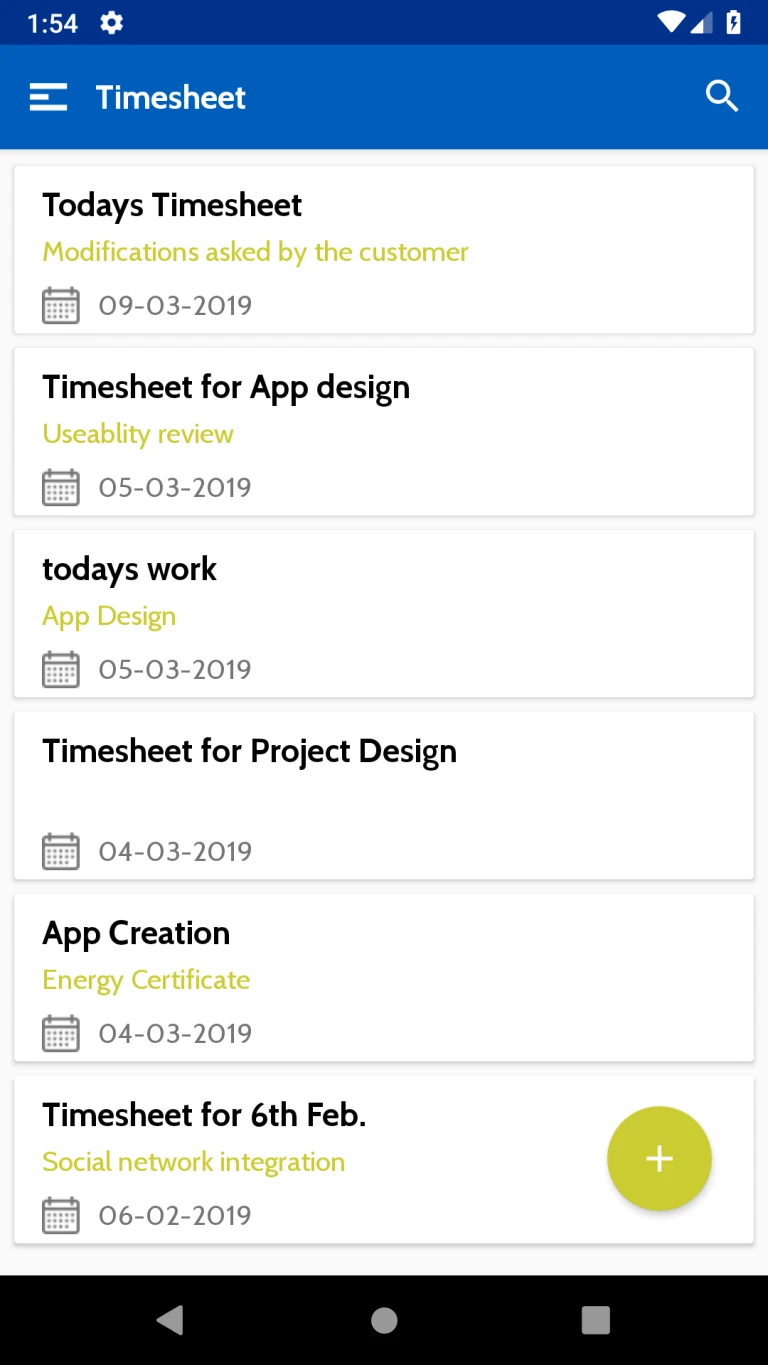
All timesheets related to user will be loaded in this page.
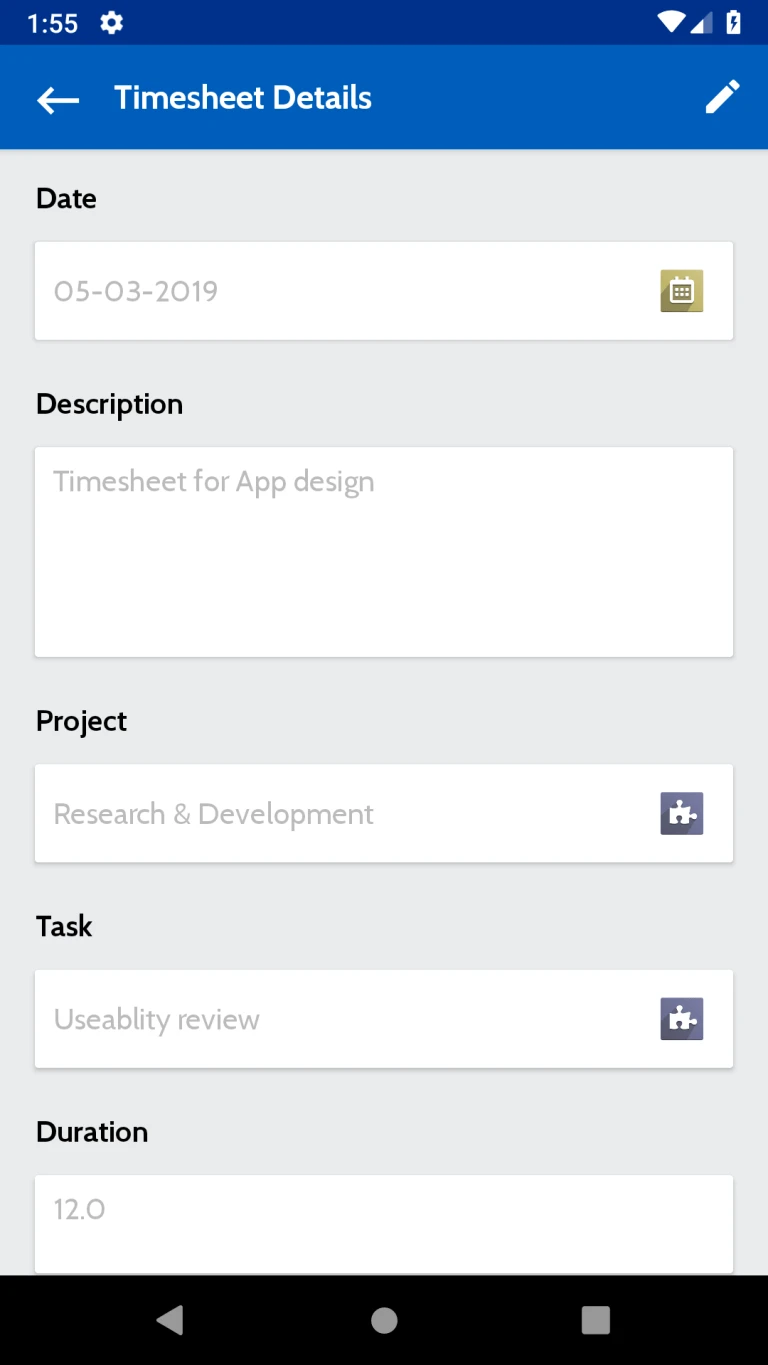
Details of the timesheet will be displayed in this page. Here user can view timesheet related information Like Date, Description, Project, Task etc.
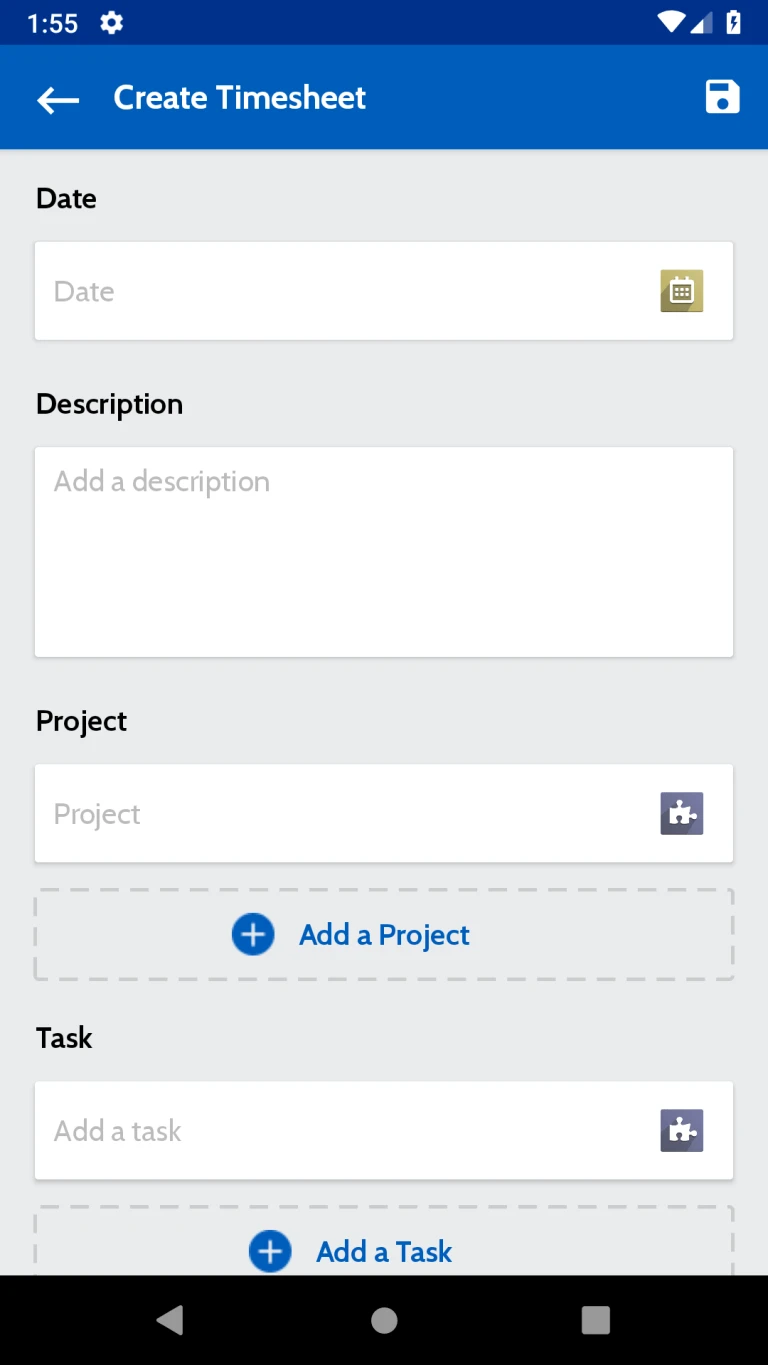
User can new create timesheet from here.
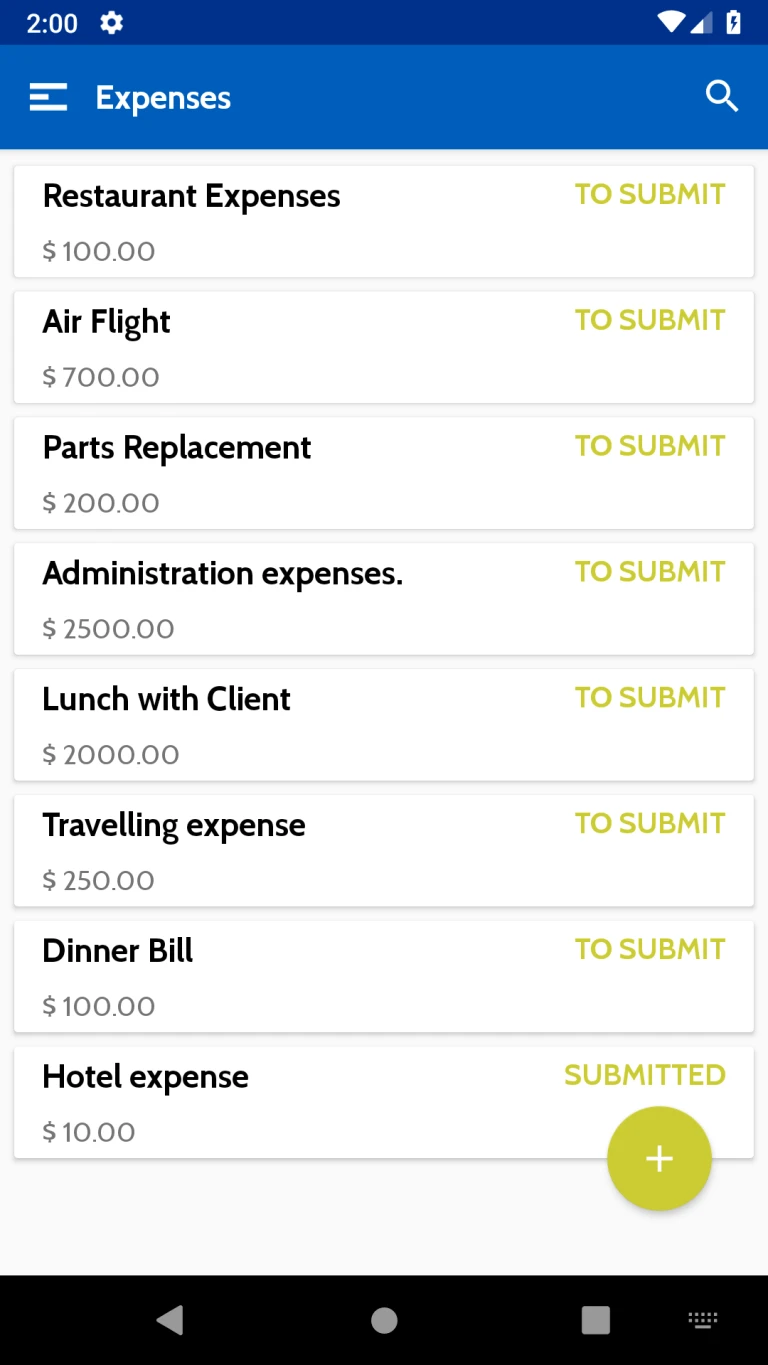
Employee Expenses will be displayed in this page.
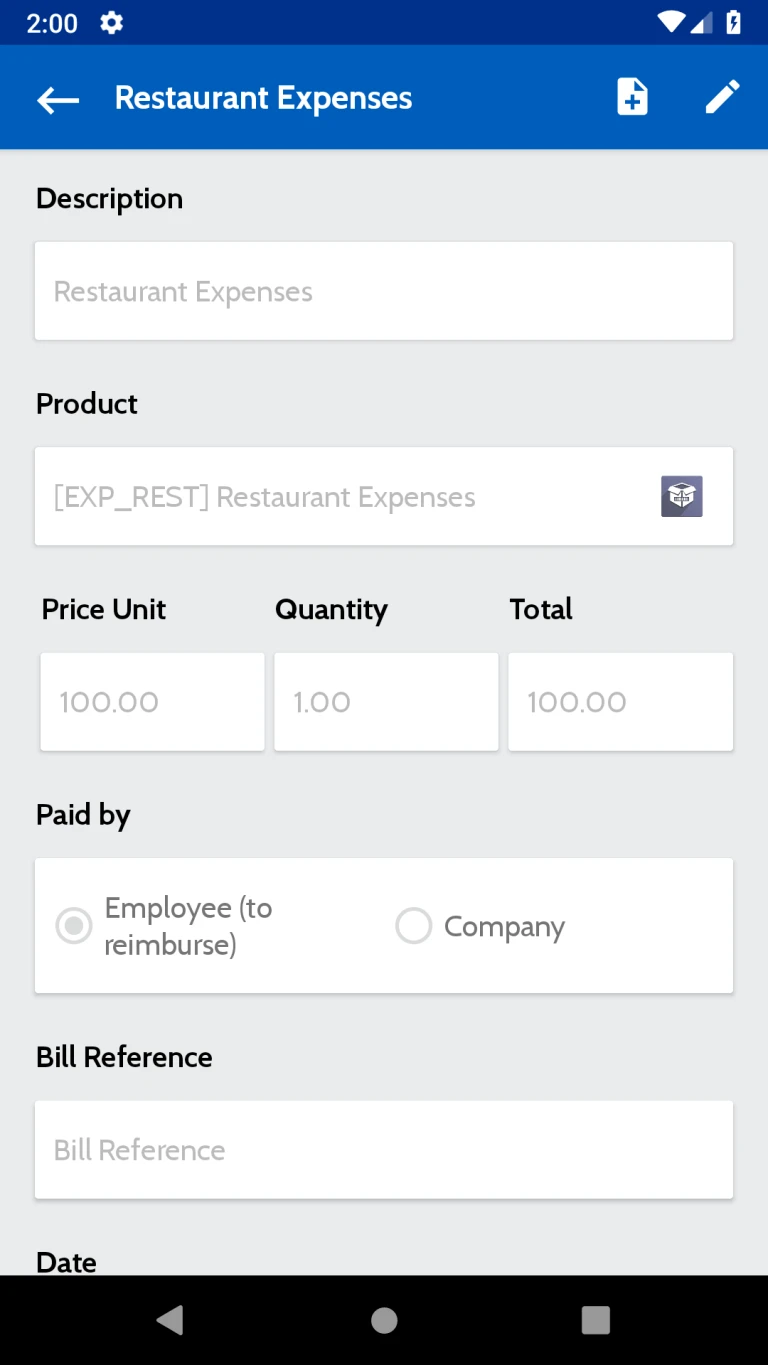
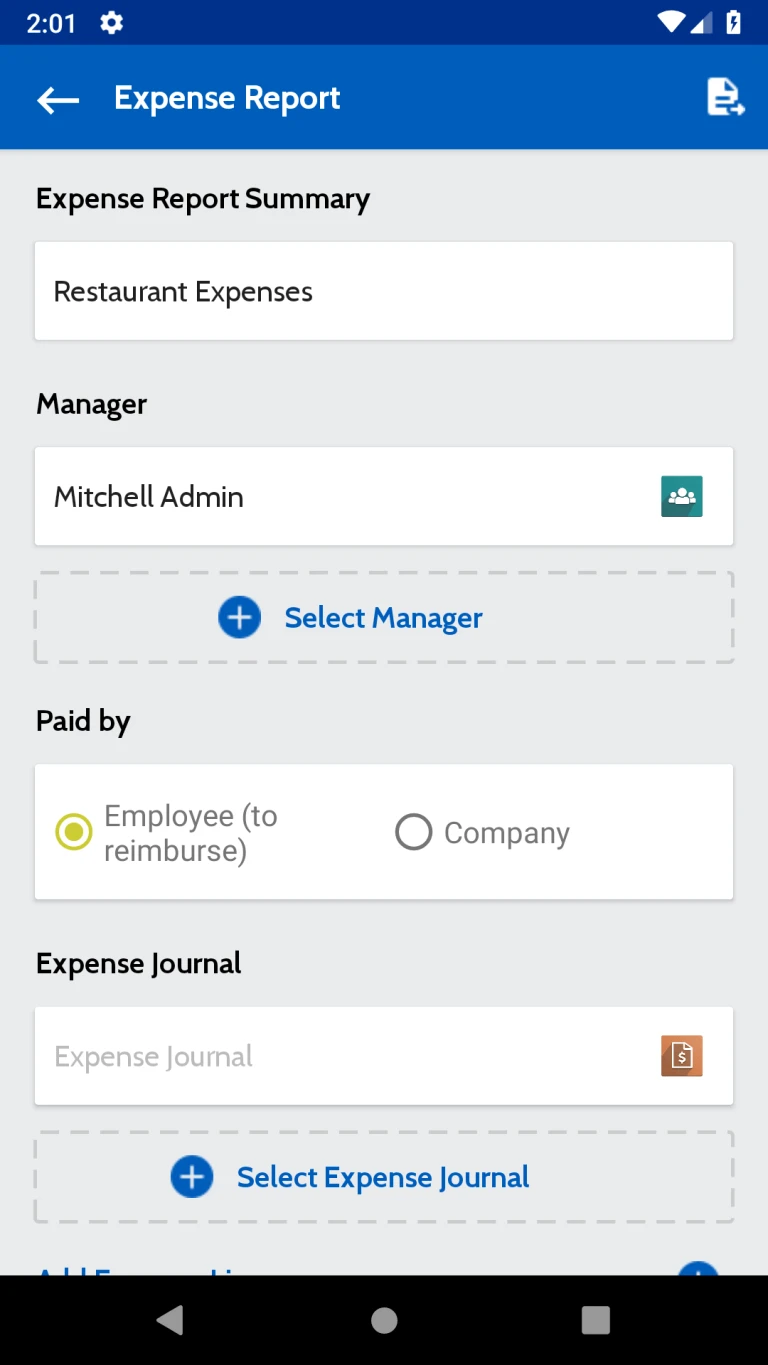
Details of the Expenses like Description, Products, Paid by etc will be displayed in this page. User can generate expense report from this page
Expense report will be display in this page.
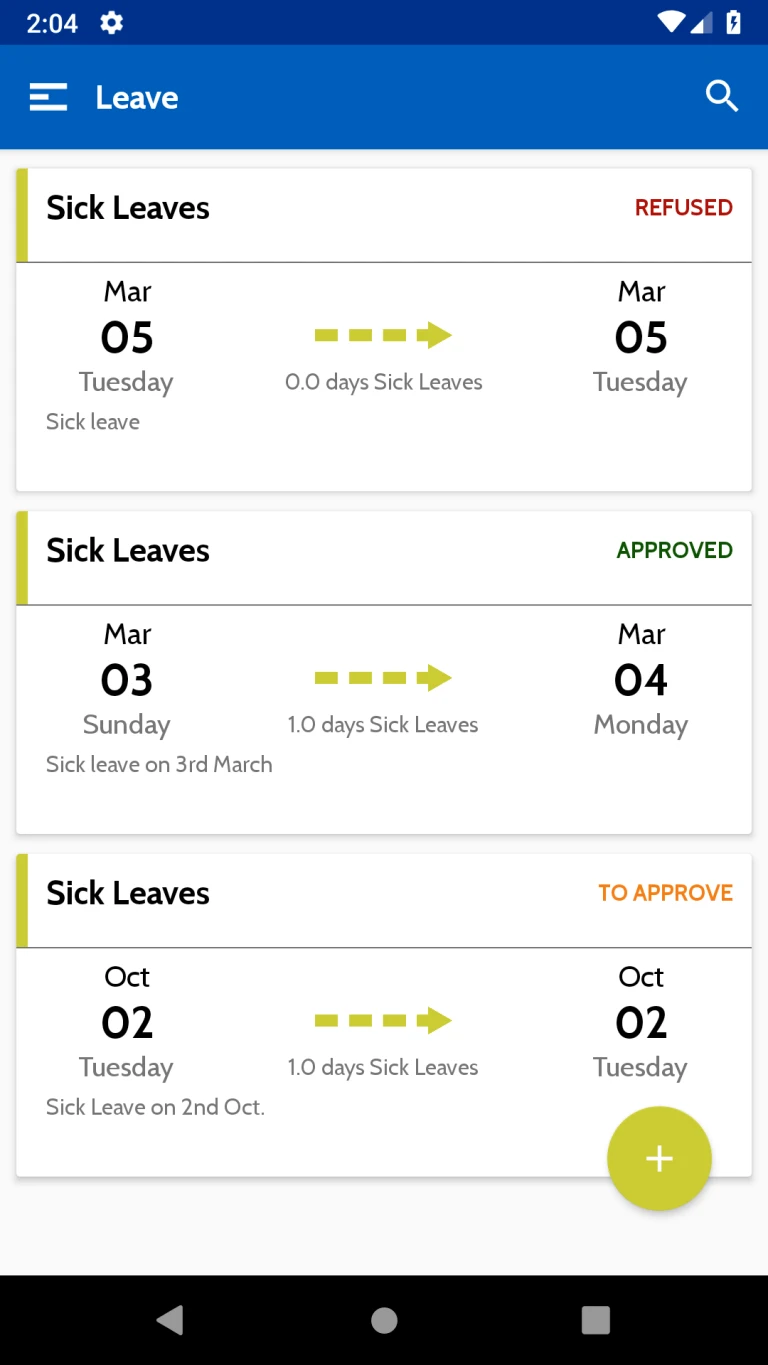
Here all requested leave from the User will be displayed.
Detailed information of the Leave will be displayed in this page. Like Type of Leave, Duration, Leave description etc.

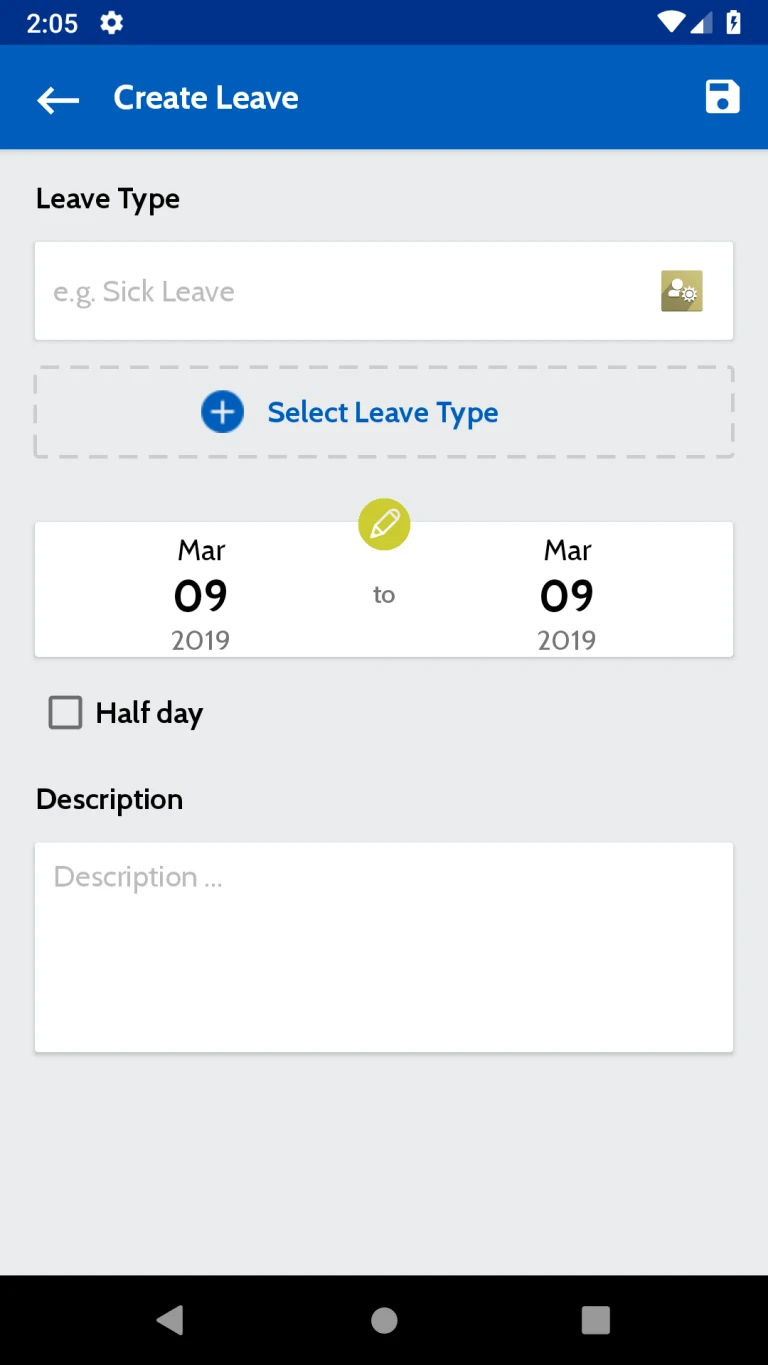
User can request for the Leave from this page
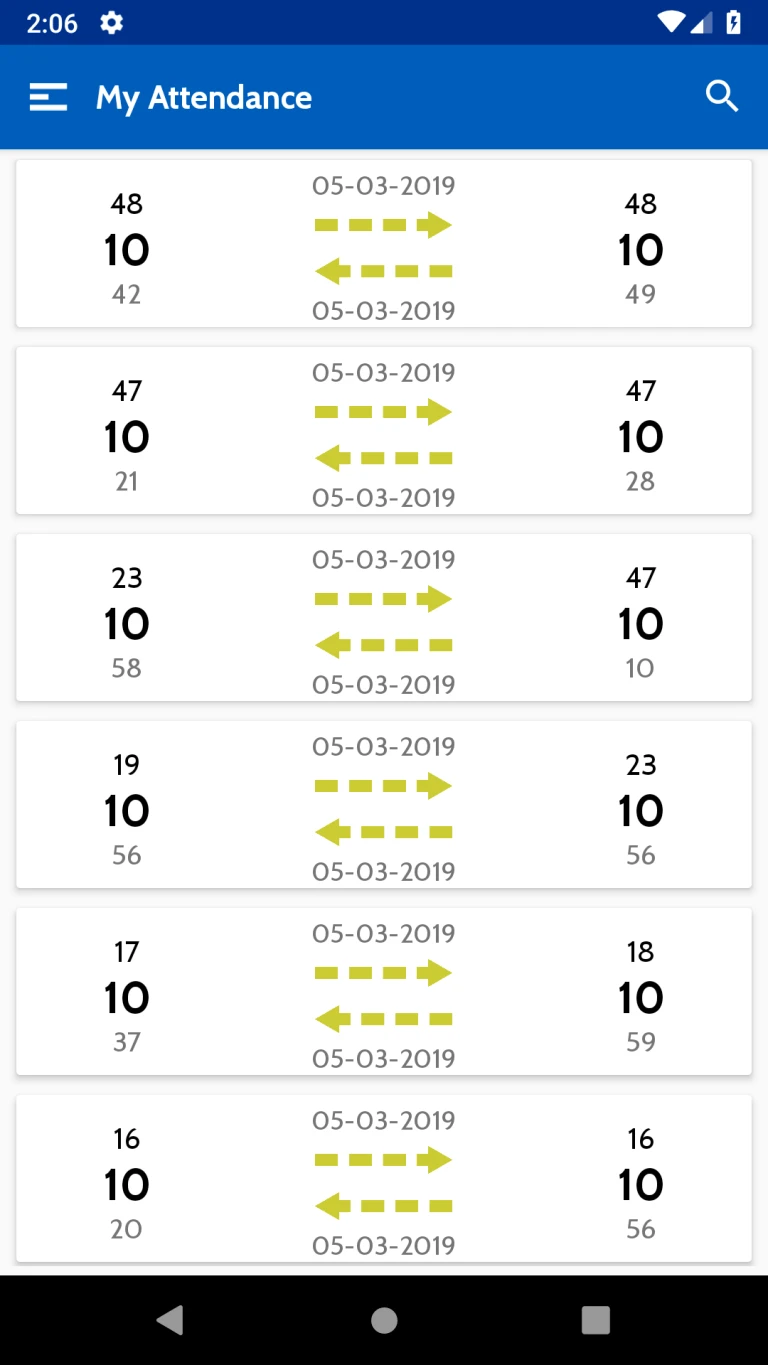
All Attendance record will be listed here. this list includes Attendance date, Sign-in time , Sign-out time etc.
User can check out from Application using this page. Attendance Entry will be calculated to server once user will Check out from Application.
How to use
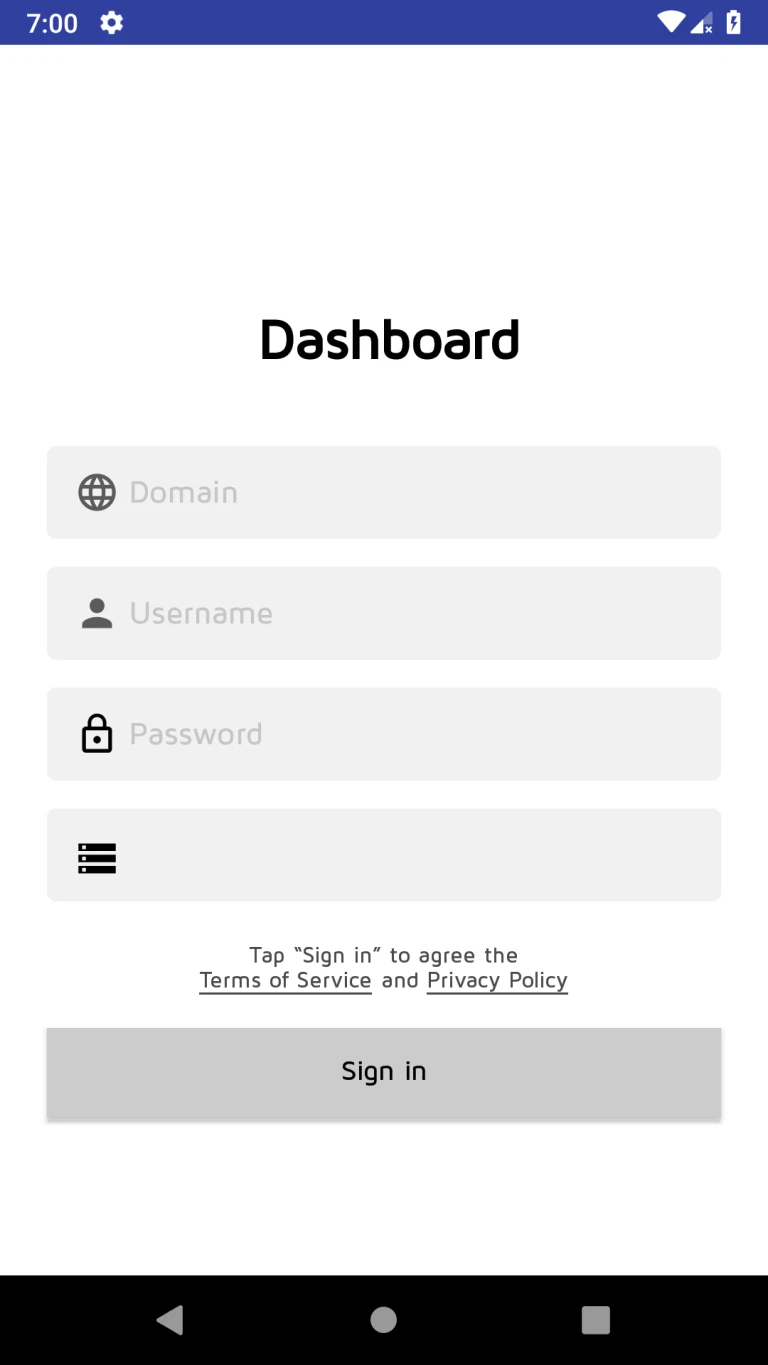
User can login with Odoo Url, username, password and Odoo V12 database.
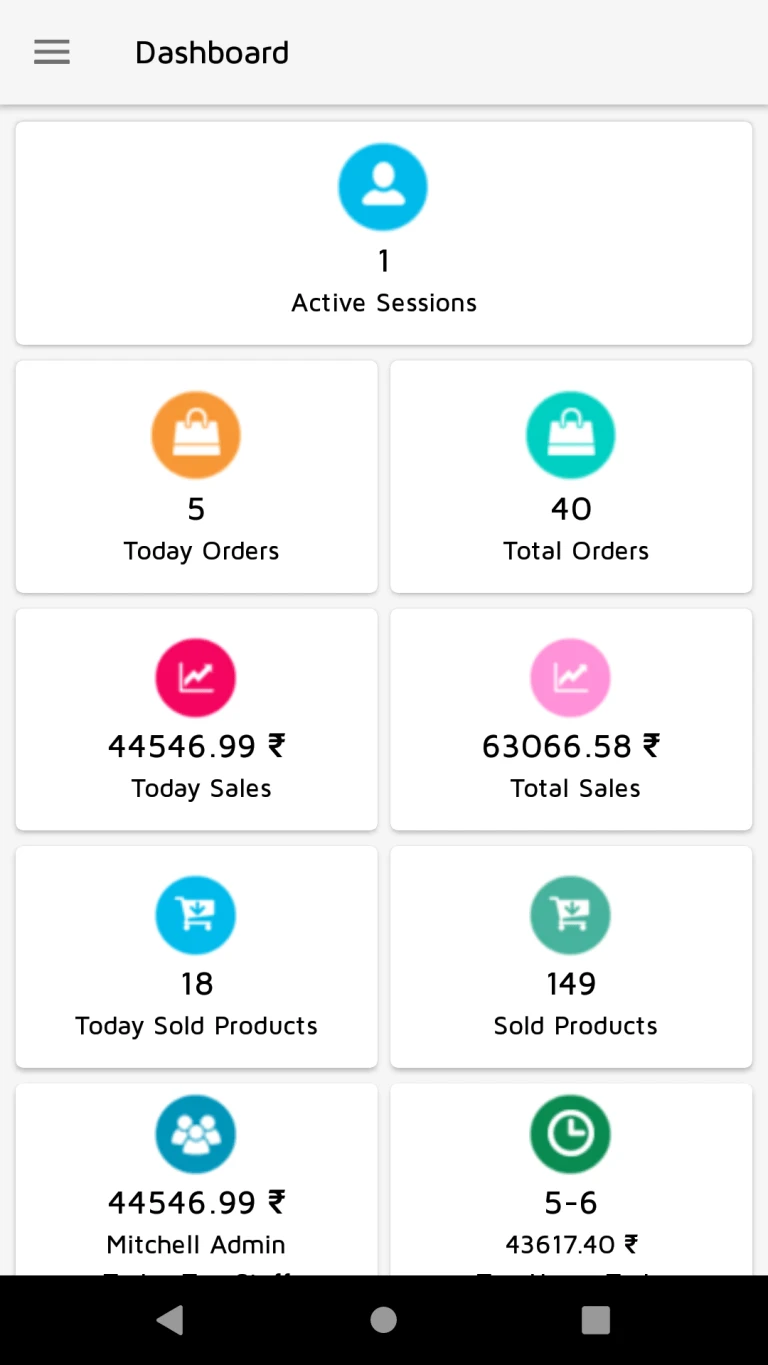
User can see various details like sale, sold products, orders, active sessions, salesperson name who sold highest today, hours in which highest sales, average customer spending and visit as per last 30 days.
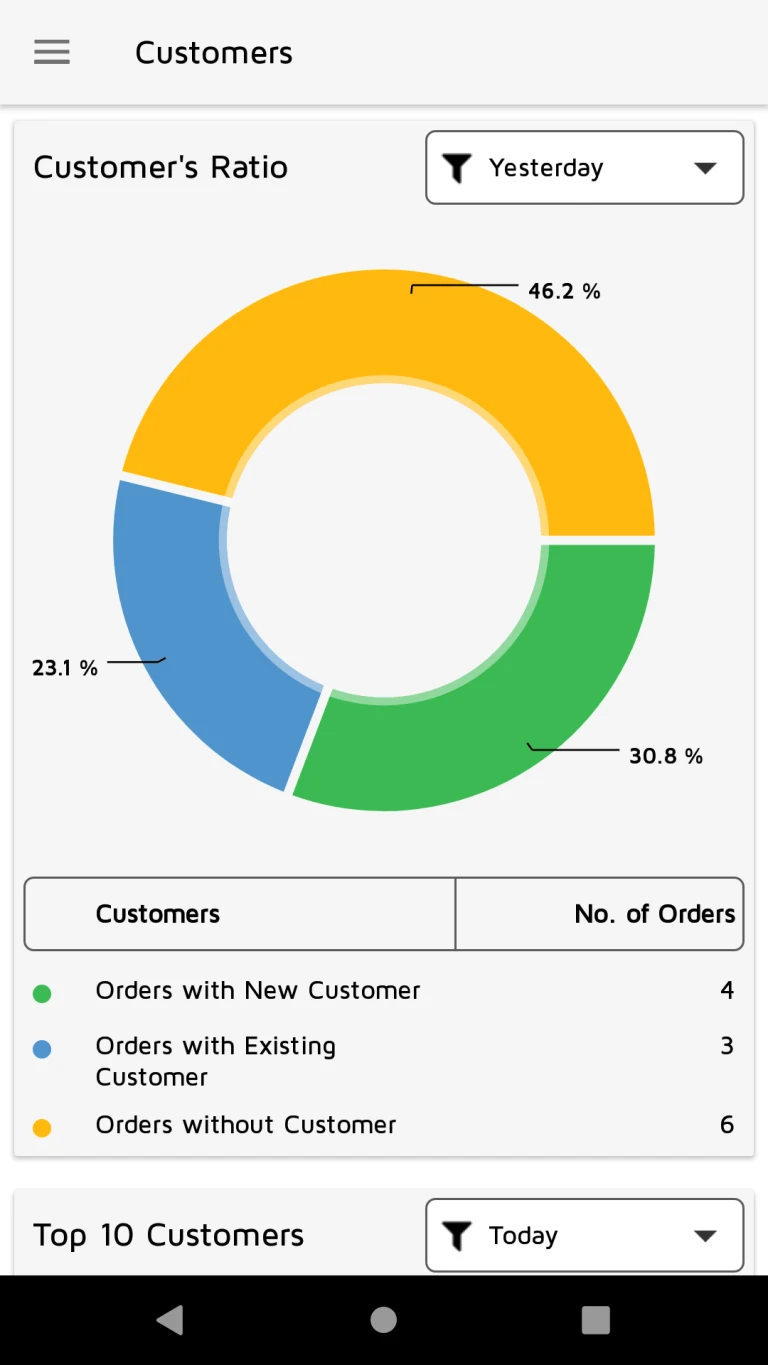
User can see customer’s ratio about orders with new customer, orders with existing customer and orders without customer.
User can see top 10 customer’s no. of orders and sales details.
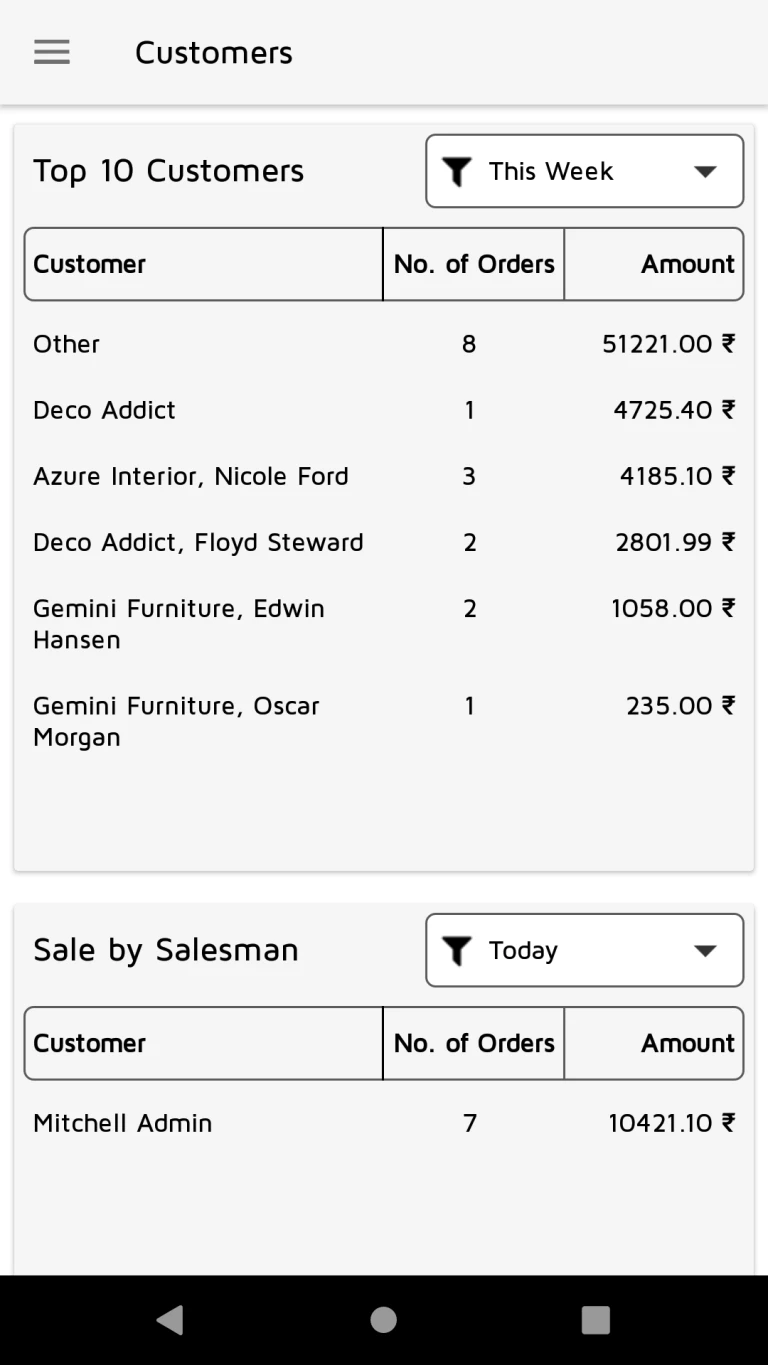
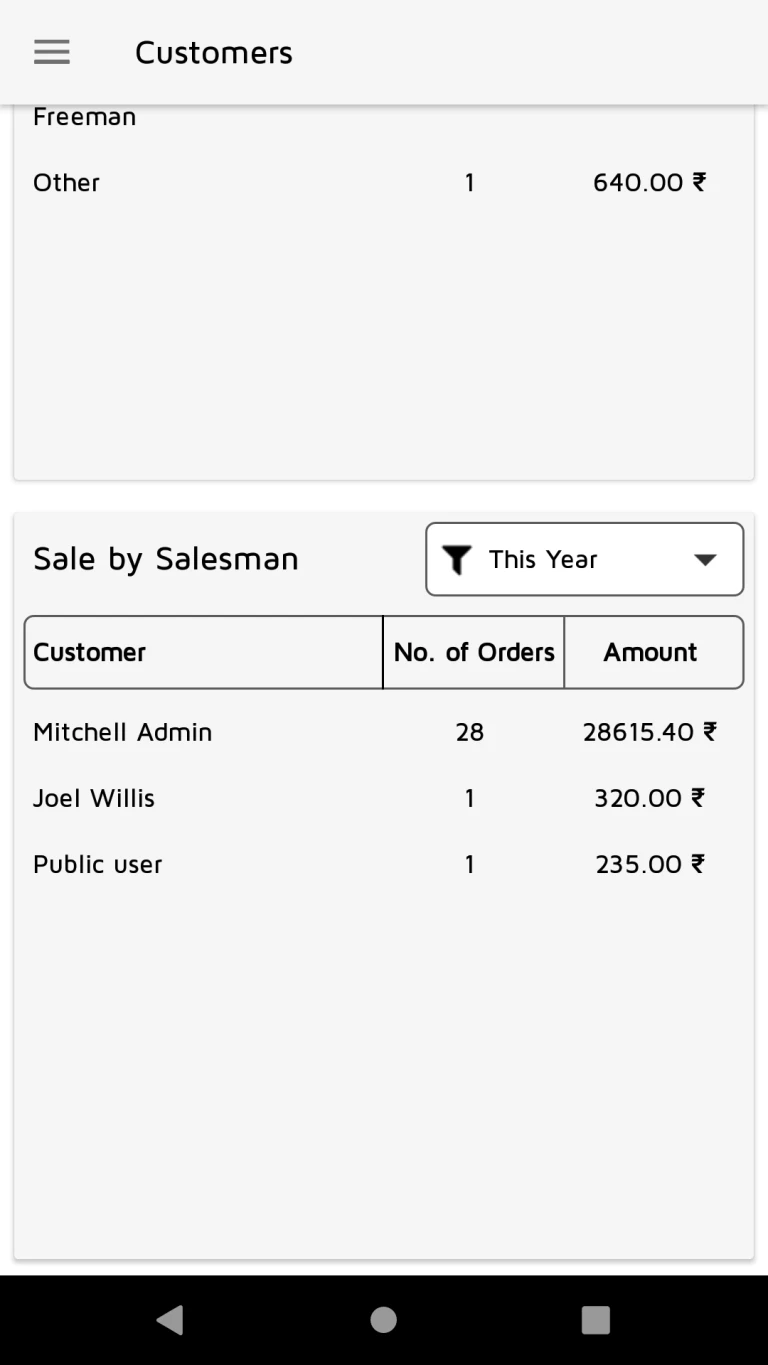
User can see top 10 salesman’s no. of orders and sales details.
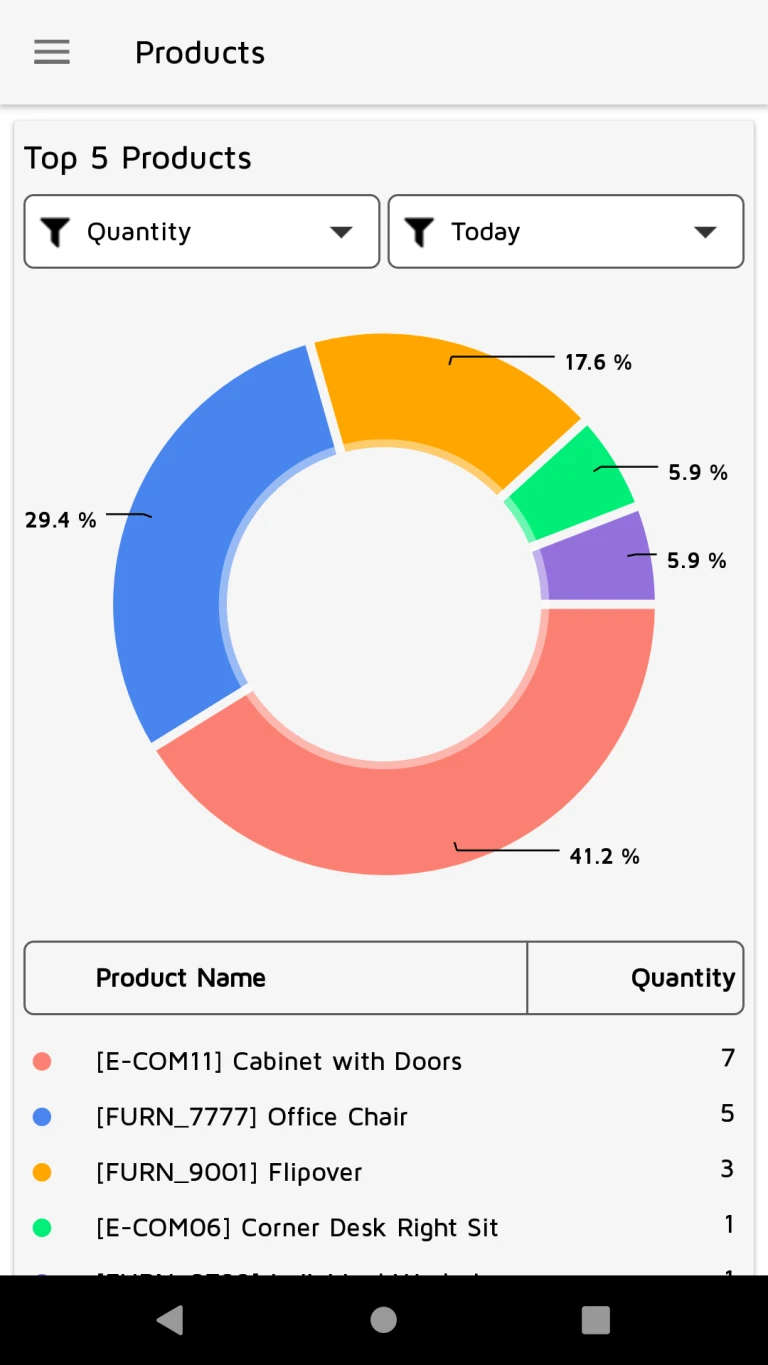
User can see top 5 products by quantity.
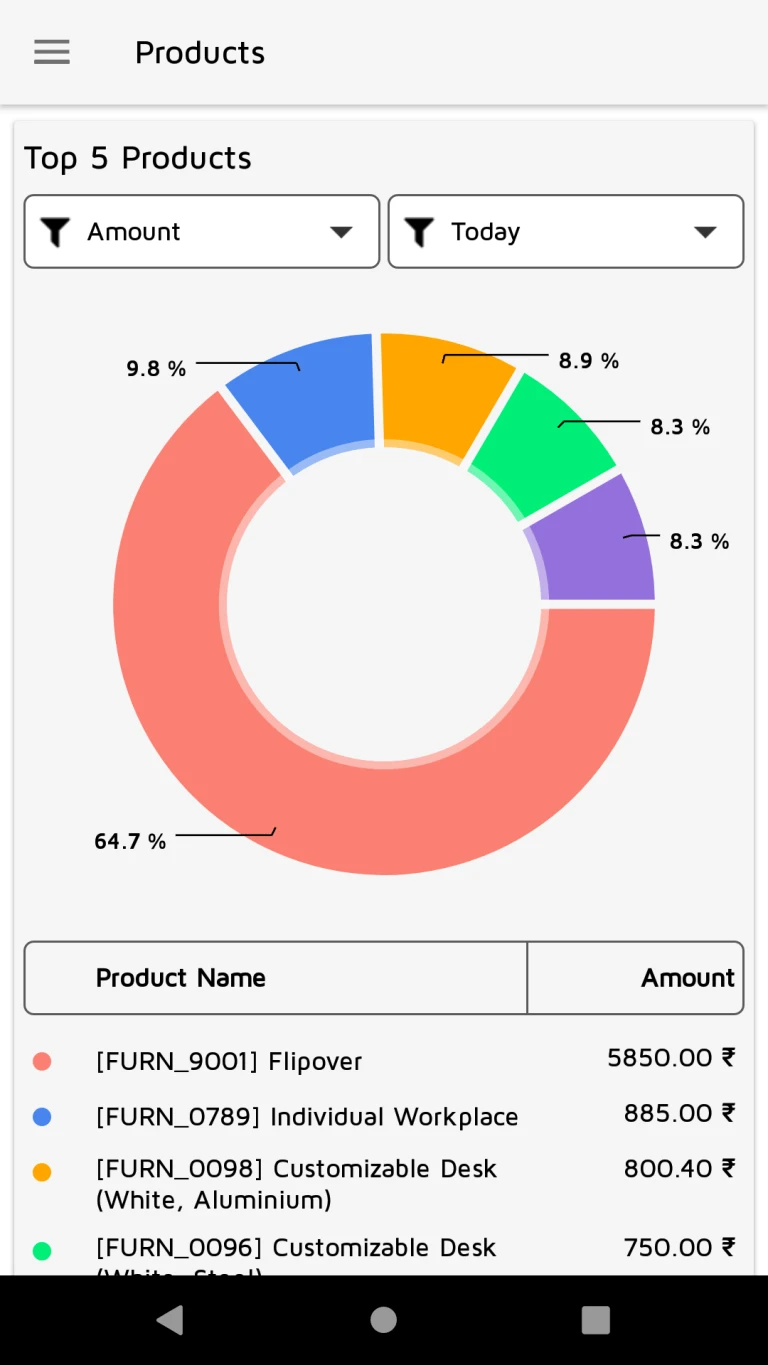
User can see top 5 products by amount.
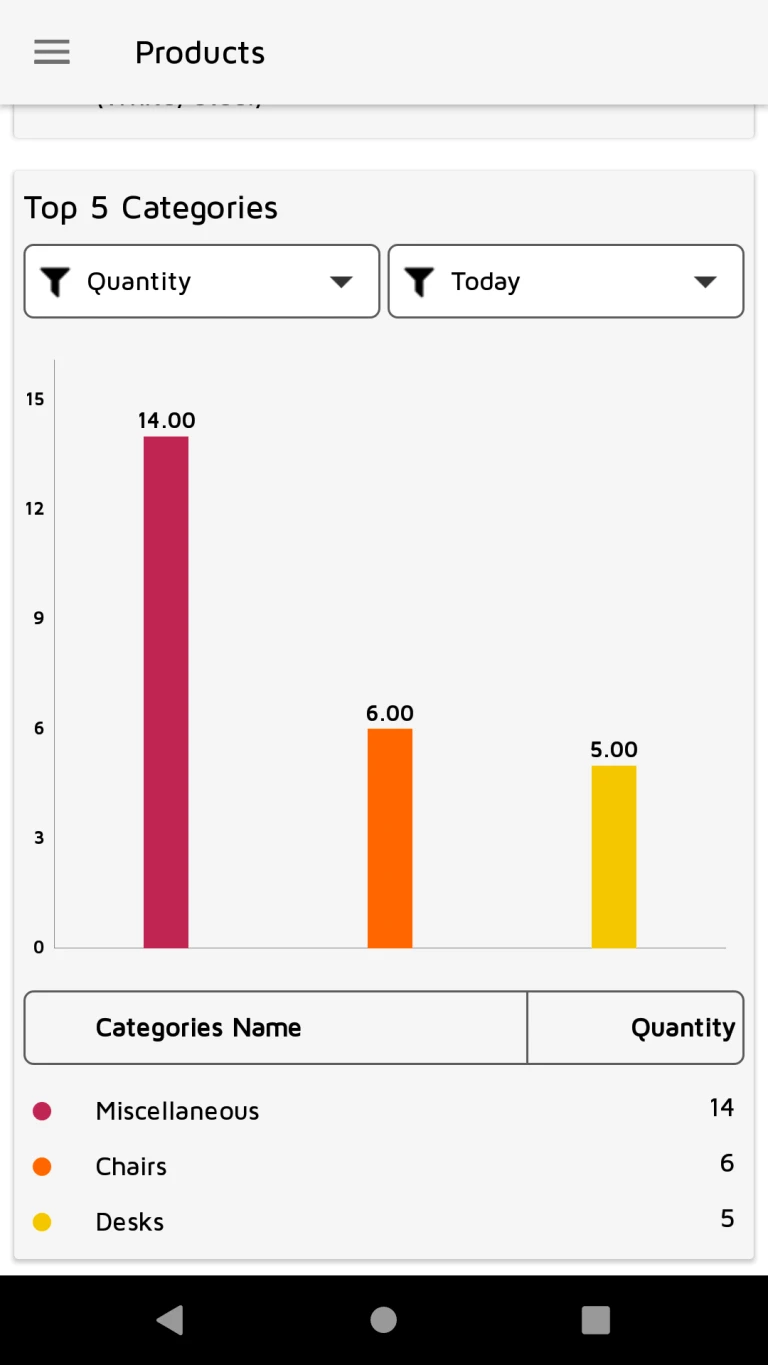
User can see top 5 categories by quantity.
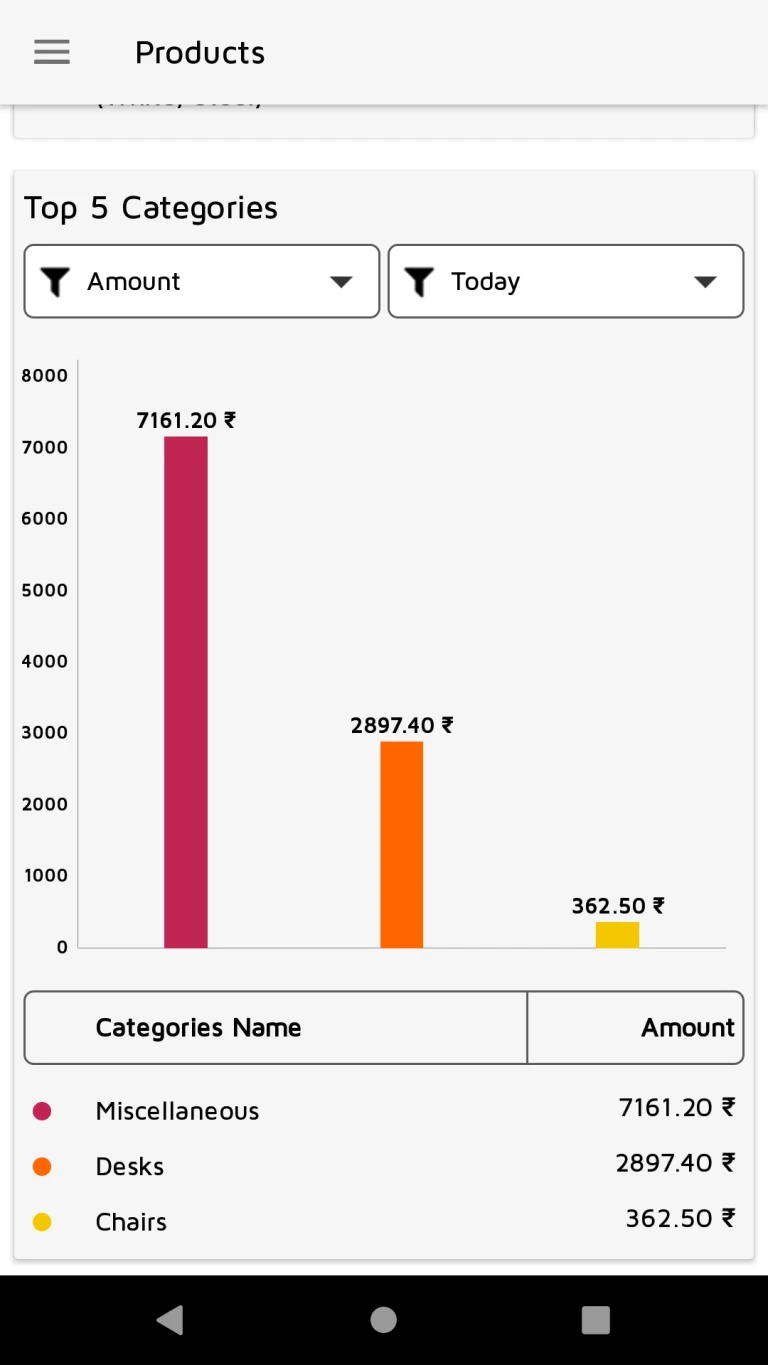
User can see top 5 categories by amount.
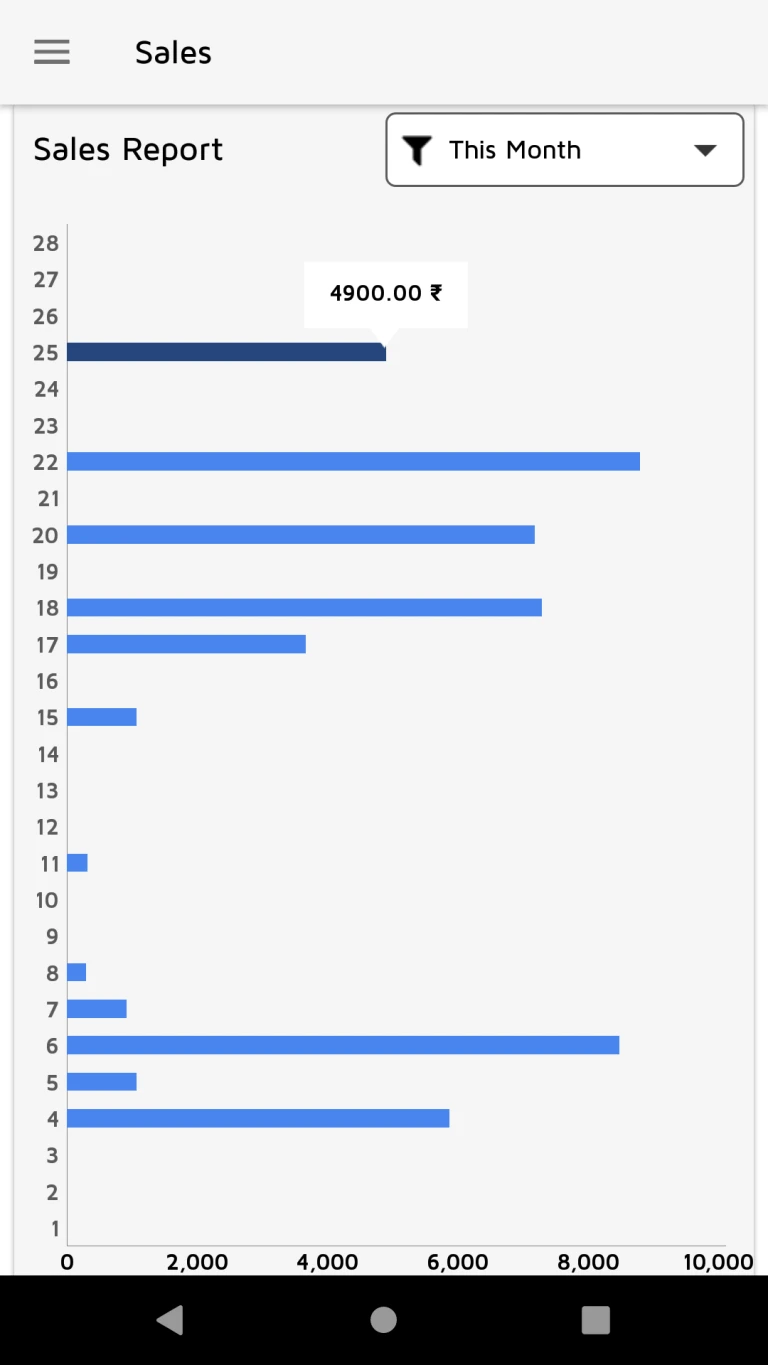
User can see monthly sales report.
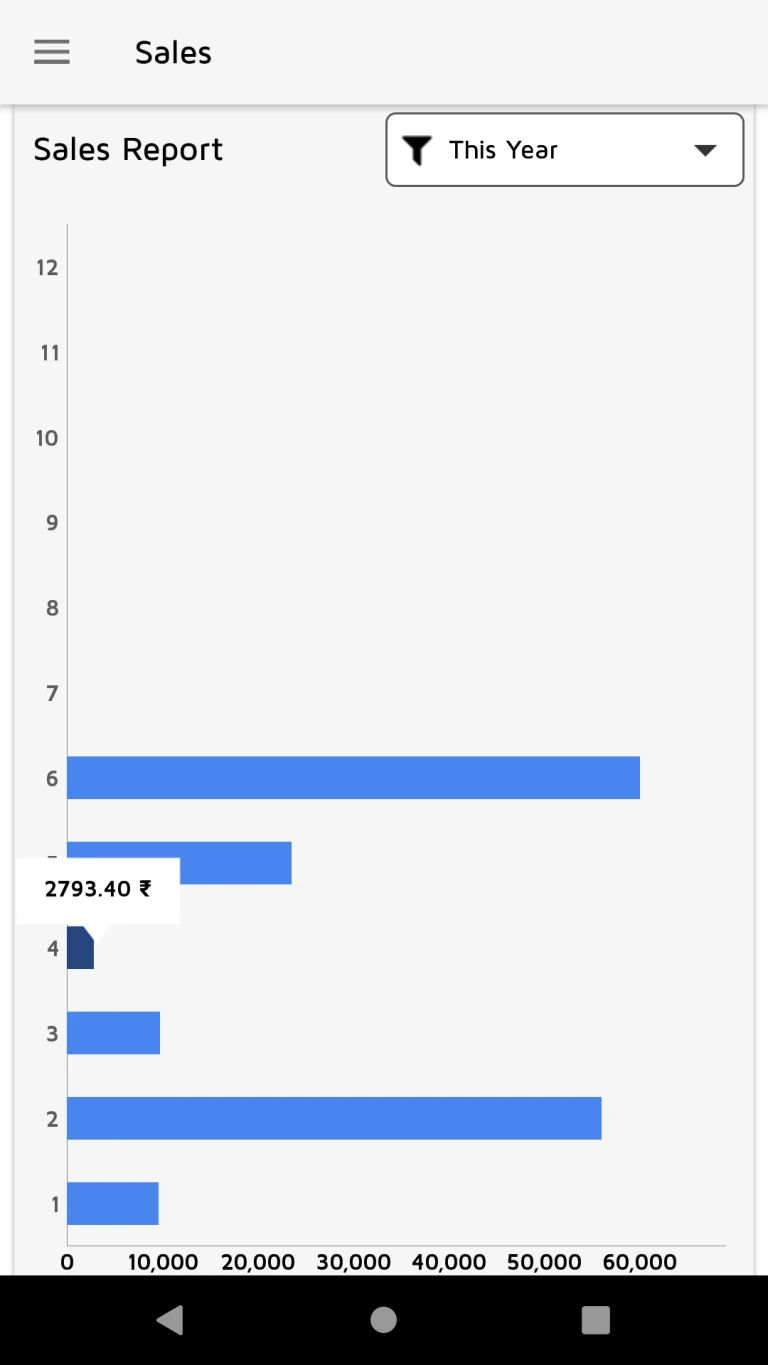
User can see yearly sales report.
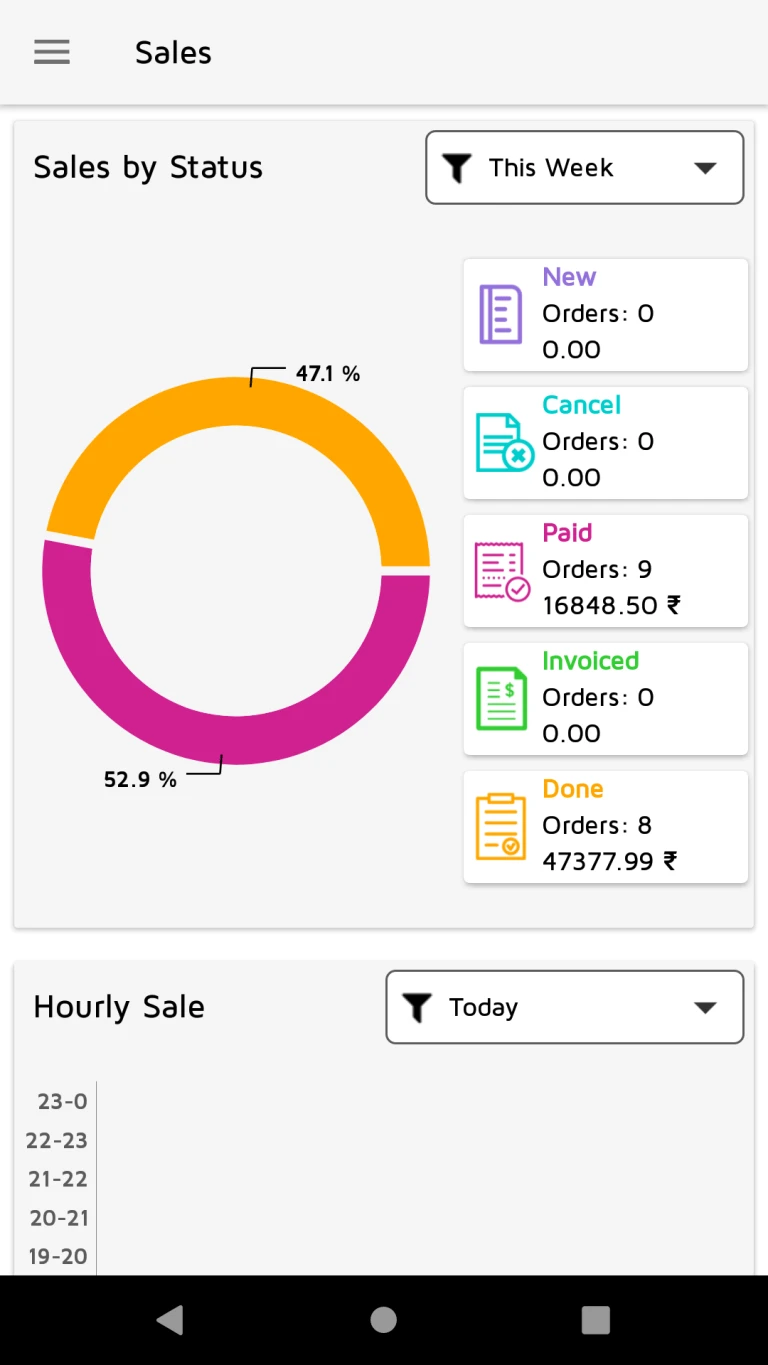
User can see sales and order details according it’s status.
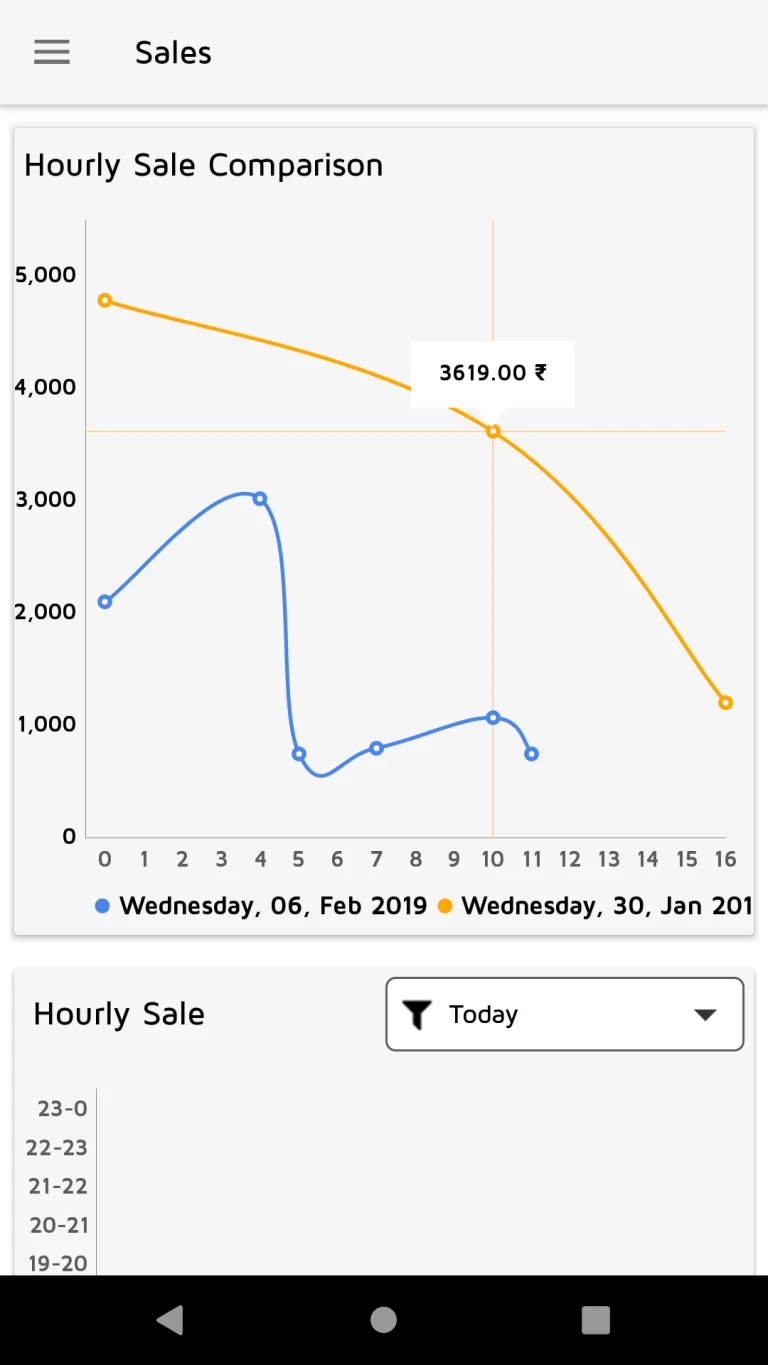
User can see hourly comparison of today and last 7th day of week.
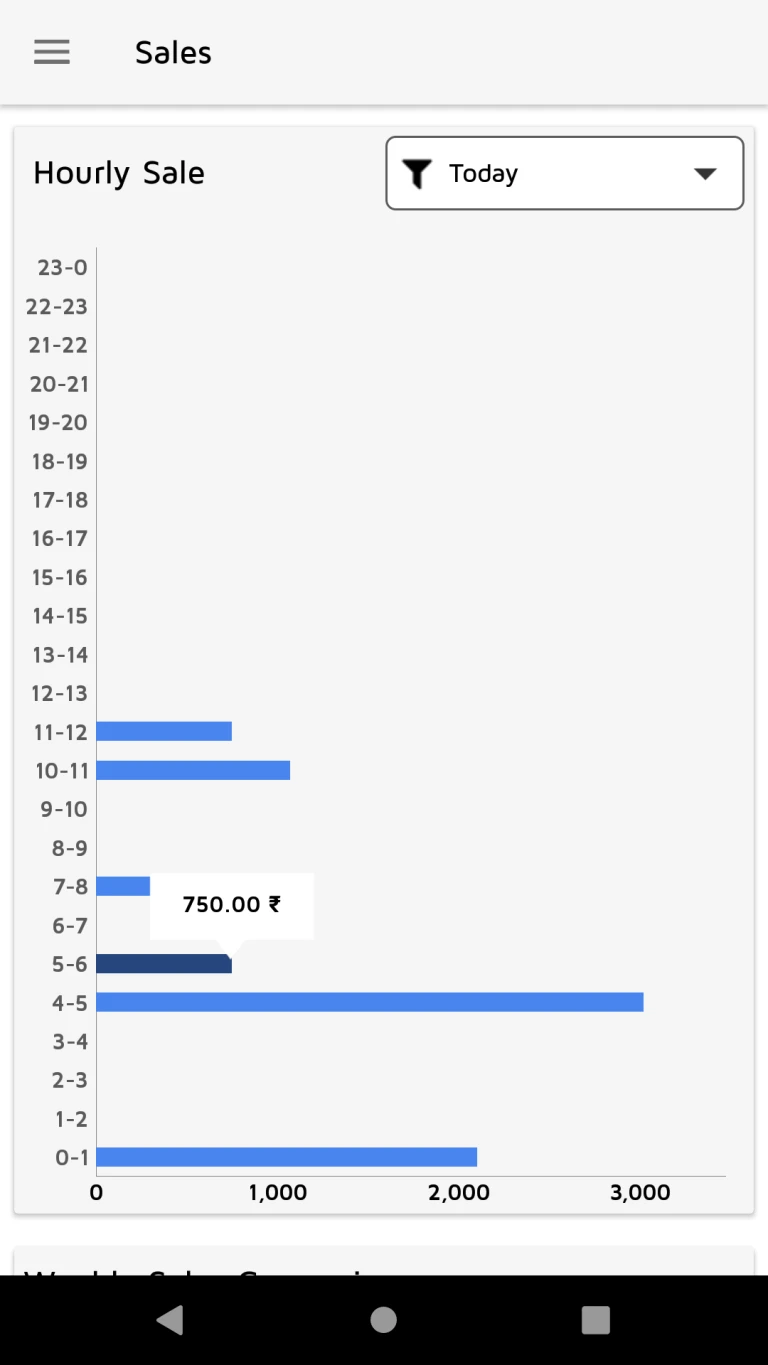
User can see hourly sale by today or selected date.
User can see weekly sales comparison of current week with last week.
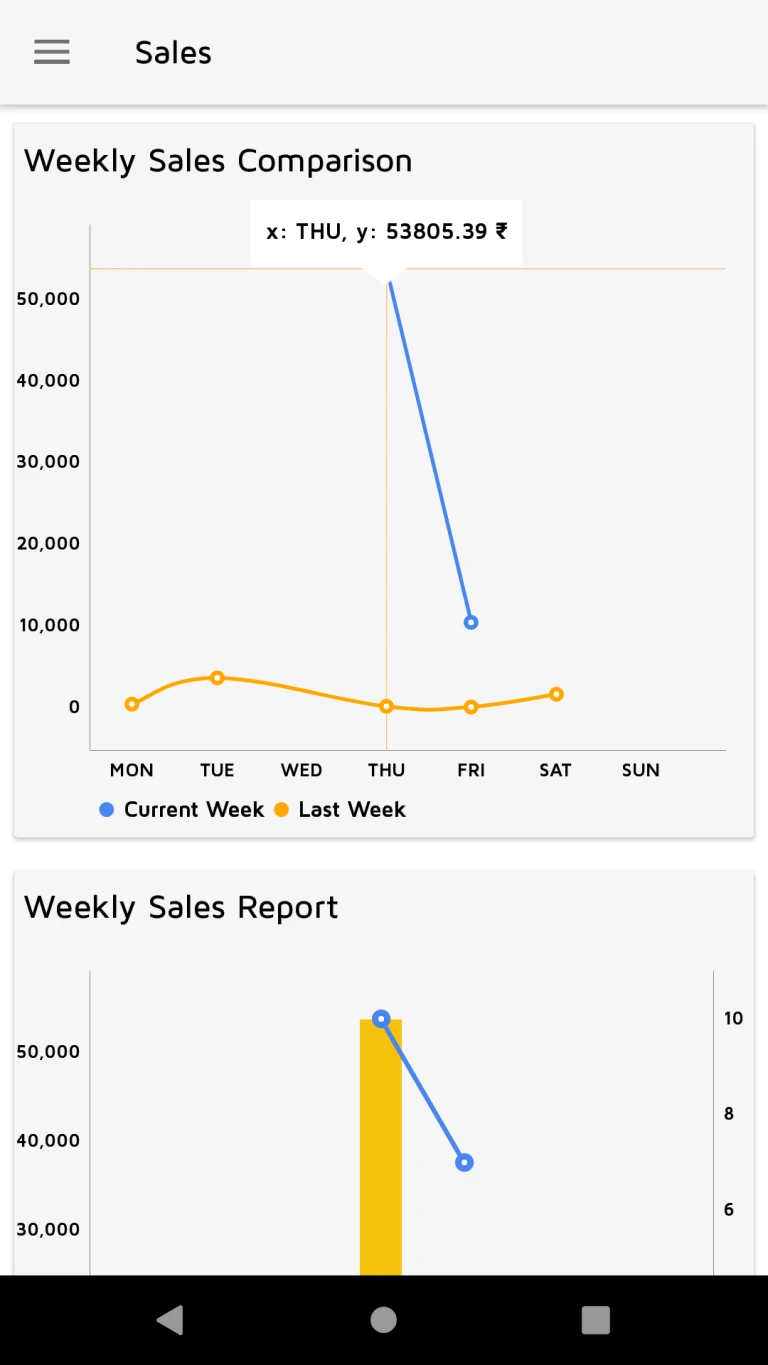
User can see sales and order details of current week by weekdays.
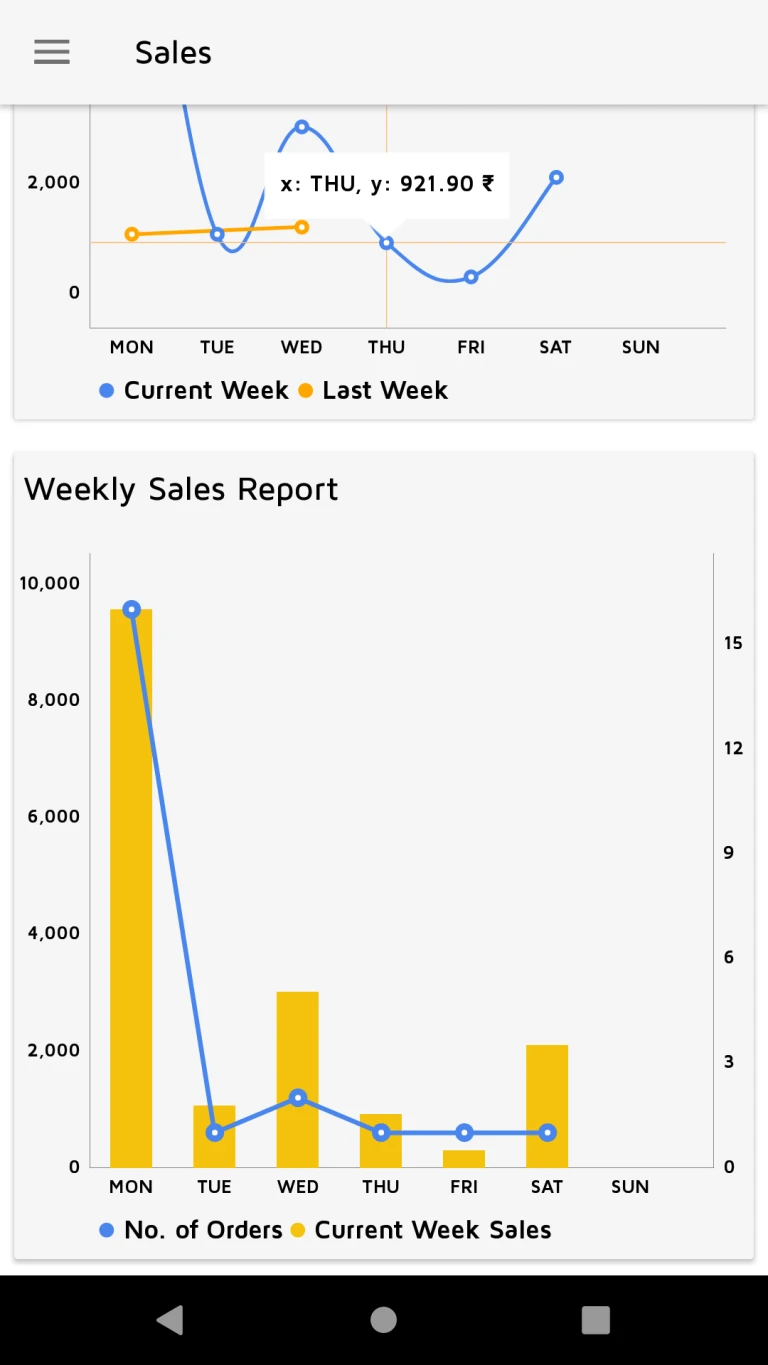
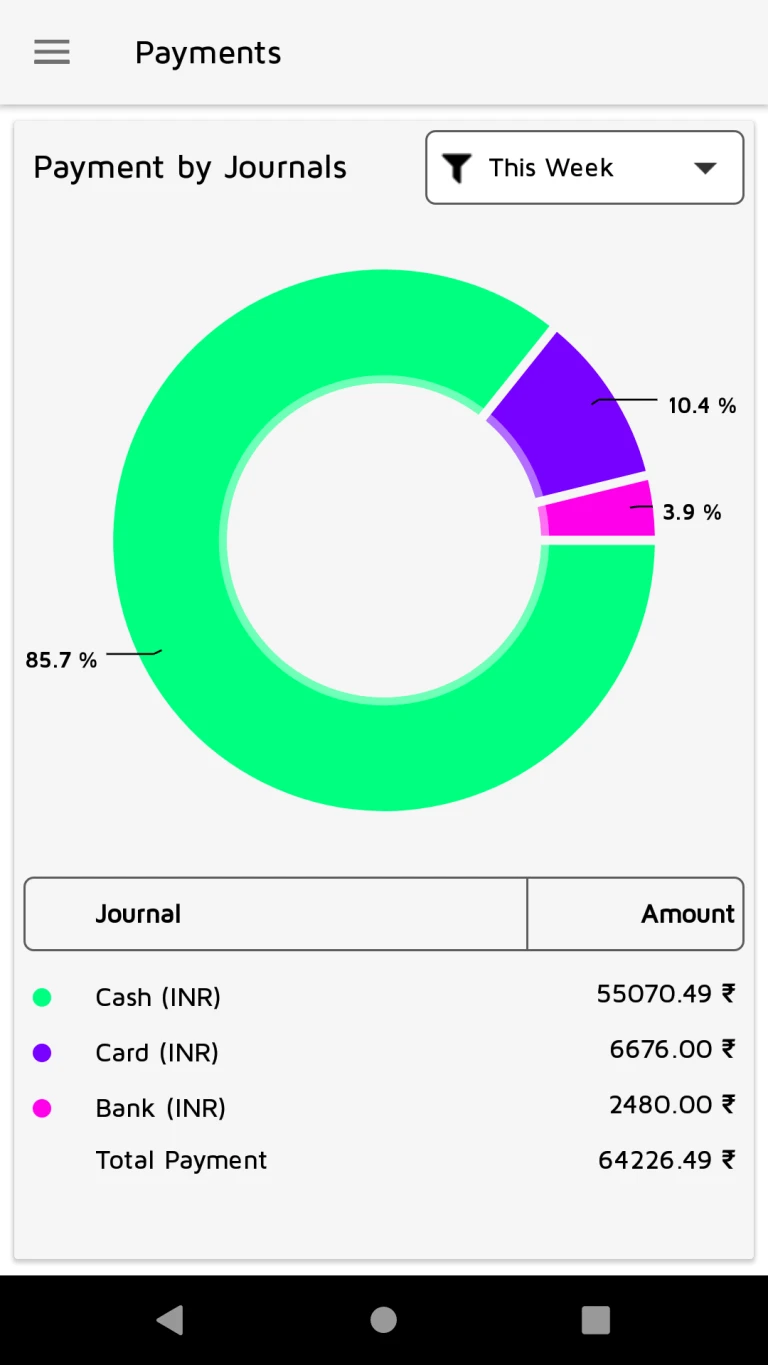
User can see payment information according to various accounting journal.
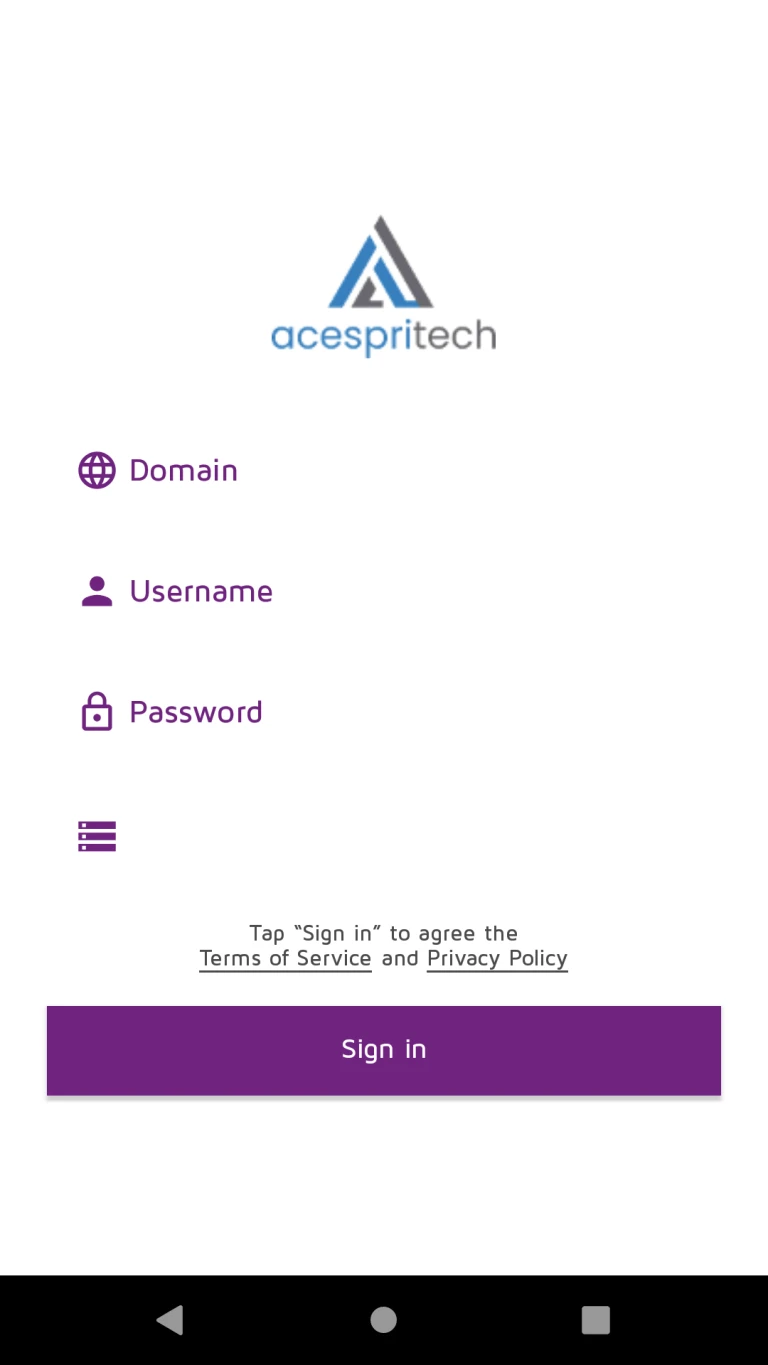
How to use
User can login with Odoo URL, username, password and Odoo version12 database.
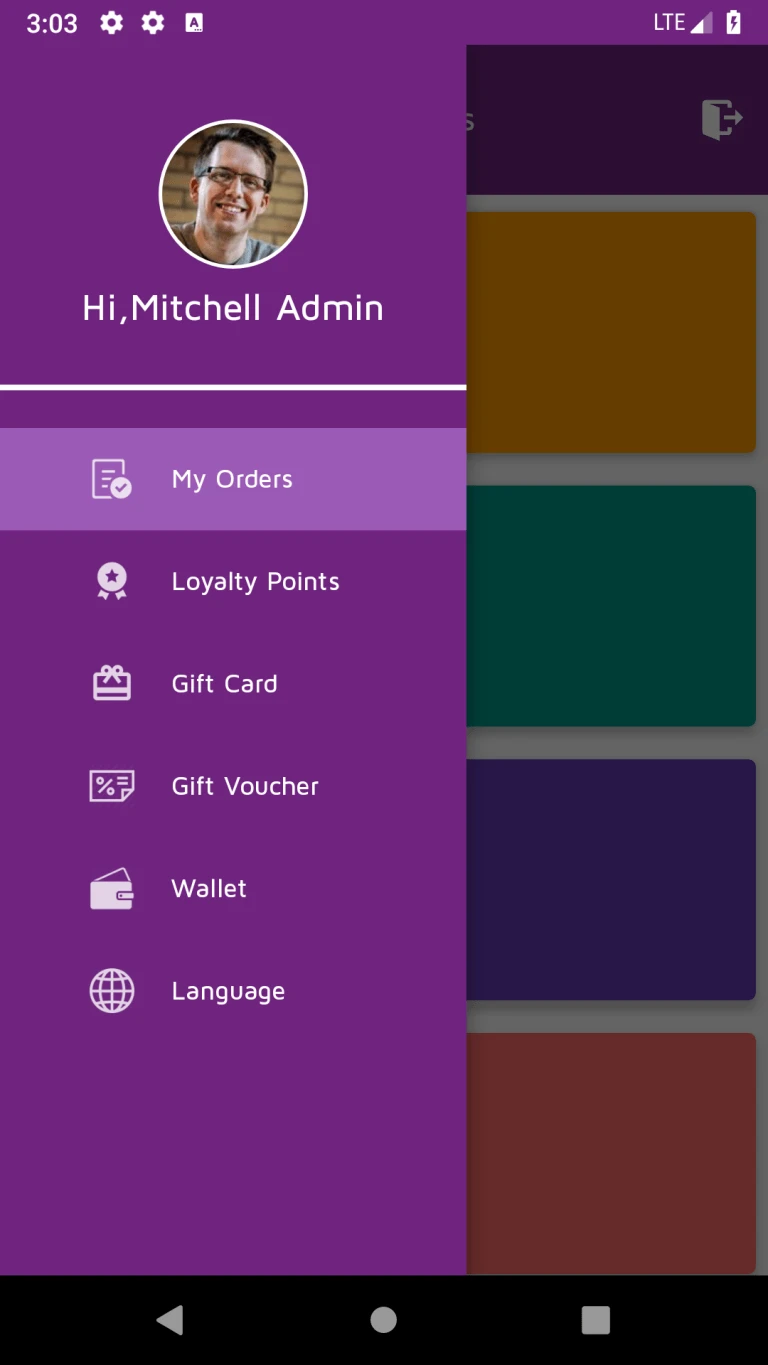
User can navigate between menus in application.
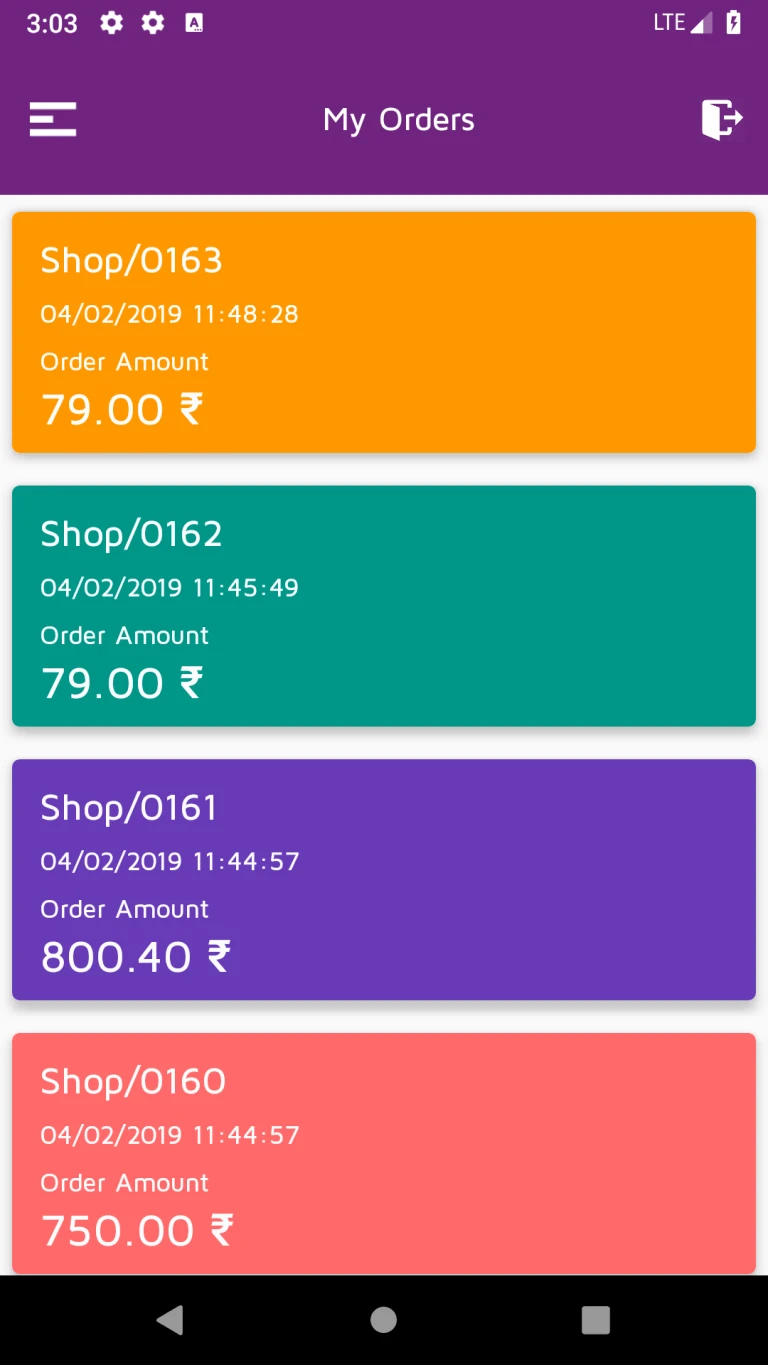
User’s list of orders will be displayed.
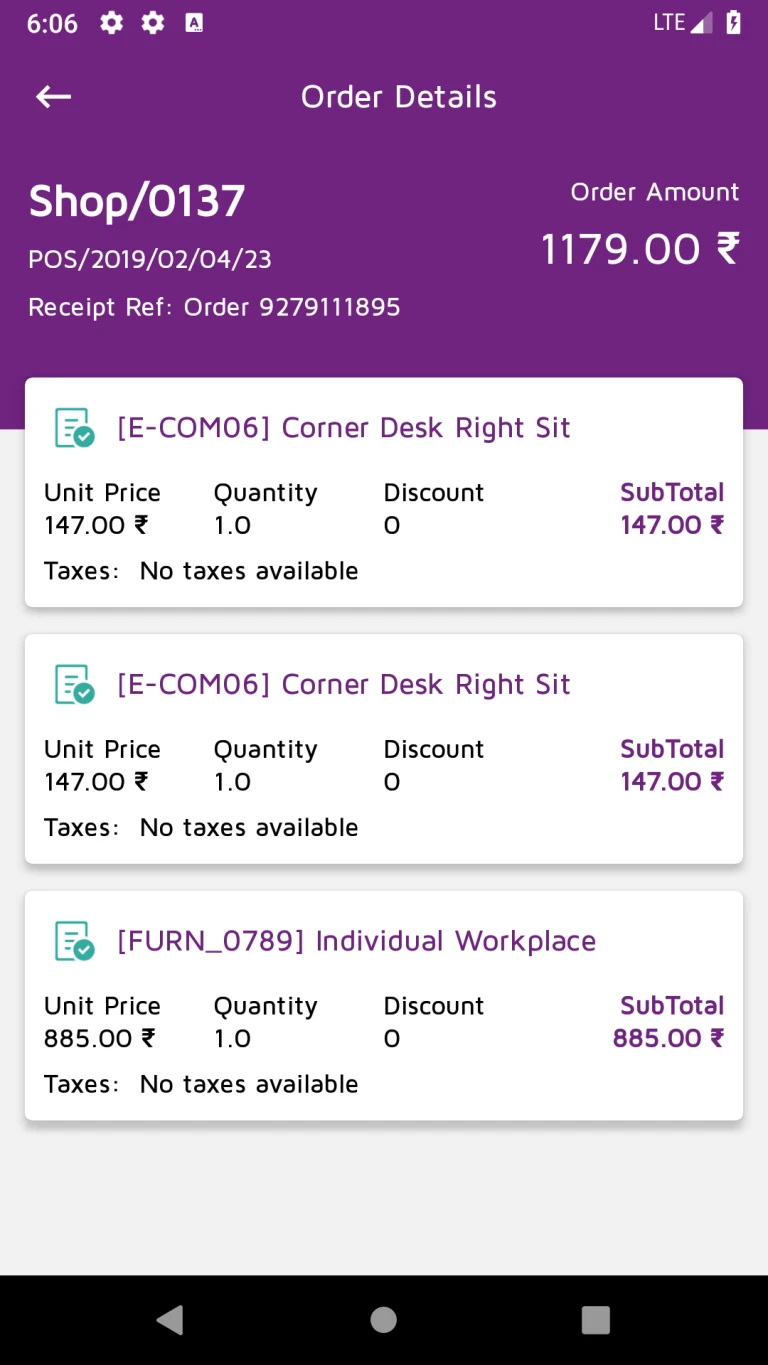
Order details like products, price, discount, taxes and order amount will be displayed.
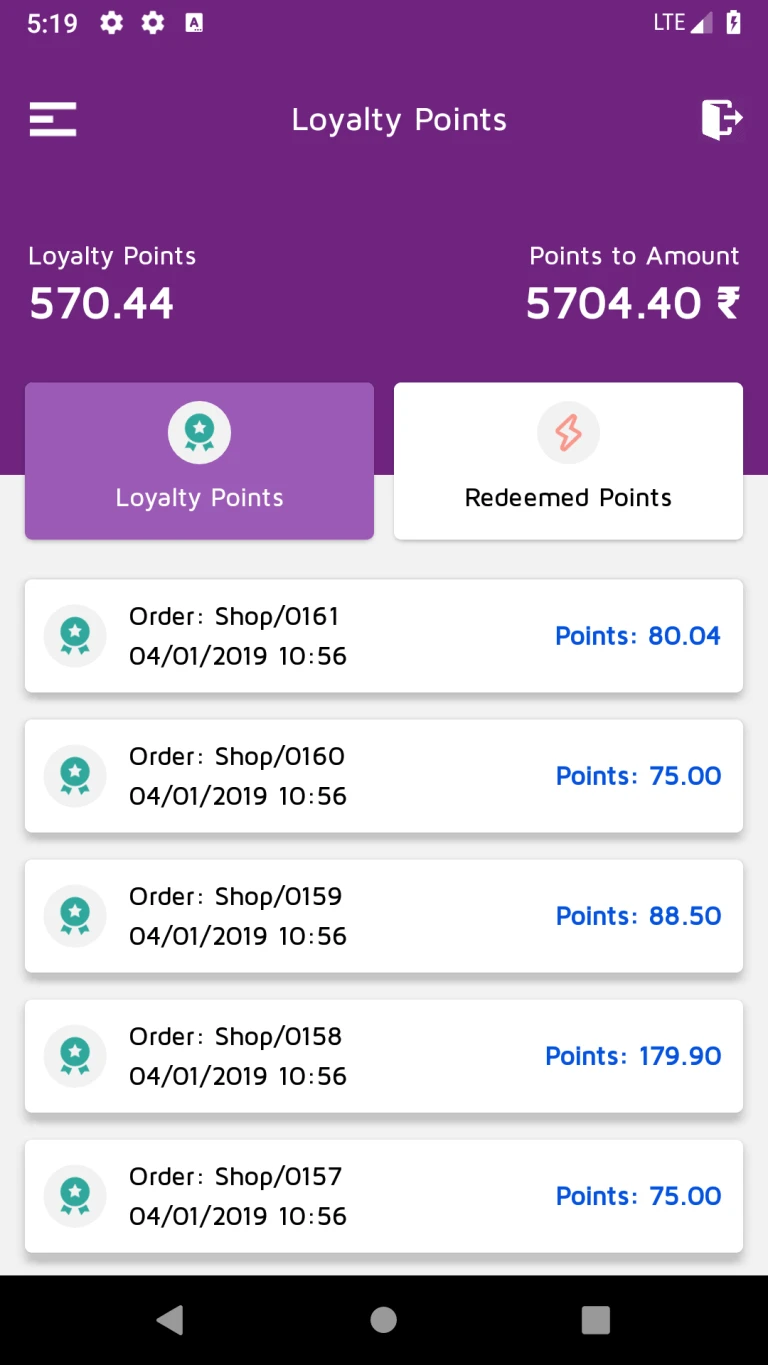
Loyalty points earned by user will be displayed.
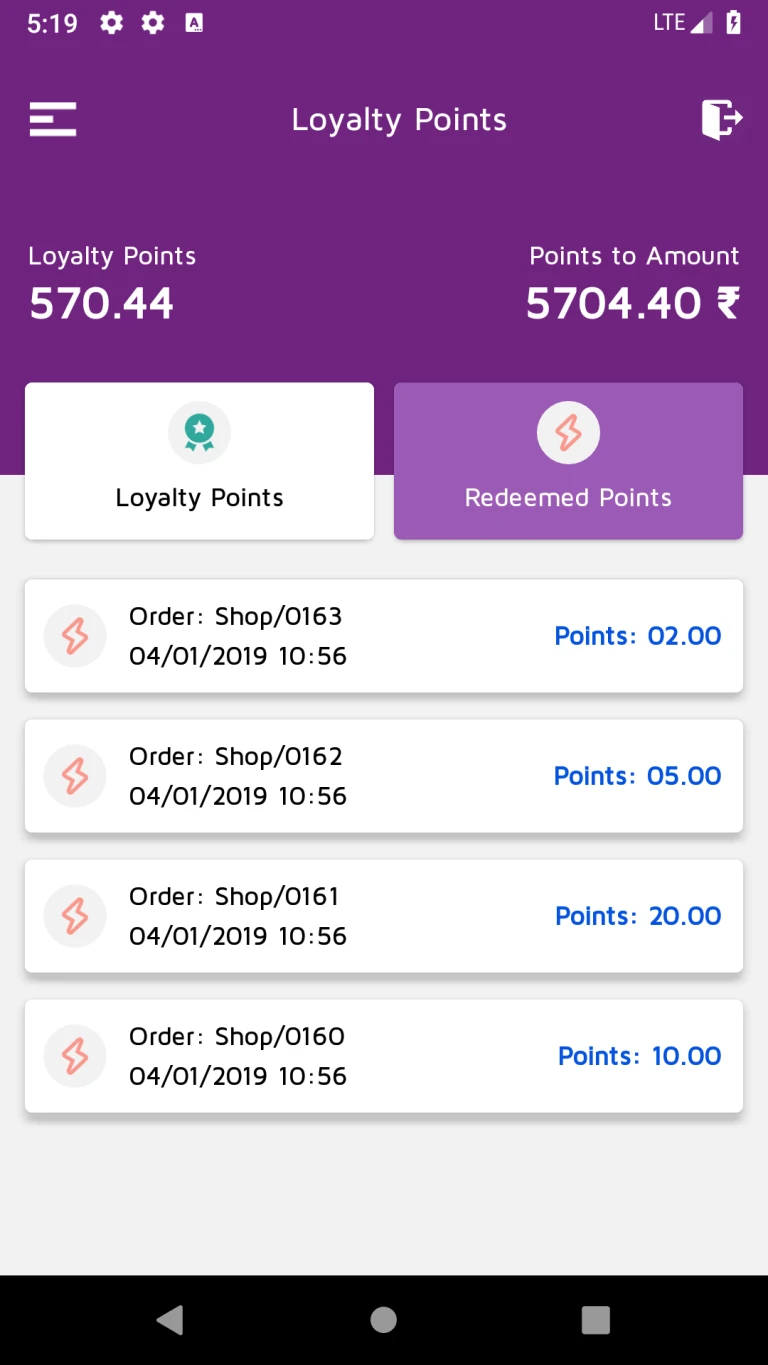
Loyalty points redeemed by user will be displayed.
User’s gift card will be displayed.
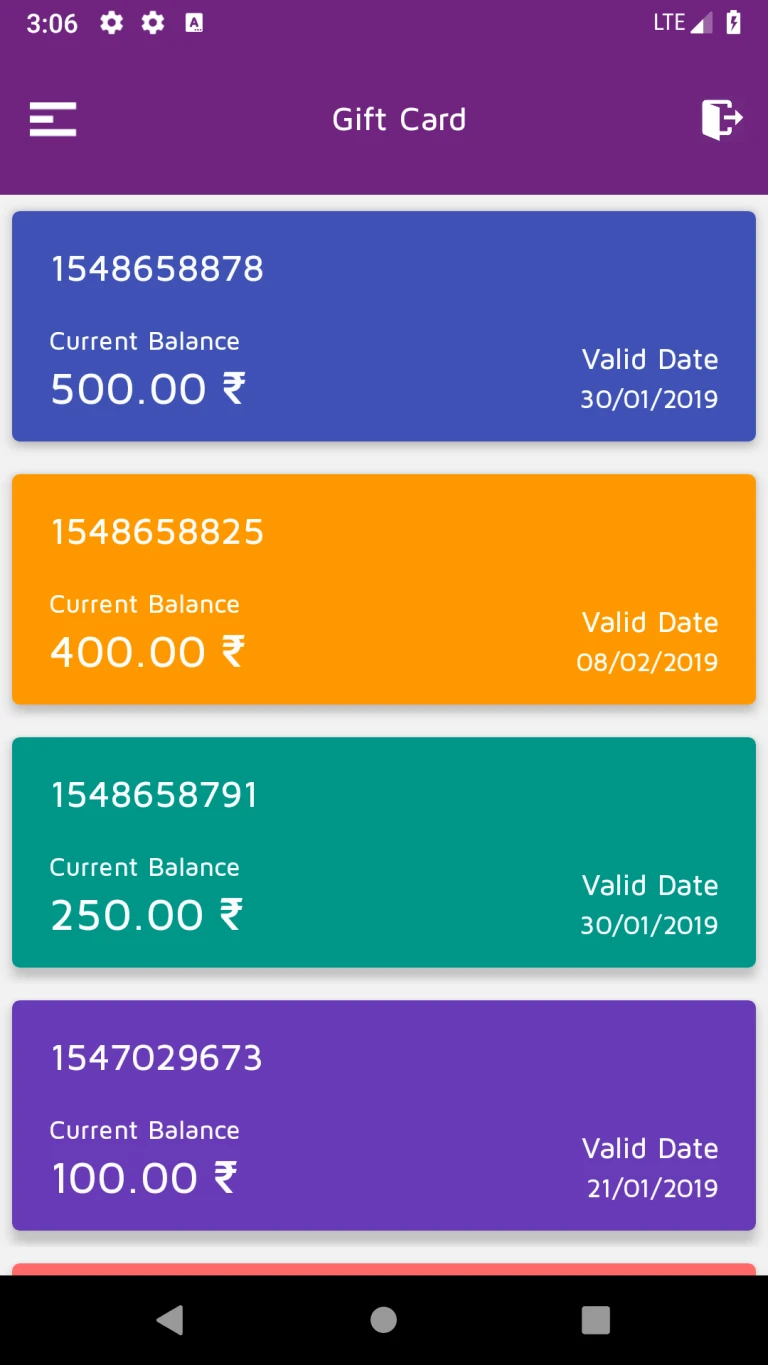
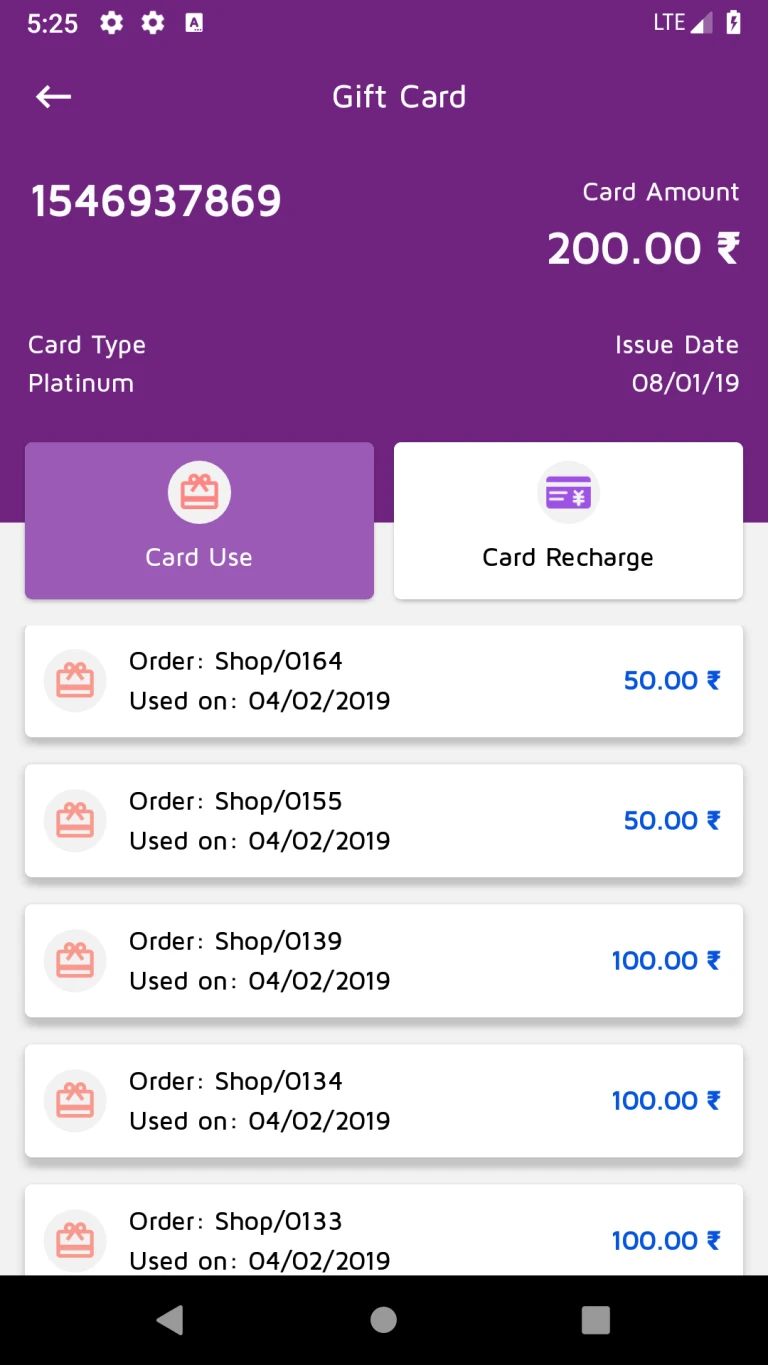
Gift card details will be displayed.
Used gift card details will be displayed.
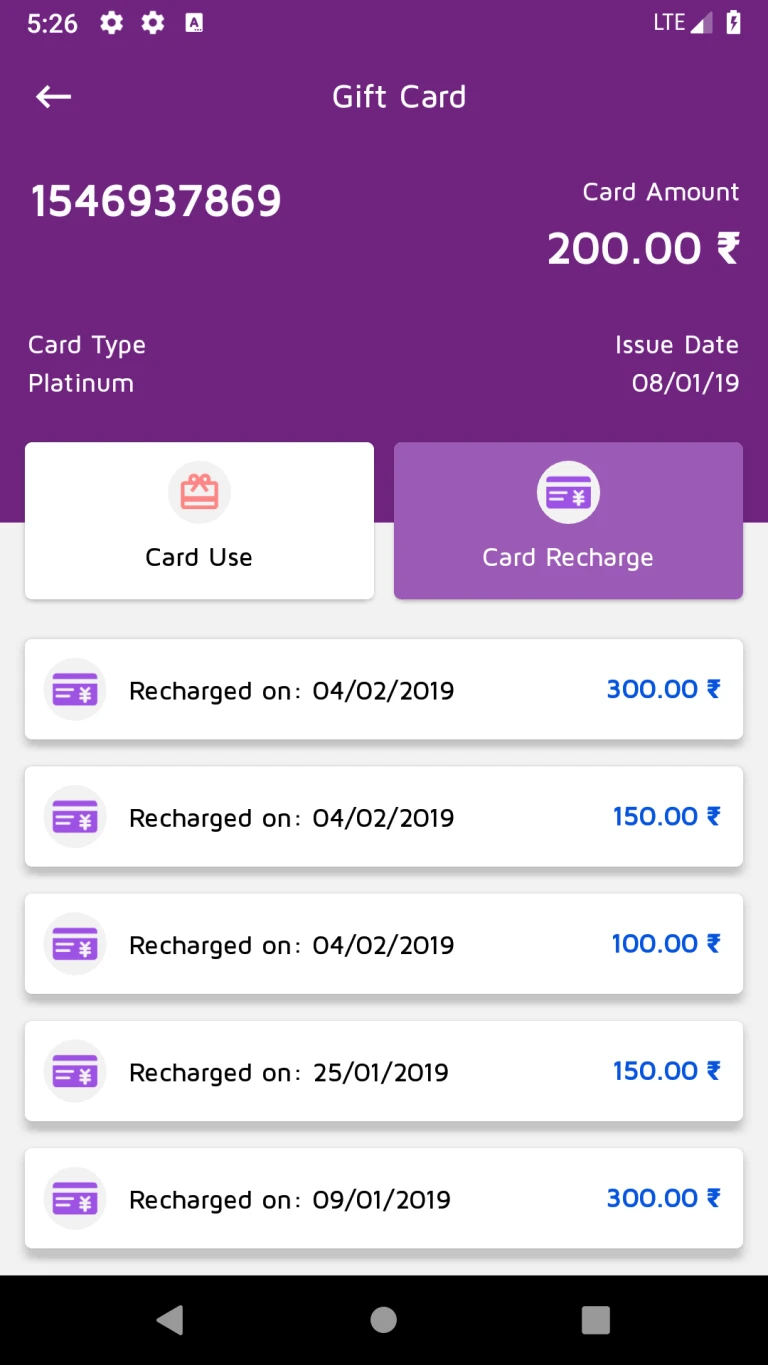
Recharge details of gift card will be displayed.
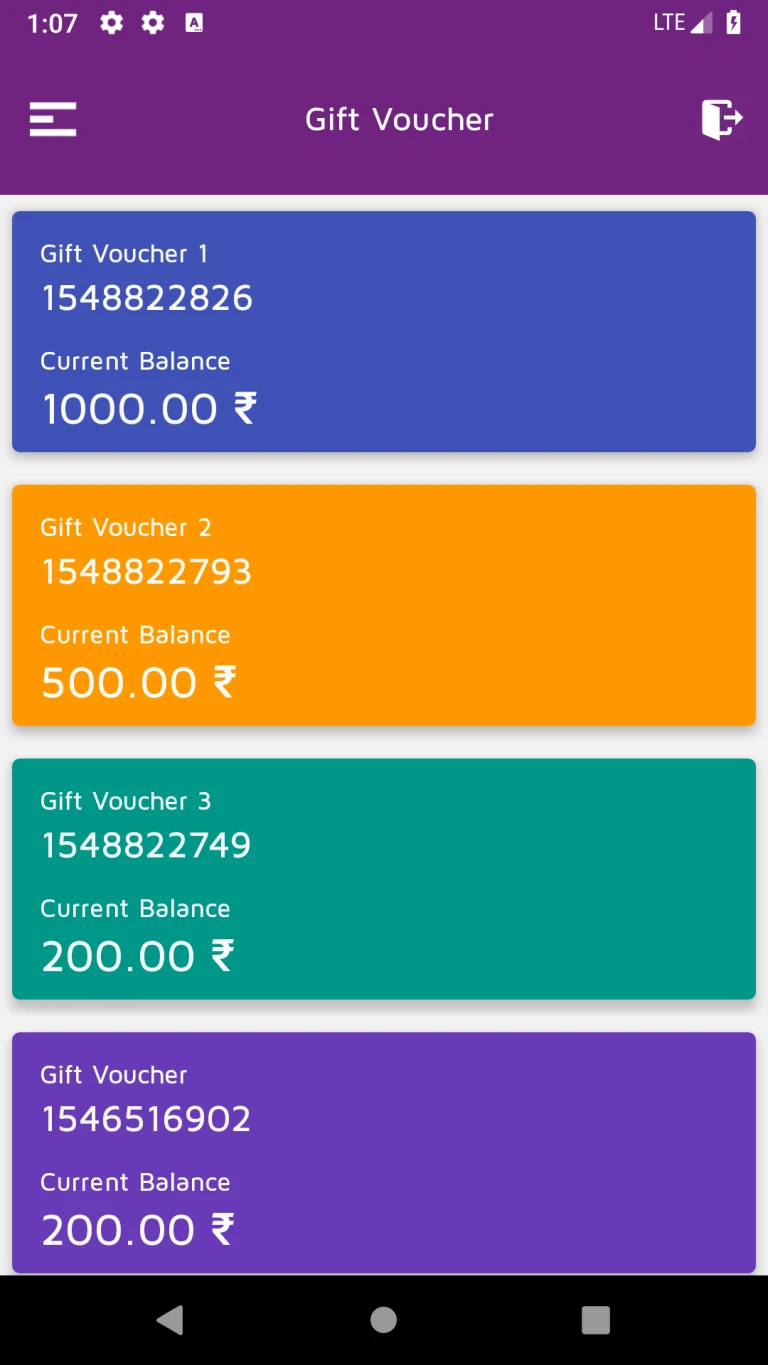
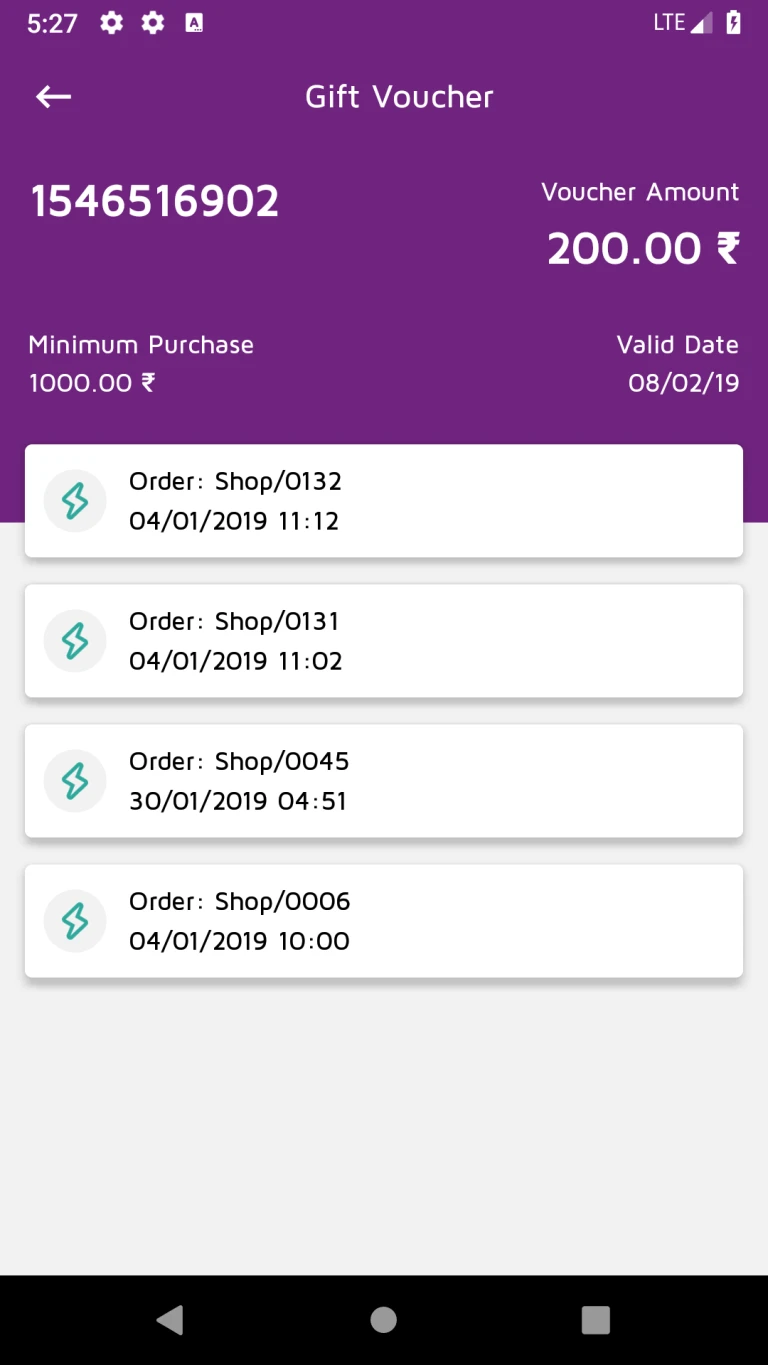
Vouchers will be displayed.
Voucher details redeemed by user will be displayed.
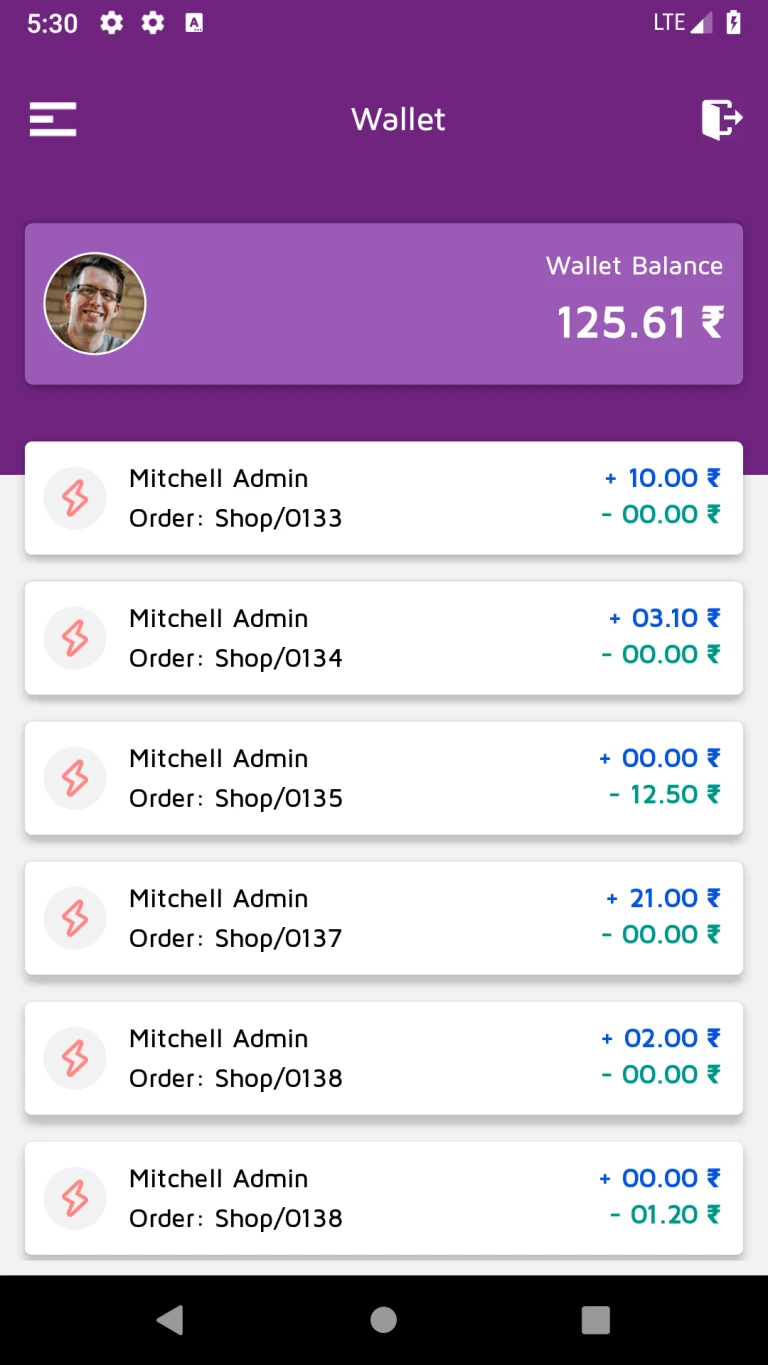
User’s wallet transaction details will be displayed.
How to use
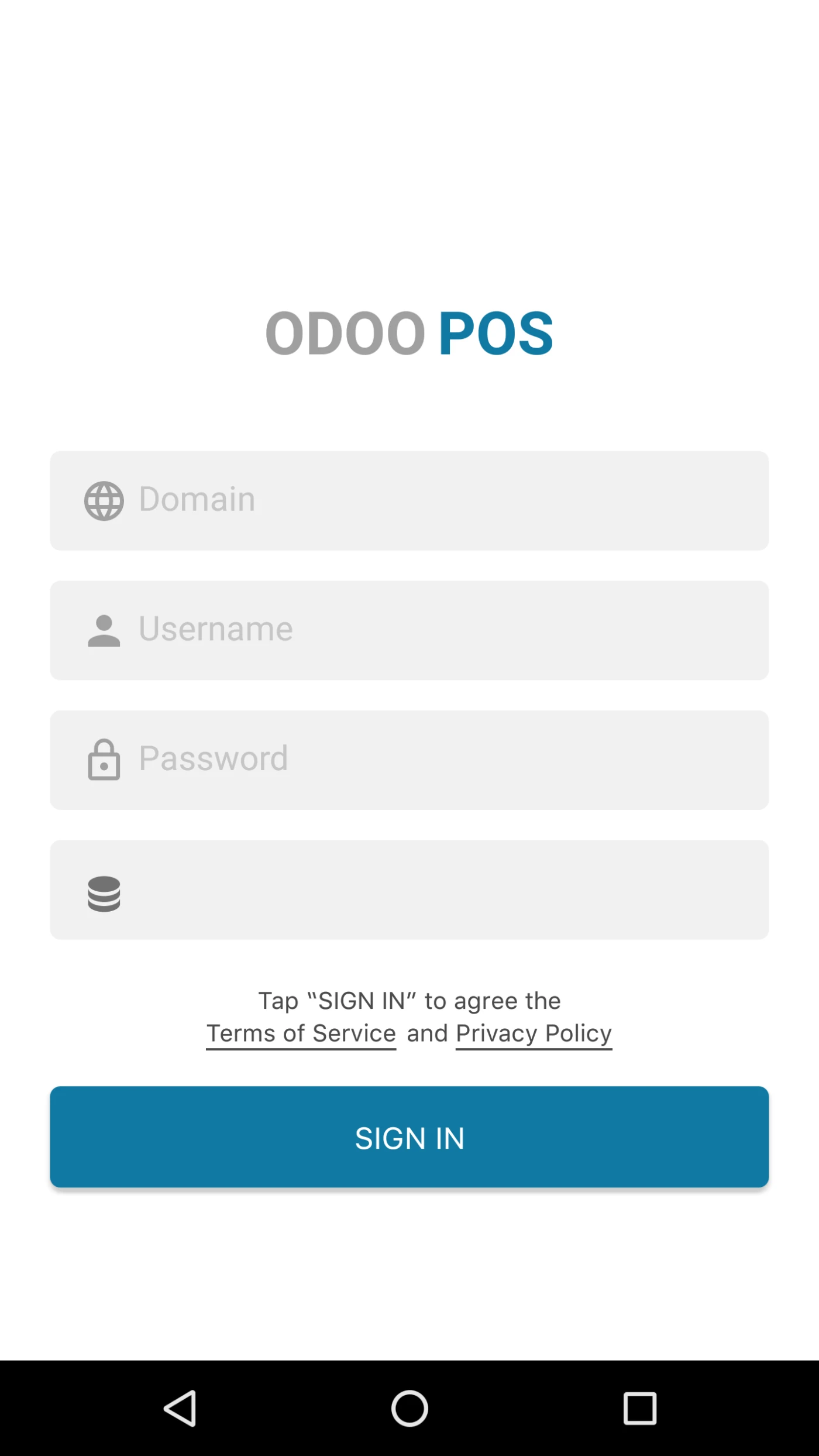
To Login in APP, Odoo v12 instance should be running.
User can Login in APP with his Odoo URL, Username, Password and Database.
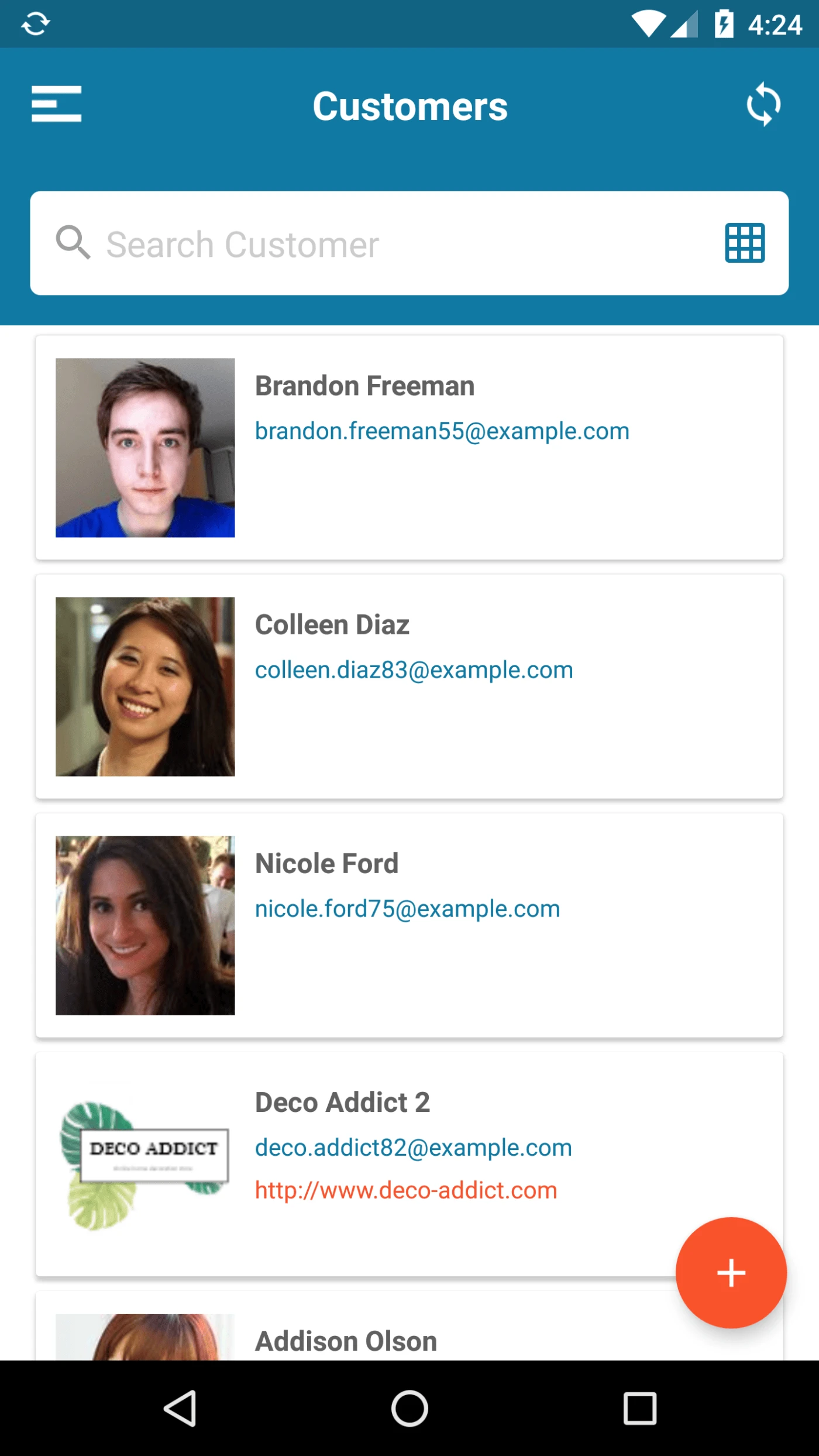
User can view List of Customers here.
User can switch Between Kanban and List view.
User can Create new Customer from Here.
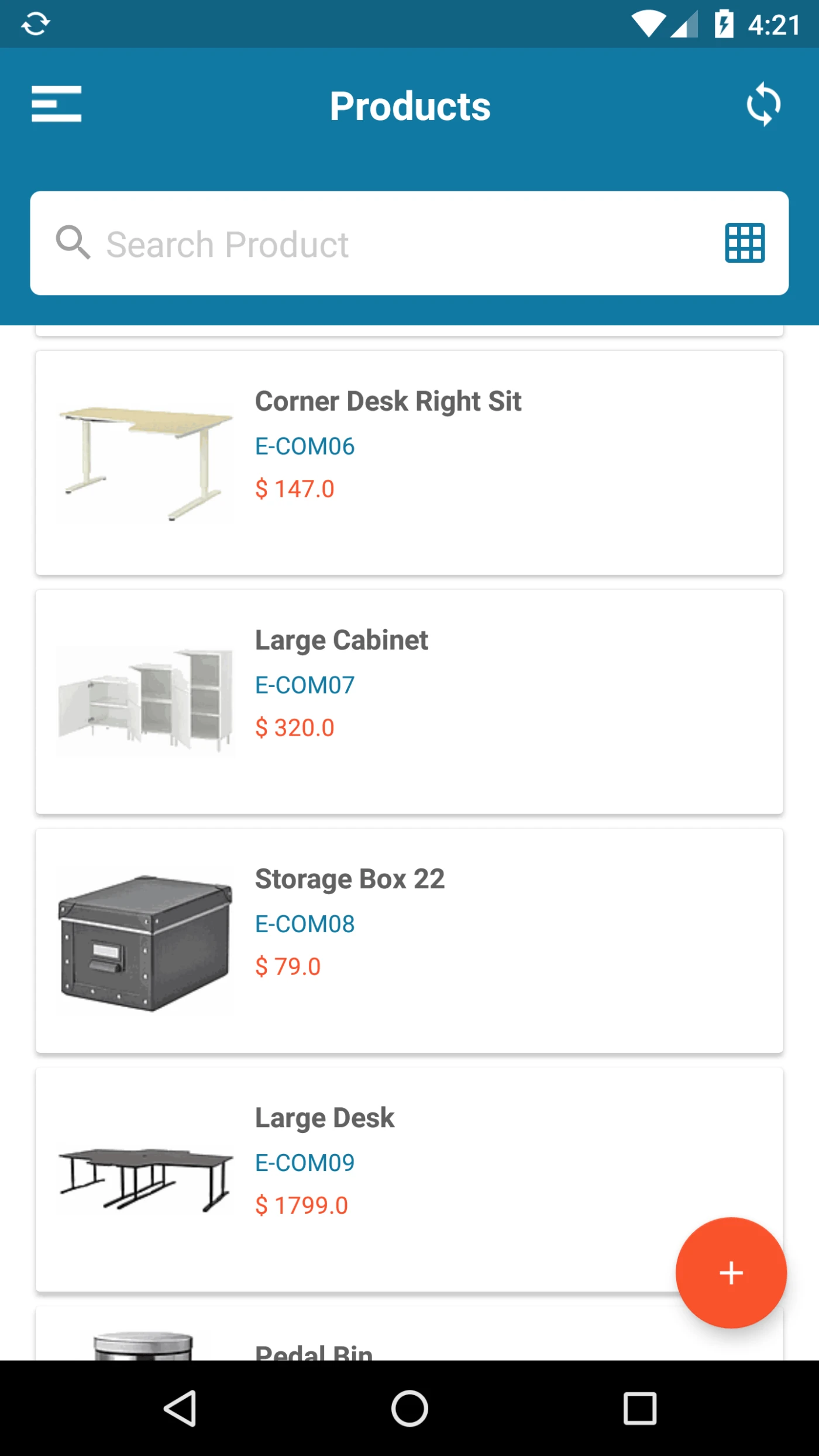
User can view List of Products here.
User can switch Between Kanban and List view.
User can Create new Products from Here.
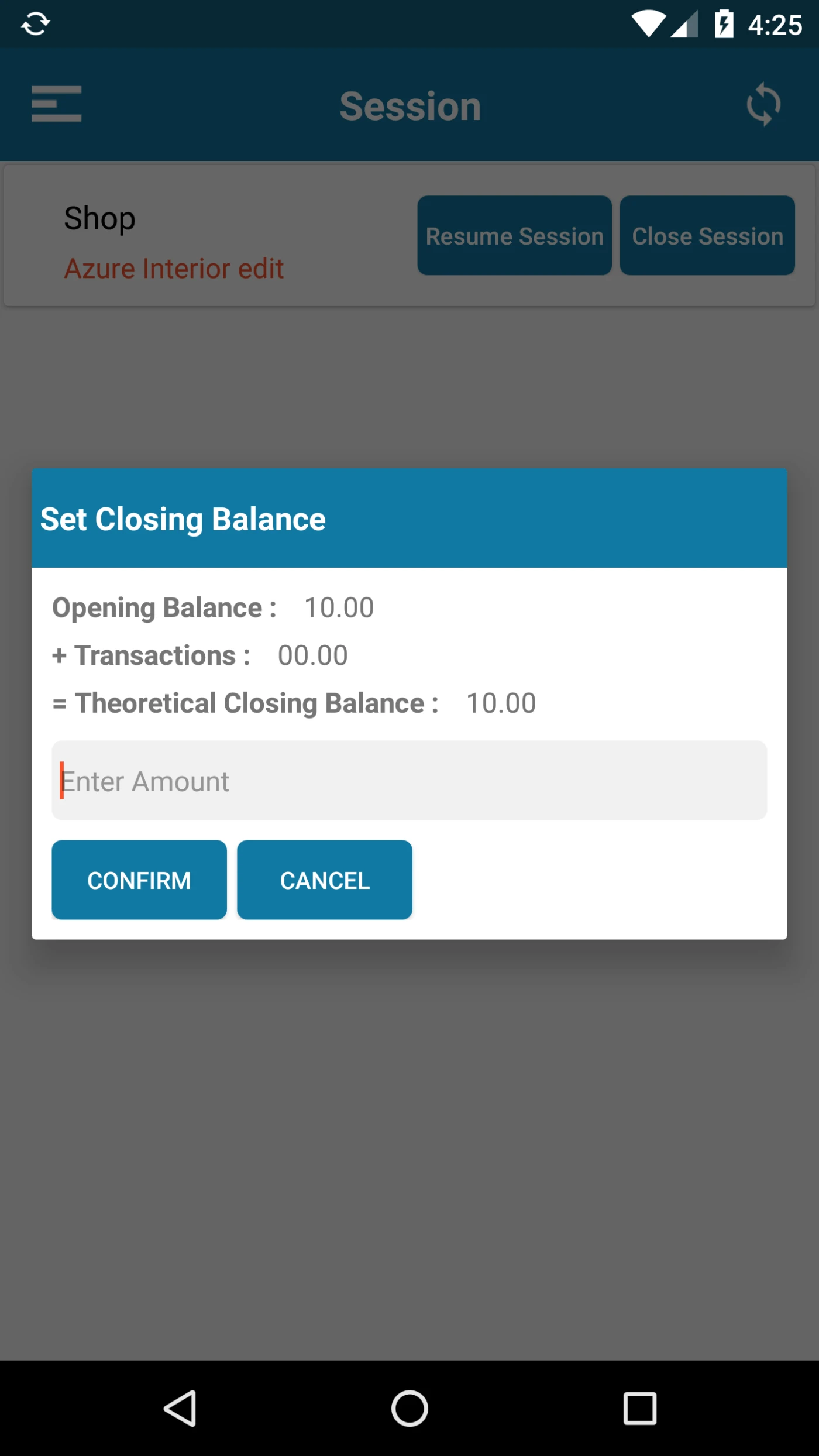
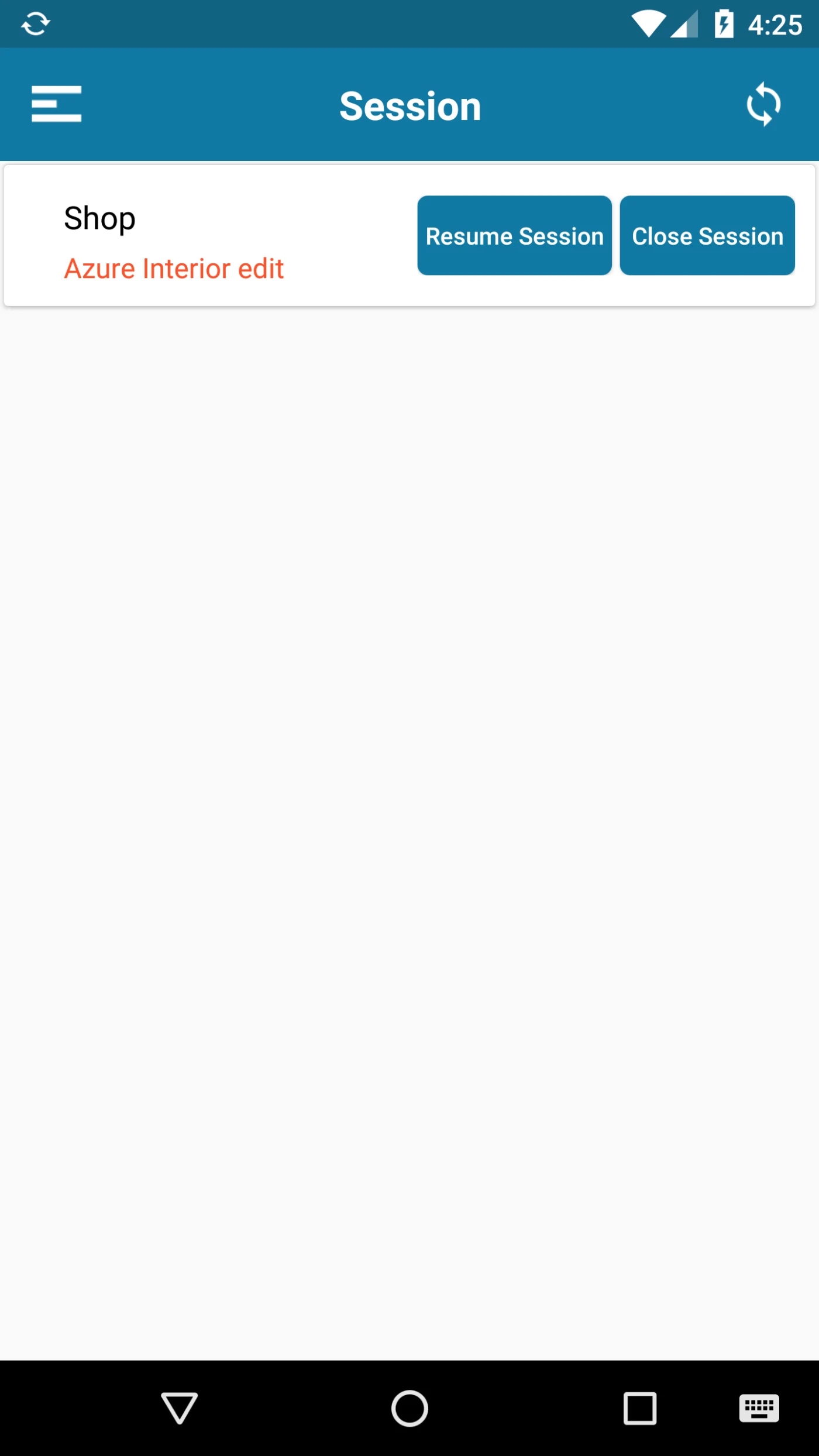
All POS Session will be Loaded Here. User can create, Open, Resume and Close the Session.
While Opening Session User can Enter Opening Balance.
While Closing Session User can Enter Session Balance.
User can view Balance details as well while Closing the Session.
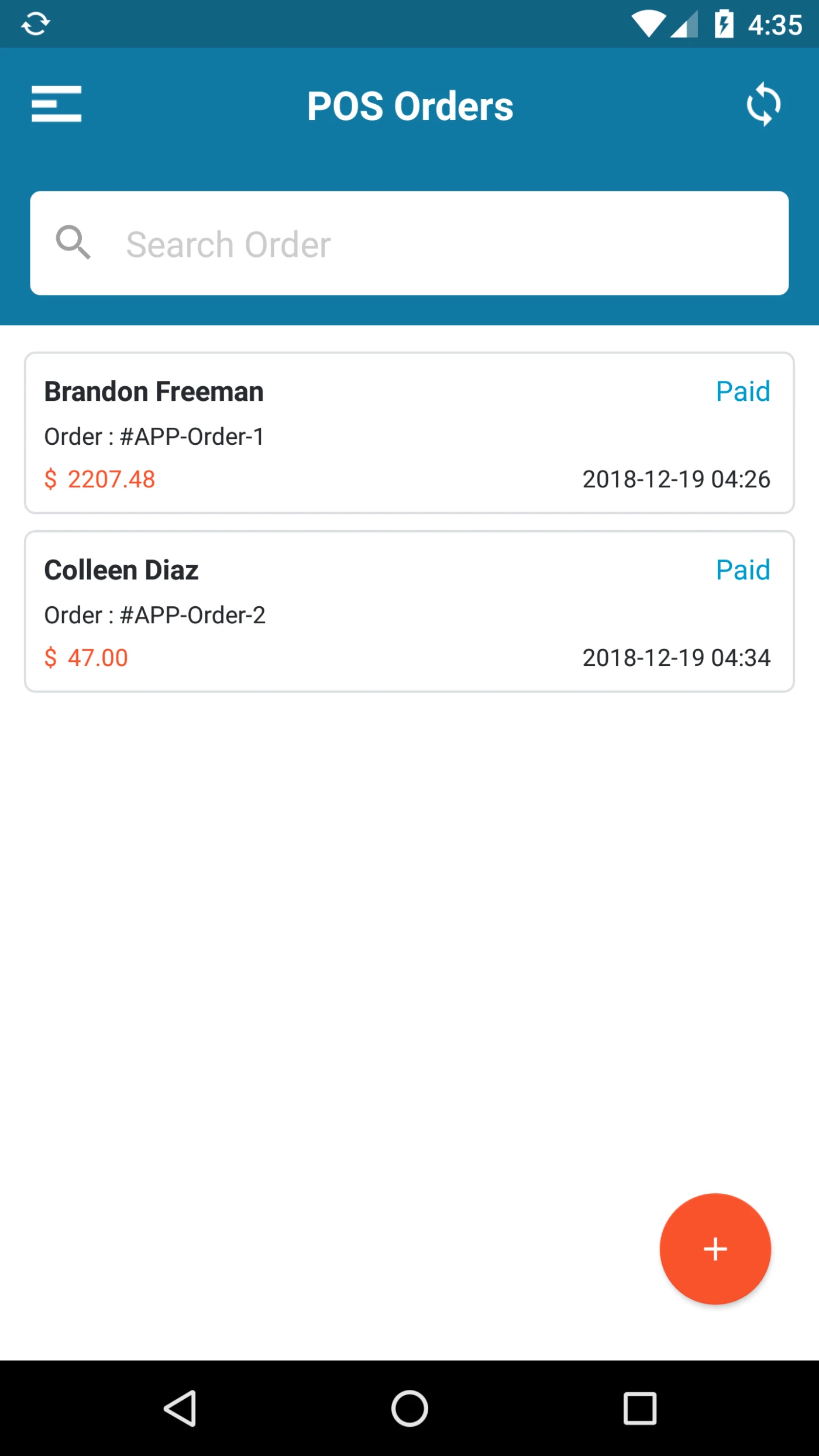
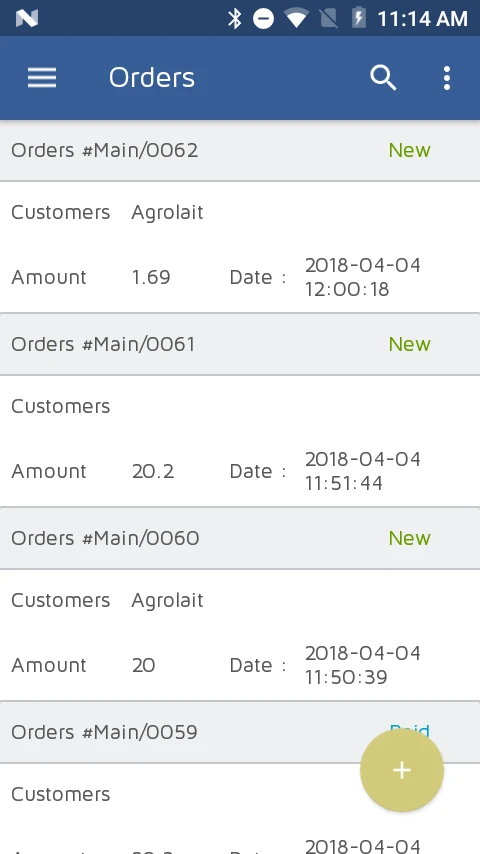
Here User can view orders created by him.
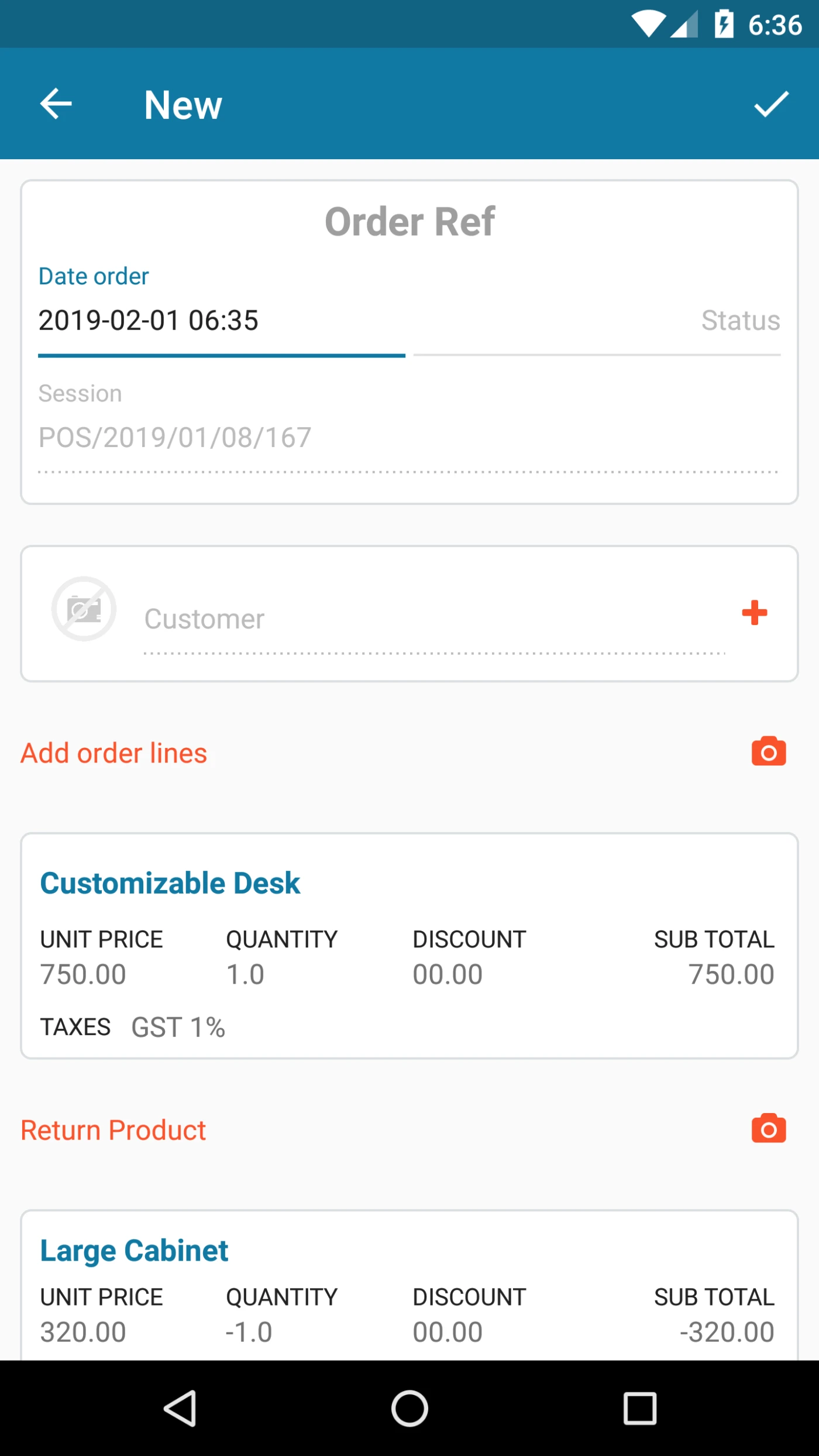
Here user can create order by selecting Customer, Products.
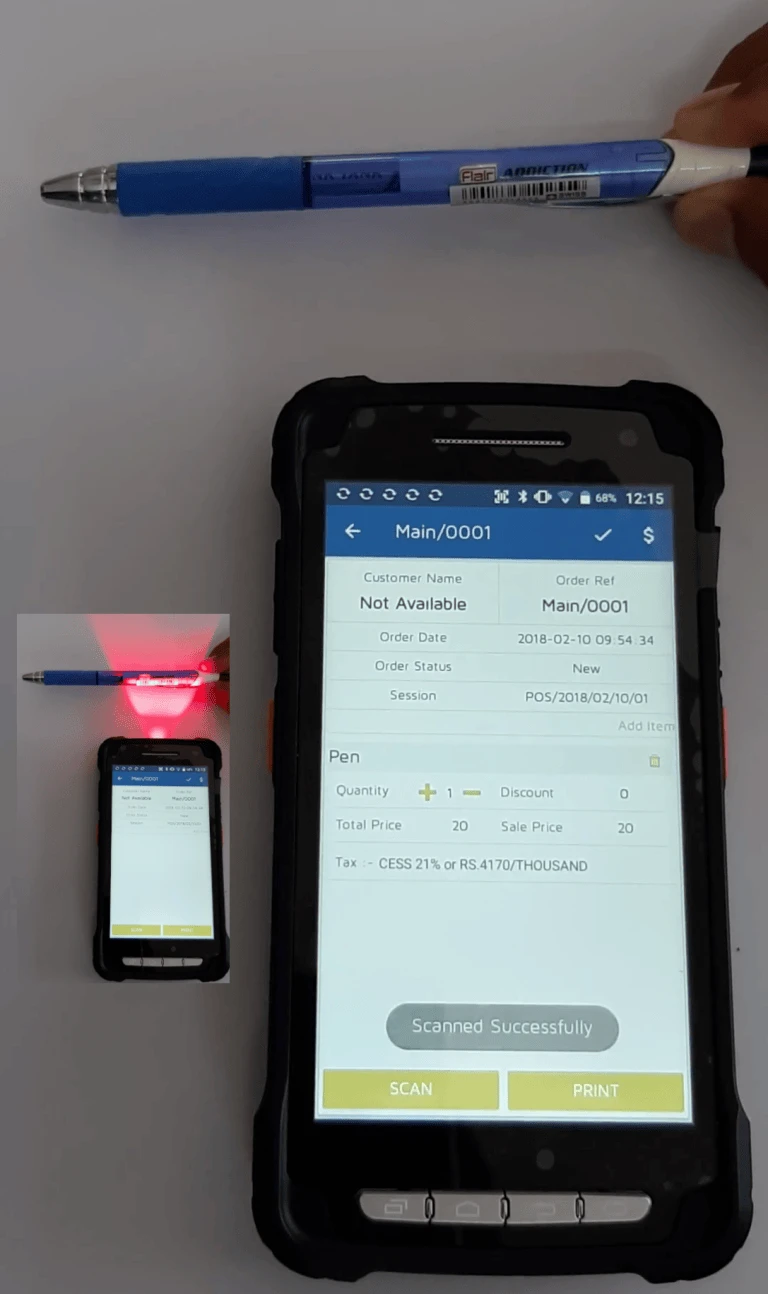
User can return products within same order. user can use Mobile camera to Scan Products.
User can give discount and taxes on Products as well.
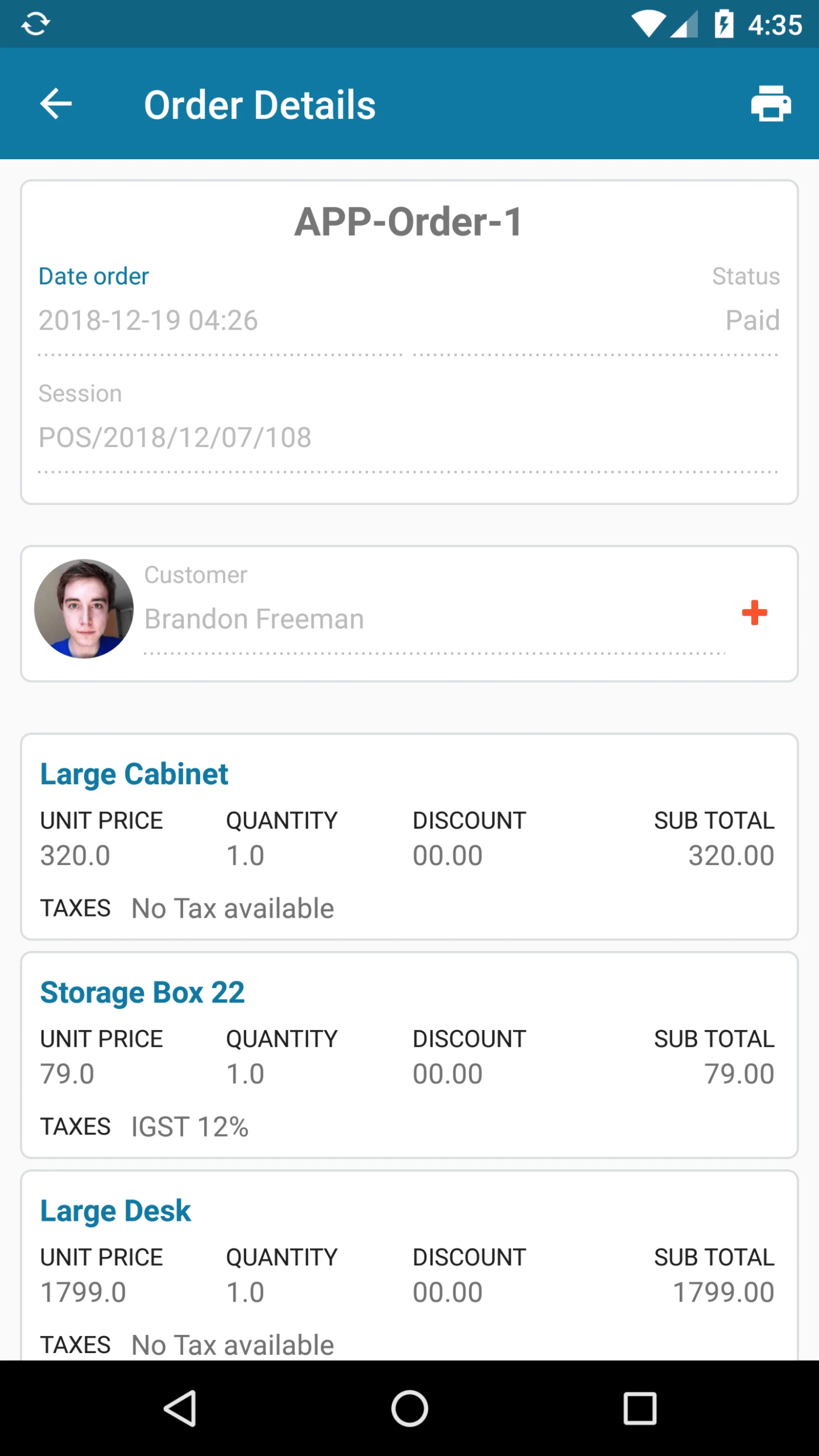
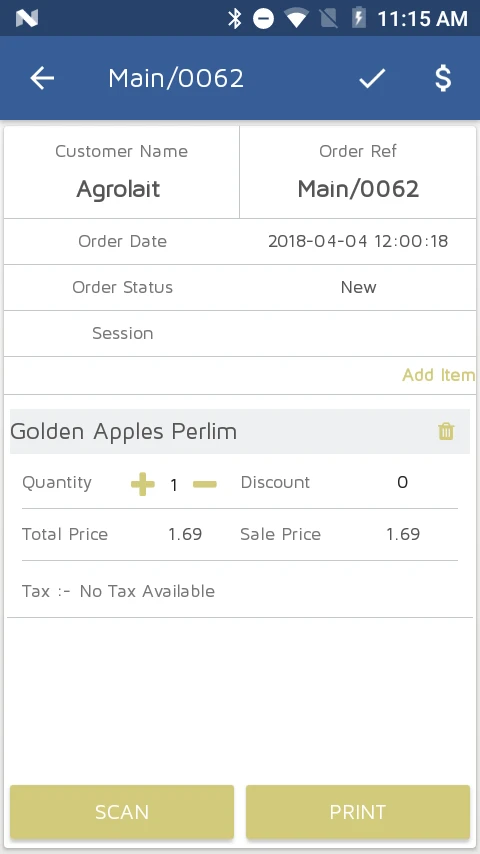
User can view order Details on this page
This page is displaying many order related information Like Order ref, Order Date, Status, Session Customer and Product Details.
from this page User can Add Discount as well.
User can Print order details from this page as well.
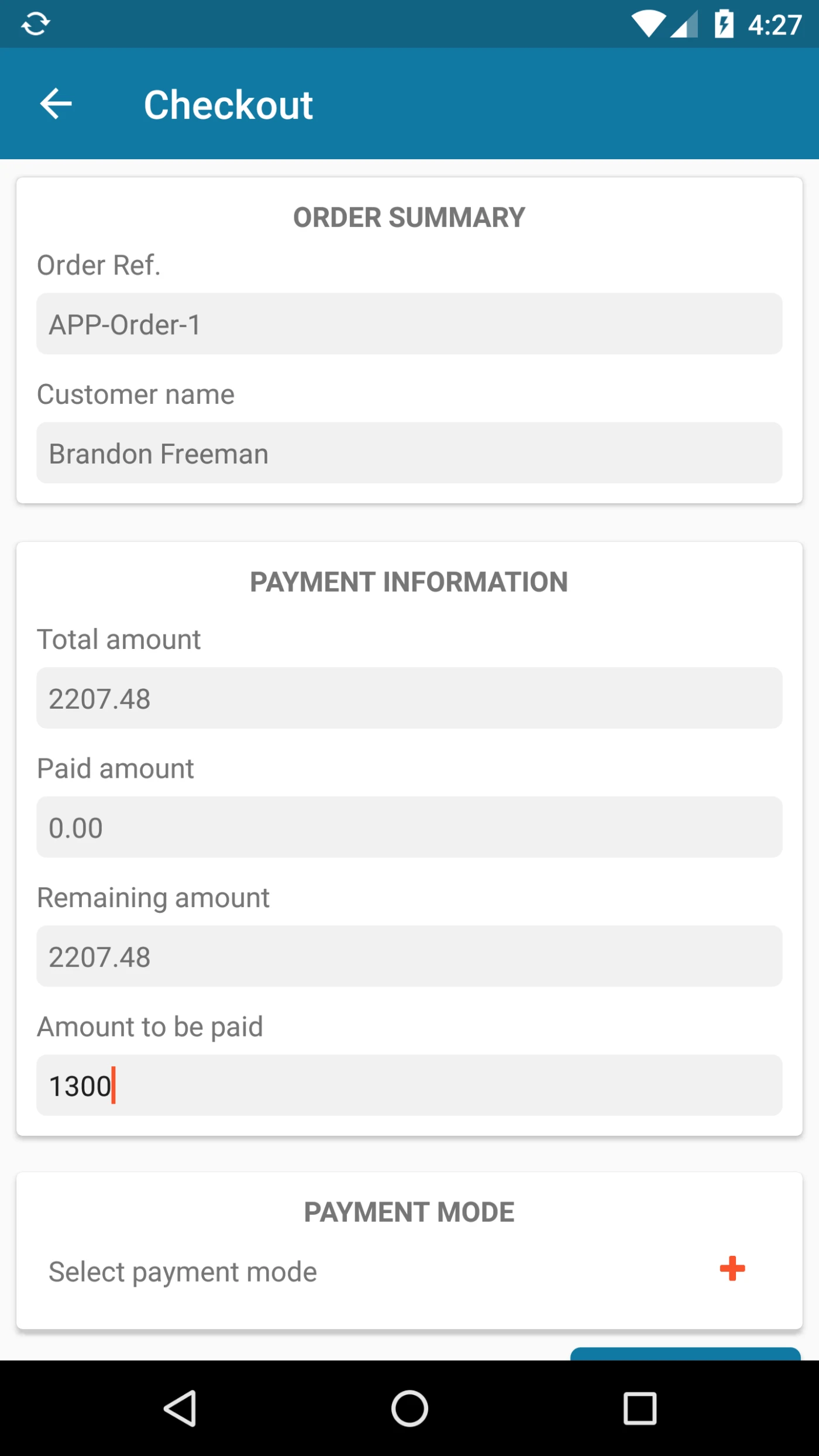
From this page User can Make Payment for the orders.
This page Displaying payment related information Like, Paid Amount, Total Amount , Remaining Amount.
User can Select Payment Method to make payment. Payment Methods are available based on Server configuration.
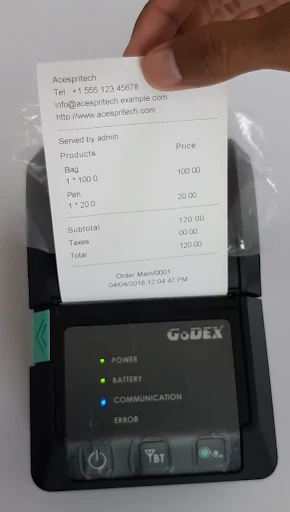
after successfull payment user can print Receipt using Bluetooth Printer.
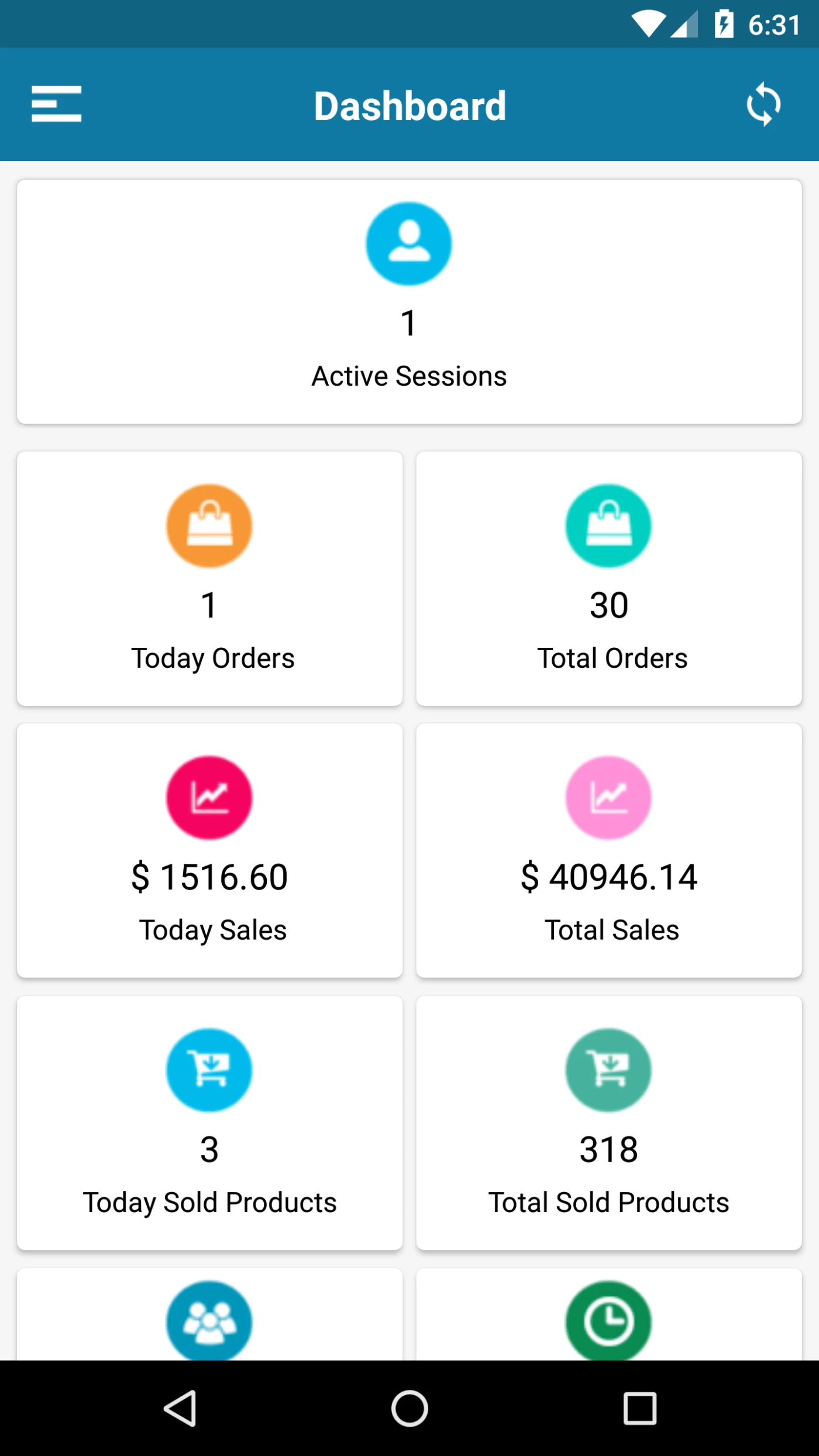
Active Session -Today’s Orders, Total Orders, Total Sales, Today’s Sales, Total Sold Products, Today’s Top staff, Top Hours Today, Average Customer spending, Average Customer visit
Odoo Login Page
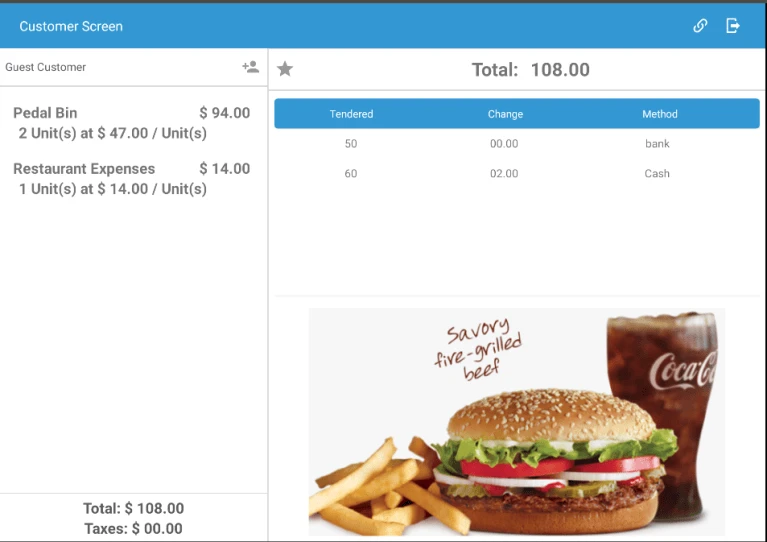
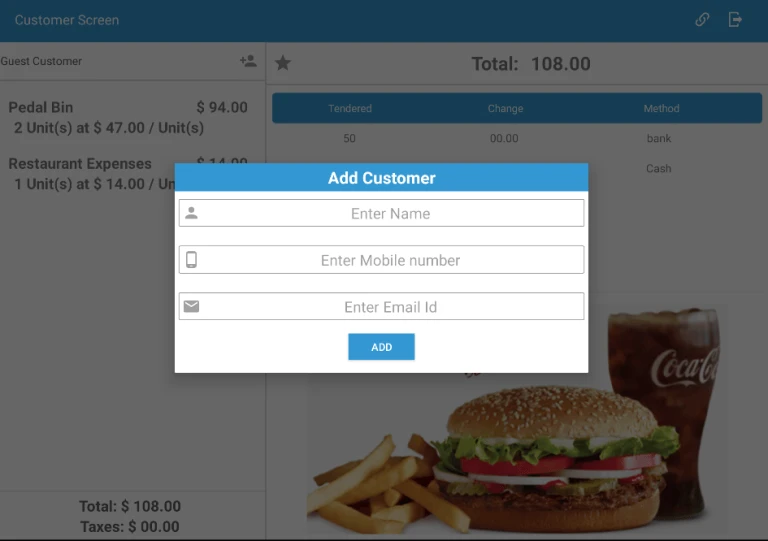
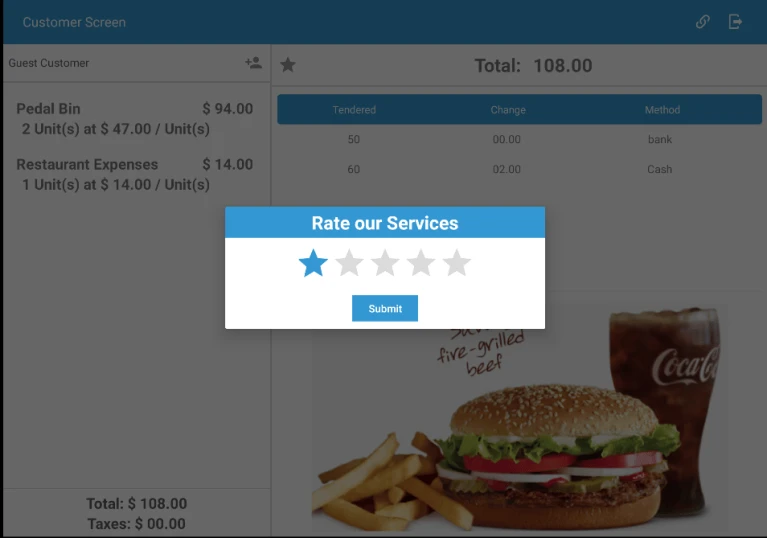
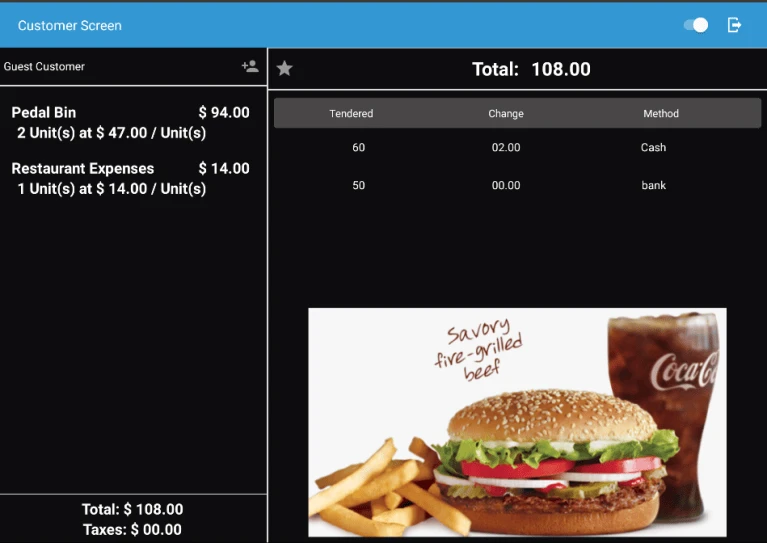
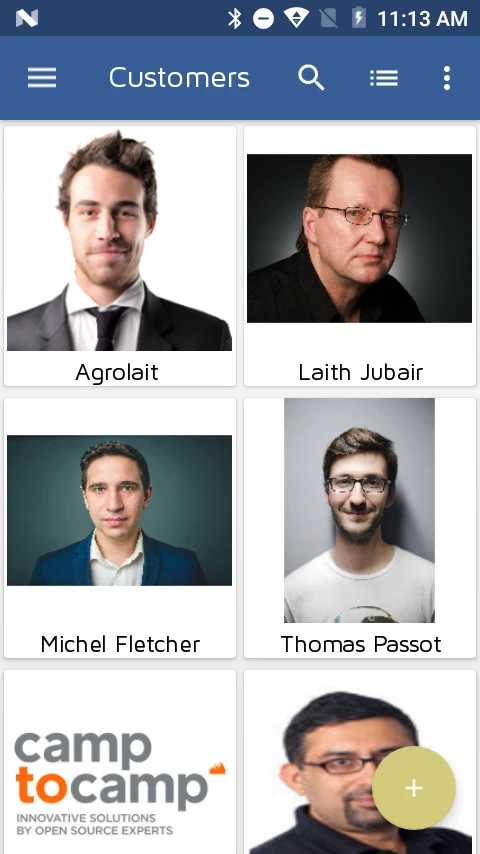
Odoo Customer Display
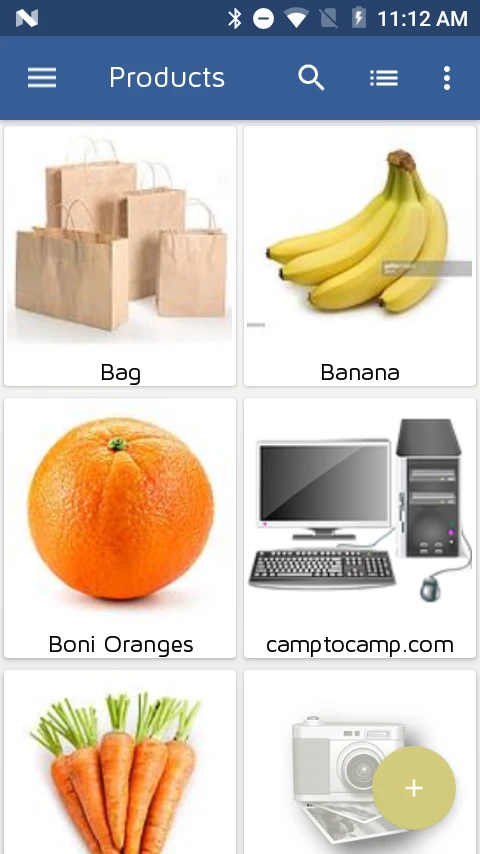
Odoo Products Display
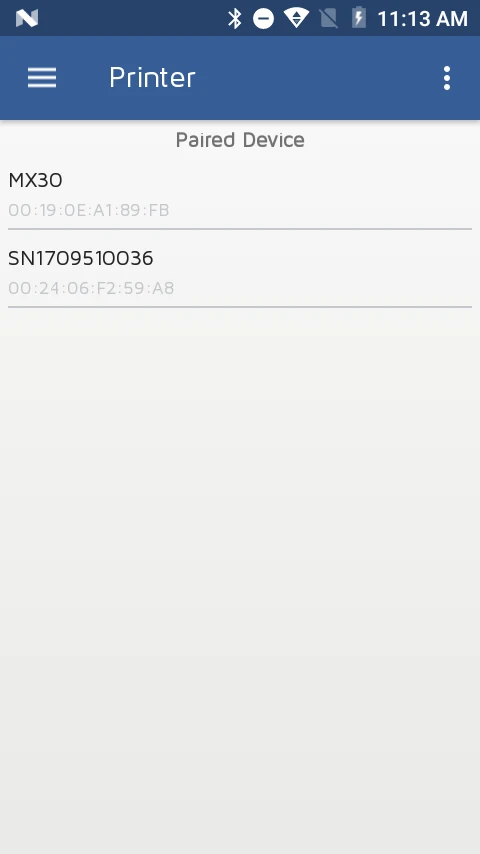
Connect Bluetooth Printer
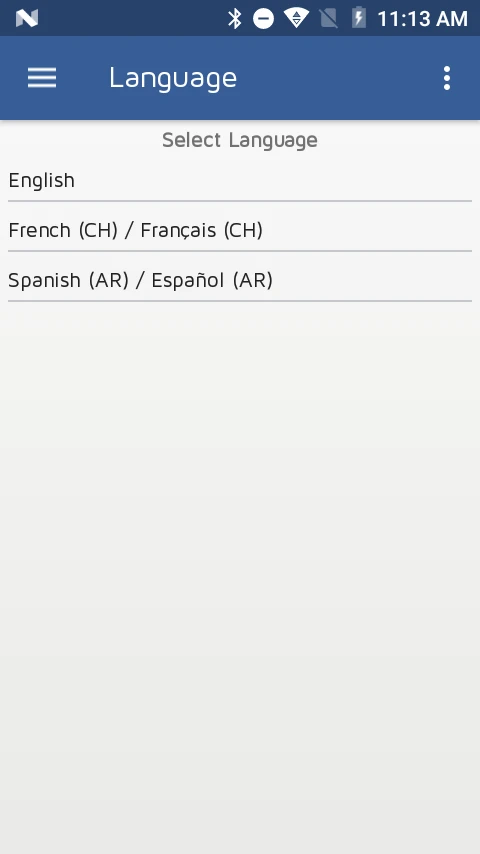
User Languages
Odoo POS Order List
Odoo Order Details
Scan Products
Odoo POS Receipt
This app is used to track employee using the GPS. Also we can track the Employee location
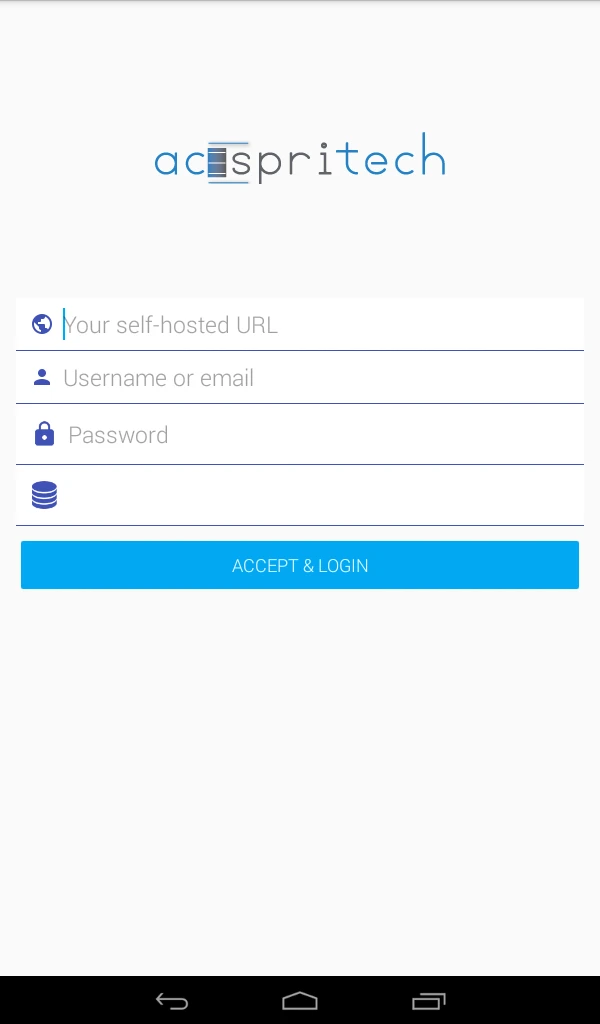
Using this page, Employee can login in the APP
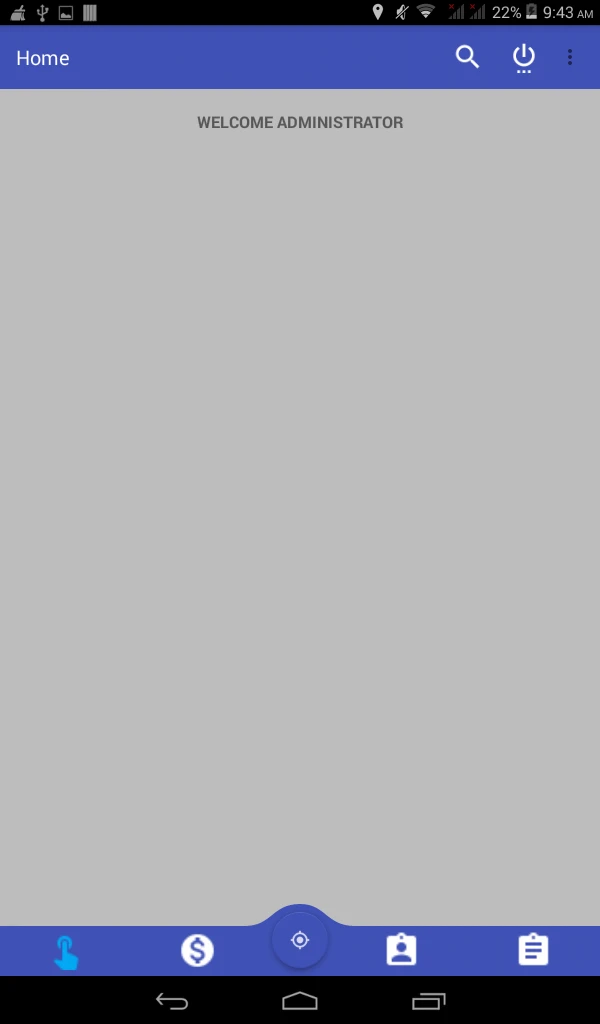
This is the welcome screen for the Employee. It is also know as home screen of the App
Using this page, user can sign in odoo server, using his PIN Number. Also employee can manage their sign in and sign out process at odoo
Get Map
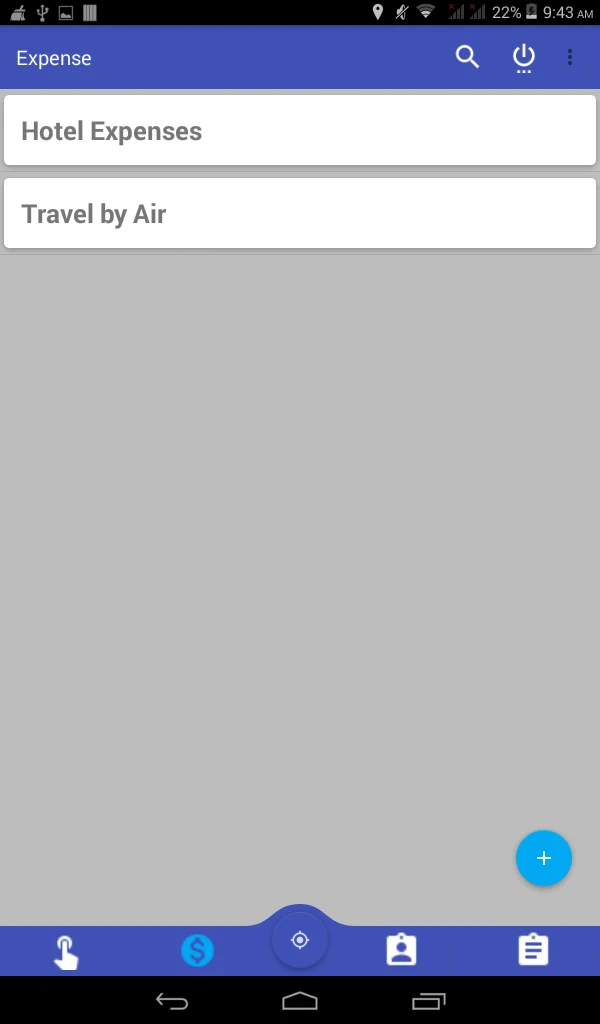
This page is displaying expanses of signed Employee. Also Employee can create, update and delete expanse from the App
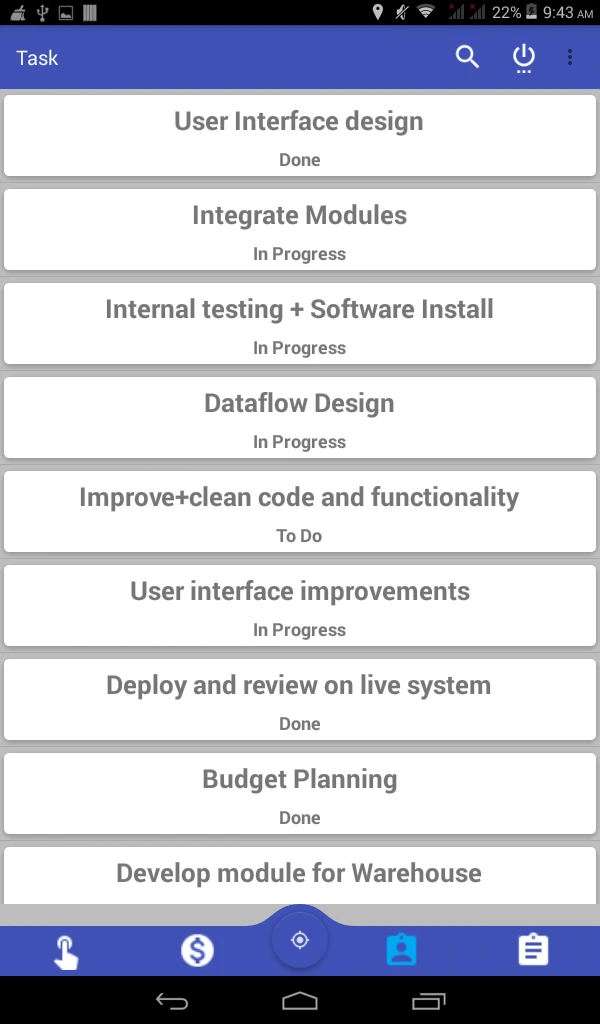
This page is displaying tasks of signed Employee
Get Map
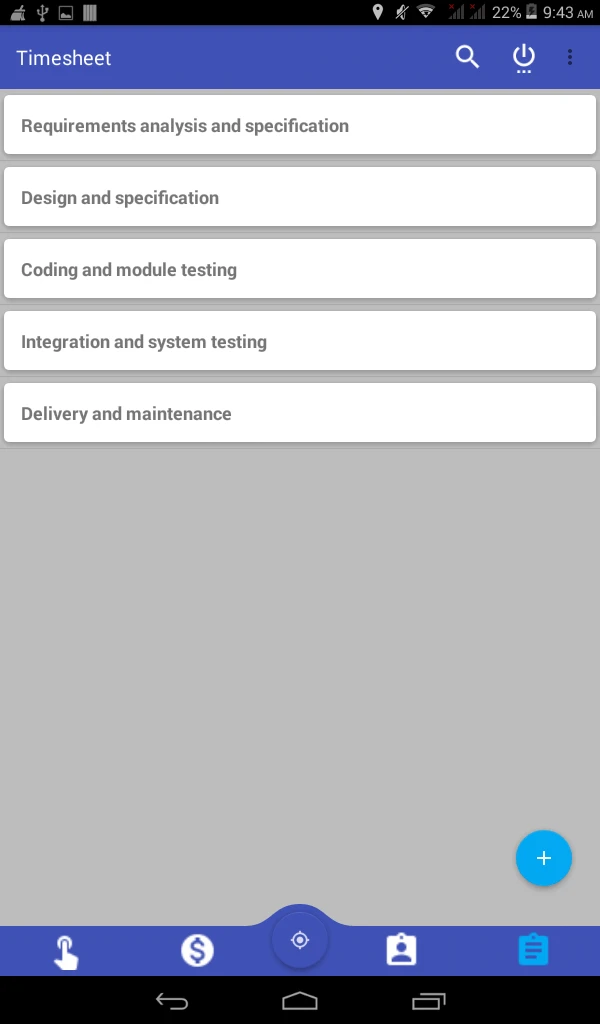
Employee can maintain his own time sheet
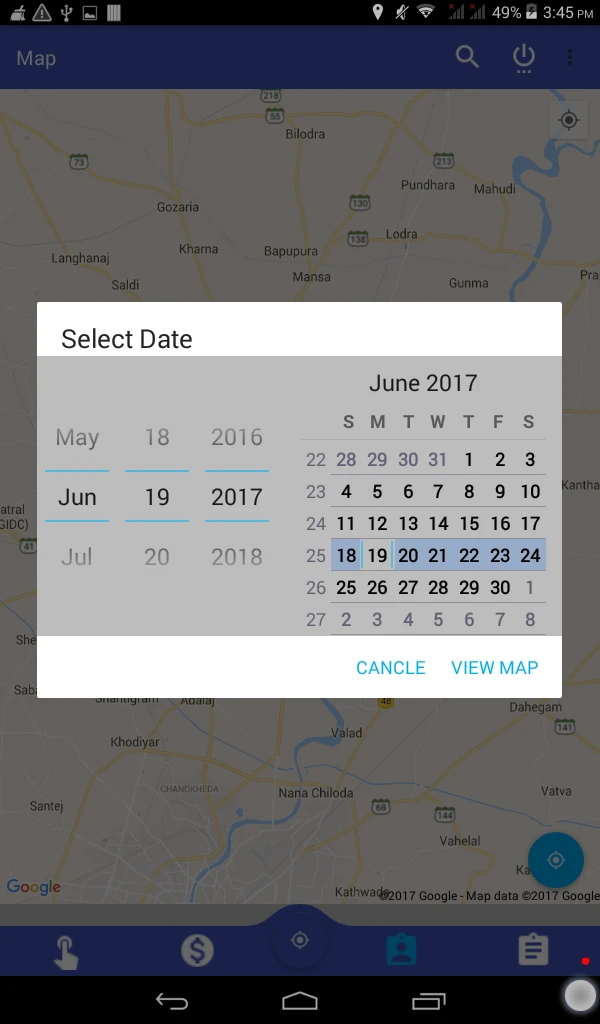
If we want to track the employee as per specific date. Then select the date and click on “VIEW MAP” button
Finally, get the result as per searched above. This page show the route of Employee
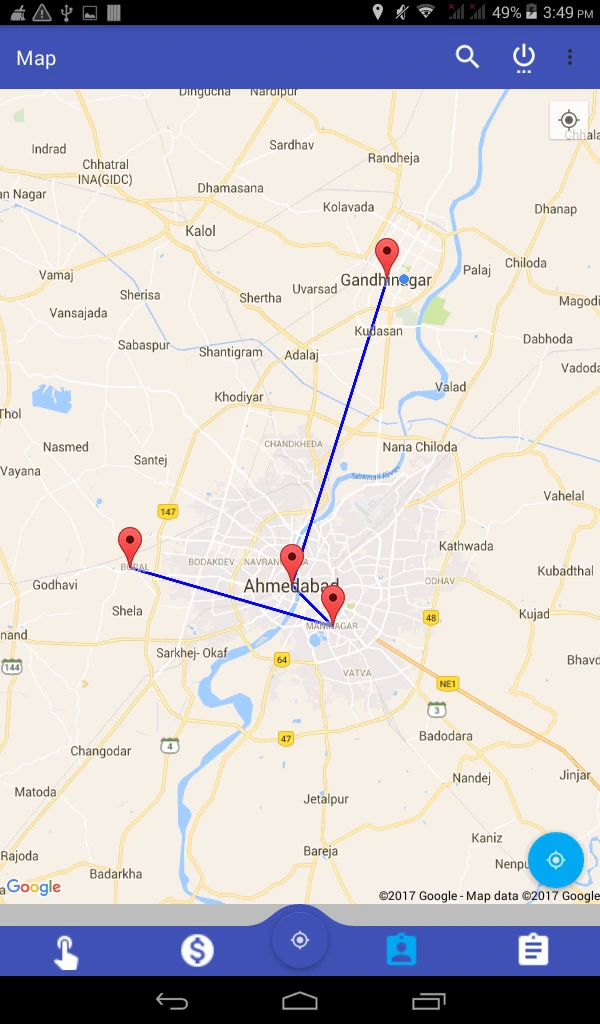
Acespritech CRM
This APP is used to create contacts, manage events, manage leads & opportunities, manage quotations and discuss.
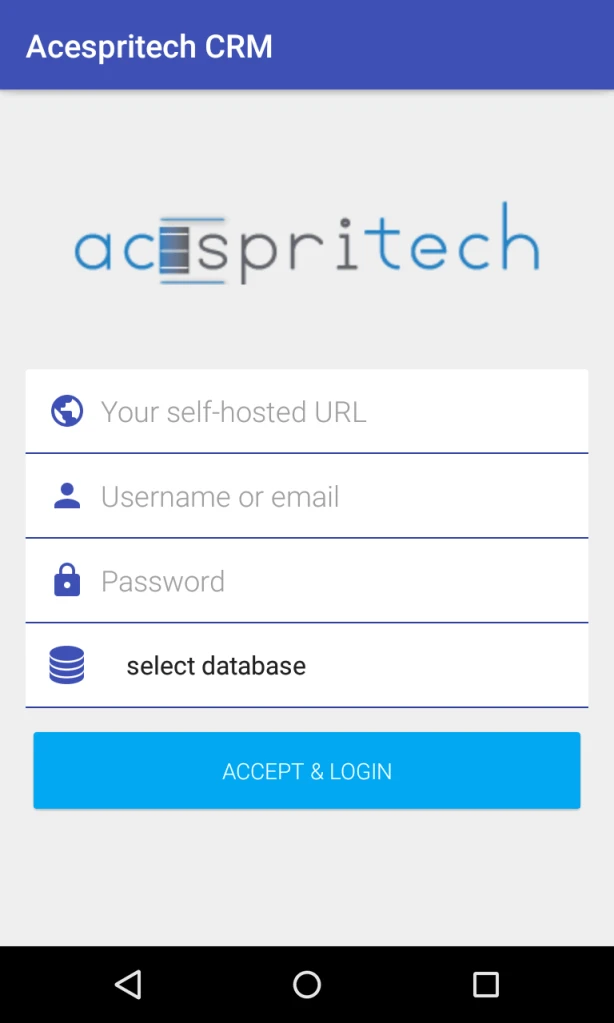
Using this page, User can login in APP.
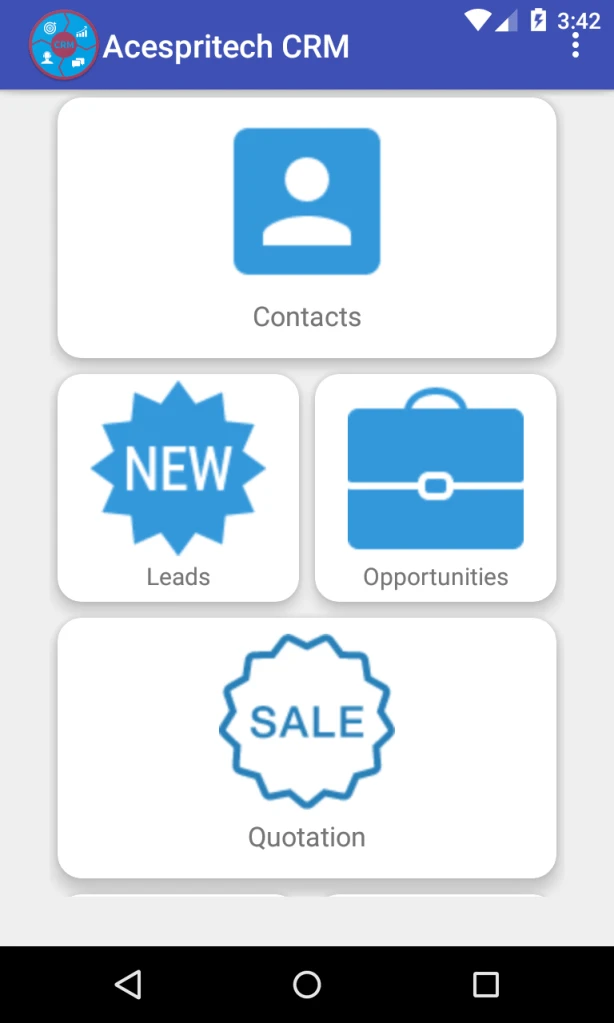
This is the home page of Application.
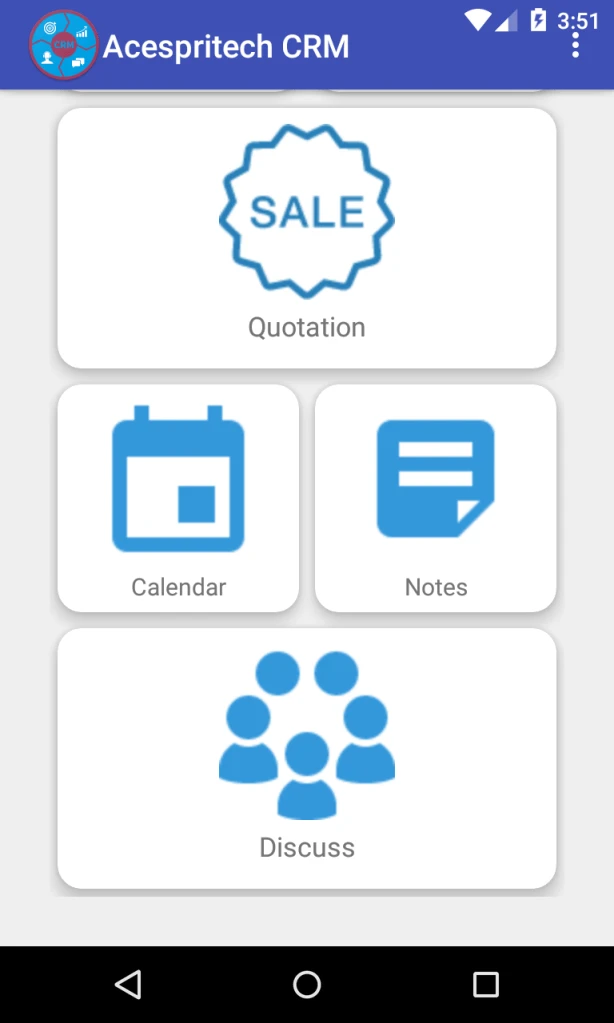
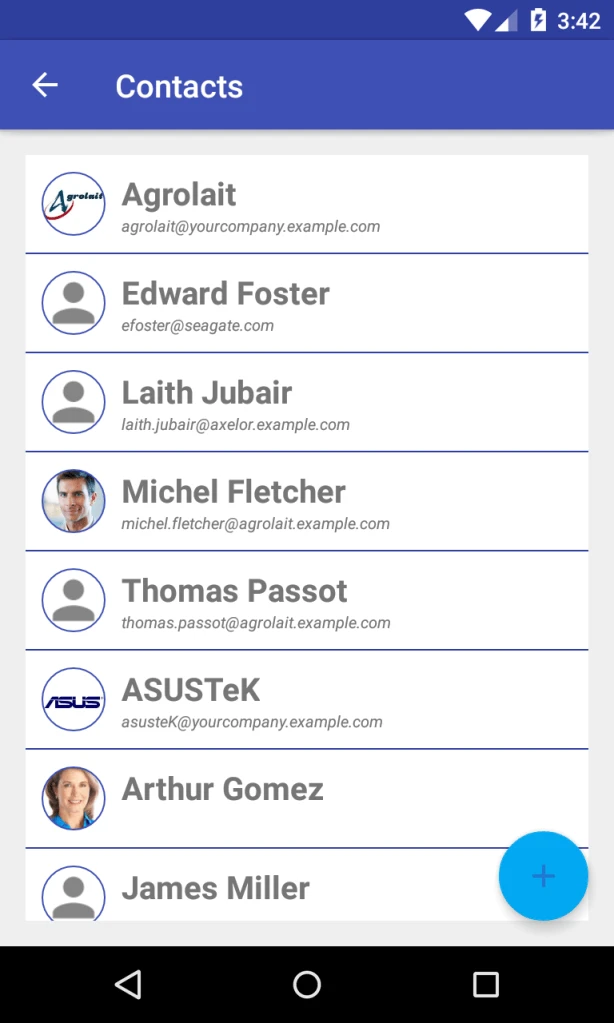
This page is displaying the List of Contacts.
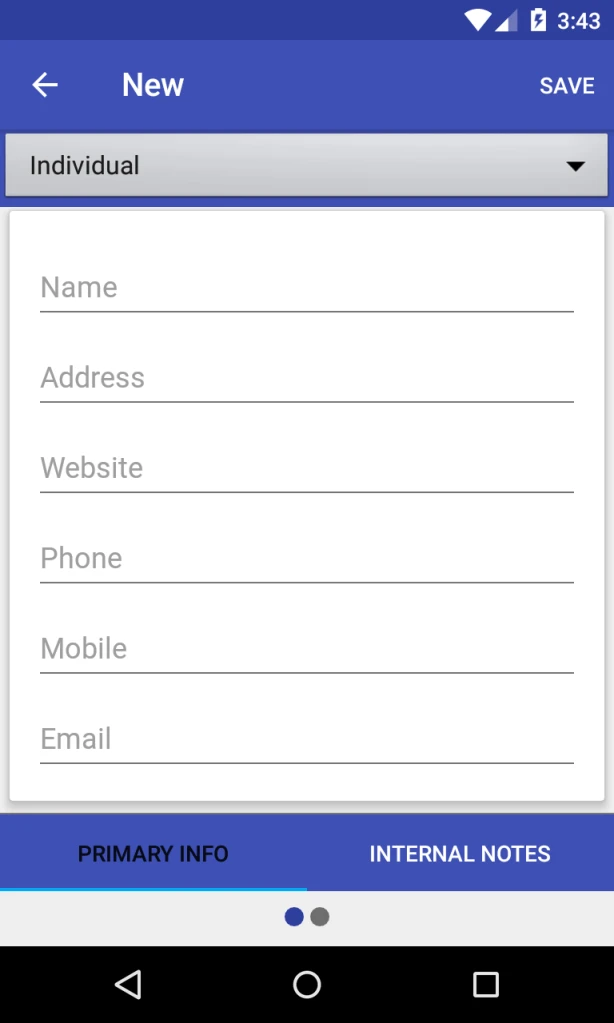
Using this page, we can see details of the Contact and also we can create and update the Contacts.
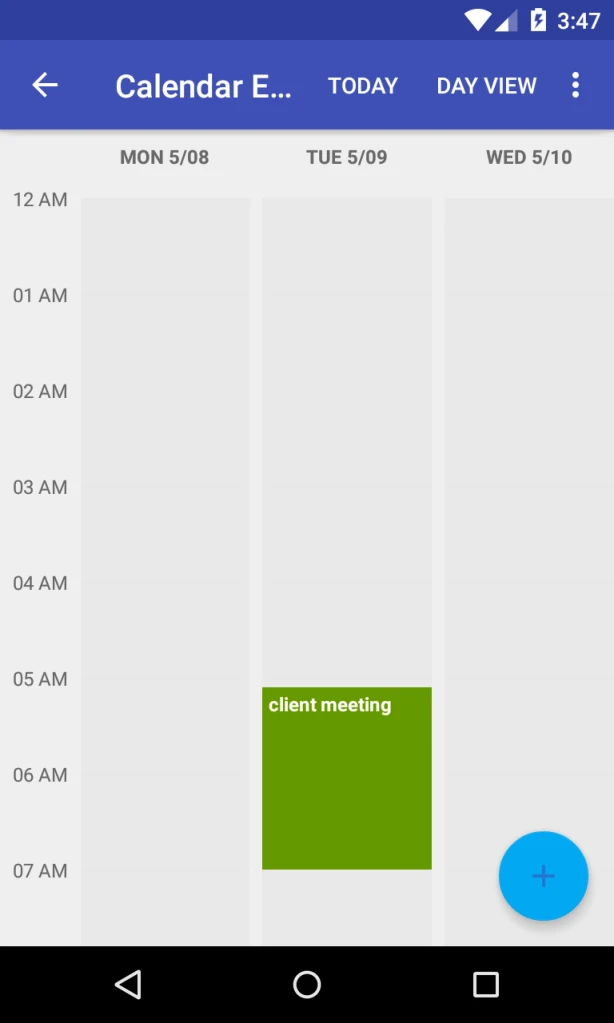
This page is displaying events in Calendar View.
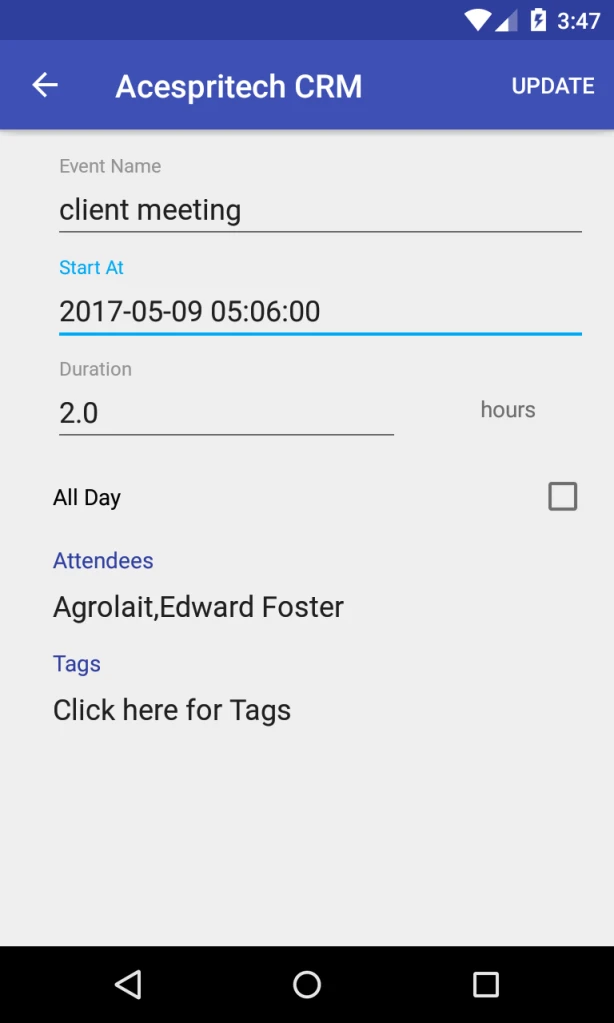
Using this page, we can see the description details of event and also manage the Event.
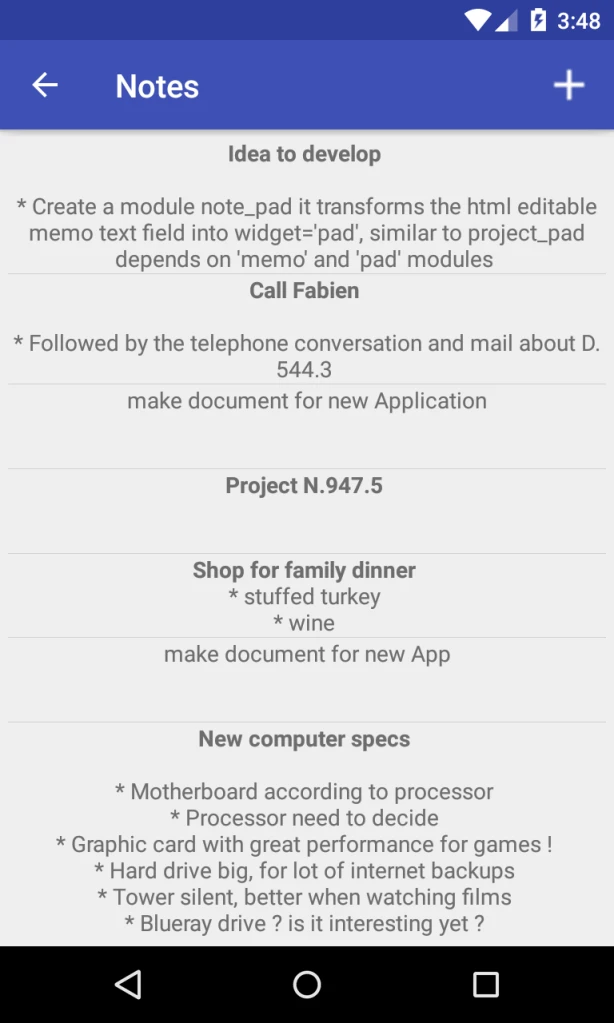
This page is displaying all notes. Also we can manage the Notes from App.
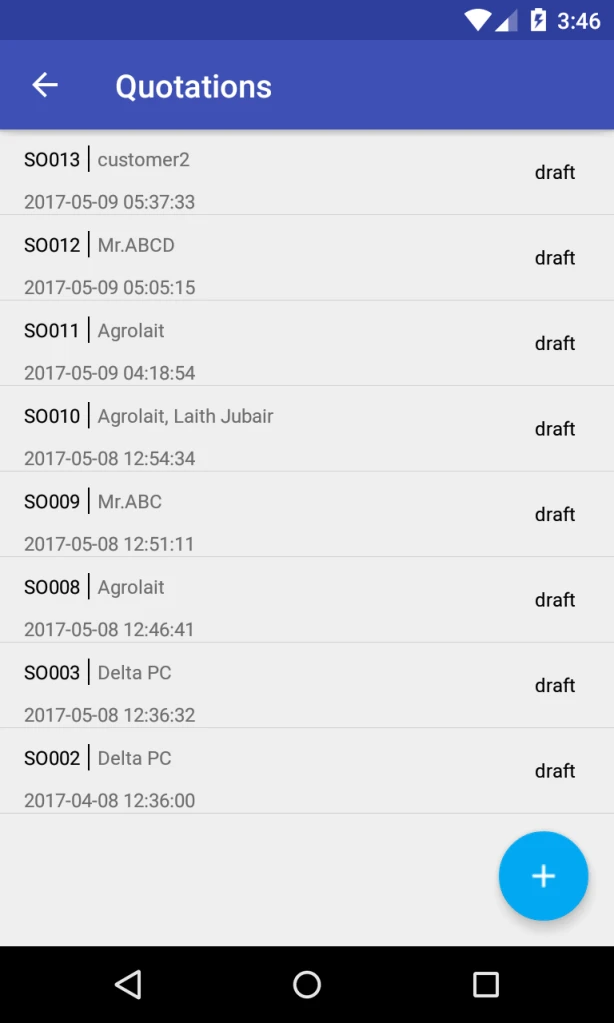
This page is displaying quotation. Also we can create quotation from APP.
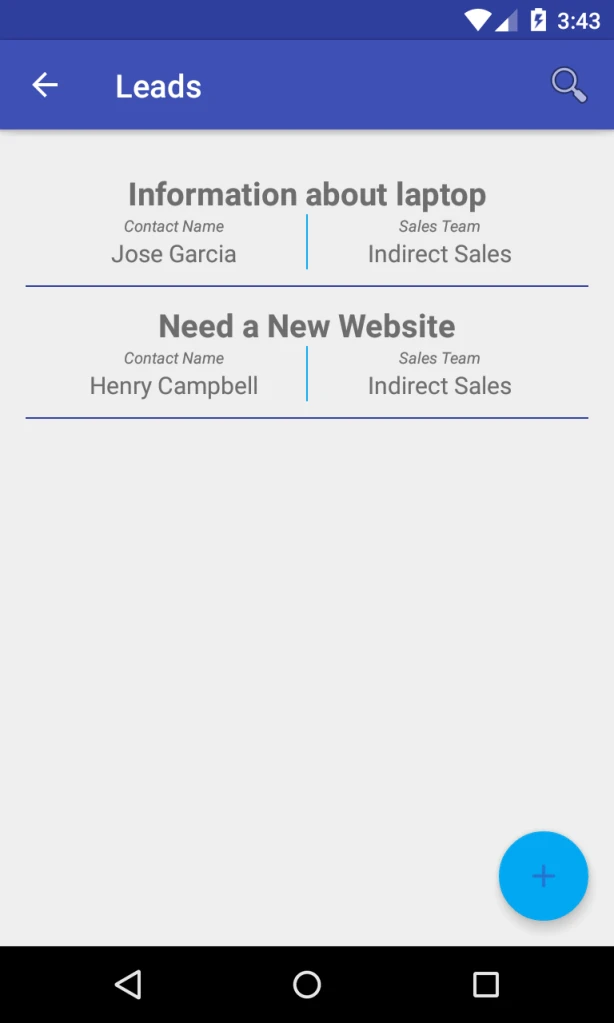
This page is displaying the leads.
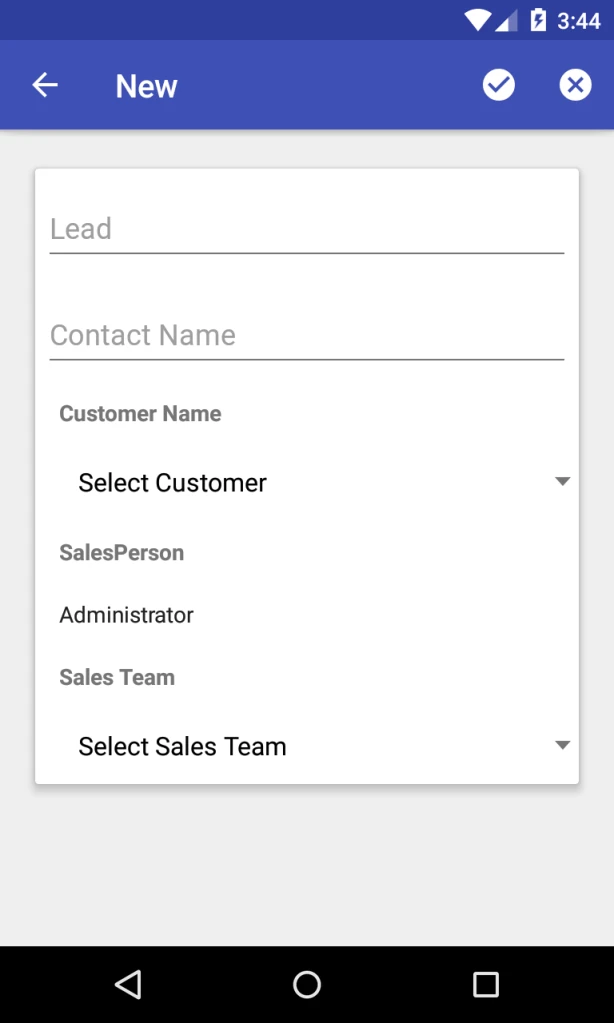
Using this page, we can view, create, manage the Leads and also convert Lead to Opportunity.
This page is displaying the Opportunities.
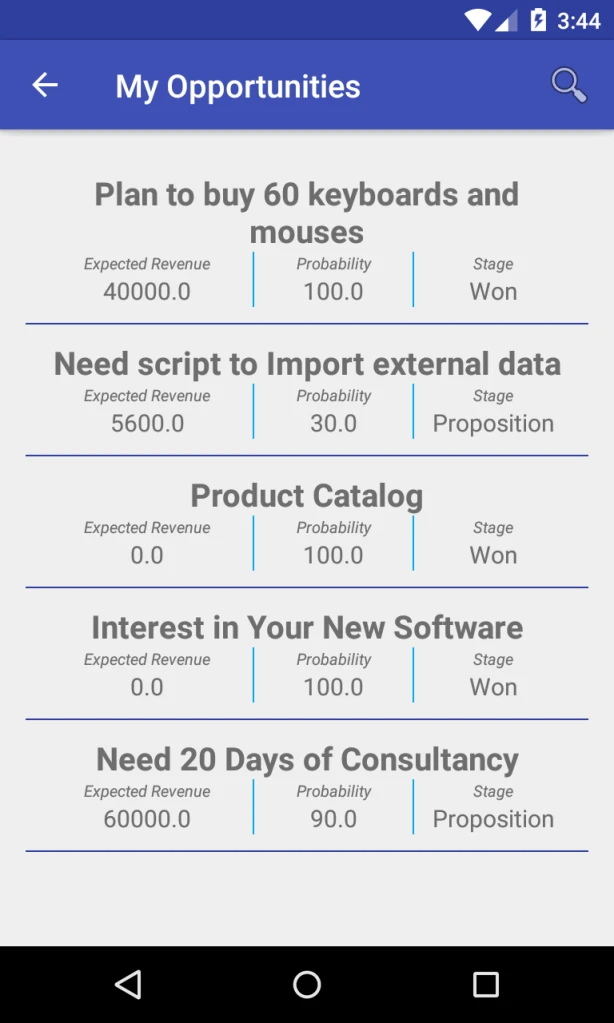
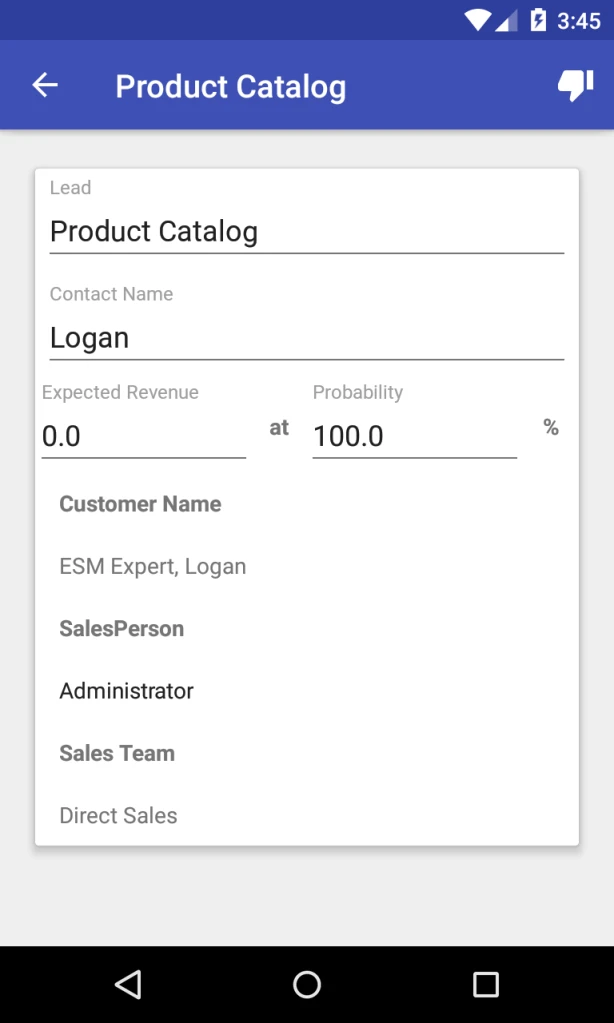
Using this page, we can manage Won, Lost opportunity.
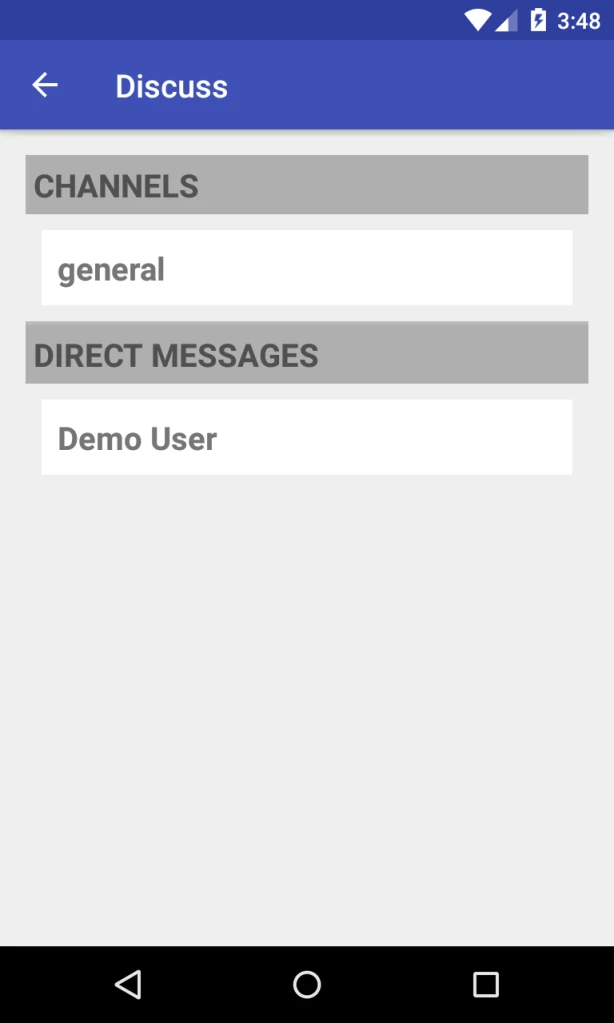
This page is displaying the Channels and Private Channels.
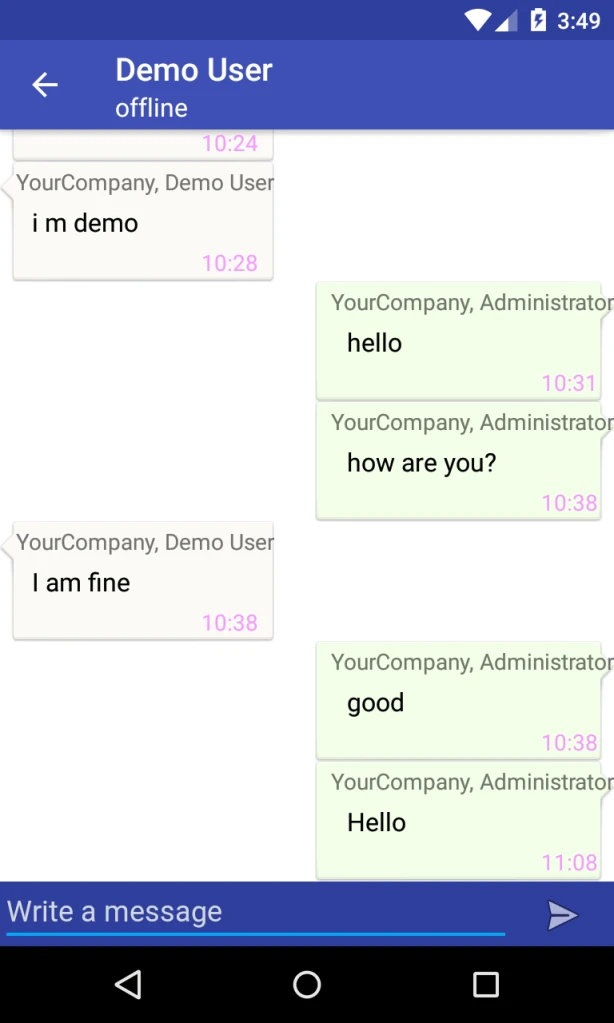
Using this Page, we can chat with other user.
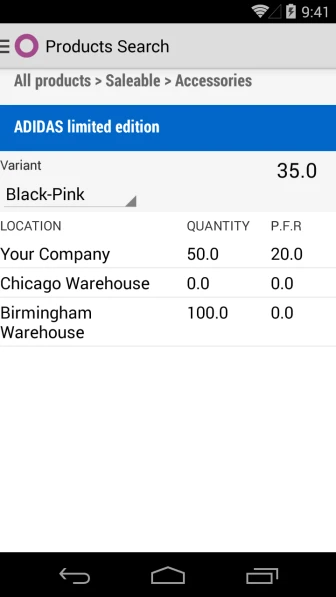
New feature for Odoo android application which will show product variants, stock information.
A product variant is a specific item that is grouped with related variants that together forms a product. Variants usually vary from each other in one or more properties. Each product variant is based on the same product definition. Example : Shirt is product with different attributes like color, size etc and create variants based on it.
In Odoo, user can define product template and their variants. We are making android application which display templates and their variants and stock of each variants for easy work.
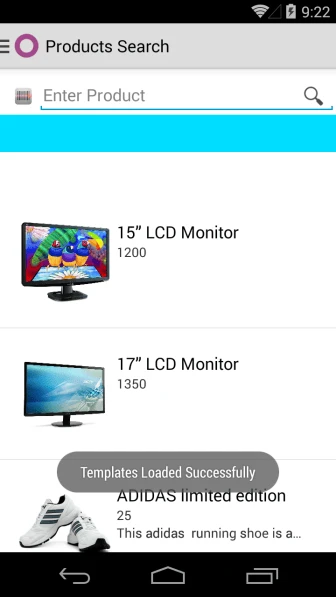
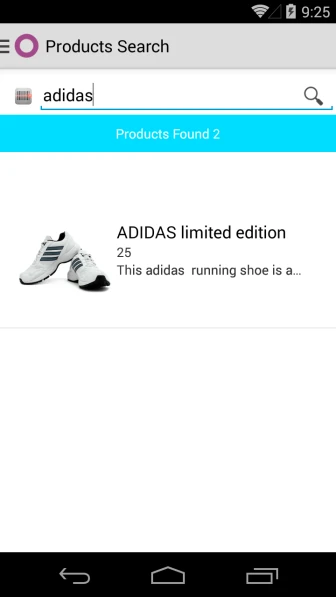
You can search product template by using name or scanning barcode.
Once you will click on selected template, it will display complete information with variants.
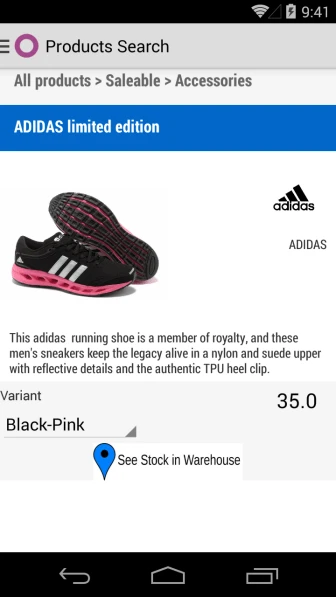
User can check available and incoming qty of each variant of selected template also.