A single provider for all your payment needs. Your customer can pay anywhere, anytime, and through multiple channels
International Processing:
Unlock new markets and benefit from the rapid growth of international sales
Fraud & Risk Management:
Reduce the costs of fraud to your business whilst ensuring that genuine customers are not rejected or left frustrated
How to use
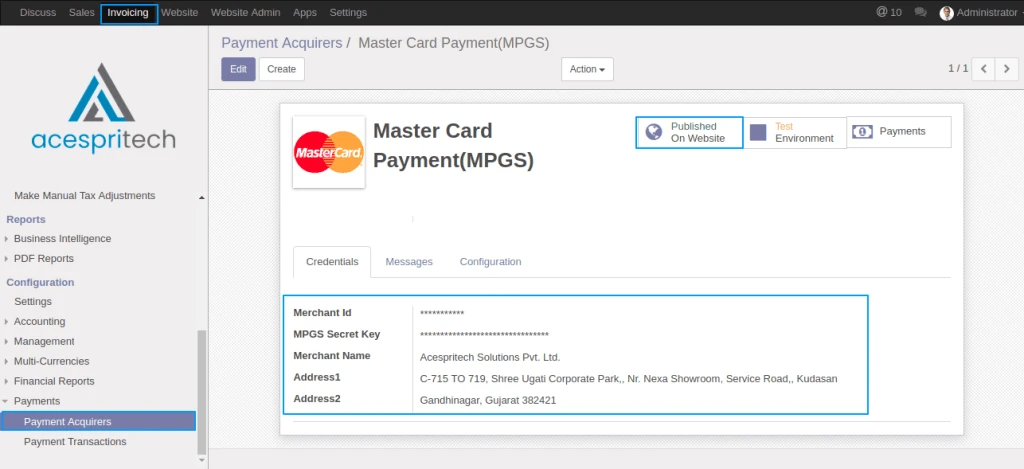
MPGS Credentials: Take Merchant ID, MPGS Secret Key and Merchant Name and Address from your MPGS account and put into MPGS Payment Acquire in Odoo.
Payment acquirers configuration
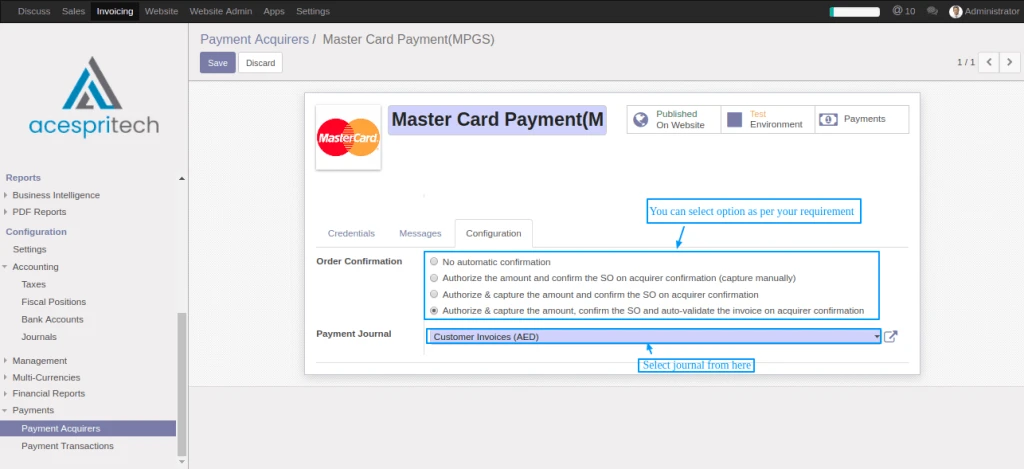
User can manage the order flow from here.
MPGS Configration
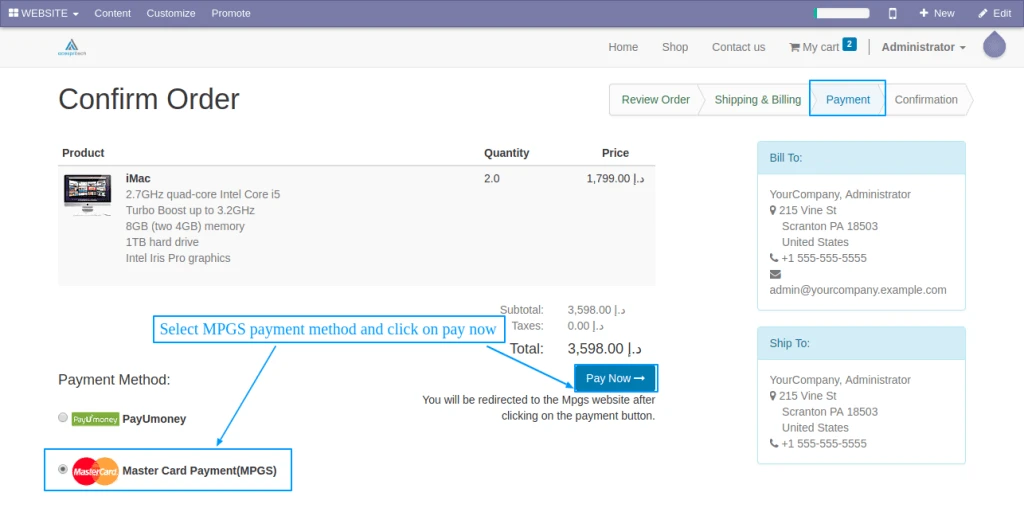
Select MPGS from payment methods.
Pay with MPGS
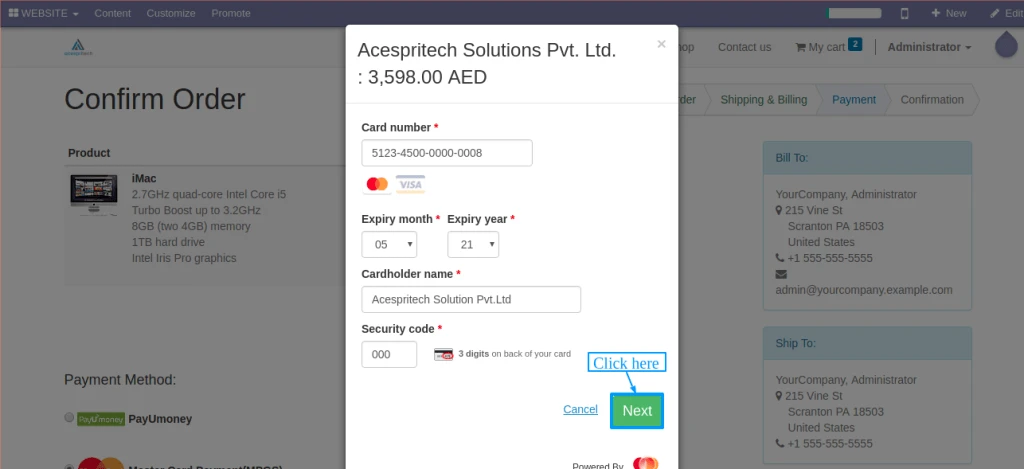
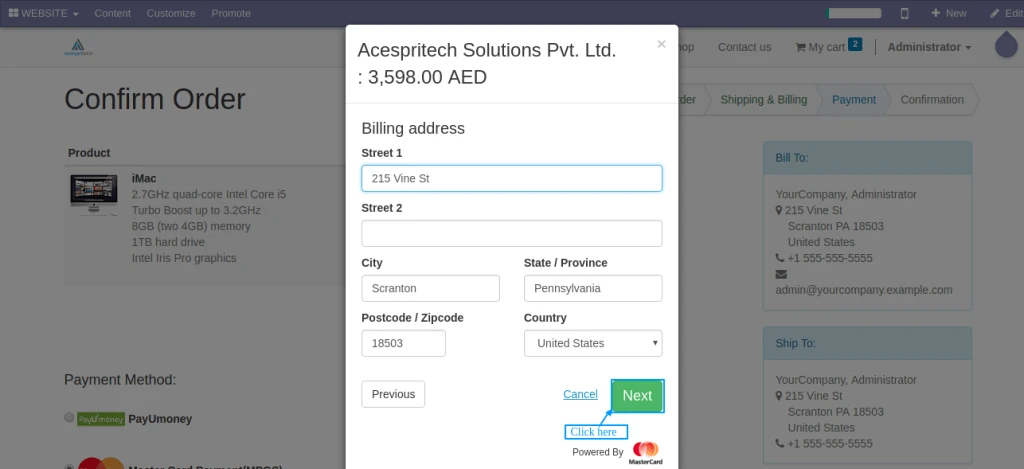
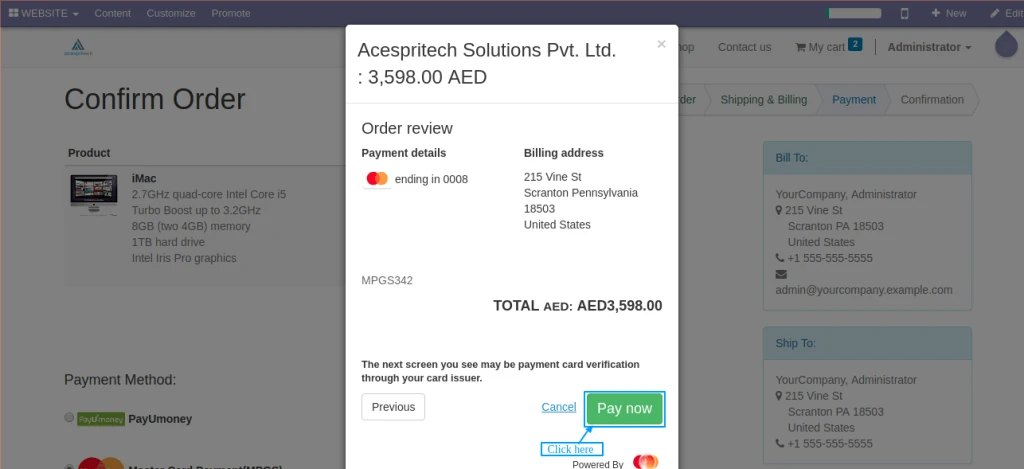
You need to follow this payment step
PaymentPaymentPayment
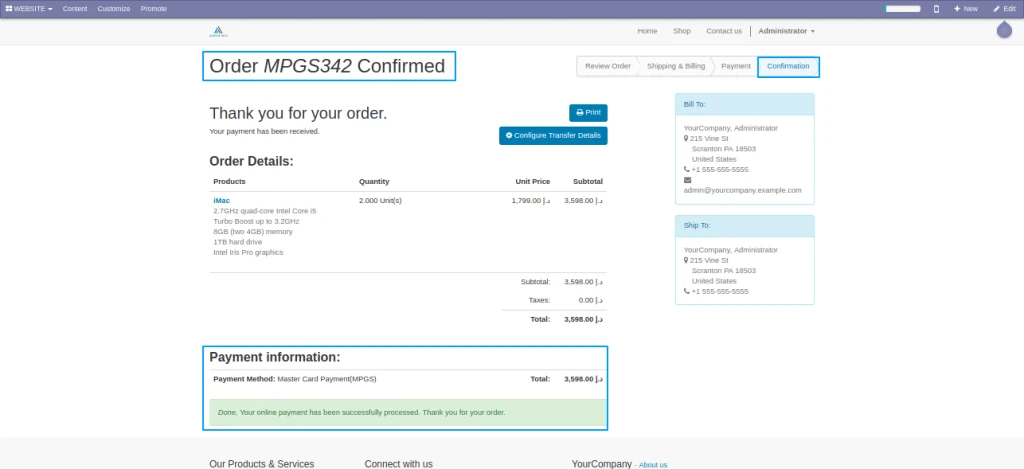
User can see confirm order detail here
Confirm Order
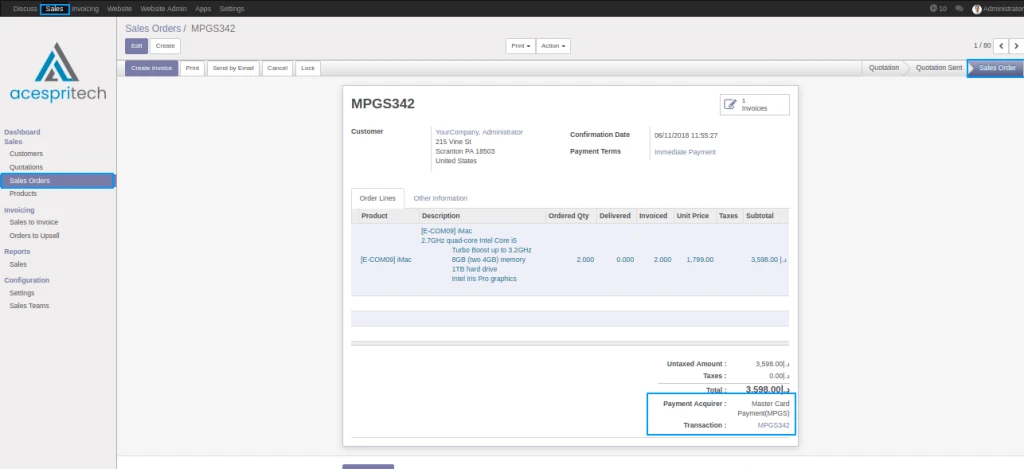
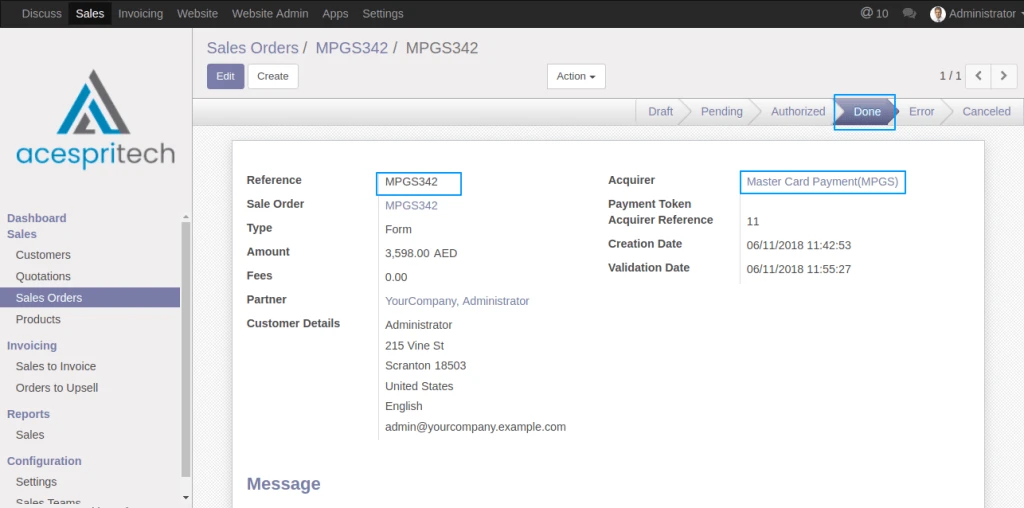
Transaction Record has been created in Sales order
Sale Order View
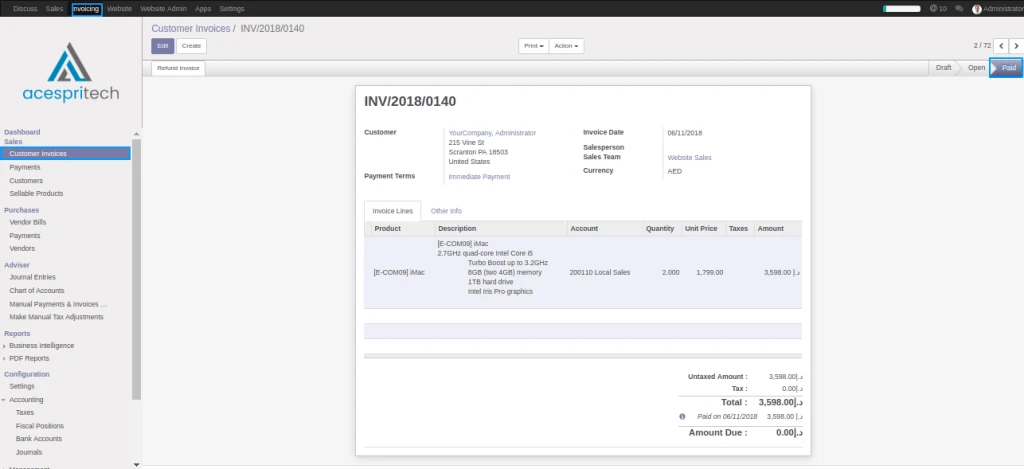
Transaction Record has been created in Invoice
Transaction View
Transaction Record has been created in Payment Transaction
Invoice View
Share this:
Click to share on Facebook (Opens in new window)
Click to share on LinkedIn (Opens in new window)
Click to share on Twitter (Opens in new window)
Click to share on Reddit (Opens in new window)
Click to share on Tumblr (Opens in new window)
Click to share on Pocket (Opens in new window)
Click to share on Pinterest (Opens in new window)
More
Click to print (Opens in new window)
Click to email this to a friend (Opens in new window)
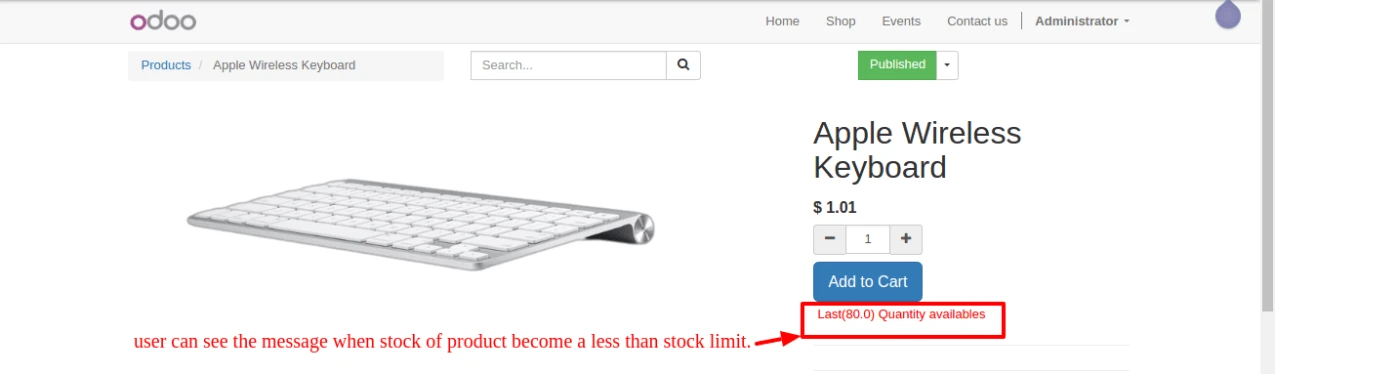
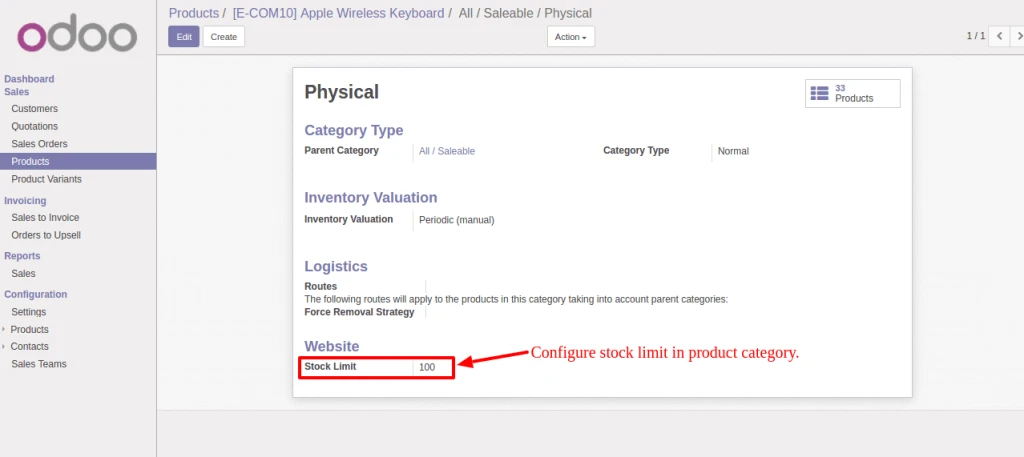
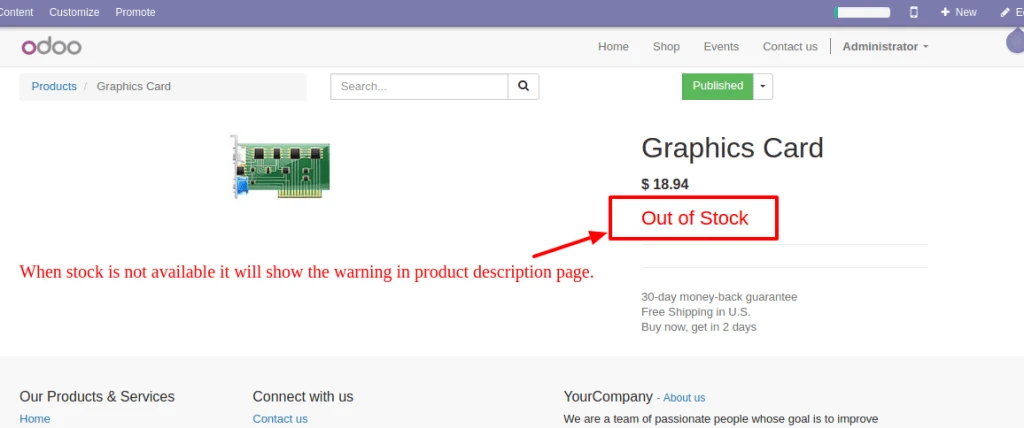
If user will not configure into product category then they will configure stock limit in website configuration and it will take highest priority when user can’t configure in product category.
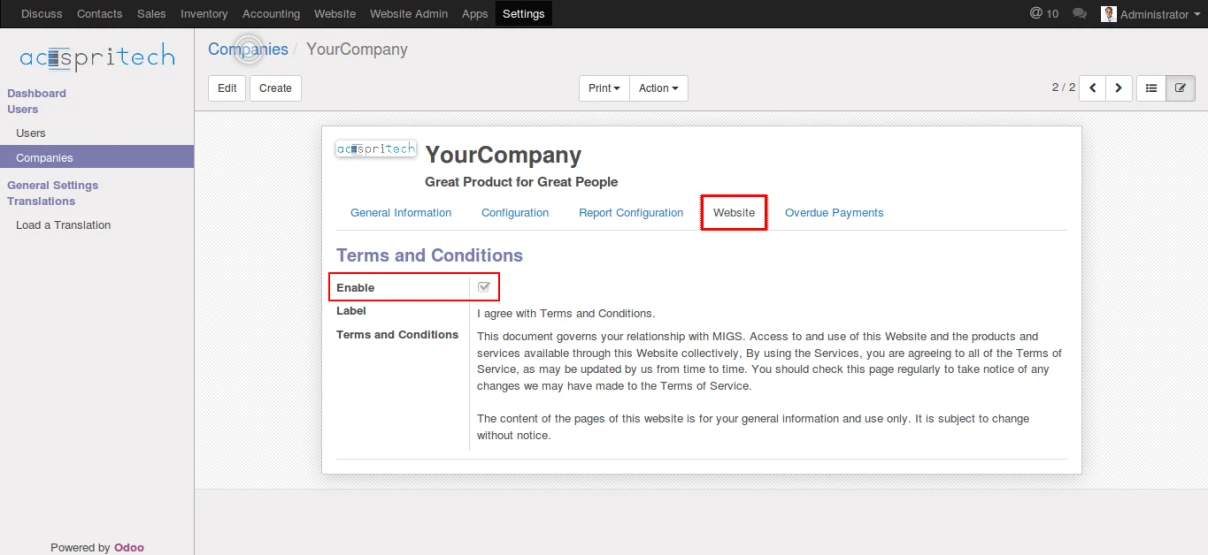
First we have to configure Terms & Conditions from company form.
Odoo 9 website terms and conditions configuration
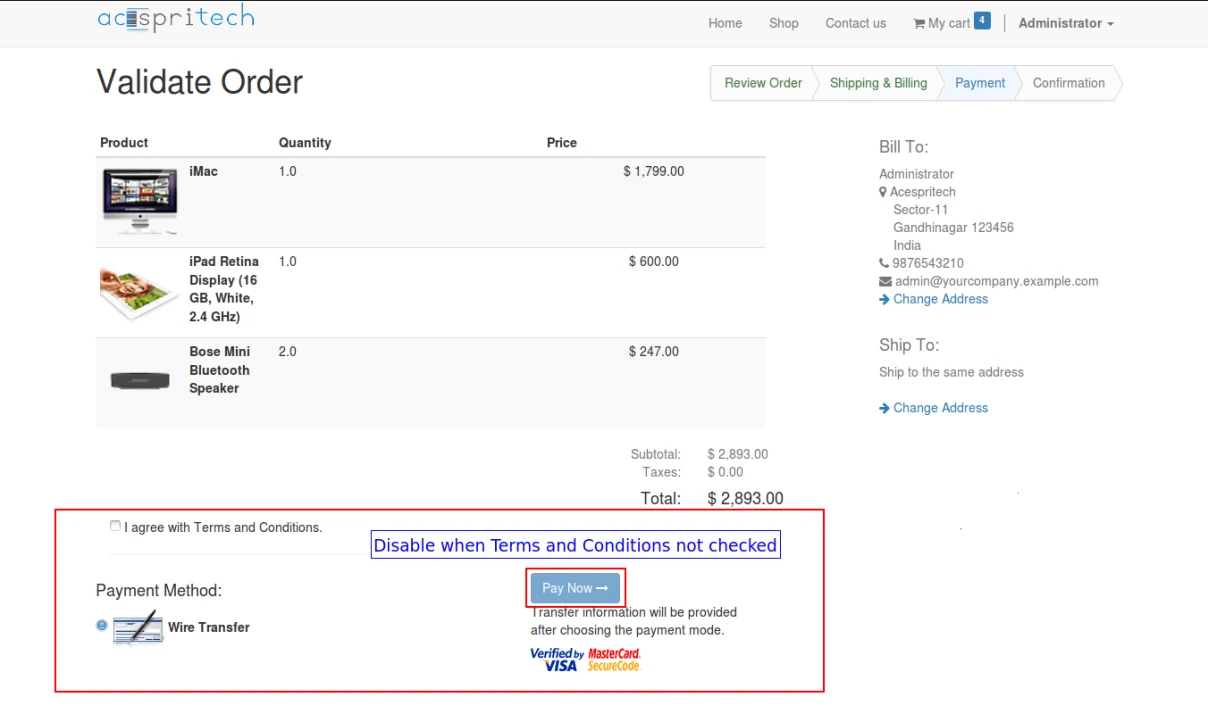
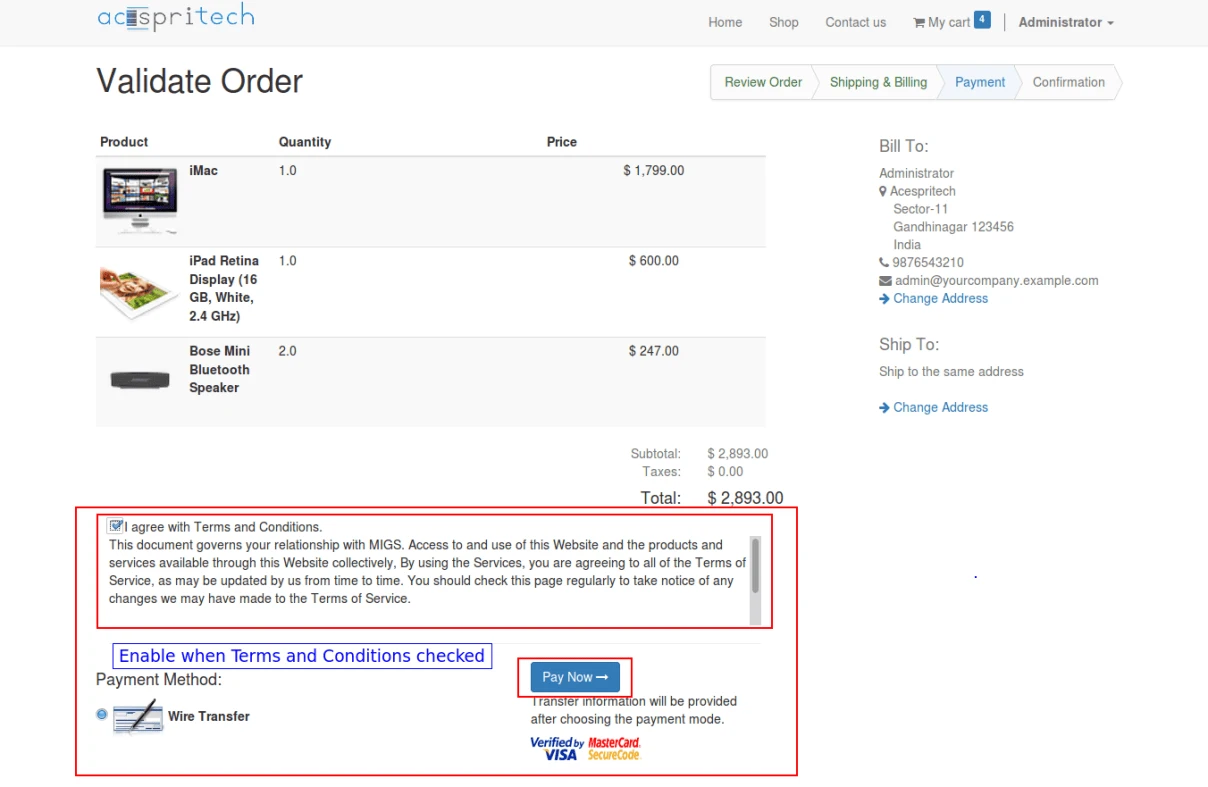
If Terms & Conditions feature is enable, then title and contents will be visible in Website Shop and user can not proceed for payment without agree with Terms & Conditions.
Disable Odoo Website Terms Conditions
Description of Terms & Conditions will be visible after agree and user can make payment for order.
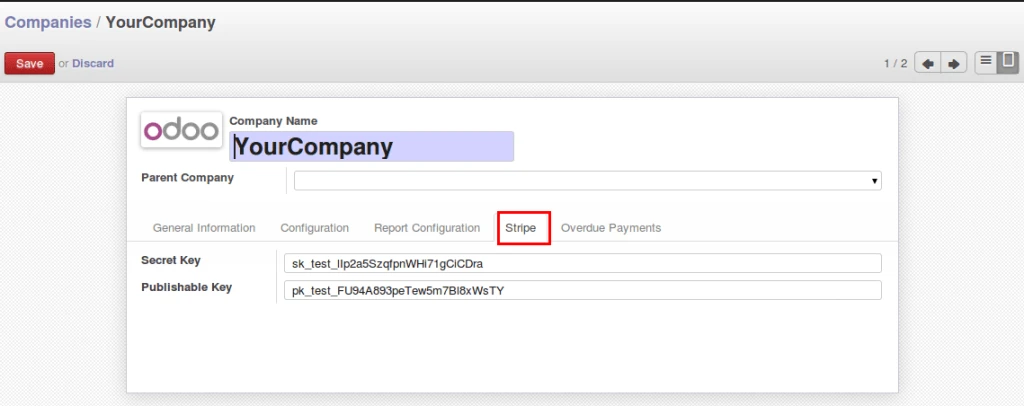
At Acespritech, we have developed many payment gateway integration with Odoo. Here we have one more integration with Odoo i.e Stripe payment integration.
Odoo company configuration
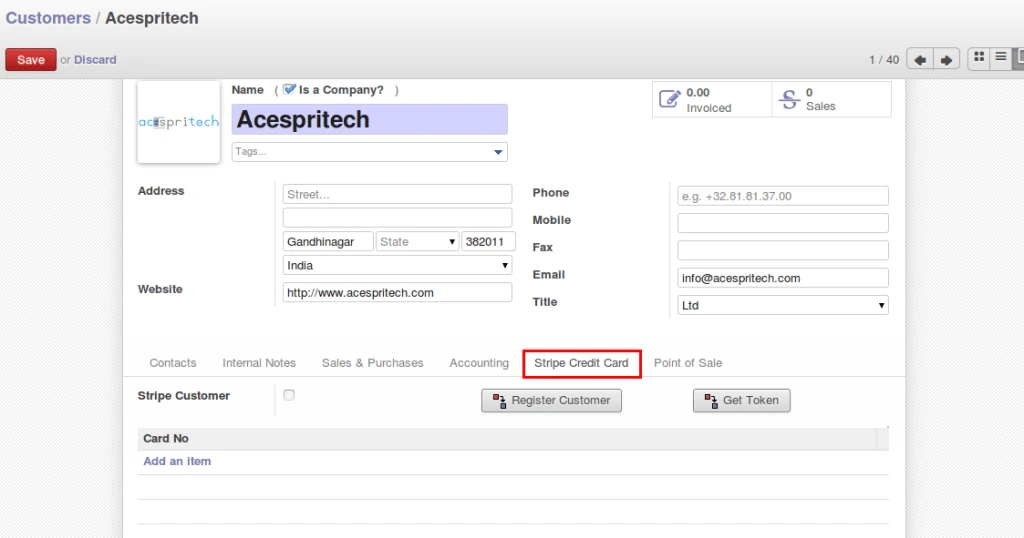
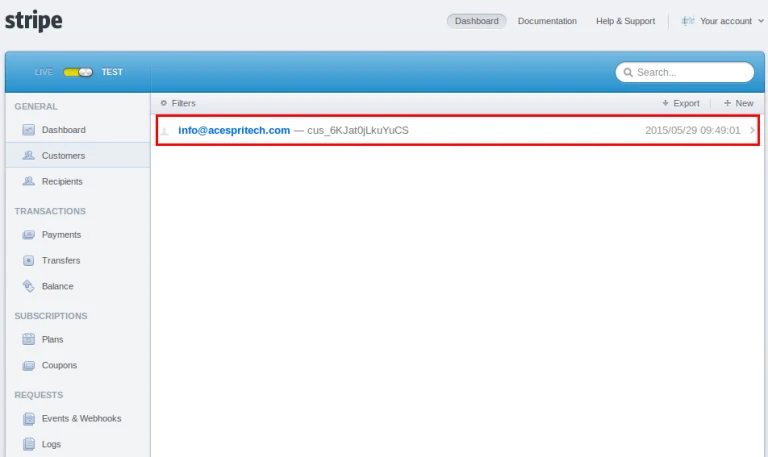
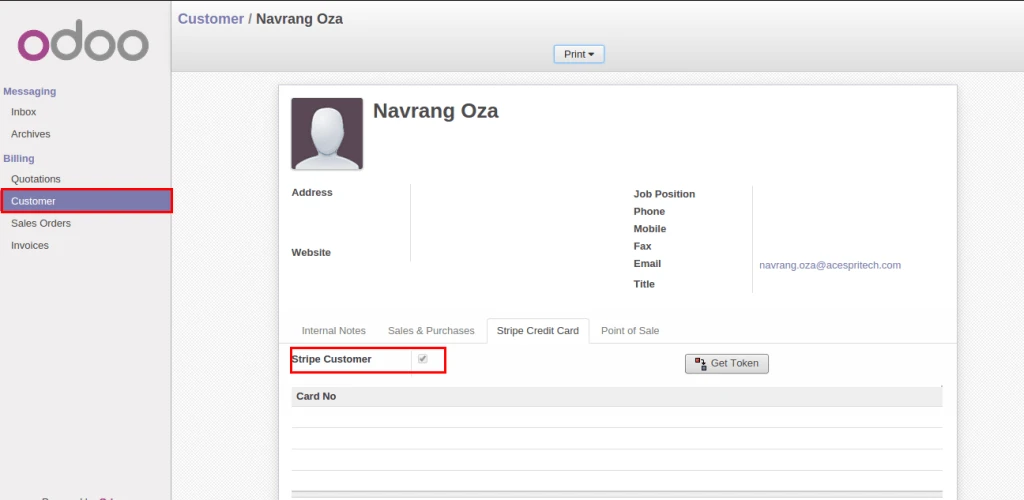
We have added new “Stripe” TAB into customer form where we can register on stripe and generate tokens by registering credit card information. By default when new customer will register into Odoo, it will register on Stripe server also.
Odoo customer formRegistered stripe customer
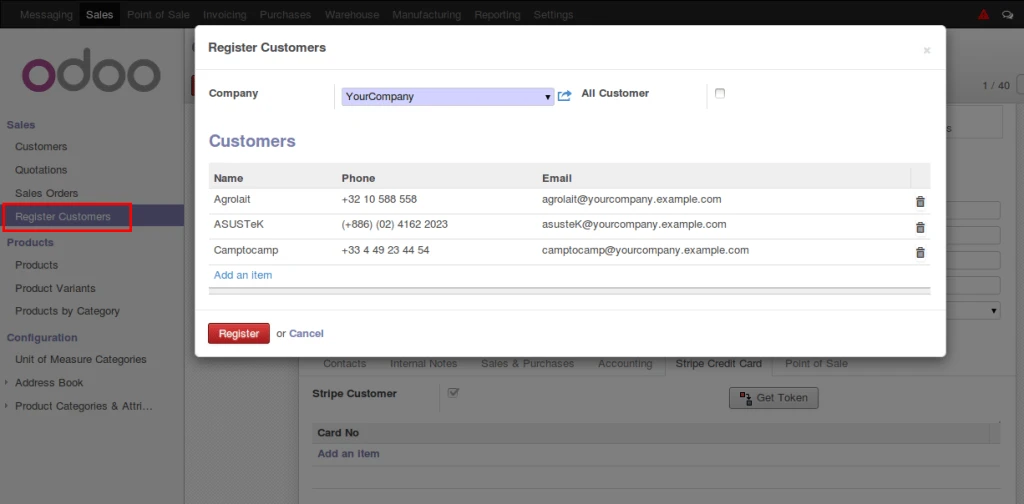
We can register more than one customer easily.
Register odoo customer
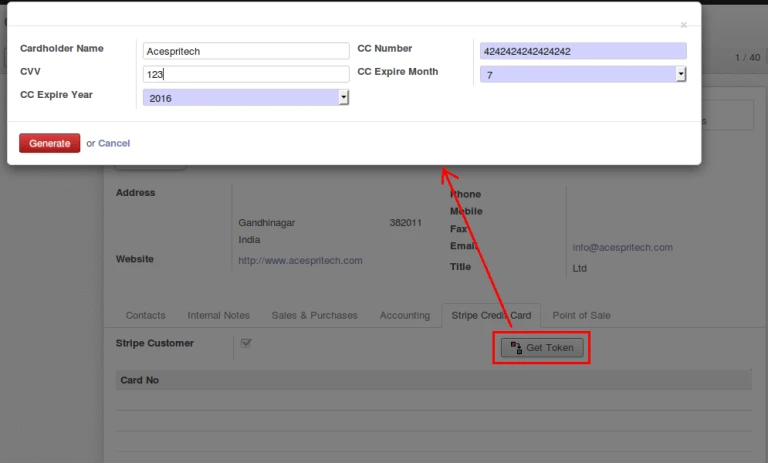
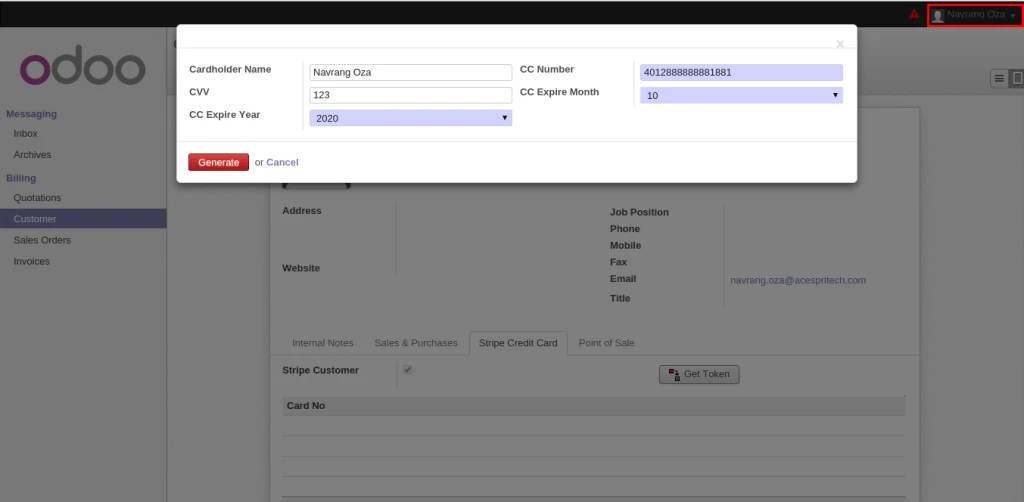
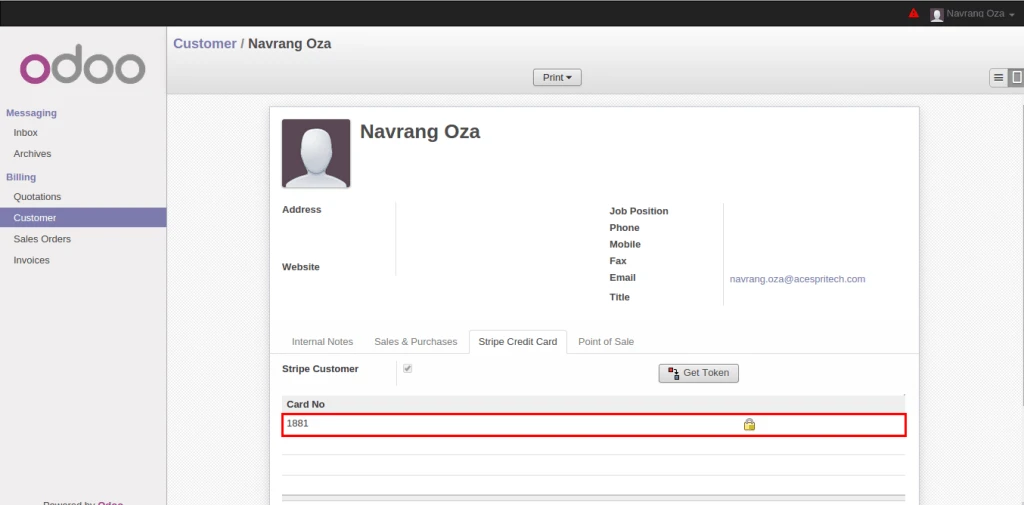
After registering customer successfully on stripe, user can register credit card information and generate tokens. For security reason, we are not storing credit card details into database.
Generate Token
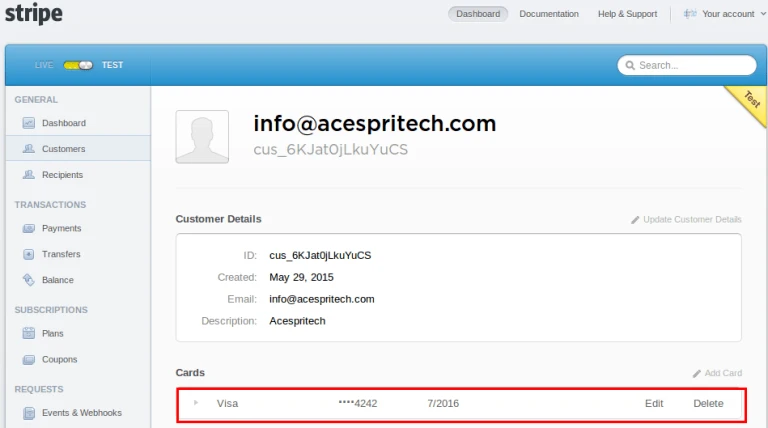
We can check same card information on stripe server.
Stripe Card
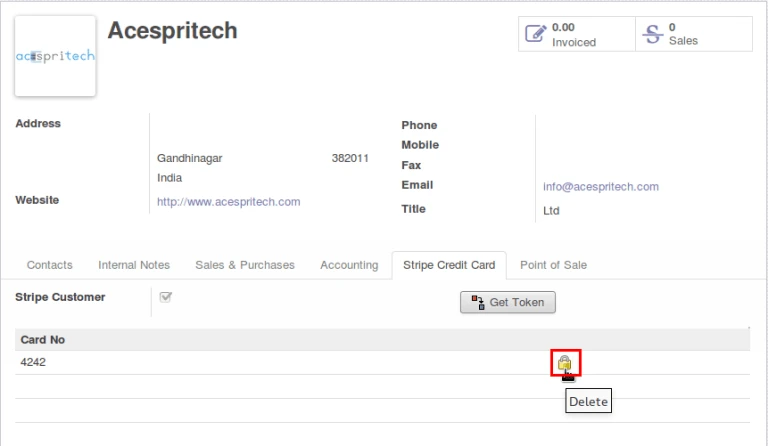
It is very easy to delete registered token from Stripe server and Odoo.
Delete Stripe Token
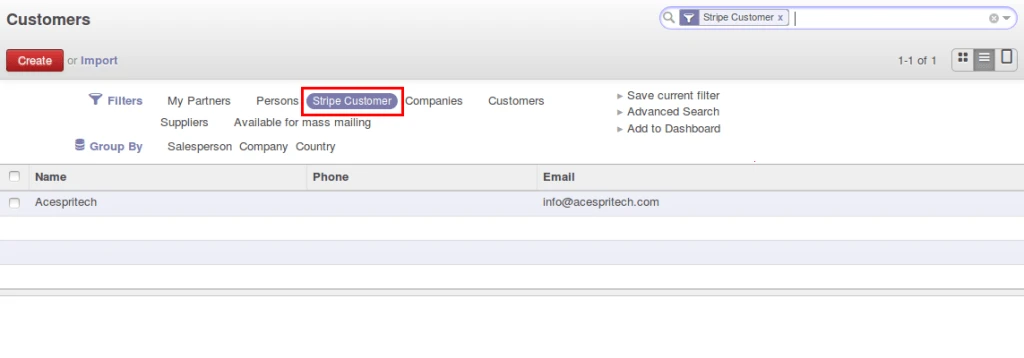
We can easily find registered customer also by applying filter.
Stripe Customer Filter
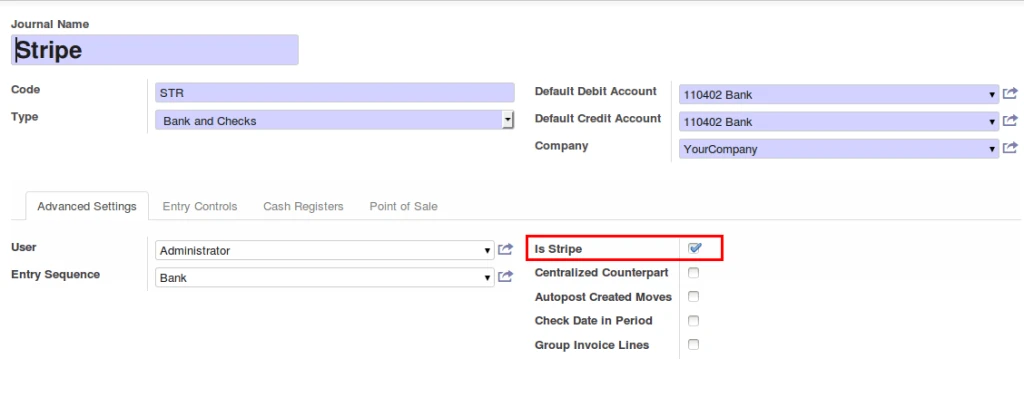
Added new field for processing on stripe server with accounting journals and differentiate with normal transactions.
Stripe Account Journal
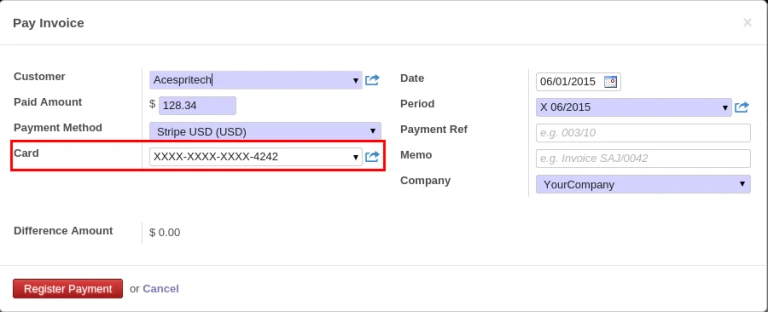
After invoice validation, during payment process in customer invoice, there will be Card selection field available.
Customer Payment
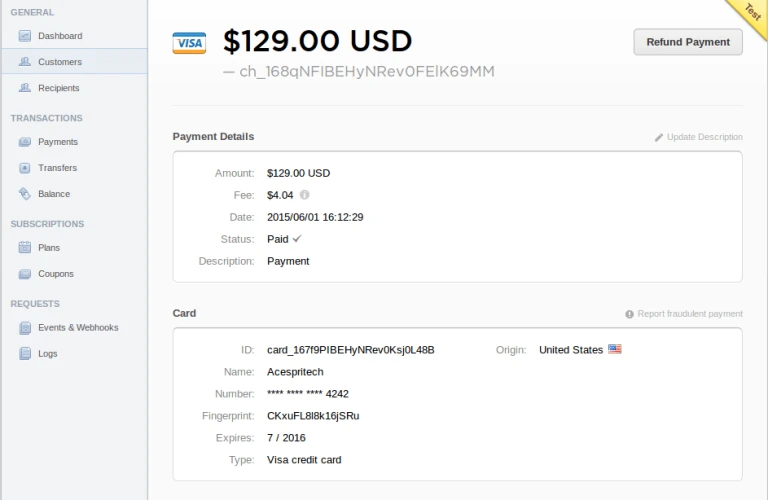
After successful transaction, it will appear on Stripe server as well as complete payment process in odoo.
Stripe Payment
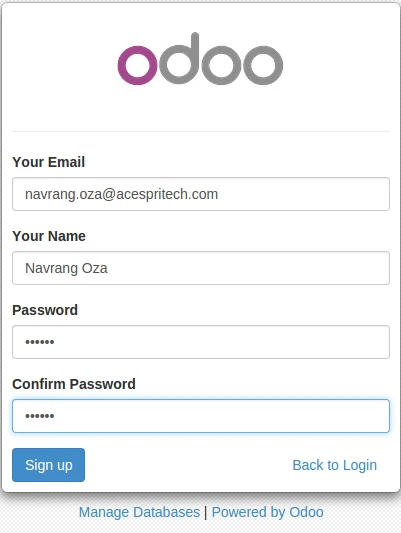
We have implemented Stripe functionality with Portal. Once we sign up by Odoo, it will create
customer and also register it on Stripe server automatically.
Odoo portal partner signupOdoo portal customer
For security purpose, Customer will easily registered their card on Stripe server and generate tokens.