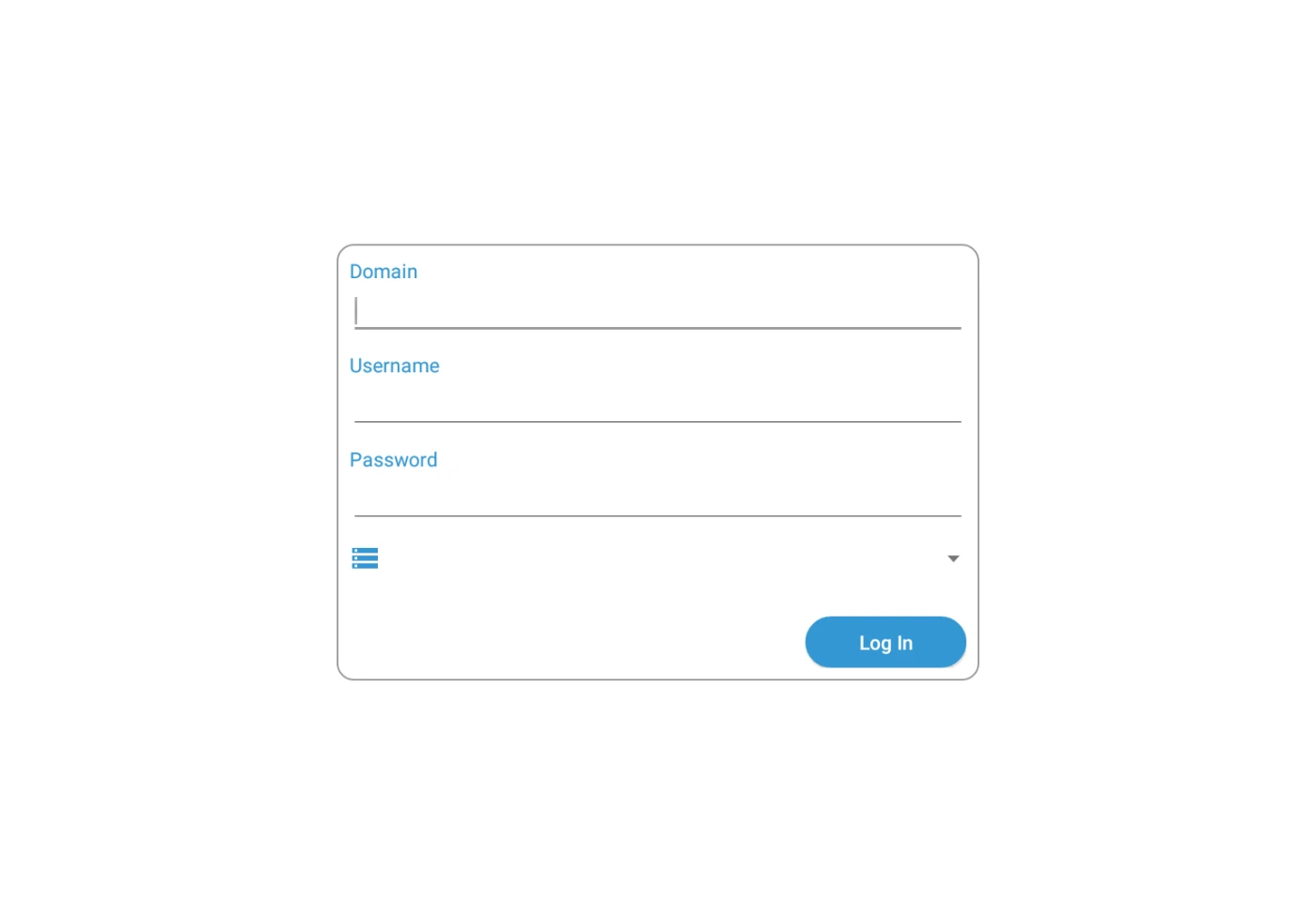
Login Screen
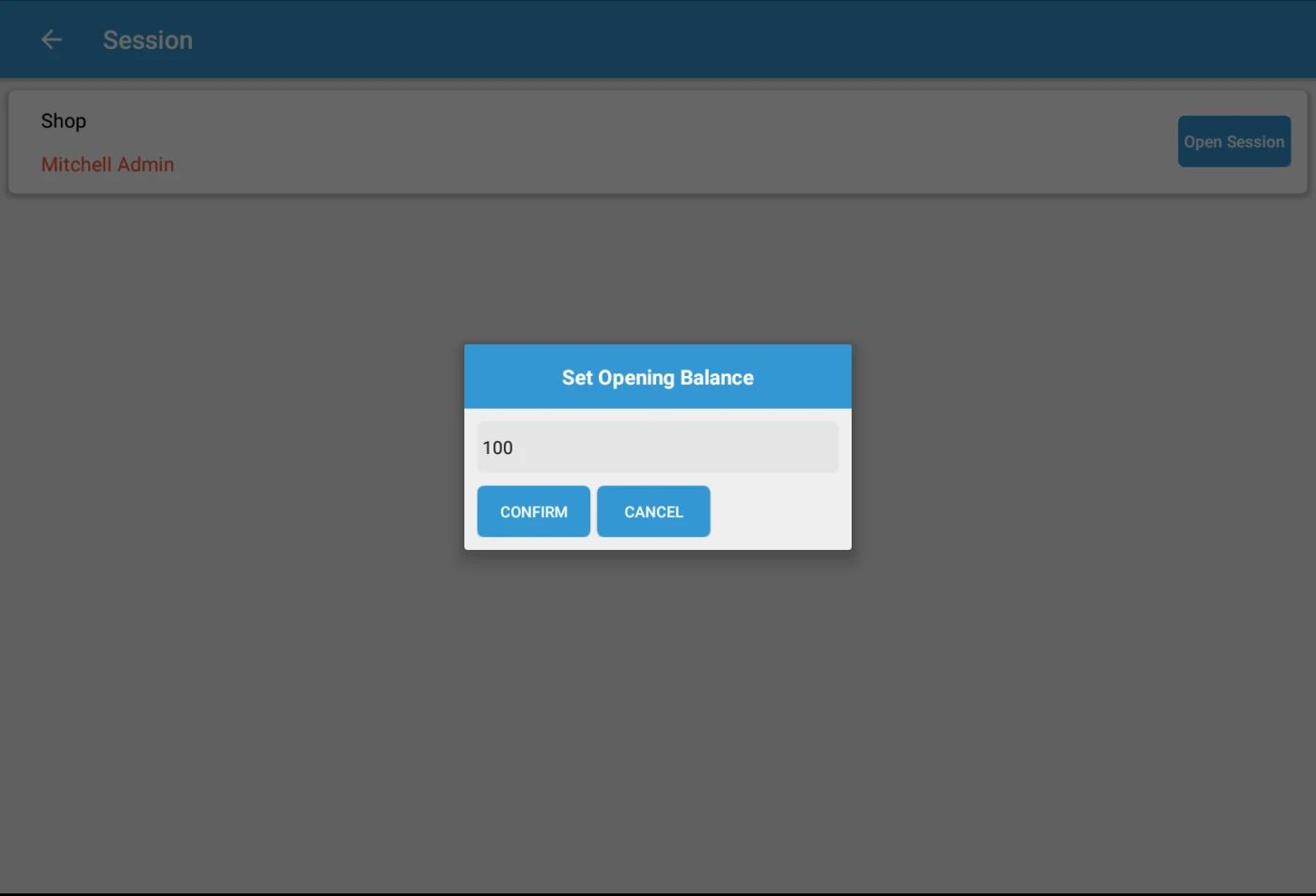
POS Opening Balance
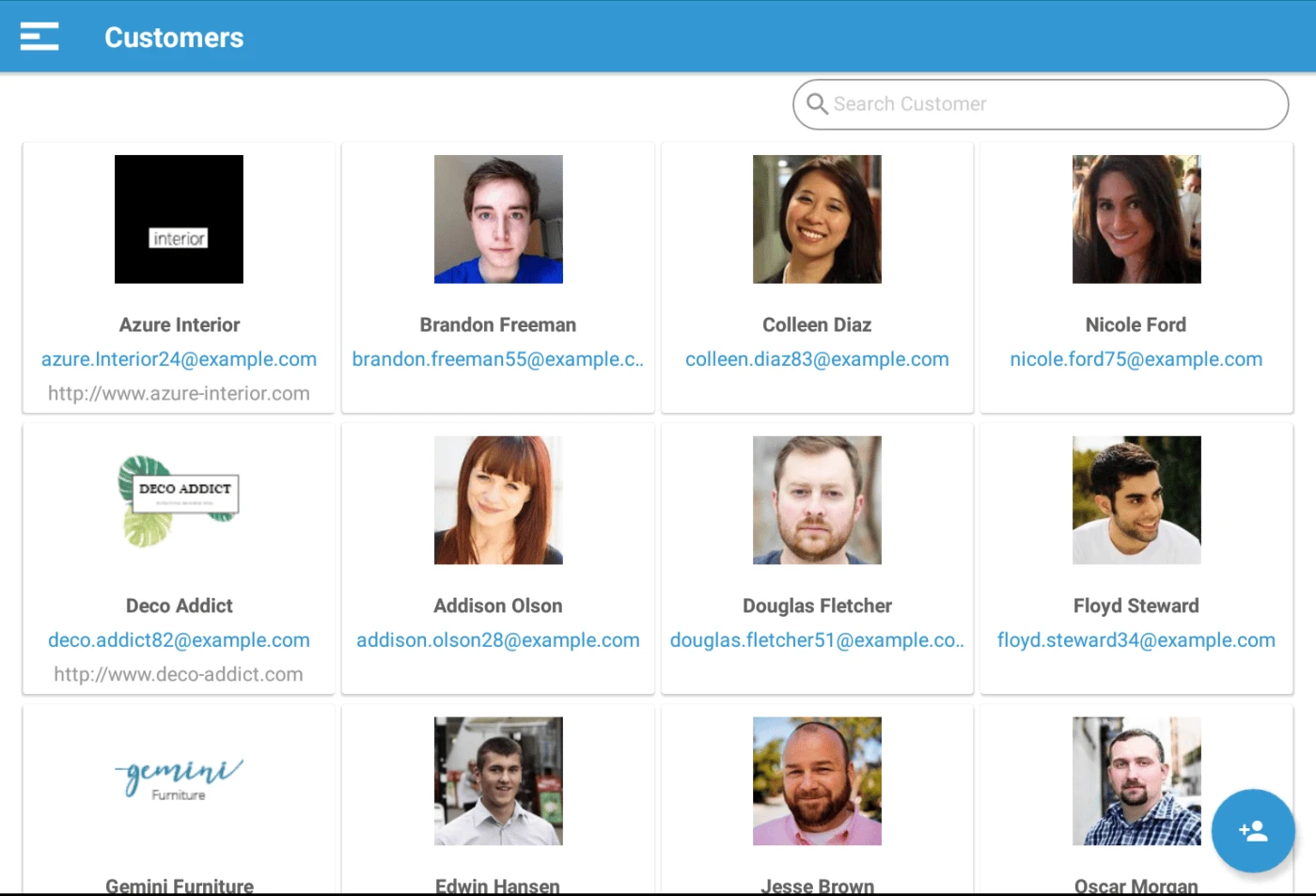
Customer Kanban View
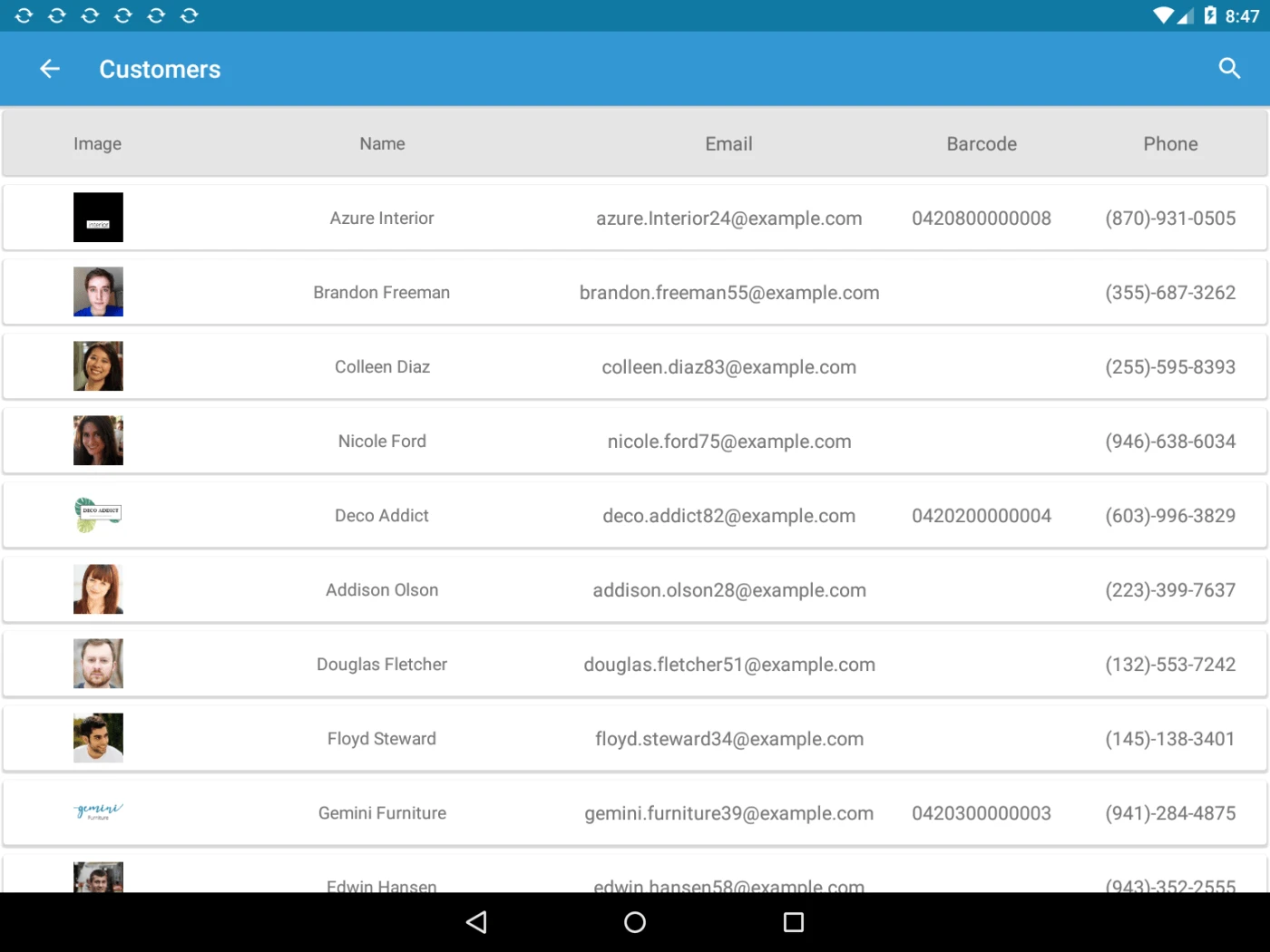
Customer List View
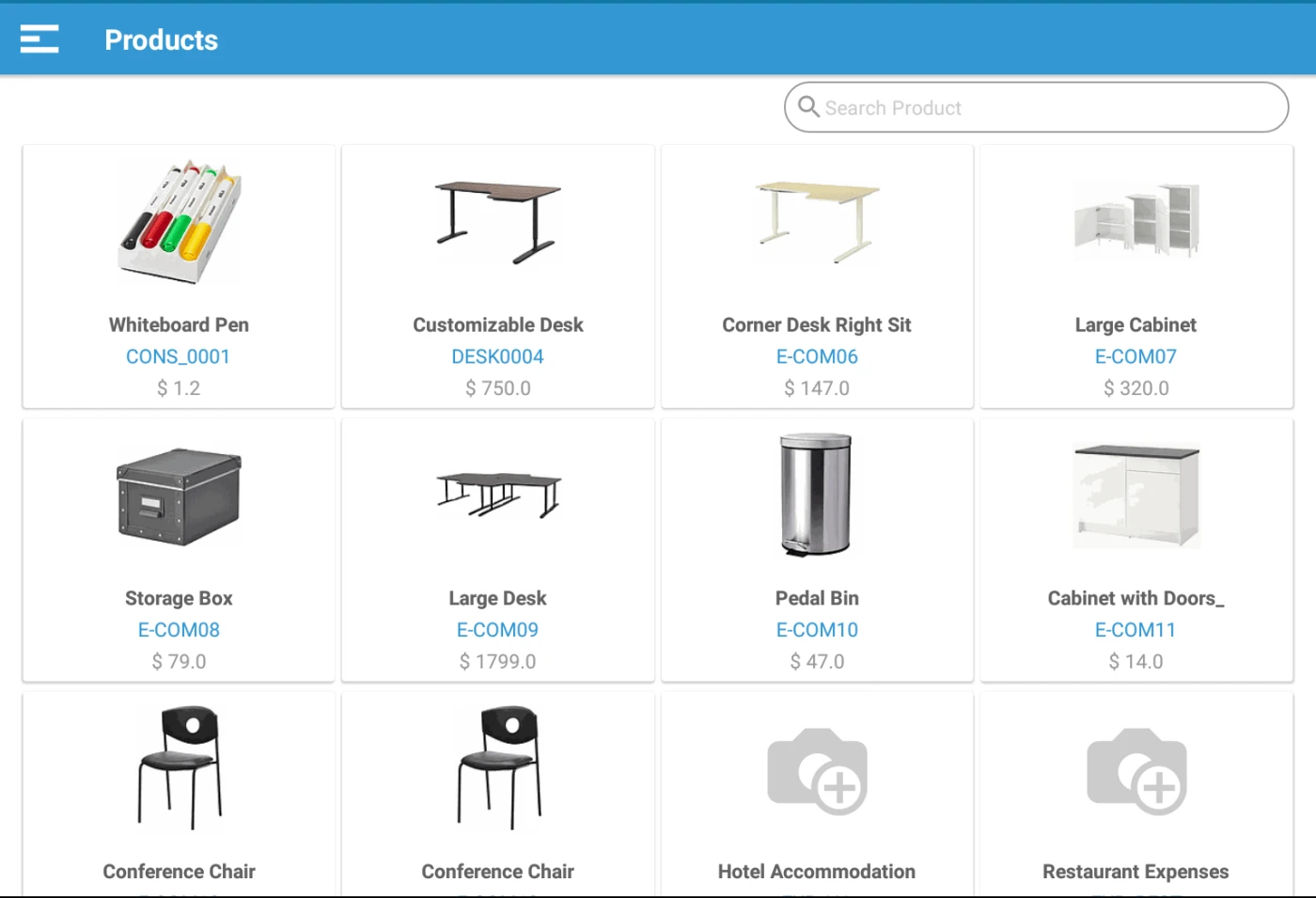
Product Kanban View
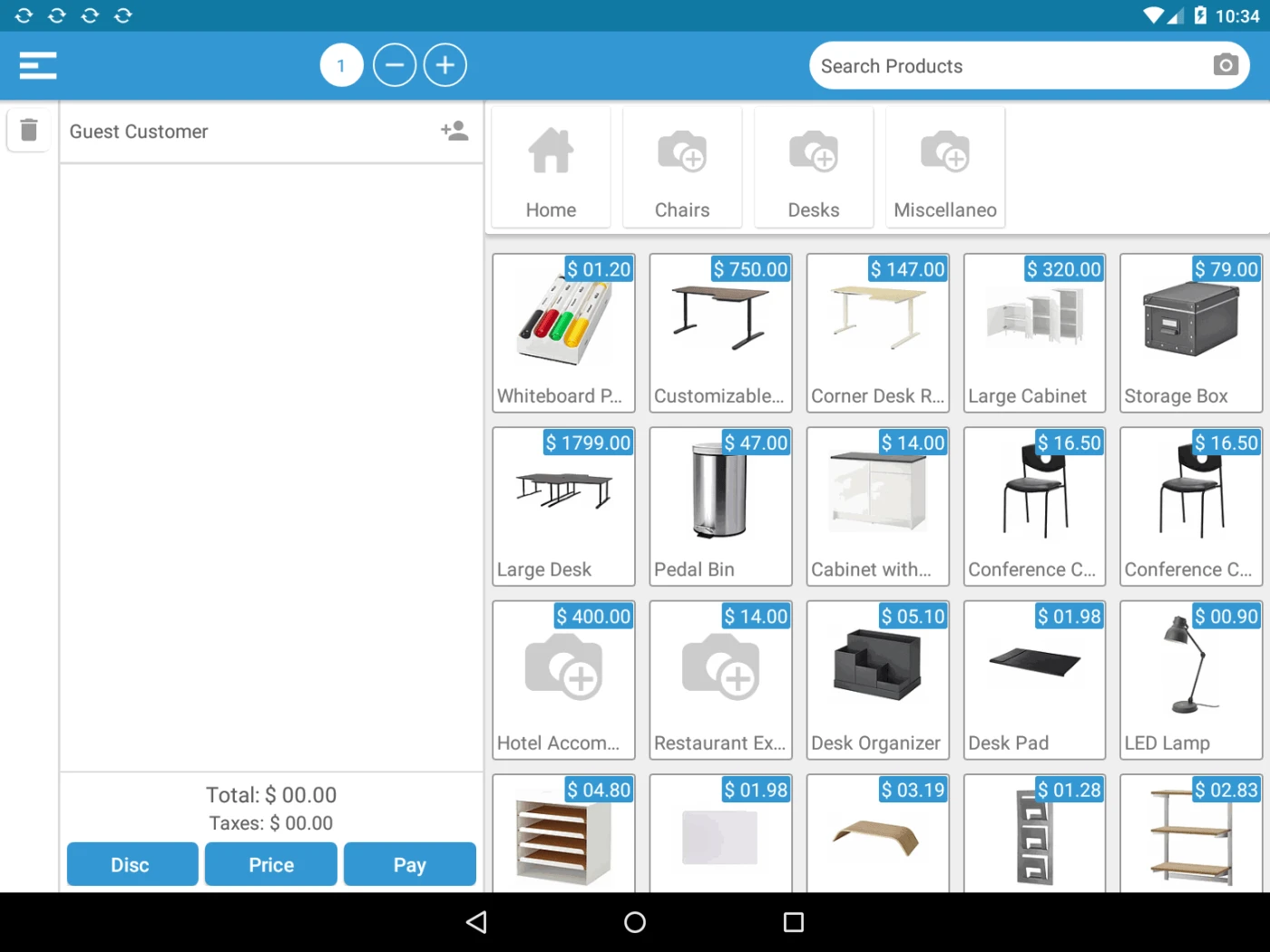
POS Main Screen
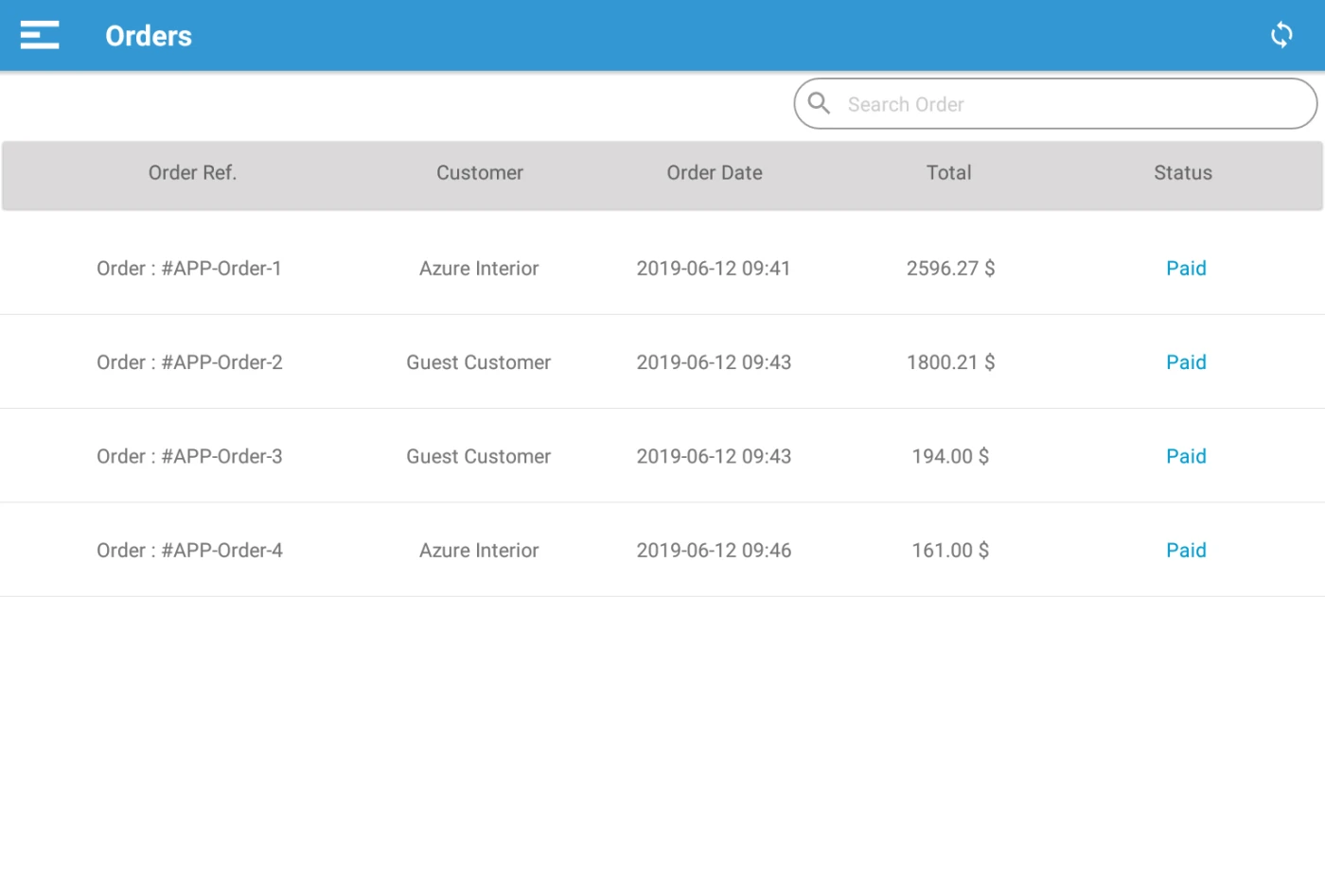
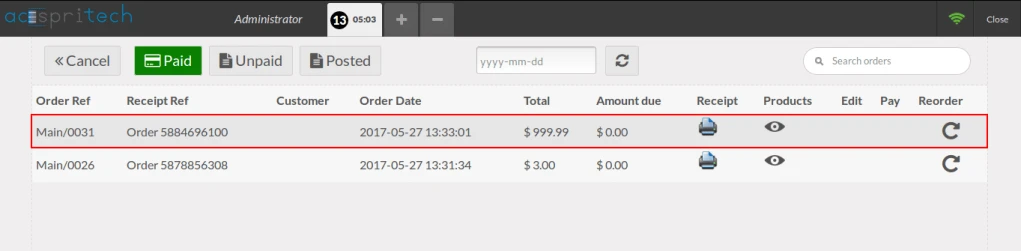
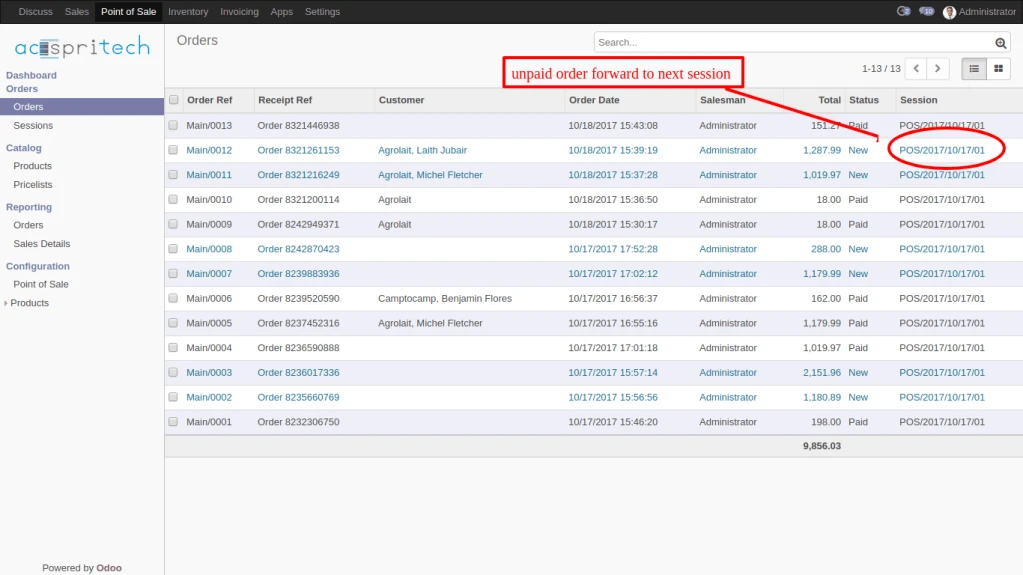
POS Order List
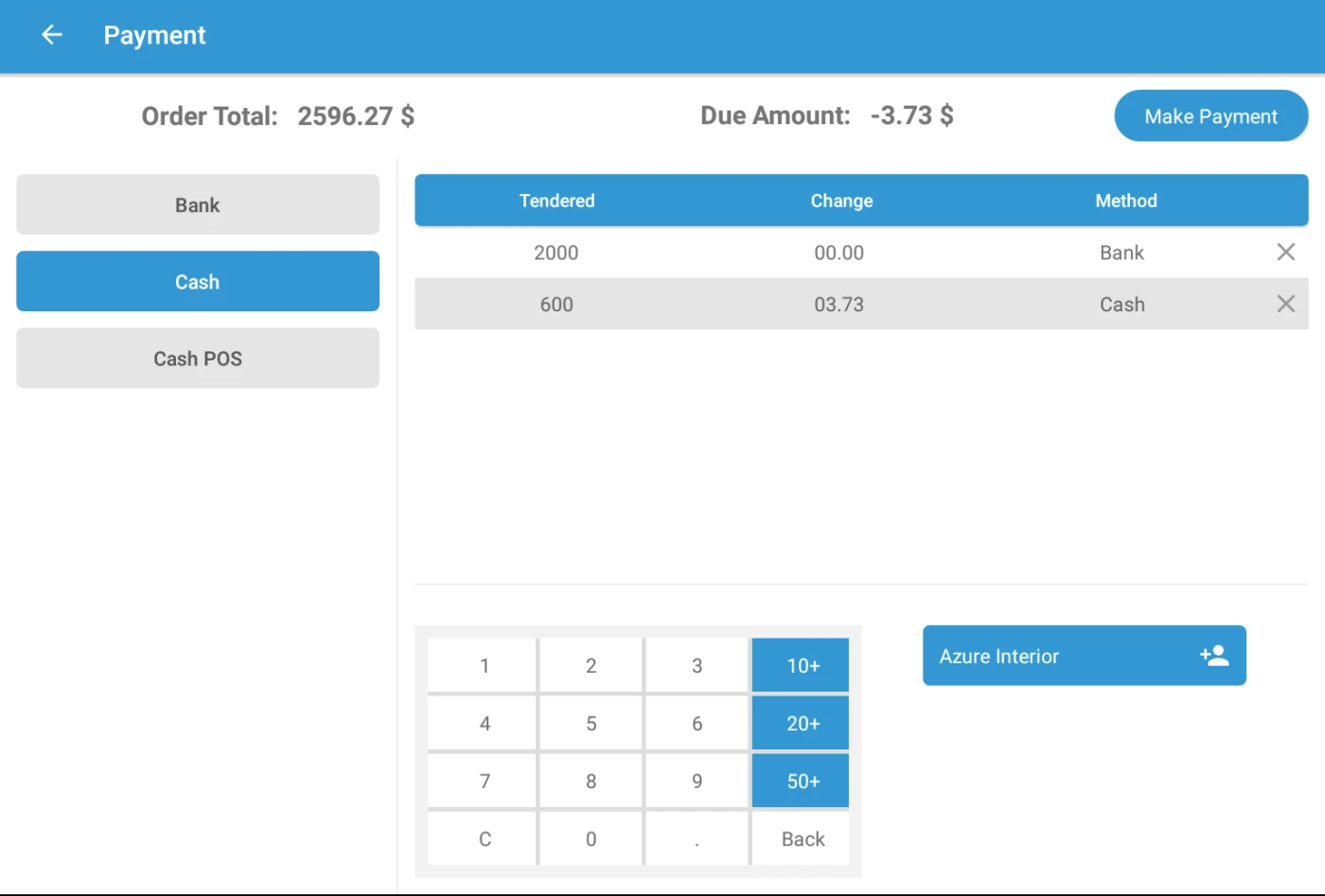
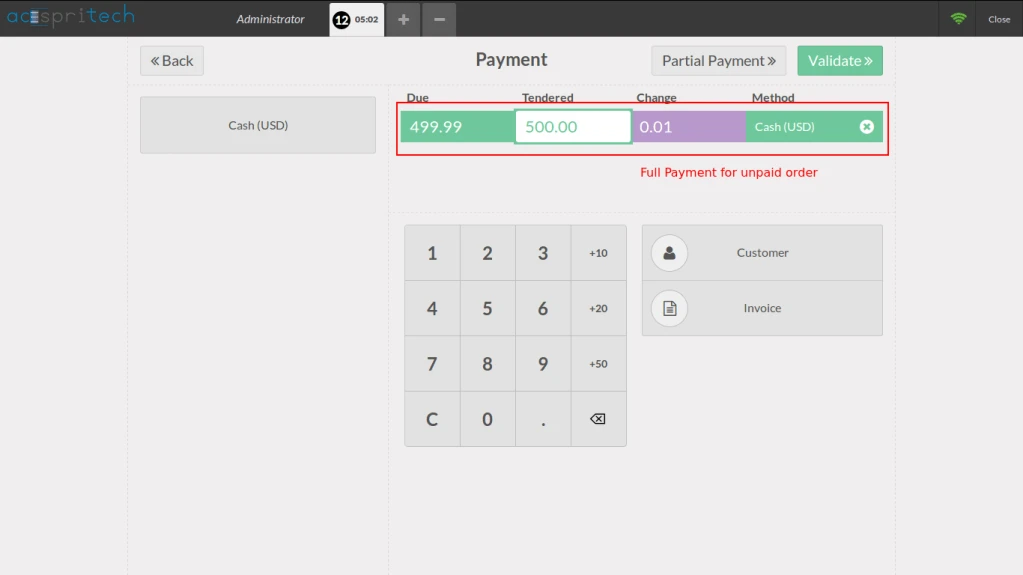
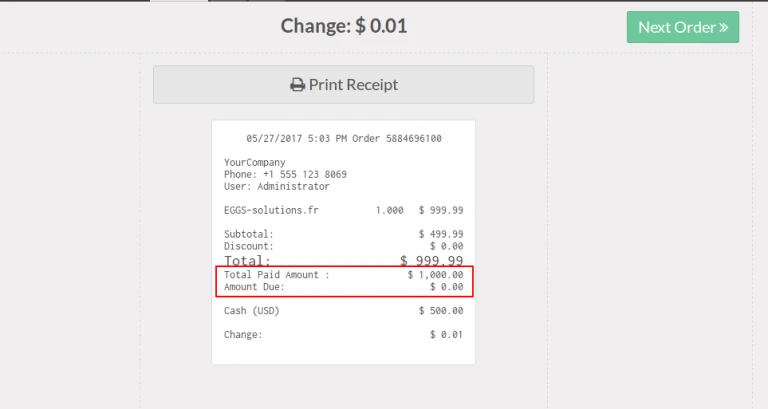
POS Payment Screen
Login Screen
POS Opening Balance
Customer Kanban View
Customer List View
Product Kanban View
POS Main Screen
POS Order List
POS Payment Screen
How to use
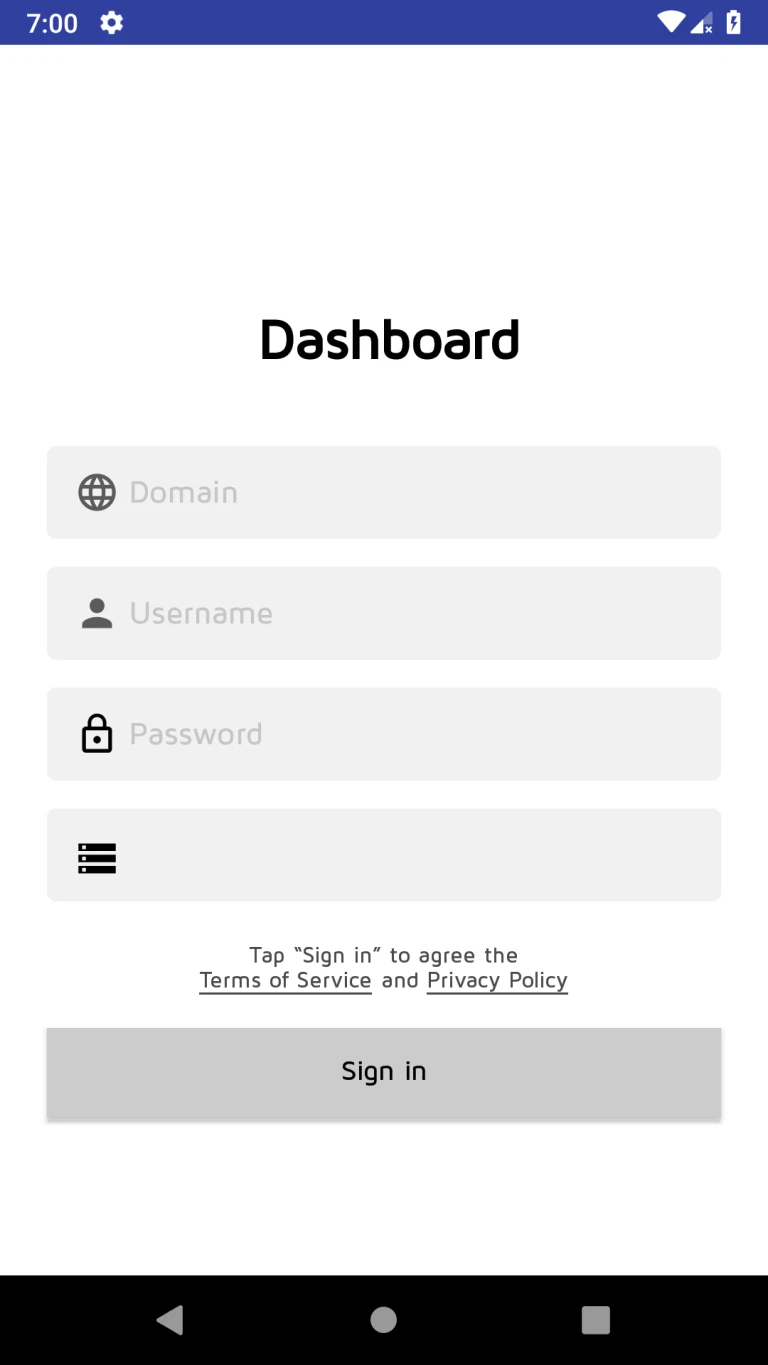
User can login with Odoo Url, username, password and Odoo V12 database.
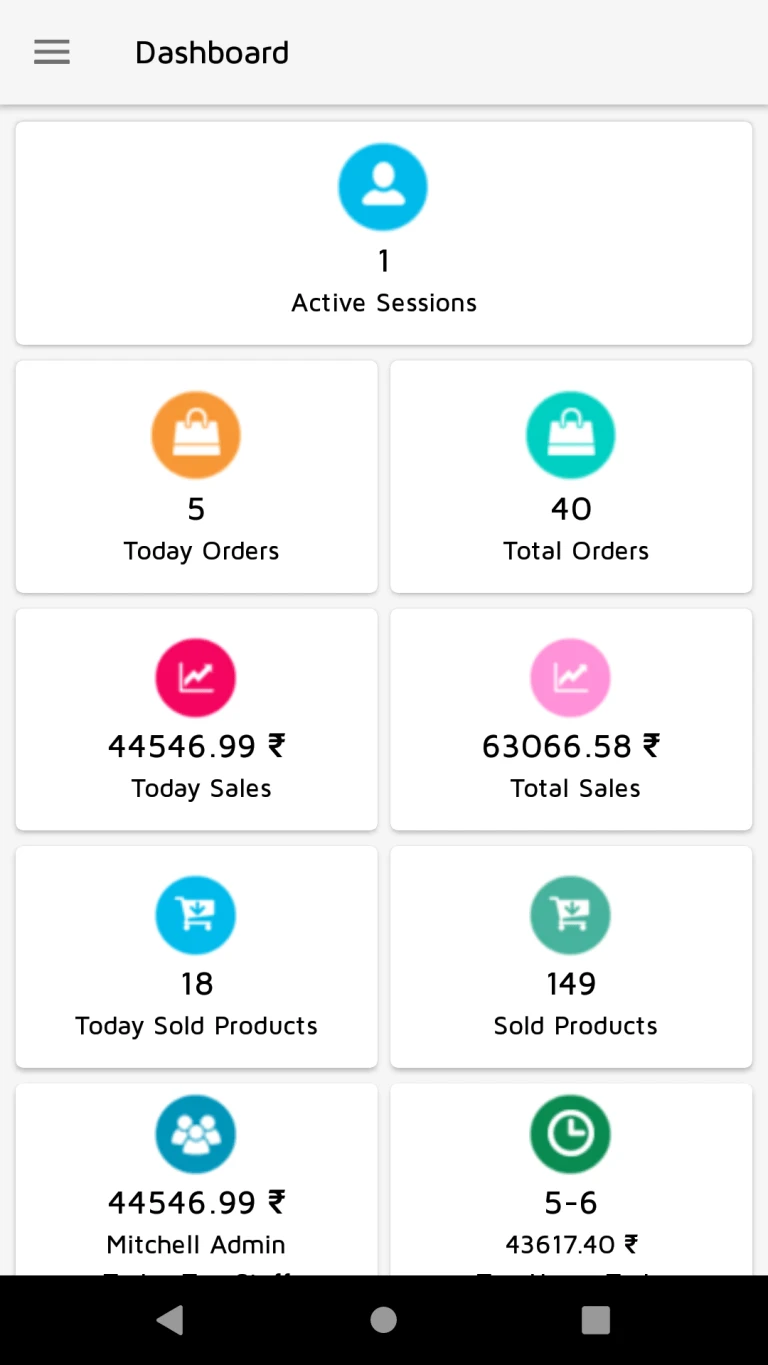
User can see various details like sale, sold products, orders, active sessions, salesperson name who sold highest today, hours in which highest sales, average customer spending and visit as per last 30 days.
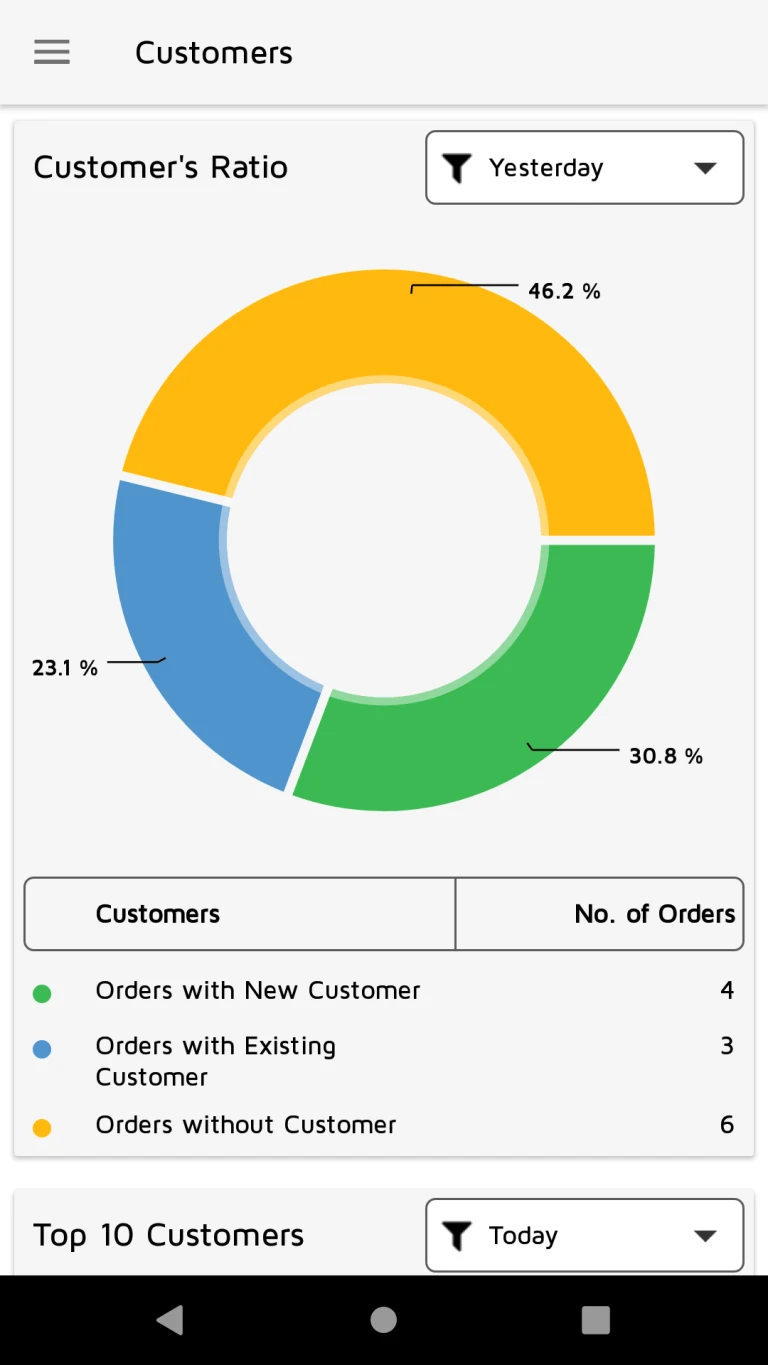
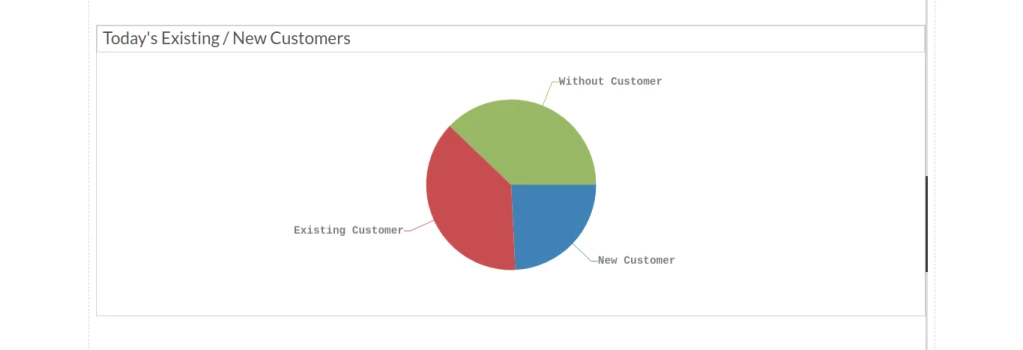
User can see customer’s ratio about orders with new customer, orders with existing customer and orders without customer.
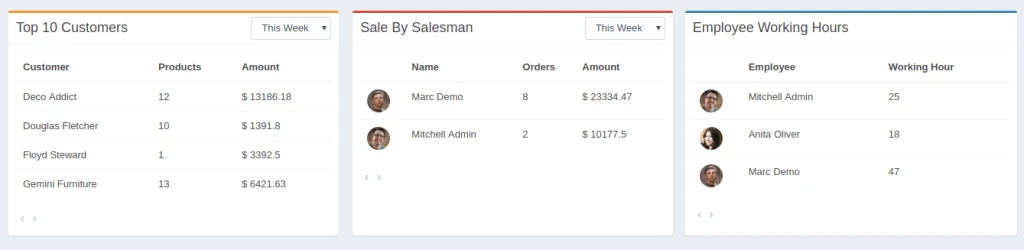
User can see top 10 customer’s no. of orders and sales details.
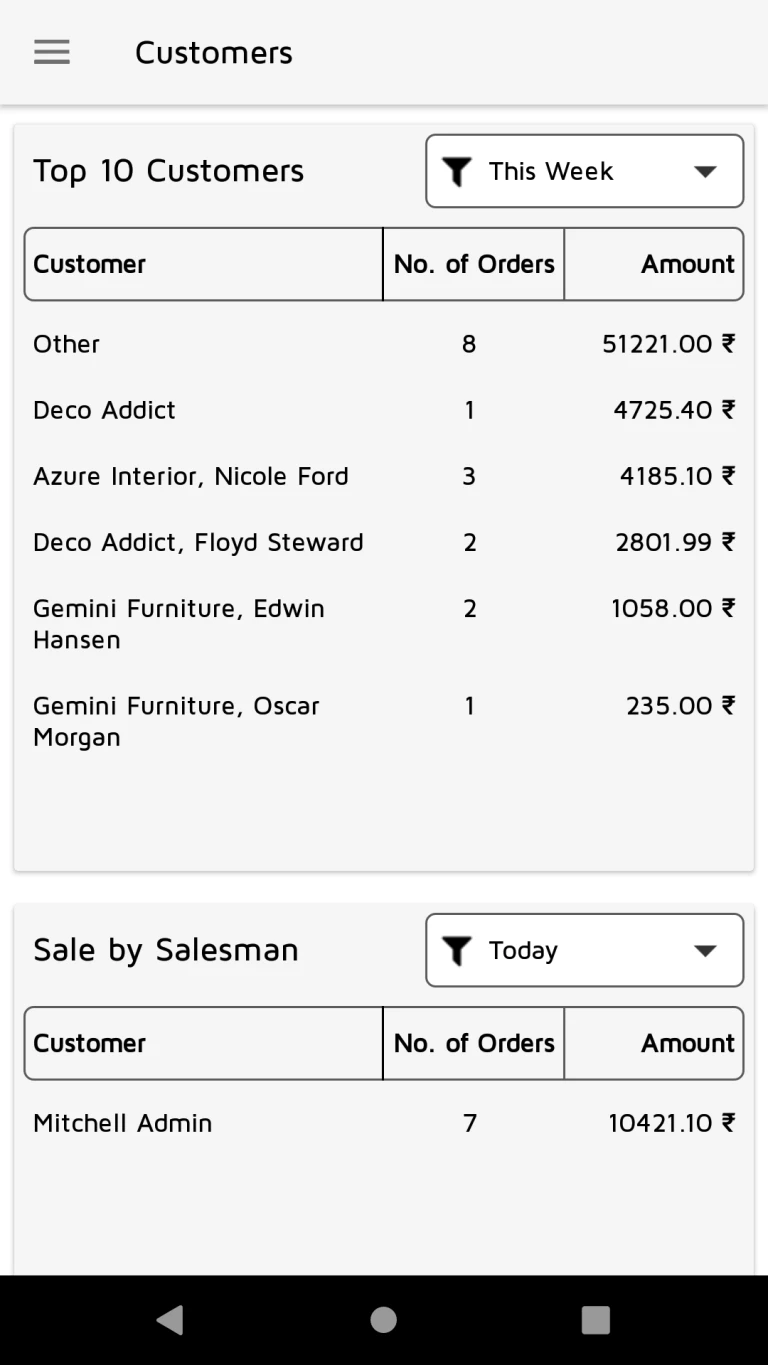
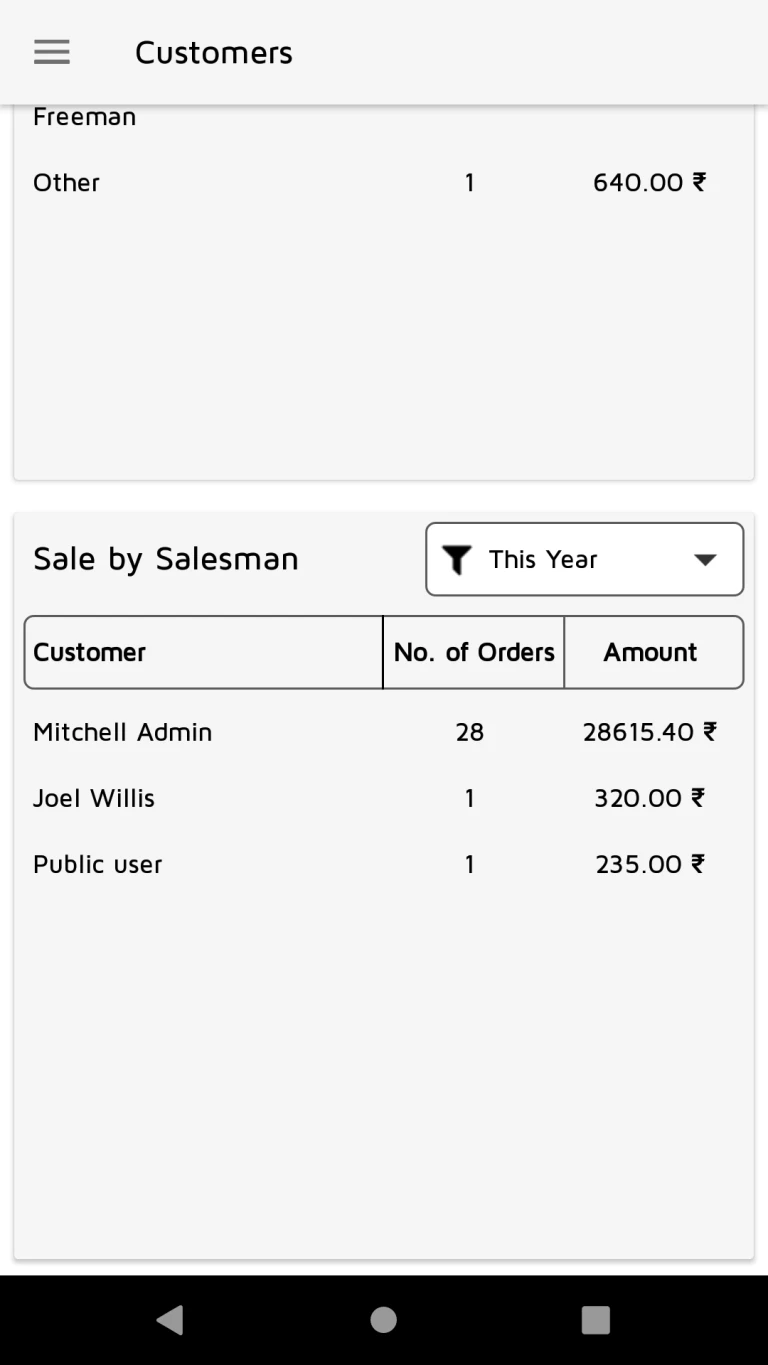
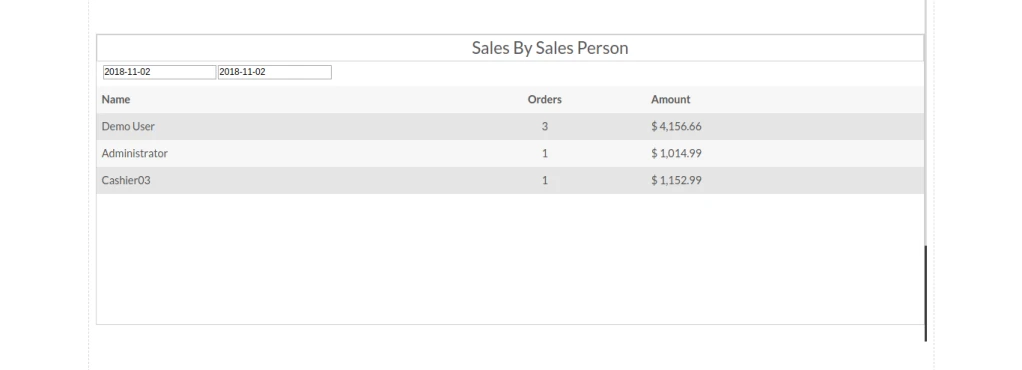
User can see top 10 salesman’s no. of orders and sales details.
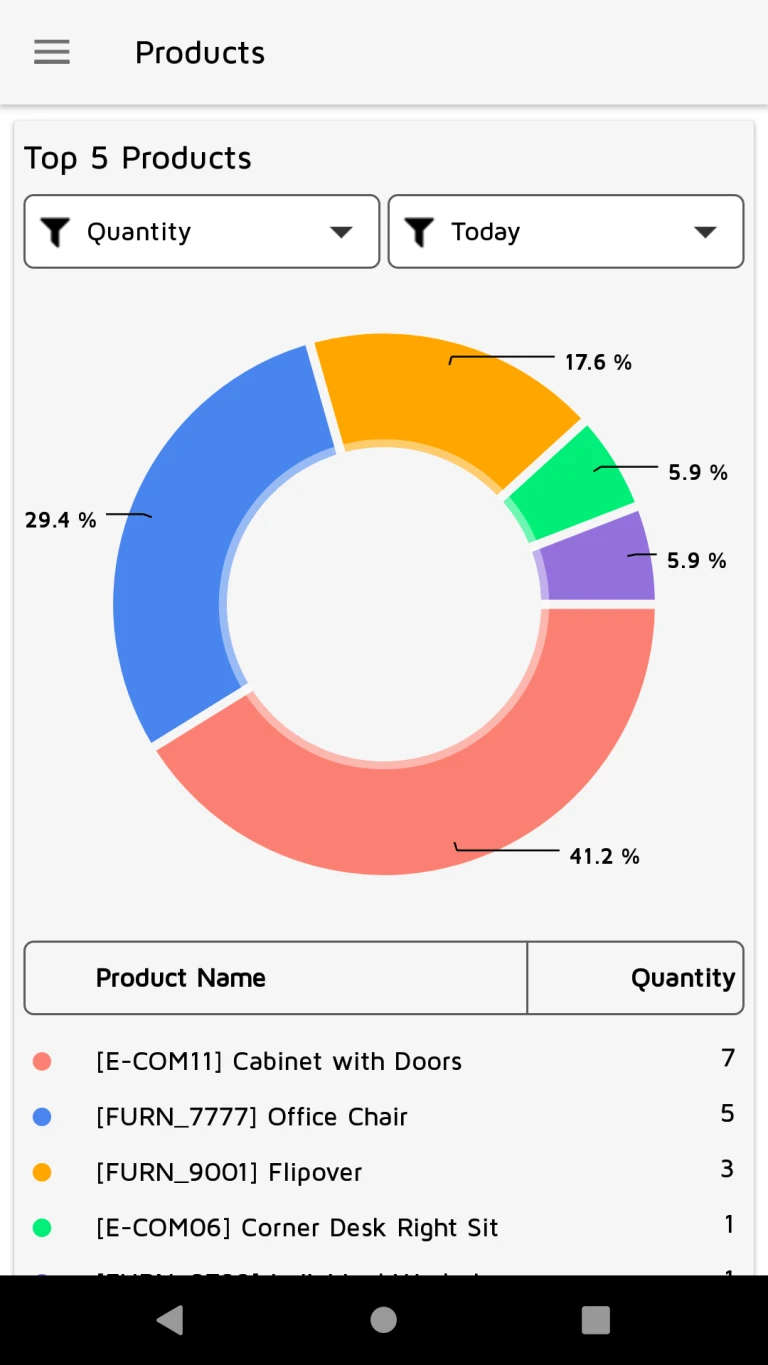
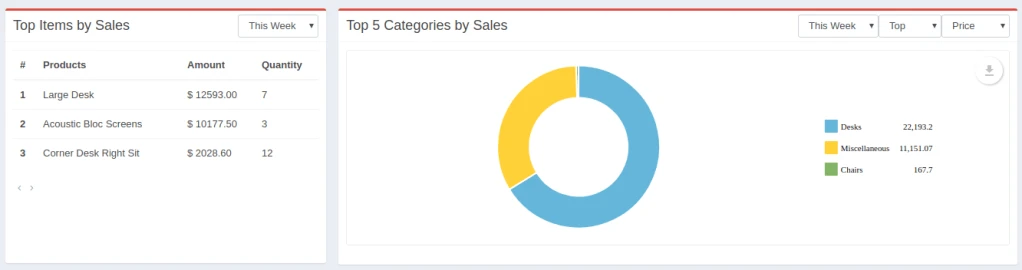
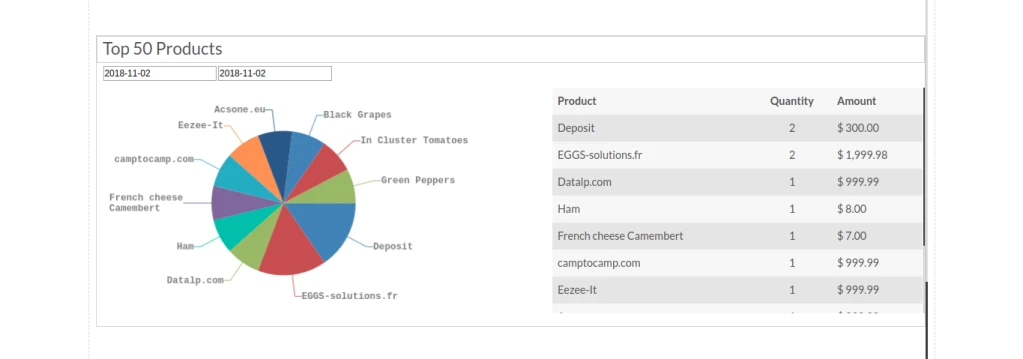
User can see top 5 products by quantity.
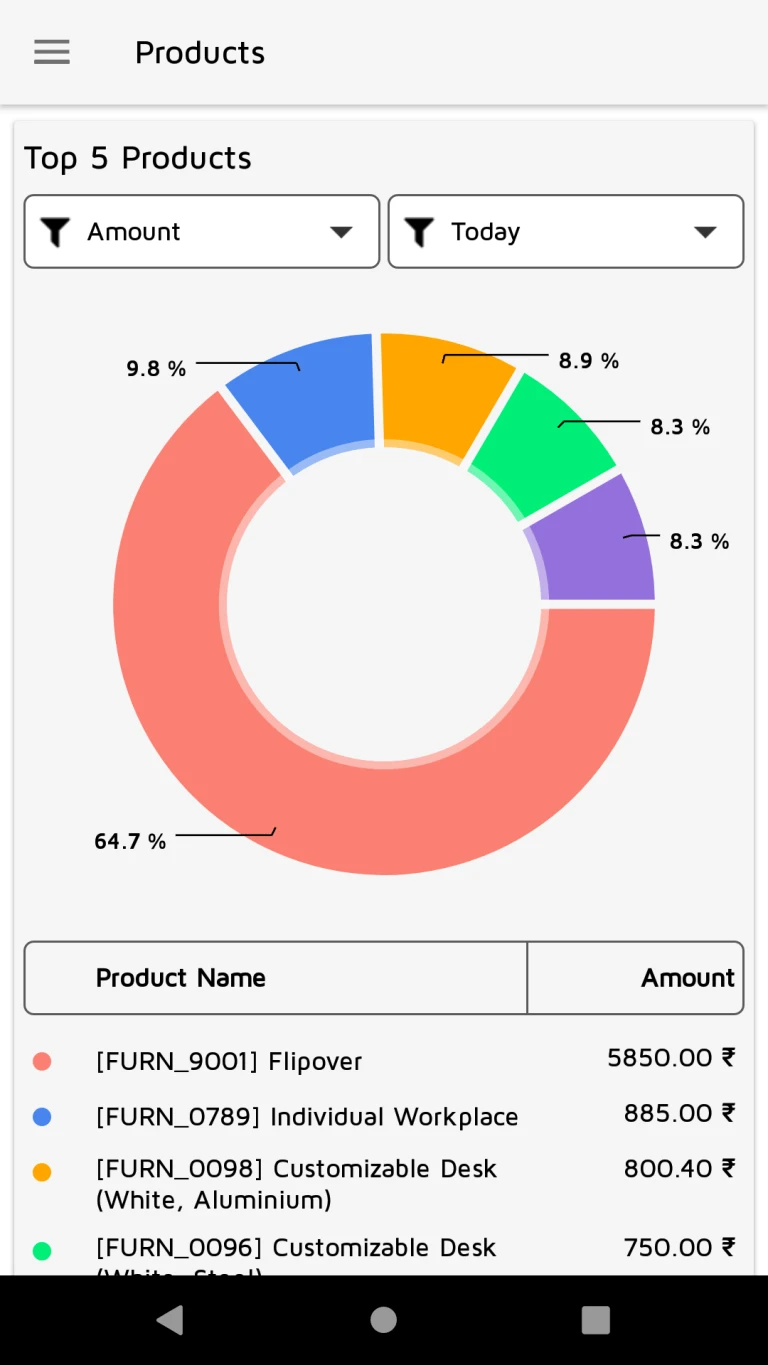
User can see top 5 products by amount.
User can see top 5 categories by quantity.
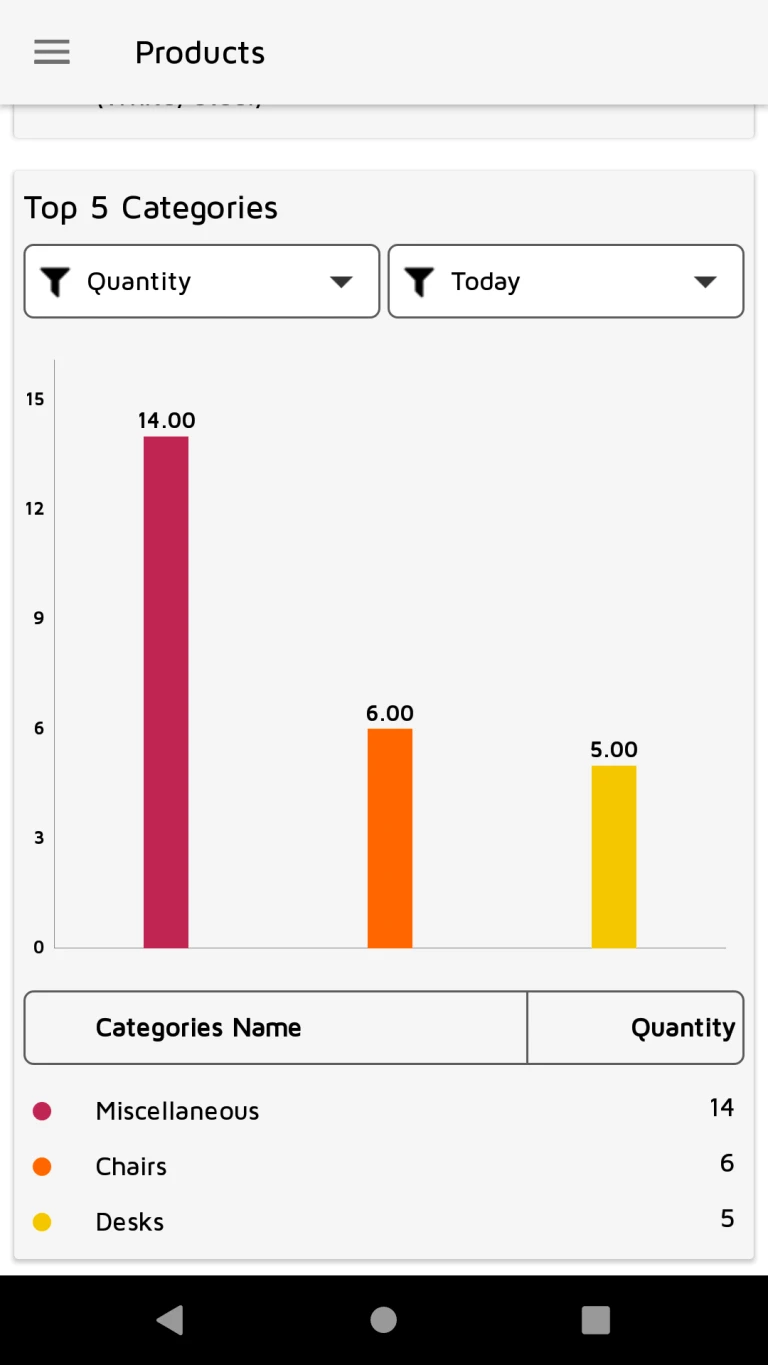
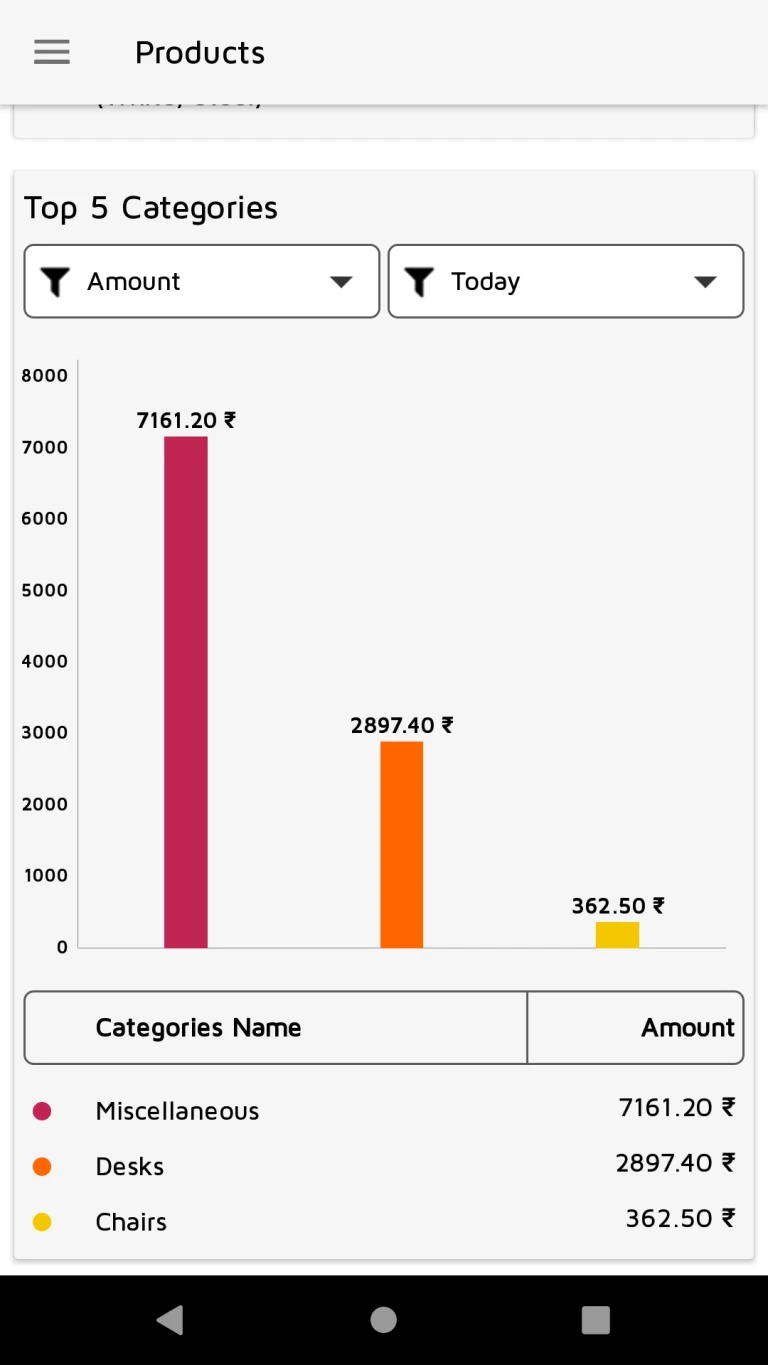
User can see top 5 categories by amount.
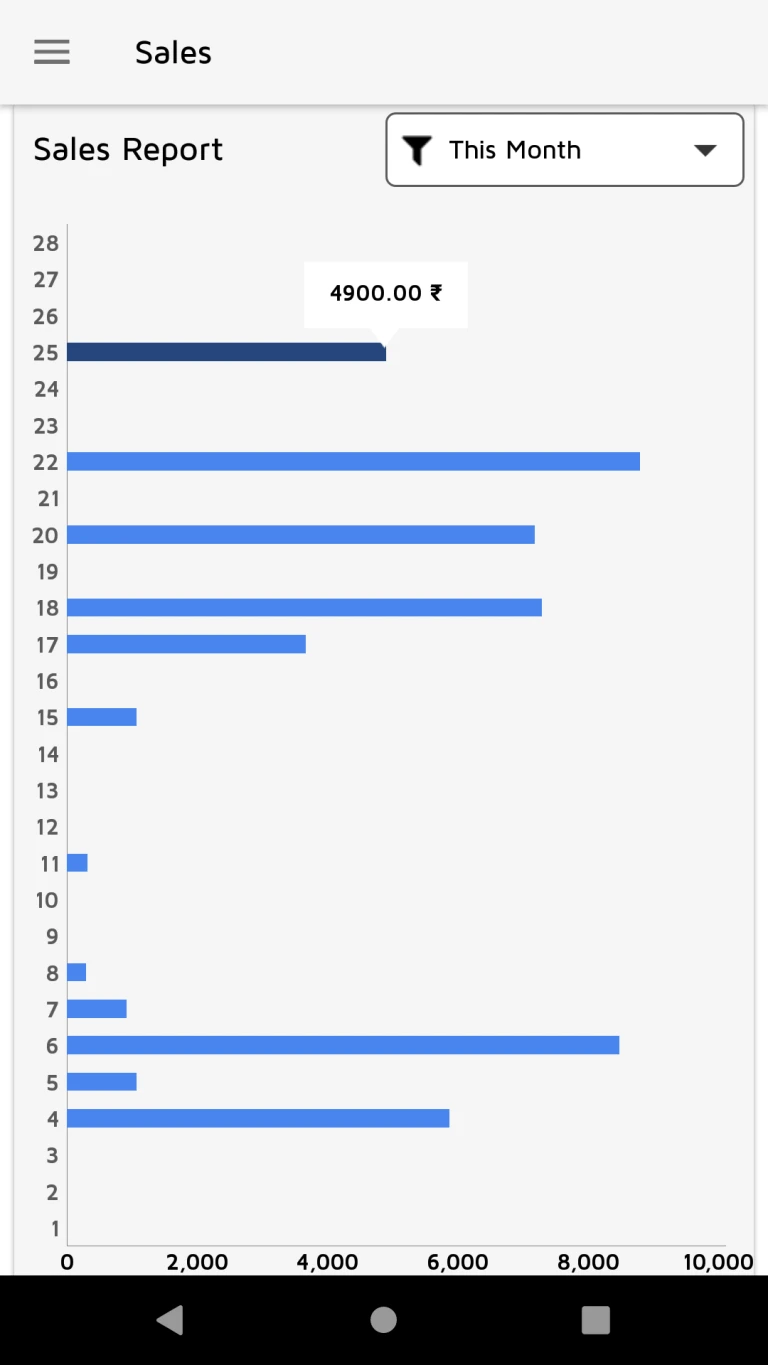
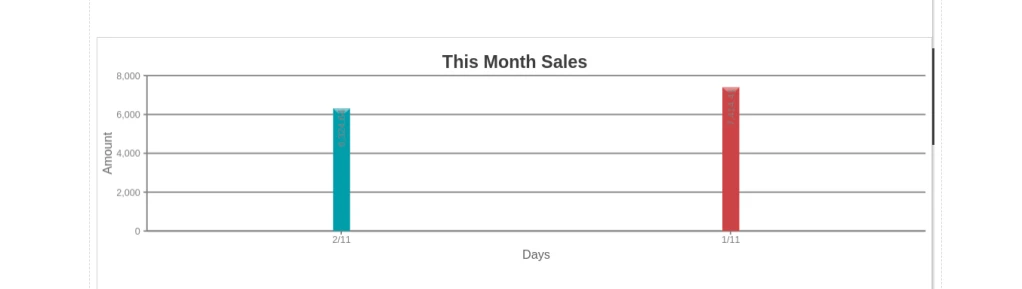
User can see monthly sales report.
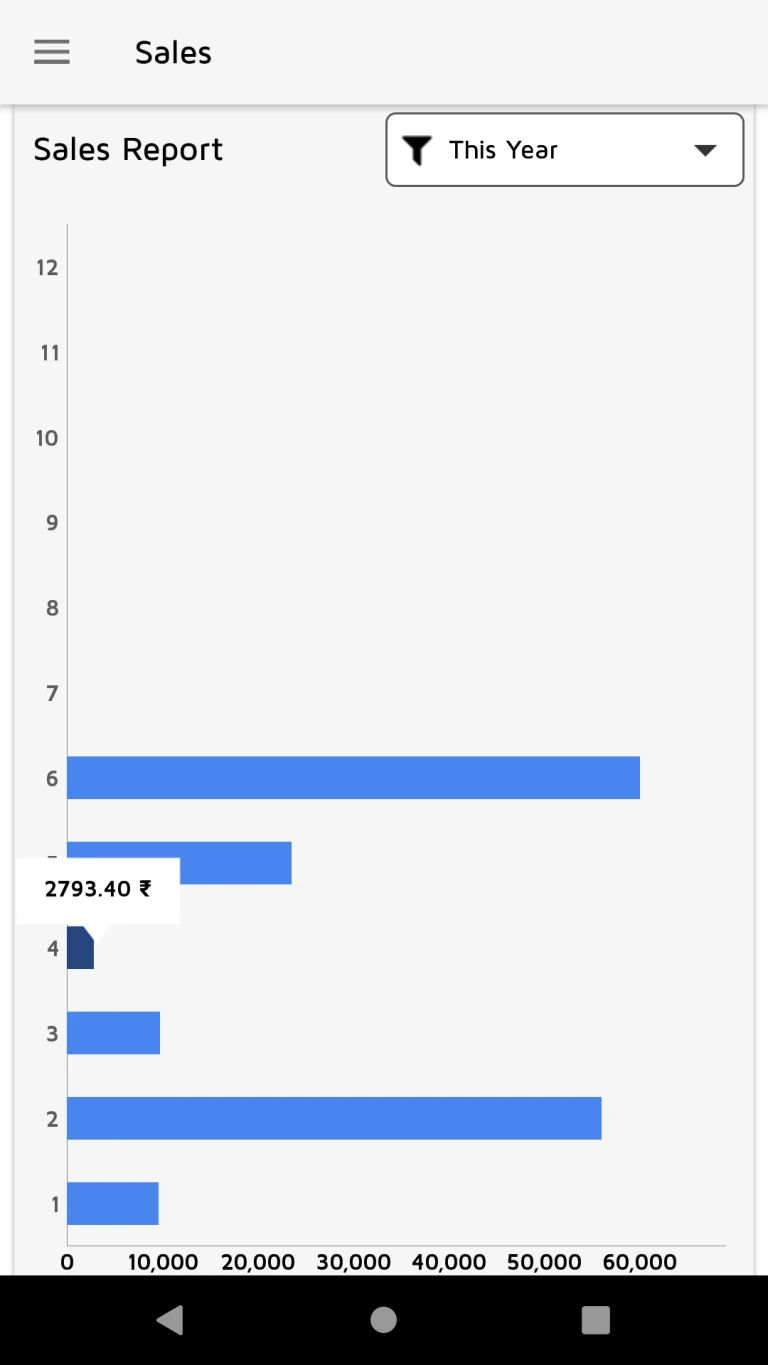
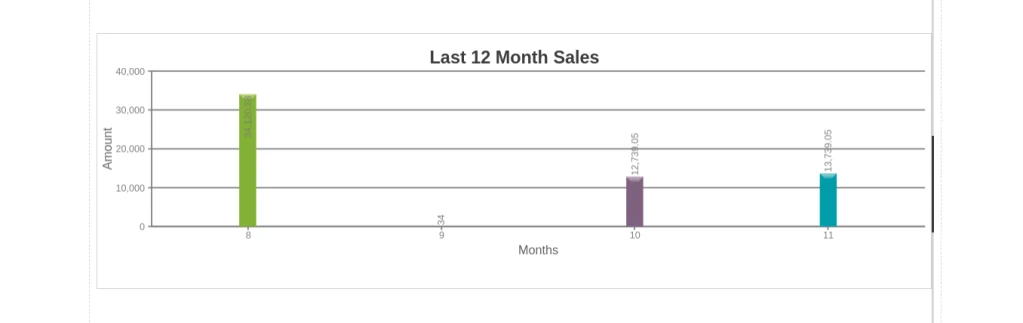
User can see yearly sales report.
User can see sales and order details according it’s status.
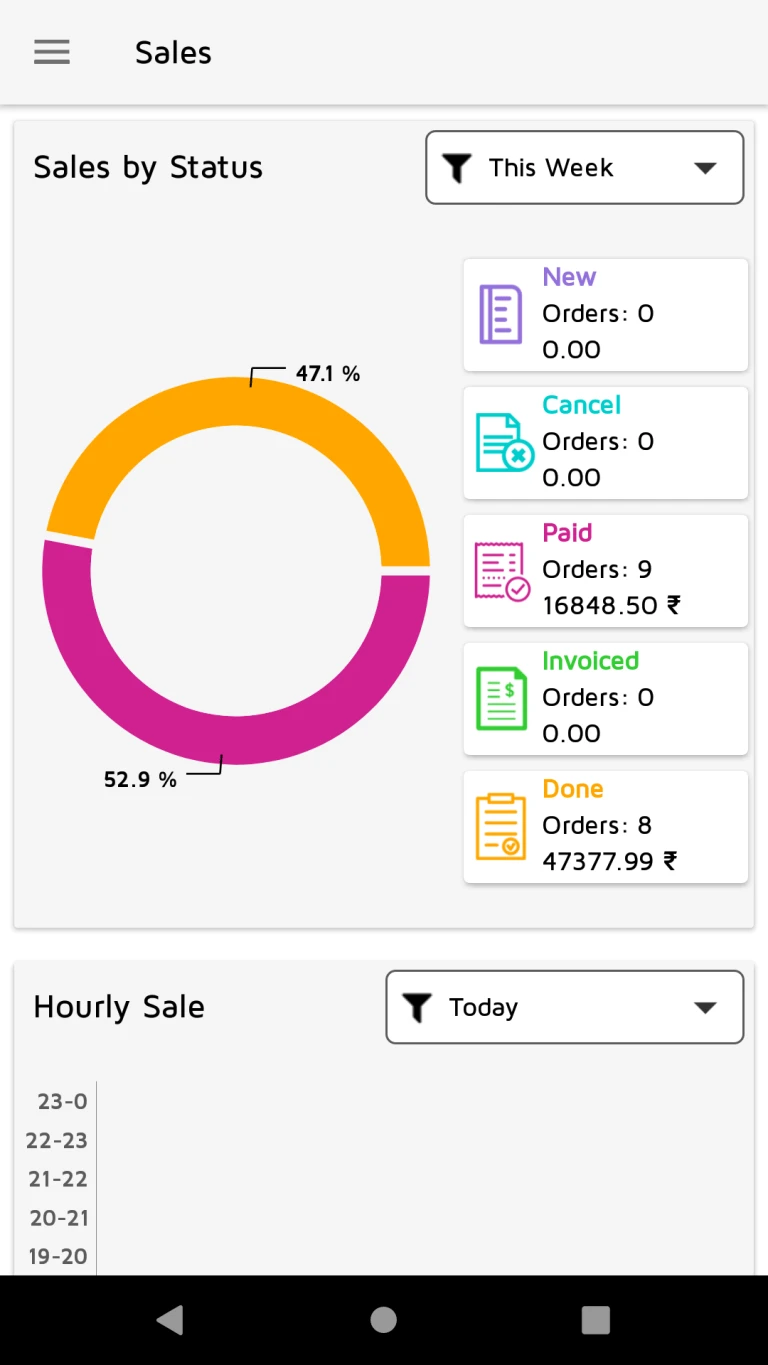
User can see hourly comparison of today and last 7th day of week.
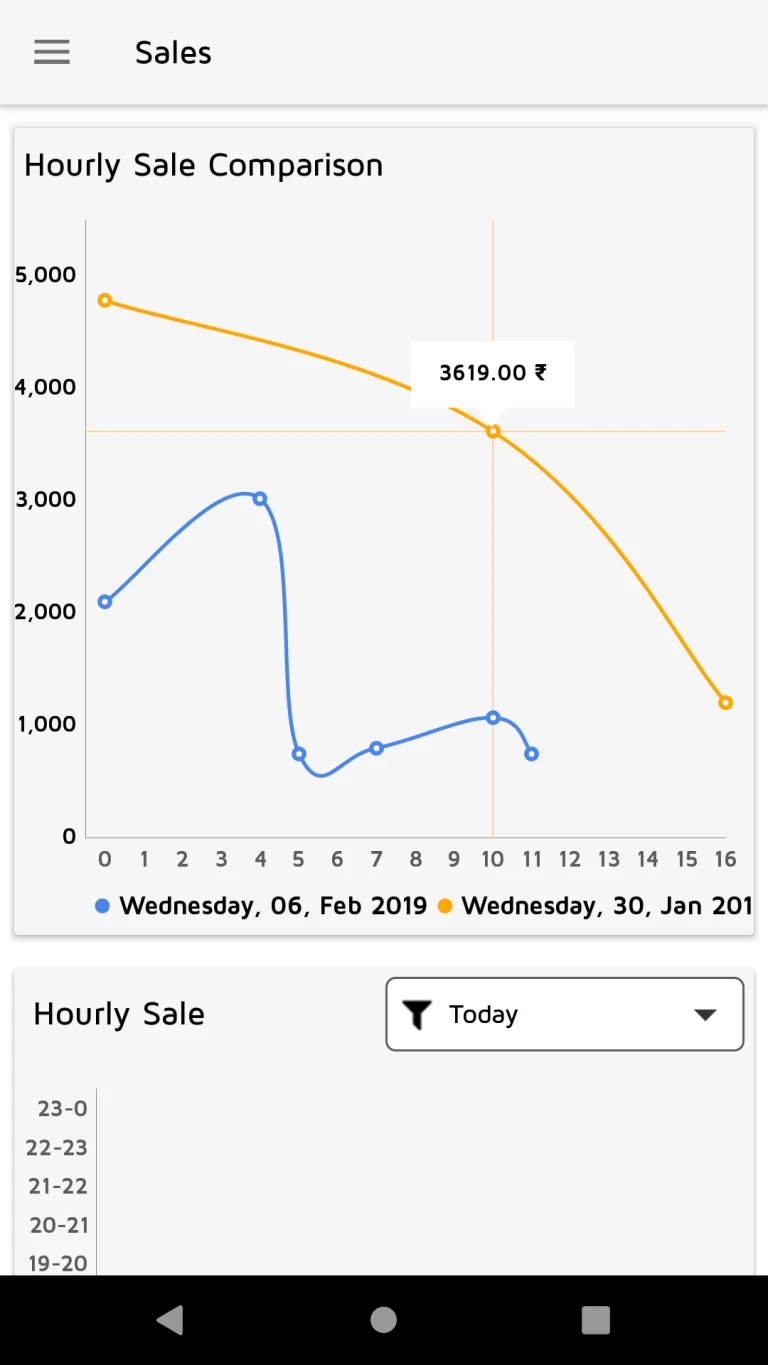
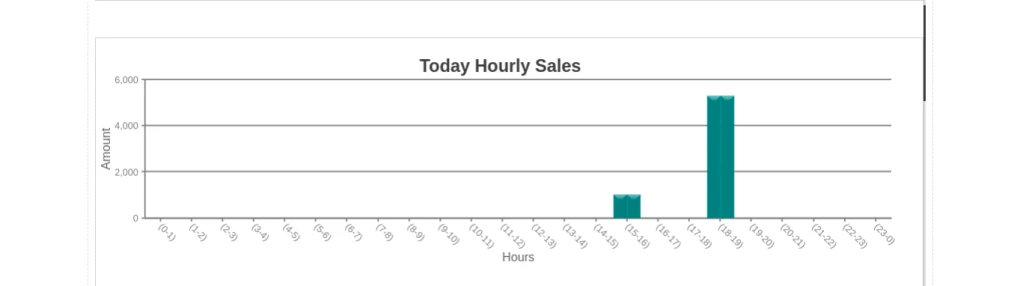
User can see hourly sale by today or selected date.
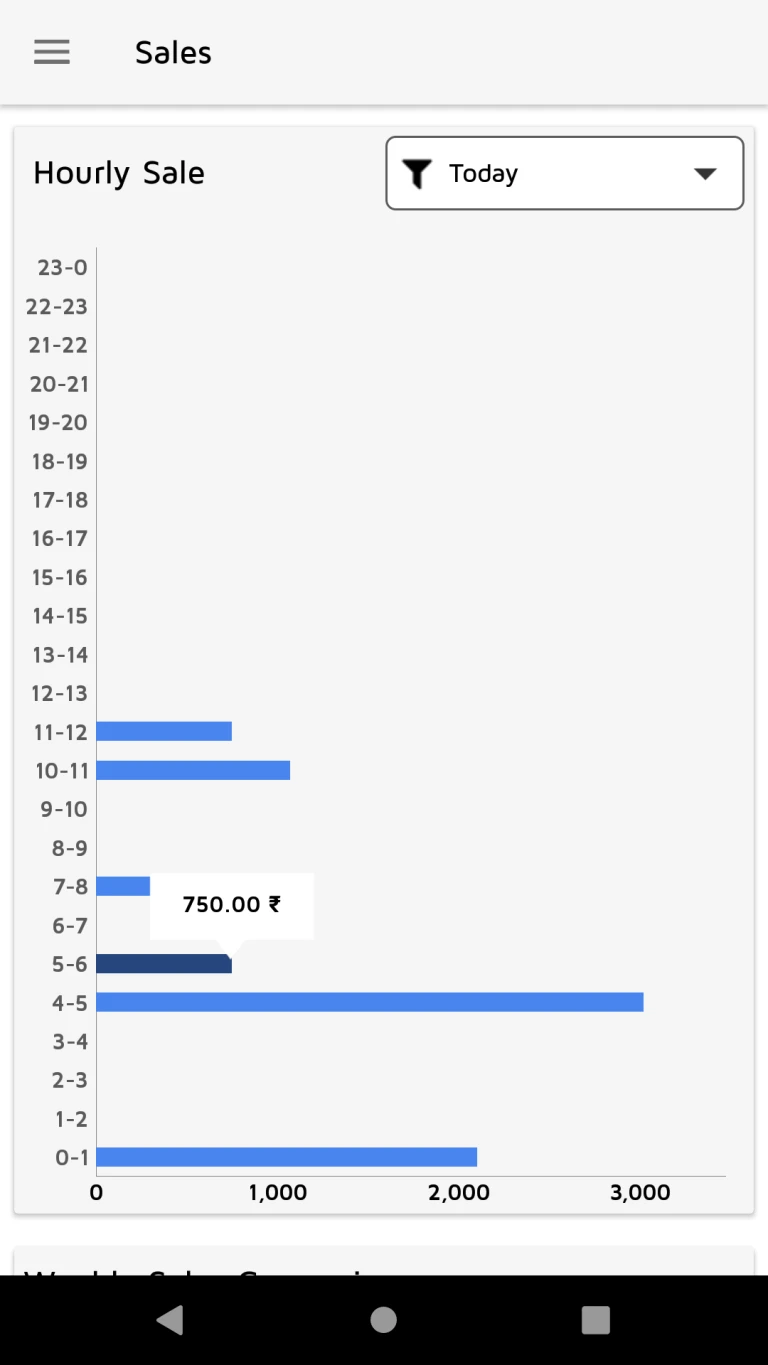
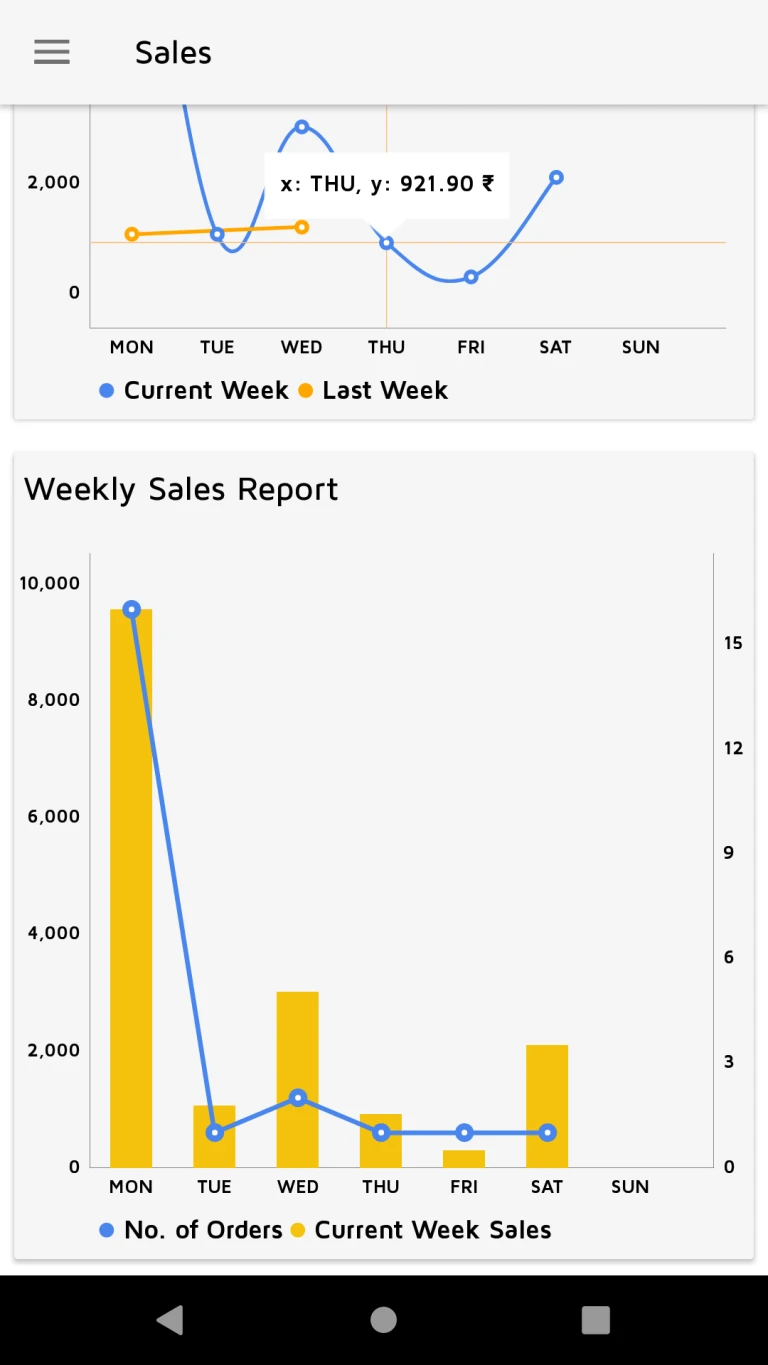
User can see weekly sales comparison of current week with last week.
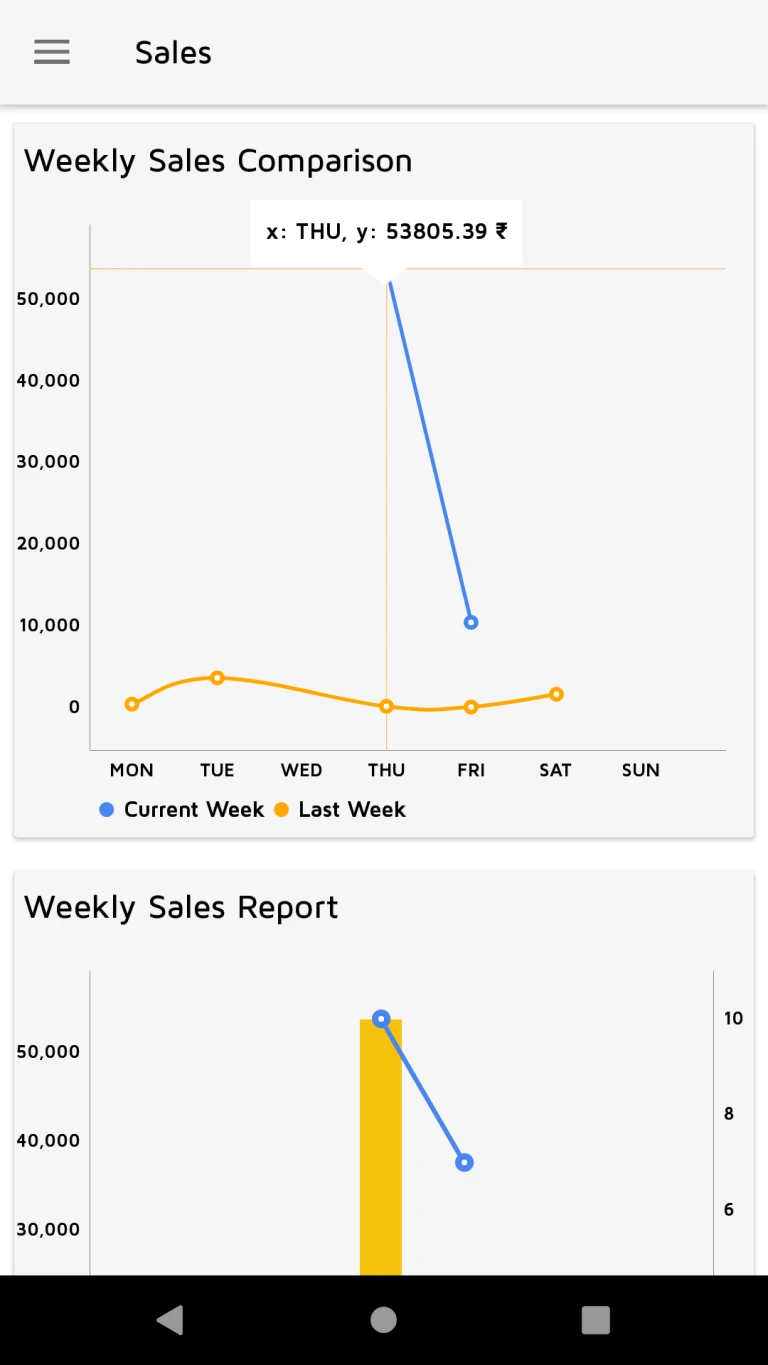
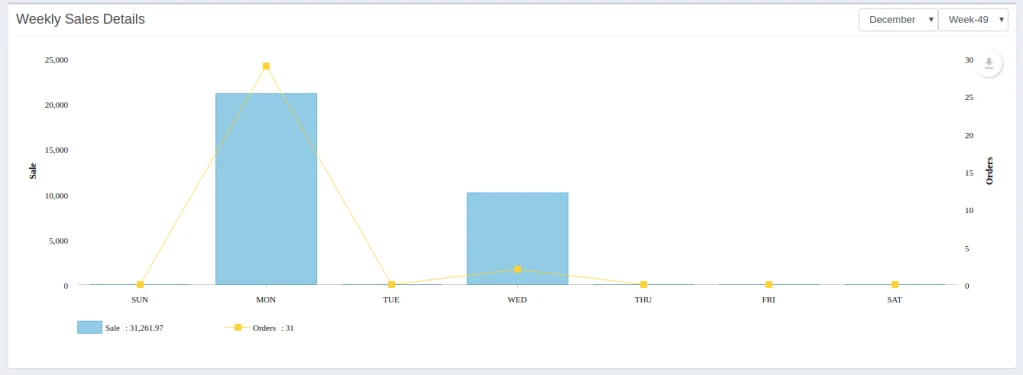
User can see sales and order details of current week by weekdays.
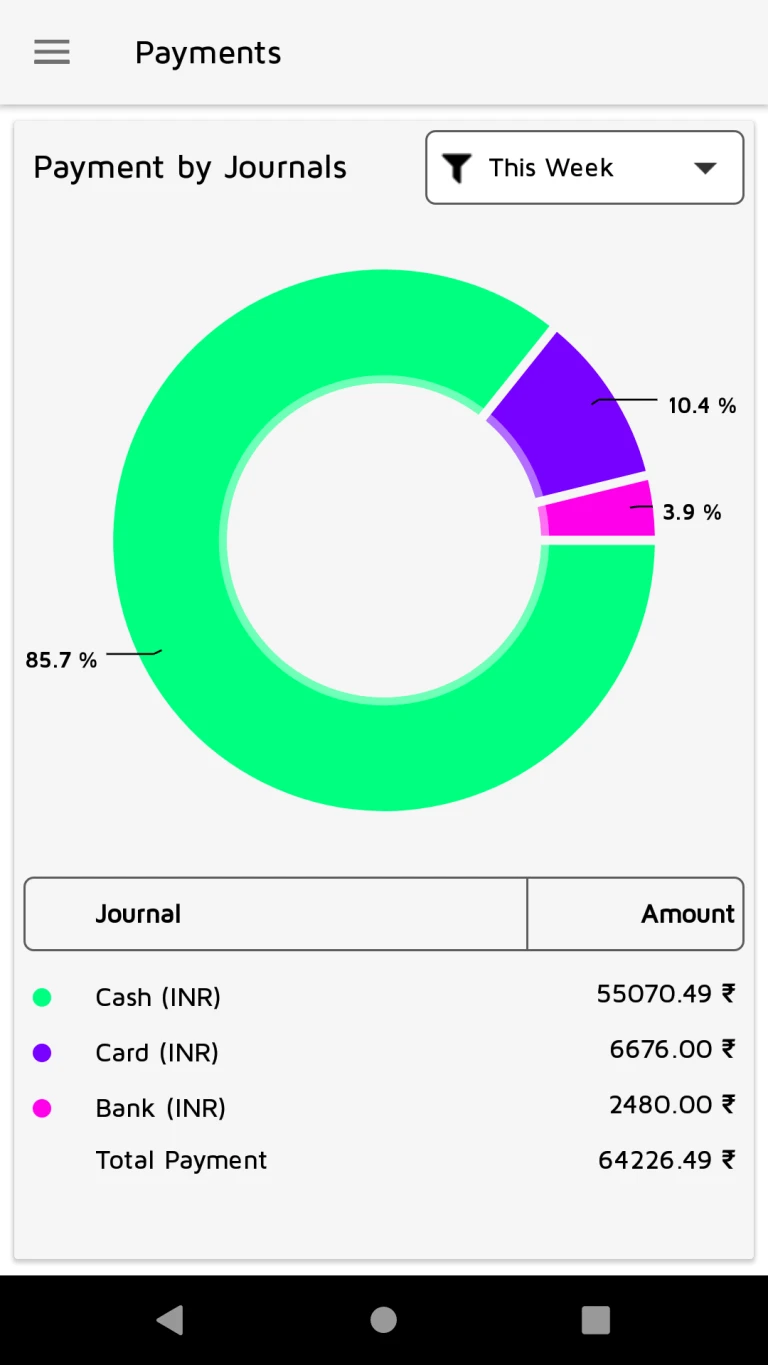
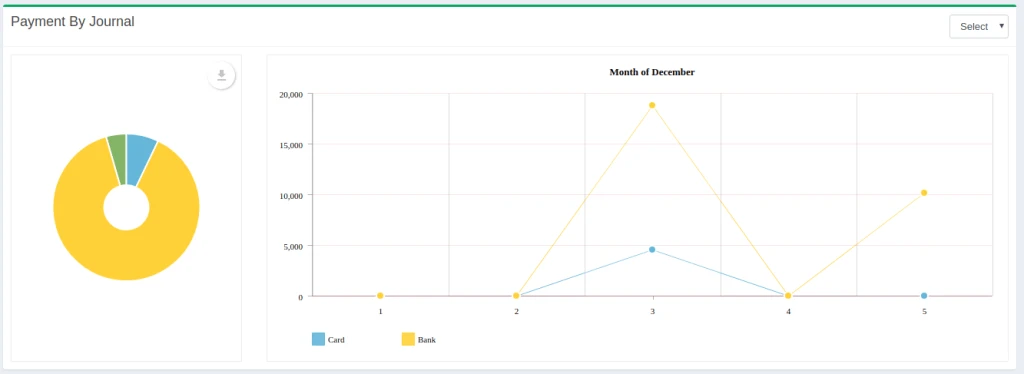
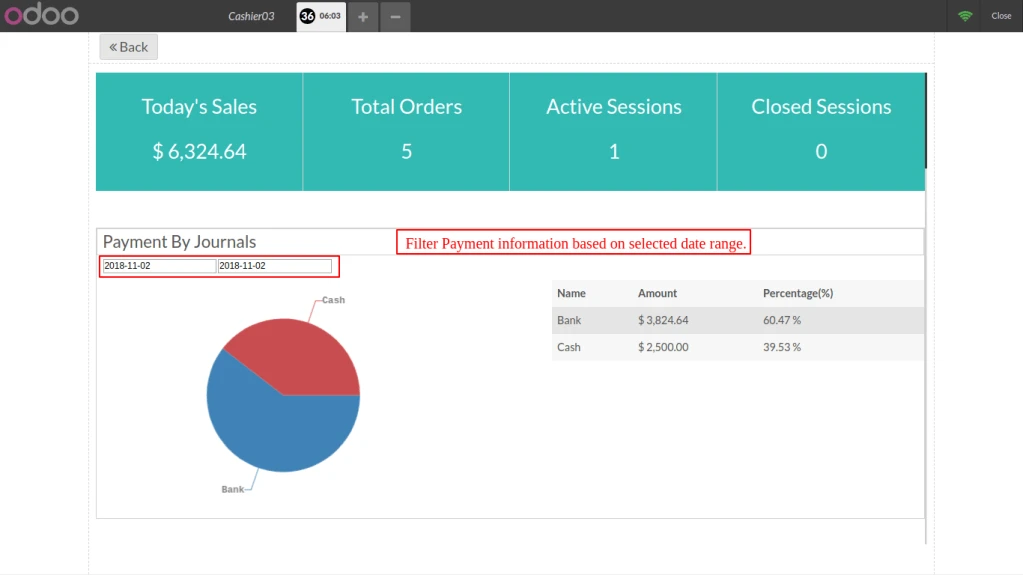
User can see payment information according to various accounting journal.
Click here to download the module
How to use
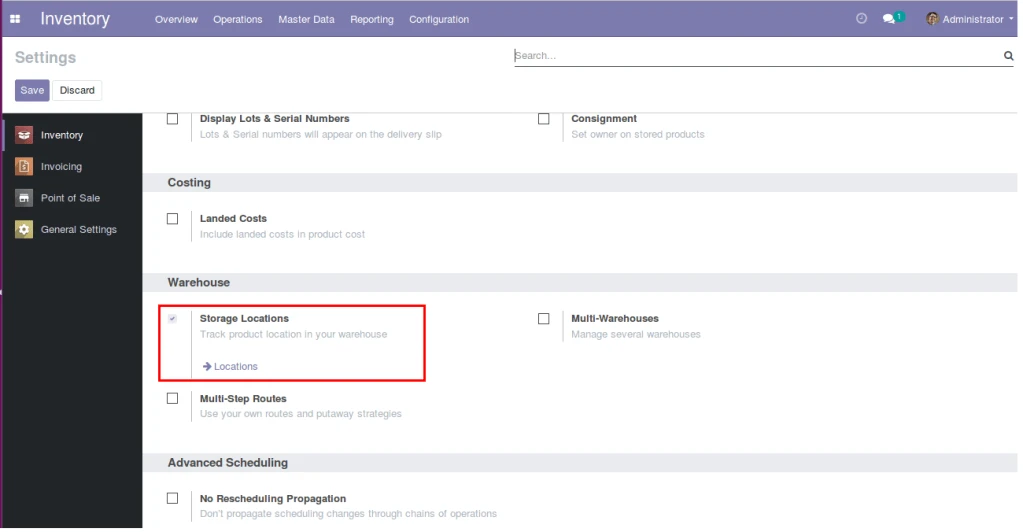
First we have to configure ‘Warehouses and Locations usage level’ as following in below image.
Enable “Internal Transfer stock” as following.
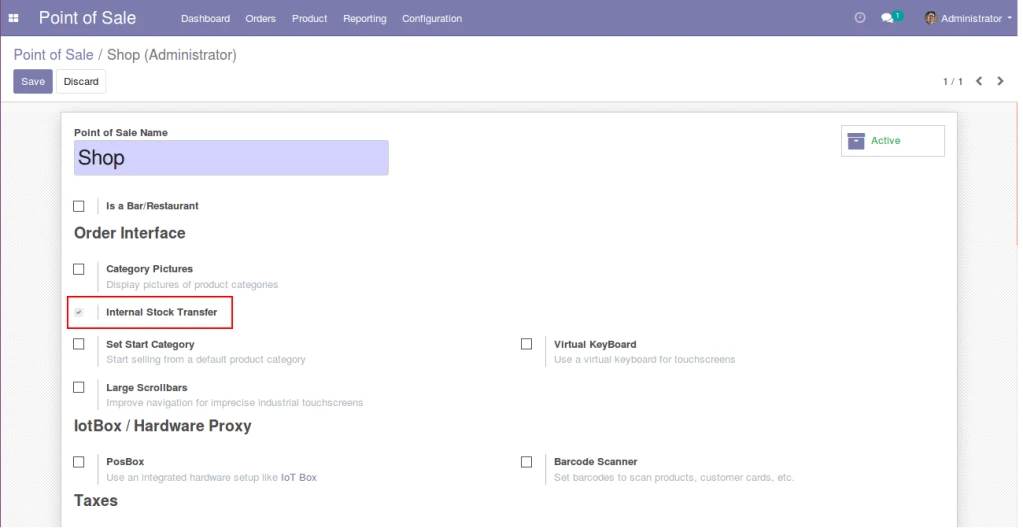
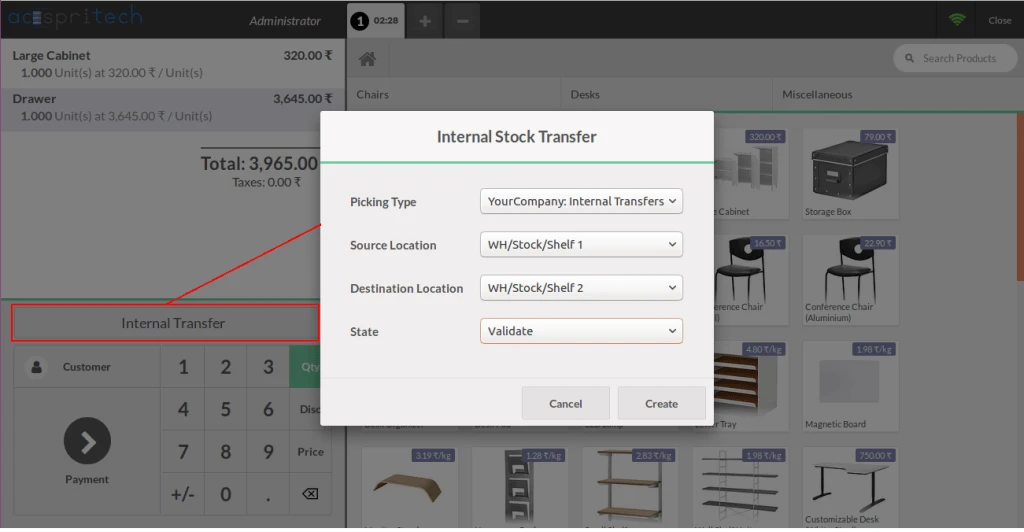
By “Internal Transfer” button can start to transfer products stock source location to destination location.
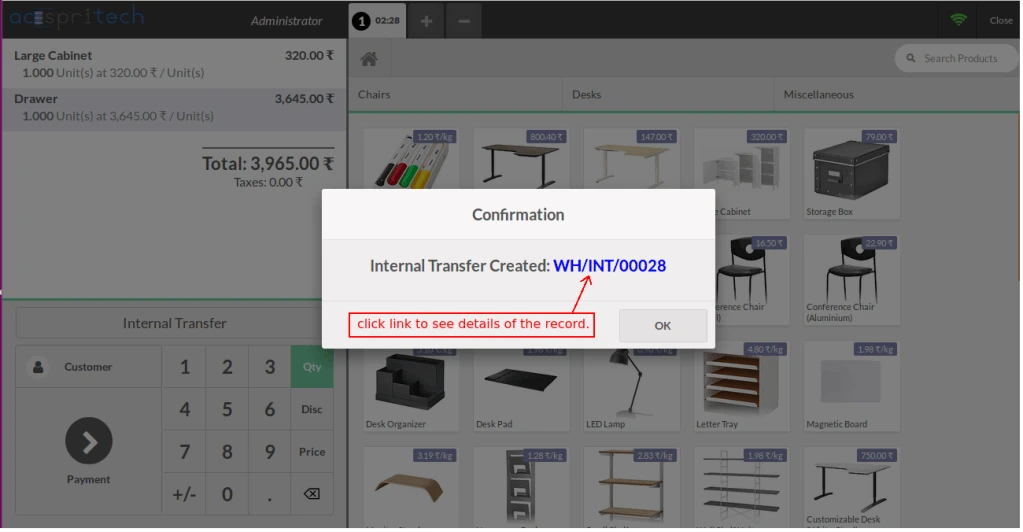
After create internal transfer it will display reference of this record.
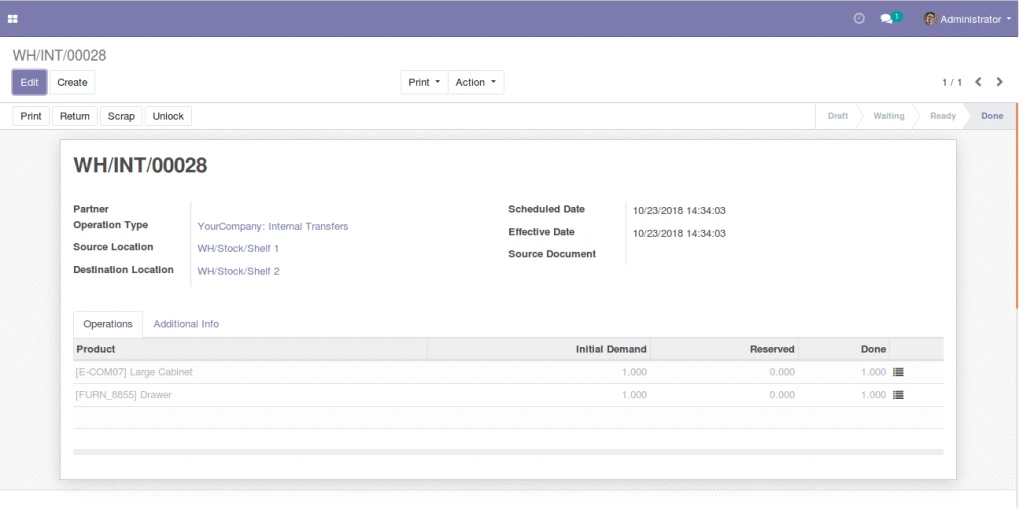
Validated internal transfer Details in done state
Click here to download the module
Features
Reports
How to use
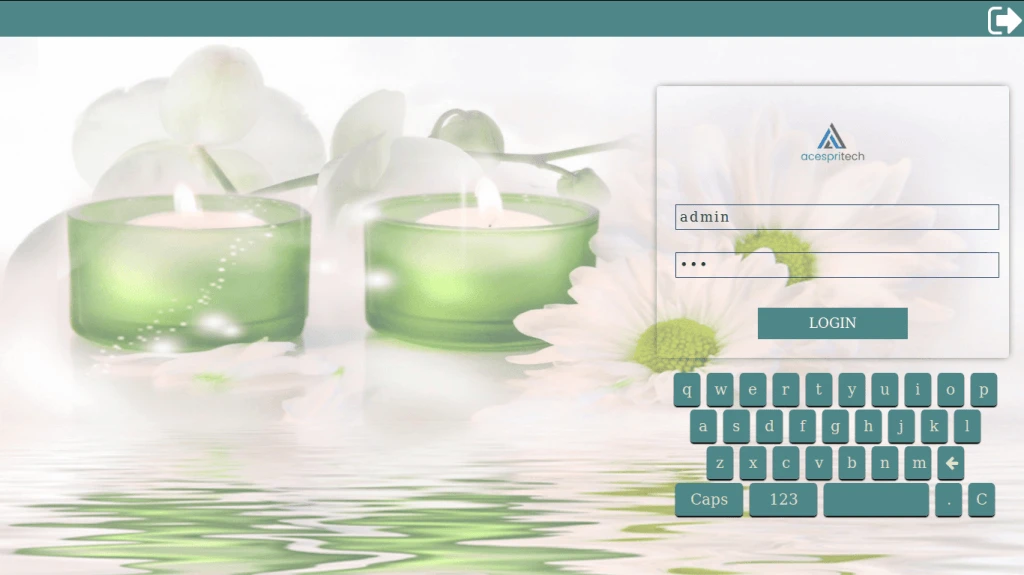
Login Screen (User Name And Security PIN)
Home Screen
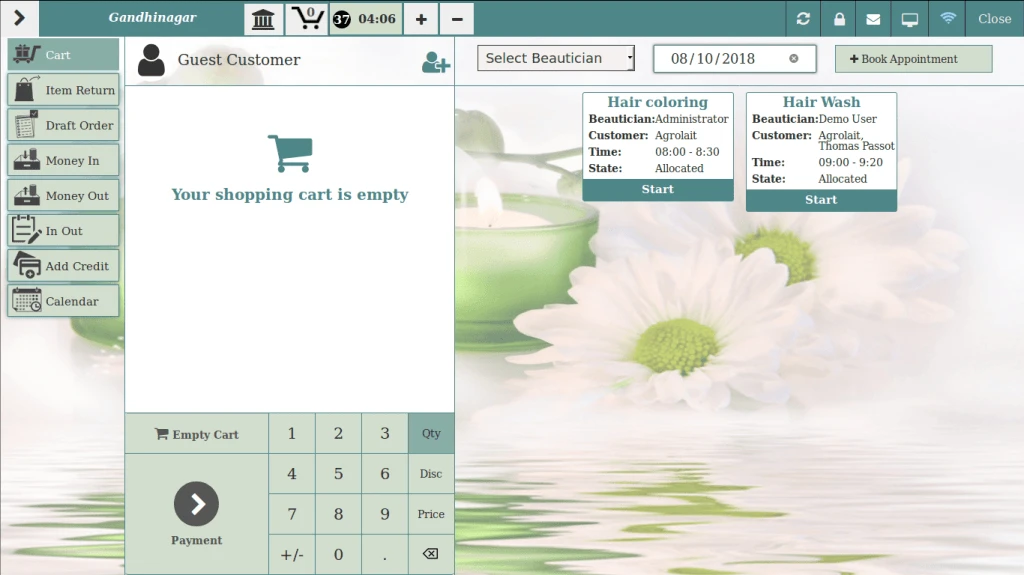
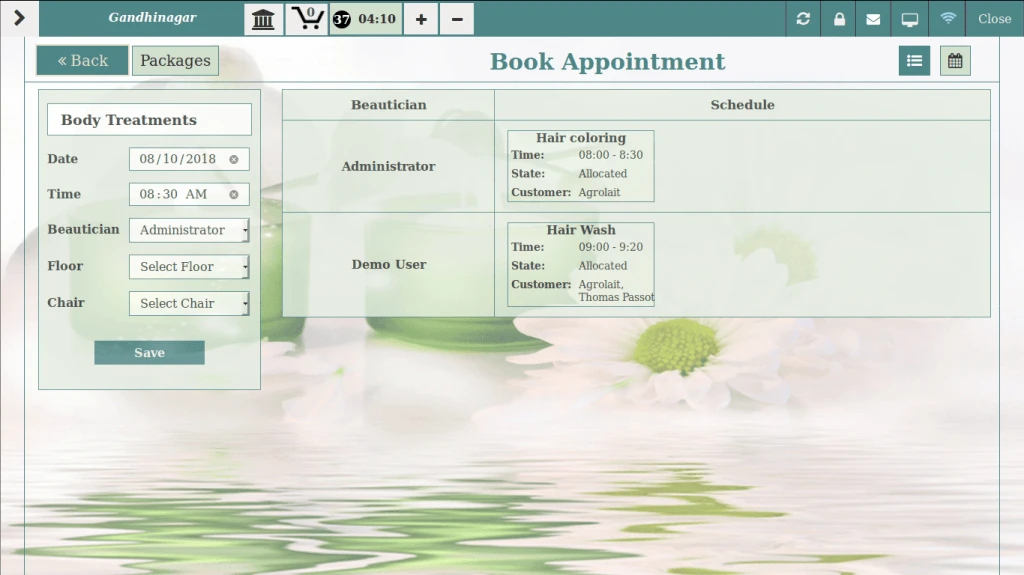
Book Order
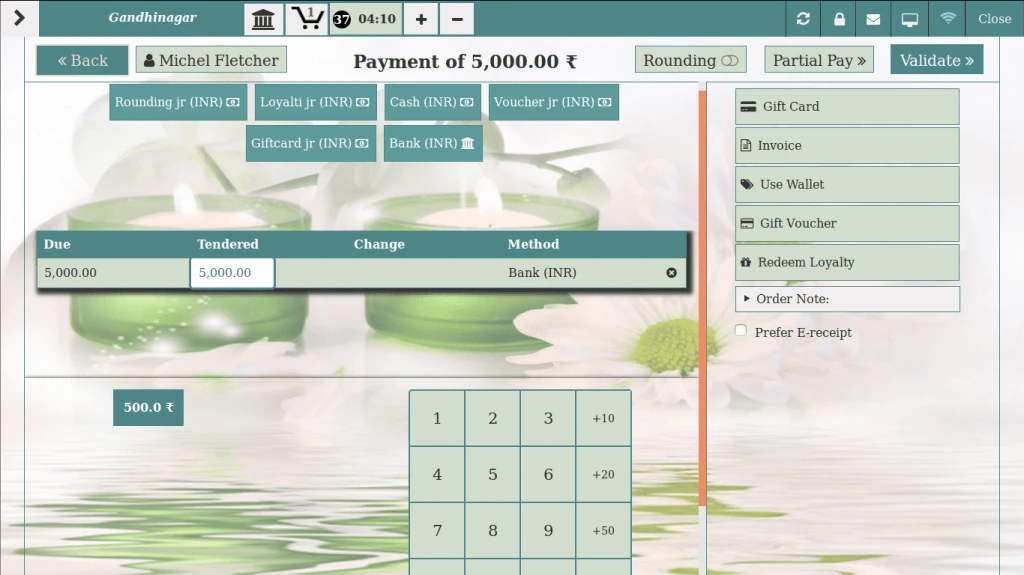
Payment Screen
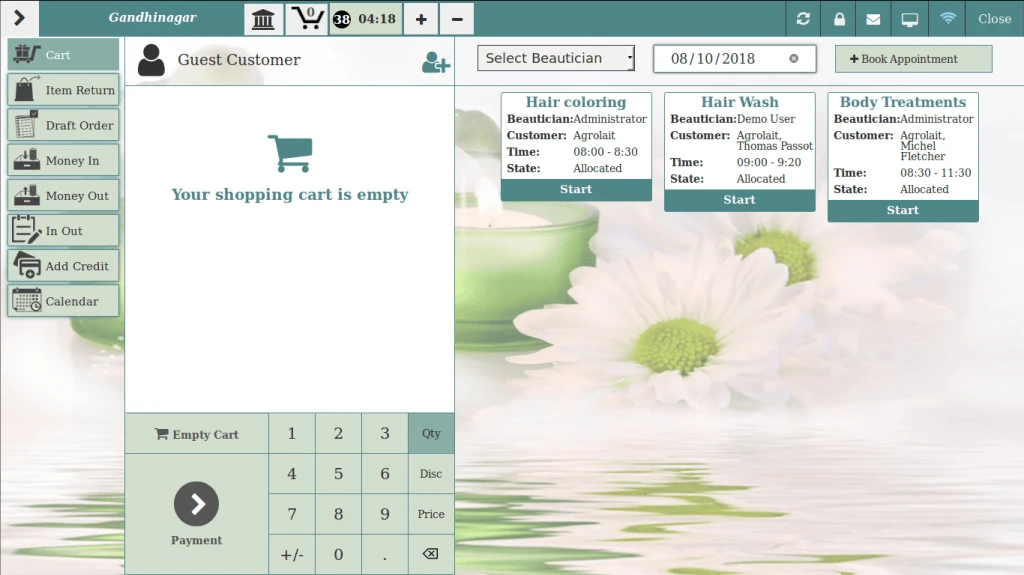
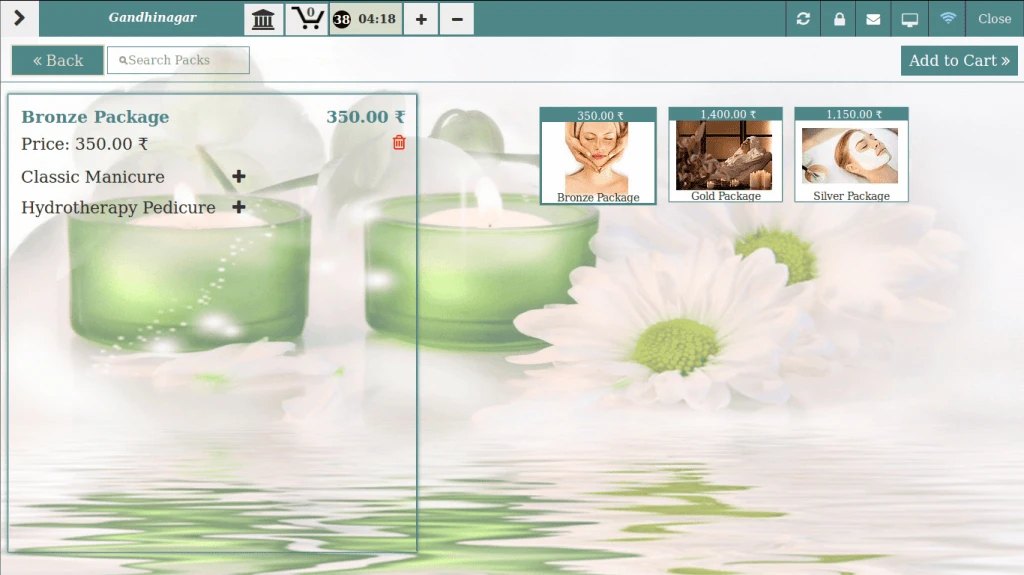
Package Screen
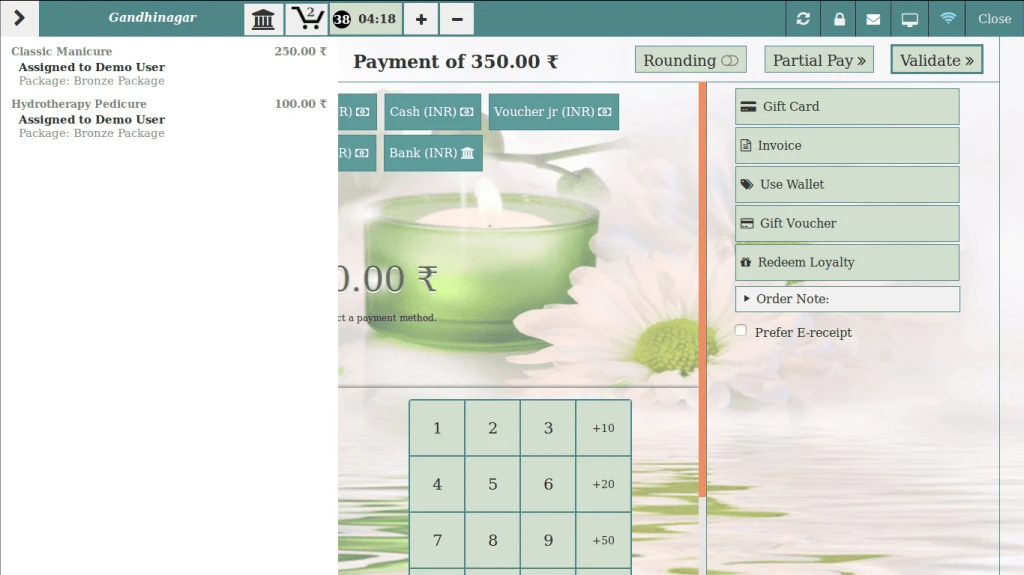
Cart Details
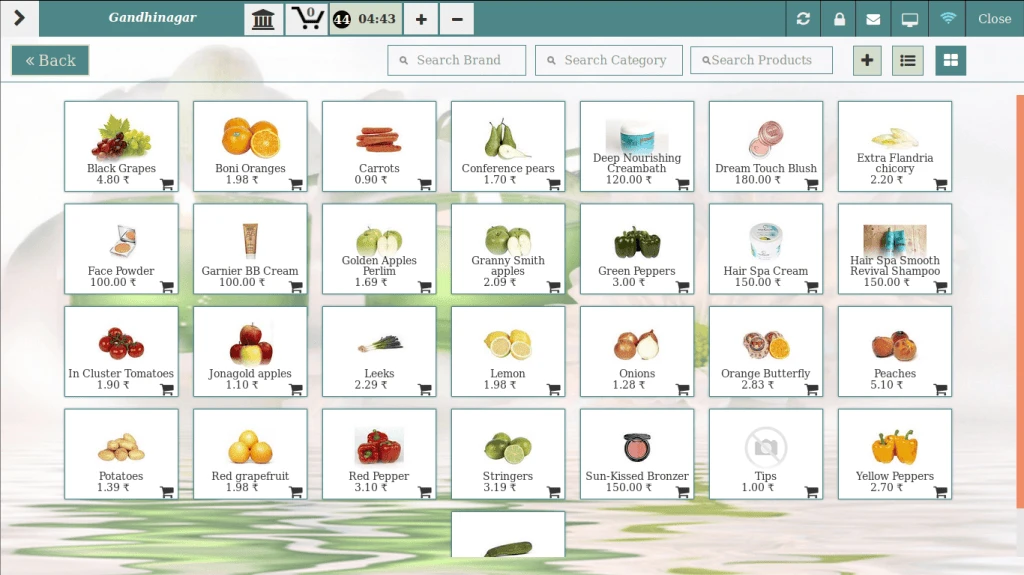
Product Screen
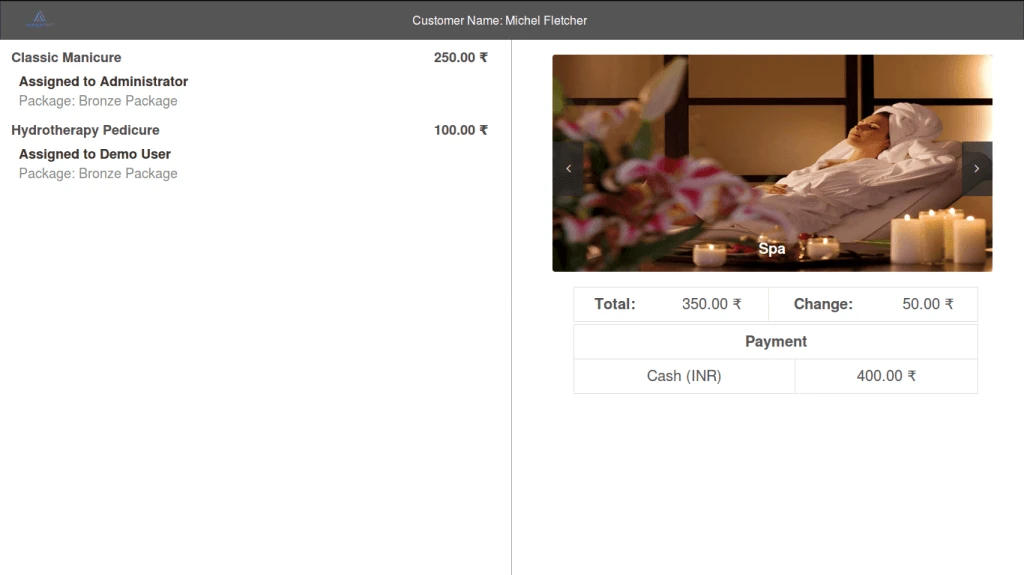
Customer Display
Click here to download the module
How to use
Click on the POS Dashboard in Point of Sale Menu to Open.
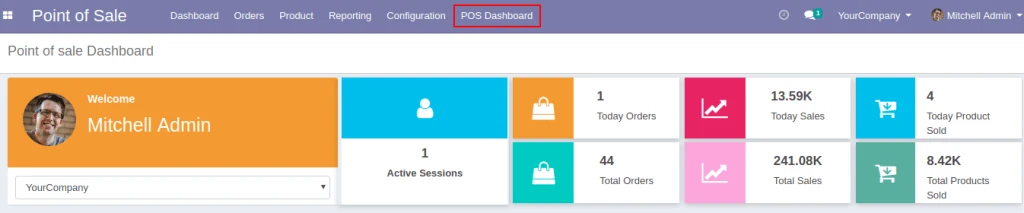
Here, user can see sales according to different filter like Today, Monthly or Yearly.
This display Salesperson name who sold highest today, Hours in which highest sales
Average Customer Spending and Visit as per last 30 days.
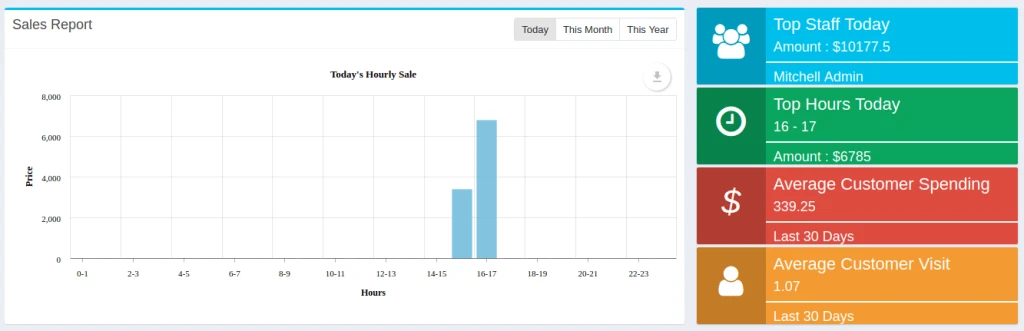
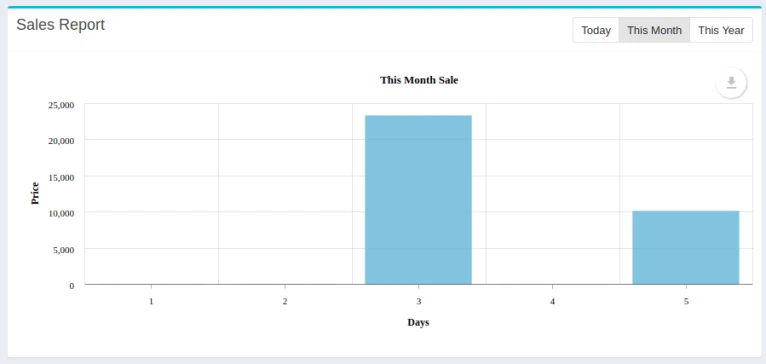
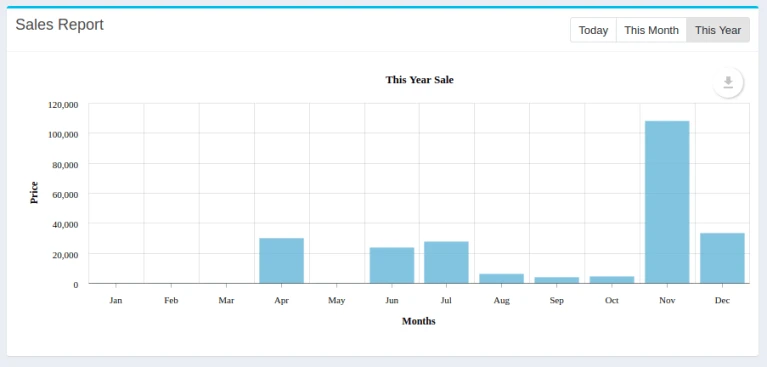
Payment Information According to Various Accounting Journal.
Top Customer, Top Salesman and Employee Information.
Top Items by Sales and Product Category Information with respect to This Week, This Month, This Year with filter of Price and Quantity.
Weekly Sales Detail according to Month and their respective Weeks.
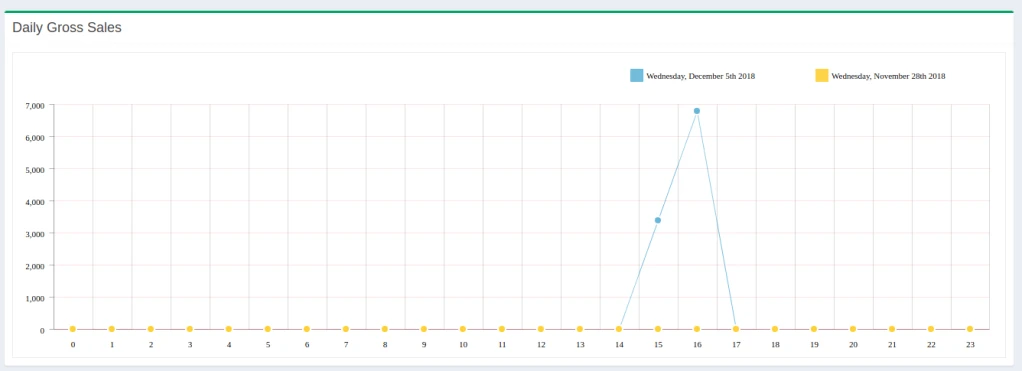
Daily Gross Sales comparison of Today sales with last 7th day date sales.
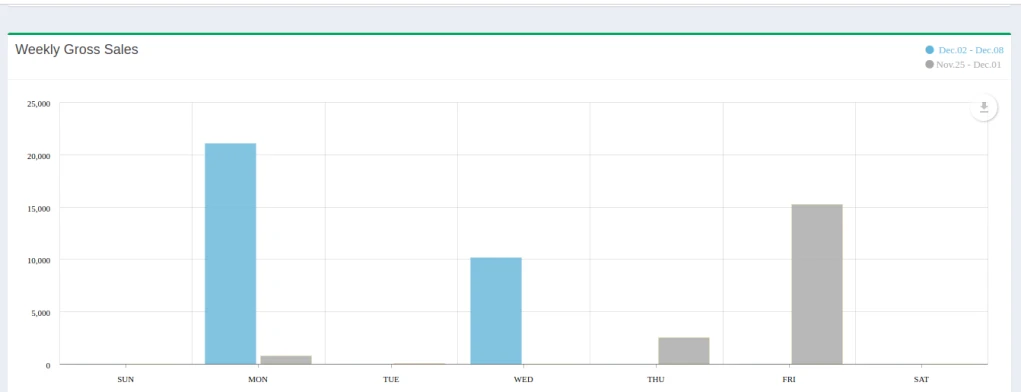
Weekly Gross Sales comparison of This week With last week sales.
Click here to download the module
Features
How to use
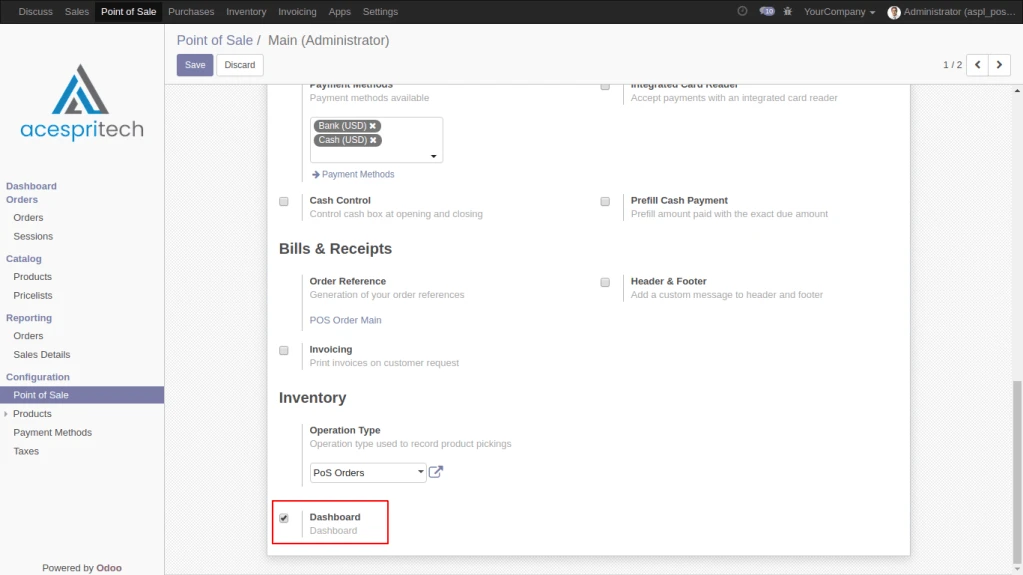
For active this feature in point of sale, User need to enable this configuration
as shown in screenshot.
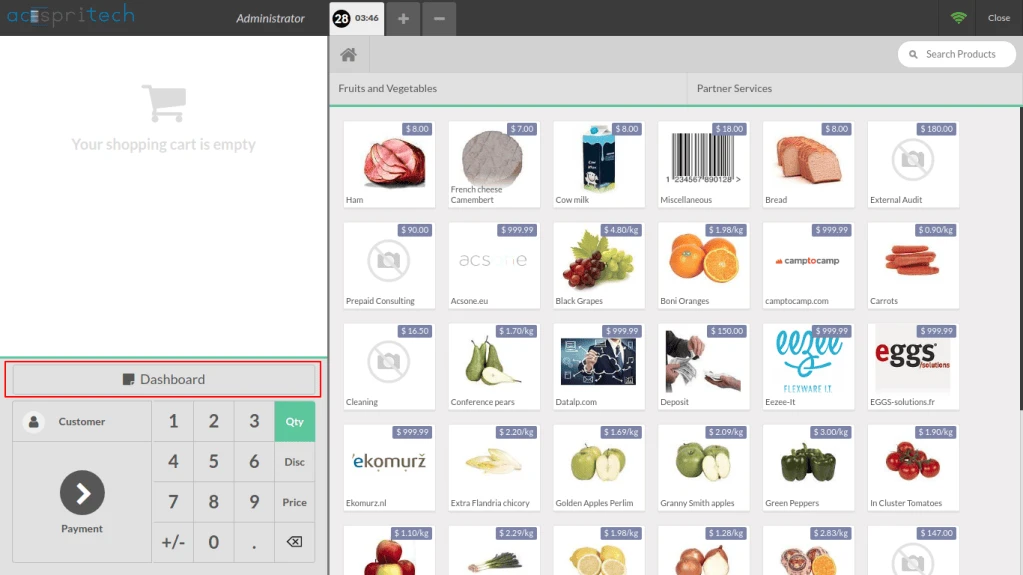
After enable configuaration button will display, By click on this button user
can go to dashboard screen.
Click here to download the module
Features
How to use
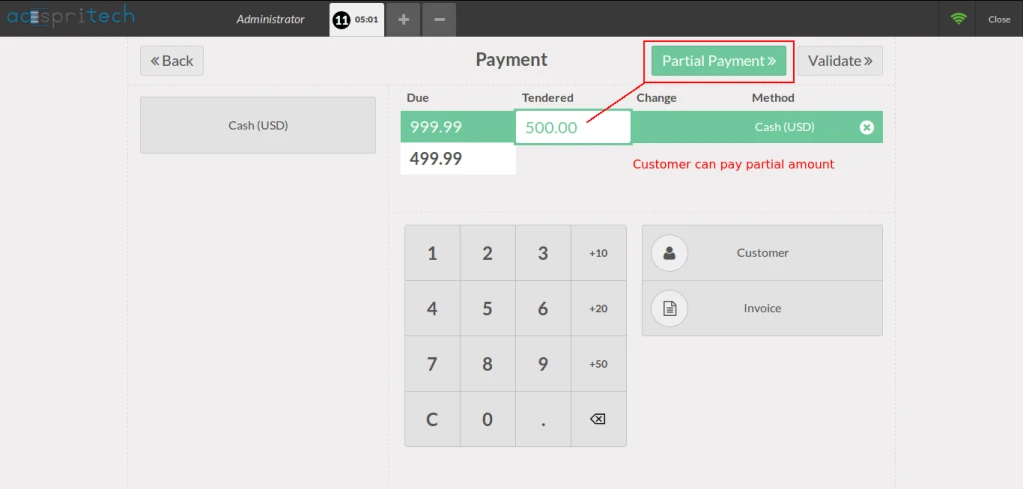
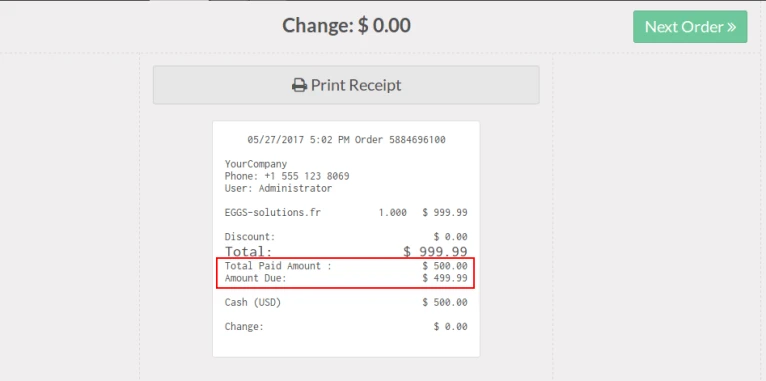
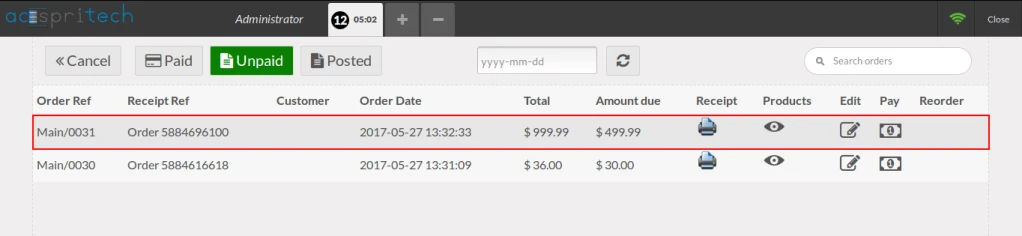
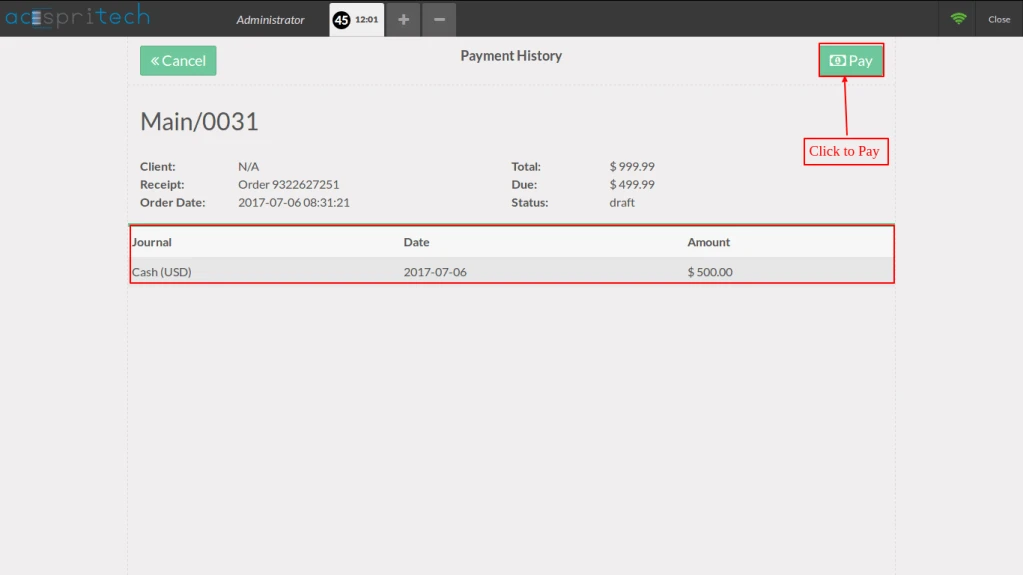
Click here to download the module
Features
Important
How to use

Click here to download the module
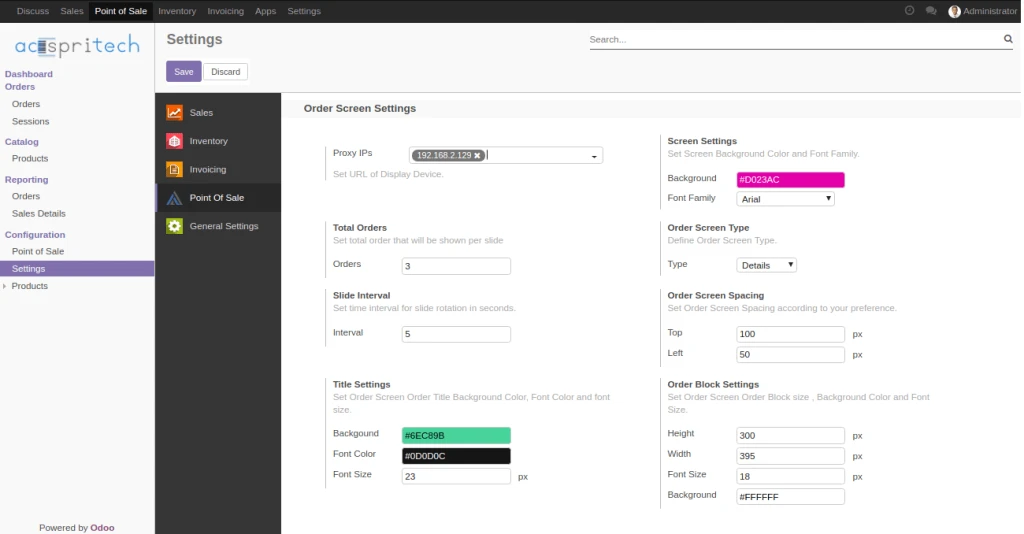
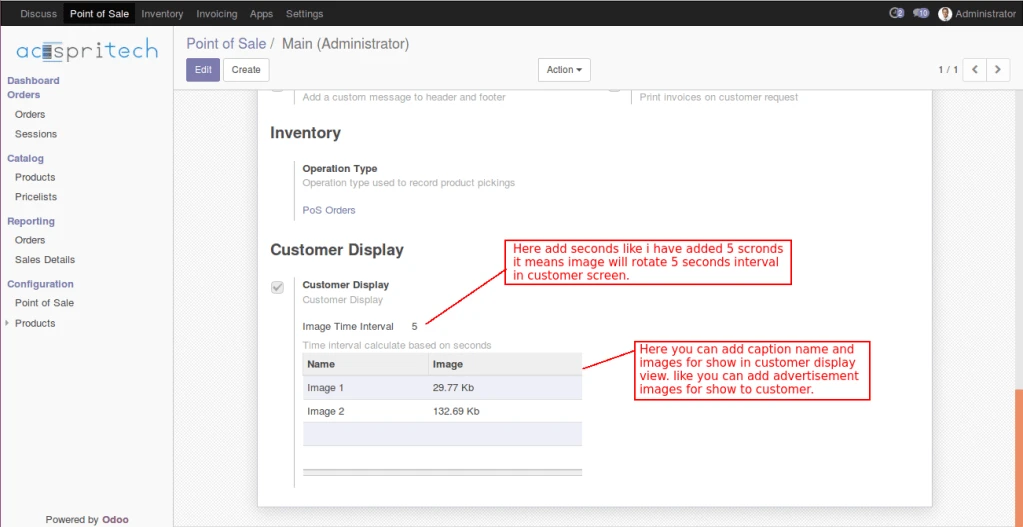
Configuration of Customer Screen.
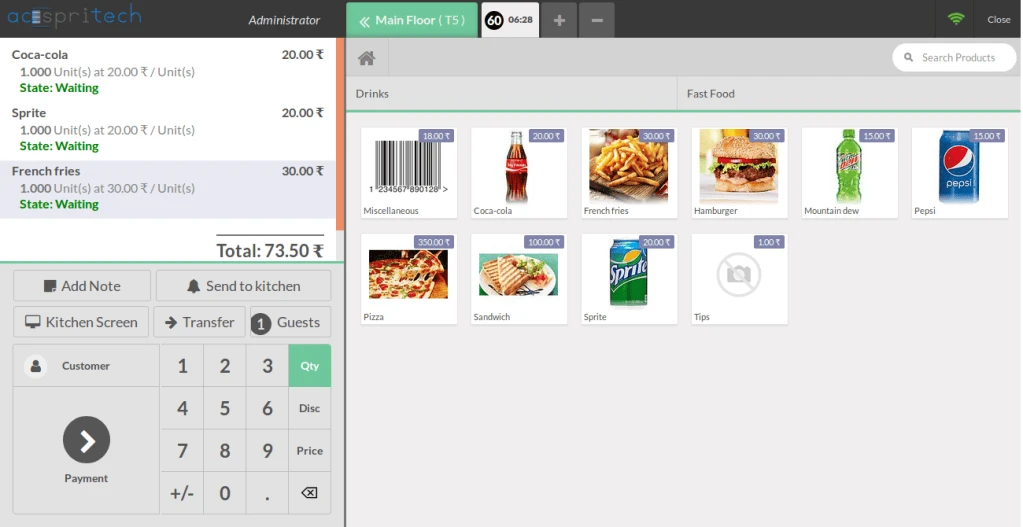
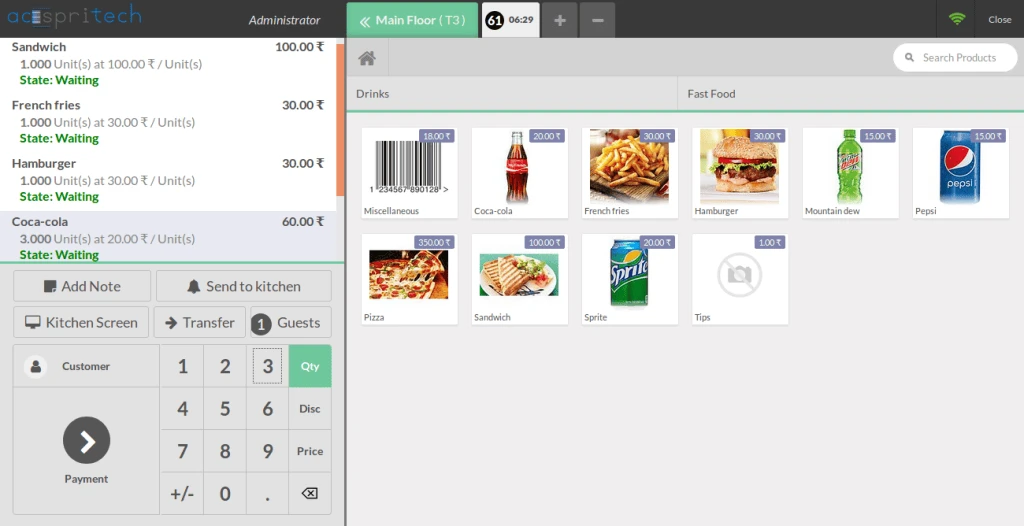
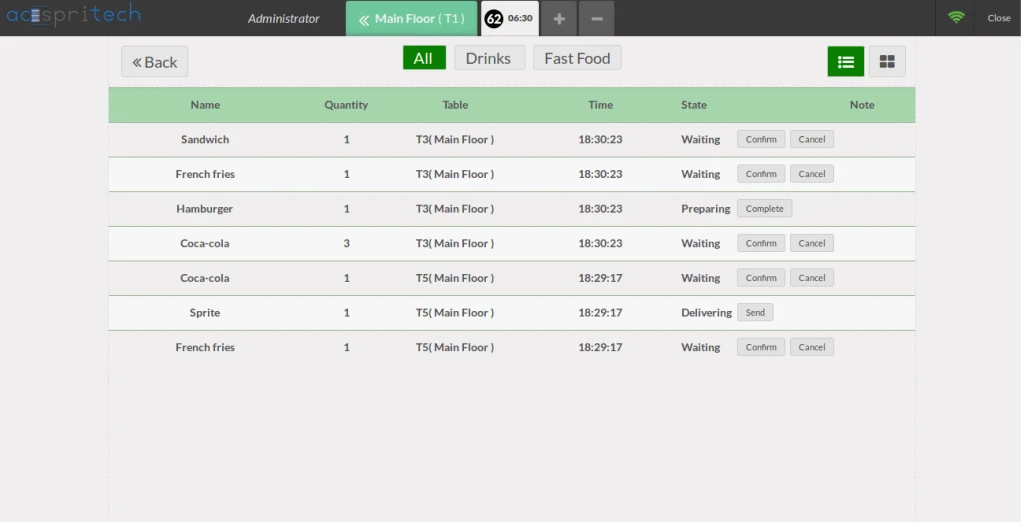
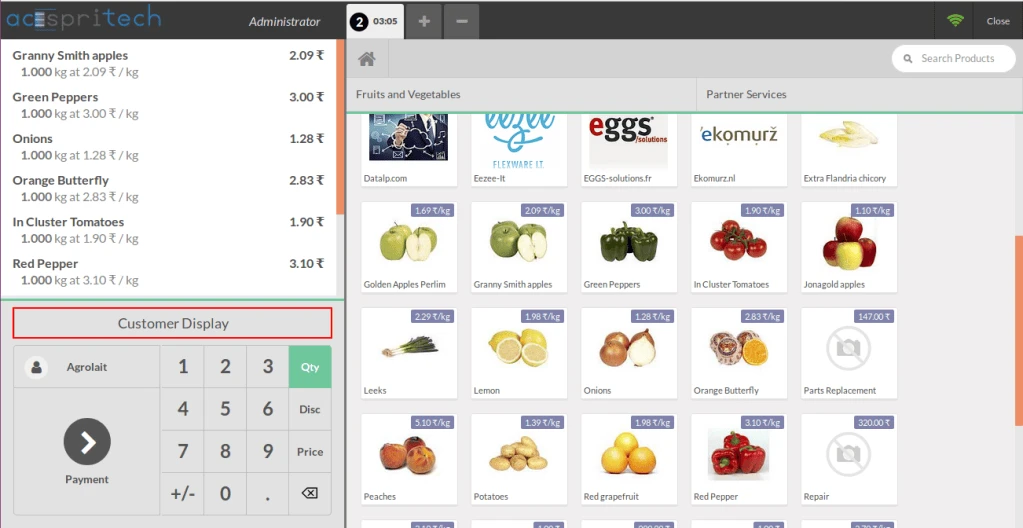
POS Screen.
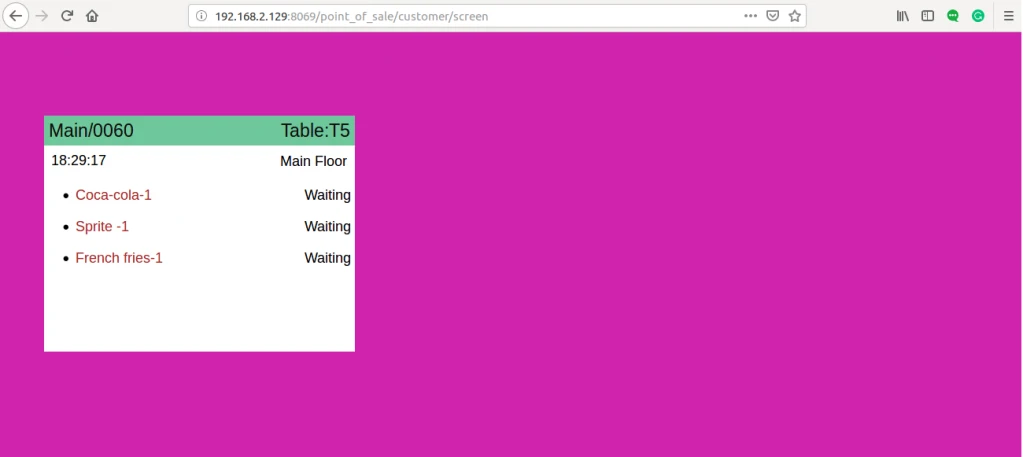
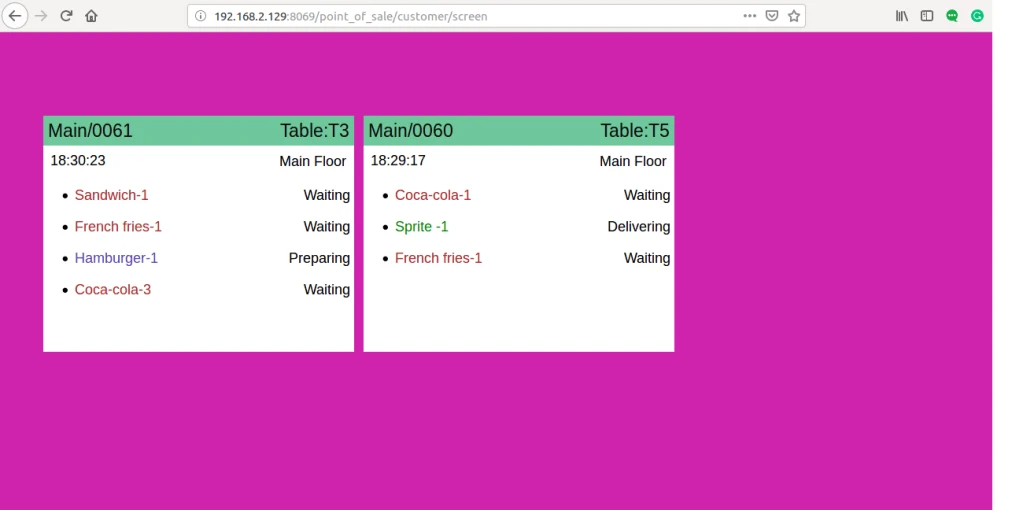
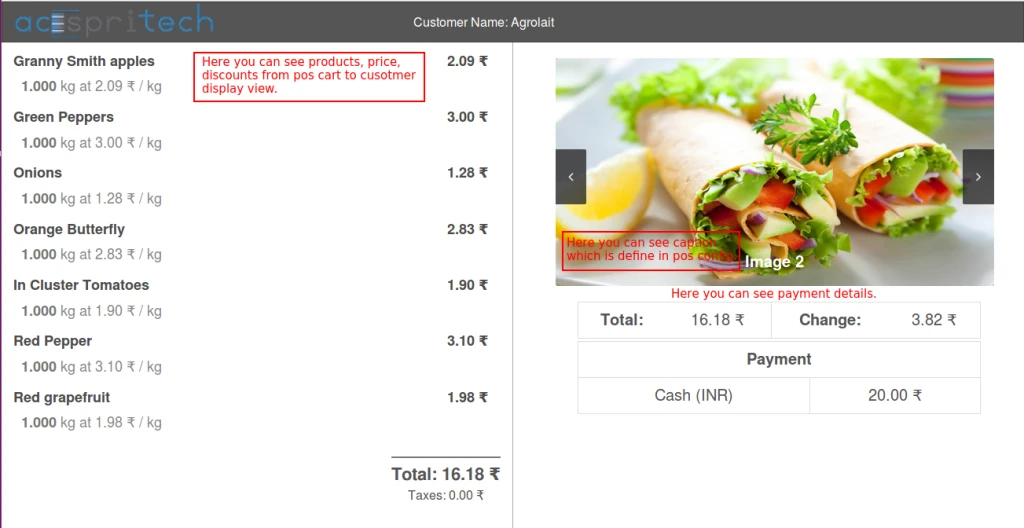
Here we can see POS Customer Screen.
Click here to download the module
Features
To get Promotional Offers, select any one of the “Promotion Type”.
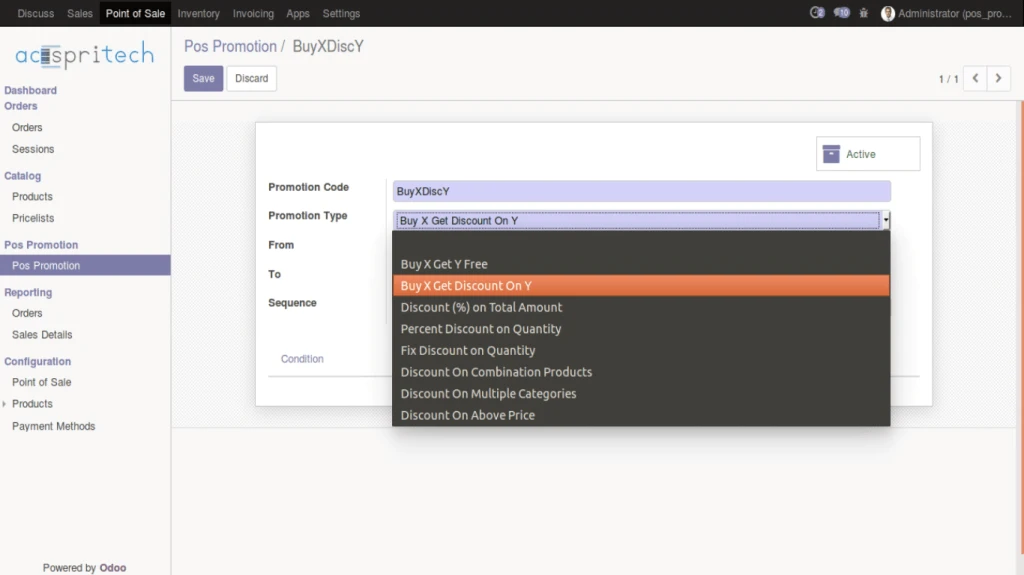
Description of all promotional offers are shown in the below images.
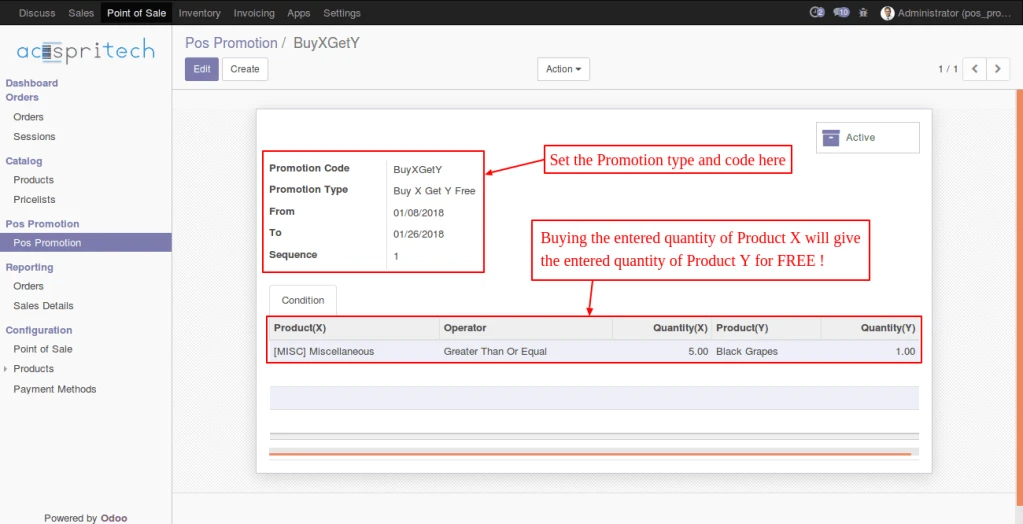
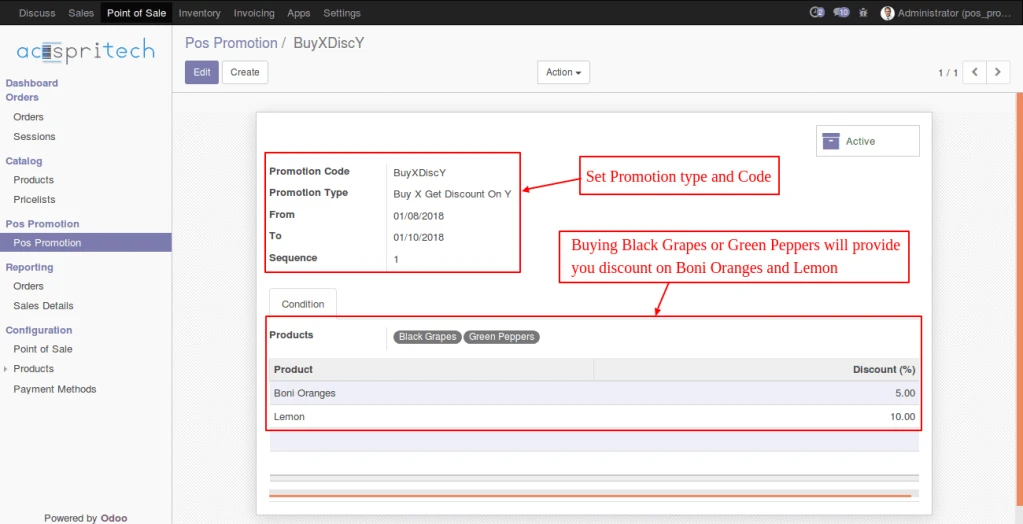
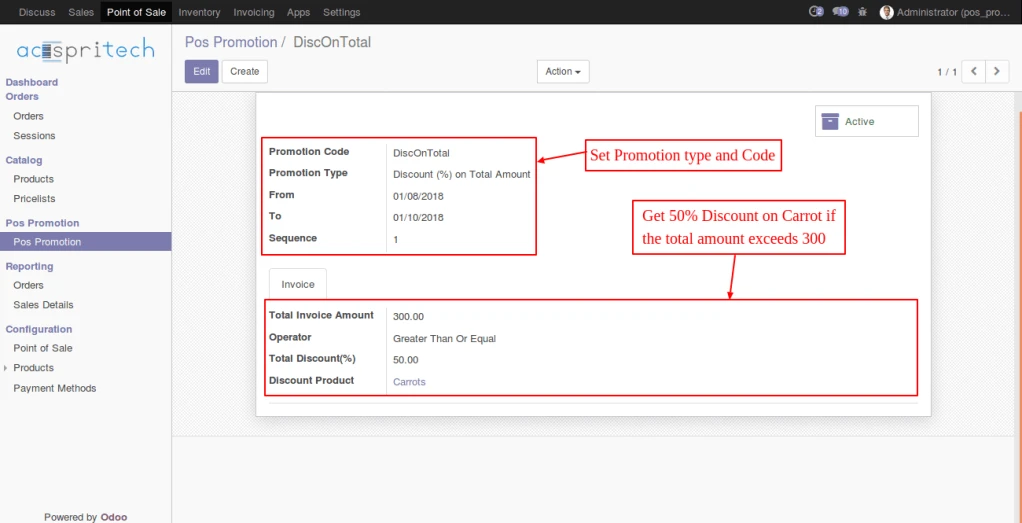
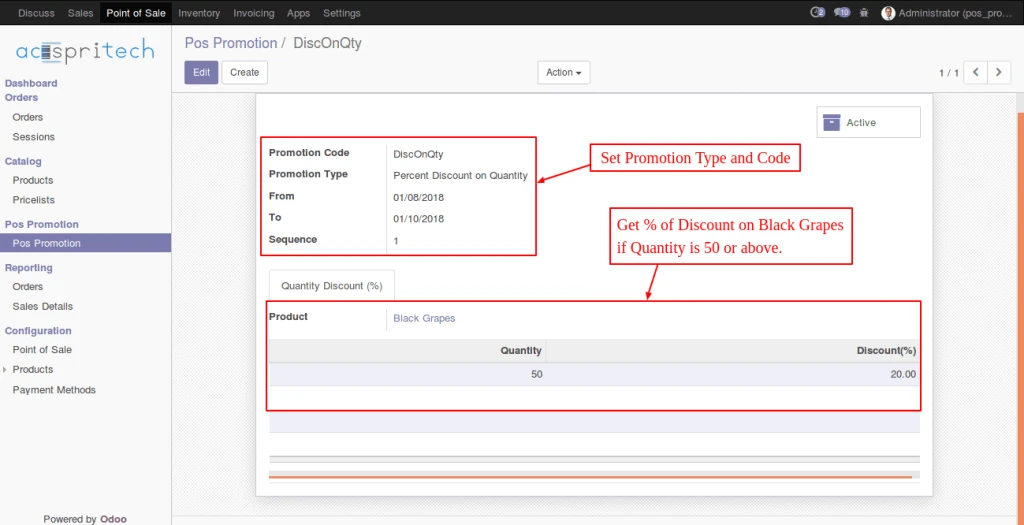
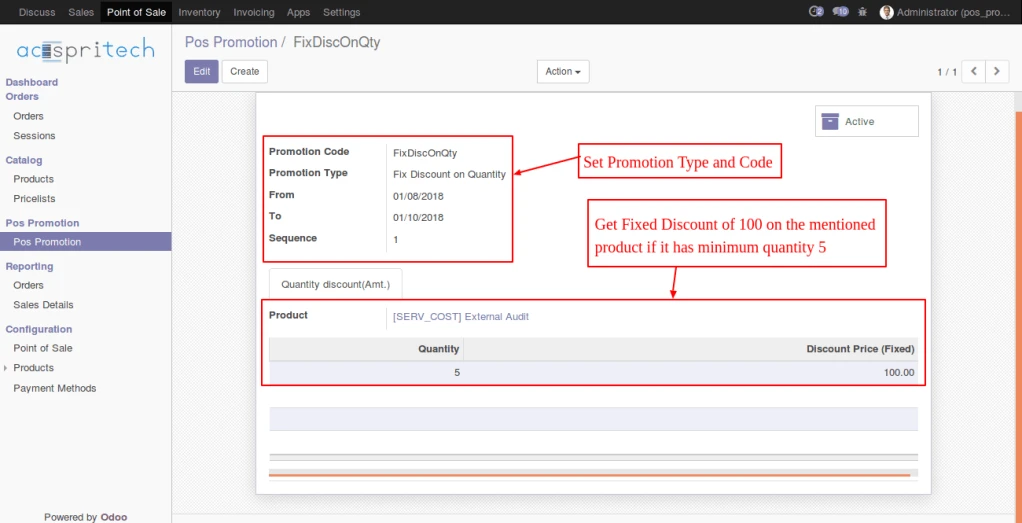
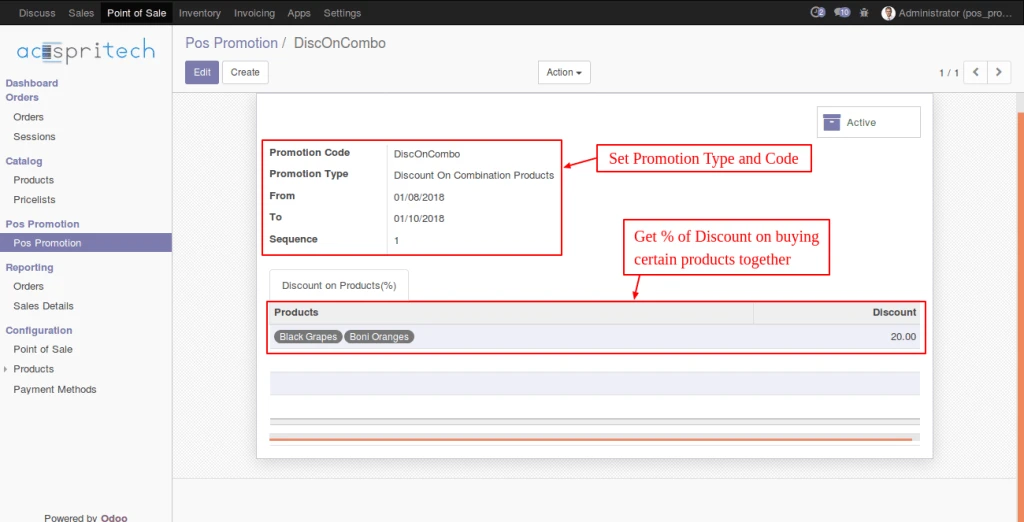
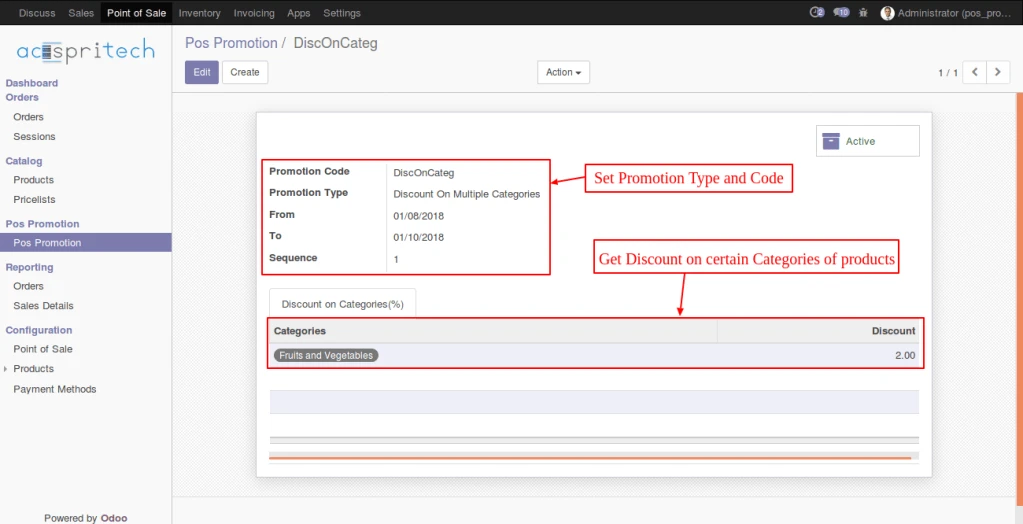
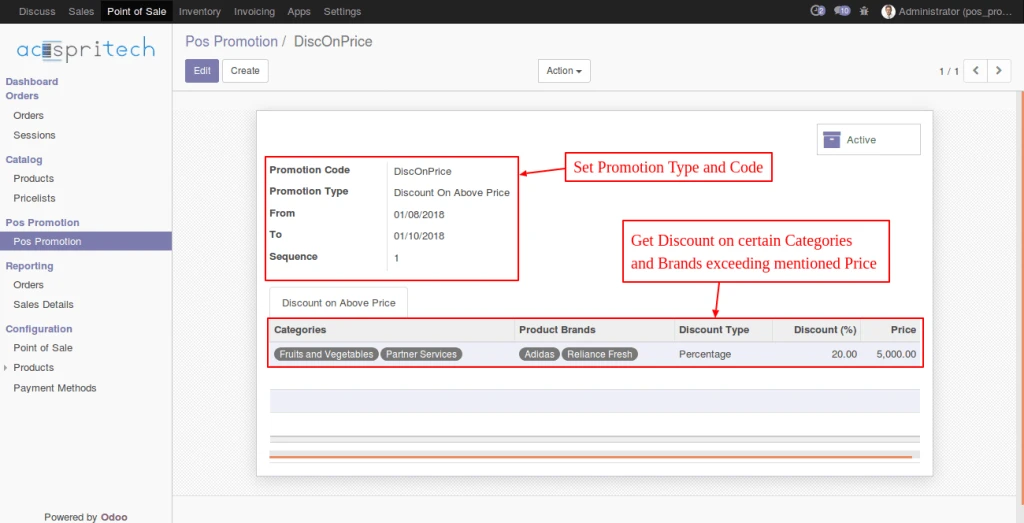
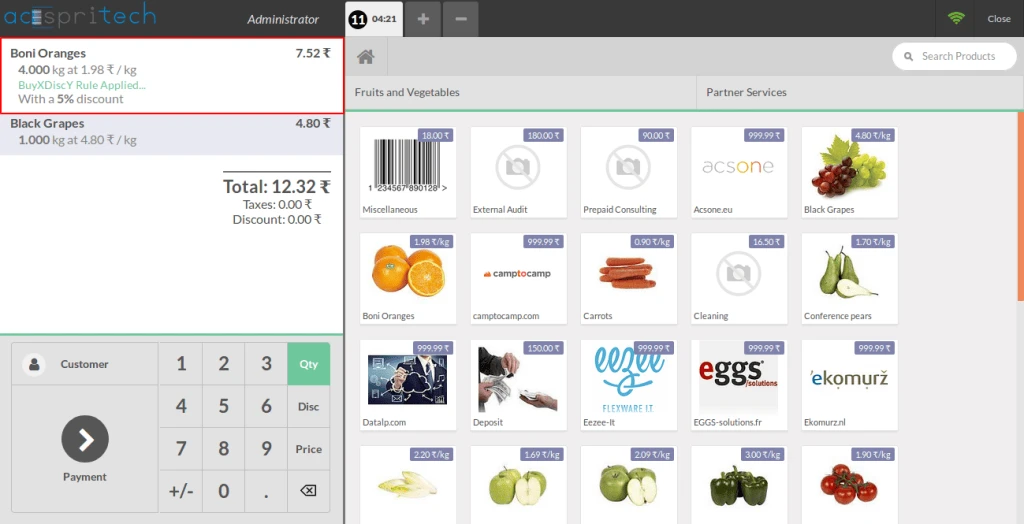
Applied promotions can be seen as below.
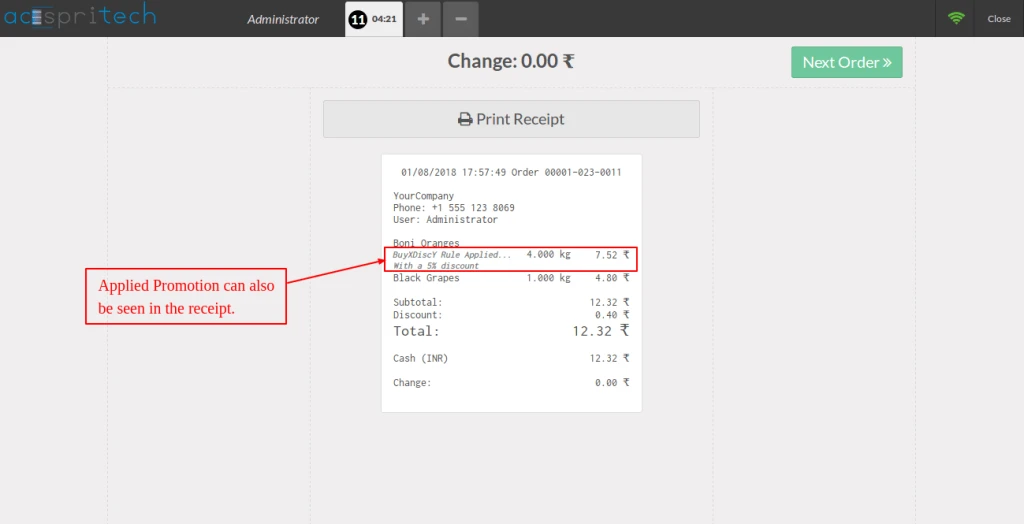
Applied promotions can also be seen on the Receipt Screen.
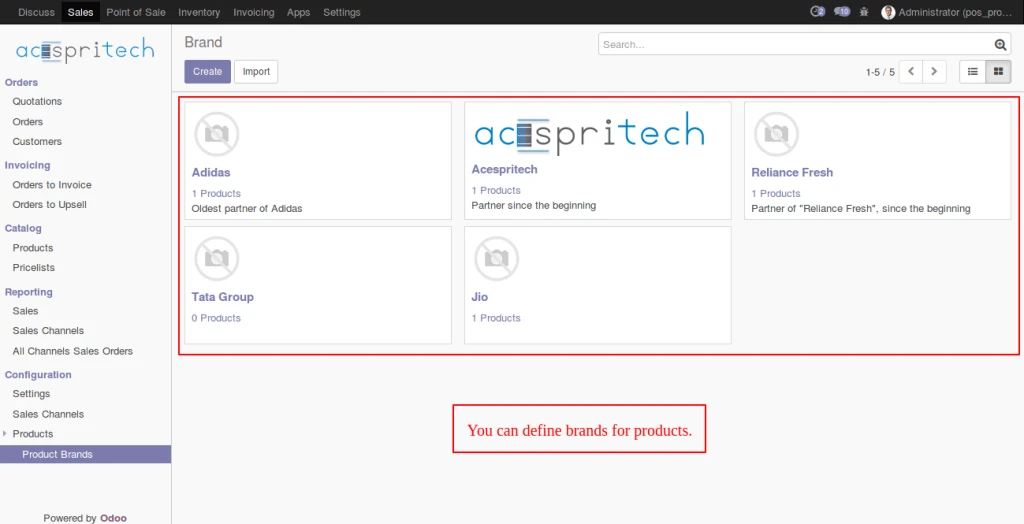
Define Brands for products.