Click here to download from Odoo Apps
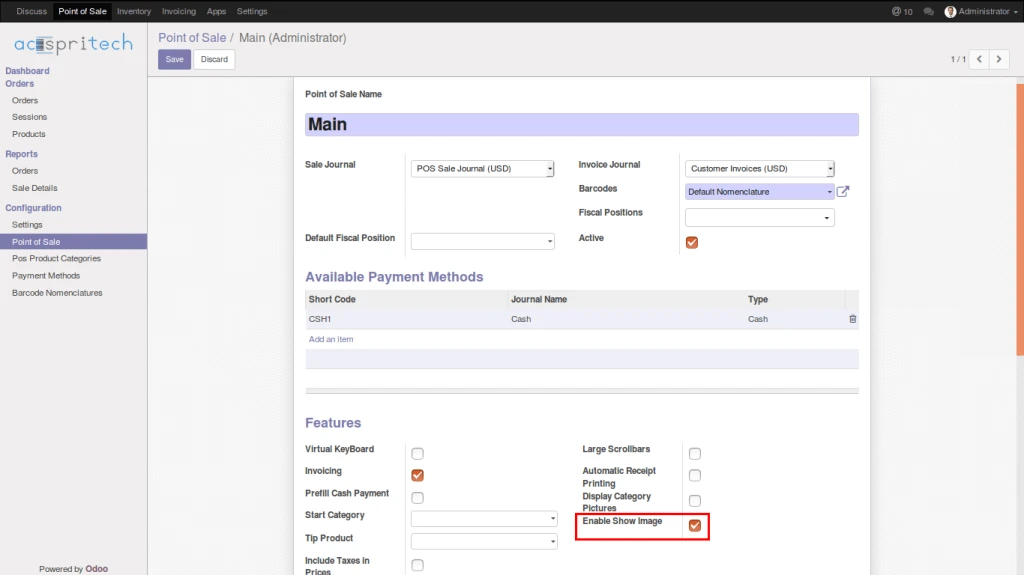
We have one features available in POS Configuration to enlarge image as per below image.
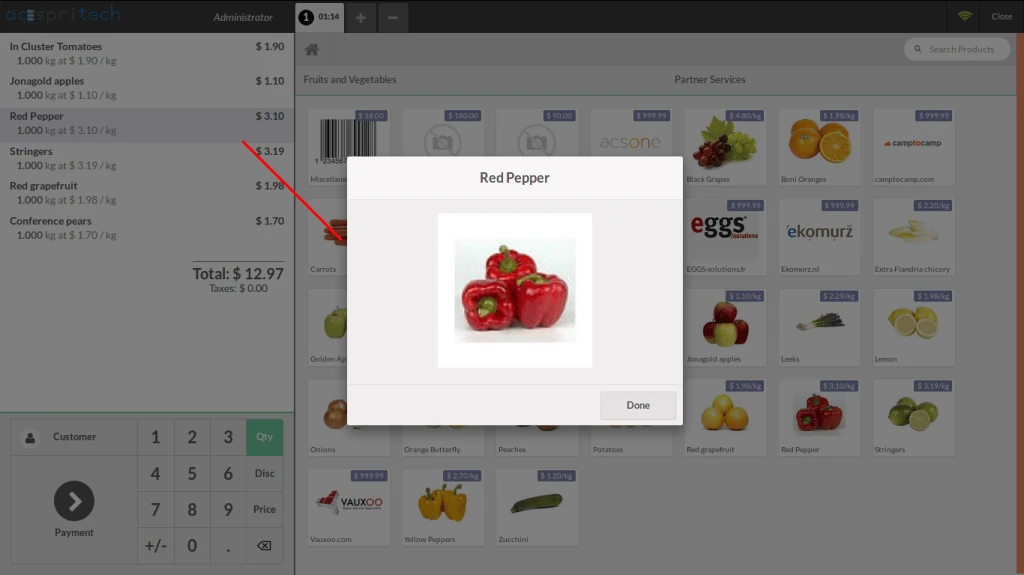
After adding product, Just DOUBLE CLICK on `Order Line` and you can see the result.
Advertisements
Click here to download from Odoo Apps
We have one features available in POS Configuration to enlarge image as per below image.
After adding product, Just DOUBLE CLICK on `Order Line` and you can see the result.
Click here to download from Odoo Apps
You can see the available Custom Reports Menu under the Accounting.
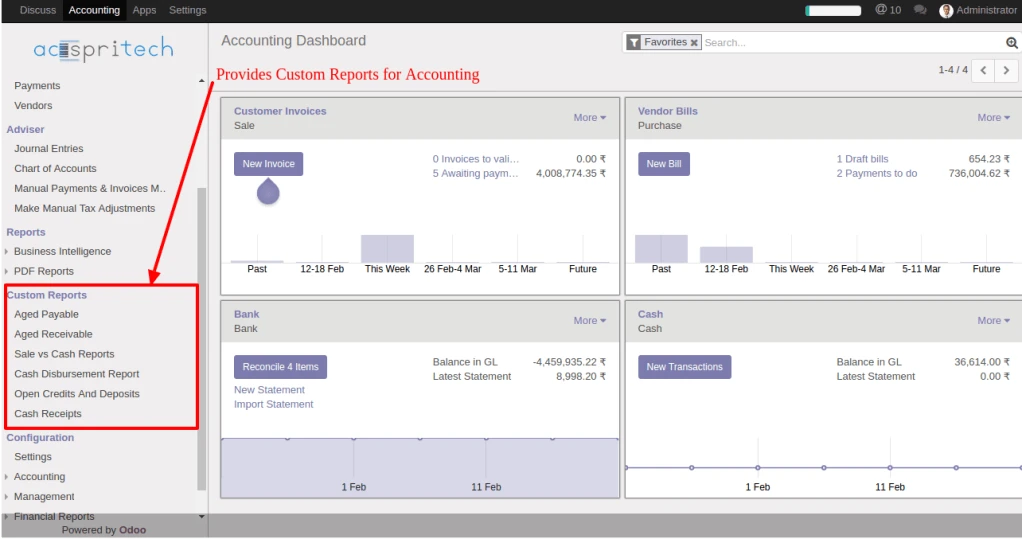
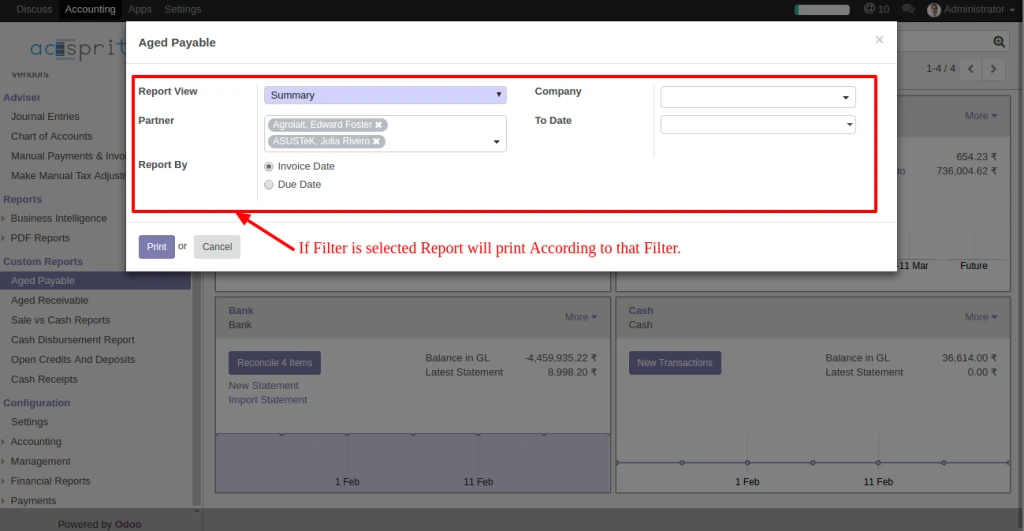
The Aged Payable in Custom Reports which opens a wizard with filters.
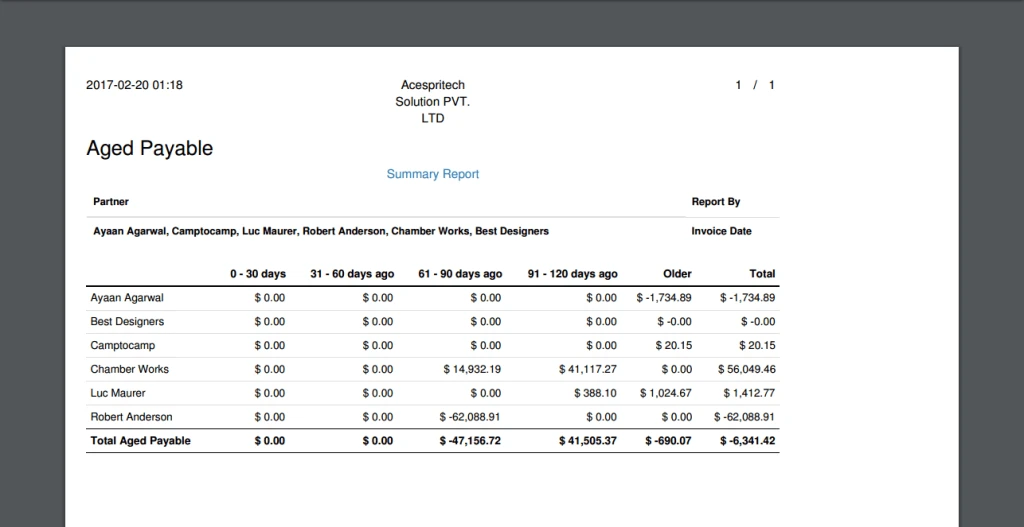
After Filter, It will print Report for 120 days data based on journal entries.
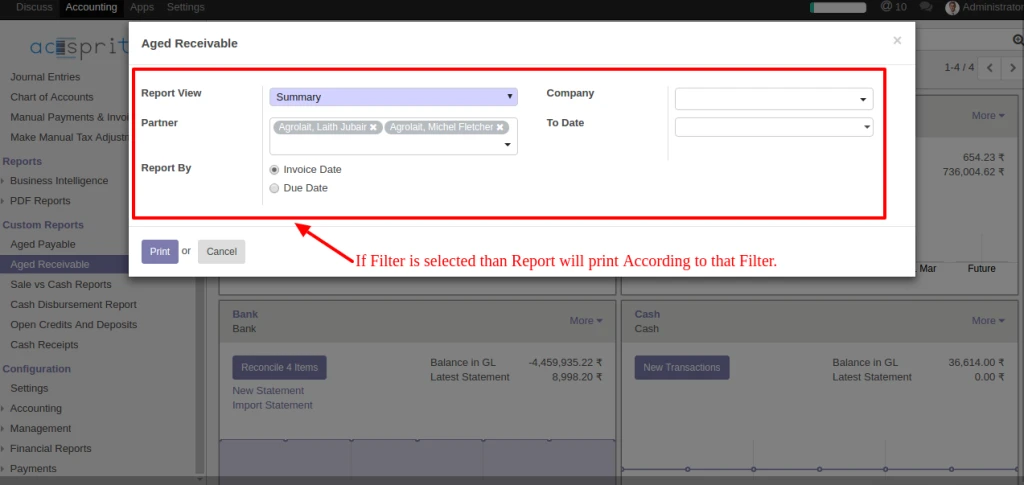
The Aged Receivable in Custom Reports which opens a wizard with filters.
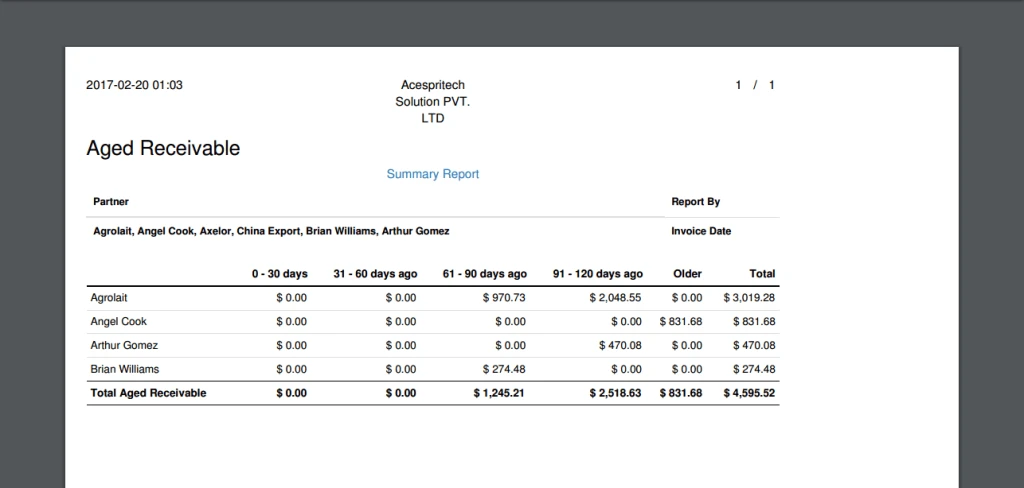
After Filter, It will print Report for 120 days data based on journal entries.
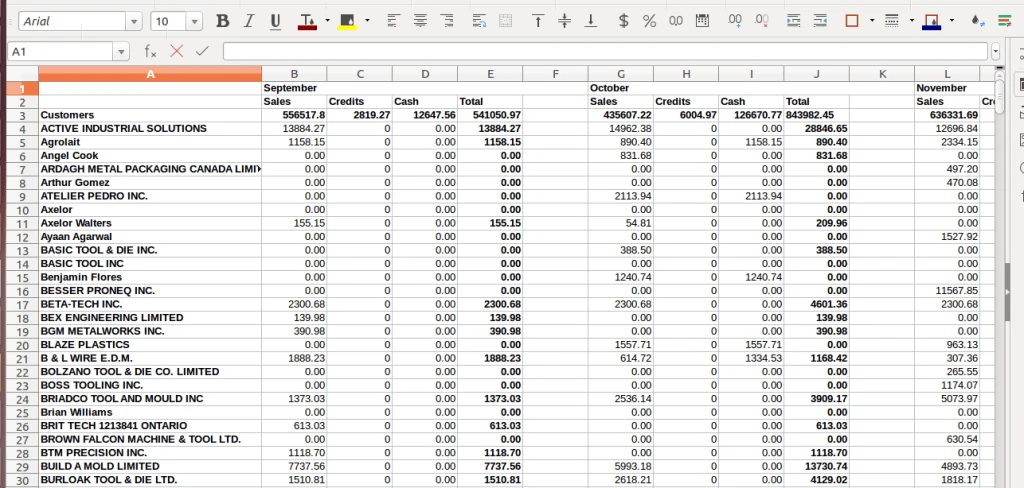
The Sale vs Cash Reports in Custom Reports which opens a wizard with to date filter.
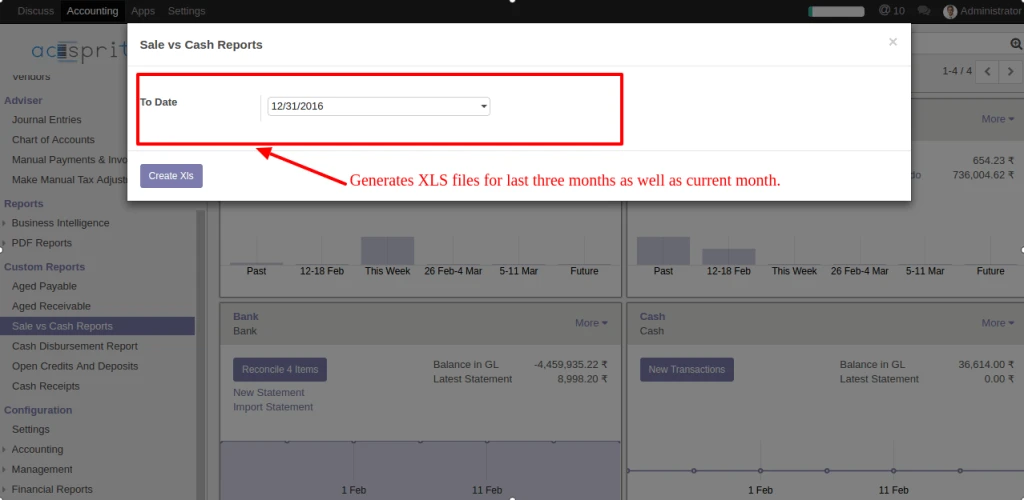
Sale vs Cash will generates XLS file for last three months as well as current month data based on journal entries.
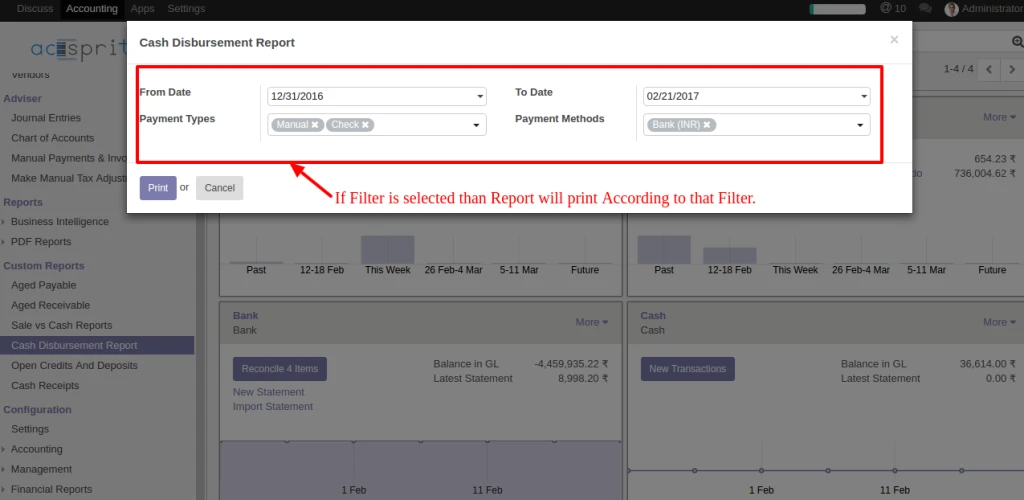
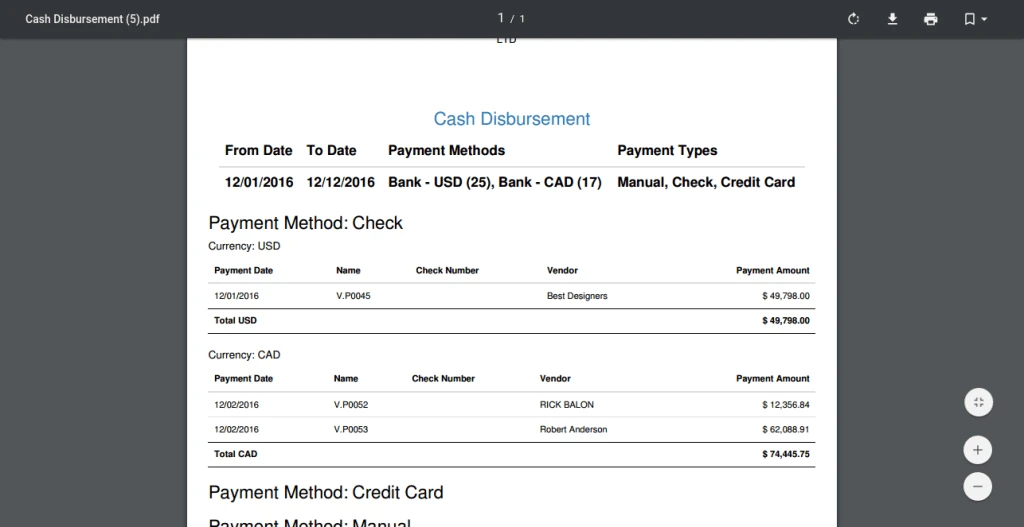
The Cash Disbursement Report in Custom Reports which opens a wizard with filters.
After Filter it will print Report for vendors based on the payment type and methods.
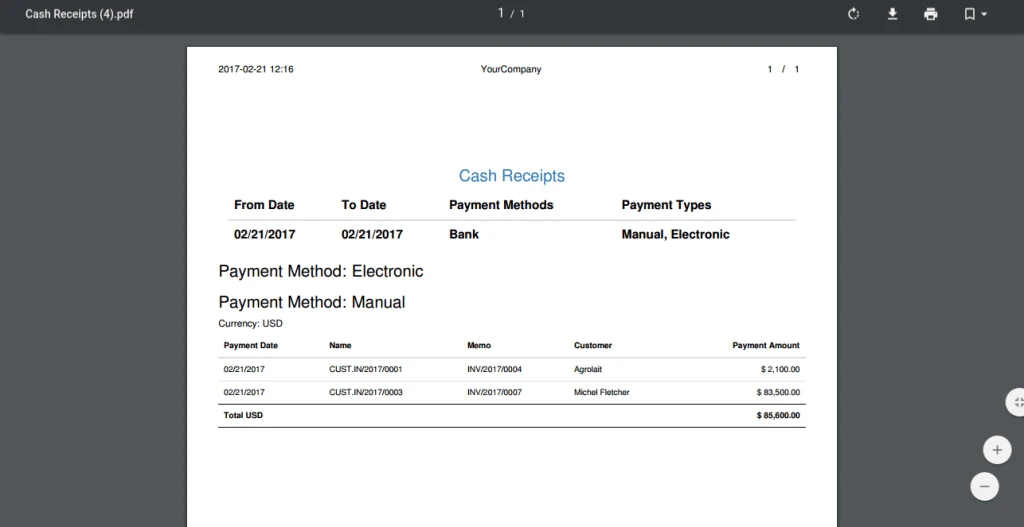
The Cash Receipts in Custom Reports which opens a wizard with filters.
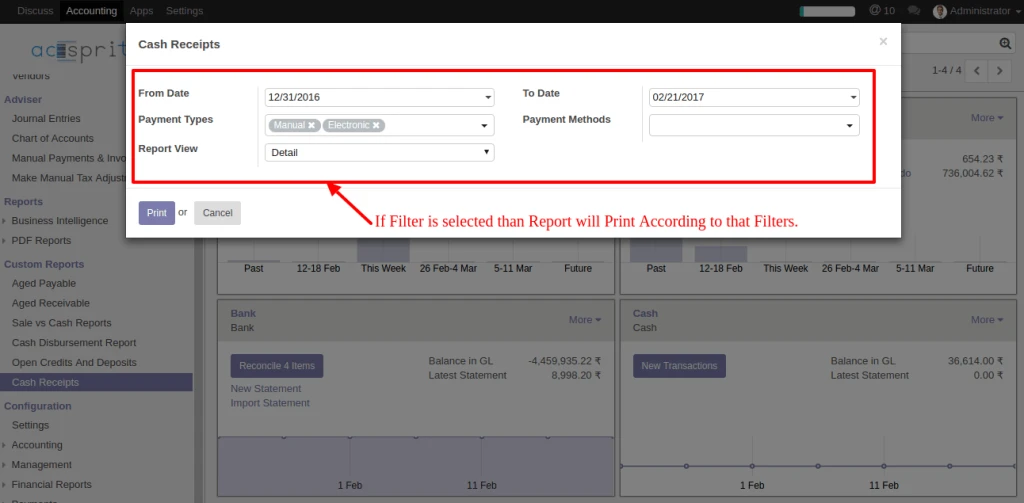
After Filter it will print Report of Cash Receipts for Customers
based on the payment type and methods in both version detail and summary.
Click here to download from Odoo Apps
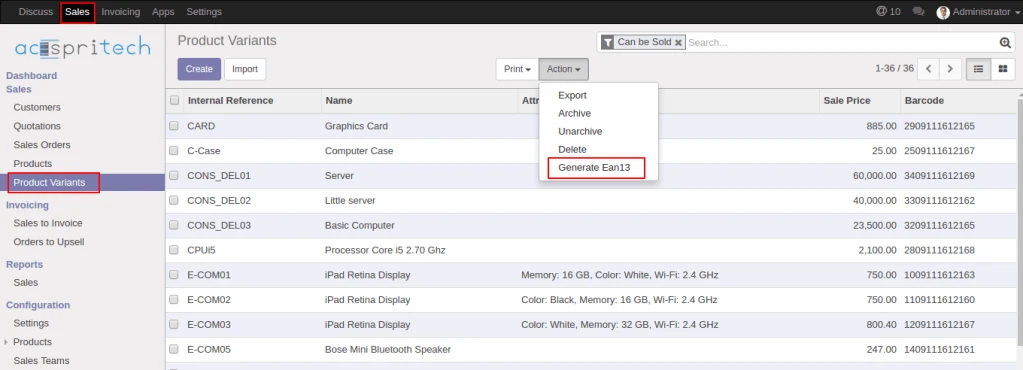
In ‘Product Variants’ menu, click on ‘Action’ button and select ‘Generate Ean13’ option then popup window will open.
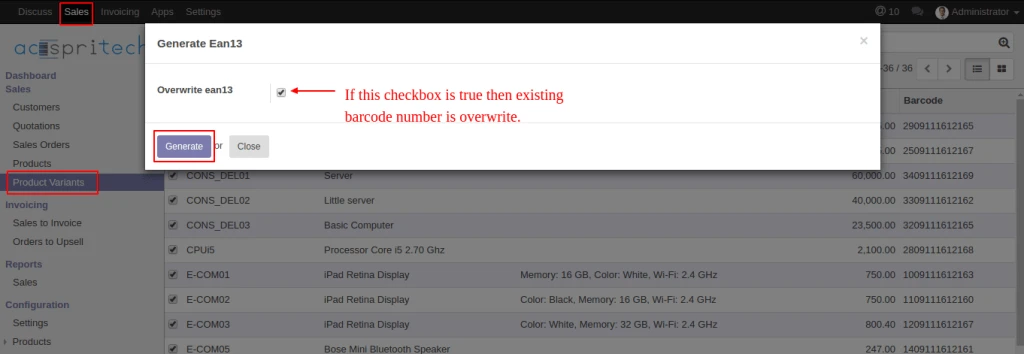
When click on generate button, products barcode number is generate. If checkbox is true then it will override the existing barcode number of products.
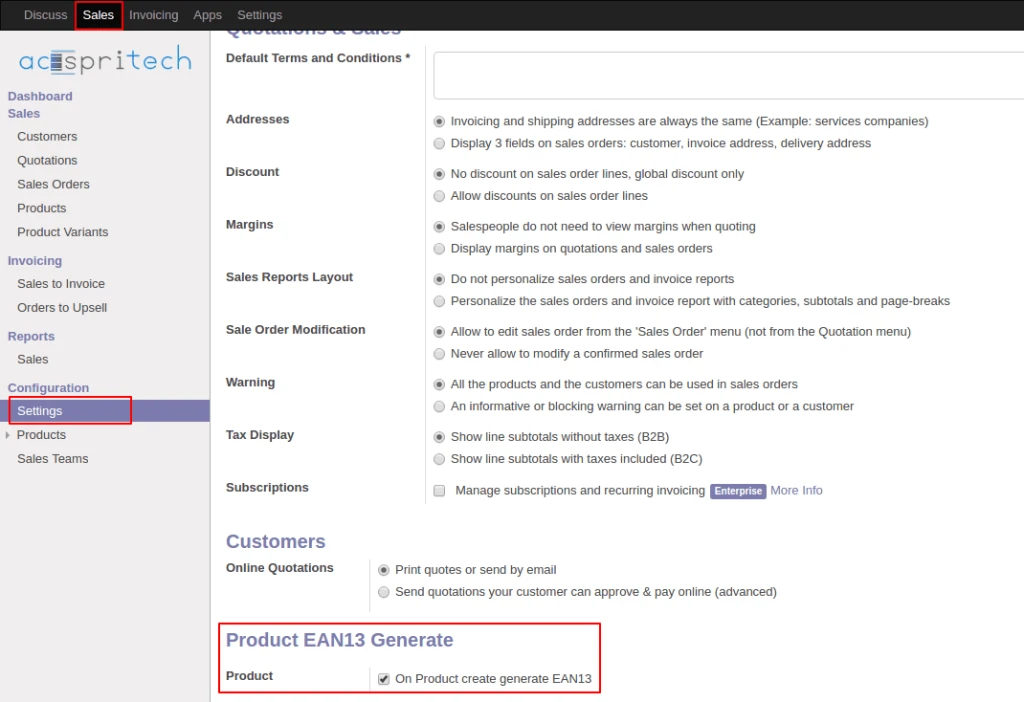
In configuration, we have options available for generate products barcode number when new product is created.
Click here to download the module
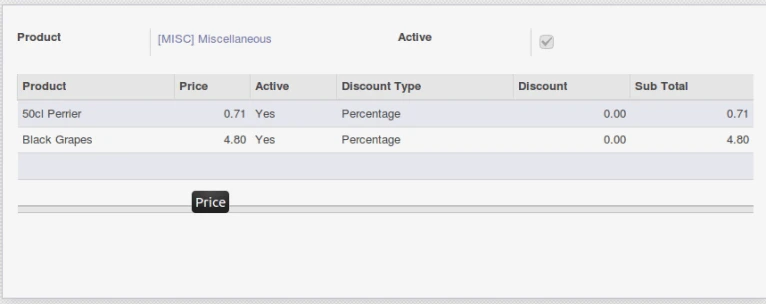
Configure cross selling products with price after applying discount.
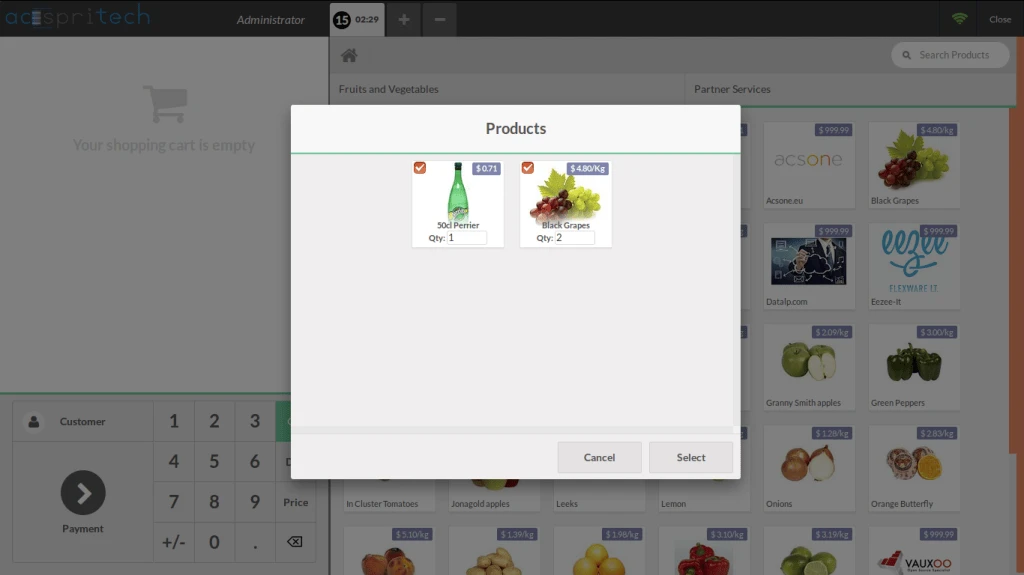
During adding of product from POS screen, open popup with optional products.
Add selected products into POS cart.
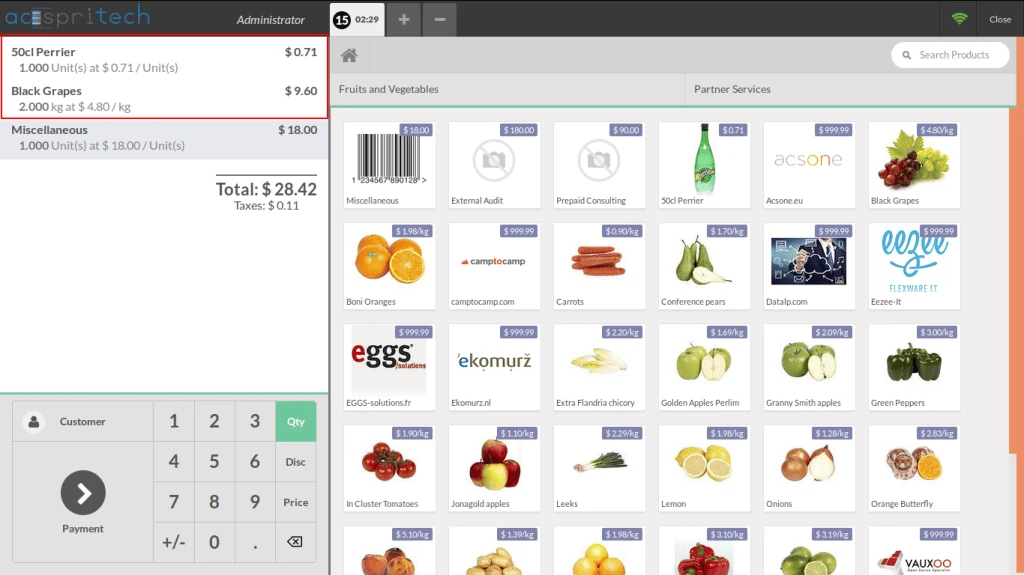
Same products are display into POS Receipt.
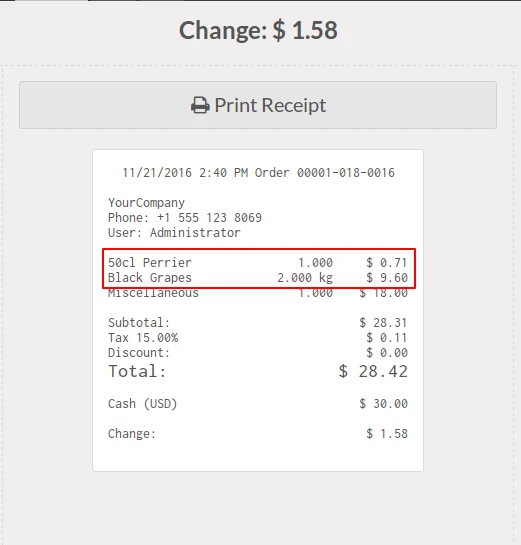
It is keeping history of cross selling products.

Click here to download from Odoo Apps
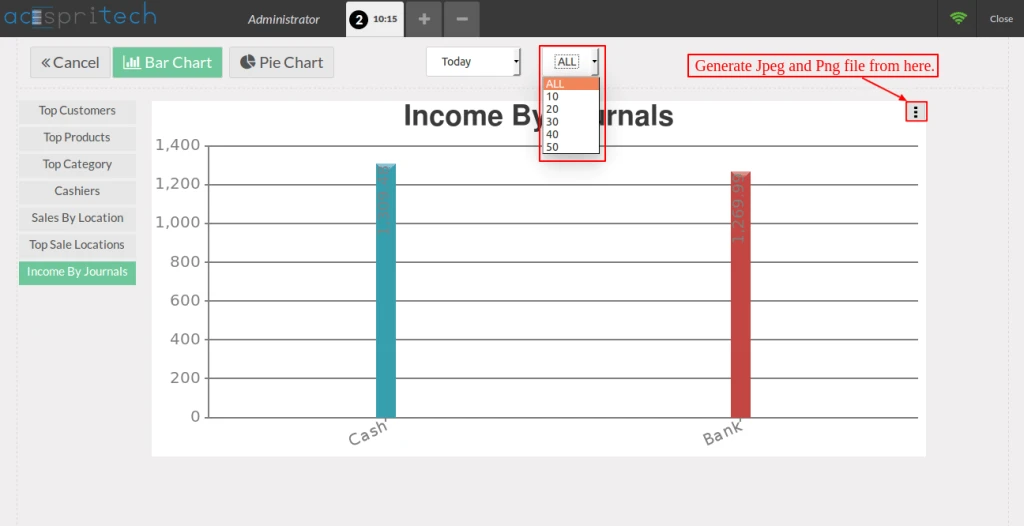
Click Open Graphs button to see graphs.
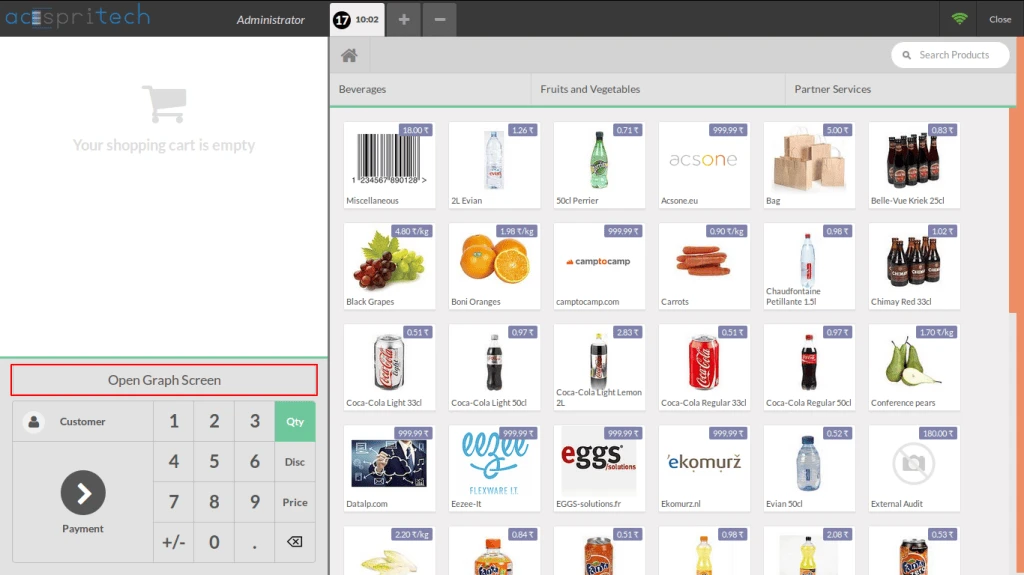
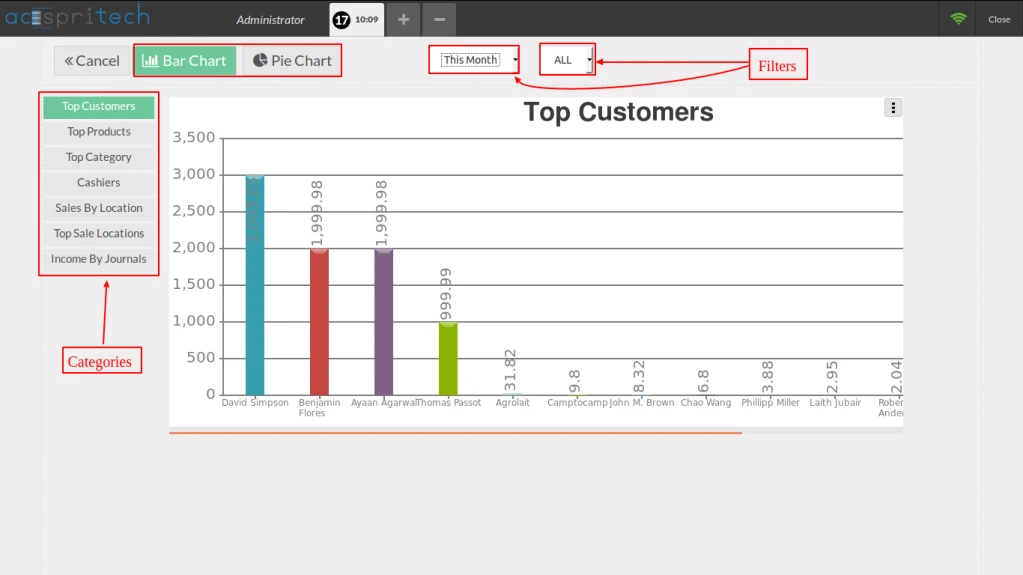
Point of sale graph module shows graphs of top customer, top product, top selling location etc…
User can also Filter by limit and duration..
Click on Pie Chart button to view Pie Chart.
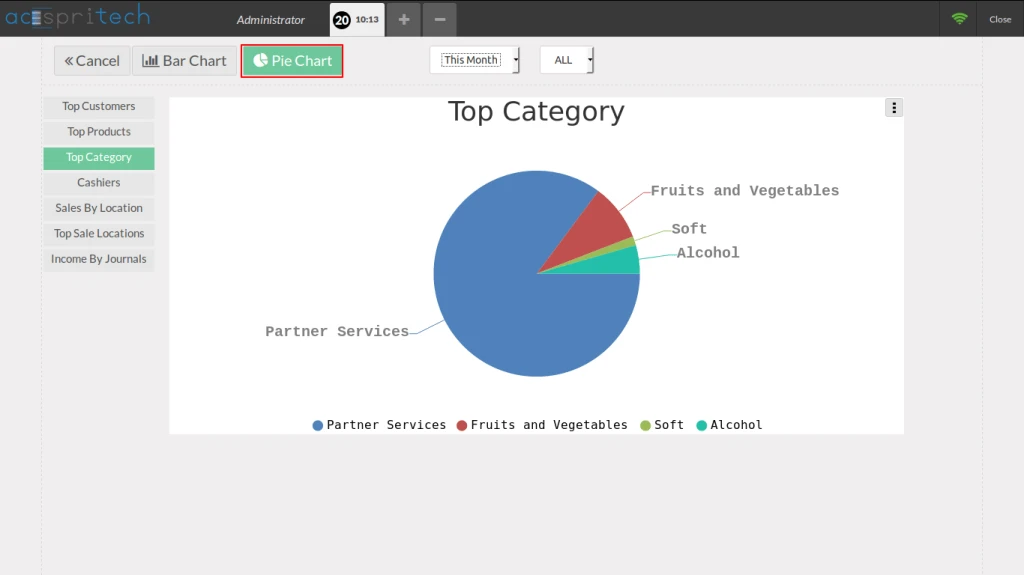
Filter By Duration.
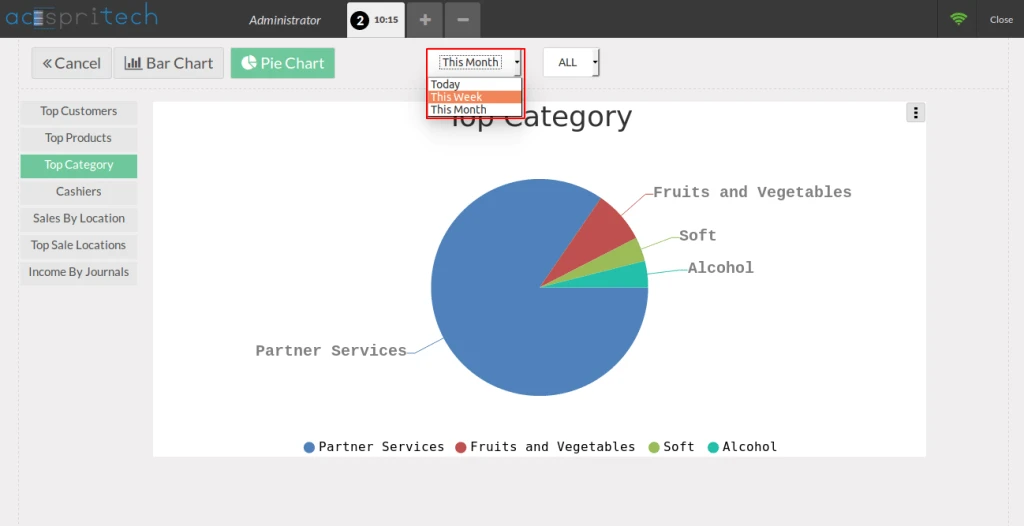
Filter By Data Limit (e.g. top 10 income by journal).
Also you can generate JPEG and PNG file.