Skip to content

Acespritech Solutions Pvt Ltd

Applying Intellect in Open source

  • Home
  • Odoo
    • Odoo Videos
  • Django
  • Android
  • Magento
  • WordPress
HomePosts tagged 'Account'

Account

Odoo Mass Payment

October 16, 2018October 16, 2018 Acespritech Solutions Pvt. Ltd. Odoo, Open Source, Product, Sale, Stock Account, Accounting, customer invoice, Invoice, Mass Payment, Payment, Python

Click here to download the module

Features

  • Generate Mass Payment for customer/vendor invoice.
  • Manage the Journal Entry for mass payment.
  • Generate report for mass payment.
  • User need to fill appropriate fields and by click on “Create Payment” button.
    Draft payments will generate for all due payments. by click on “Confirm” button, all payments
    are posted,reconciled and journal entries will be created.
  • User need to select following fields.
    Company – For which mass payment need to create.
    Partner(optional) – For which partner(s) mass payment need to create.
    Journal – Which journal is used in all payments.
    Number of days old(optional) – field take integer. used for how many old days
    invoice/bill fetched for payments.

By clicking on “Create Payment” button. its will create draft payments for all due payments of customers whose invoices are in “Open” state.
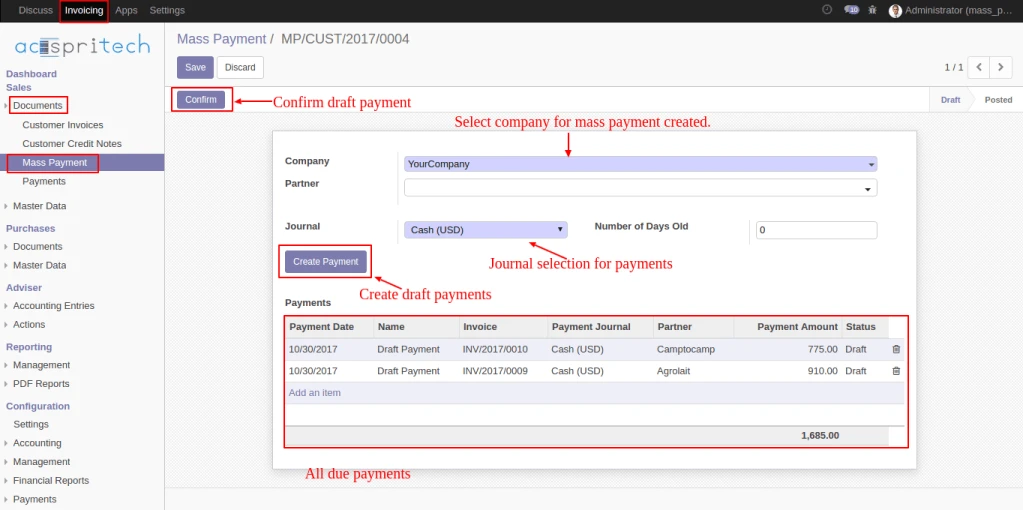
Mass Payment

By Clicking on “Confirm” button. all customer payments entries will be posted, and journal entries will be created for each. on click “Journal Entries” button user can see all journal entries.
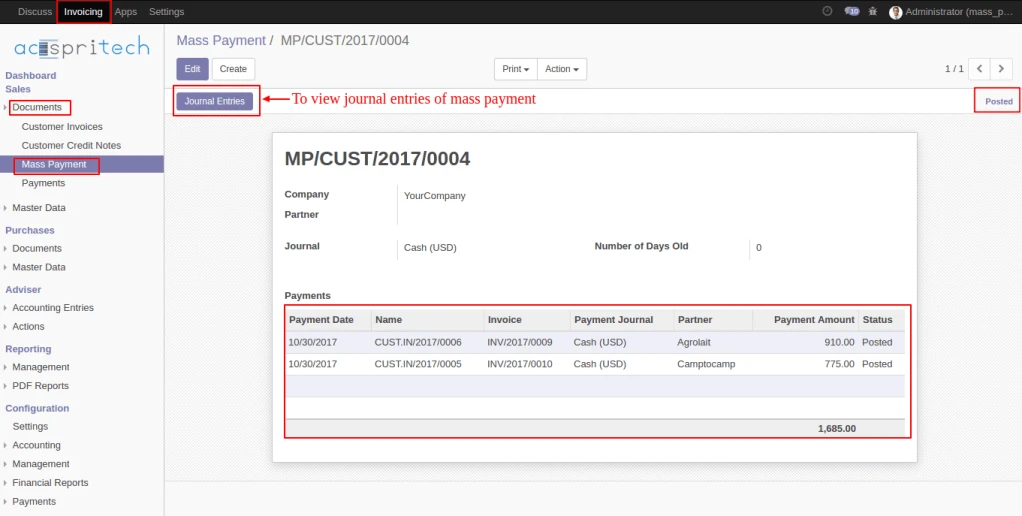
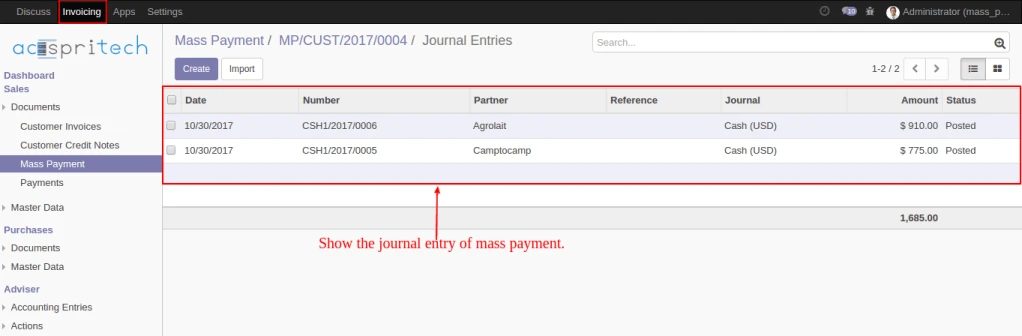
Mass Payment
Mass Payment

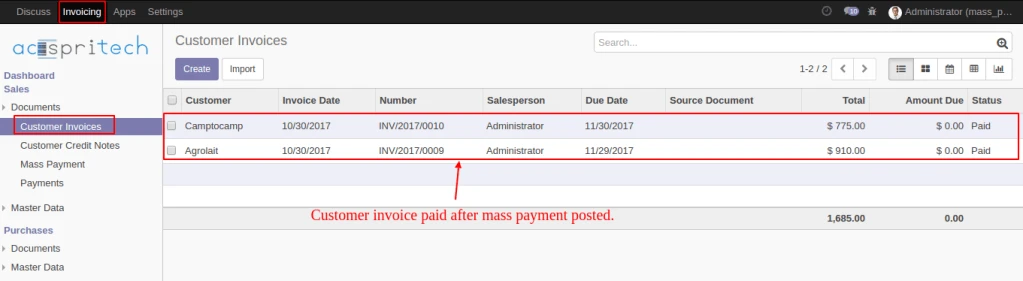
Here, We can see impact of customer mass payment on customer invoice.
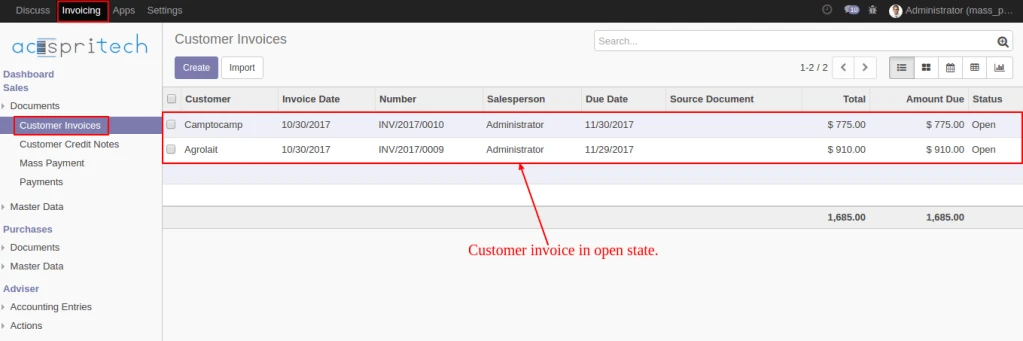
Mass Customer Invoice
Mass Customer Invoice Paid

User can print report regarding mass payment.
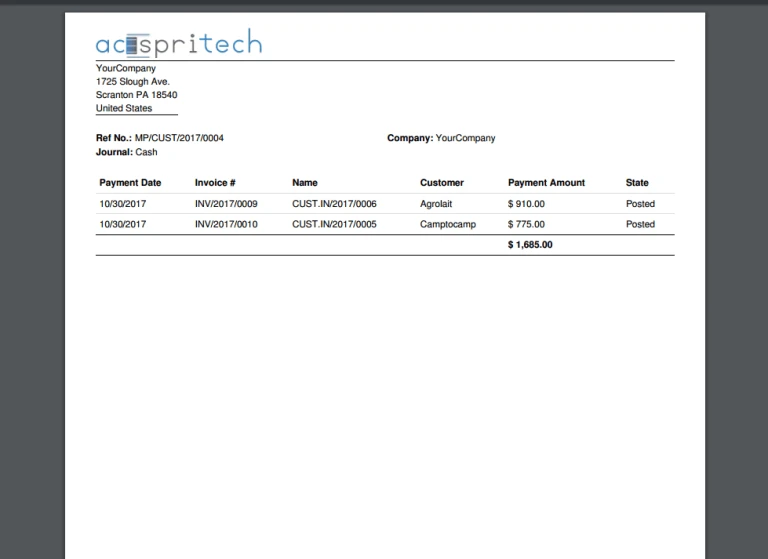
Mass Payment Report

Same thing to do for vendor mass payments. Here all due vendor payment will be fetch.
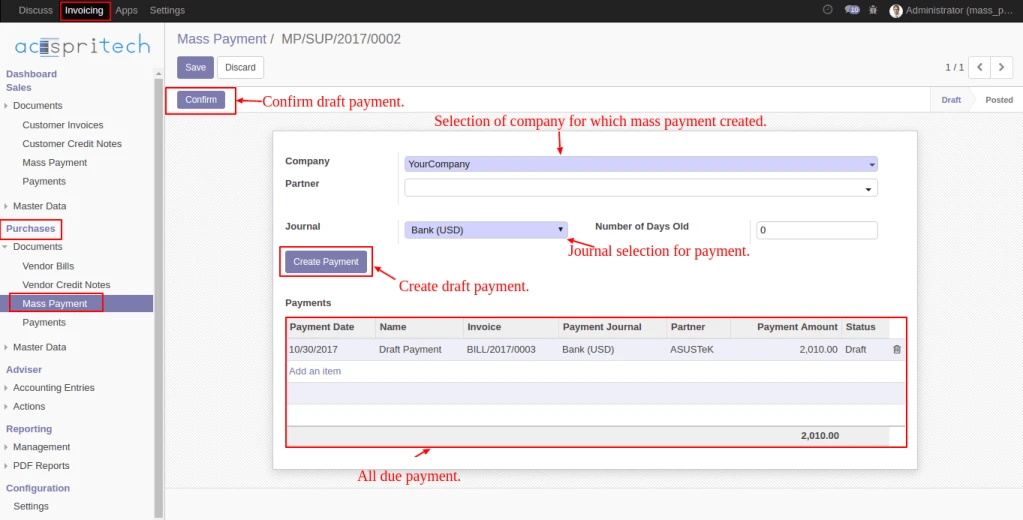
Vendor Mass Payment

By Clicking on “Confirm” button. all vendor payments entries will be posted and journal entries will be created for each. on click “Journal Entries” button user can see all journal entries.
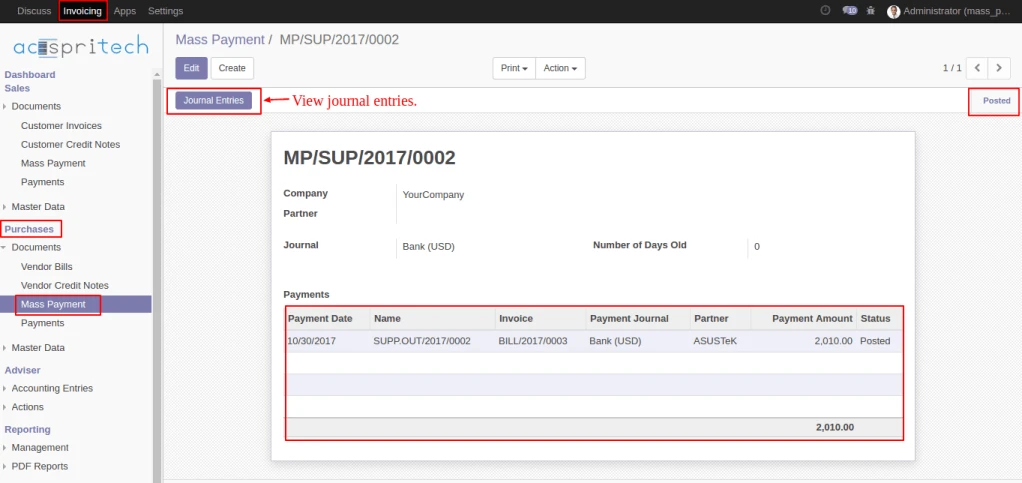
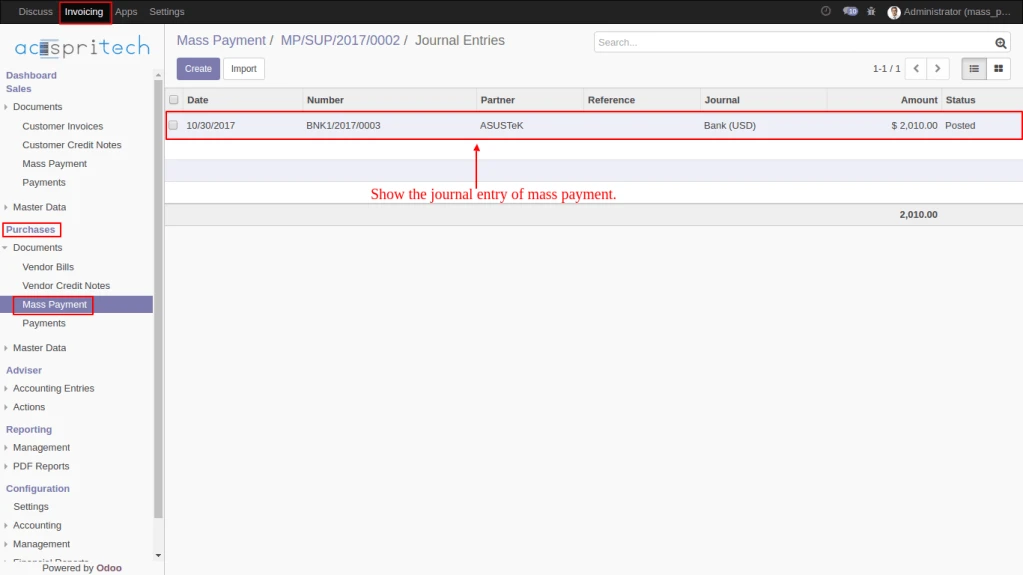
Vendor Mass Payment
Vendor Mass Payment Journal

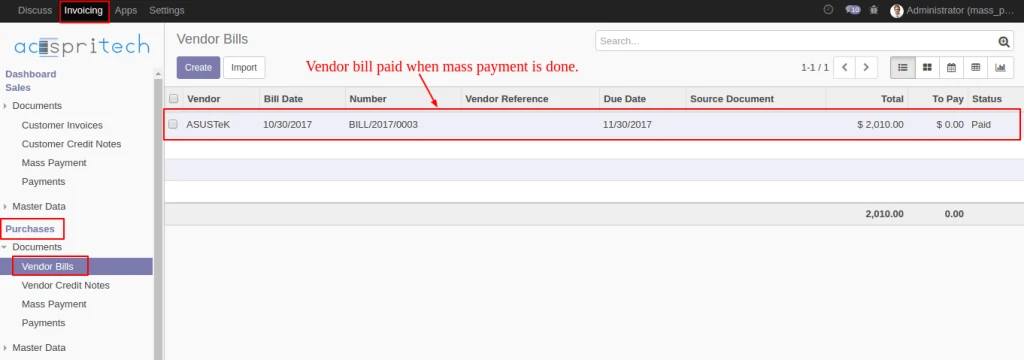
Here, We can see impact of vendor mass payment on vendor bills.
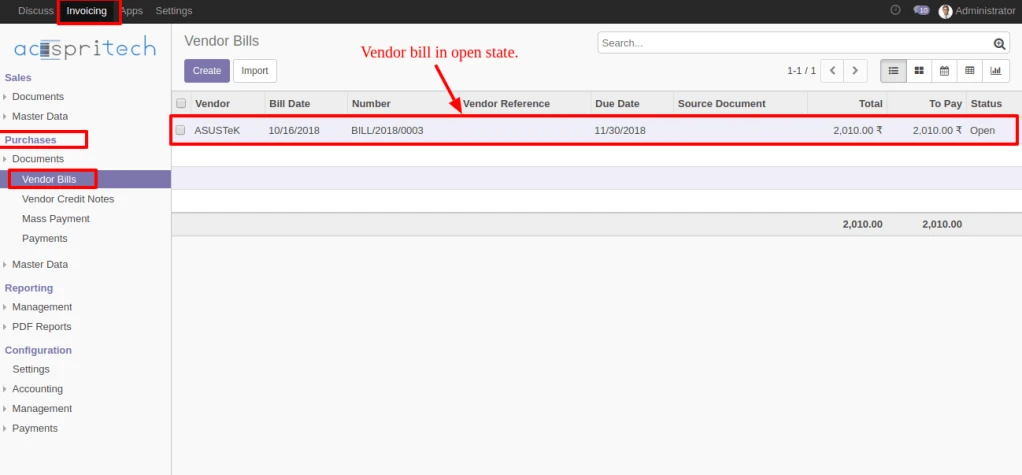
Vendor Bills Odoo

Vendor Bill Paid

User can print report regarding mass payment.

Mass Vendor Report

Share this:

  • Click to share on Facebook (Opens in new window)
  • Click to share on LinkedIn (Opens in new window)
  • Click to share on Twitter (Opens in new window)
  • Click to share on Reddit (Opens in new window)
  • Click to share on Tumblr (Opens in new window)
  • Click to share on Pocket (Opens in new window)
  • Click to share on Pinterest (Opens in new window)
  • More
  • Click to print (Opens in new window)
  • Click to email this to a friend (Opens in new window)

Like this:

Like Loading...
Leave a comment

Odoo Invoice round off

September 14, 2017September 14, 2017 Acespritech Solutions Pvt. Ltd. Accounting, Odoo, Open Source, Product, Quotation, Sale, Stock Account, Accounting, Odoo, Roundoff

Click here to download the module

Note: While doing each and every perform into invoice click on apply or remove rounding button for rounding amount.
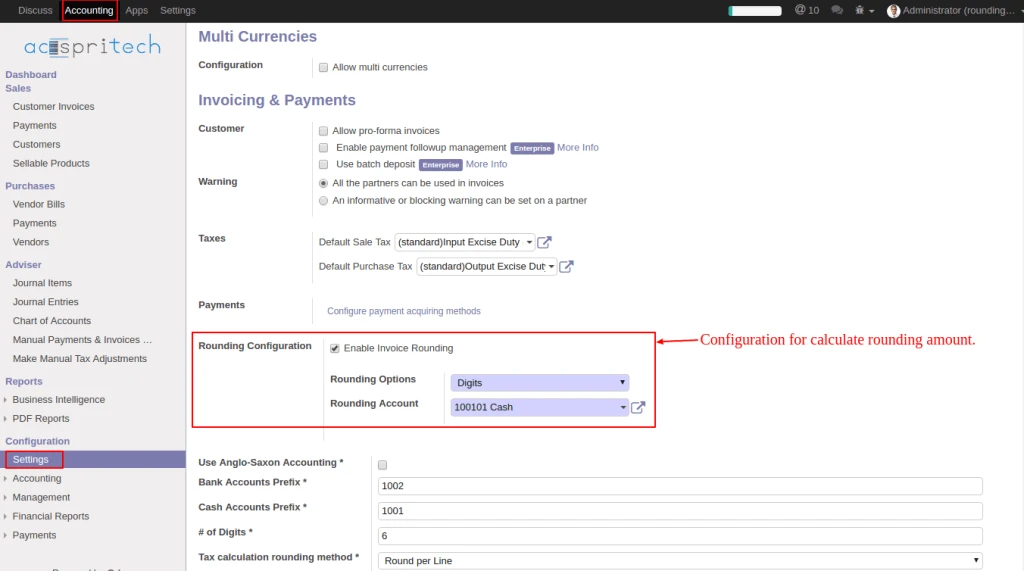
In Accounting configuration, checked “Enable Invoice Rounding”, select the (Rounding option and set Rounding Account).

Odoo account configuration

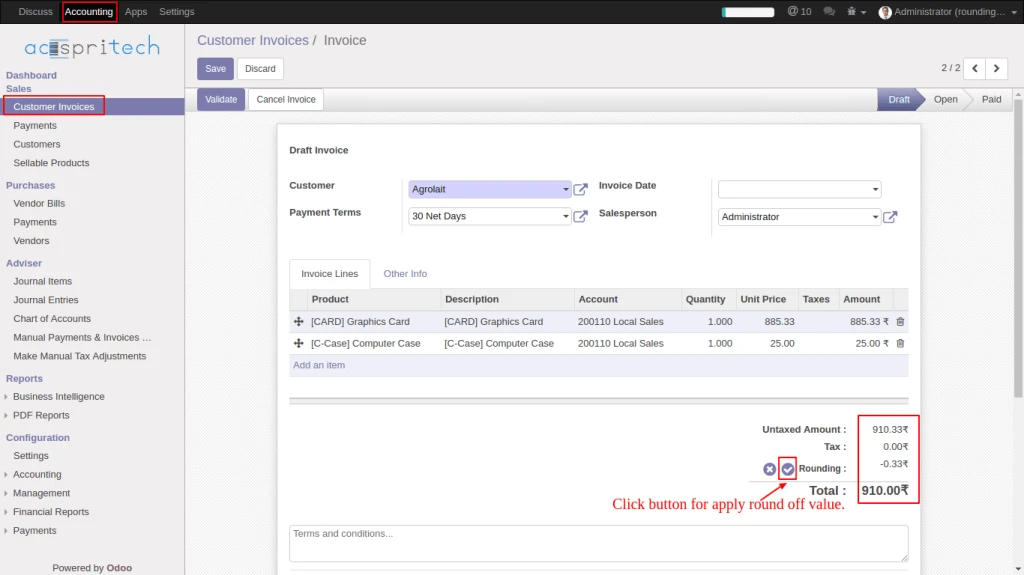
From Customer Invoice click on (rounding apply) button for calculate rounding amount.

Odoo applying round off

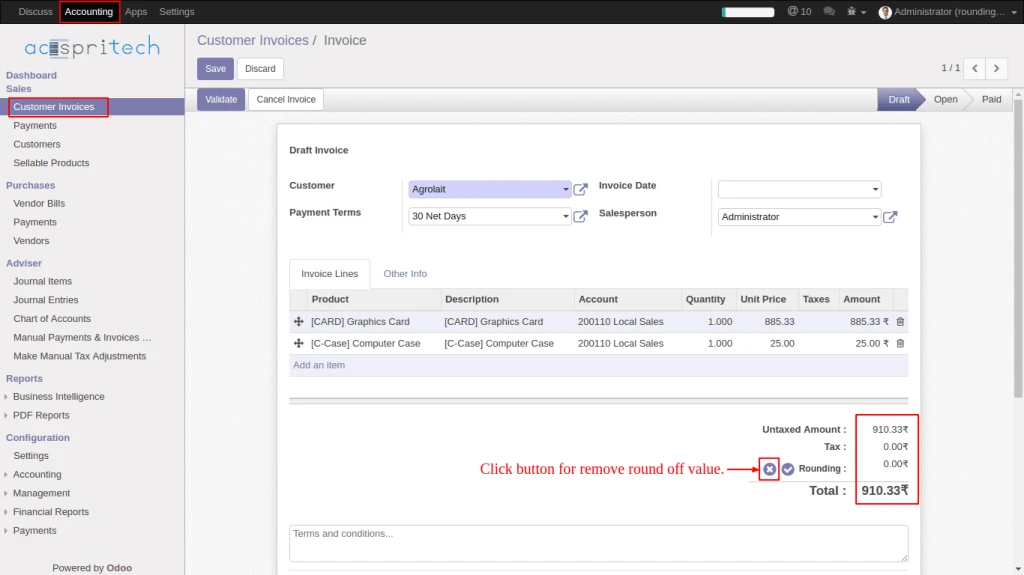
From Customer Invoice click on (rounding remove) button for remove rounding amount.

Odoo invoice remove round off

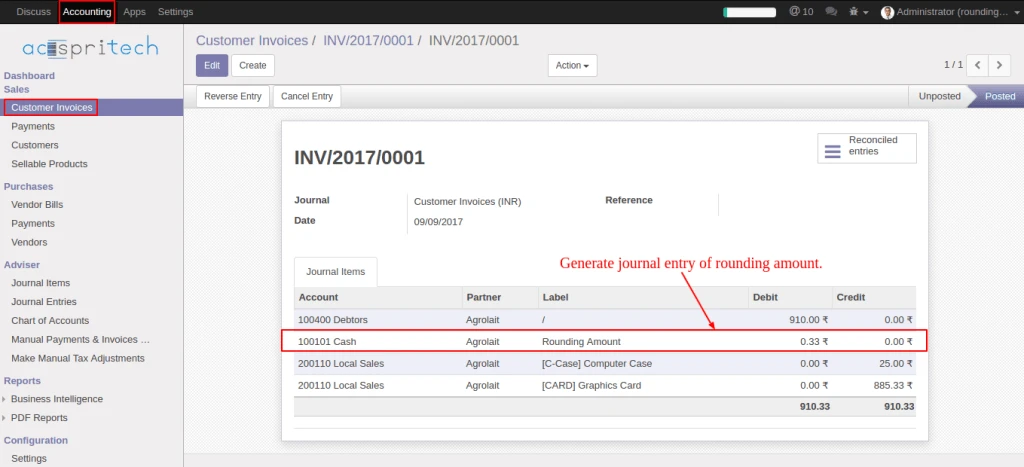
Once invoice validate generate journal entry of rounding amount.

Odoo journal entry
Odoo journal entry

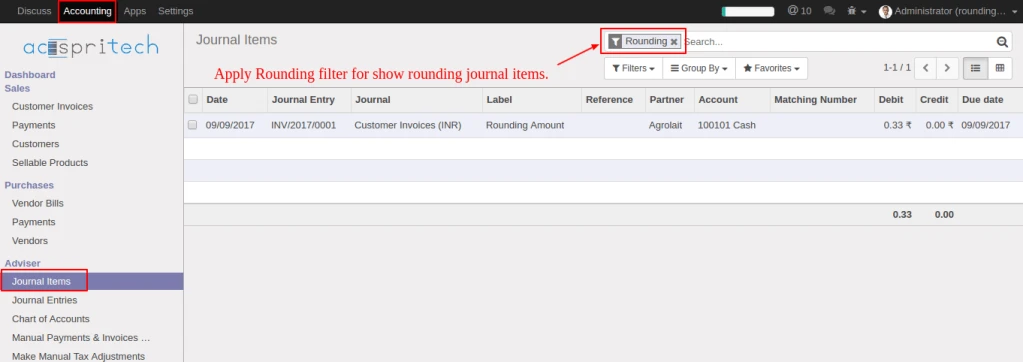
From journal items menu, select filter “Rounding” for display rounding journal entries.

Odoo filter journal entey

Share this:

  • Click to share on Facebook (Opens in new window)
  • Click to share on LinkedIn (Opens in new window)
  • Click to share on Twitter (Opens in new window)
  • Click to share on Reddit (Opens in new window)
  • Click to share on Tumblr (Opens in new window)
  • Click to share on Pocket (Opens in new window)
  • Click to share on Pinterest (Opens in new window)
  • More
  • Click to print (Opens in new window)
  • Click to email this to a friend (Opens in new window)

Like this:

Like Loading...
Leave a comment

Odoo v10 Acespritech Account Report

February 27, 2017June 15, 2018 Acespritech Solutions Pvt. Ltd. Accounting, Odoo, Open Source Account, Odoo, OpenERP

Click here to download from Odoo Apps

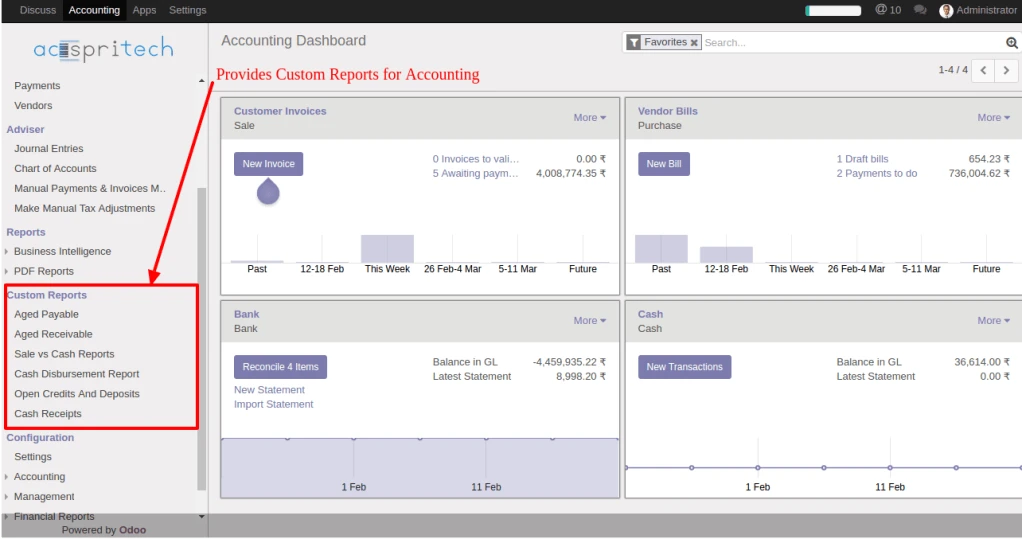
You can see the available Custom Reports Menu under the Accounting.

Configuration screen

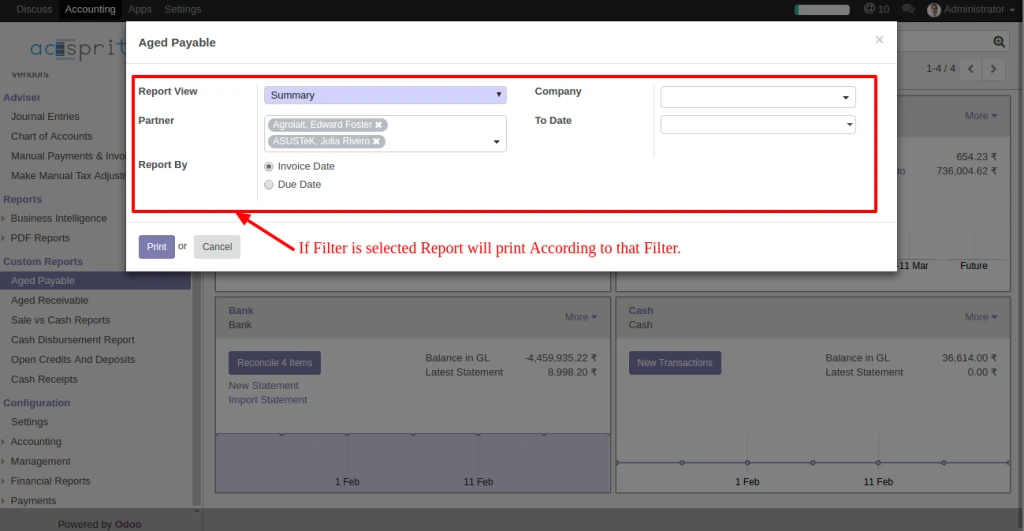
The Aged Payable in Custom Reports which opens a wizard with filters.

Account Payble Wizard

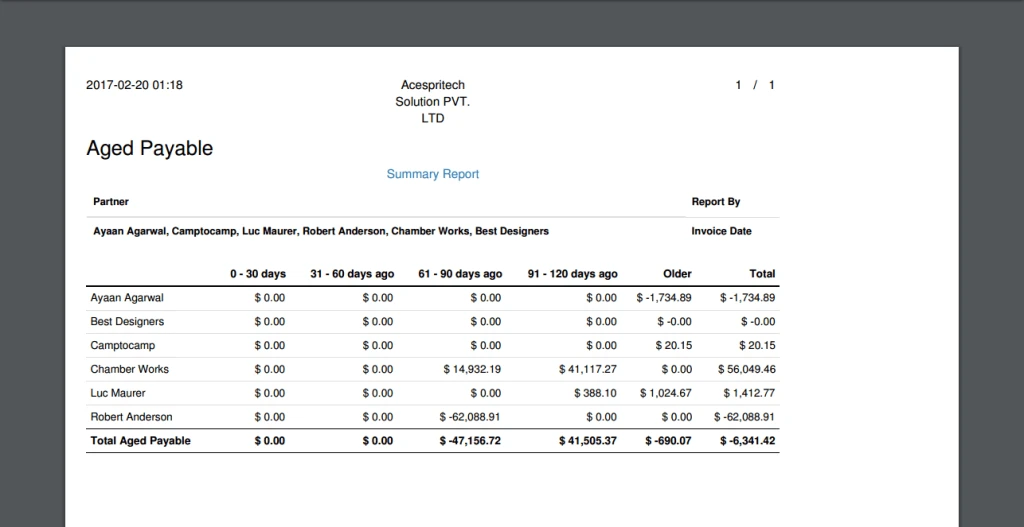
After Filter, It will print Report for 120 days data based on journal entries.

Aged Payable
Aged Payable

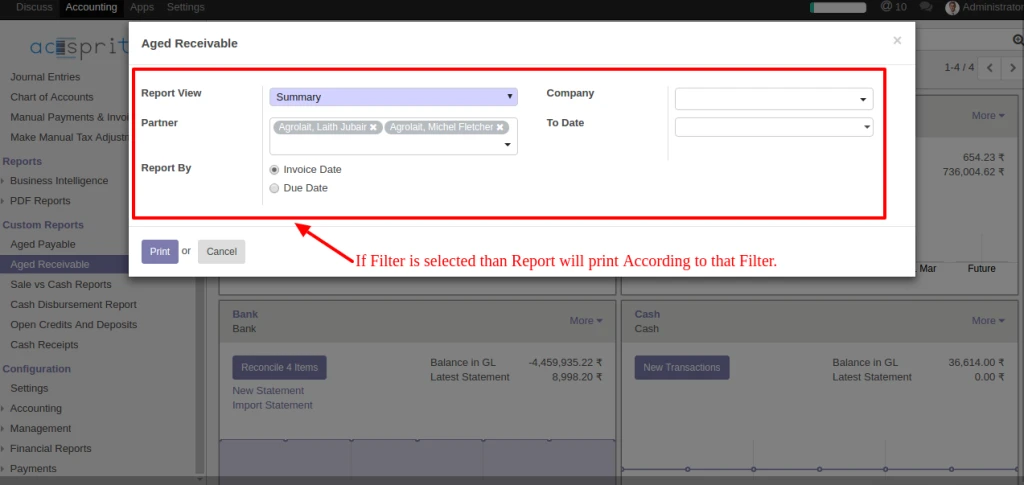
The Aged Receivable in Custom Reports which opens a wizard with filters.

Aged Receivable Wizard

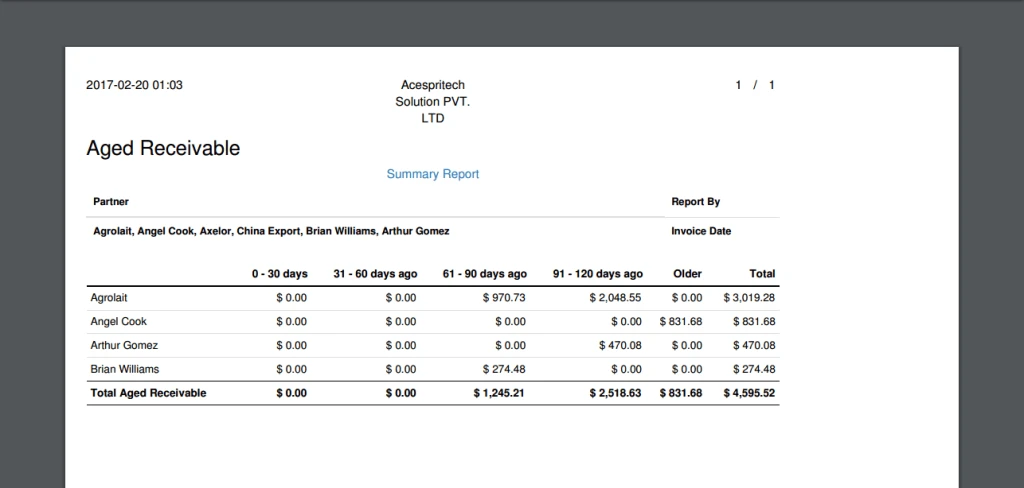
After Filter, It will print Report for 120 days data based on journal entries.

Aged Recievable Report

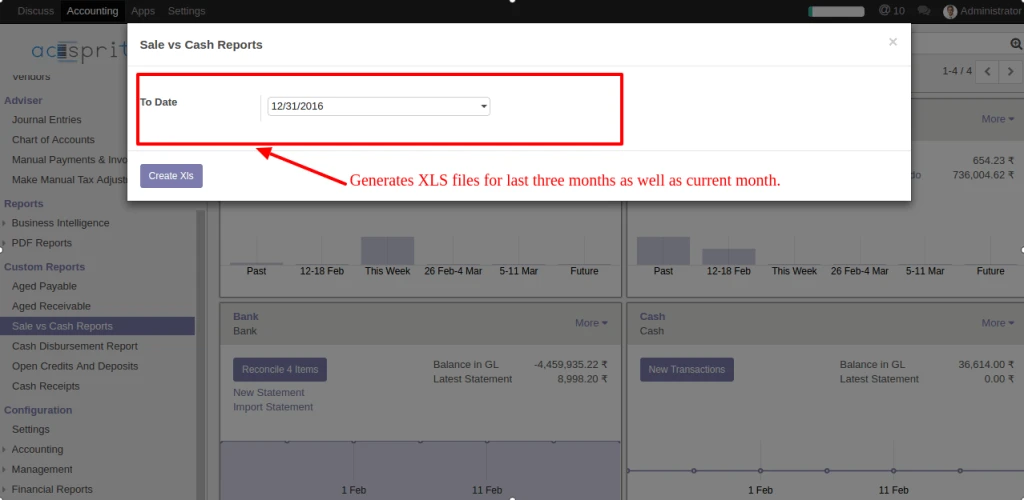
The Sale vs Cash Reports in Custom Reports which opens a wizard with to date filter.

Sales vs Credit Wizard

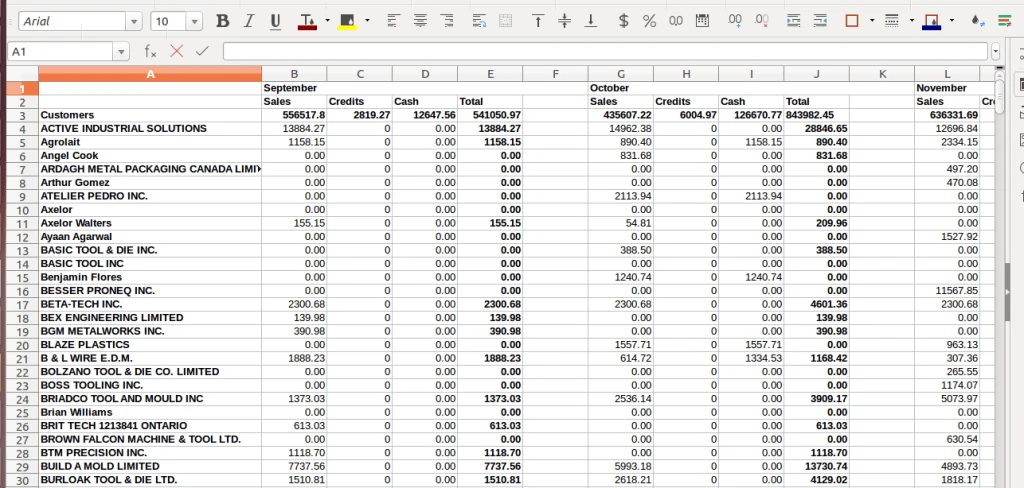
Sale vs Cash will generates XLS file for last three months as well as current month data based on journal entries.

Sale vs Cash
Sale vs Cash

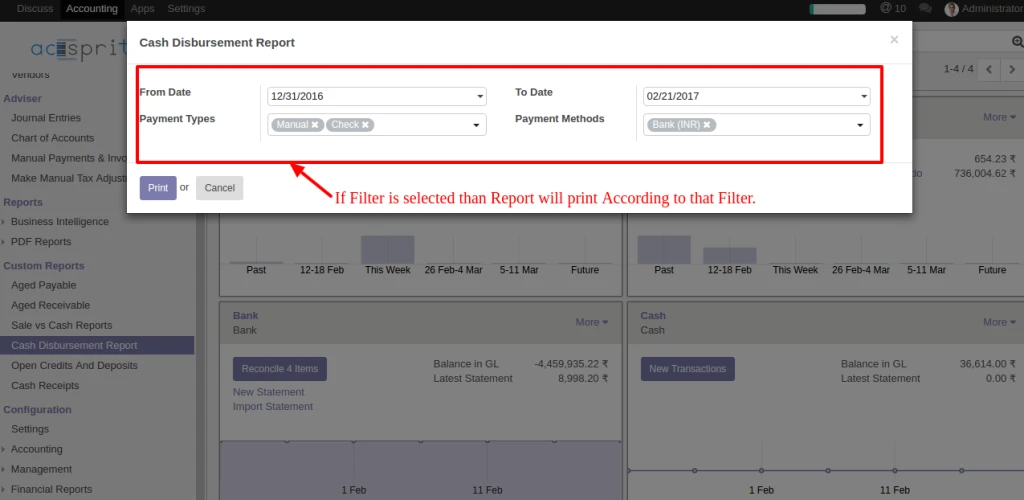
The Cash Disbursement Report in Custom Reports which opens a wizard with filters.

Cash Disbursement Wizard

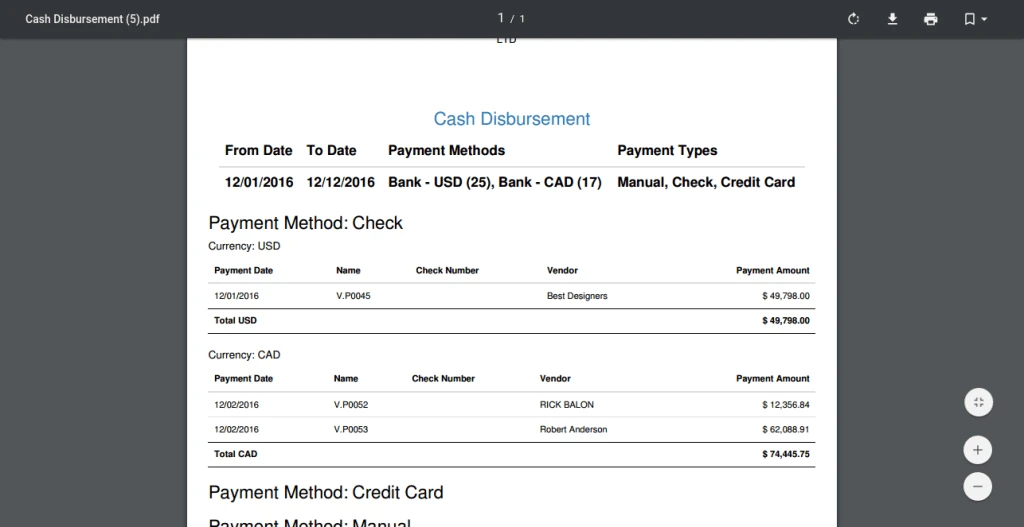
After Filter it will print Report for vendors based on the payment type and methods.

Cash Disbursement Report

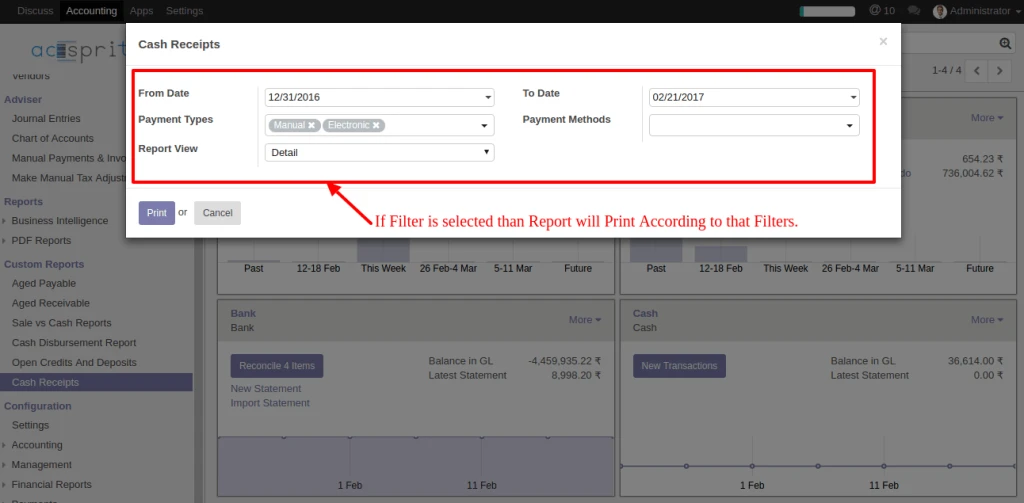
The Cash Receipts in Custom Reports which opens a wizard with filters.

Cash Recipt Wizard
Cash Recipt Wizard

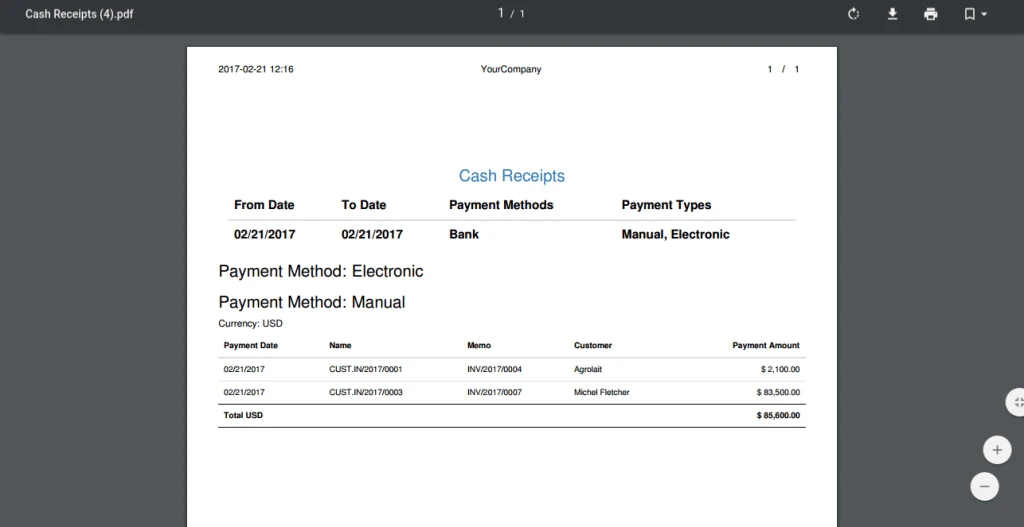
After Filter it will print Report of Cash Receipts for Customers
based on the payment type and methods in both version detail and summary.

Cash Receipt Report
Cash Receipt Report

Share this:

  • Click to share on Facebook (Opens in new window)
  • Click to share on LinkedIn (Opens in new window)
  • Click to share on Twitter (Opens in new window)
  • Click to share on Reddit (Opens in new window)
  • Click to share on Tumblr (Opens in new window)
  • Click to share on Pocket (Opens in new window)
  • Click to share on Pinterest (Opens in new window)
  • More
  • Click to print (Opens in new window)
  • Click to email this to a friend (Opens in new window)

Like this:

Like Loading...
Leave a comment

Odoo v8 Stripe Integration with payment acquirer

June 25, 2015February 29, 2016 Acespritech Solutions Pvt. Ltd. Accounting, Configuration, Odoo, Sale Account, Acquire, Invoice, Odoo, OpenERP, Payment, payment integration, Sale, stripe

Click here to download from Odoo Apps

We have implemented Stripe integration for Odoo V8 with Payment Acquirer module which will automatically enable during sale, invoice and website process.

Odoo module list
Odoo module list

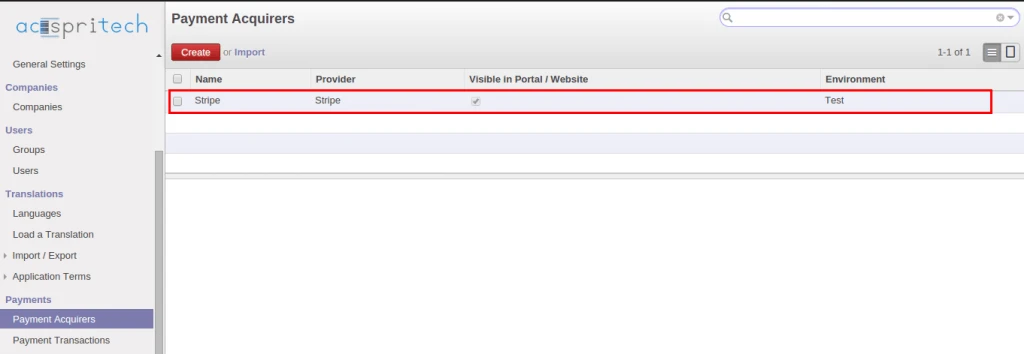
After installing this module, we can see new record for payment acquirer.

Odoo Payment Acquirer

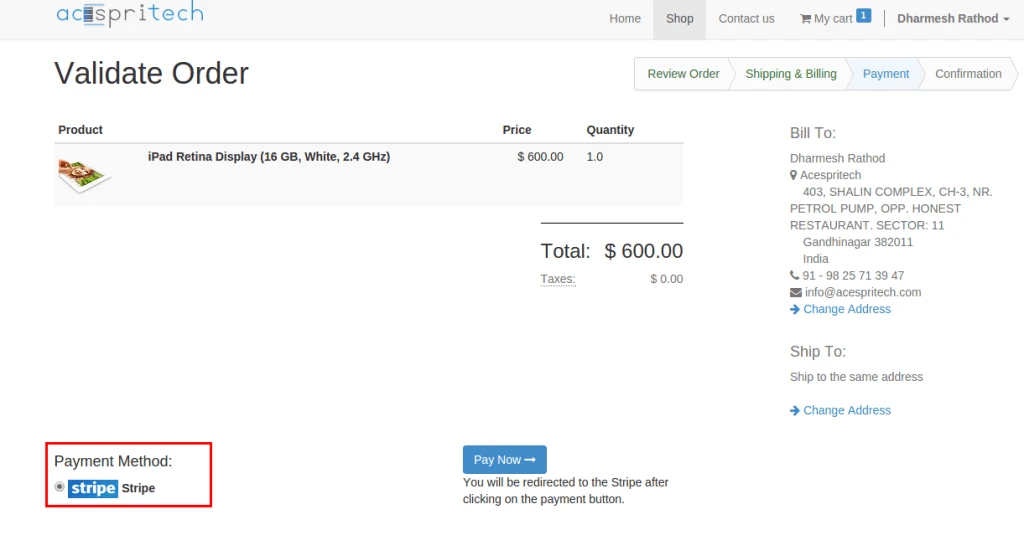
During payment process from Odoo website, stripe option will automatically appear.

Odoo website order
Odoo website order

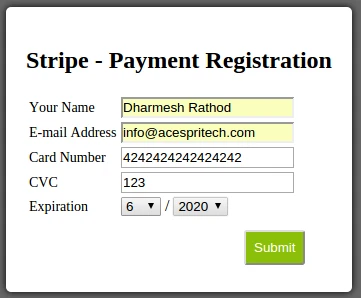
And it will switch another form to take card details from user.

Stripe payment registration

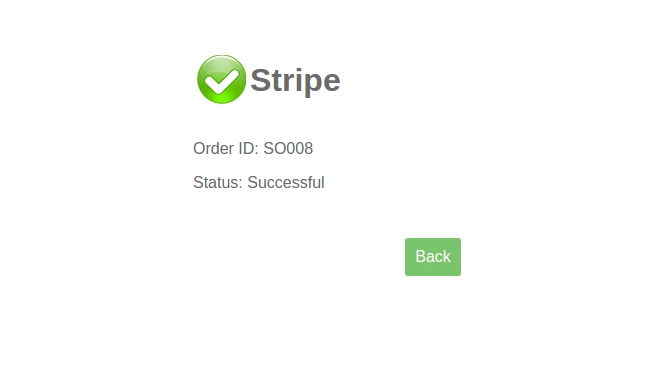
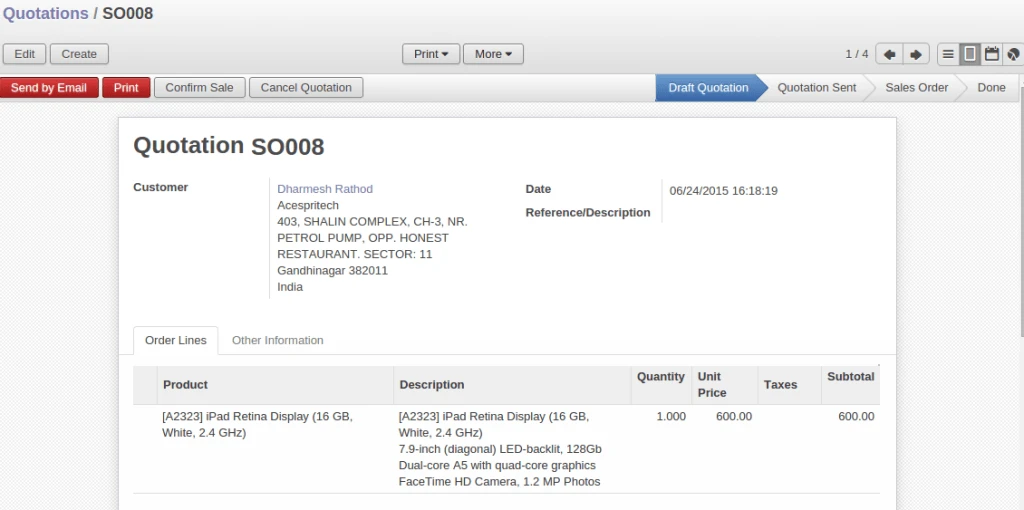
After successful transaction with Stripe server, it will display proper message and create sales order into Odoo.

Stripe payment response
Odoo sales order
Odoo sales order

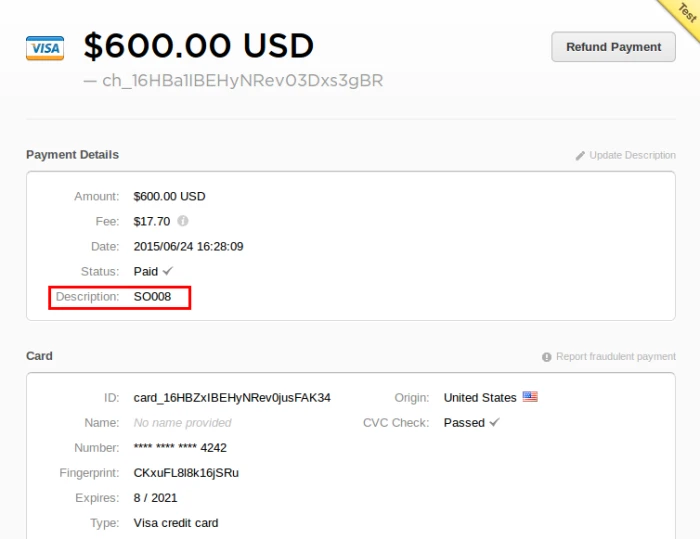
It will display transaction history into user’s stripe account also.

Stripe Transaction
Stripe Transaction

Share this:

  • Click to share on Facebook (Opens in new window)
  • Click to share on LinkedIn (Opens in new window)
  • Click to share on Twitter (Opens in new window)
  • Click to share on Reddit (Opens in new window)
  • Click to share on Tumblr (Opens in new window)
  • Click to share on Pocket (Opens in new window)
  • Click to share on Pinterest (Opens in new window)
  • More
  • Click to print (Opens in new window)
  • Click to email this to a friend (Opens in new window)

Like this:

Like Loading...
2 Comments

DiamondWEBPay integration with Odoo

April 16, 2015April 16, 2015 Acespritech Solutions Pvt. Ltd. Accounting, Odoo, Sale Account, Accounting, CreditCard, Diamondwebpay, Odoo, OpenERP, Sales

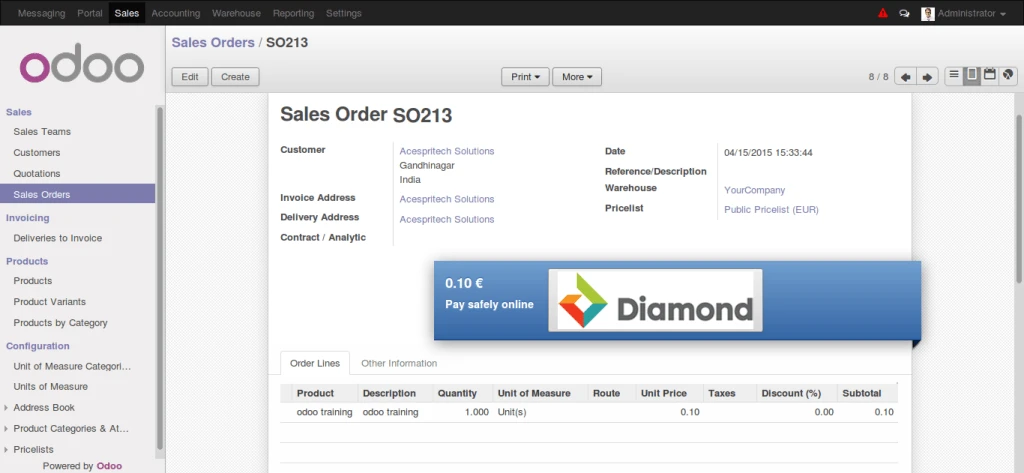
One more payment gateway integration with DiamondWEBPay and Odoo v8. Here are the flow how it is developed.

Odoo Sales Order
Odoo Sales Order

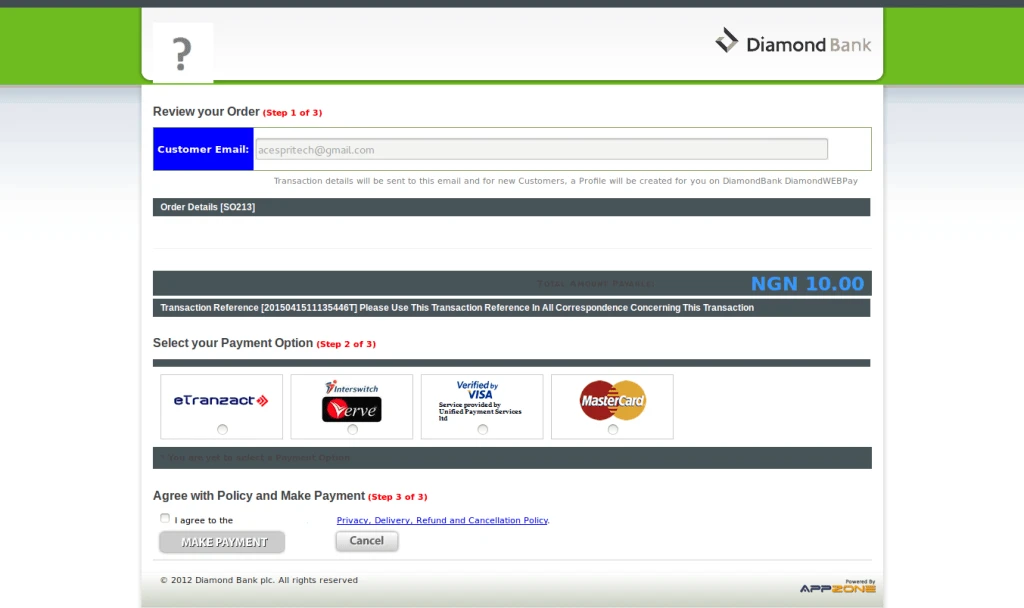
When we process for payment, it is redirecting to Diamond Bank website.

Payment Options
Payment Options

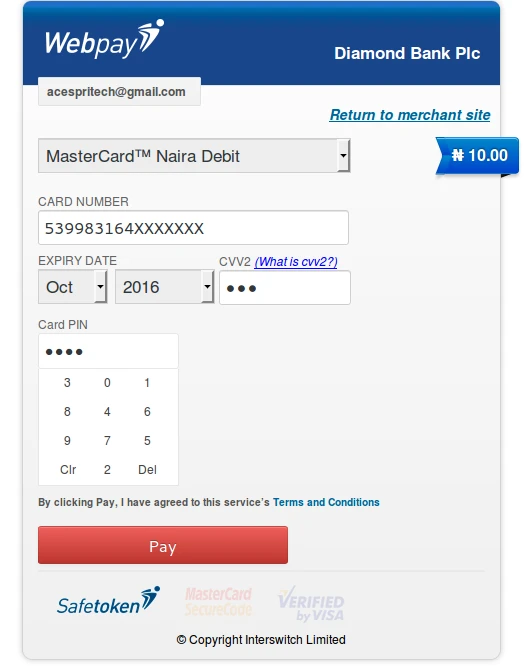
Here customer has to enter his card details as required in other payment sites.

Card Details
Card Details
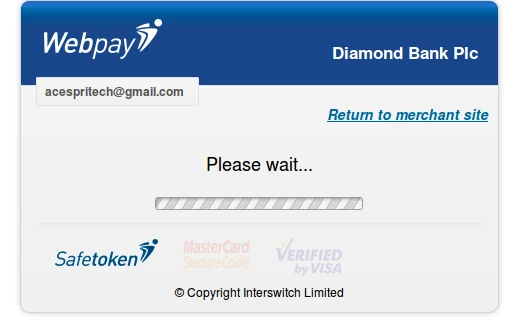
Payment Process
Payment Process

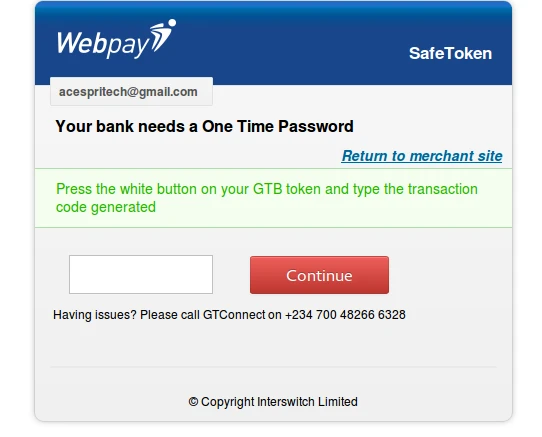
Then it is asking for security token which is generated by Bank.

Security Token
Security Token

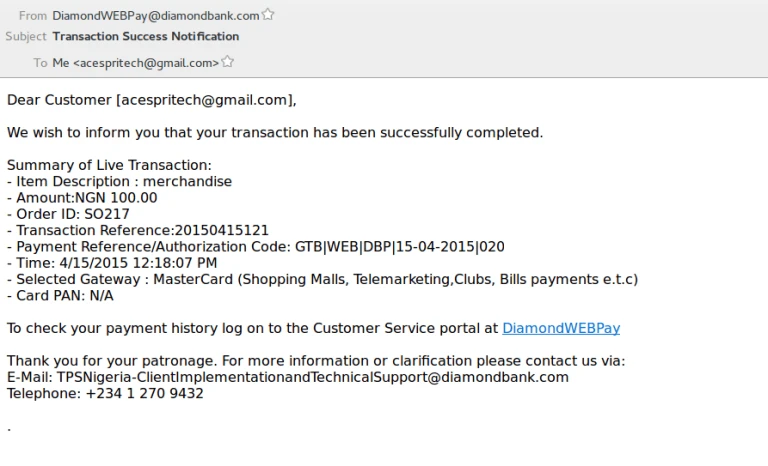
After successful transaction, we will get email with all details.

Payment feedback message

Share this:

  • Click to share on Facebook (Opens in new window)
  • Click to share on LinkedIn (Opens in new window)
  • Click to share on Twitter (Opens in new window)
  • Click to share on Reddit (Opens in new window)
  • Click to share on Tumblr (Opens in new window)
  • Click to share on Pocket (Opens in new window)
  • Click to share on Pinterest (Opens in new window)
  • More
  • Click to print (Opens in new window)
  • Click to email this to a friend (Opens in new window)

Like this:

Like Loading...
Leave a comment

Authorize.net (eCheque) integration with OpenERP

February 28, 2014February 28, 2014 Acespritech Solutions Pvt. Ltd. OpenERP 7.0, Sale Account, authorize.net, eCheque, OpenERP, Payment

As we have already posted one blog for Authorize.net feature integrated with OpenERP. https://acespritechblog.wordpress.com/2013/11/26/openerp-integration-with-authorize-net/.

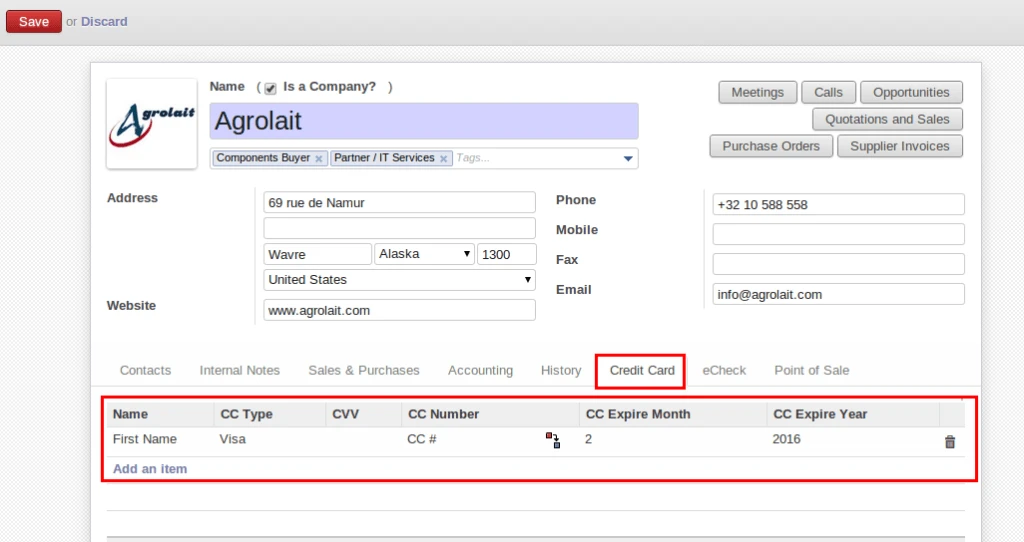
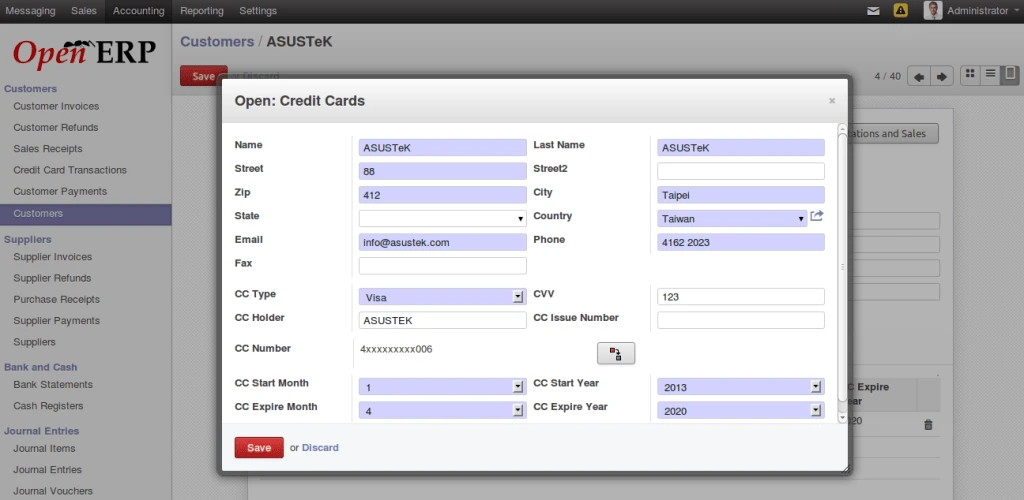
After this development we have implemented eCheck feature for authorize.net integration with many other imporvemets. In newer version, it will be possible to add more than one credit card numbers for customer. And it is also possible to insert new credit card information during payment process.

Credit Card
Credit Card

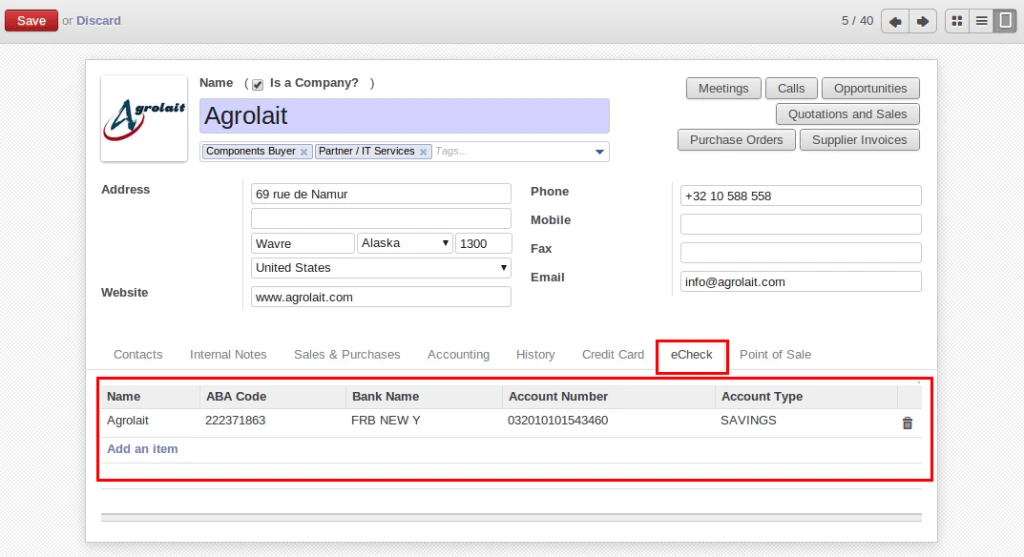
Same as credit card, user allows to enter more than one bank information of their customers and can create during payment process.

eCheque Configuration

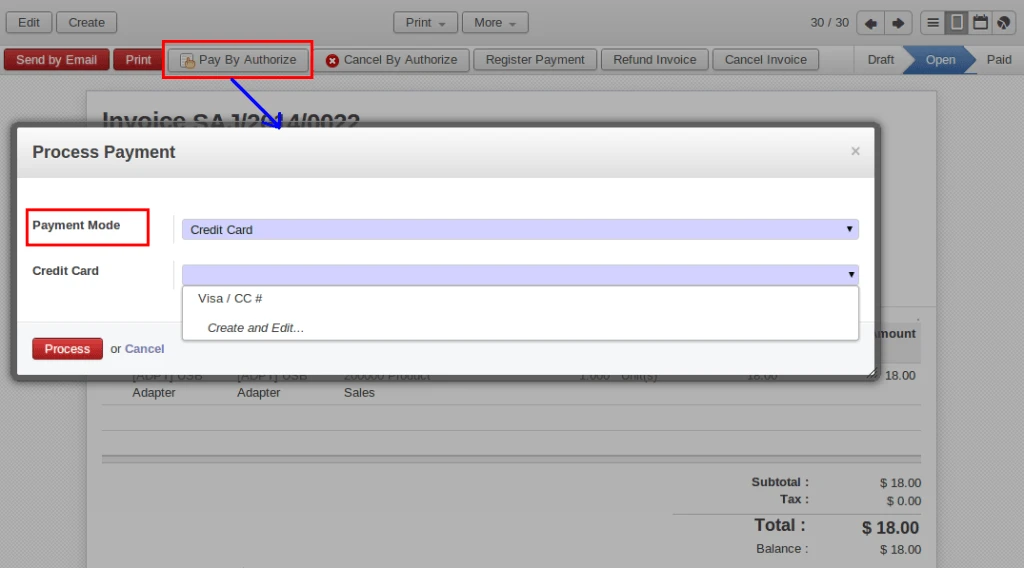
Here we have made major improvements compare to older version. User can select better option for payment request from popup window like ‘Credit Card’ or ‘Bank’ and related options will also be appear.

Credit Card Options
Credit Card Options

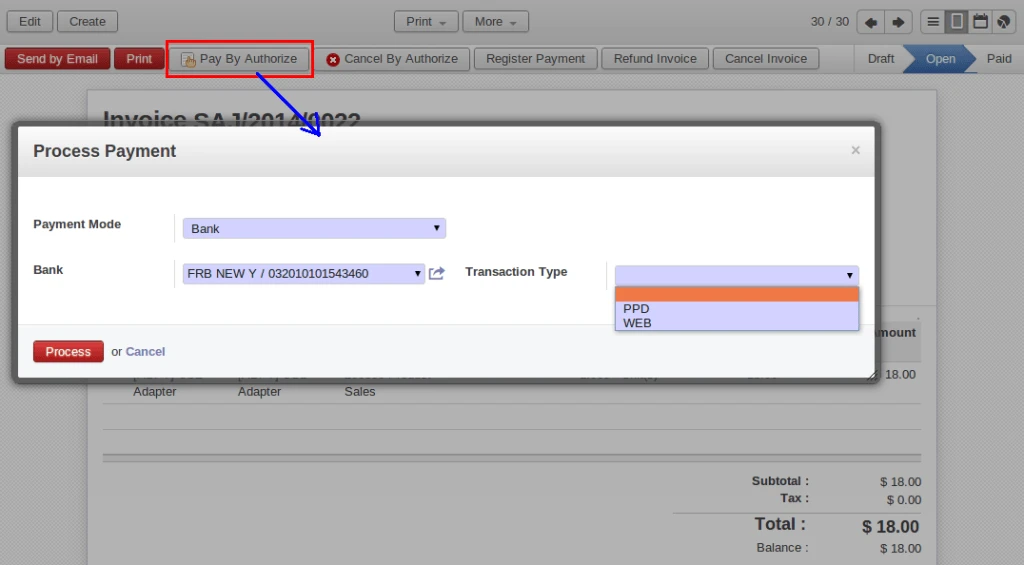
There are other methods also available with eCheck but Authorize.net Test account allow to make testing with below two methods only.

Bank Options
Bank Options

After make payment request with eCheck, authorize.net server gives some response.

eCheque Response
eCheque Response

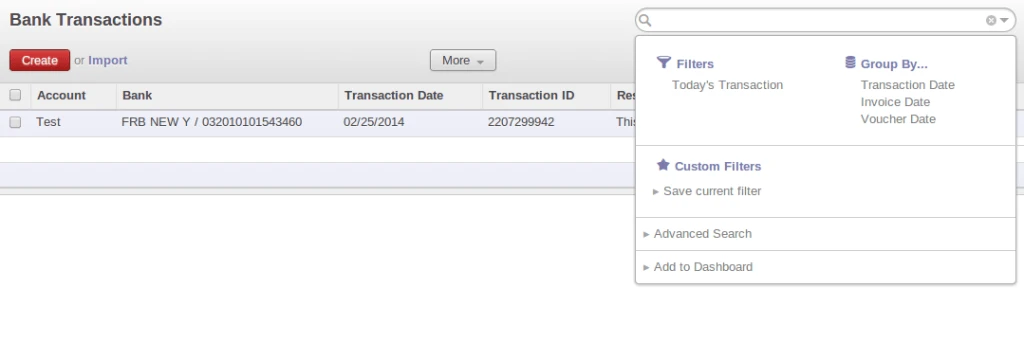
We are keeping histrory of each and every transaction with response that generates with Authorize.net.

Bank Transaction
Bank Transaction

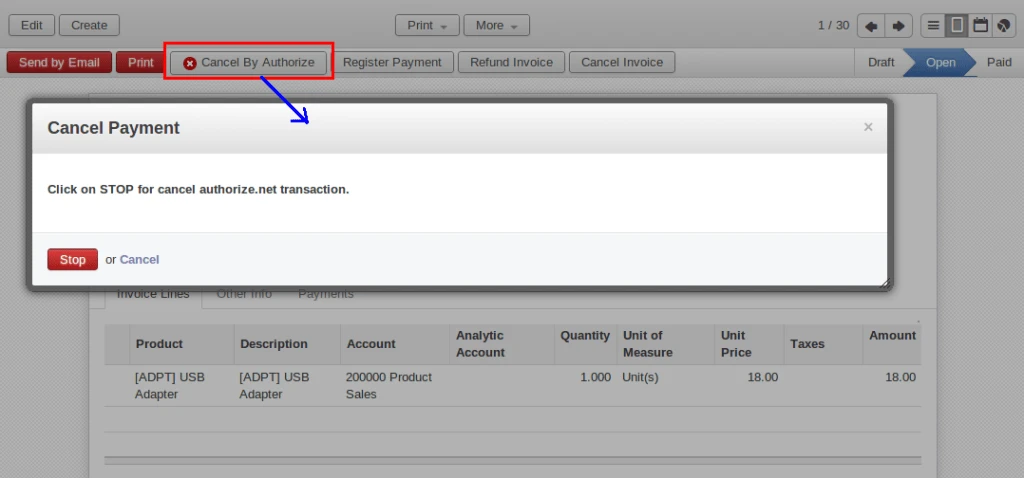
It is very easy to STOP payment which is already sent to authorize.net for further processing.

Cancel Authorize
Cancel Authorize

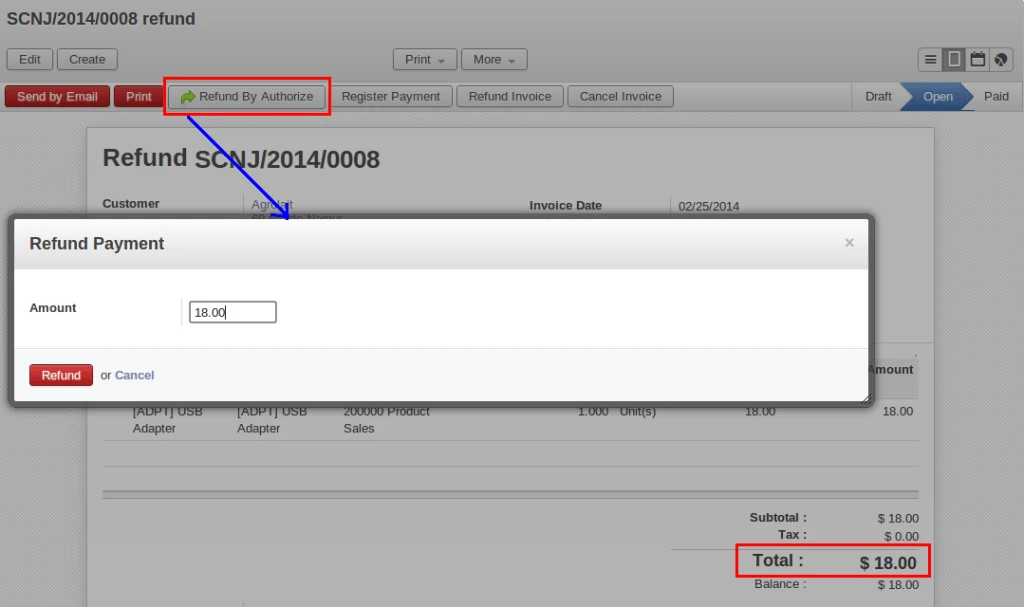
And once transaction will settle with authorize.net, you can refund it with any amount.(less than Invoice amount).

Refund Authorize
Refund Authorize

Share this:

  • Click to share on Facebook (Opens in new window)
  • Click to share on LinkedIn (Opens in new window)
  • Click to share on Twitter (Opens in new window)
  • Click to share on Reddit (Opens in new window)
  • Click to share on Tumblr (Opens in new window)
  • Click to share on Pocket (Opens in new window)
  • Click to share on Pinterest (Opens in new window)
  • More
  • Click to print (Opens in new window)
  • Click to email this to a friend (Opens in new window)

Like this:

Like Loading...
1 Comment

SagePay integration with OpenERP

January 30, 2014June 15, 2018 Acespritech Solutions Pvt. Ltd. Accounting, Configuration, OpenERP 7.0, Sale Account, CreditCard, http://www.sagepay.co.uk/, integration, Invoice, OpenERP, Payment, SagePay, Transaction, voucher

We have implemented solution for allowing payment process via SagePay from OpenERP. We will see how this module is developed.

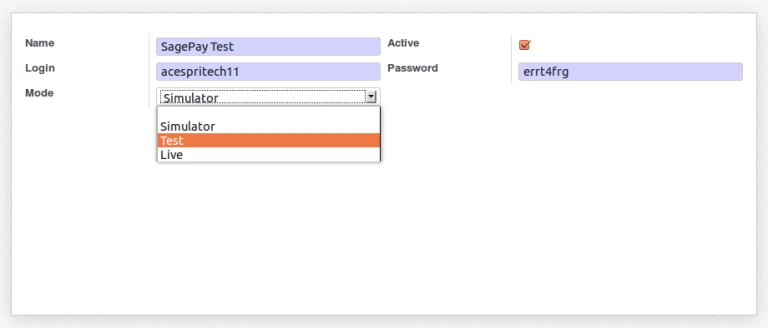
We will start from configuration of SagePay account information. It is very important to select appropriate “MODE” of SagePay account.

SagePay Configuration

It is possible that customer may have more than one credit cards. We can configure credit card related information into Customer form itself. We are storing credit card number into database with encrypted format.

Credit Card Configuration

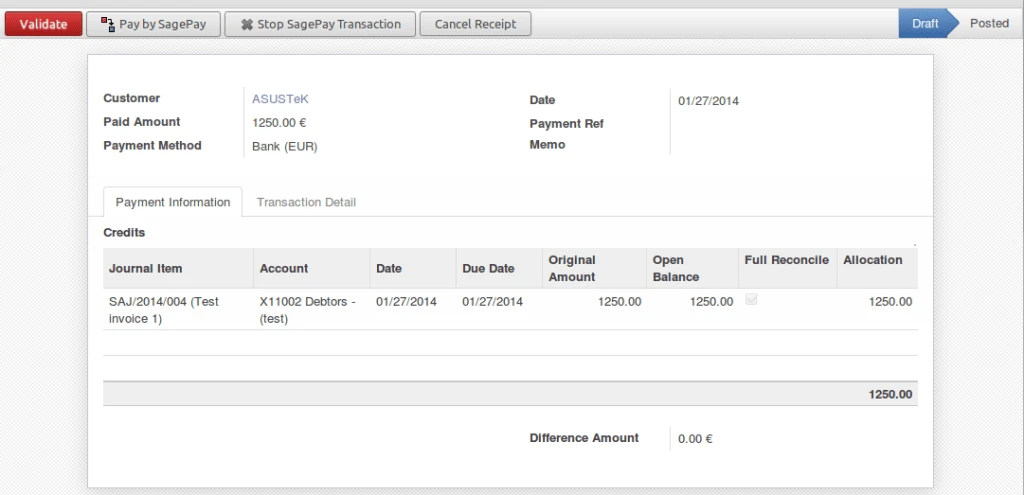
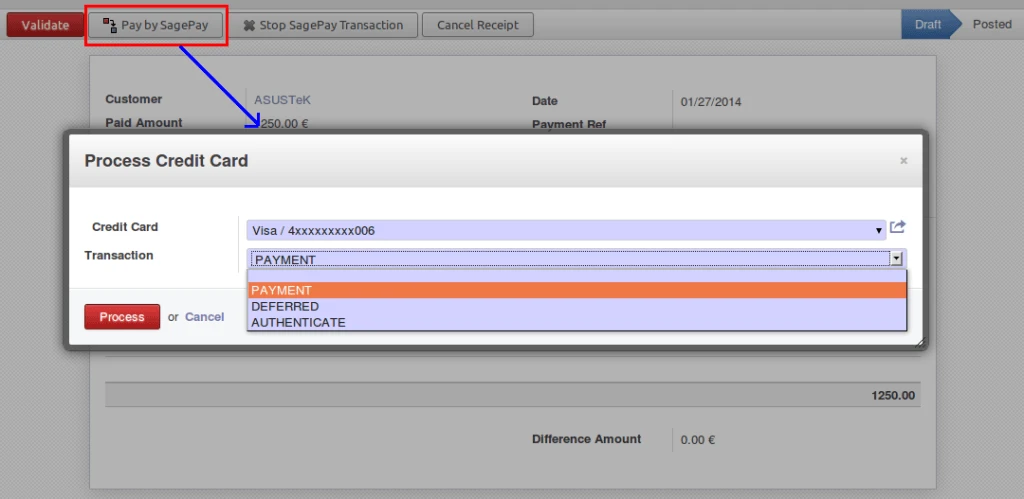
To process with sagepay, we have added option into OpenERP voucher form. We can easily make payment or stop it from here.

OpenERP Voucher
OpenERP Voucher

We are allowing to make three types of transactions with SagePay from OpenERP.

– Payment
– Deferred
– Authenticate

Further process will work according to selected transaction.

Payment Options
Payment Options

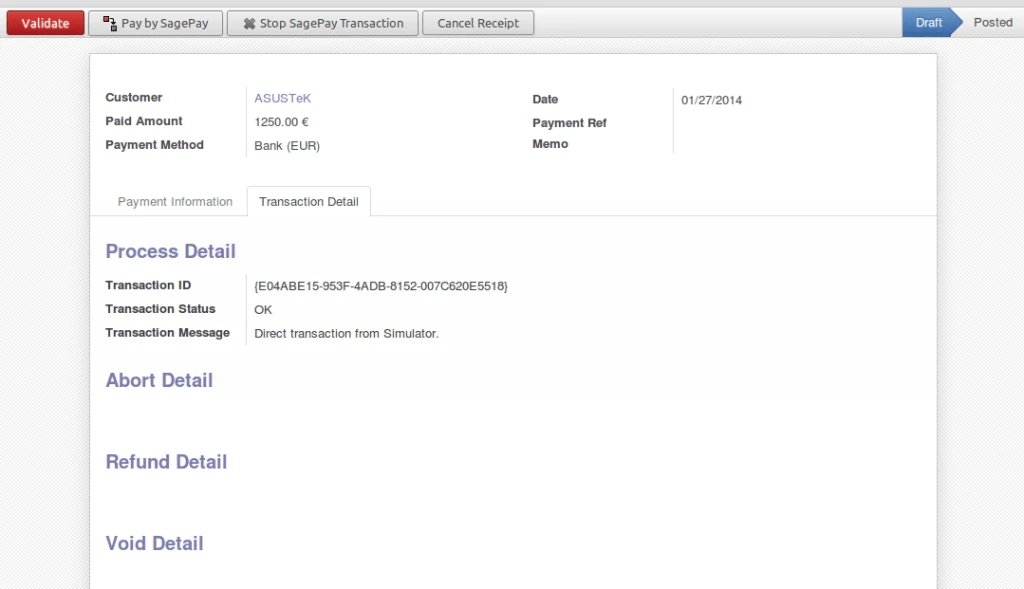
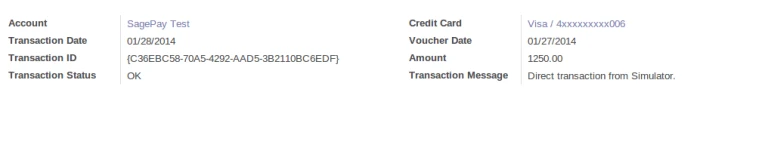
After making process, SagePay server will give response about transaction and we are storing that into database for future actions.

We are storing mainly following data:

– Transaction ID
– Transaction Status
– Transaction Message

Process Response
Process Response

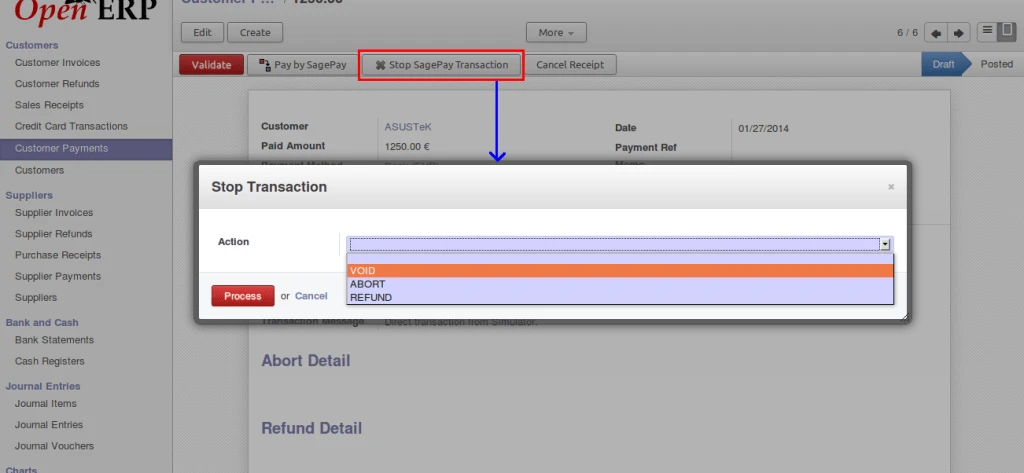
Now It is very easy to stop your transaction for any reason.

Stop Option
Stop Option

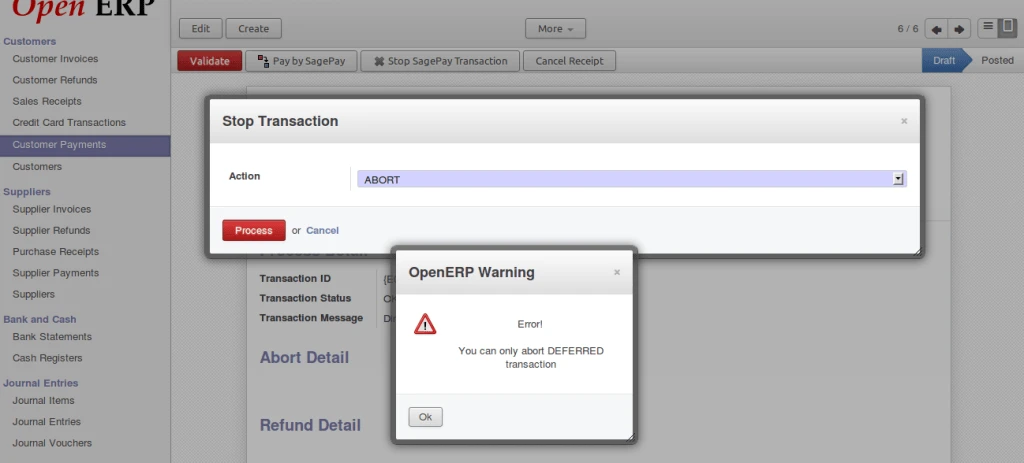
We are restricting user to make any invalid actions on transactions.

Error on abort payment

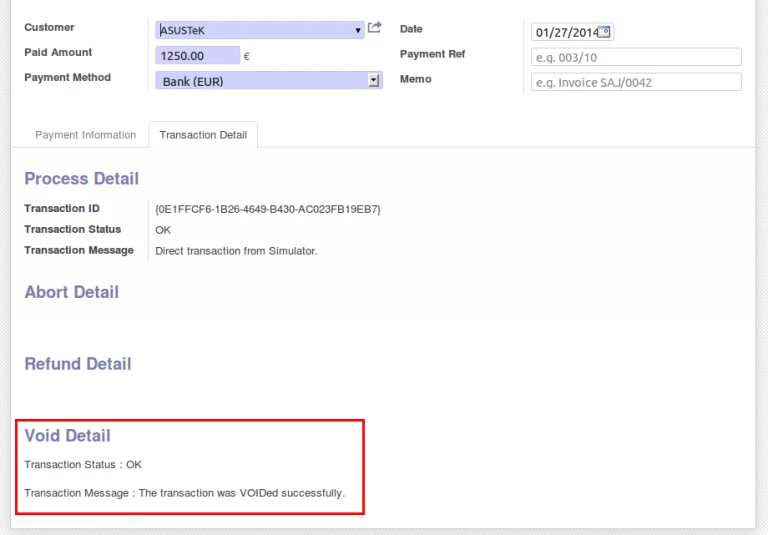
It is displaying VOID response from SagePay server. It is possible to perform on transactions which are registered with SagePay.

Void Message
Void Message

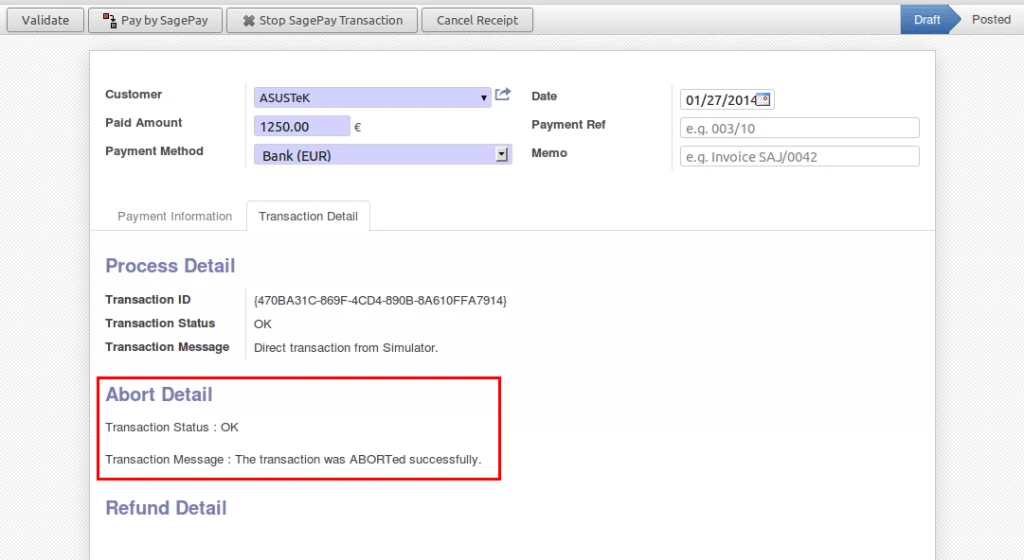
As mentioned above, it is possible to ABORT only DEFERRED transactions.

Deffered Abort
Deffered Abort

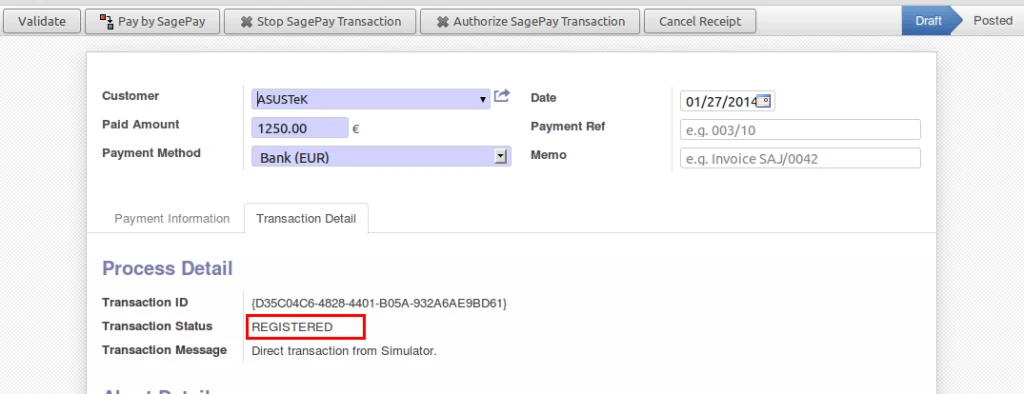
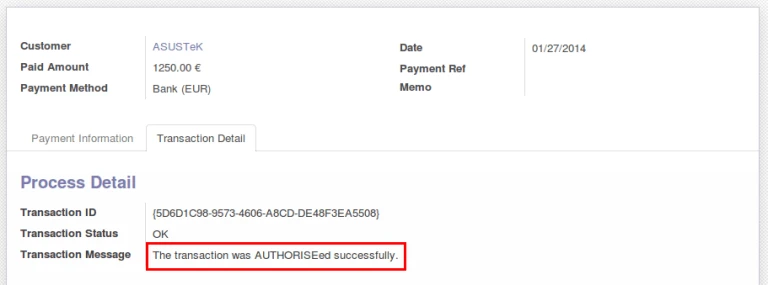
We are getting status “REGISTERED” for AUTHENTICATE type of transaction. And that transaction has to AUTHORIZE with SagePay.

Authenticate Transaction
Authorize Transaction

We are keeping record of each and every transaction with detail information in OpenERP.

Card History
Card History

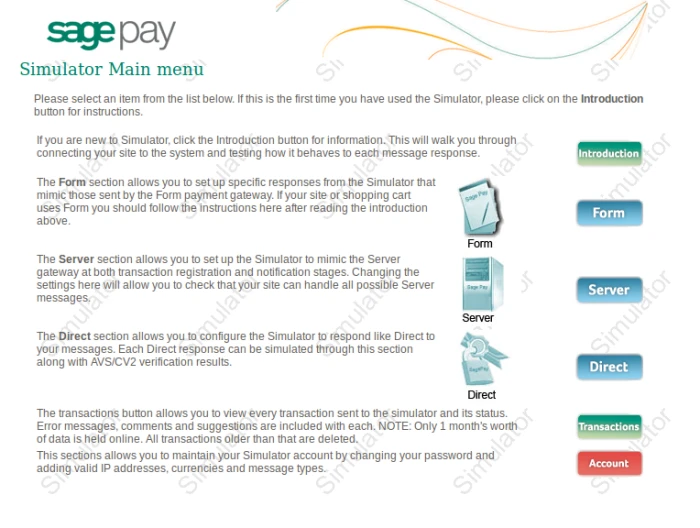
This is how SagePay Simulator page looking.

SagePay Home PAge
SagePay Home PAge

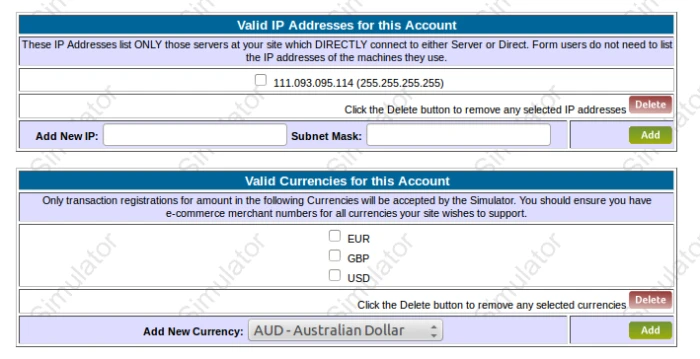
Here we have to Add IP address of our server or machine from where we are accessing our SagePay account through API. And also add appropriate Currency code for allowing transactions.

SagePay Website Amin

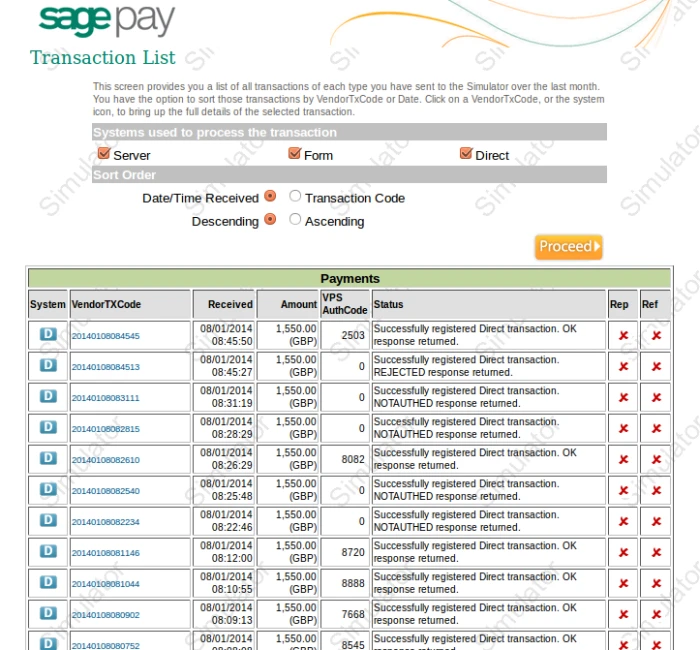
It is displaying list of transactions that is related with our account.

SagePay Website Transaction

Share this:

  • Click to share on Facebook (Opens in new window)
  • Click to share on LinkedIn (Opens in new window)
  • Click to share on Twitter (Opens in new window)
  • Click to share on Reddit (Opens in new window)
  • Click to share on Tumblr (Opens in new window)
  • Click to share on Pocket (Opens in new window)
  • Click to share on Pinterest (Opens in new window)
  • More
  • Click to print (Opens in new window)
  • Click to email this to a friend (Opens in new window)

Like this:

Like Loading...
Leave a comment

OpenERP integration with Authorize.net

November 26, 2013November 29, 2013 Acespritech Solutions Pvt. Ltd. Accounting, Configuration, OpenERP 7.0, Point of Sale (POS), Product, Sale Account, Accounting, AES Algorithm, authorize.net, customer invoice, customer refund invoice, integration, Invoice, OpenERP, refund invoice

We have implemented solution for allowing payment process via Authorize.Net from OpenERP. We are still improving this module by adding new functionalities. Currently we have implemented feature with Customer Invoice and Customer Invoice Refund.

We have created account on Authorize.Net (https://sandbox.authorize.net/) and turn OFF TEST mode. We can get more information from here : http://developer.authorize.net/

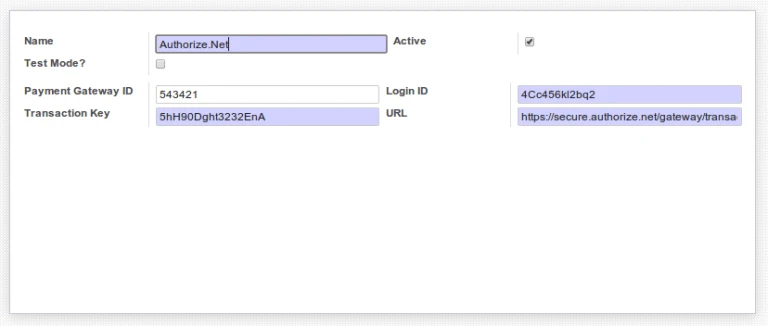
In OpenERP, first we have to configure credentials for conneting with Authorize.Net. we are working on encryption/decryption of credit card information.

Authorize.net Configuration

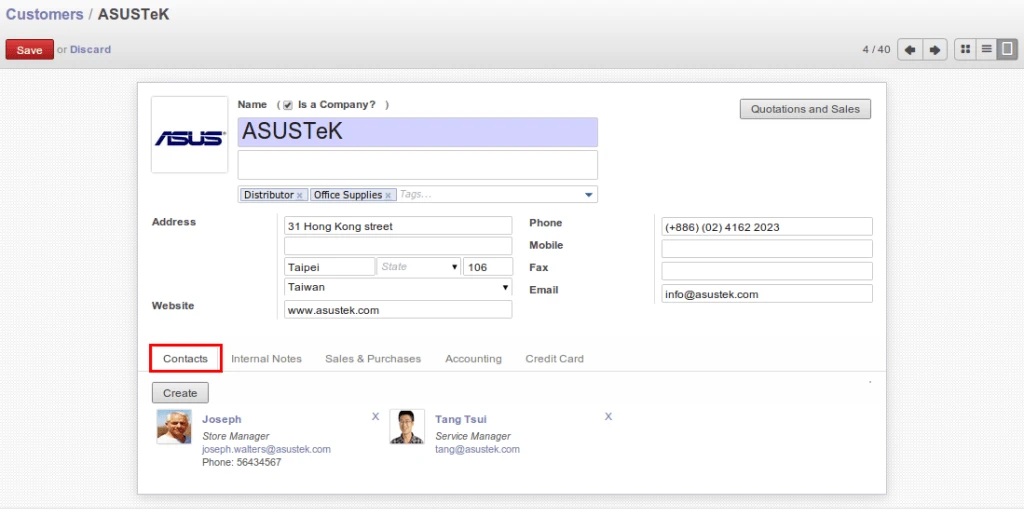
For payment process, it requires customer address information. We are directly taking “Invoice” type address information from customer.

OpenERP Customer Address

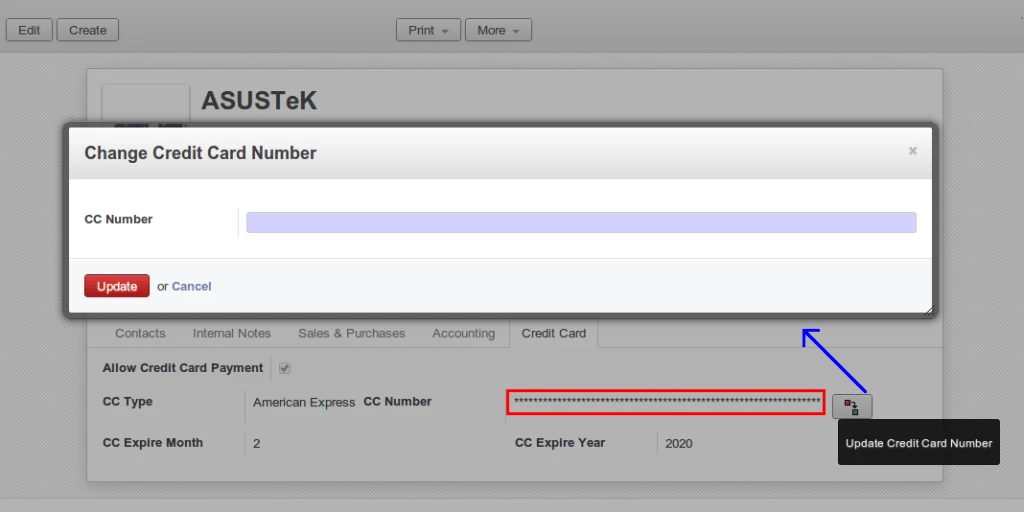
Also added new fields related to Credit Card information. Currently we are processing with only one credit card. In future we are going to add feature for defining more than one credit card and activating one of them or ask user to select anyone. If “Allow Credit Card Payment” is TRUE then it will allow to do process. This field is useful during automatic payment process by cron job.

In below screen, we can see that credit card number can be change and how it will look like.

Change Credit Card Number

Here we have used AES algorithm to store credit card information for security purpose. We are using this algorithm for encryption/decryption.

Credit Card Encryption

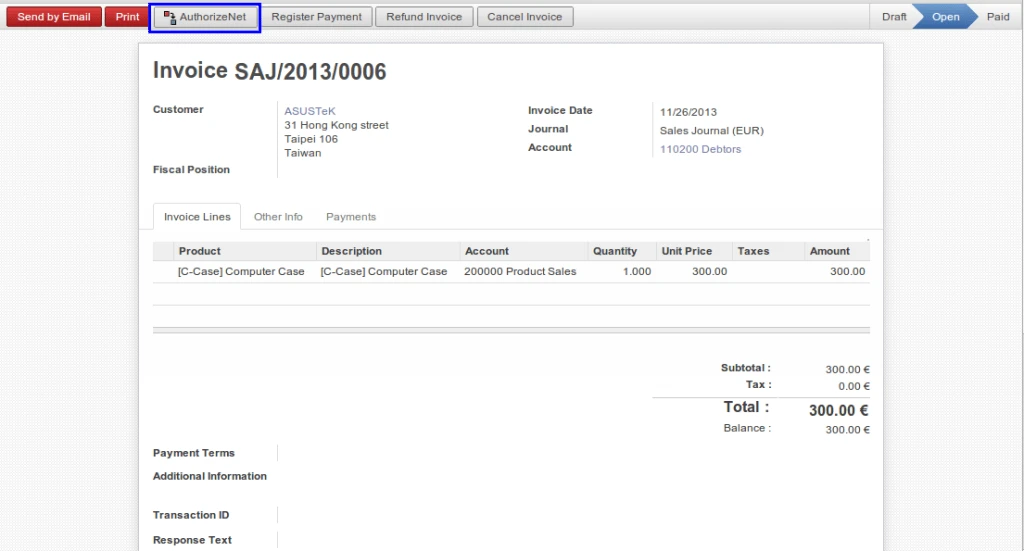
Currently we put option for payment in Customer Invoice and Refund Customer Invoice.

OpenERP Customer Invoice

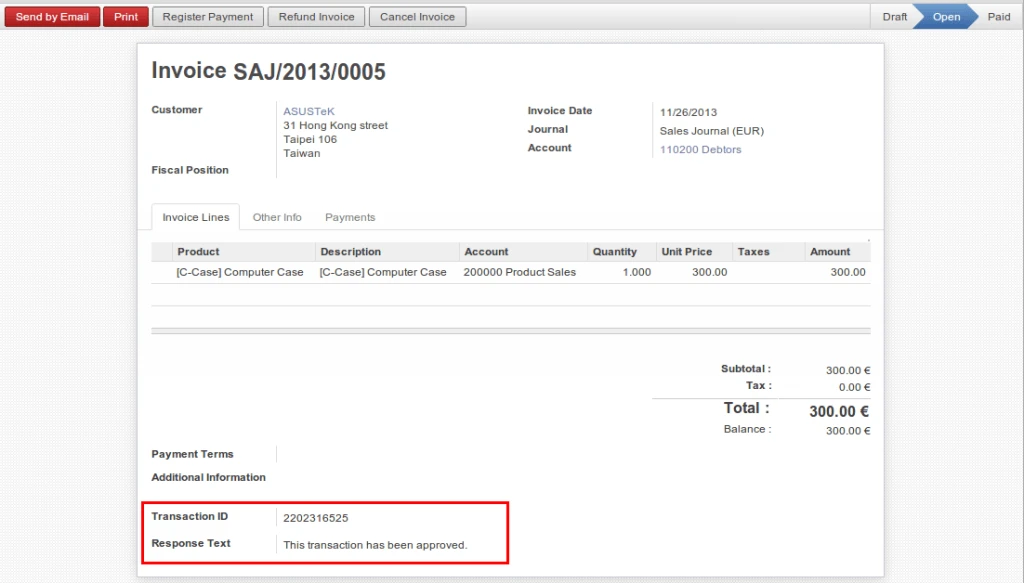
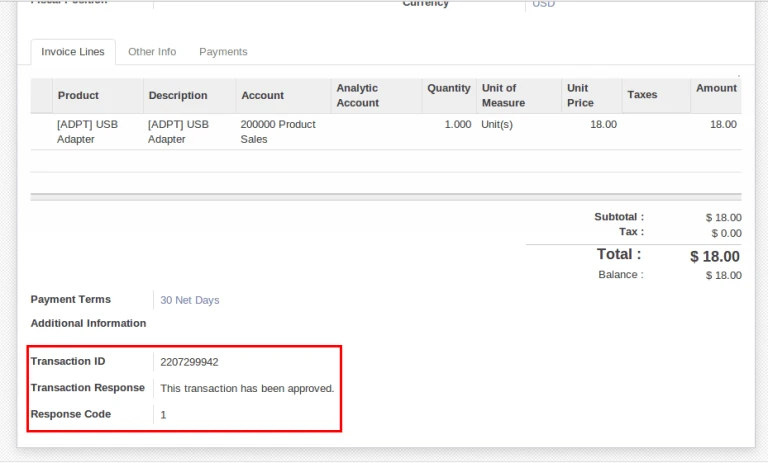
After payment procedure, OpenERP will get response from Authorize.Net with information like “Transaction ID”, “Response Text”.

OpenERP Customer Invoice Proceed

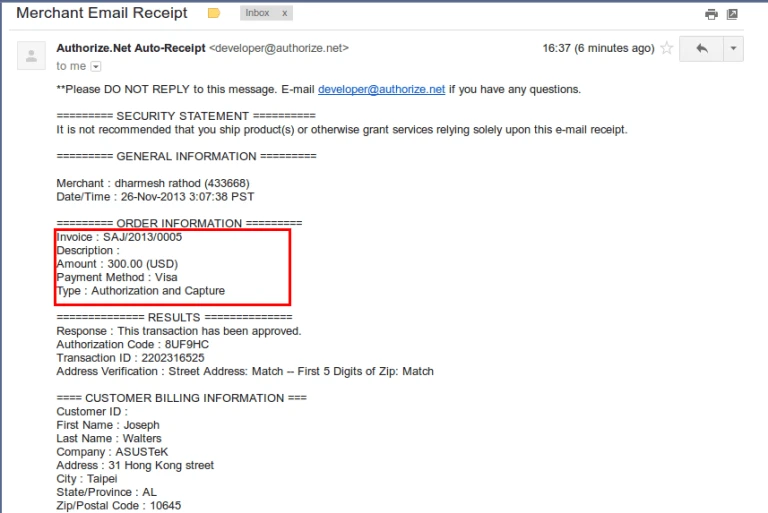
Company will get an email also once payment request is completed.

Authorize Payment Email

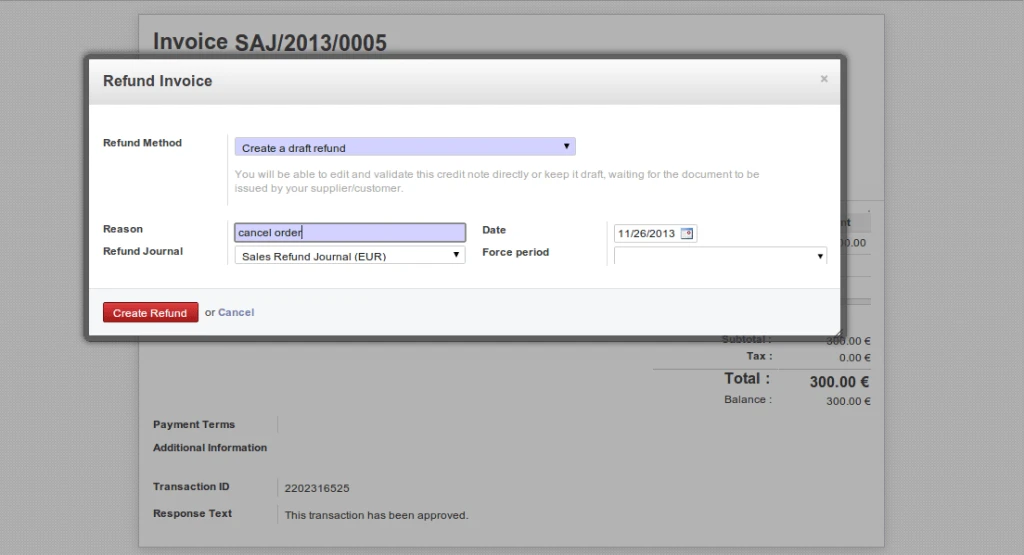
Sometimes, if we want to pay back to customer because of any reason. We have implemented feature that we can easily pay from Refund Invoice. But refund invoice has to be created from existing Customer Invoice only.

Refund Customer Invoice

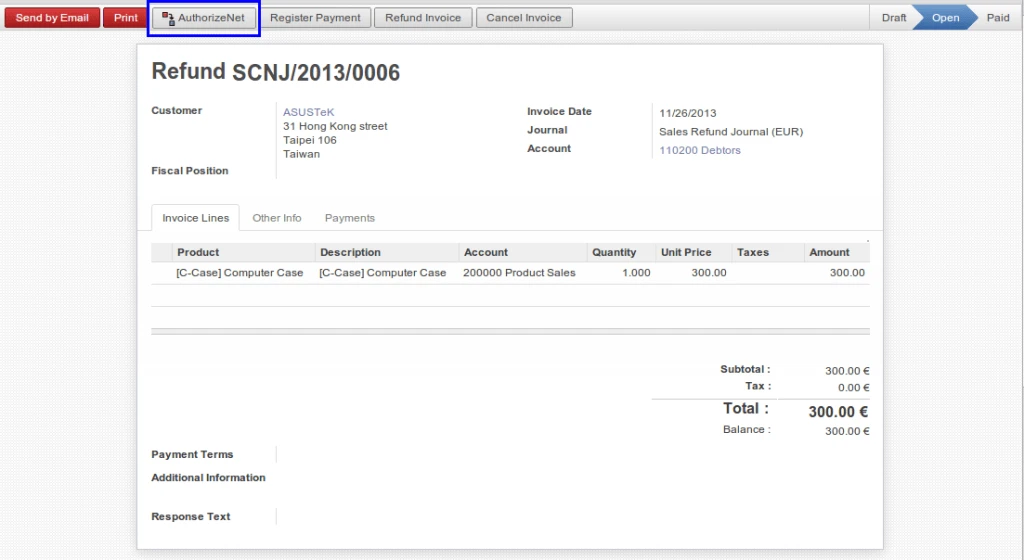
We can have the same process in Refund Customer Invoice also.

Refund Customer Invoice

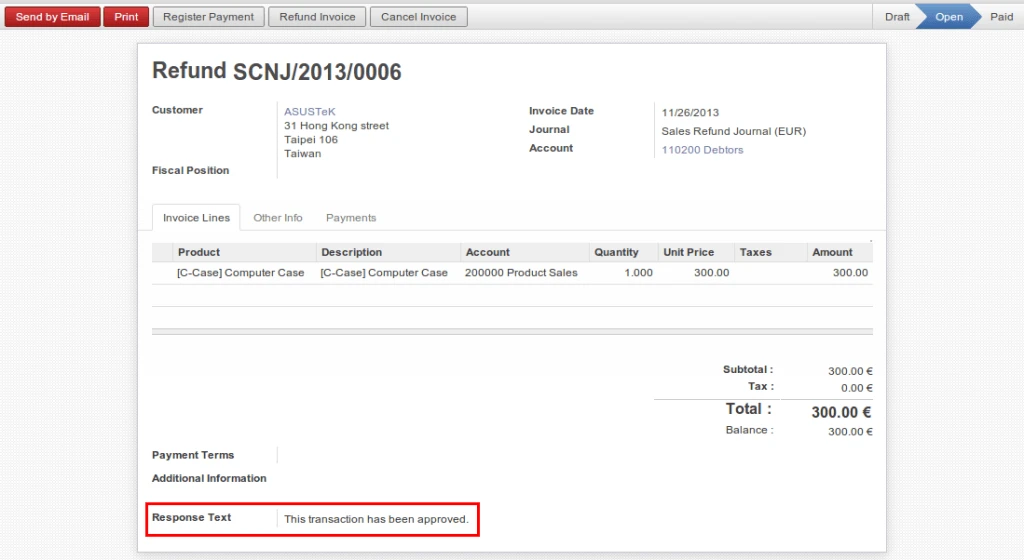
We will get same response during refund procedure if our transaction is completed successfully.

Refund Customer Invoice

We are going to implementing this feature for Voucher and POS.

Share this:

  • Click to share on Facebook (Opens in new window)
  • Click to share on LinkedIn (Opens in new window)
  • Click to share on Twitter (Opens in new window)
  • Click to share on Reddit (Opens in new window)
  • Click to share on Tumblr (Opens in new window)
  • Click to share on Pocket (Opens in new window)
  • Click to share on Pinterest (Opens in new window)
  • More
  • Click to print (Opens in new window)
  • Click to email this to a friend (Opens in new window)

Like this:

Like Loading...
4 Comments

Bank Reconciliation in OpenERP

December 13, 2012March 27, 2013 Acespritech Solutions Pvt. Ltd. Accounting Account, Accounting, Bank, Cash, Journal, OpenERP, Reconciliation, Write-off

A Bank reconciliation is a process that explains the difference between the bank balance shown in the bank statement as supplied by the bank, and the corresponding amount shown in the organization’s own accounting records at a particular time.

Differences may occur just because of some unknown charges by bank or any transaction or anything made by company.

It may be necessary to go through and match every single transaction in both sets of records since the last reconciliation, and see what transactions remain unmatched. The necessary adjustments should then be made in the cash book, or any timing differences recorded to assist with future reconciliations.

For this reason, and to minimize the amount of work involved, it is good practice to carry out such reconciliations at reasonably frequent intervals.

We will check one of the way that will show how Bank Reconciliation works in OpenERP.

First of all, we will start by creating invoices.
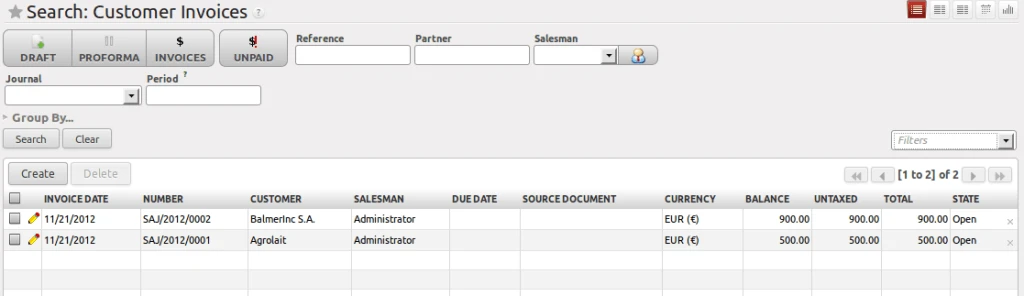
In below screen, we can see that there are two OPEN invoices.

1.open_invoices

Now open Bank Statement from the menu Accounting > Bank & Cash > Bank Statement. We will find the screen as shown here.
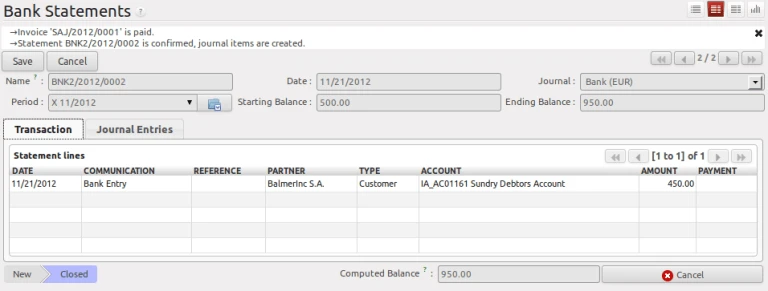
As per following screen in Transaction tab, Statement Lines contains one line having partner is the one of our OPEN invoice partner.

Here two options are there, that we can insert statement lines from csv file “if provided by bank” or we can do manual entry.

Please note that we have created Statement line amount is less amount (which is 450.00) than the Invoice amount (which is 900.00) to better understand the reconciliation process.

There is a field called Ending balance which contain the total amount which we got from bank statement. We can enter in advance if we have that amount.
2.bank_statement_less_than_invoice

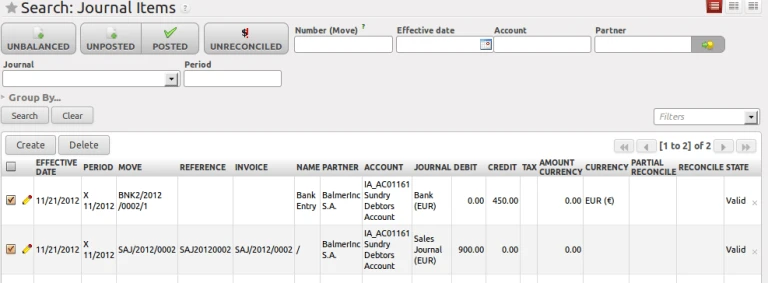
Once we confirm the Bank Statement, we will have Journal Entries of the entered amount.
Now to process the reconciliation, we will select Manual Reconciliation from the menu Accounting > Periodical Processing > Reconciliation.
3.journal_items_manual_reconciliation

List of statements which should have reconciliation have to be done will be displayed here. Just select all related entries and execute a wizard called “Reconcile Entries” from the right side panel in the “Action”.

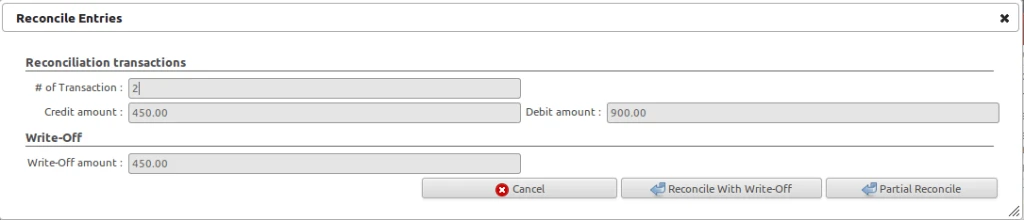
Following screen will be displayed with the amount to be credit, debit and write-off.

4.manual_reconciliation

We have two options here are: Reconcile with Write-Off and Partial Reconcile.

If we go for partial reconcile option then we have to wait for the remaining bank statements to be reconciled later.

Another option is Reconcile with Write-Off as shown in below screen.

5.reconcile_writeoff

We have to select Proper Journal and Account here.

Just press Reconcile button and we will get our entries reconciled and will be removed from Manual Reconciliation list.

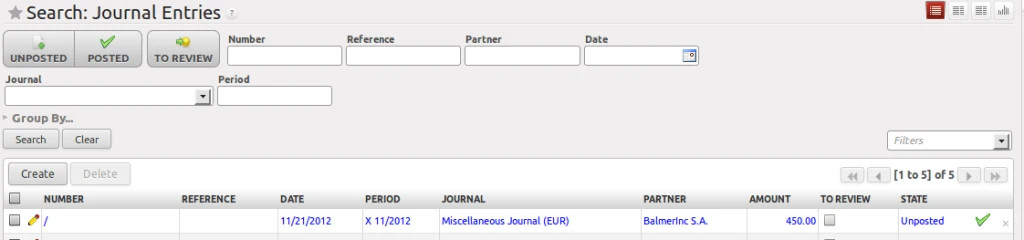
Now we can check the unposted entry in our Journal Entries and can process accordingly.

6.journal_entry

Here we have done with the Bank Reconciliation.


Share this:

  • Click to share on Facebook (Opens in new window)
  • Click to share on LinkedIn (Opens in new window)
  • Click to share on Twitter (Opens in new window)
  • Click to share on Reddit (Opens in new window)
  • Click to share on Tumblr (Opens in new window)
  • Click to share on Pocket (Opens in new window)
  • Click to share on Pinterest (Opens in new window)
  • More
  • Click to print (Opens in new window)
  • Click to email this to a friend (Opens in new window)

Like this:

Like Loading...
2 Comments

Any Query ?

  • Contact US

Play Store (Android App)

PLAY STORE

Search

Categories

  • Accounting
  • Android
  • CentOS
  • Configuration
  • Django
  • Magento
  • News
  • Odoo
  • Open Source
  • OpenERP 7.0
  • OpenERP Installation
  • OpenERP Videos (YouTube)
  • PHP / Python
  • Point of Sale (POS)
  • PostgreSQL
  • Product
  • Quotation
  • Sale
  • SMTP
  • Stock
  • Ubuntu
  • Uncategorized
  • Views
  • Website
  • Windows
  • Woocommerce
  • How to enable customer email verification on registration in magento 2
  • WordPress Contact Form
  • OpenERP 7 with SSL on Ubuntu 12.04
  • Django Report App
  • How to backup and restore OpenERP database ?
  • Django Covid19 - Dashboard App
  • How to configure Pricelist in OpenERP ?
  • How to install new module in OpenERP 7.0 ?
  • Session wise Customer Selection in OpenERP 7 Point of Sale (POS)
  • OpenERP Point of Sale, Delivery Order: Assign unique serial # for product

Recent Posts

  • Follow Our Blog
  • Odoo POS Scale
  • Django Covid19 – Dashboard App
  • Django Report App
  • Django Registration And Login
Follow Acespritech Solutions Pvt Ltd on WordPress.com

Enter your email address to follow this blog and receive notifications of new posts by email.

Join 424 other followers

RSS Feeds

RSS Feed RSS - Posts

RSS Feed RSS - Comments

Month wise posts

Blog at WordPress.com.
Cancel
loading Cancel
Post was not sent - check your email addresses!
Email check failed, please try again
Sorry, your blog cannot share posts by email.
Privacy & Cookies: This site uses cookies. By continuing to use this website, you agree to their use.
To find out more, including how to control cookies, see here: Cookie Policy
%d bloggers like this: