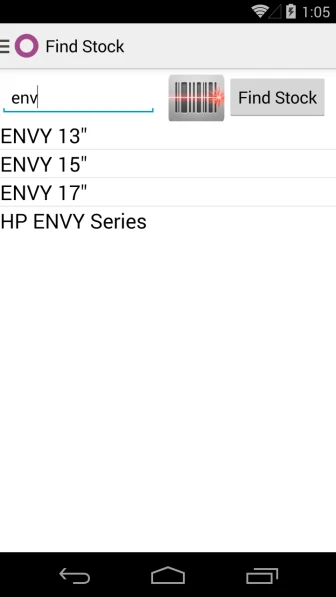
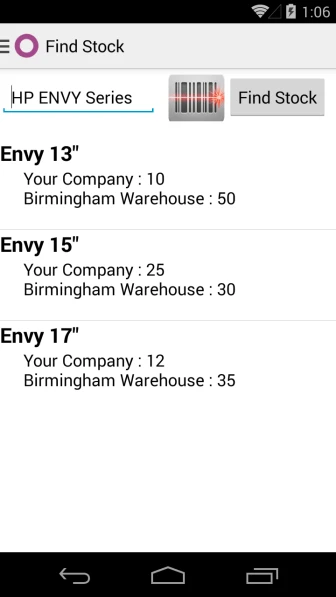
We have implemented application which will be useful to search product by scanning barcode and it will display product stock according to product template and according to different warehouses configured in your database.
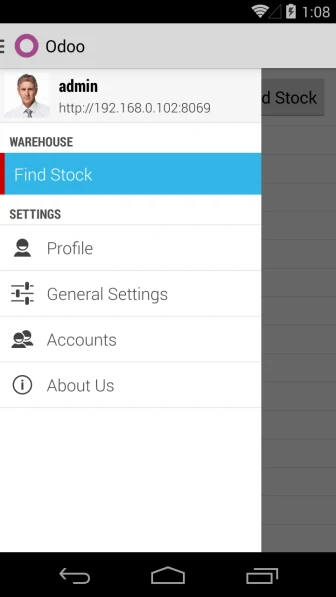
Menu
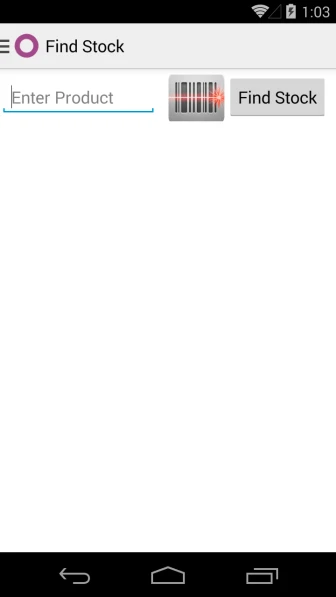
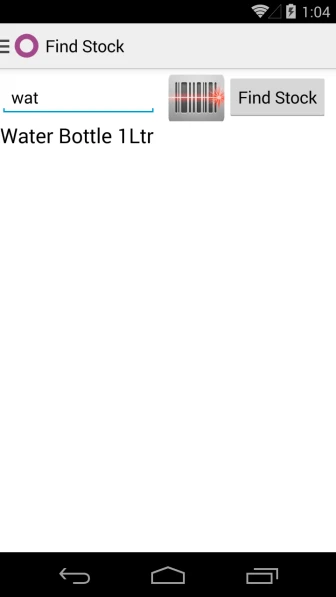
You can search product by writing name or reference of product or scan any barcode and that product or template will be selected automatically.
Main PageSearch Product
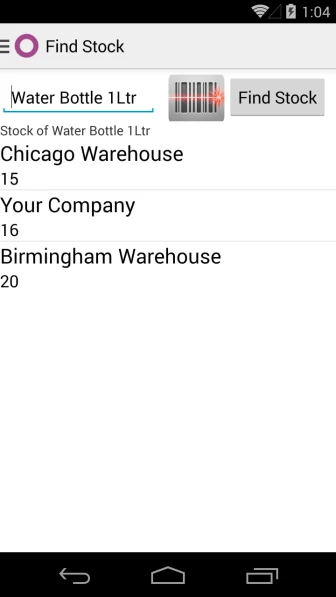
After selecting product, it will display stock information according to warehouses configured into database.
Display Product Search
In case of Product Template, it will display all products related with template and display stock.
OpenERP Point of Sale has return product facility available from order Form view. But this feature is not available in POS interface. We have implemented very important feature – “Return products from POS Interface” so user don’t require to leave POS Interface to return the products.
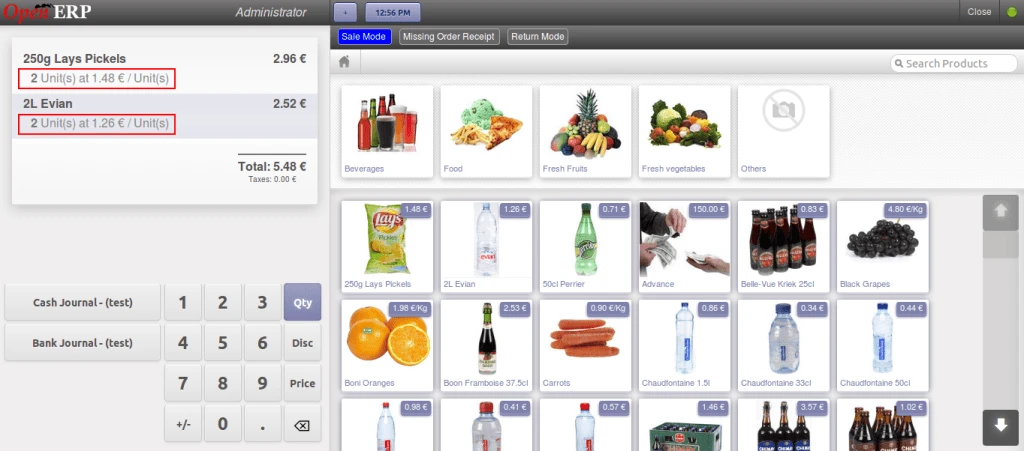
Below is the screen for normal SALE mode. We have created 3 different buttons to identify the order mode.
1. Sale Mode, is a normal mode
2. Missing Receipt Mode, in which if customer doesn’t have receipt but still salesman can return order so in this case only negative order will be generated.
3. Return Mode, to return the products by comparing with original order.
OpenERP POS Normal Sale Mode
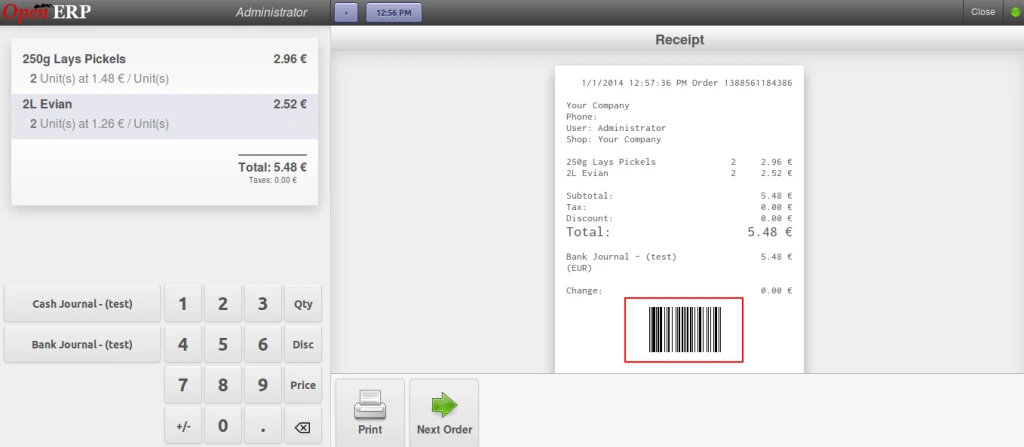
Once the order is placed, we can see barcode on receipt for that order number generated.
POS Normal Sale Receipt
And here is the order which is generated from POS interface.
OpenERP POs Order Created
Now lets try to return the product from POS interface.
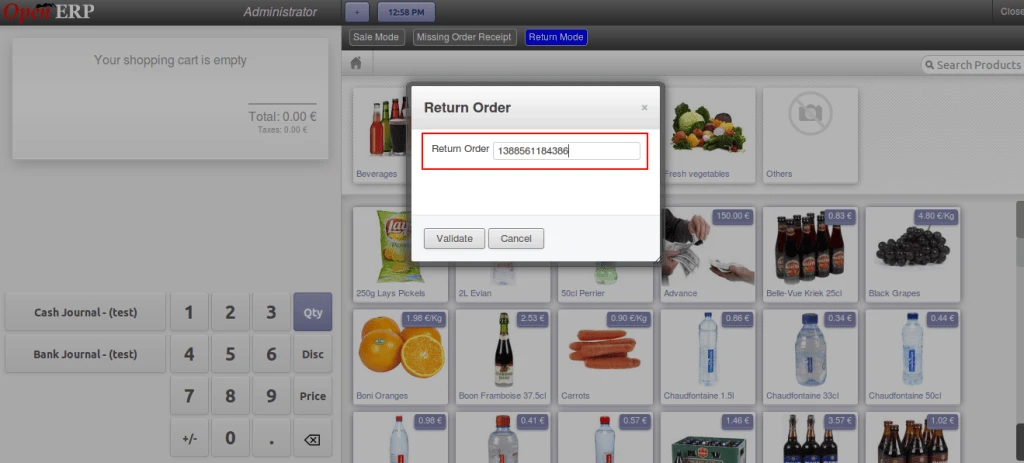
When we click on “Return Order” button, at that time this popup will open to enter order reference number.
Here in the image where we can enter order number using barcode or manually.
OpenERP POS Return Order Number
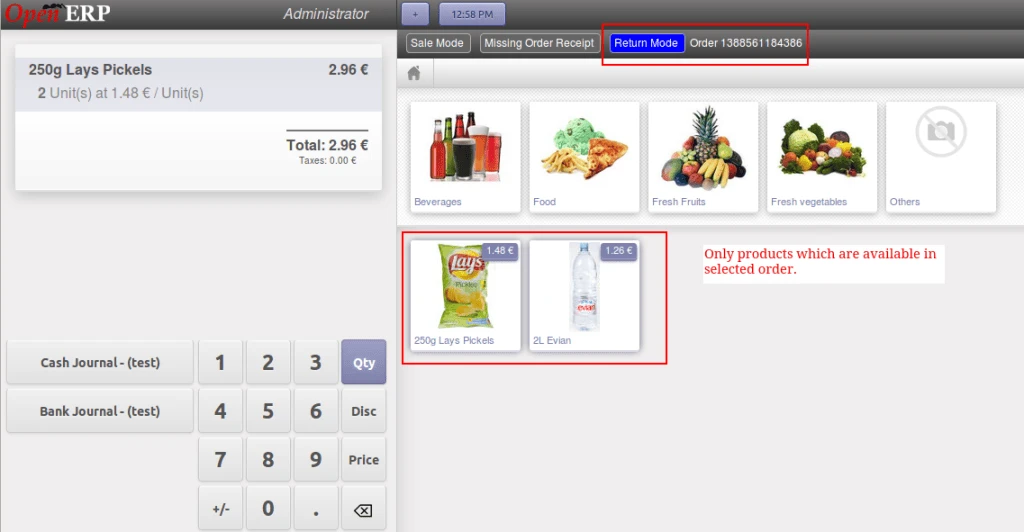
Once the exact order is found, then list of products will be loaded which are available in the selected order.
OpenERP POS Return Order Screen
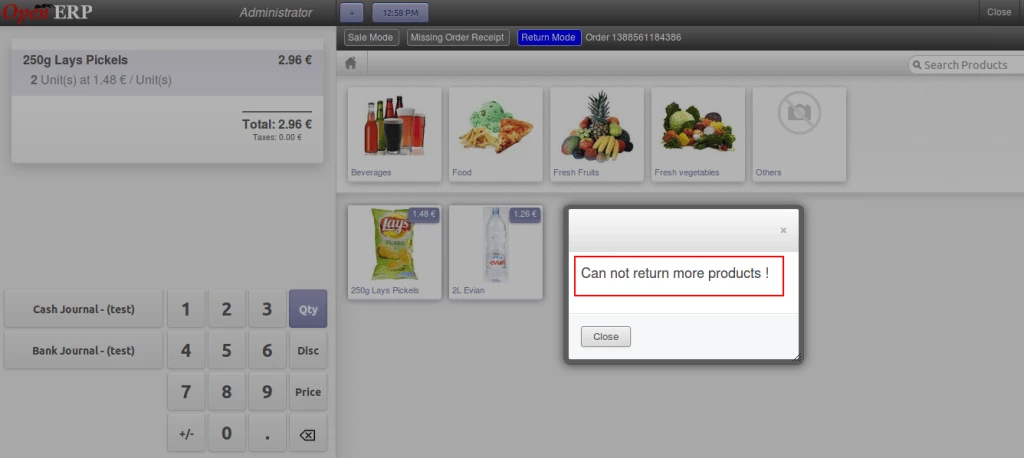
If we try to select more product quantity than selected order quantity then it will raise an warning message.
OpenERP POS Return Warning
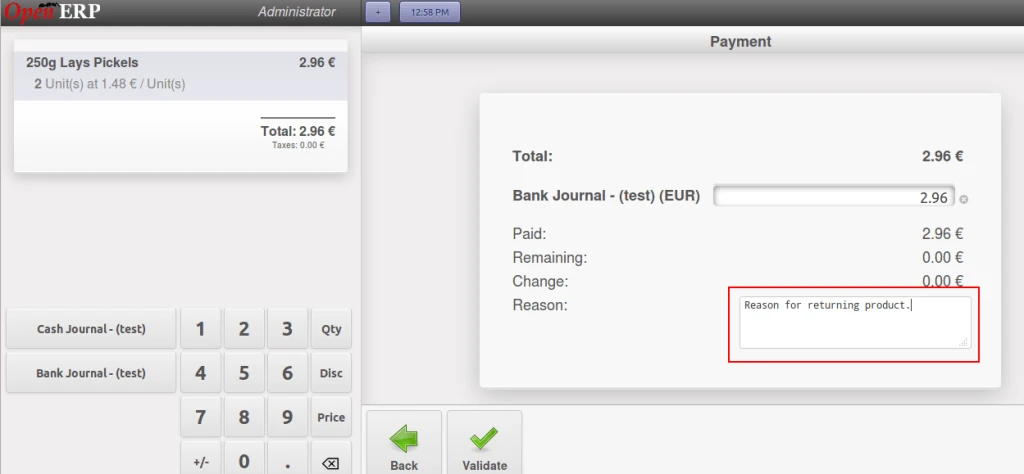
We can also mention any reason for returning products what customer specified.
OpenERP POS Return Payment Screen
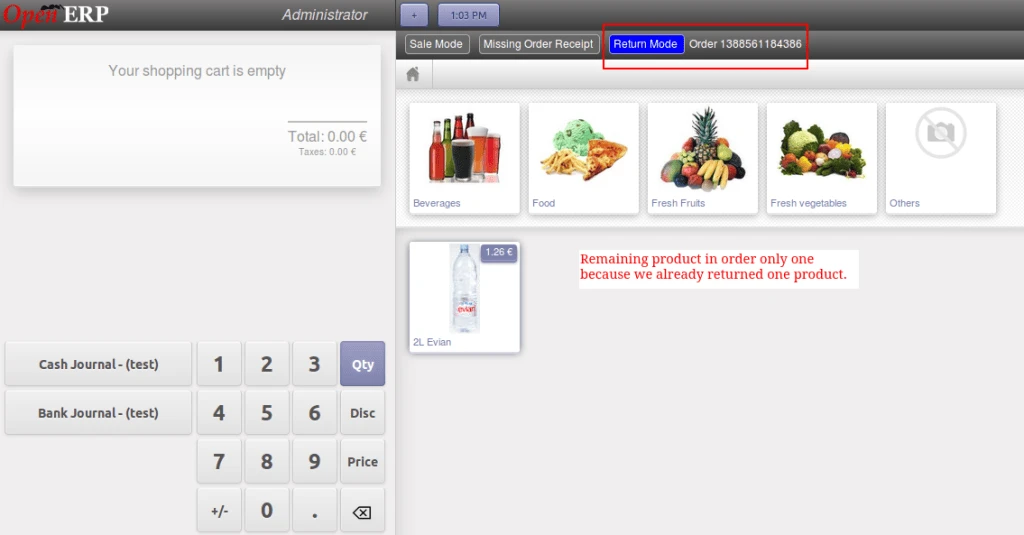
Once we complete partial return order then we can return the same order again for remaining product quantities displayed in following screen.
OpenERP POS Order Remaining Products
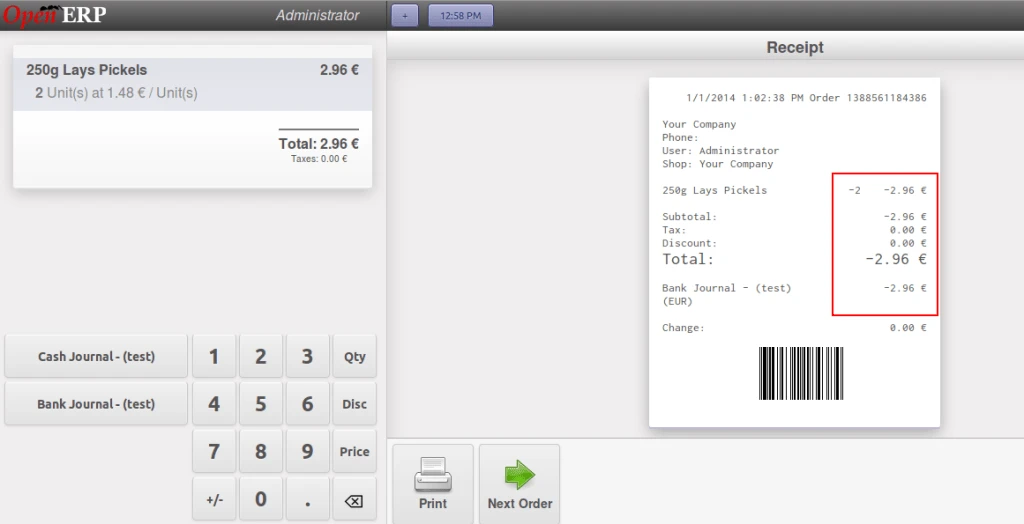
Here is the order return receipt in negative if we are returning products.
OpenERP POS Order Receipt
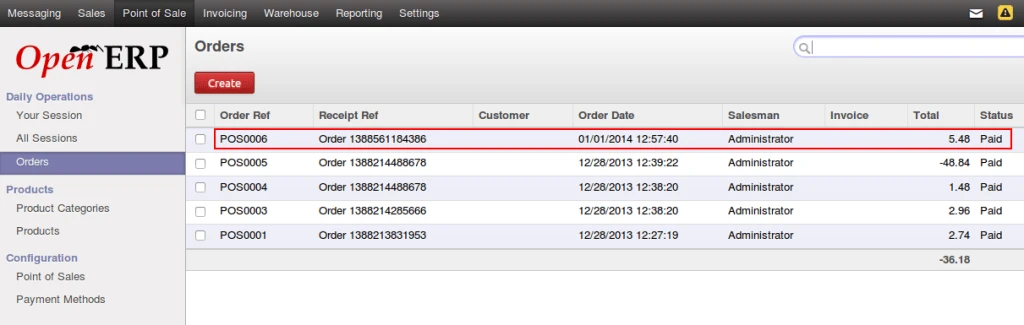
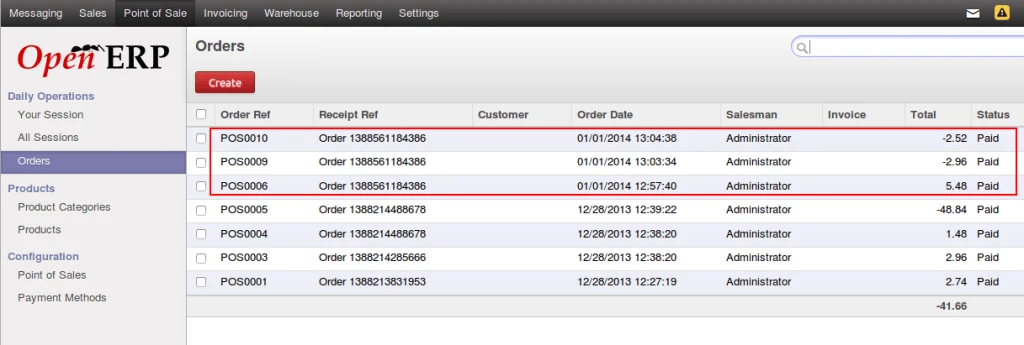
In order list we can see that main order and return orders have same order numbers with positive and negative values.
OpenERP POS Order List
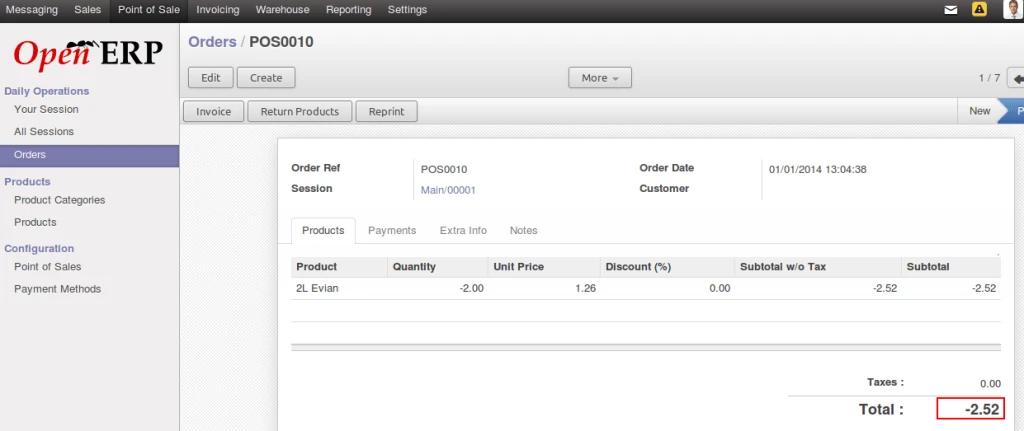
POS Order form with corresponding values.
OpenERP POS Return Order Form
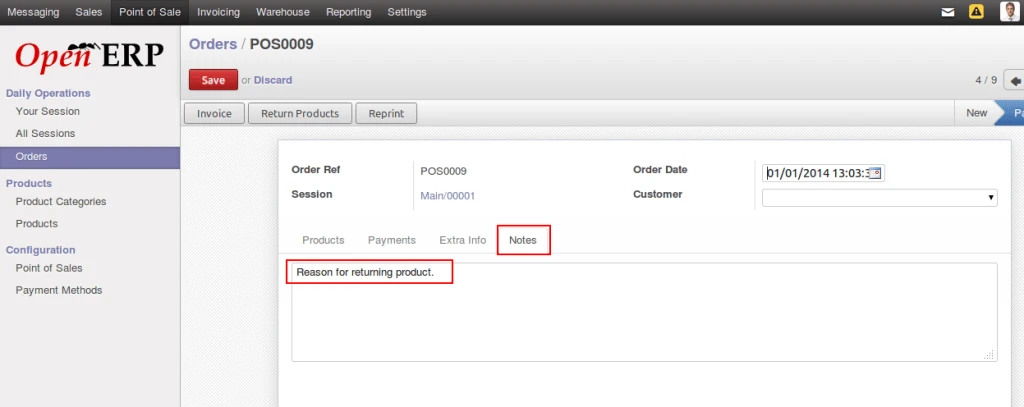
In “note” field, we can find reason which is entered during return products.
Here we have done enhancement in our previous development that we made for product quantities in different warehouse.
Here is the link for Original Blog
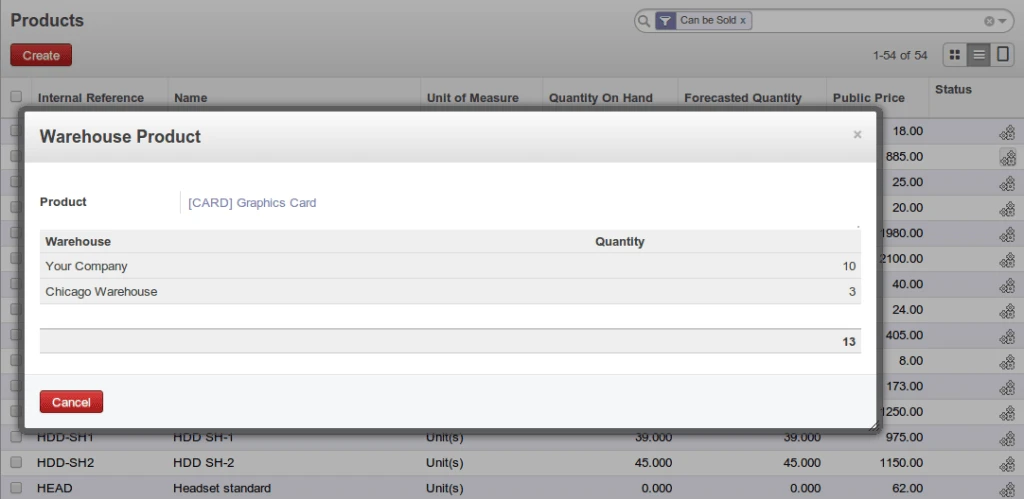
Now, user can see only those warehouse which has quantity for particular product. There are 3 warehouses configured in database but only 2 warehouses have products available in stock.
OpenERP Product Warehouse
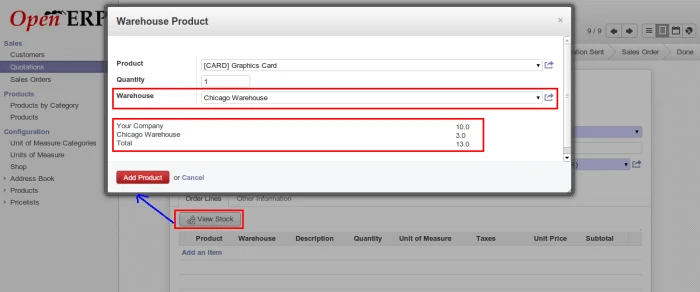
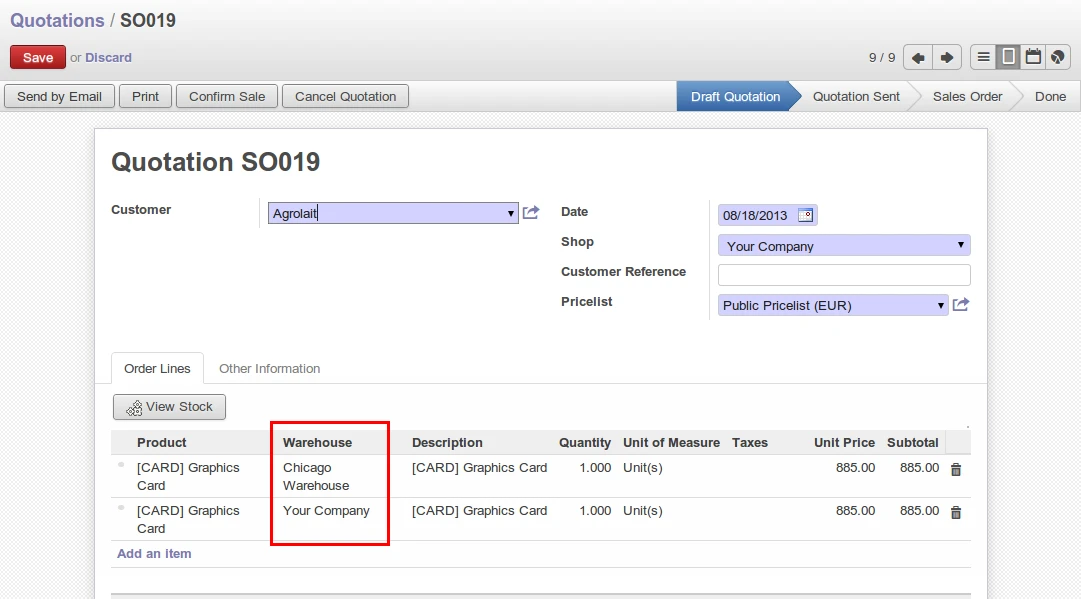
During sales order creating process, we may want to decide that how many quantity can be sold from particular warehouse according to stock availability in our warehouses. So we have implemented easy solution for this. User can know available quantity as well as he can select warehouse also.
OpenERP Sales Order
It’s not compulsory to assign warehouses for each line. In case of empty, it will consider default shop and user can continue his work smoothly.
OpenERP Sales Order
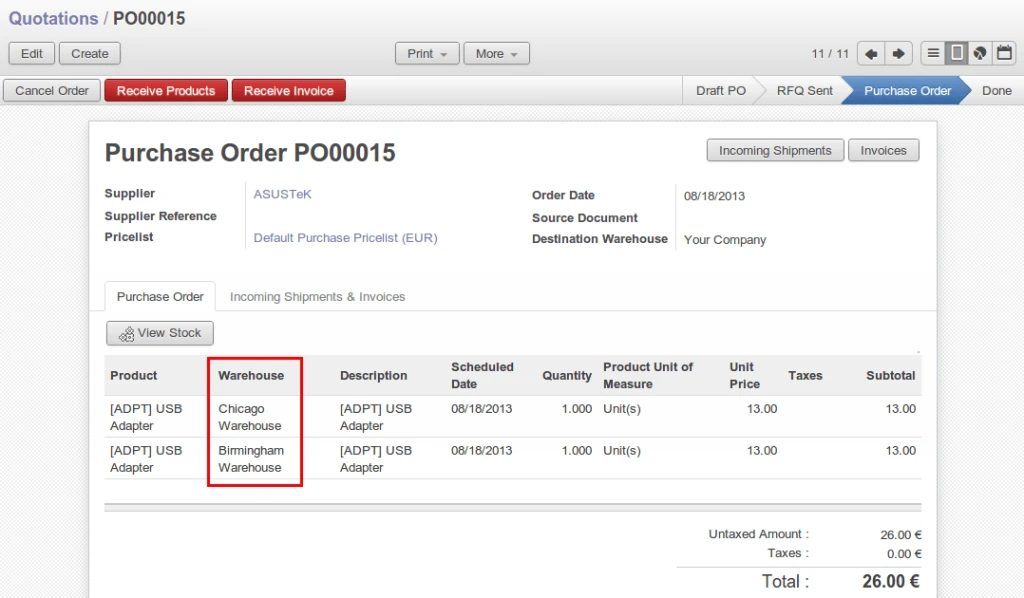
User can perform same process for Purchase Order also which we can see in below screen.