Odoo Login Page
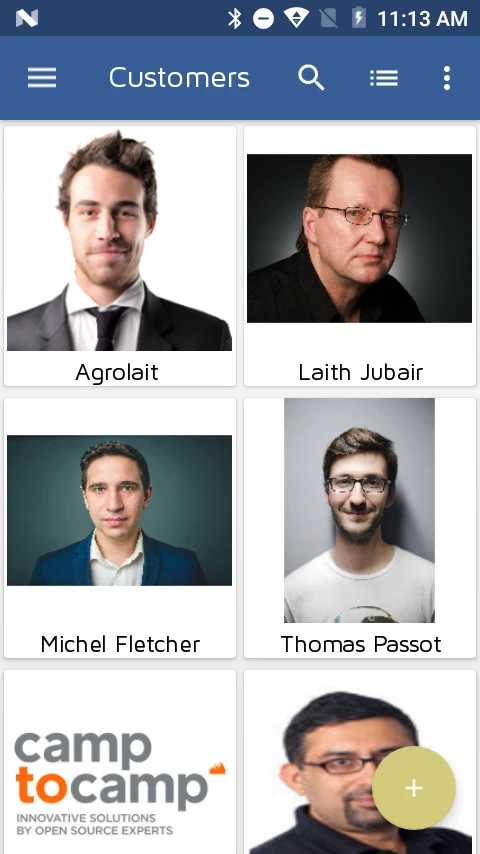
Odoo Customer Display
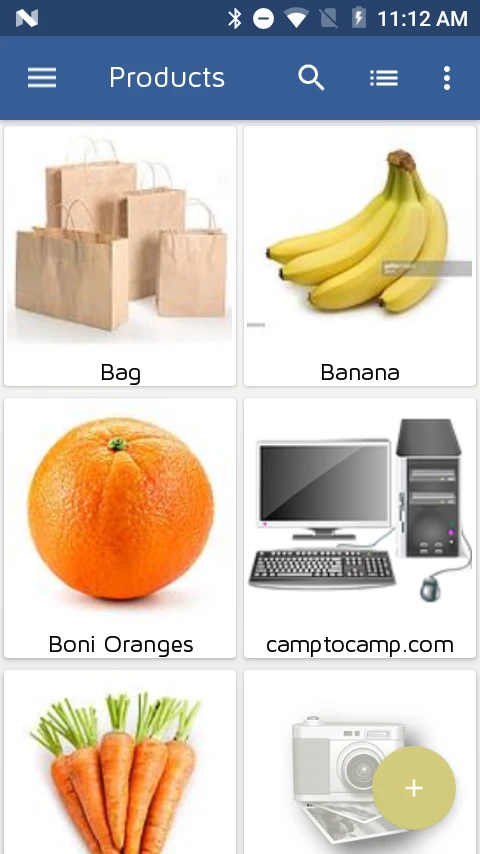
Odoo Products Display
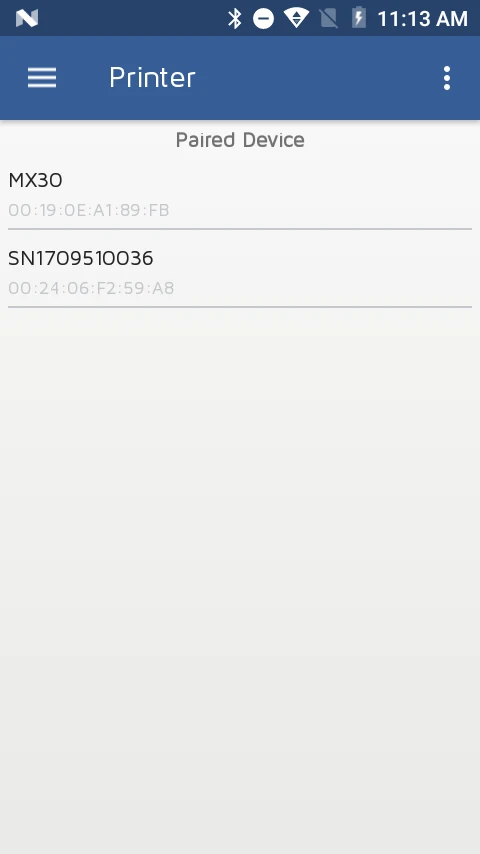
Connect Bluetooth Printer
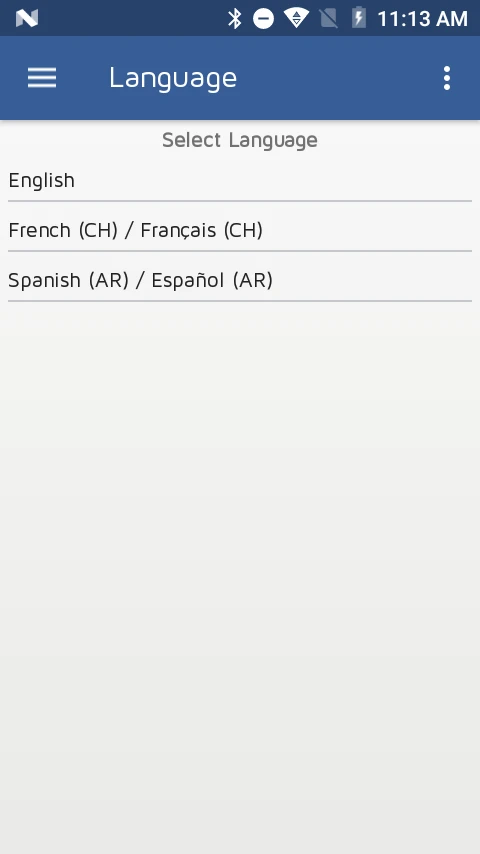
User Languages
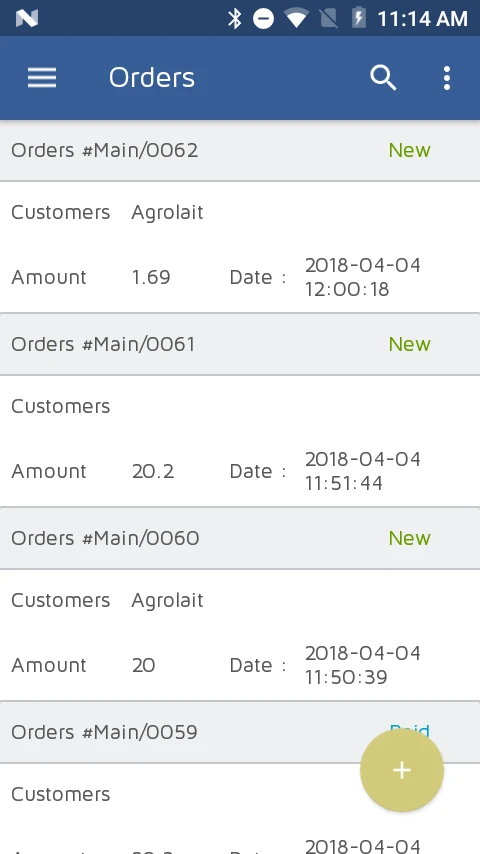
Odoo POS Order List
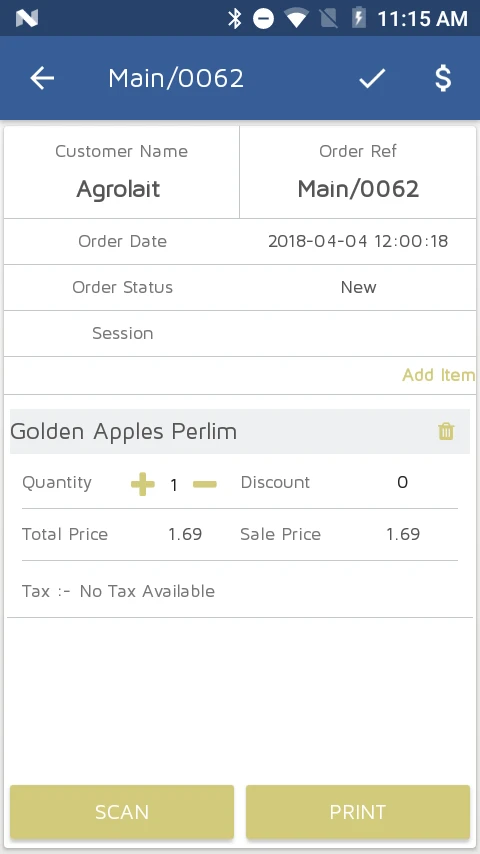
Odoo Order Details
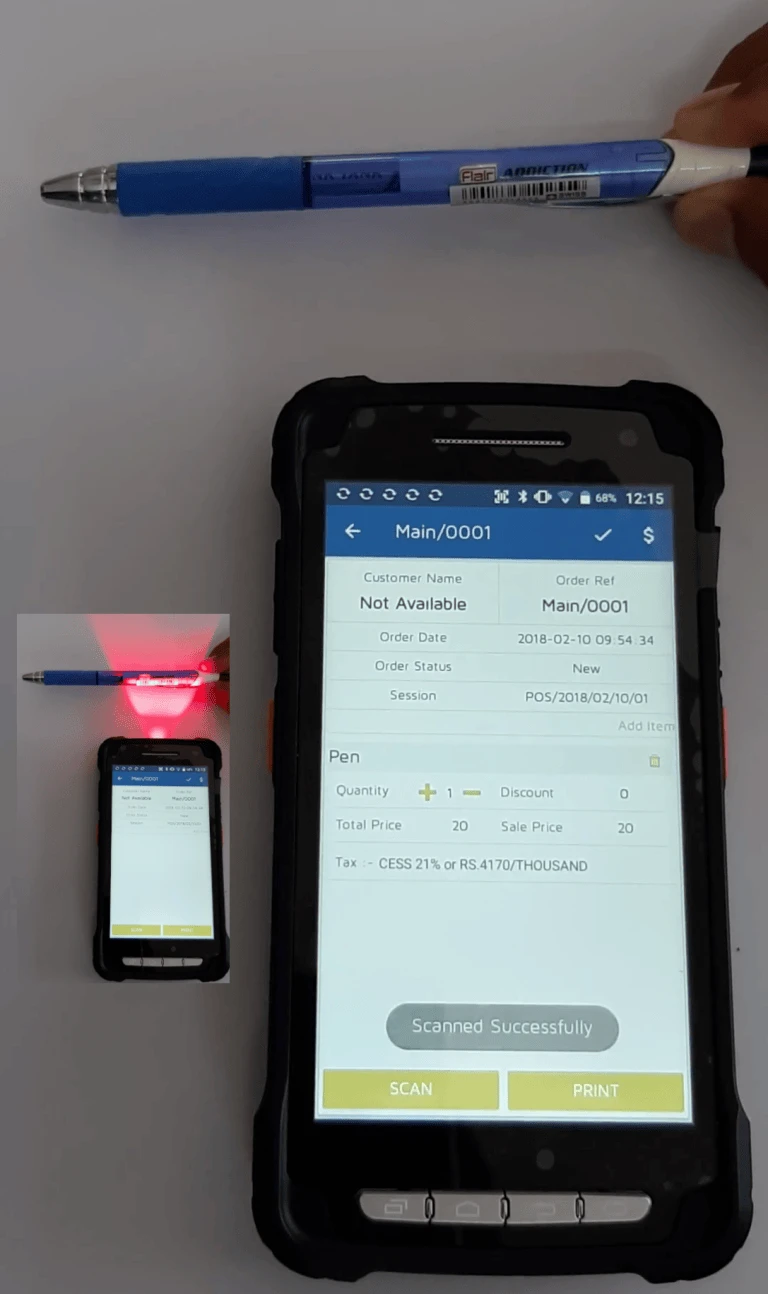
Scan Products
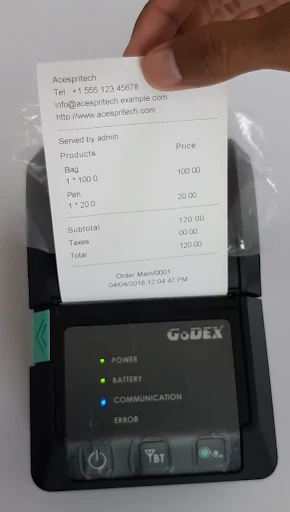
Odoo POS Receipt
Odoo Login Page
Odoo Customer Display
Odoo Products Display
Connect Bluetooth Printer
User Languages
Odoo POS Order List
Odoo Order Details
Scan Products
Odoo POS Receipt
Login in to Magento Admin
Go to Content -> Pages From Navigation
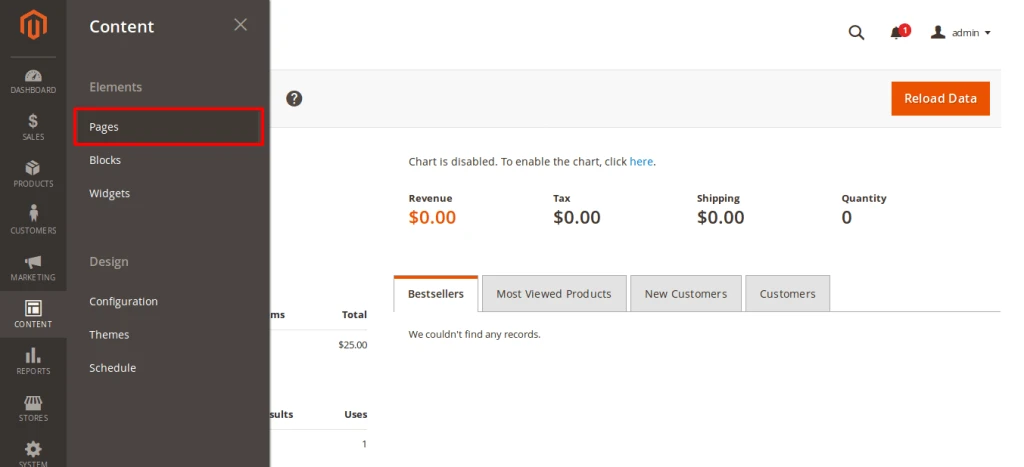
Click here to see the videoClick on “Add Page” Or Edit existing page
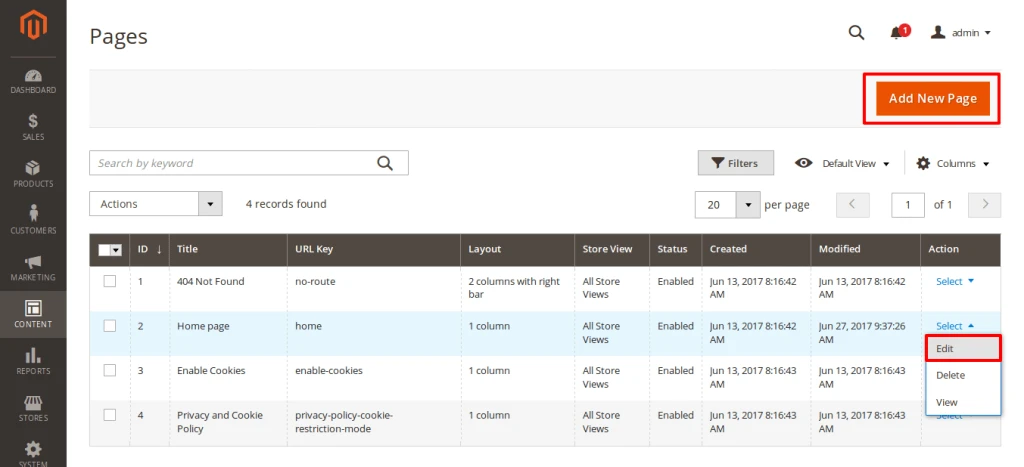
Fill out Basic details of page after that on content section hide editor by click on “Show/Hide Editor” and click on Insert Widget.
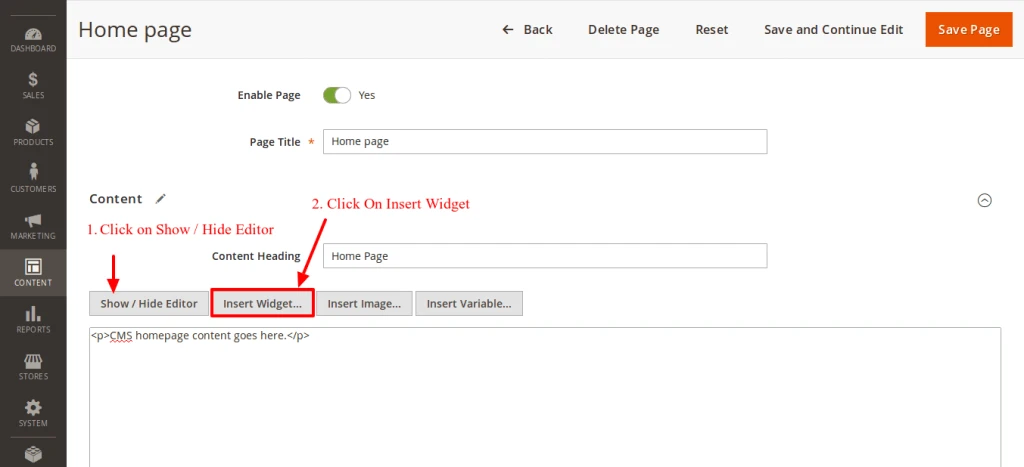
OR you can also insert widget from editor by click on below symbol.

Select Widget From Drop down box and fill out required fields and configure widget as of your need.
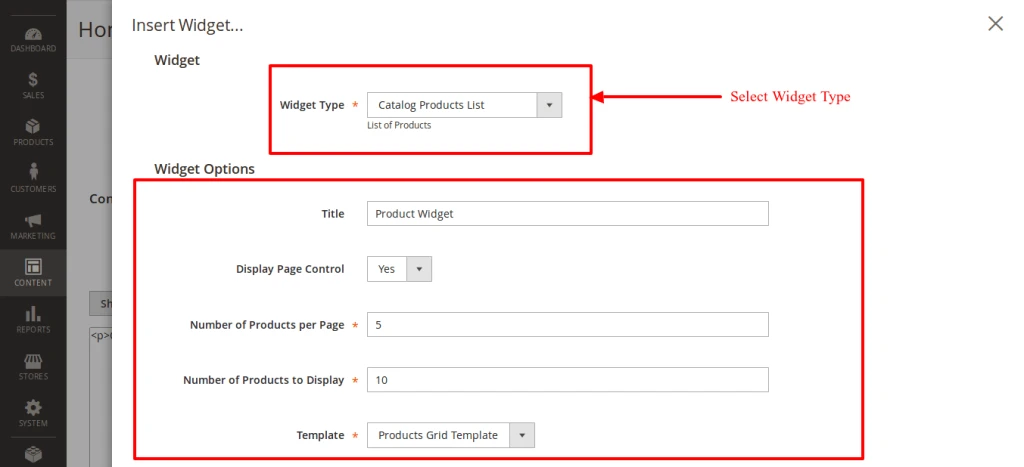
also you can fetch specific data that you want by using widget conditions.
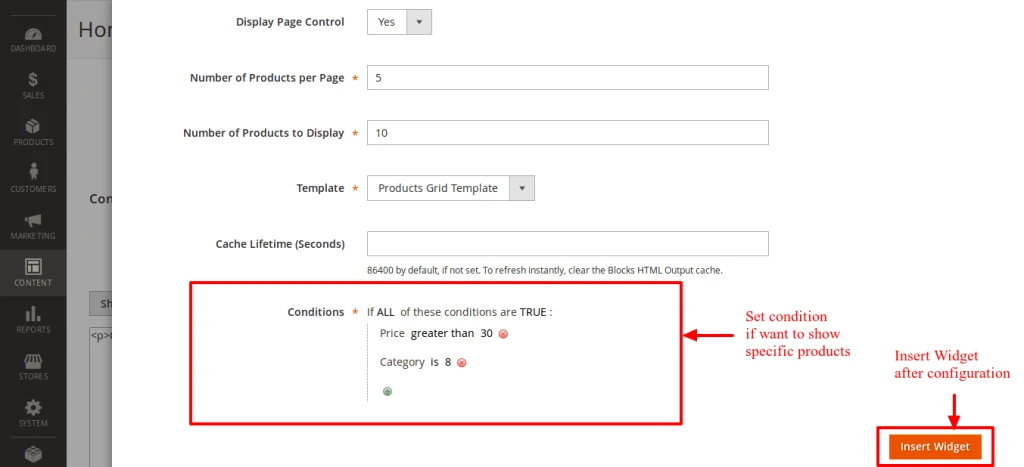
After that Save Page
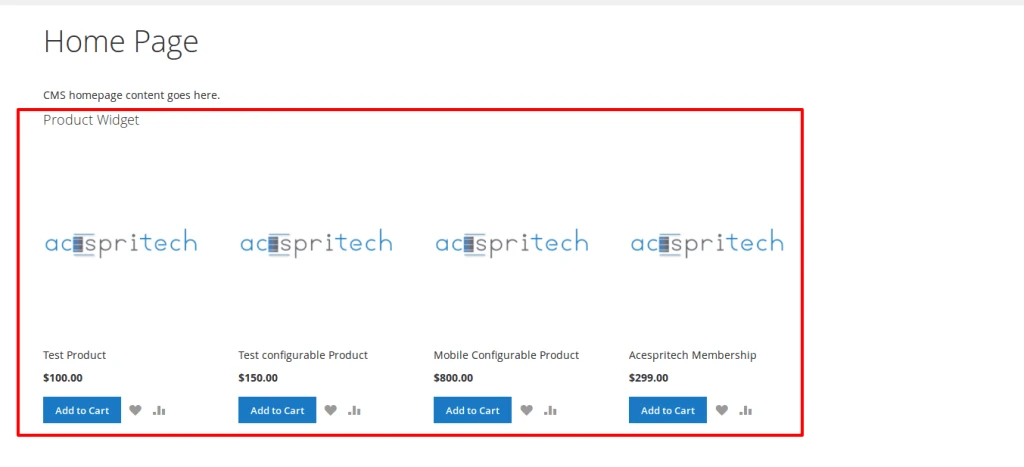
You can see your Inserted Widget on front side.
Login in to Magento Admin
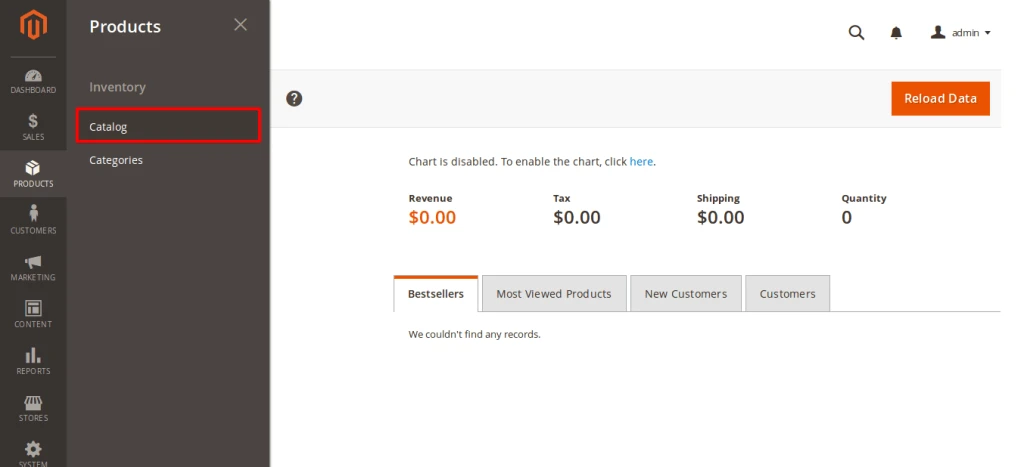
Go to Products – Catalog From Navigation
Click on “Add Product” drop-down box select “Virtual Product”
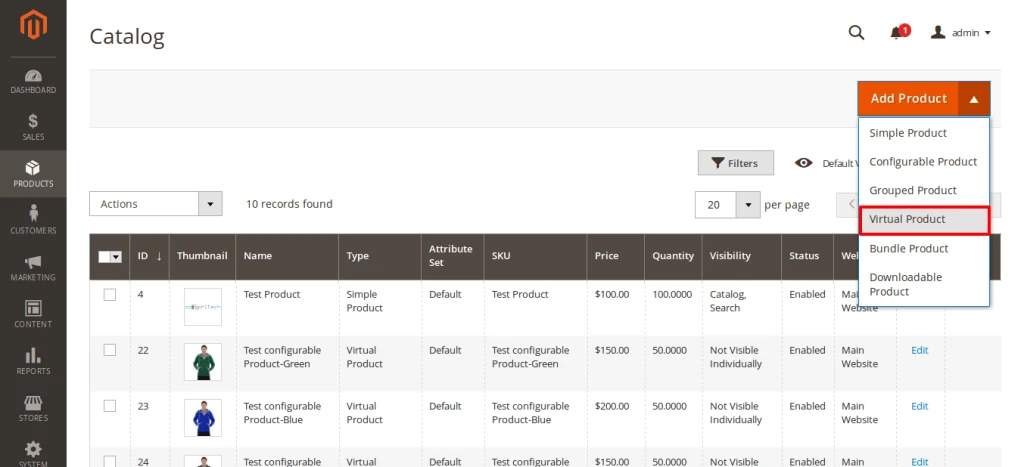
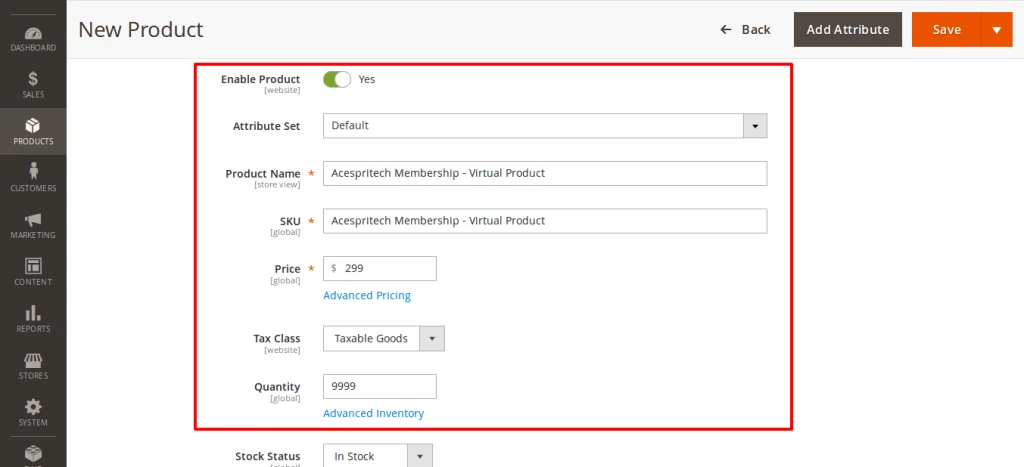
Fill out required fields of product after that click on Save button.
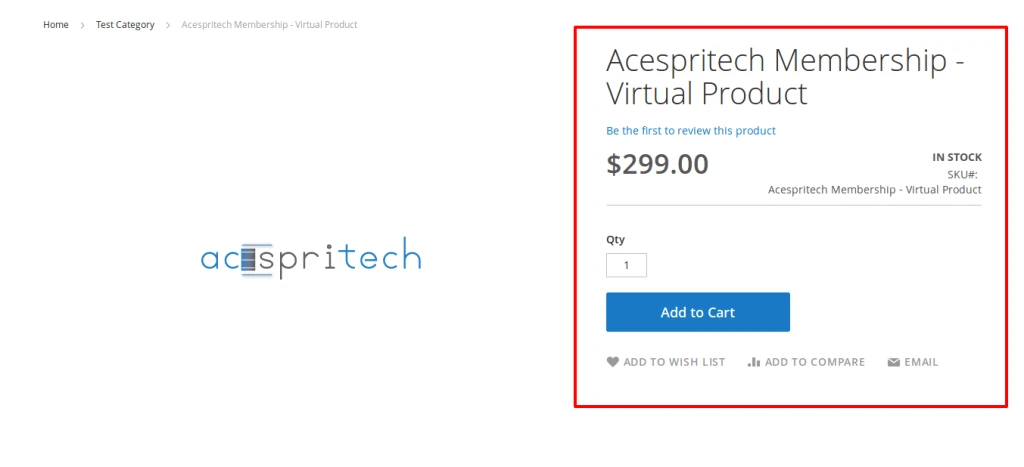
You can see your Virtual Product on user side
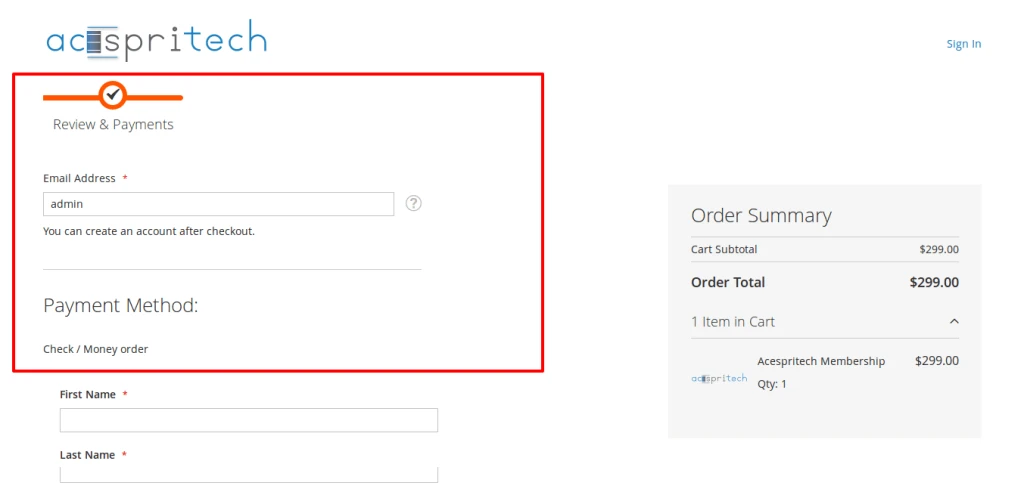
Because it is Virtual product Shipping Methods not come on Checkout page
Notes:
Virtual product does not use Weight attribute.
Shipping option not show on checkout if any of product in cart is virtual product.
Login in to Magento Admin
Go to Product – Catalog – Add Configurable product
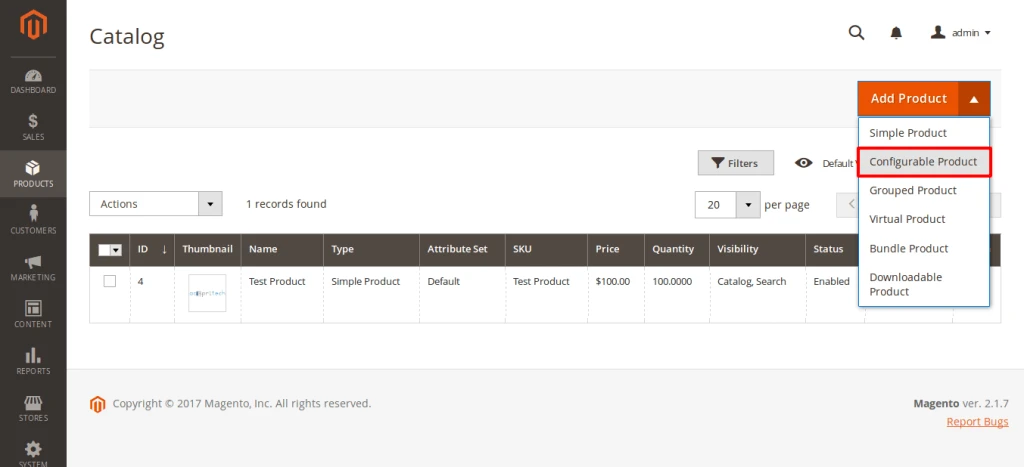
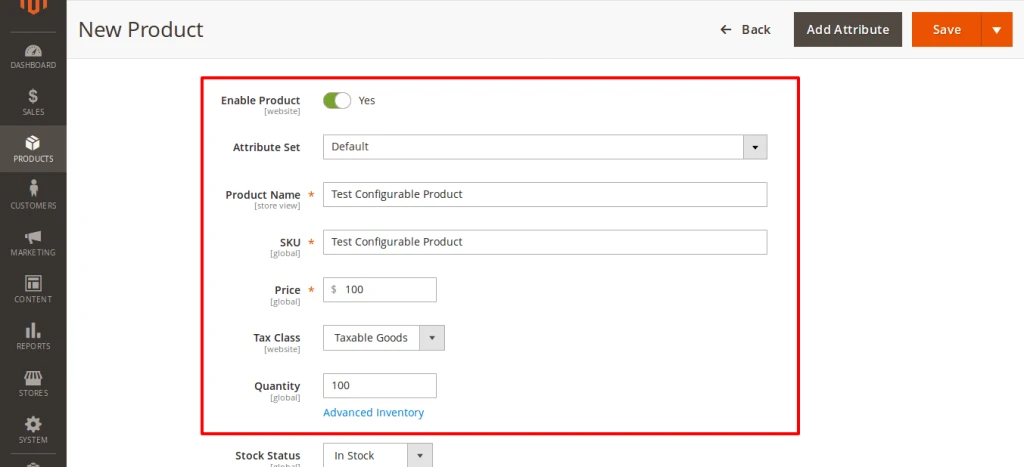
Fill up required details and go to “Configurations” section and click on create configurations

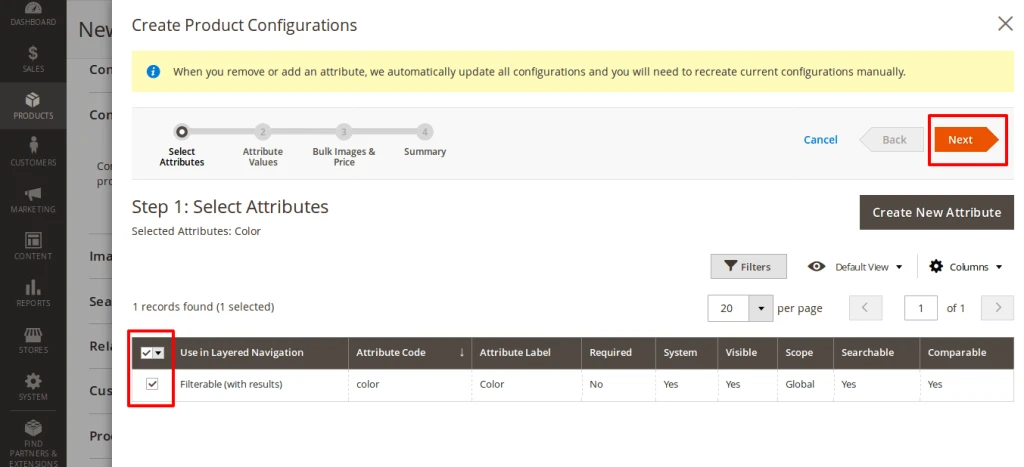
Select attribute that you want to use for configurable product and press on Next button
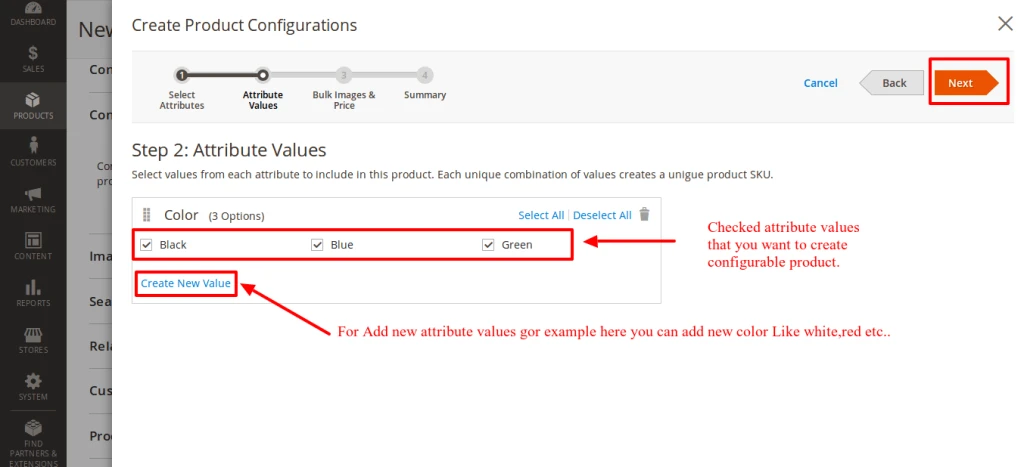
Select attribute values for configurable product and if not available create new value of attribute. and press on Next Button
Select images price quantity for configurable product and press on Next button
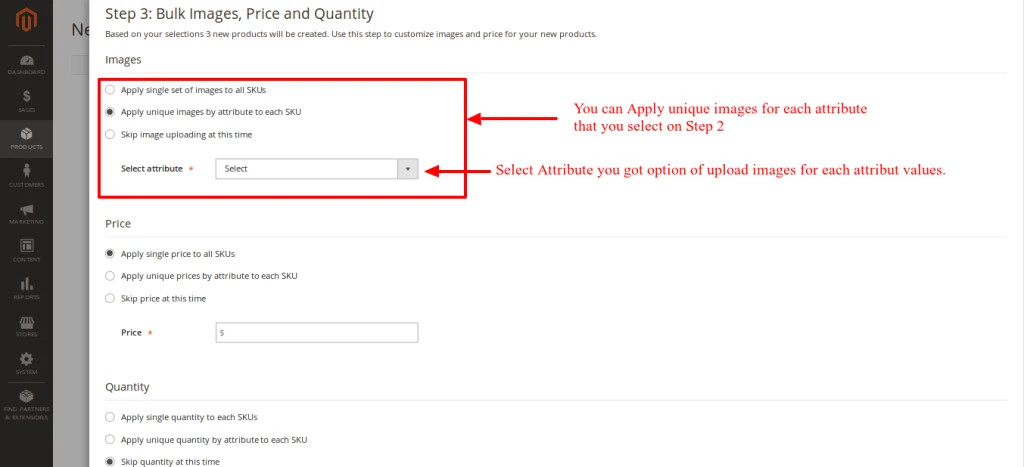
Check summary of your configurable product and press on Next button
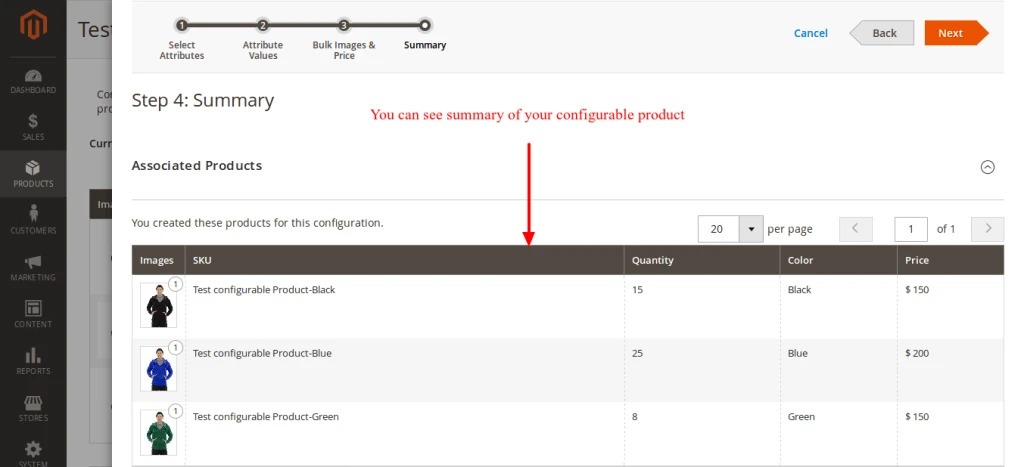
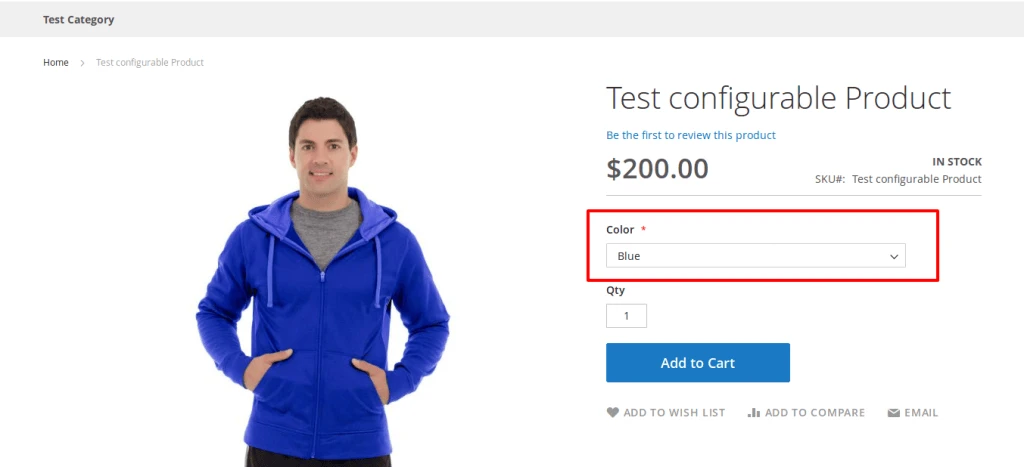
You can see your product on your selected category where options are available that you configurable for your products
Click here to download from Odoo Apps
Show available quantity message.
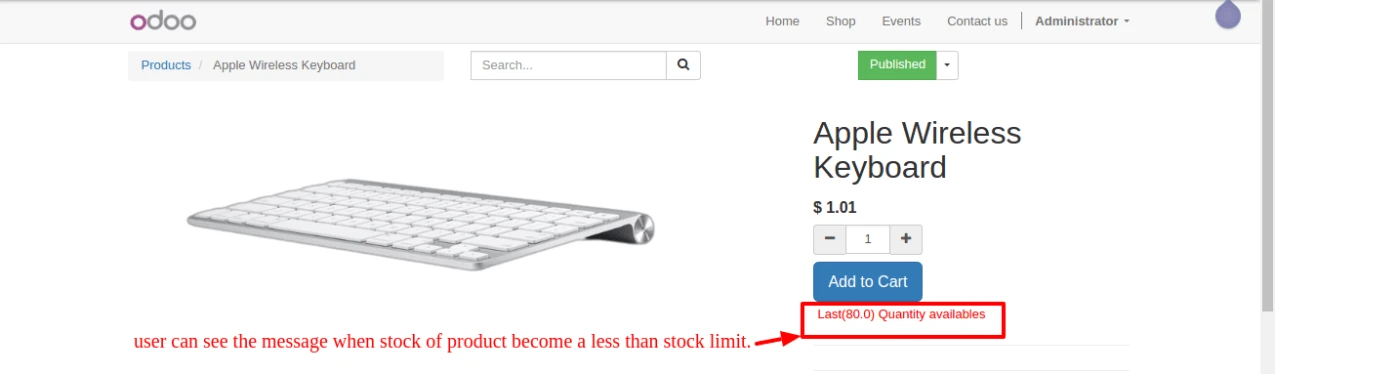
We set stock limit in product categories.
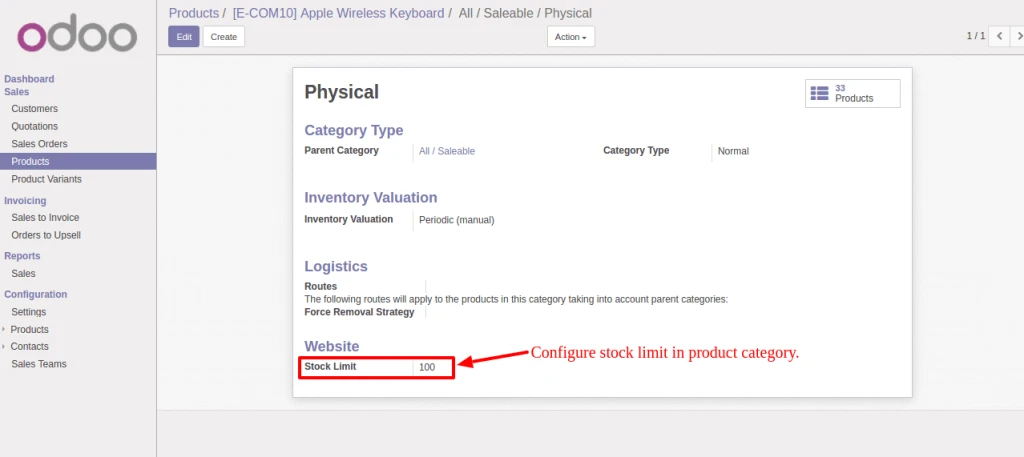
If user will not configure into product category then they will configure stock limit in website configuration and it will take highest priority when user can’t configure in product category.

Here is one important feature related to Customer selection in Point of Sale that we have implemented.
Lets check following process so it will give better idea.
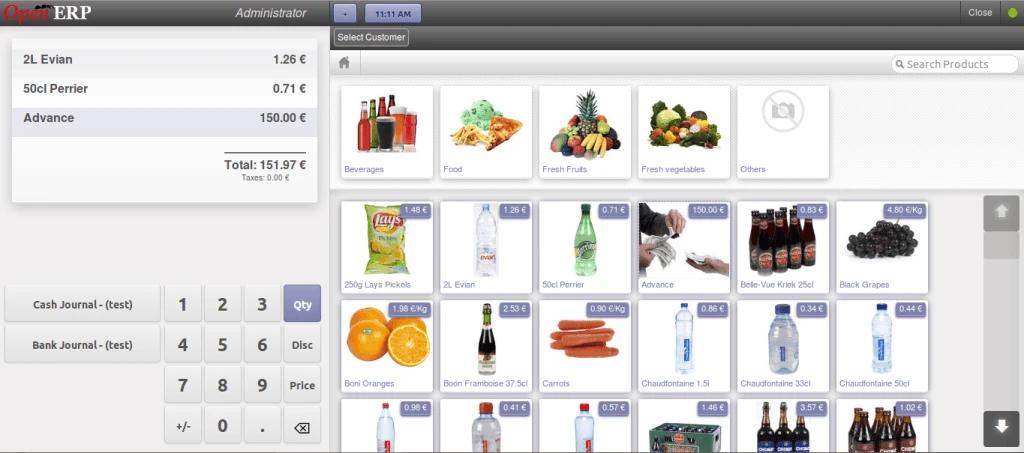
Following screen allows us to select product as we normally do.
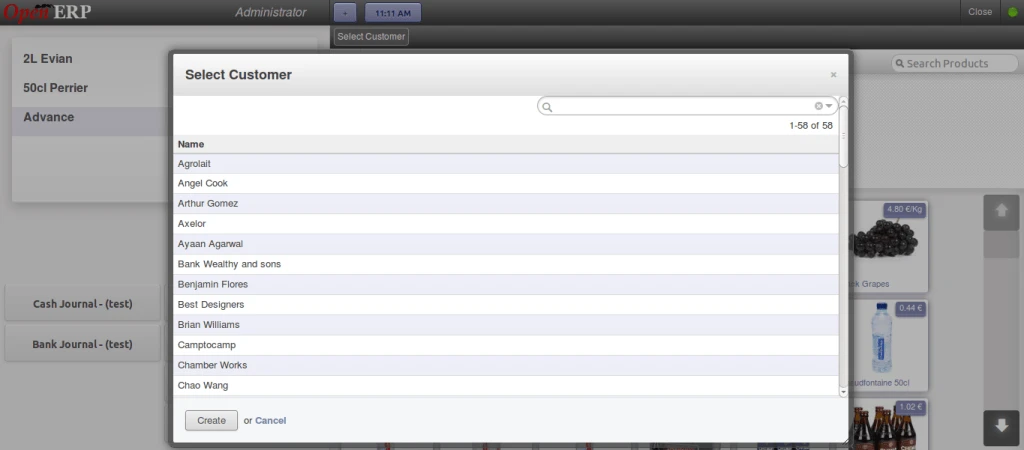
Below screen shows list of customers.
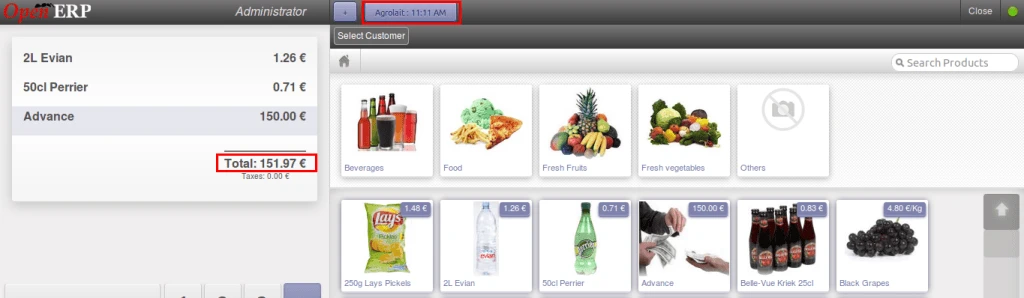
Our selected customer will be displayed on the top with time frame.
Now we are creating more sessions and selecting different customers for each session with different list of products.
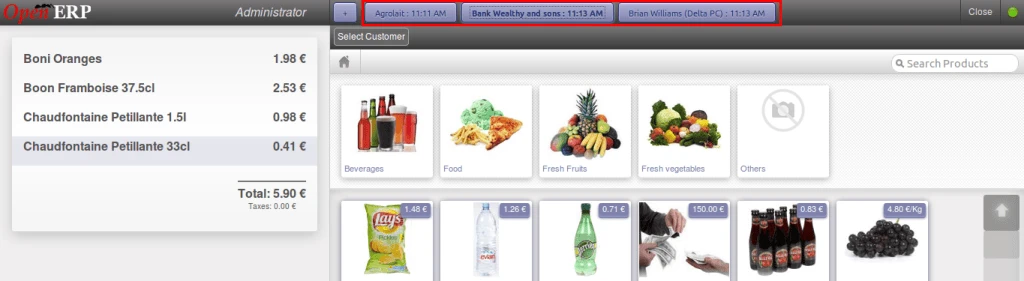
Same thing for different customers and different list of products.
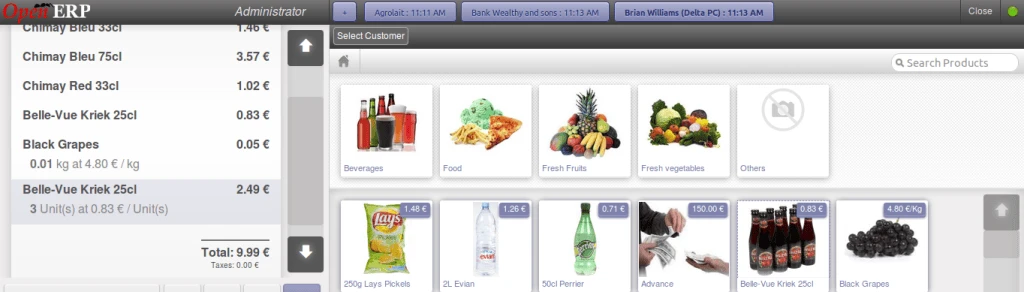
Now we will validate each order one by one so that we can have customer names in POS Order backend.
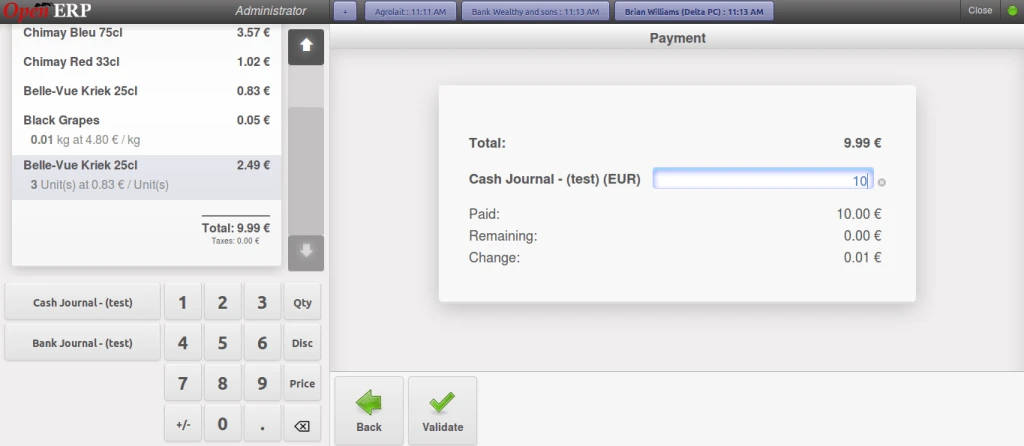
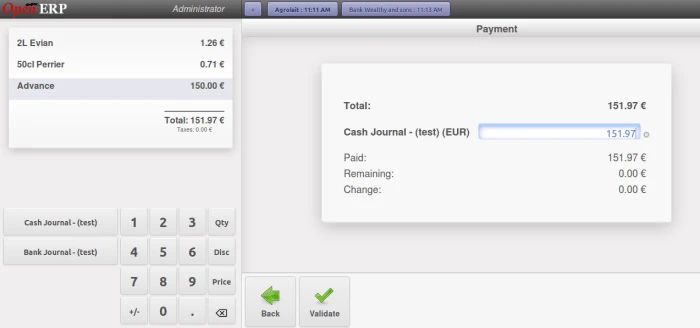
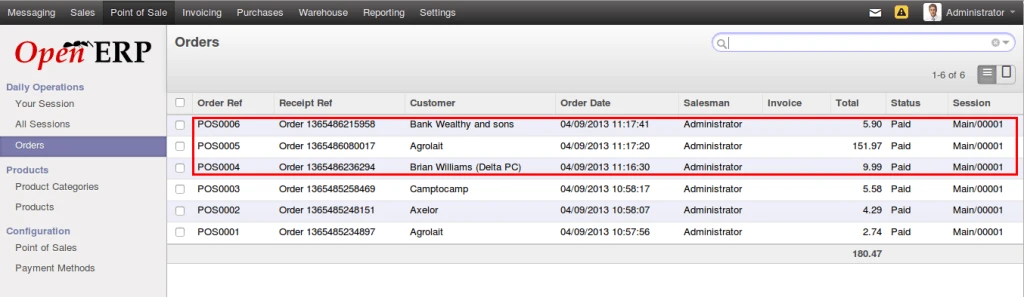
Here is the list of orders that we have created from POS Interface with different products and having different customers selected.
Here is the video link for the same feature: