Category Archives: OpenERP
OpenERP is an enterprise resource planning softwaree and an incredible platfom for business applications development.
OpenERP Point of Sale: Product Quantity in different warehouse, Discount restriction by password
As we are developing new features in OpenERP Point of Sale, here are some more important features that we have implemented in OpenERP 7 Point of Sale.
In this blog we can see following features:
– Enhancement in discount restriction using password
– Display product quantity in different warehouse from POS.
Here in below screen we can see that we can define maximum limit of discount and password.
We can also define users, and point of sale who can access this discount features during point of sale operation.
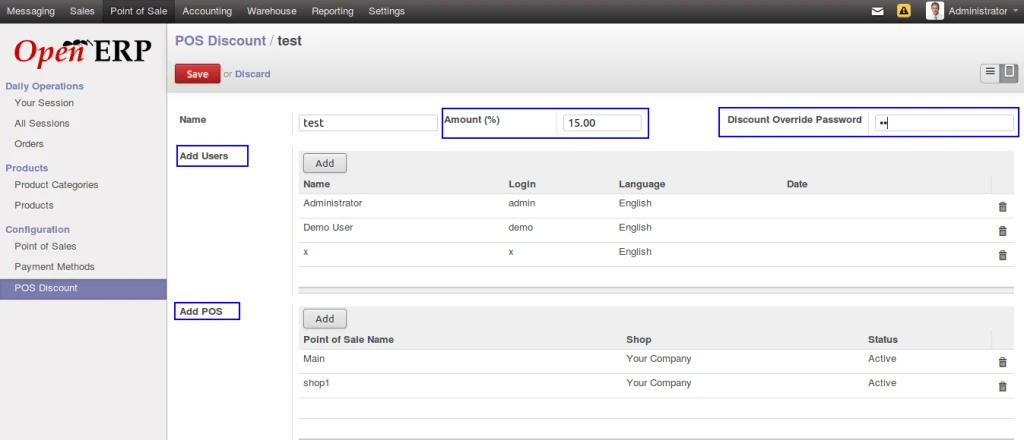
POS Discount
This is a normal screen from where we can define discount and right now we can see that we have displayed products which have quantity > 0.
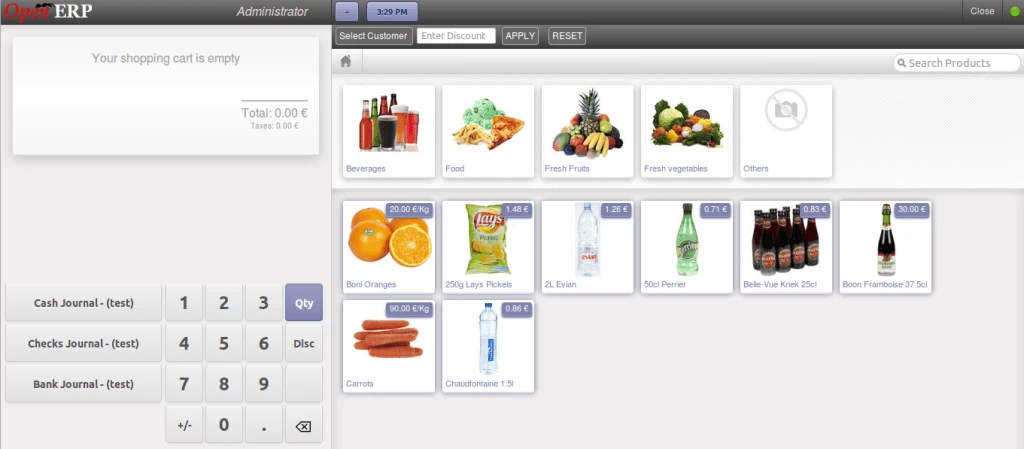
OpenERP POS
Now when we click on any product, so immediately we will have this kind of view, and we can see big image of that product and we have a link here “Details”, which will open warehouse list with number of quantity of this particular products.
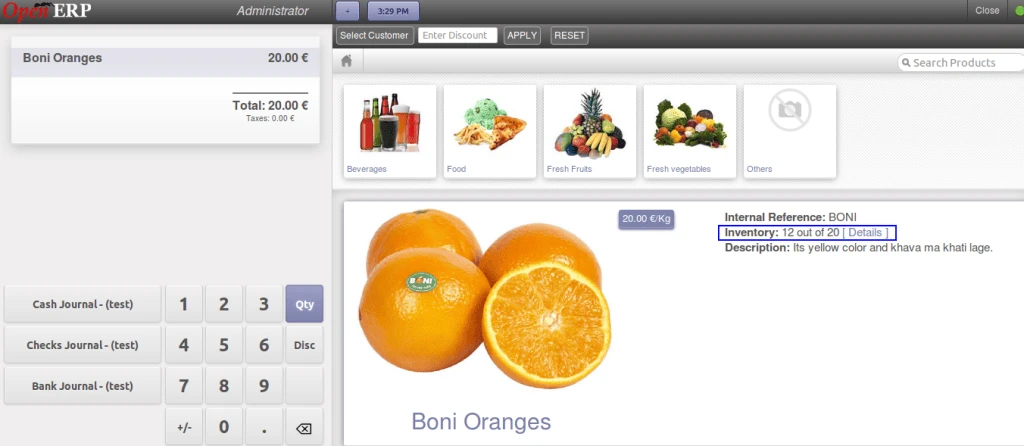
POS Big Product Image
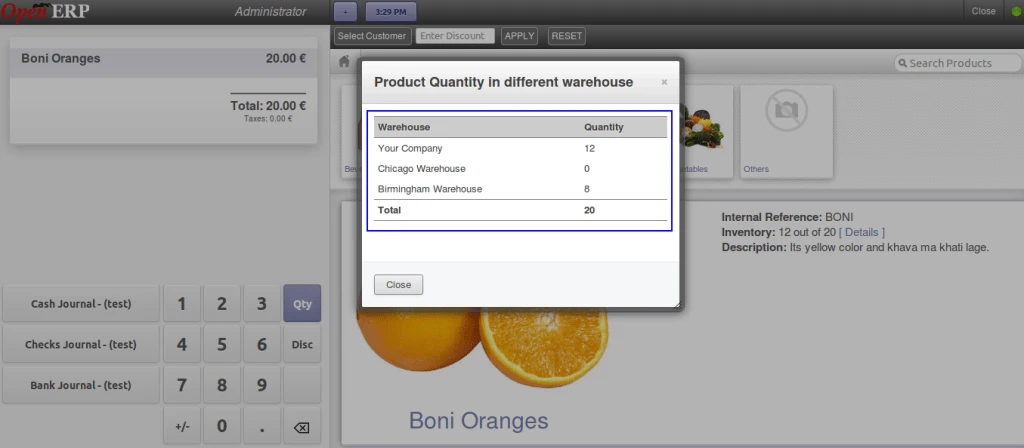
Product quantity in different warehouse
For discount to be apply on all products in the order, we can enter amount in this field.
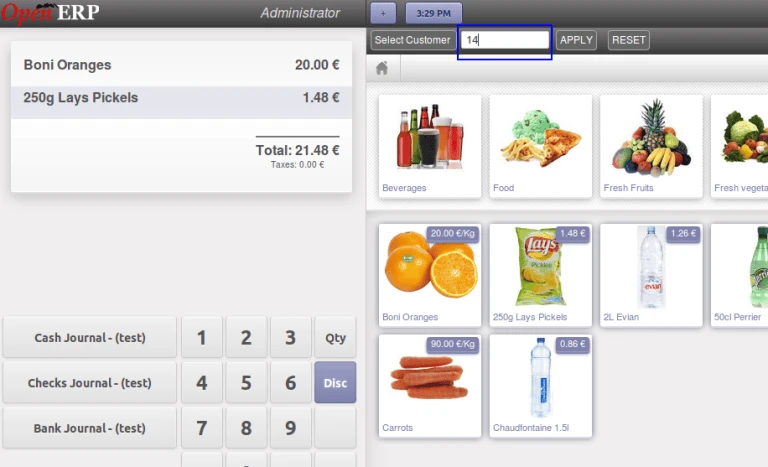
Apply Discount
So we have discount applied on all products in the list.
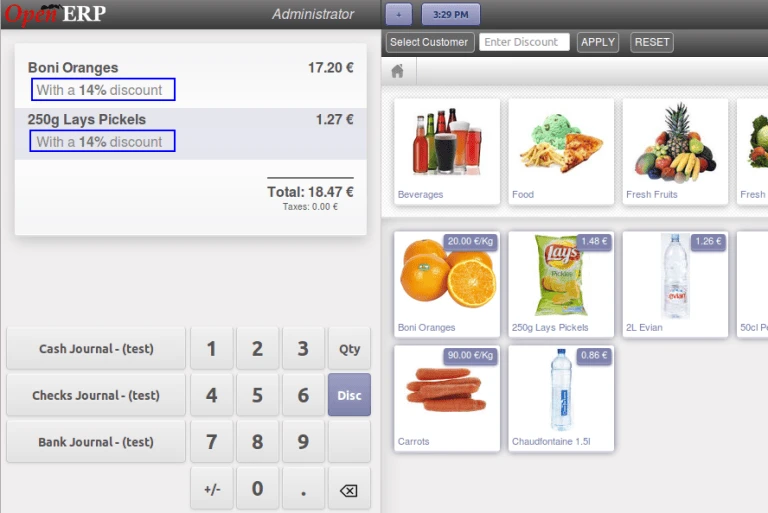
Apply Discount
If user is trying to enter discount more than given limit, then it will ask for password, and if password is correct then only given discount can be applied.
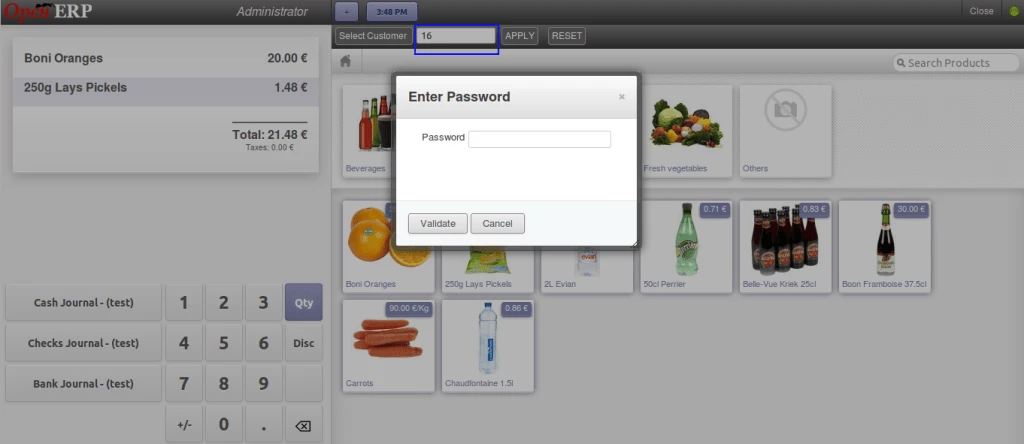
Apply Discount with Password
Here is the receipt which has discount amount displayed with each products.
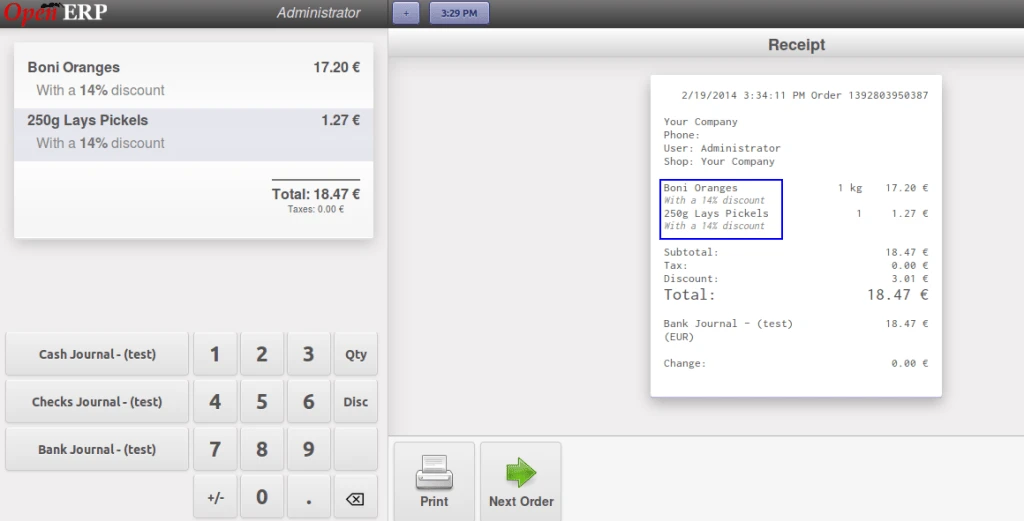
POS Receipt
And the same discount is transferred in the backend order also.
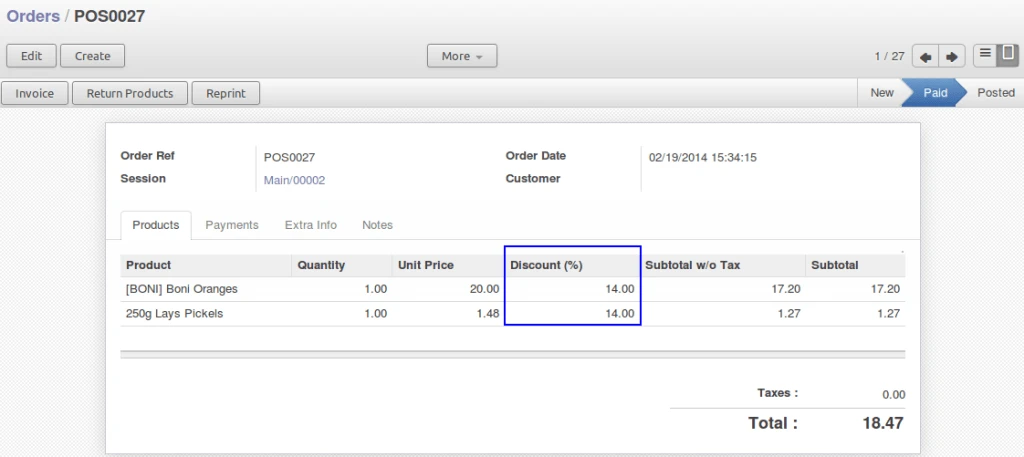
POS Order
SagePay integration with OpenERP
We have implemented solution for allowing payment process via SagePay from OpenERP. We will see how this module is developed.
We will start from configuration of SagePay account information. It is very important to select appropriate “MODE” of SagePay account.
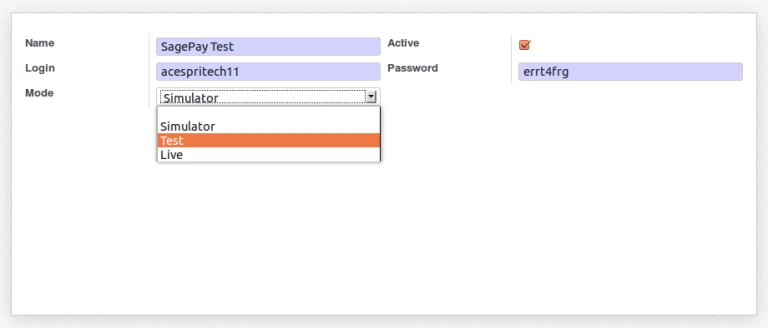
SagePay Configuration
It is possible that customer may have more than one credit cards. We can configure credit card related information into Customer form itself. We are storing credit card number into database with encrypted format.
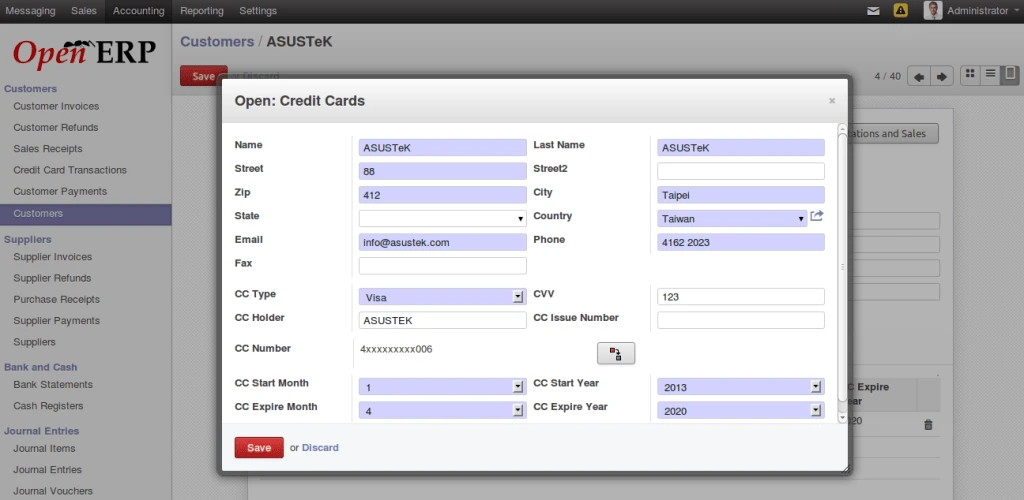
Credit Card Configuration
To process with sagepay, we have added option into OpenERP voucher form. We can easily make payment or stop it from here.
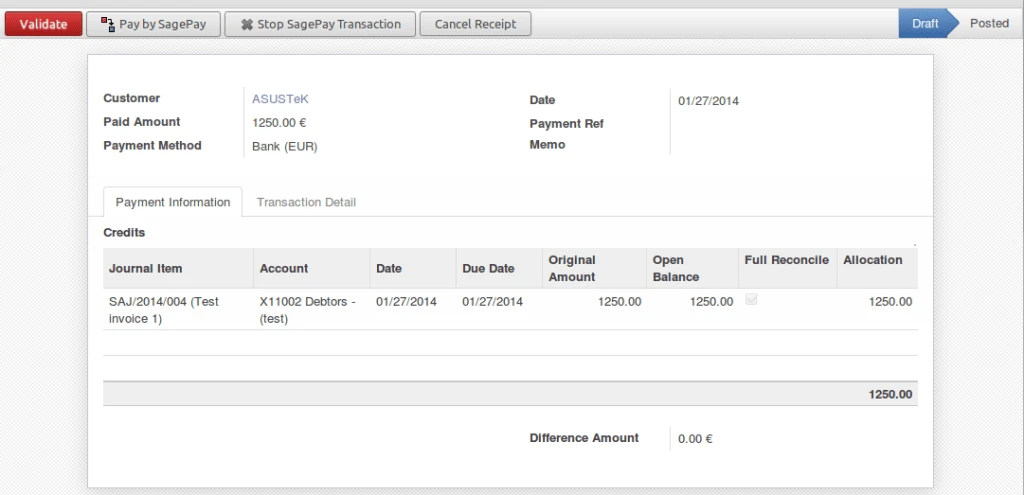
OpenERP Voucher
We are allowing to make three types of transactions with SagePay from OpenERP.
- Payment
– Deferred
– Authenticate
Further process will work according to selected transaction.
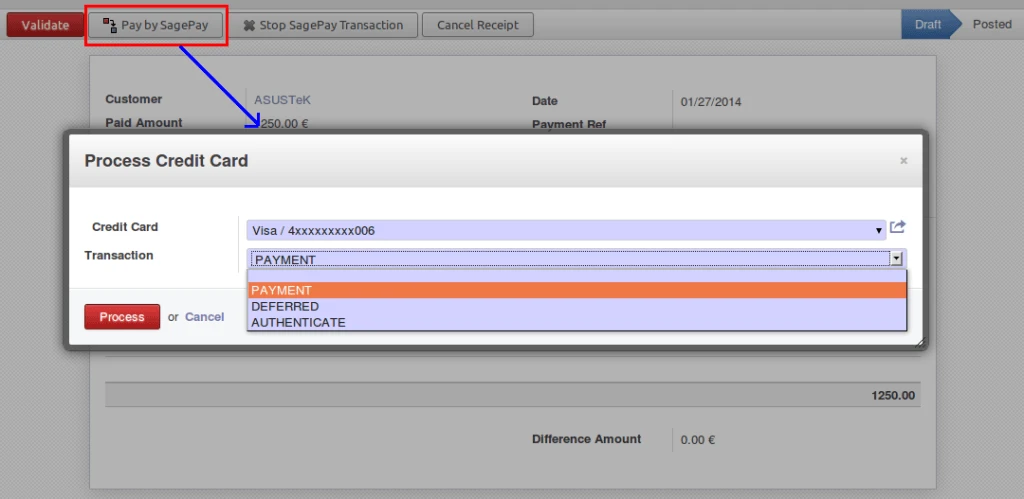
Payment Options
After making process, SagePay server will give response about transaction and we are storing that into database for future actions.
We are storing mainly following data:
- Transaction ID
– Transaction Status
– Transaction Message
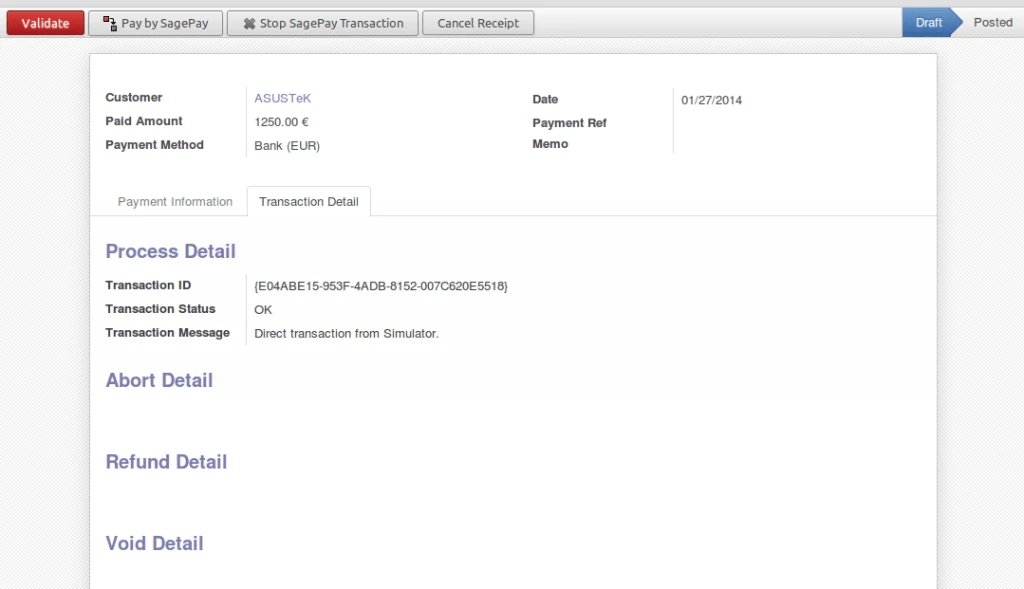
Process Response
Now It is very easy to stop your transaction for any reason.
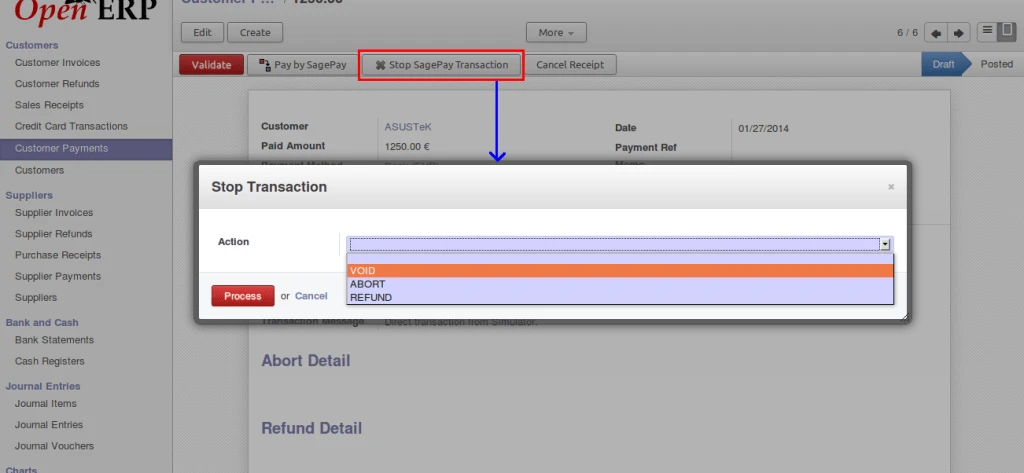
Stop Option
We are restricting user to make any invalid actions on transactions.
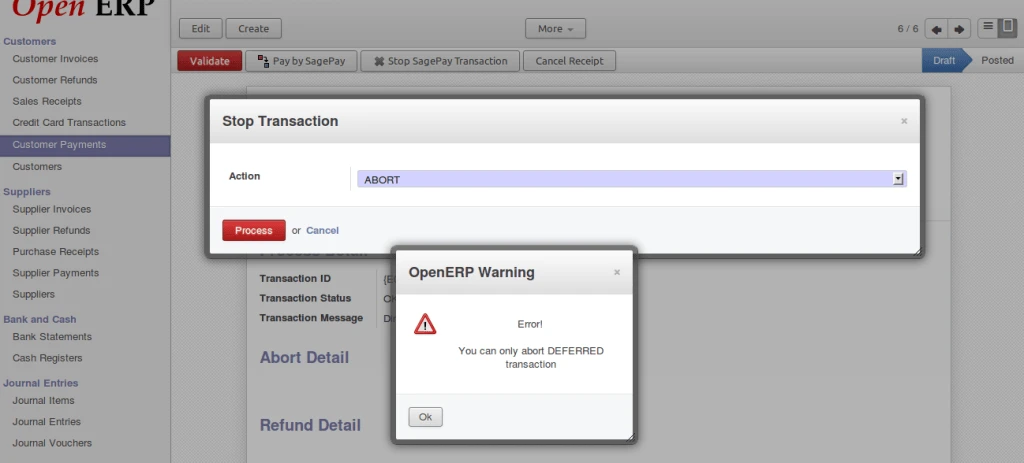
Error on abort payment
It is displaying VOID response from SagePay server. It is possible to perform on transactions which are registered with SagePay.
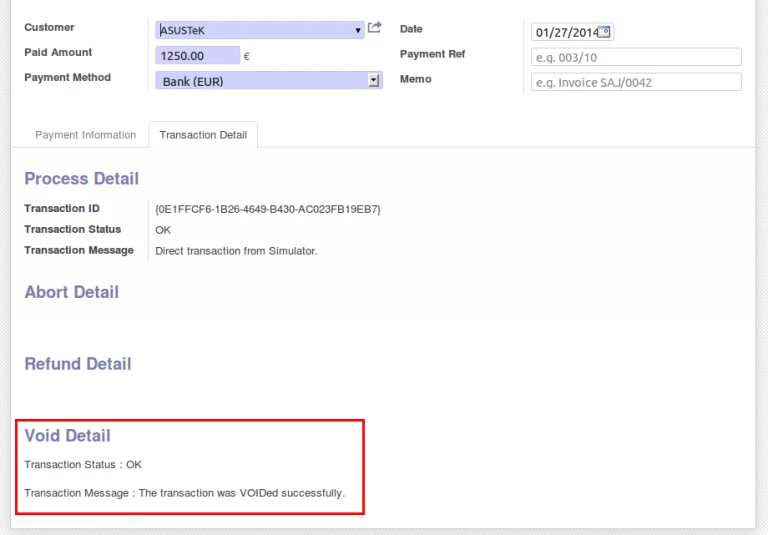
Void Message
As mentioned above, it is possible to ABORT only DEFERRED transactions.
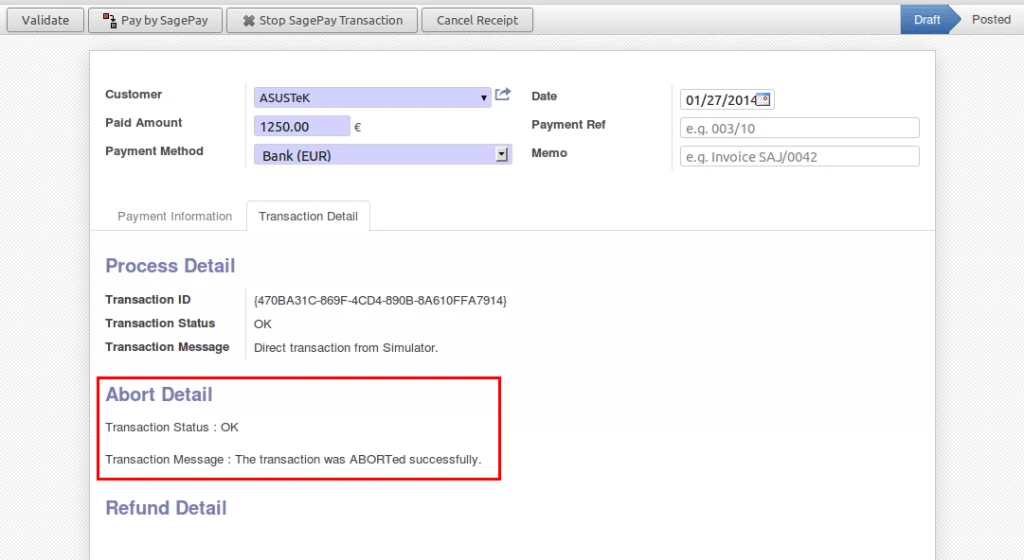
Deffered Abort
We are getting status “REGISTERED” for AUTHENTICATE type of transaction. And that transaction has to AUTHORIZE with SagePay.
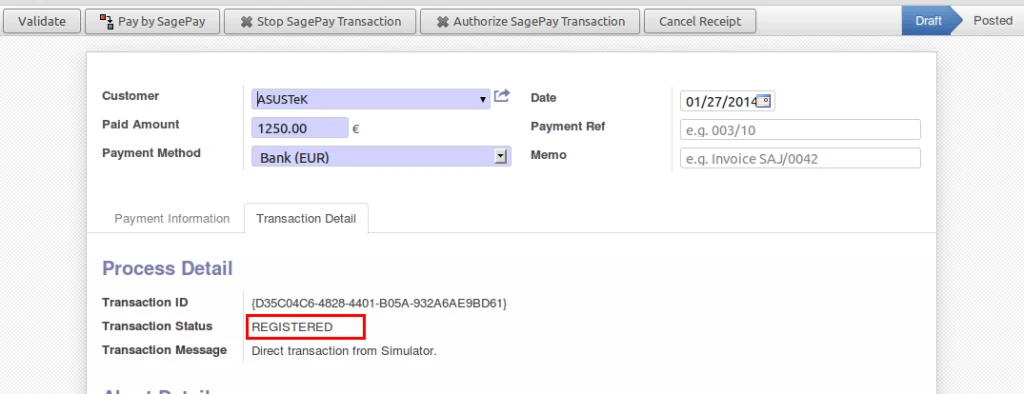
Authenticate Transaction
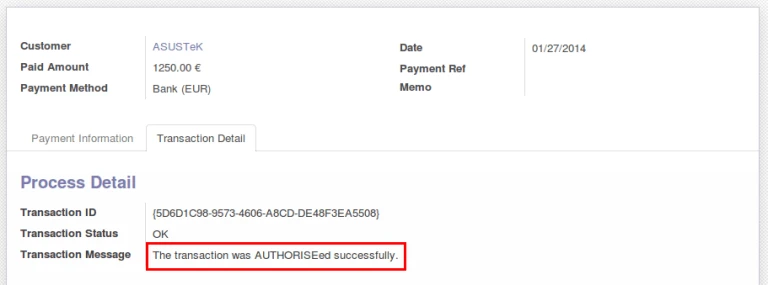
Authorize Transaction
We are keeping record of each and every transaction with detail information in OpenERP.
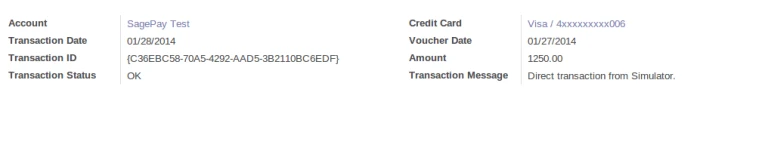
Card History
This is how SagePay Simulator page looking.
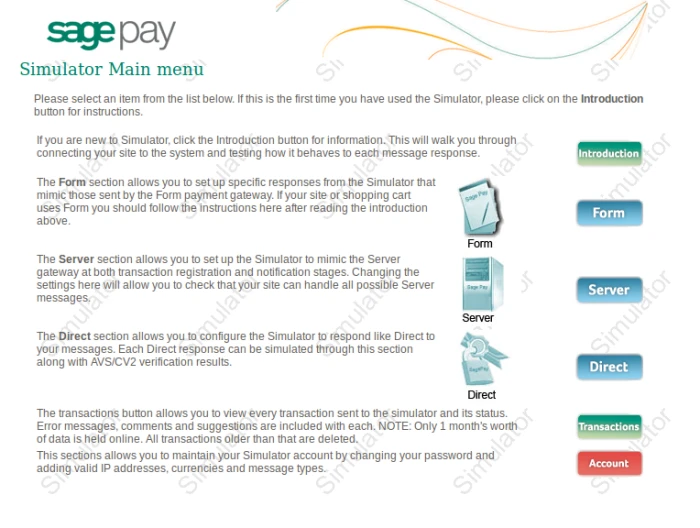
SagePay Home PAge
Here we have to Add IP address of our server or machine from where we are accessing our SagePay account through API. And also add appropriate Currency code for allowing transactions.
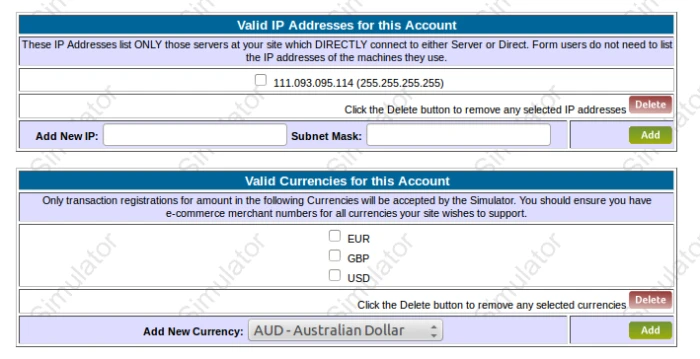
SagePay Website Amin
It is displaying list of transactions that is related with our account.
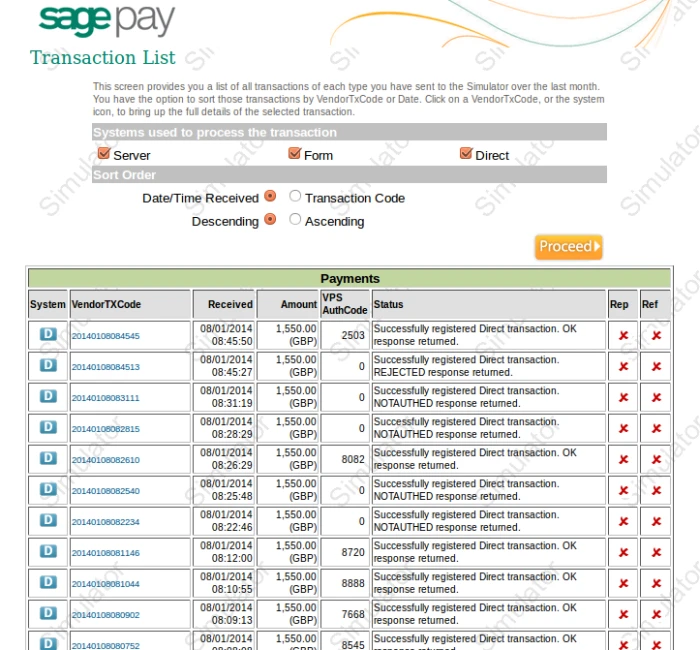
SagePay Website Transaction
OpenERP Point of Sale: Product return from POS Interface
Here is the video link for the same feature:
OpenERP Point of Sale has return product facility available from order Form view. But this feature is not available in POS interface. We have implemented very important feature – “Return products from POS Interface” so user don’t require to leave POS Interface to return the products.
Below is the screen for normal SALE mode. We have created 3 different buttons to identify the order mode.
1. Sale Mode, is a normal mode
2. Missing Receipt Mode, in which if customer doesn’t have receipt but still salesman can return order so in this case only negative order will be generated.
3. Return Mode, to return the products by comparing with original order.
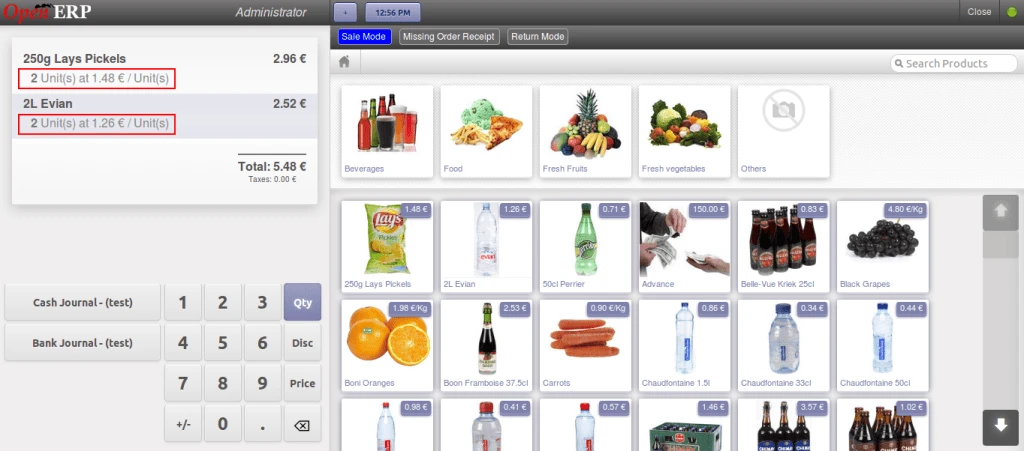
OpenERP POS Normal Sale Mode
Once the order is placed, we can see barcode on receipt for that order number generated.
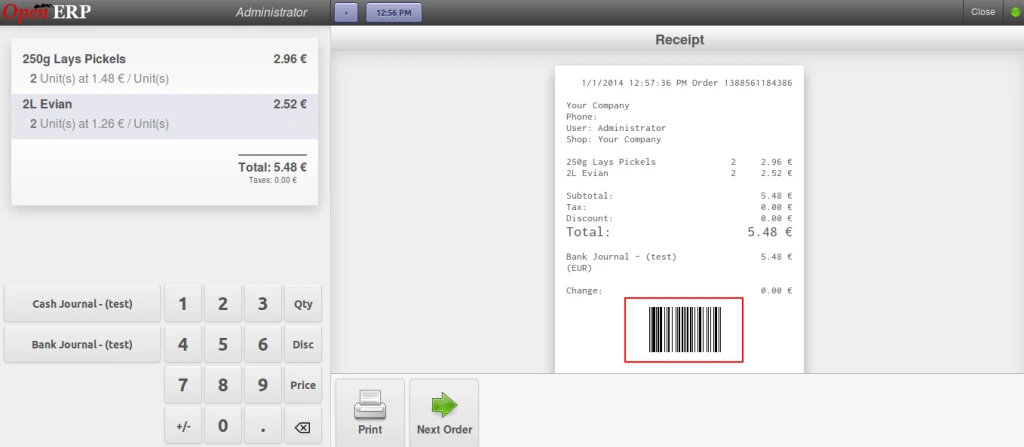
POS Normal Sale Receipt
And here is the order which is generated from POS interface.
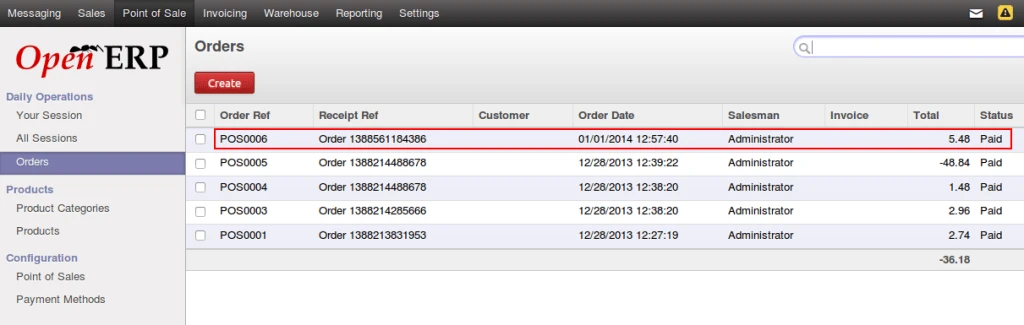
OpenERP POs Order Created
Now lets try to return the product from POS interface.
When we click on “Return Order” button, at that time this popup will open to enter order reference number.
Here in the image where we can enter order number using barcode or manually.
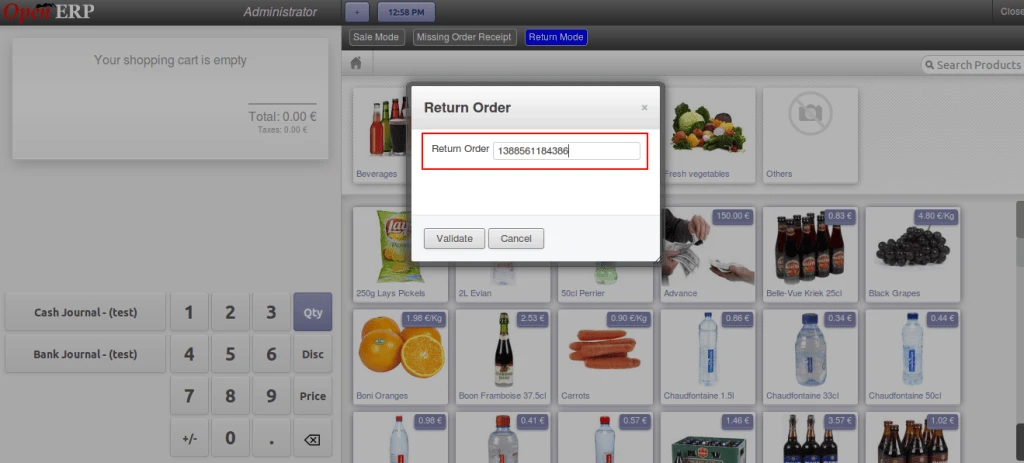
OpenERP POS Return Order Number
Once the exact order is found, then list of products will be loaded which are available in the selected order.
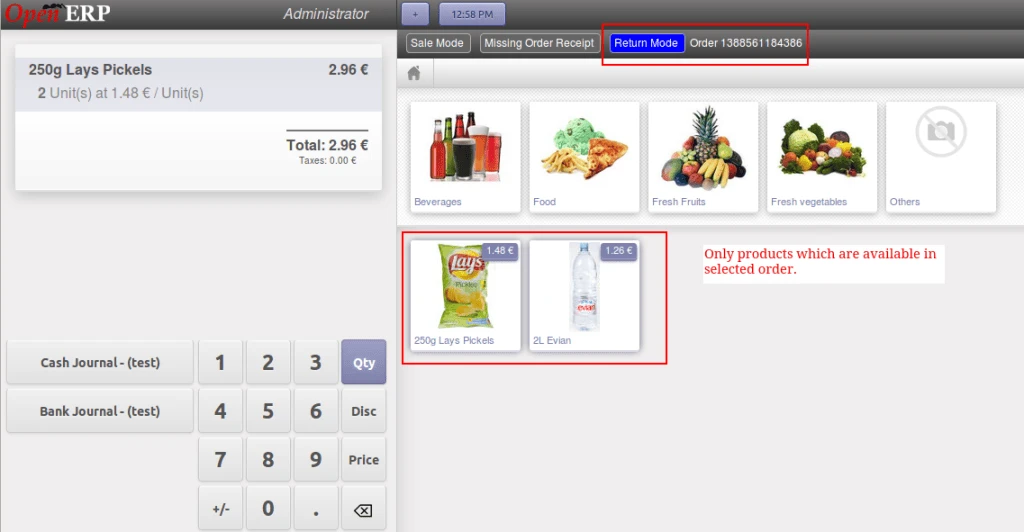
OpenERP POS Return Order Screen
If we try to select more product quantity than selected order quantity then it will raise an warning message.
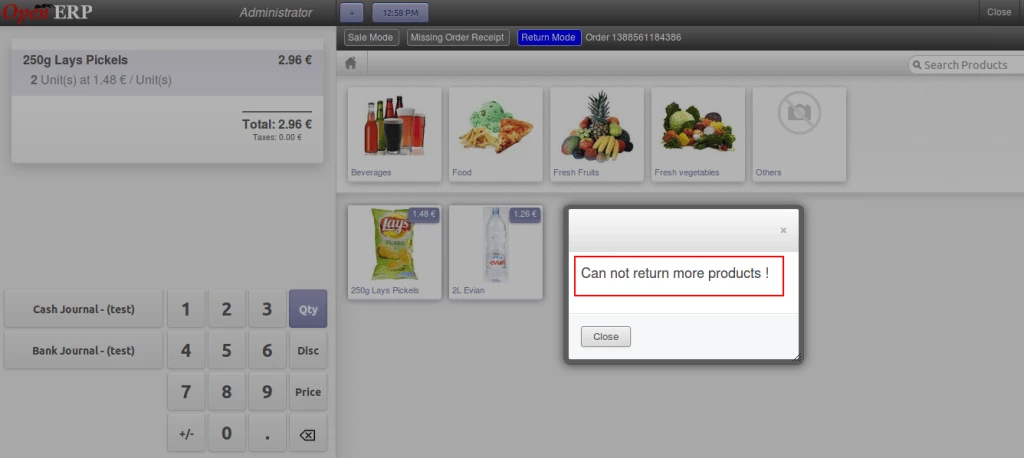
OpenERP POS Return Warning
We can also mention any reason for returning products what customer specified.
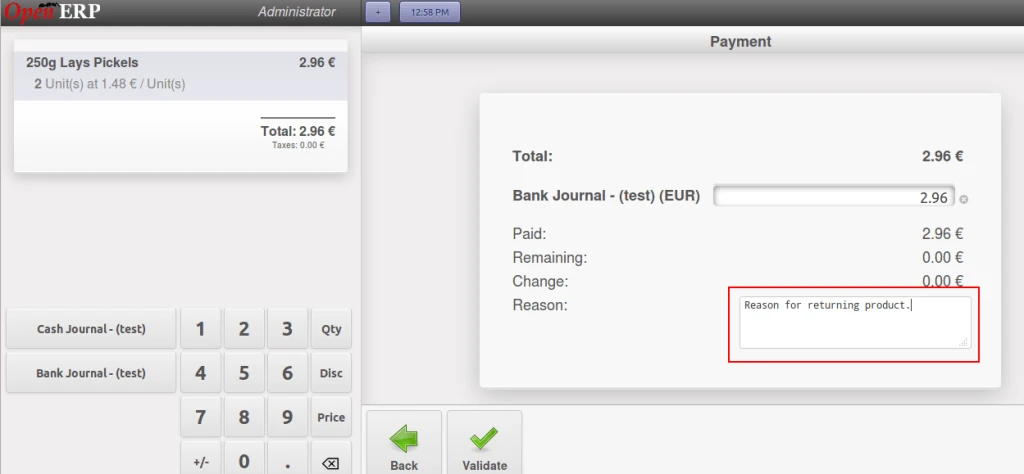
OpenERP POS Return Payment Screen
Once we complete partial return order then we can return the same order again for remaining product quantities displayed in following screen.
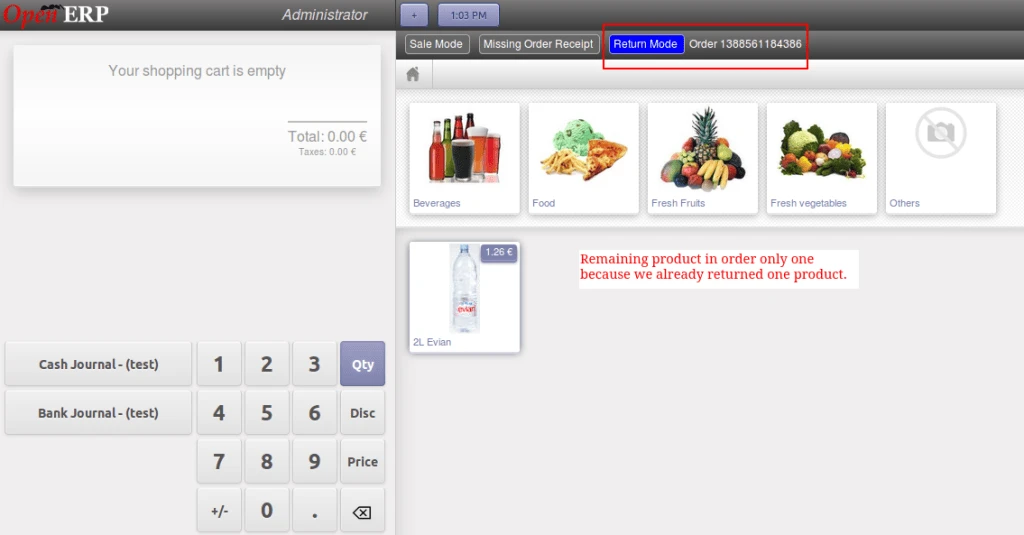
OpenERP POS Order Remaining Products
Here is the order return receipt in negative if we are returning products.
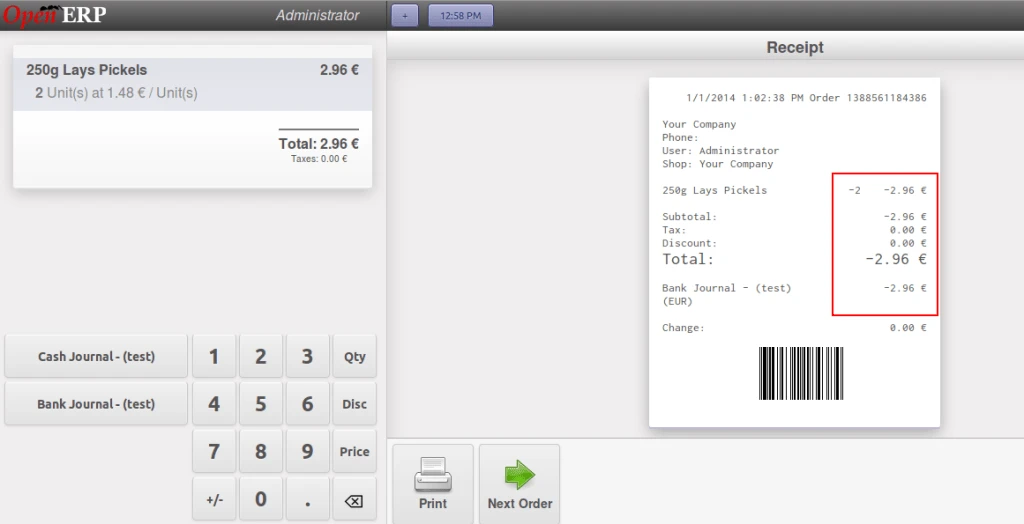
OpenERP POS Order Receipt
In order list we can see that main order and return orders have same order numbers with positive and negative values.
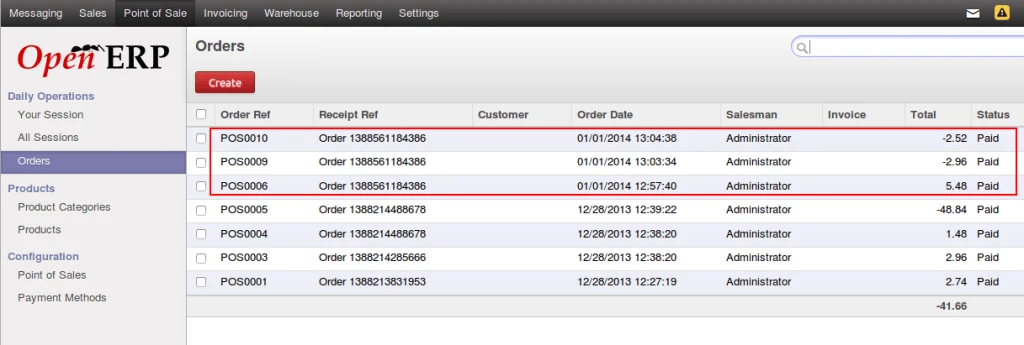
OpenERP POS Order List
POS Order form with corresponding values.
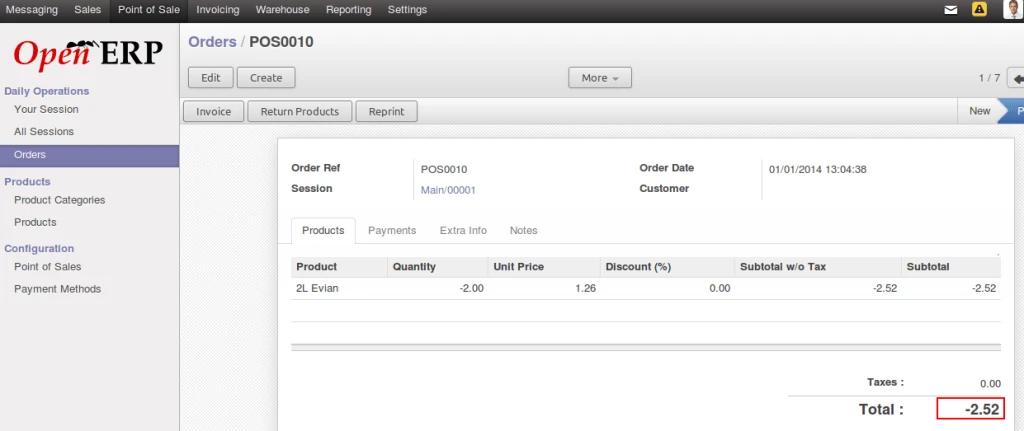
OpenERP POS Return Order Form
In “note” field, we can find reason which is entered during return products.
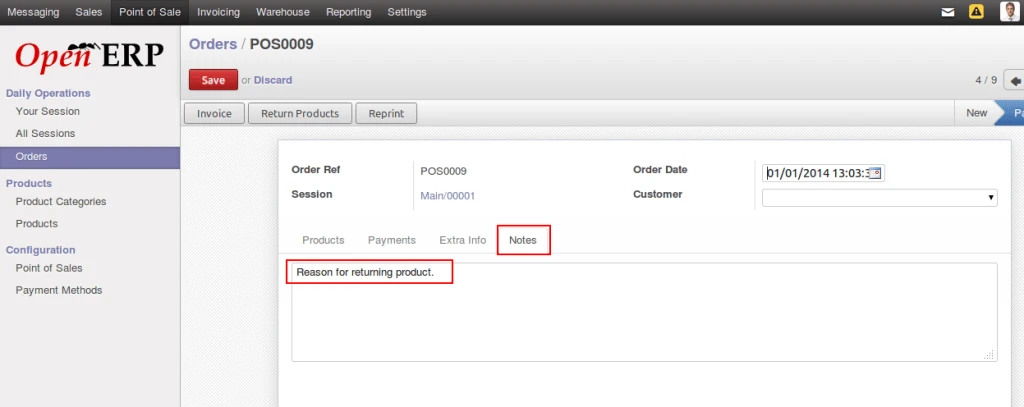
OpenERP POS Return Reason
OpenERP integration with BluePay
Recently we have made integration with OpenERP with Authorize.net for payment services. Now we have integrated OpenERP with another Payment services, BluePay. We can have more information from http://www.bluepay.com. With help of this module, it is very easy to process with credit card from OpenERP interface.
First of all we have to create account on BluePay and get required information and use those information to connect with BluePay from OpenERP. We have tested each transaction in TEST mode.
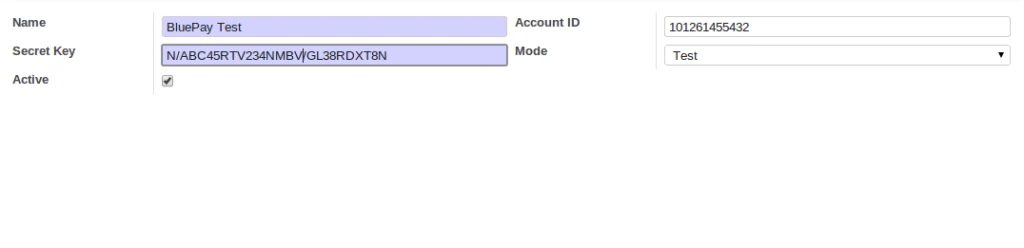
OpenERP BluePay Configuration
It requires credit card information to make transactions. We are storing required details into Customer form. We are using AES algorithm for securing credit card number into database.
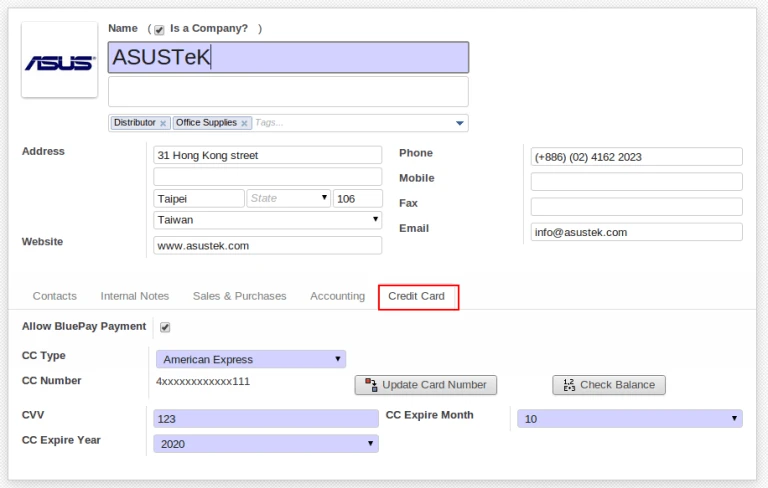
OpenERP Customer Form
Sometimes it is require to know that customer has enough balance in his credit card or not. We are giving facility that user will enter amount that he has to check for particular customer and get relevant message.
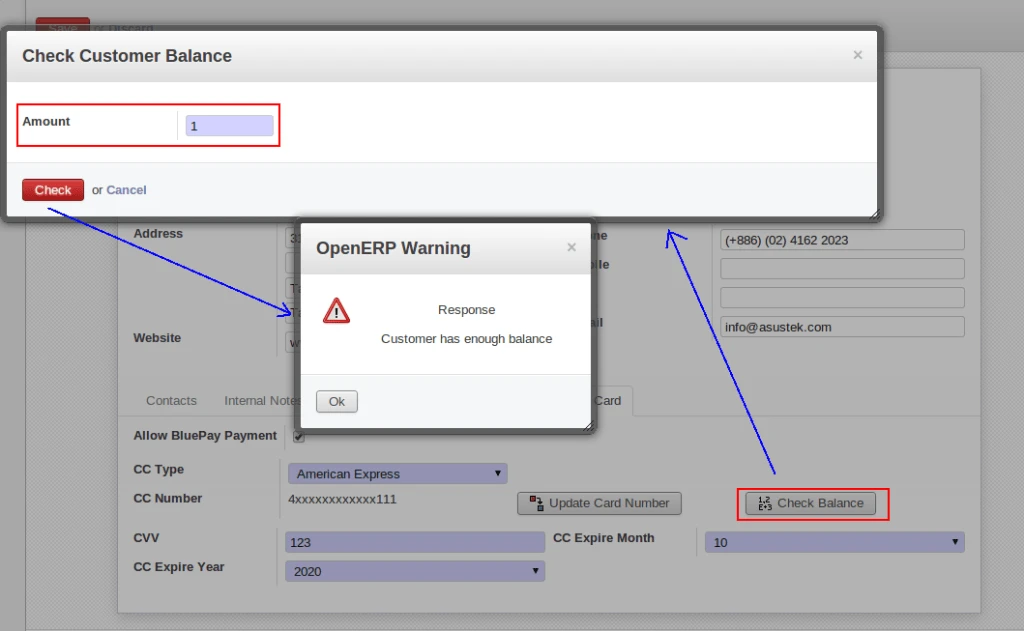
Check Credit Card Balance
As we are storing credit card number in a secure way in database so it is not allow to change credit card number directly.
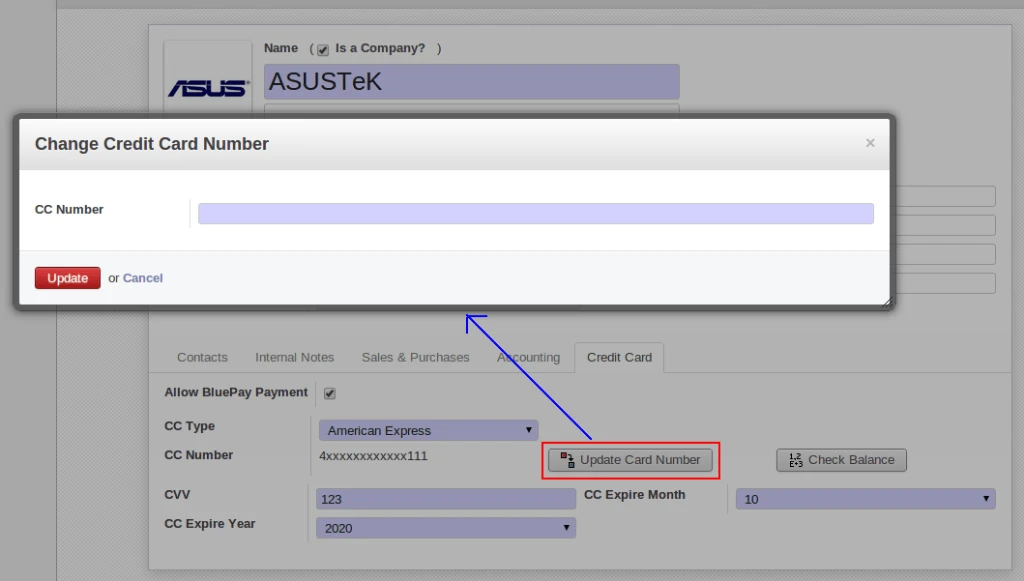
Check Credit Card Number
We have improved GUI of voucher for sending payment request to BluePay. It allows to send request only one time if it will succeed. And also stroing transaction related information into voucher for future purpose. It will cancel payment request with BluePay if we are going to cancel voucher.
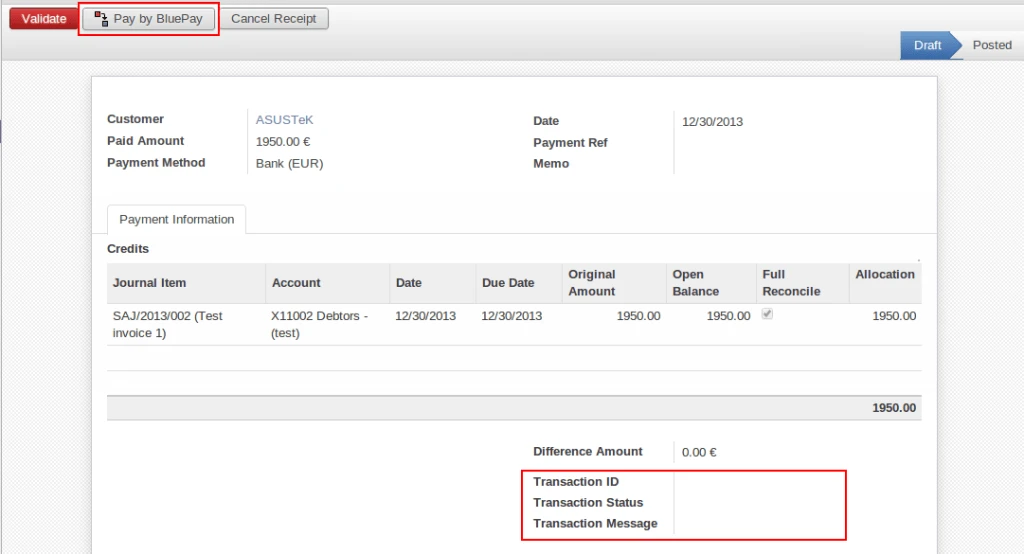
OpenERP Account Voucher
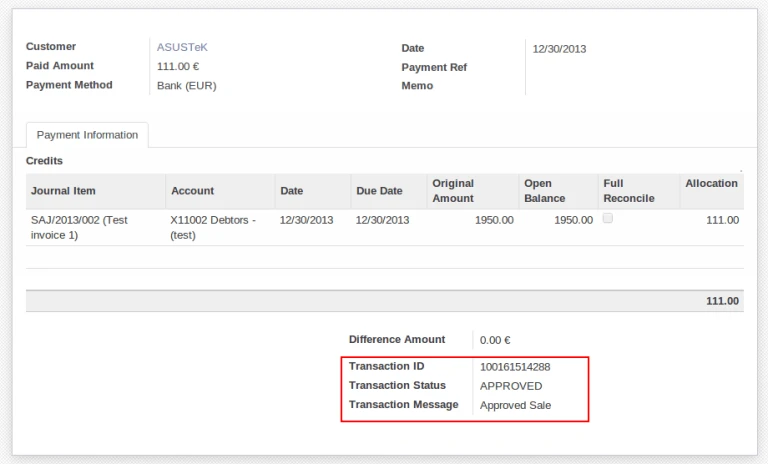
Voucher Process Completed
Sometimes it is require that customer wants to pay amount in installment. We are allowing to create recurring payment request with BluePay.
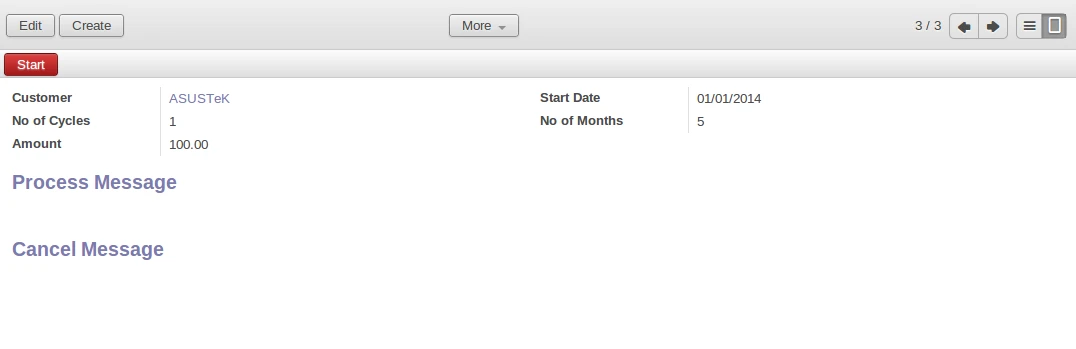
Recurrent Process
We are keeping track of messages for each and every transactions occur during recurring payment.
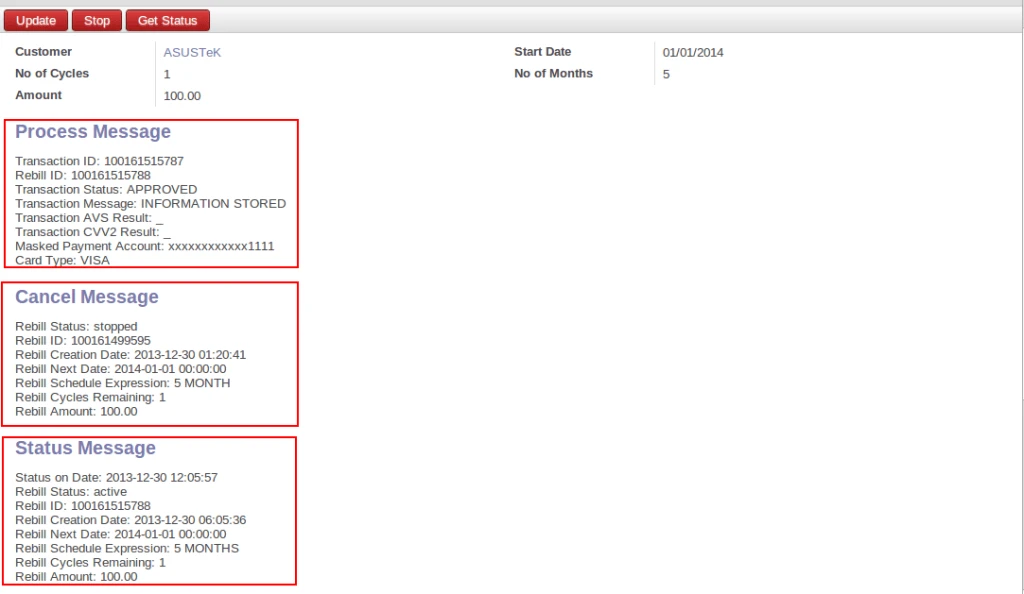
Recurrent Messages
User can change any parameter during recurring payment process execution. And can cancel it also.
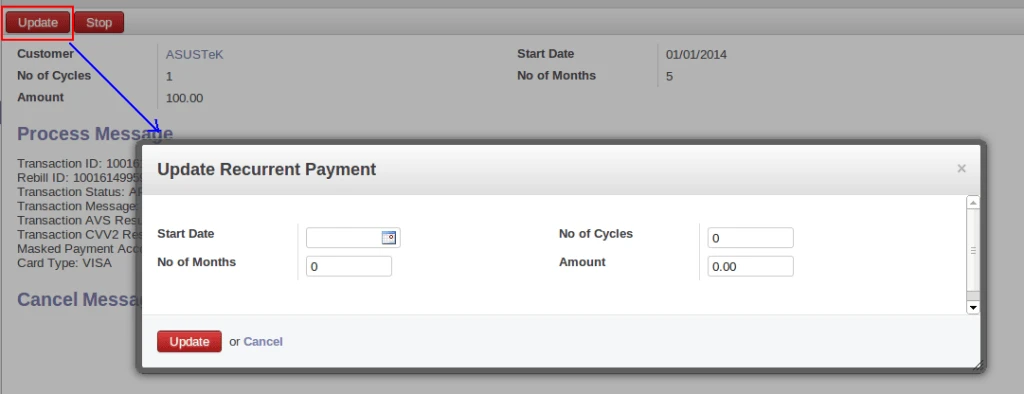
Update Recurrent Payment
We are tracking details of each and every transactions with BluePay.
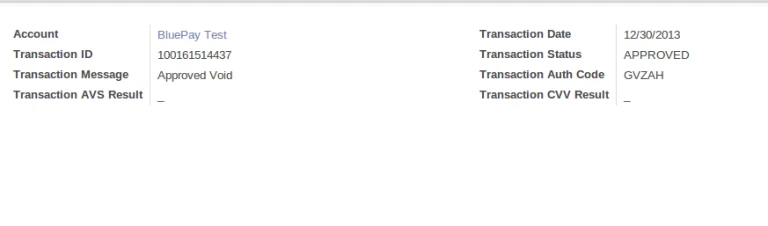
Transaction History
User can print transaction details on PDF report by entering date range and proper parameter selection.
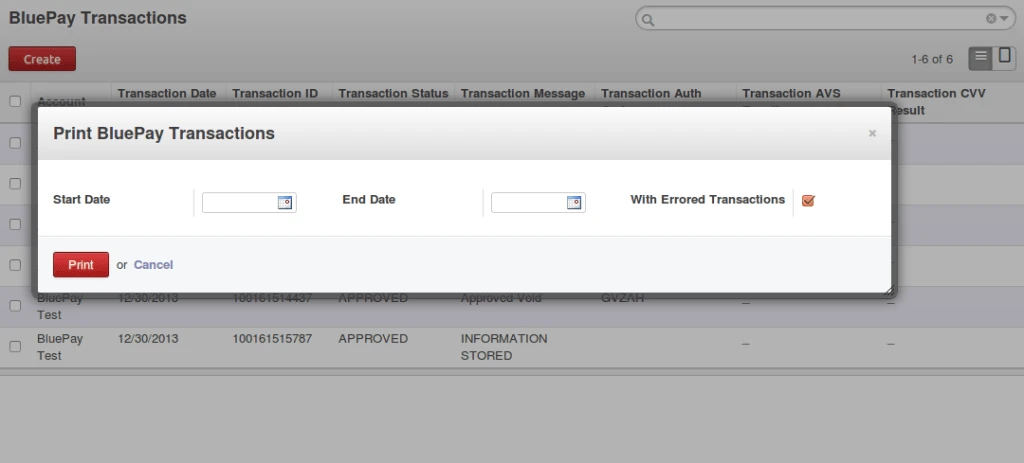
Print BluePay Transaction
OpenERP integration with Authorize.net
We have implemented solution for allowing payment process via Authorize.Net from OpenERP. We are still improving this module by adding new functionalities. Currently we have implemented feature with Customer Invoice and Customer Invoice Refund.
We have created account on Authorize.Net (https://sandbox.authorize.net/) and turn OFF TEST mode. We can get more information from here : http://developer.authorize.net/
In OpenERP, first we have to configure credentials for conneting with Authorize.Net. we are working on encryption/decryption of credit card information.
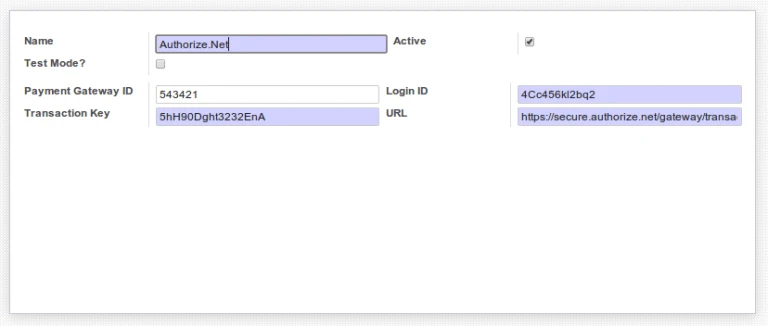
Authorize.net Configuration
For payment process, it requires customer address information. We are directly taking “Invoice” type address information from customer.
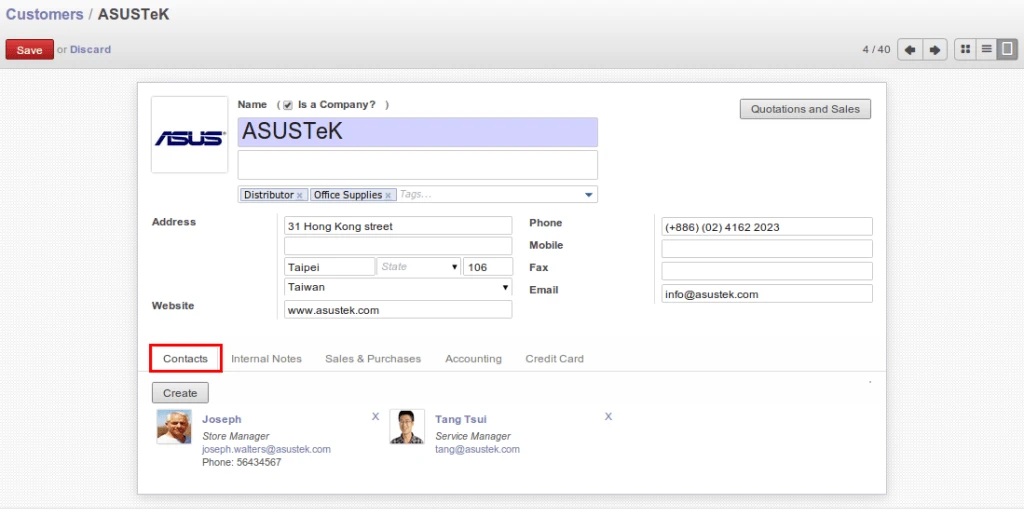
OpenERP Customer Address
Also added new fields related to Credit Card information. Currently we are processing with only one credit card. In future we are going to add feature for defining more than one credit card and activating one of them or ask user to select anyone. If “Allow Credit Card Payment” is TRUE then it will allow to do process. This field is useful during automatic payment process by cron job.
In below screen, we can see that credit card number can be change and how it will look like.
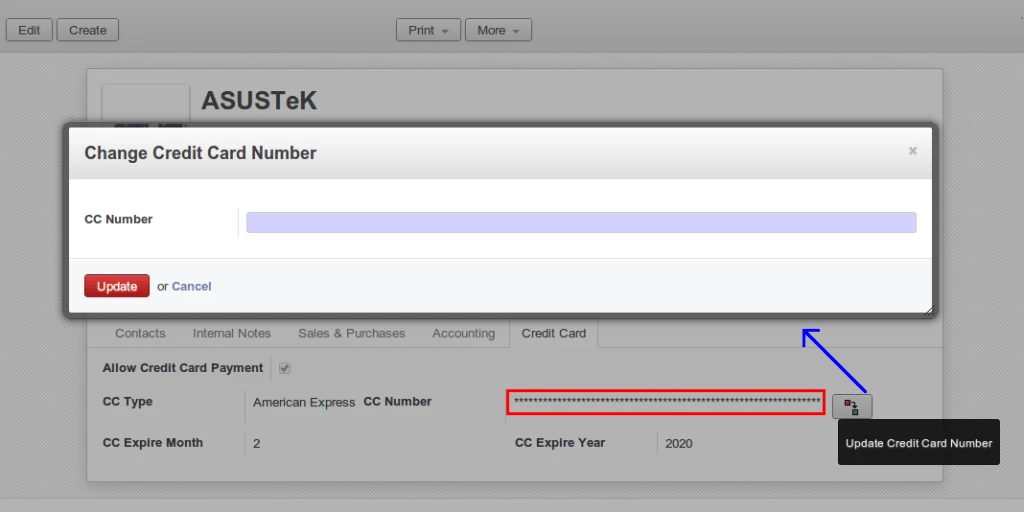
Change Credit Card Number
Here we have used AES algorithm to store credit card information for security purpose. We are using this algorithm for encryption/decryption.

Credit Card Encryption
Currently we put option for payment in Customer Invoice and Refund Customer Invoice.
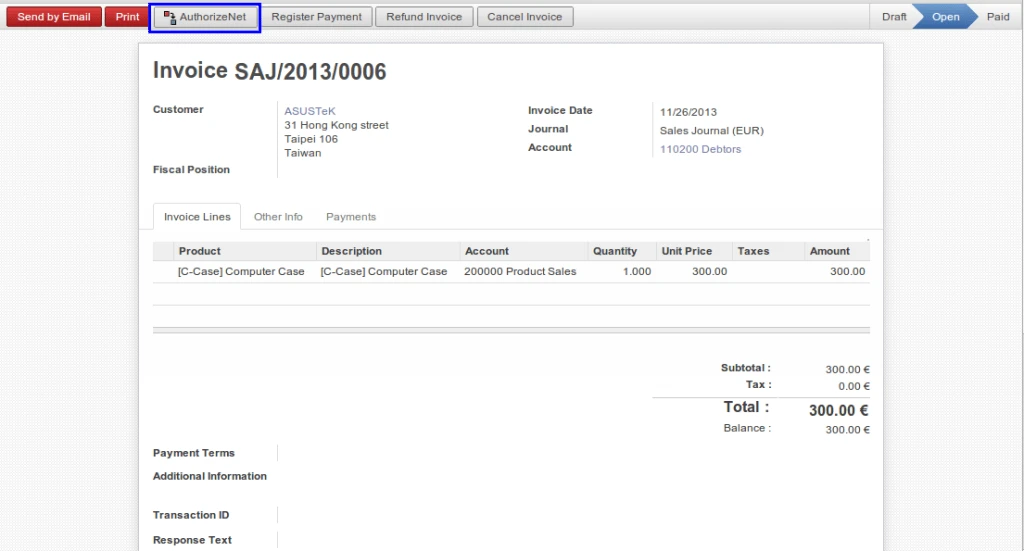
OpenERP Customer Invoice
After payment procedure, OpenERP will get response from Authorize.Net with information like “Transaction ID”, “Response Text”.
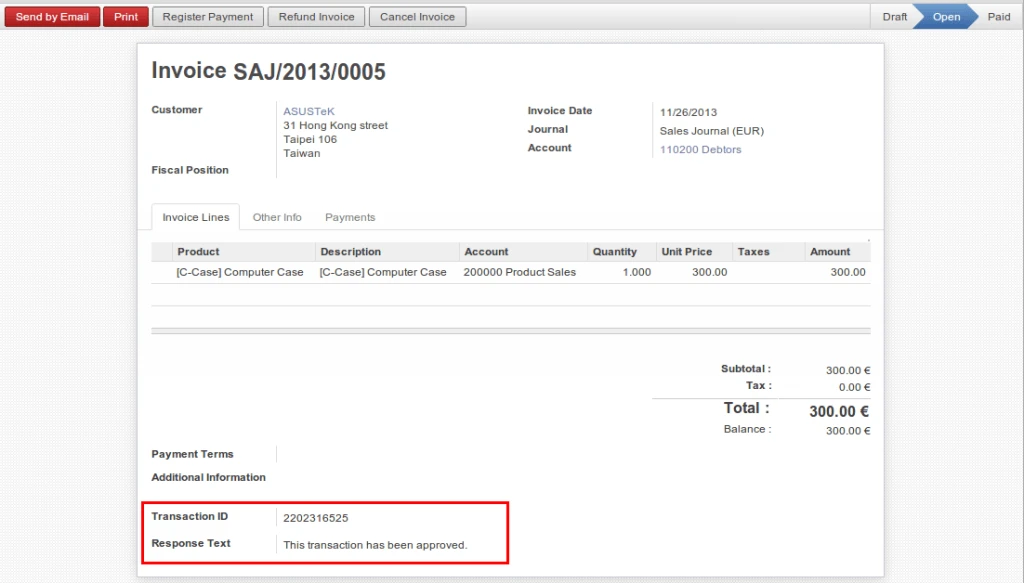
OpenERP Customer Invoice Proceed
Company will get an email also once payment request is completed.
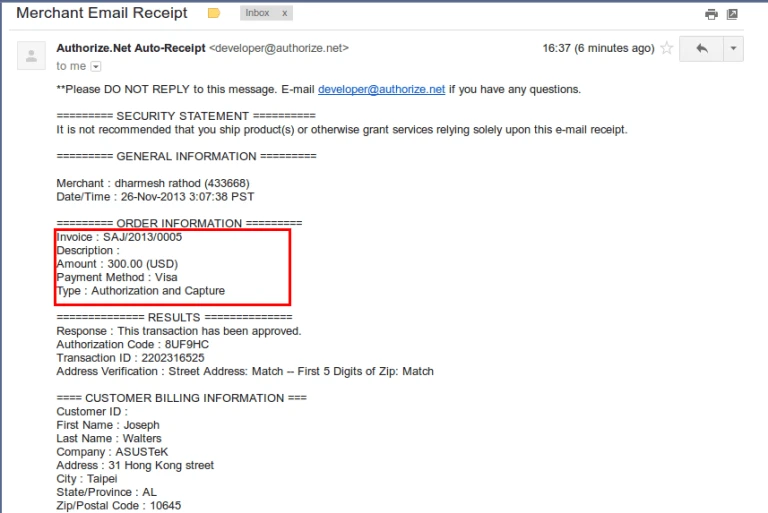
Authorize Payment Email
Sometimes, if we want to pay back to customer because of any reason. We have implemented feature that we can easily pay from Refund Invoice. But refund invoice has to be created from existing Customer Invoice only.
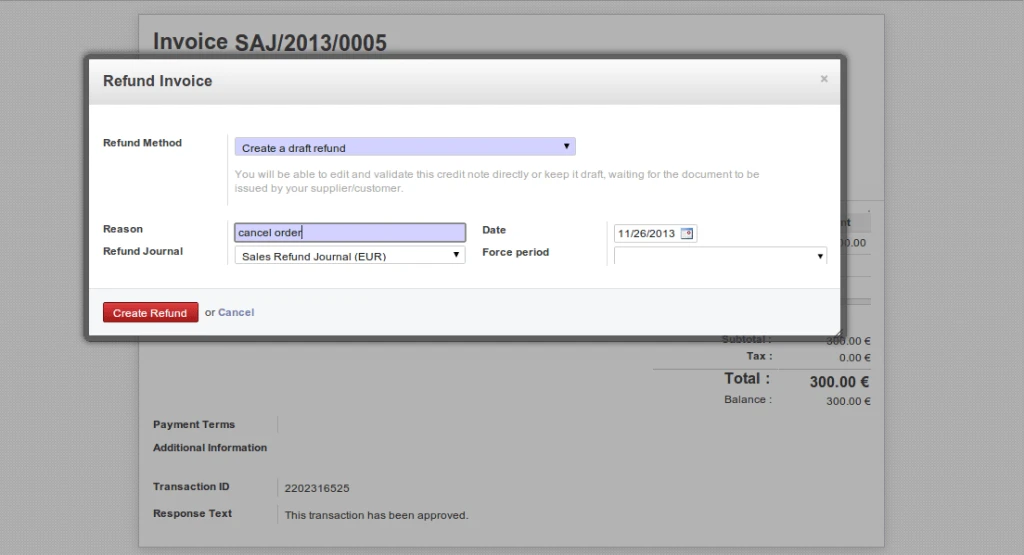
Refund Customer Invoice
We can have the same process in Refund Customer Invoice also.
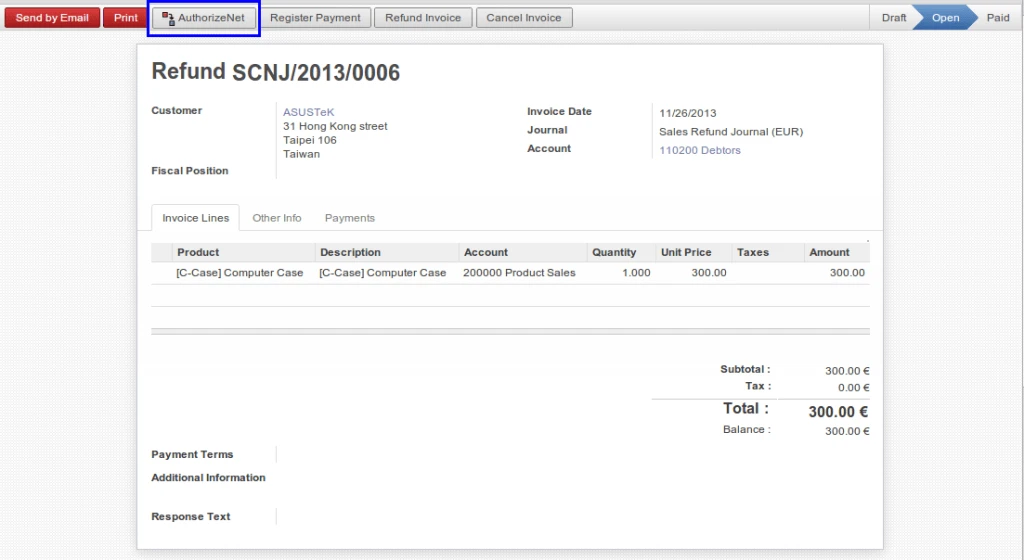
Refund Customer Invoice
We will get same response during refund procedure if our transaction is completed successfully.
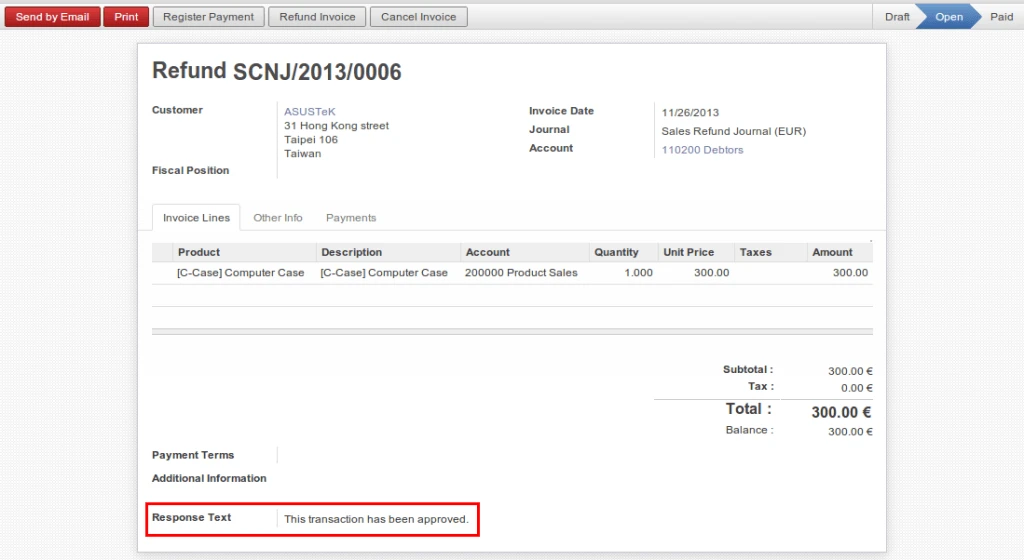
Refund Customer Invoice
We are going to implementing this feature for Voucher and POS.
OpenERP: Supplier Sales Report
We are discussing about business where company is getting products from suppliers, stores it in warehouse or any other locations, and selling of it. Sometimes it requires to inform supplier that how many daily sales occur for products and how much remain at the end of the day.
Some companies are not buying products from suppliers but keep it in their warehouses and selling on behalf of suppliers.
In intial state, we have define and assume that one product is supplied by one supplier only.
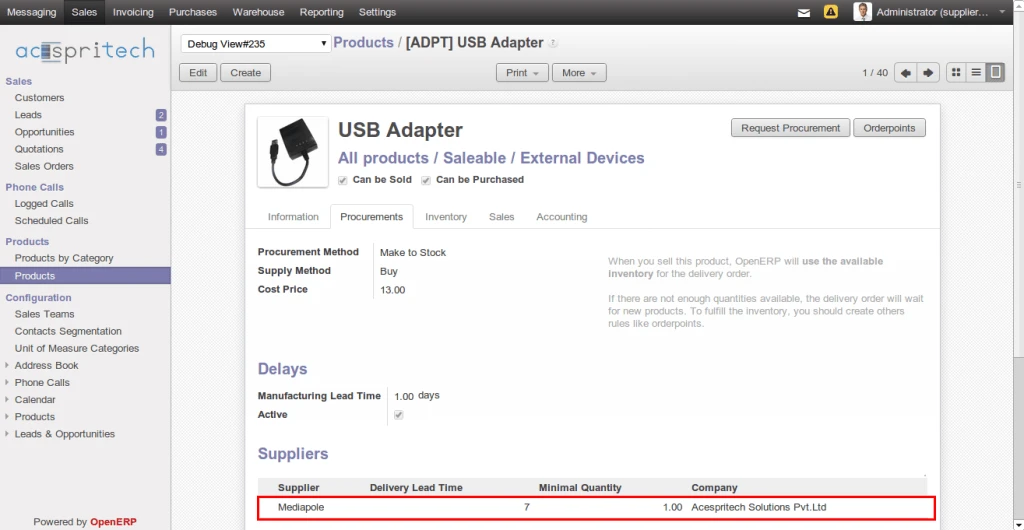
OpenERP Product Supplier
For sending email we have created email template which make it more generic.
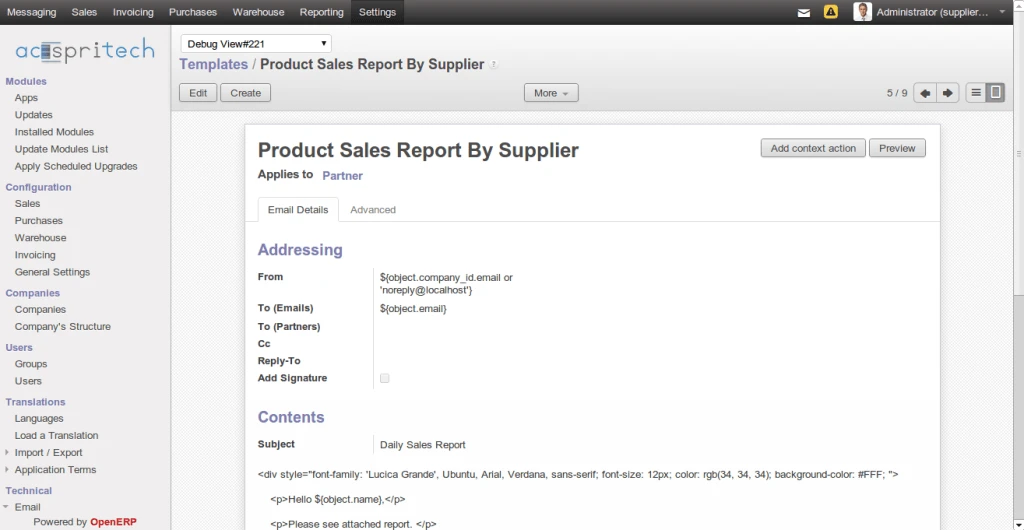
OpenERP Email Template
And for automatic sending emails, we used cron jobs which makes work very easy.
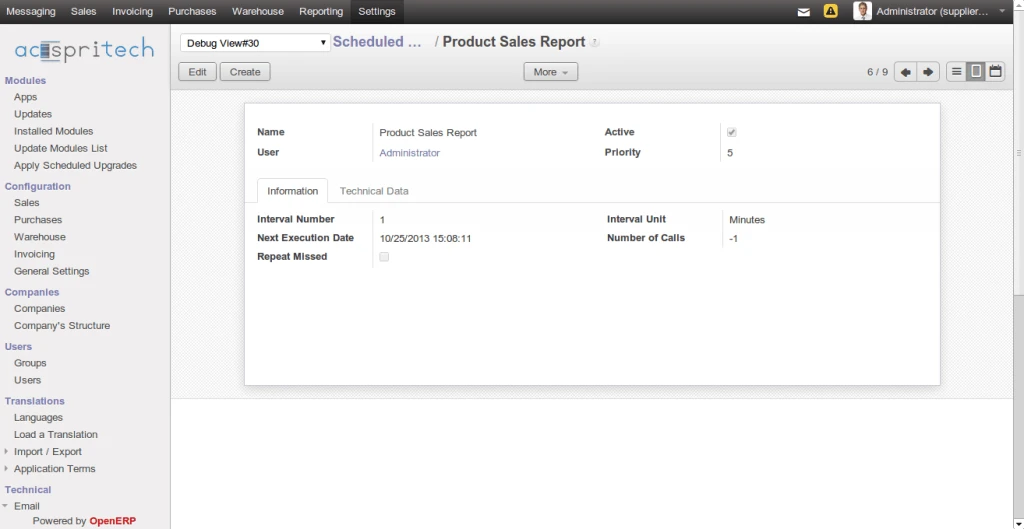
OpenERP Schedular
It is possible that all supplier don’t require notification about products those sold today. We make it optional also.
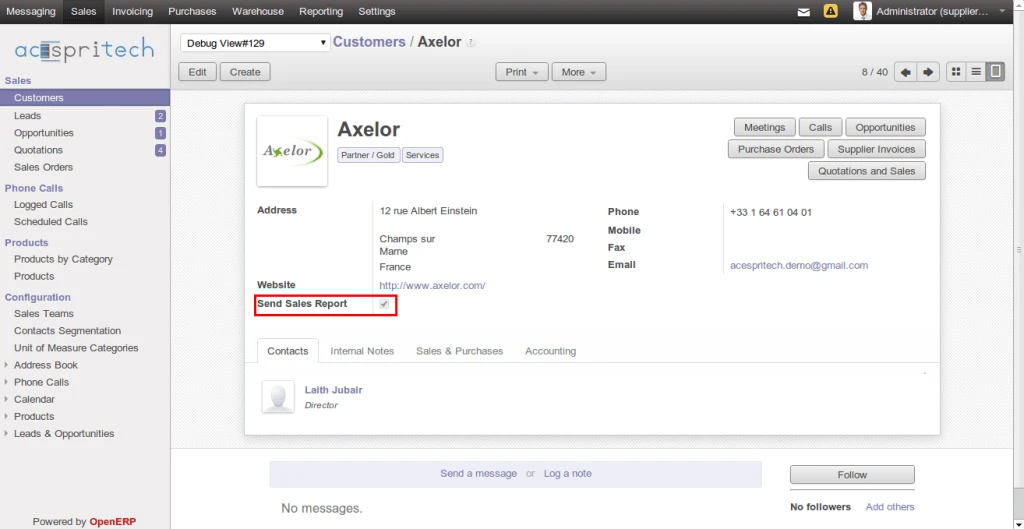
OpenERP Supplier
Now going to make sales order where one product has supplier defined and require to get notification about sales.
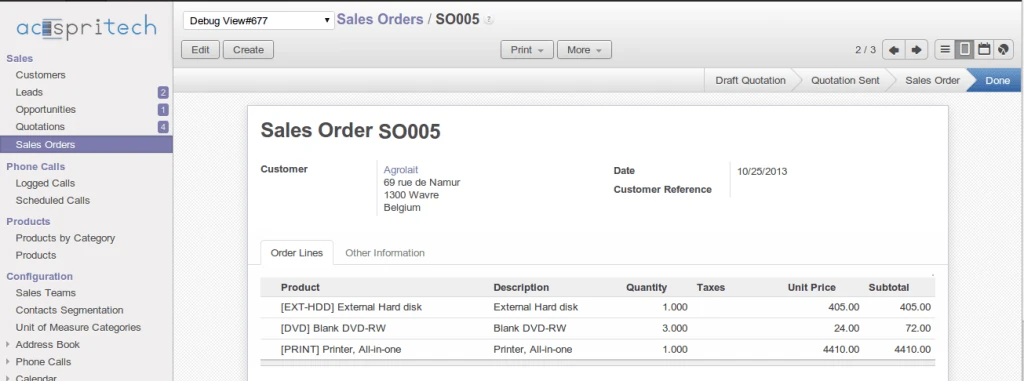
OpenERP Sales Order
And we have completed all process of delivery order also.
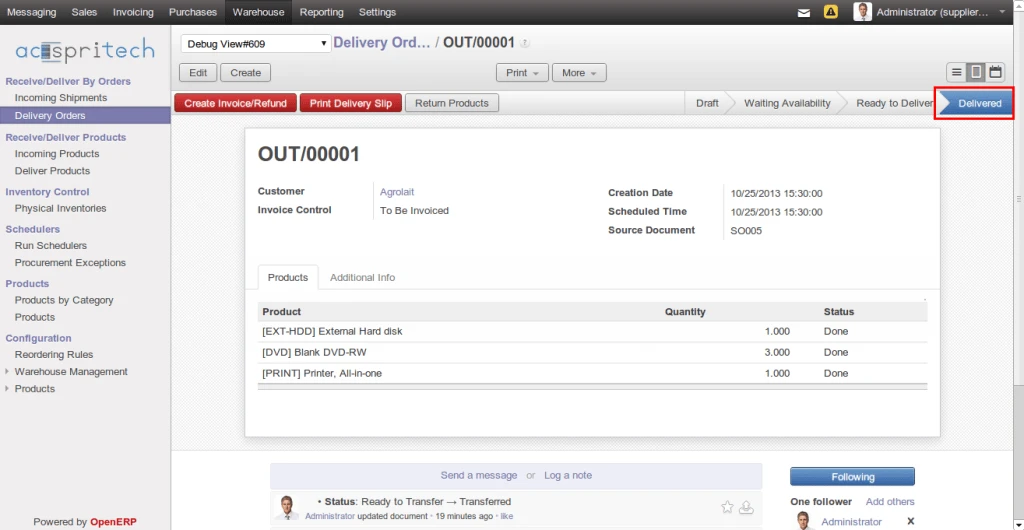
OpenERP Delivery Order
When cron job is going to execute, it is sending email like below:
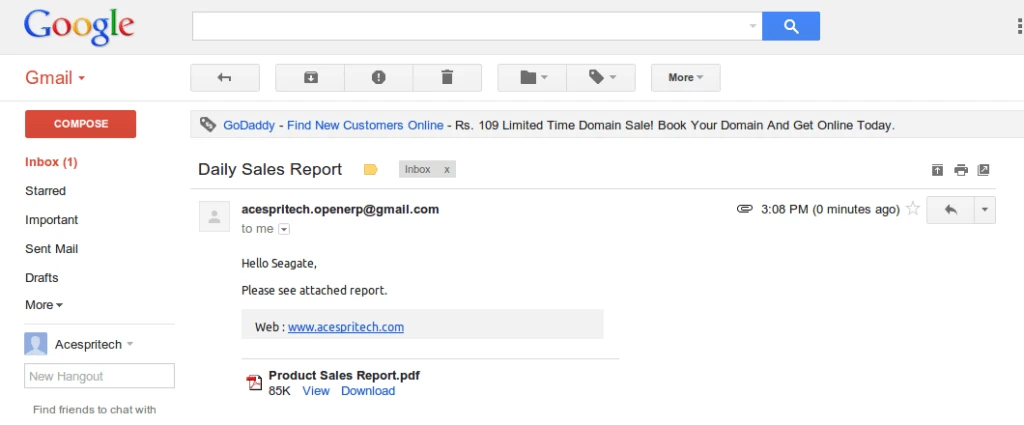
OpenERP Email
You can find PDF report as a attachment.
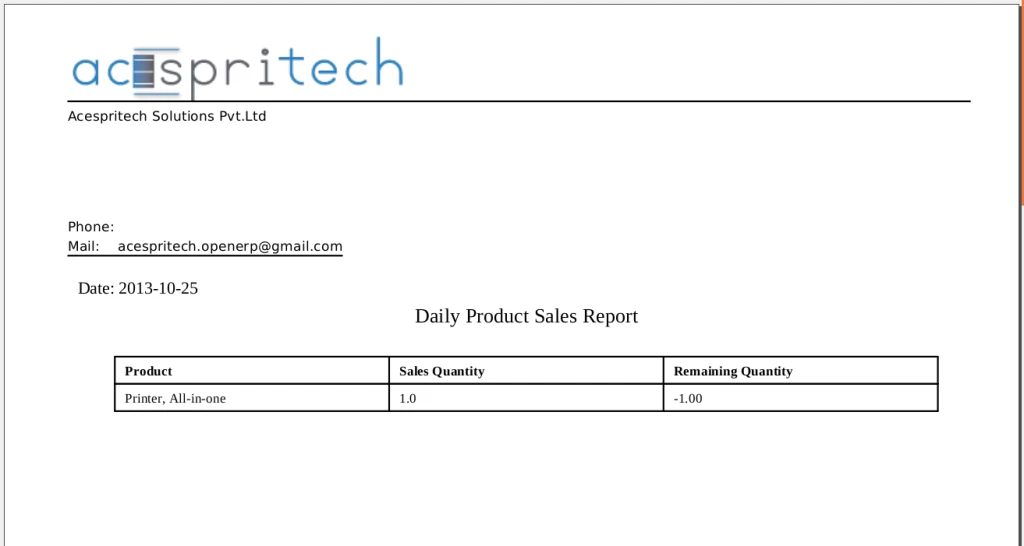
OpenERP Report
OpenERP: Calculate resource hours based on job position
In many industries it requires to distribute work between employees as per their skills and availability. Without proper management, we never know that how many total working hours in our company according to designation or job position and how many in use and pending.
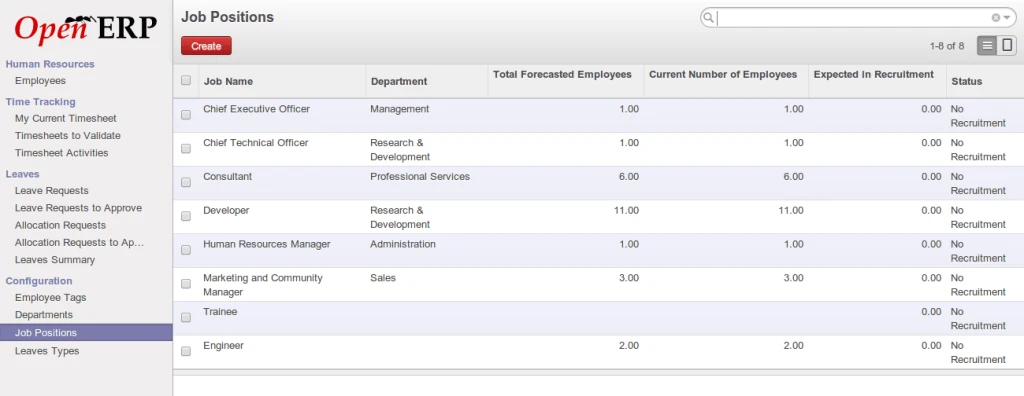
OpenERP Job Position
Here we are linking job position with working time.
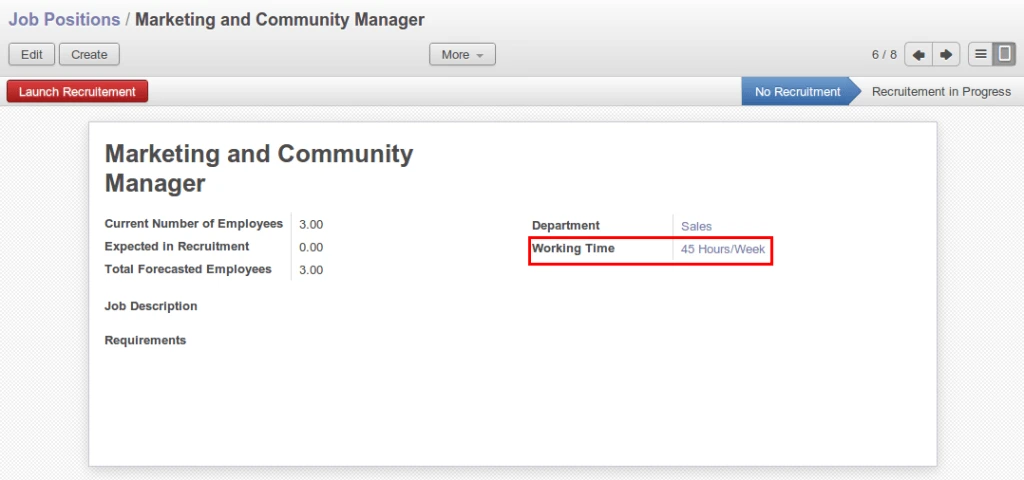
Job Position Worktime
This is configuration detail of working time.
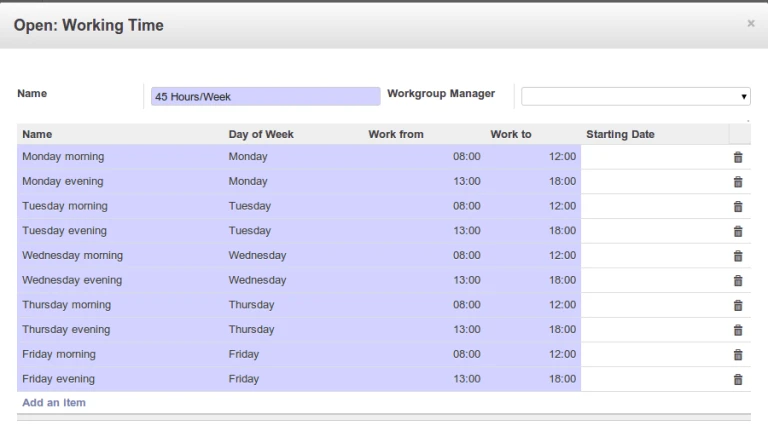
Working Time
For our example, there are three employees related with Marketing job position.
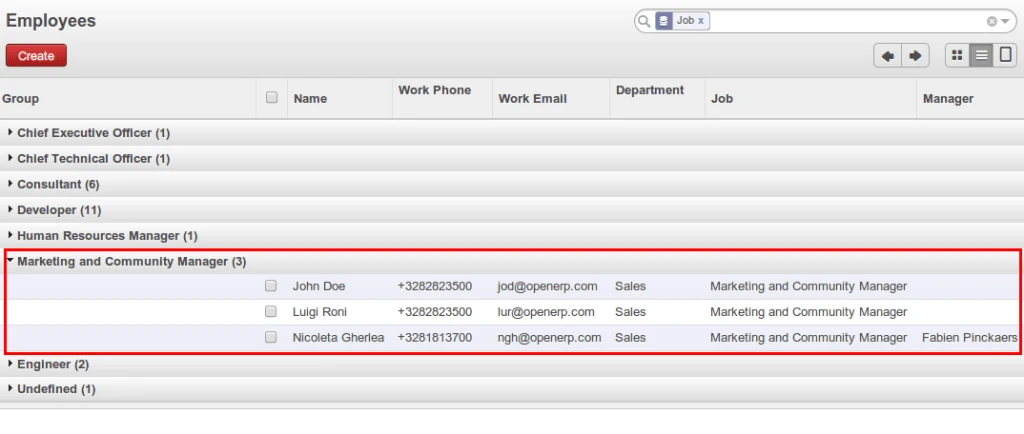
OpenERP Employees
Now we are going to create Project Task for marketing employee. Still now this task is not assigned to any particular employee. This way we have created 2 Tasks.
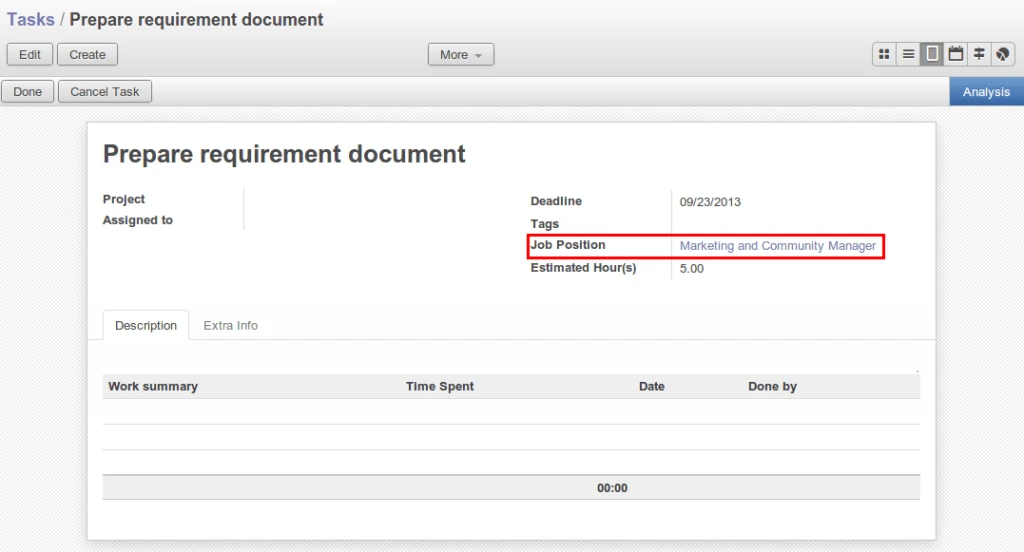
OpenERP Project Task
As you can see there is one approved leave request of employee who belongs to maketing designation.
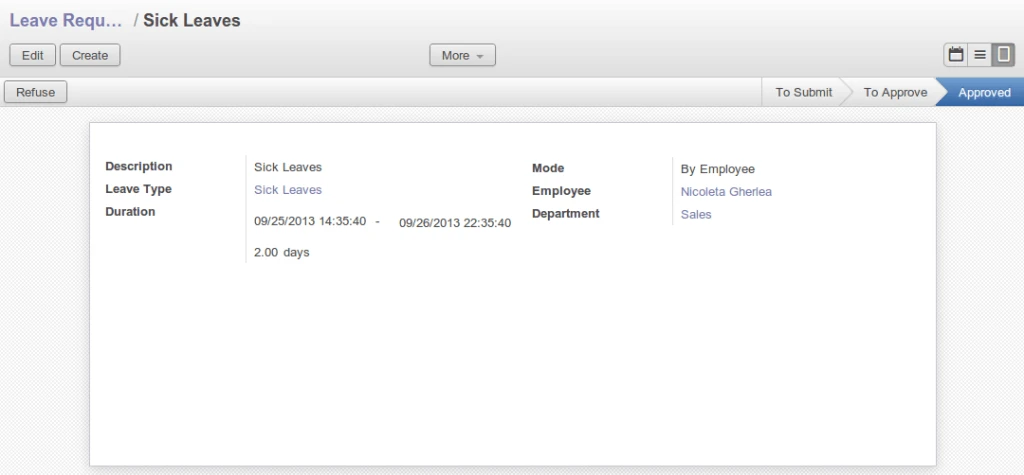
OpenERP Leave Request
We can see now how many hours available with us for particular job position between some periods. There are total 3 employees related with that job position.
Working hours for 1 person for 1 day is 9 hours. so it is 9 * 3 = 27 hours for 3 persons.
Allocated Hours means total task hours assigned to that job position. Holiday Hours in below screen considered as approved leave of any employee related with that job position.
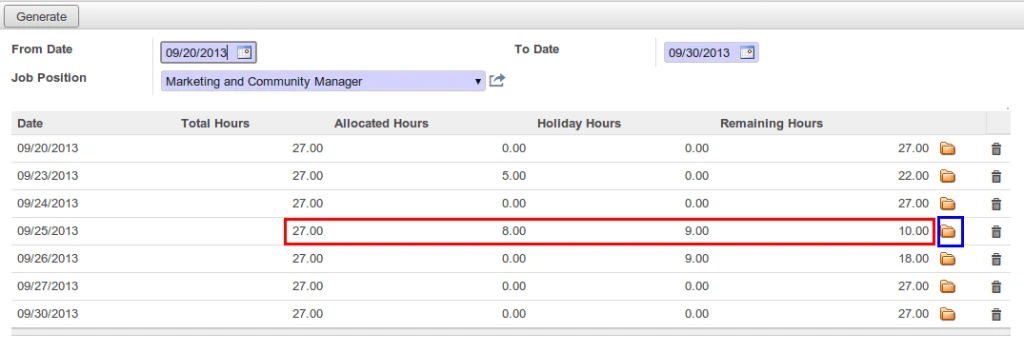
Job Position Status
You can create directly task for remaining hours for same job position on particular date.
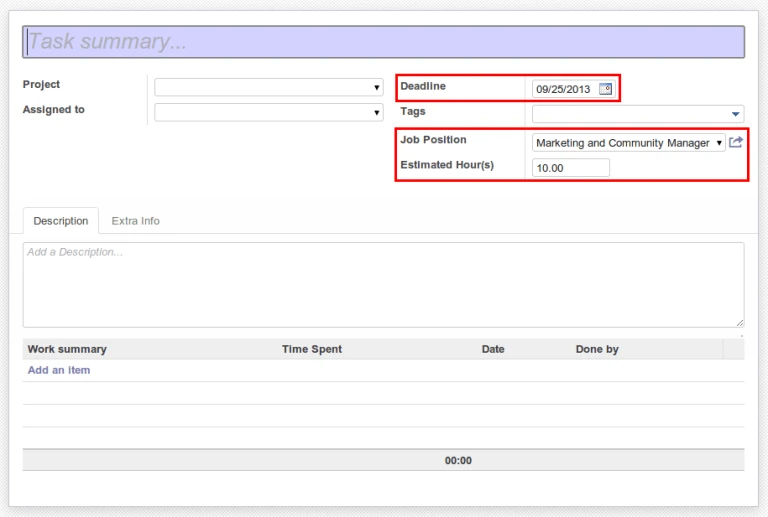
Task Form Default Value
OpenERP 7 : Hotel Management
Hotel management module is already available in OpenERP 6.1. Now this module is available in OpenERP v7 with many extra features.
Following screen shows enhancement for Reservation process and unique identification for each reservation.
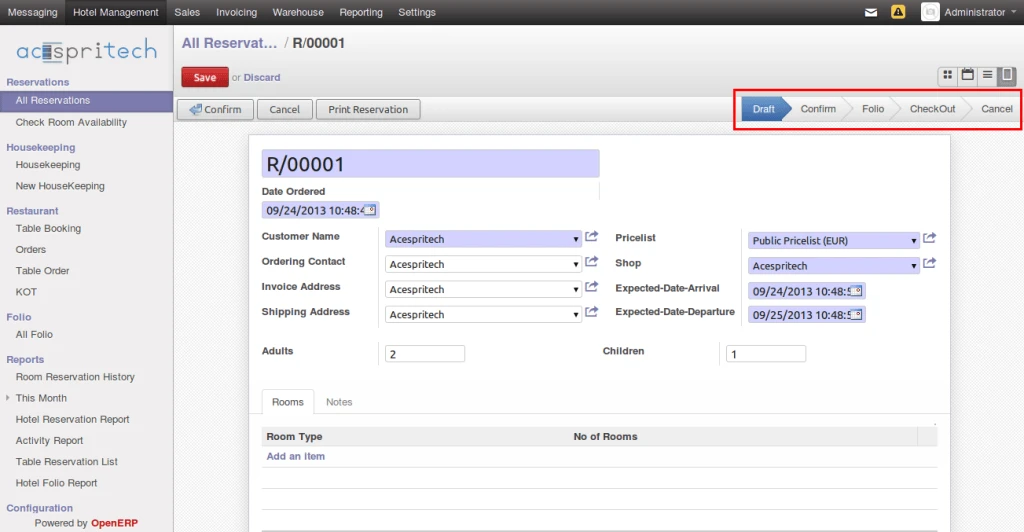
OpenERP Hotel Reservation Process
User can generate reservation report also.
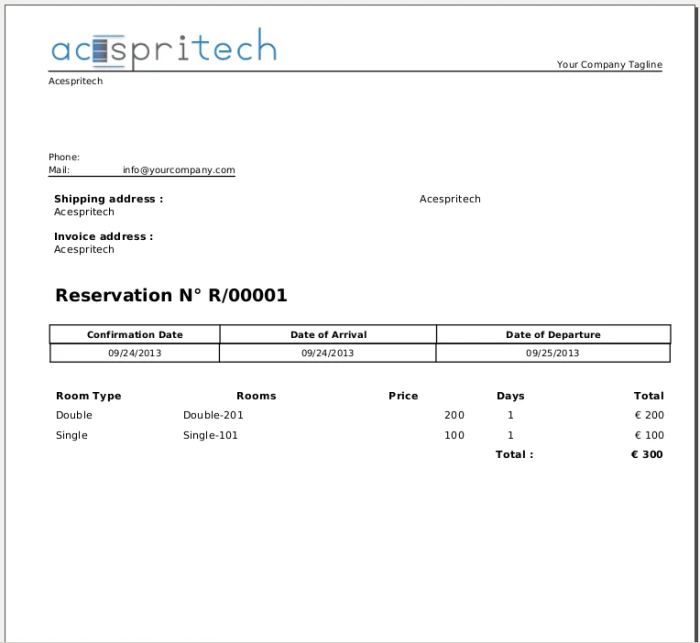
OpenERP Hotel Reservation Report
Following screen will display Reservation link with one Folio even reserved more than one room.
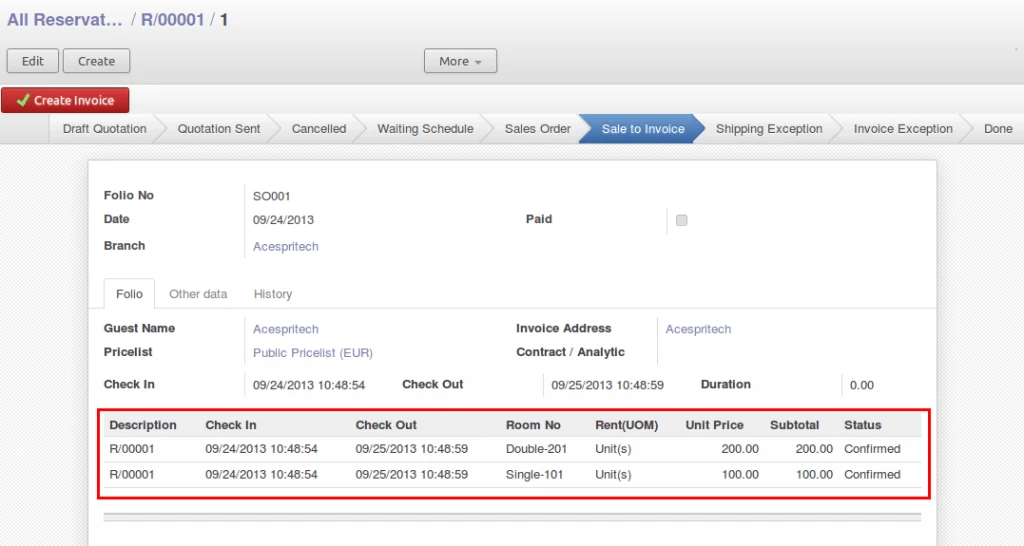
OpenERP Hotel Folio
Now user can perform more options from Resevation form.
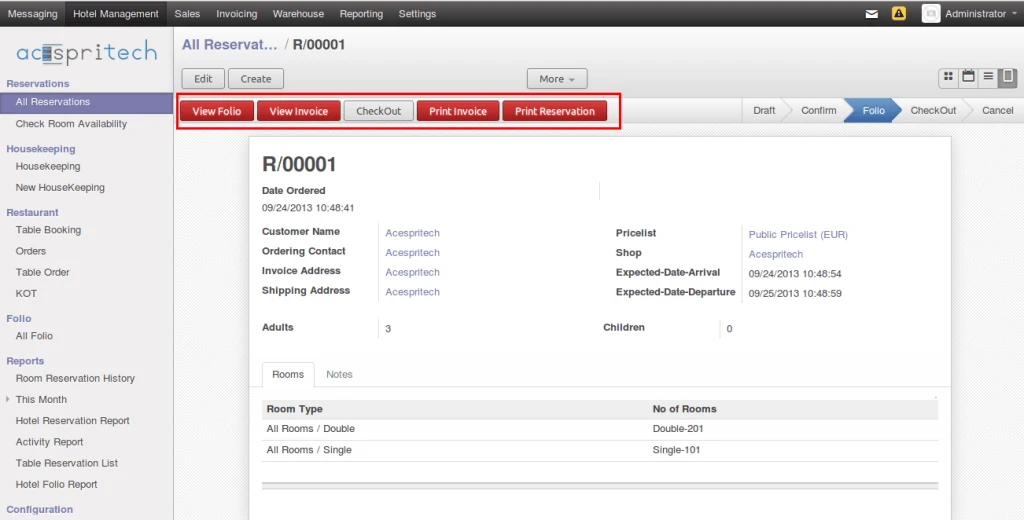
OpenERP Hotel Folio State
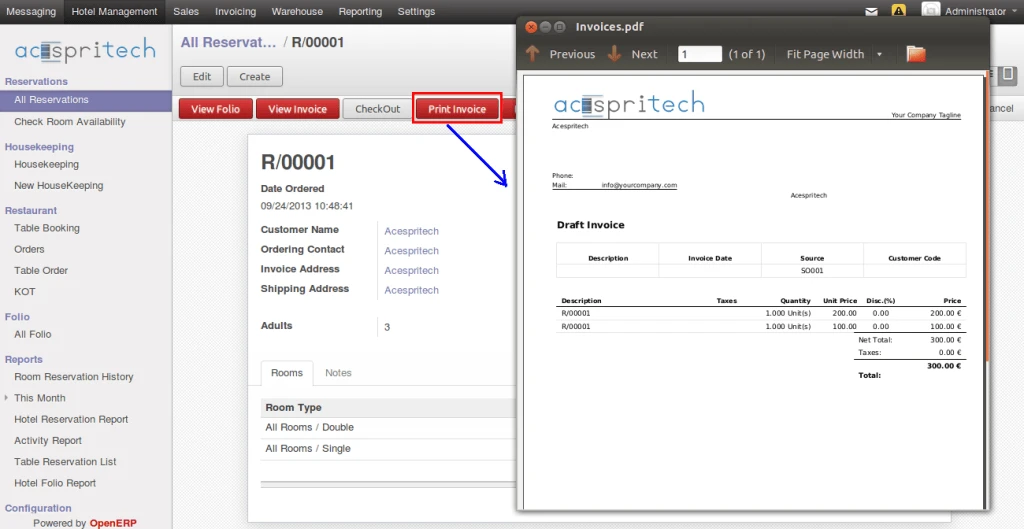
OpenERP Hotel Reservation Invoice
There is a good feature which we like to show here is Availability of Rooms. If the room is not available then it will not be visible during room selection.
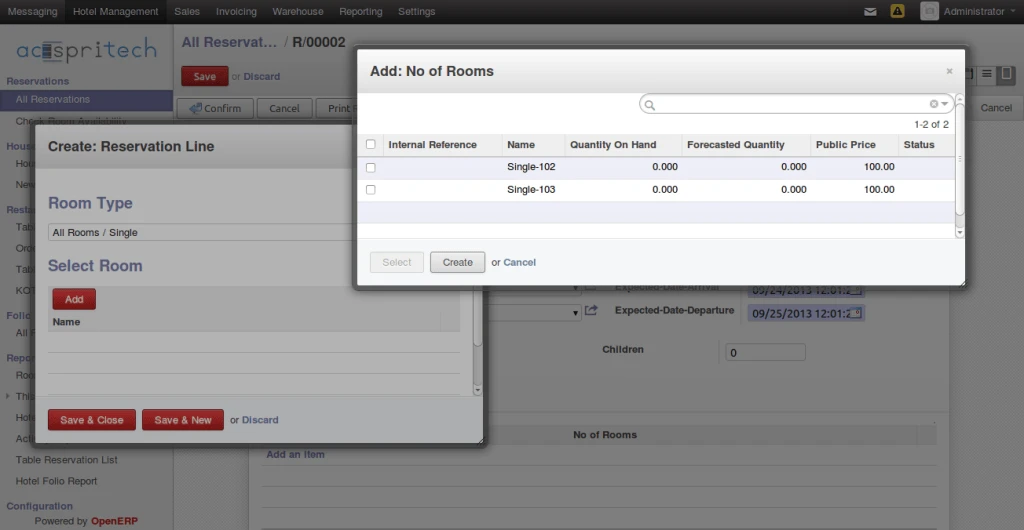
OpenERP Hotel Rooms
We have developed some views for Reservation – Kanban View
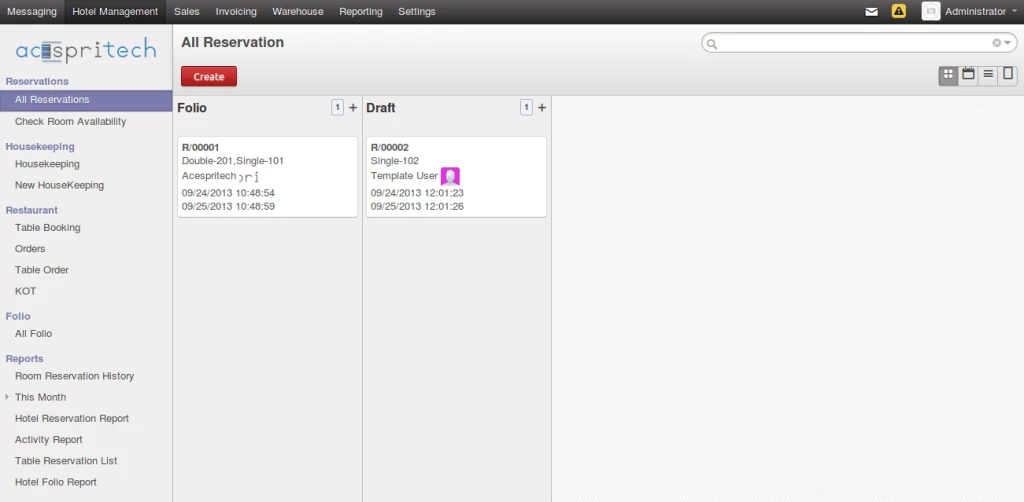
OpenERP Hotel View – Kanban
Reservation – Calendar View
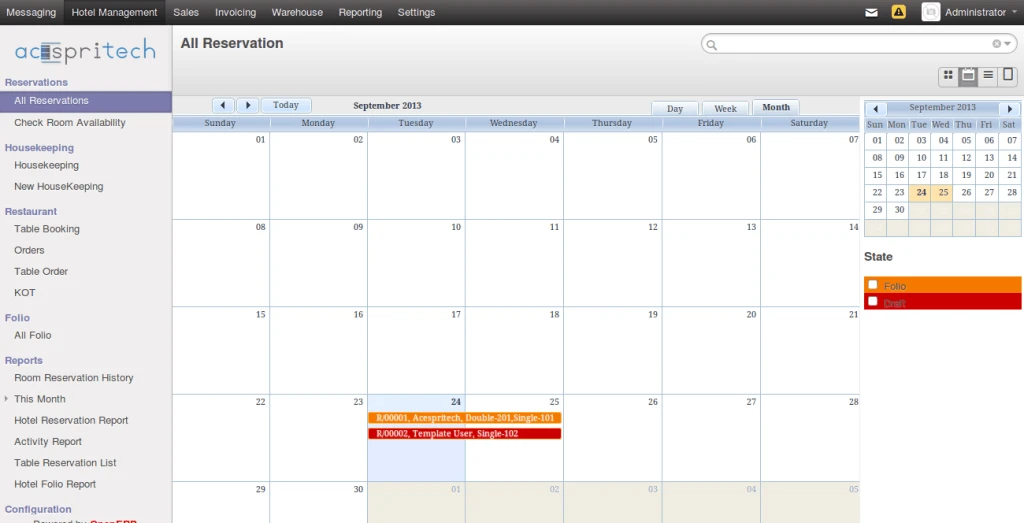
OpenERP Hotel View – Calendar
User can check the Room Availability between given dates in case of advance booking is required.
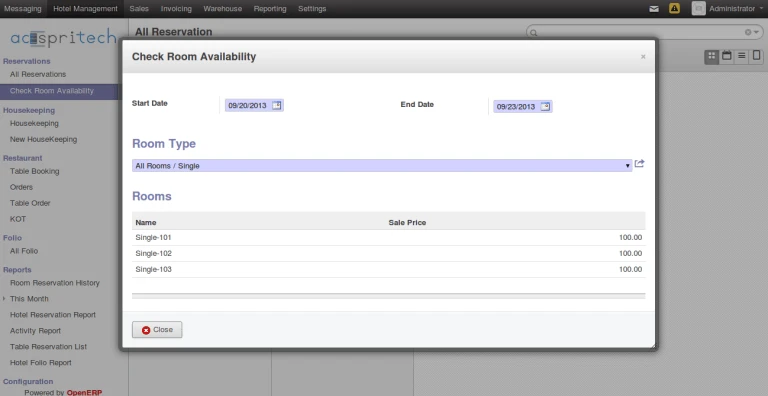
OpenERP Hotel Room Availability
OpenERP : Roster Management Module
As we know OpenERP is such a strong and wide ERP and we can perform unbelievable implementation in it.
We have implemented a concept called ‘Roster Management’ which is mainly creating recurrent tasks of employees for certain projects and periods.
For any organization, it mainly require to define public holidays according to their country and region.
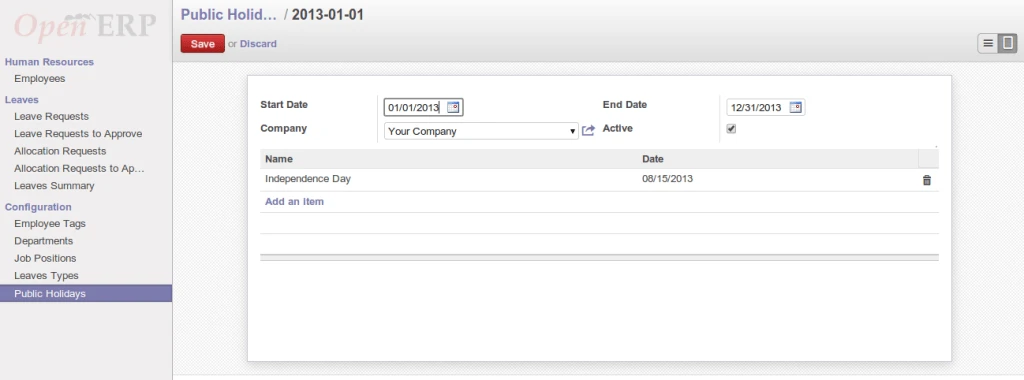
Public Holiday
There is leave request by an employee which is already approved.
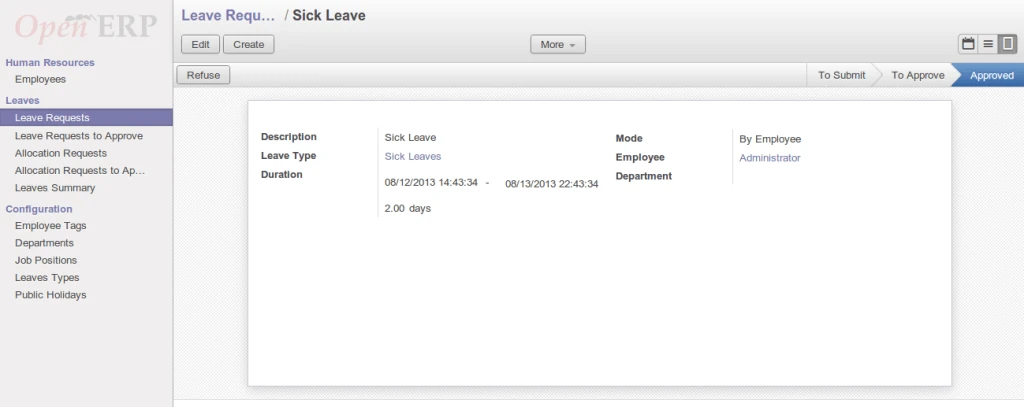
OpenERP Leave RequestGenerate Task
This is an important form for creating recurrent task.
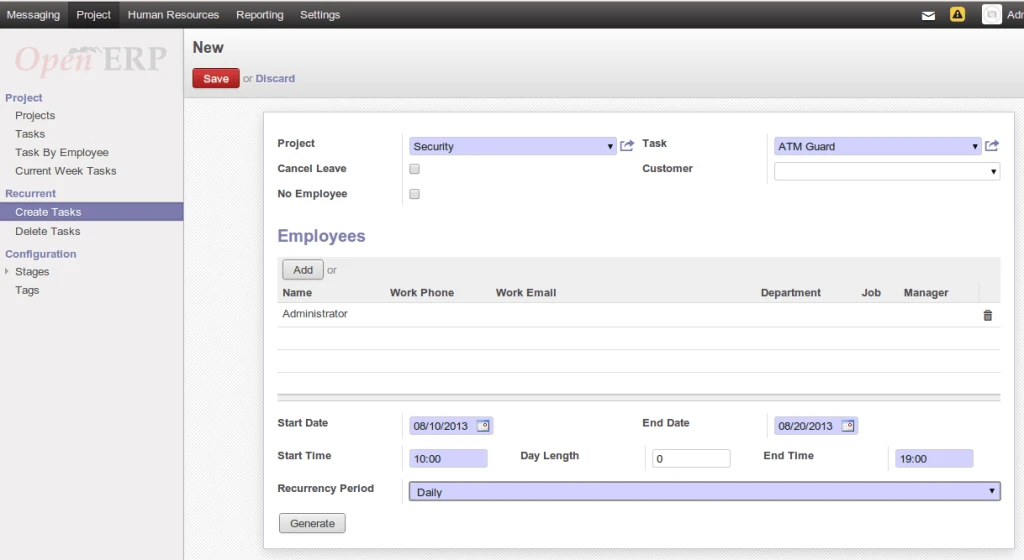
Create Recurrent Task
Let’s check fields details here.
Cancel Leave – It will create task for employee and cancel employee leaves which are already approved and send an email to that particular employee also.
No Employee – It will create tasks without assigning any particular employee.
Start Date – This date will consider for starting date of creating task and check for employee leaves those already approved.
End Date – This date will consider for ending date of created task and check for employee leaves those already approved.
Start Time / End Time – Consider it for Task creation
Day Length – Sometimes task may span in more than 1 days. Default value is Zero.
Recurrency Period – Daily / Weekly / Monthly
After click on Generate button, it will open following window. It will display Public Holidays as well as employee approved leaves. By default, it will not create any task for those dates which include in both sections. It will create task on holiday or leave if user remove it manually from list.
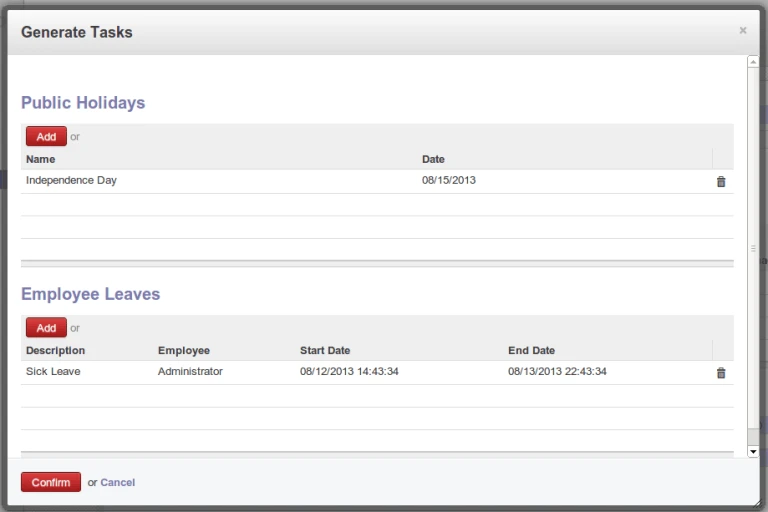
Generate Task
As you can see in following screen, there is no task created for 12, 13 and 15 date.
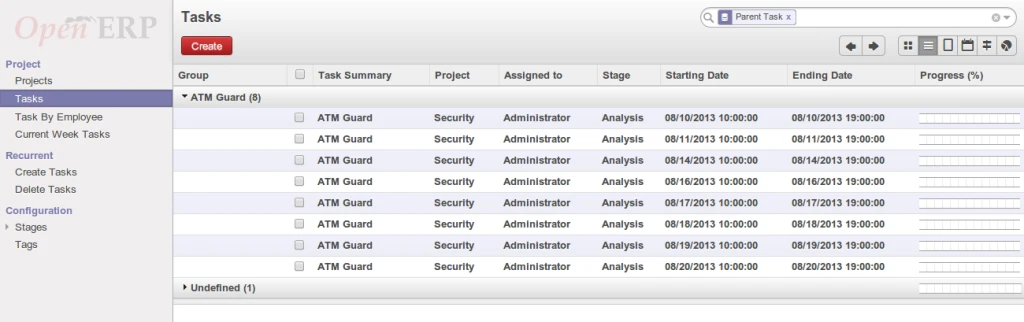
Recurrent Task
It is sending an email like below in case of employee leave has been cancel.
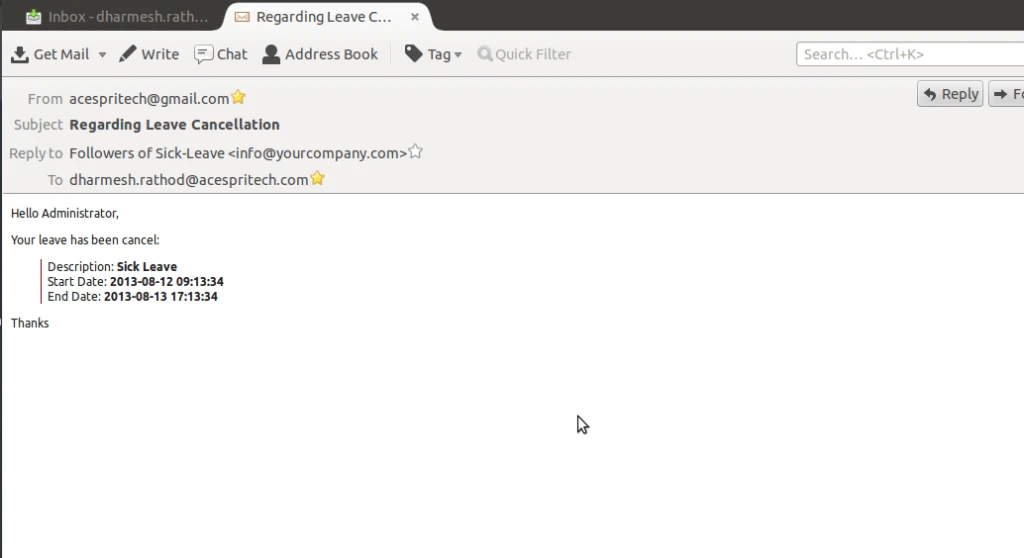
Cancel Leave Email
Employee’s cancelled leave
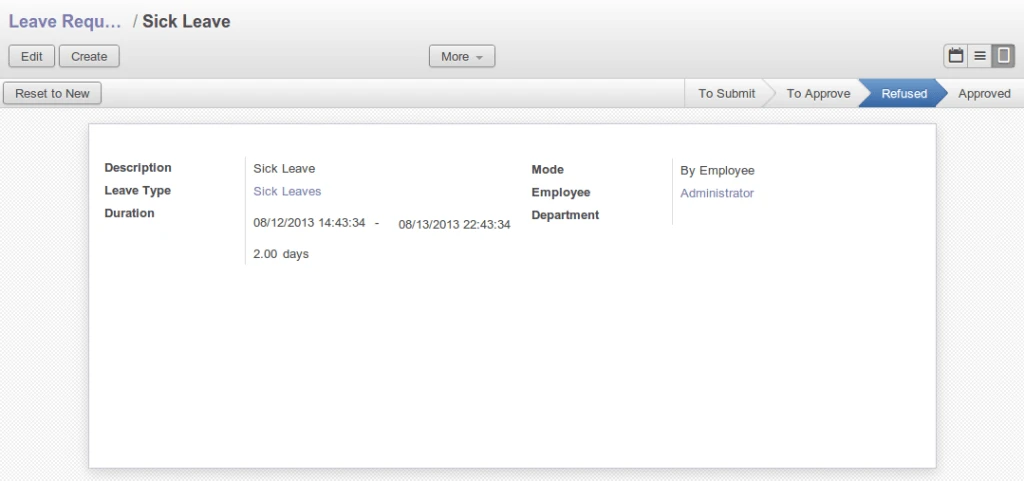
Refused Leave
This menu display all tasks those start and end in current week. It consider week from Monday To Sunday.
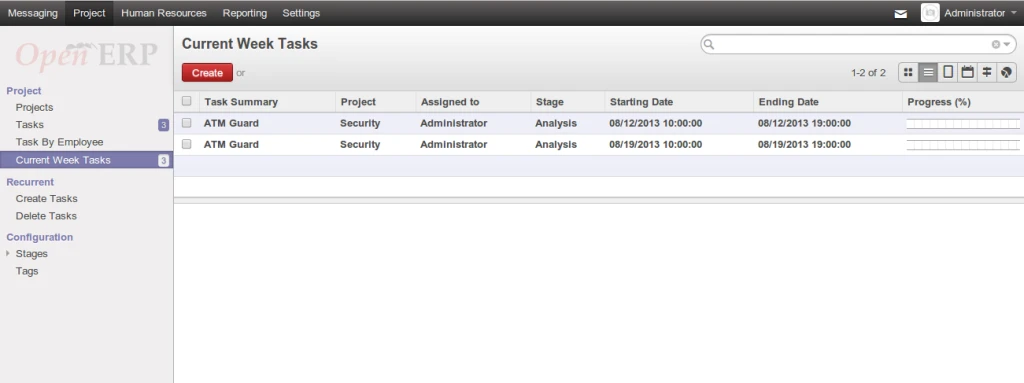
Current Week Task
There is a facility to send an email or print tasks for employee for particular period.
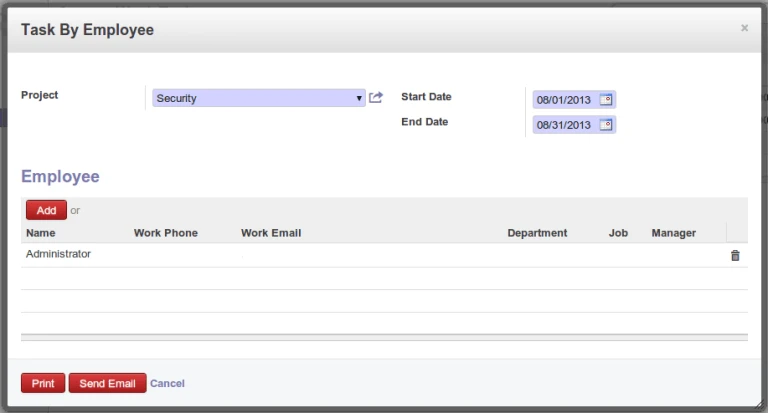
Task by Employee
It is sending list of tasks in PDF file as a attachment to each employee on their working email address.
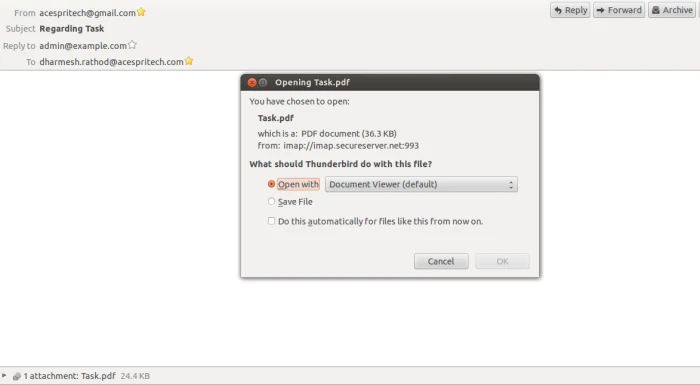
Task Email
It is also possible to print in PDF report.
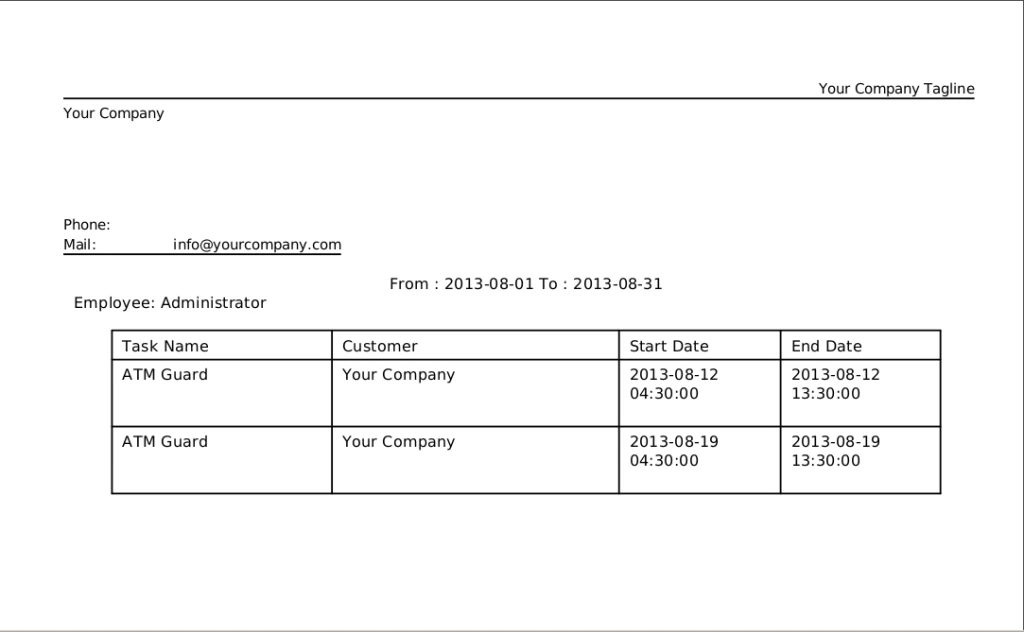
Employee Task Report
For monthly option we can have following:
– Date of Month
– Day of Month
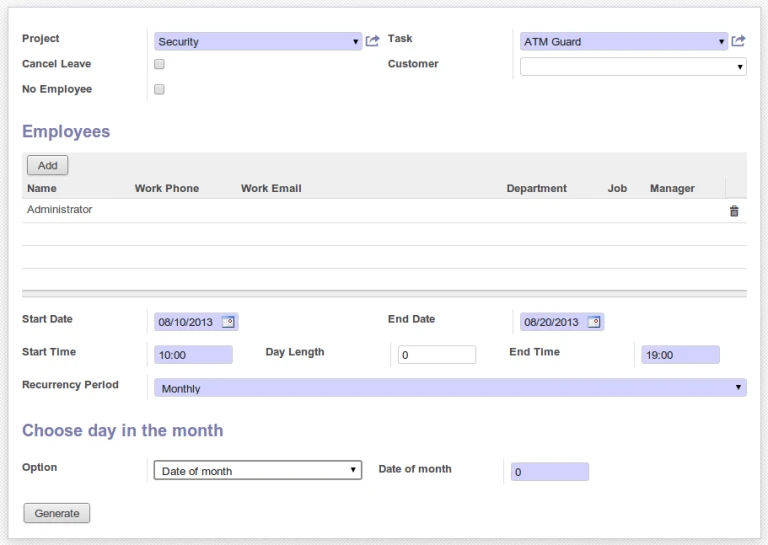
Task Date
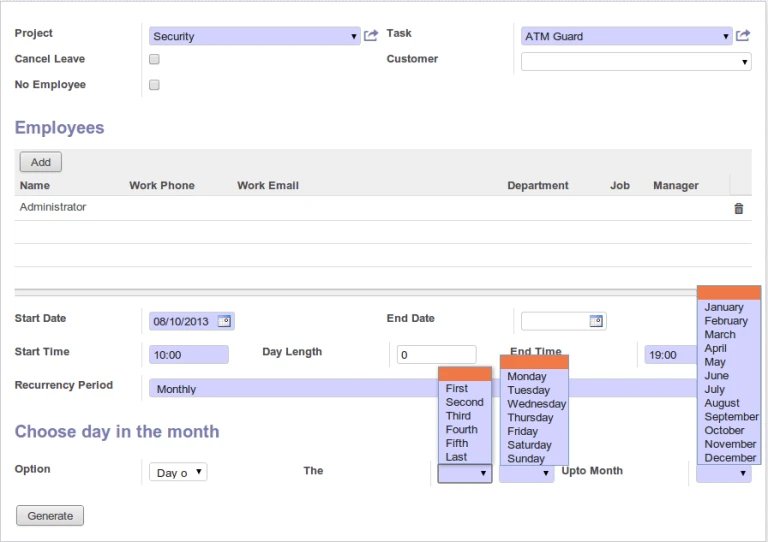
Monthly Task
For weekly task creation, we have this following screen.
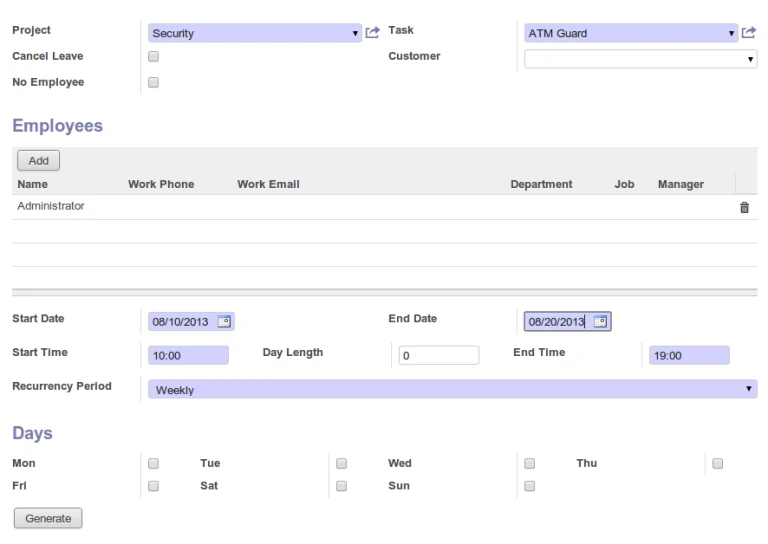
Weekly Task
OpenERP Point of Sale: Customer selection with Fiscal Position
Till now in OpenERP Point of Sale we have made many features like,
– Session wise customer selection
– Quick Create, Edit of customer
– Pricelist applied to customer
– Unique serial number on product
– Total discount on product
– User wise restriction on discount, qty.
– Create Sales Order from POS
– Create Invoice from POS
– Display real quantity of products
– Load only products if quantity is more than 0.
– POS Return (Return products from POS Interface – Recent development)
Recently we have developed new feature that applies Fiscal Position based on customer selection.
In below screen, we have created a fiscal position and replacement tax also.
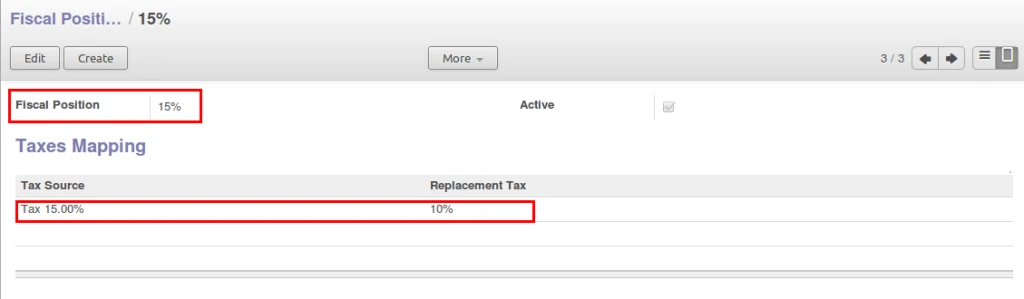
OpenERP Fiscal Position
Now in one product “2L Evian” we have selected that tax.
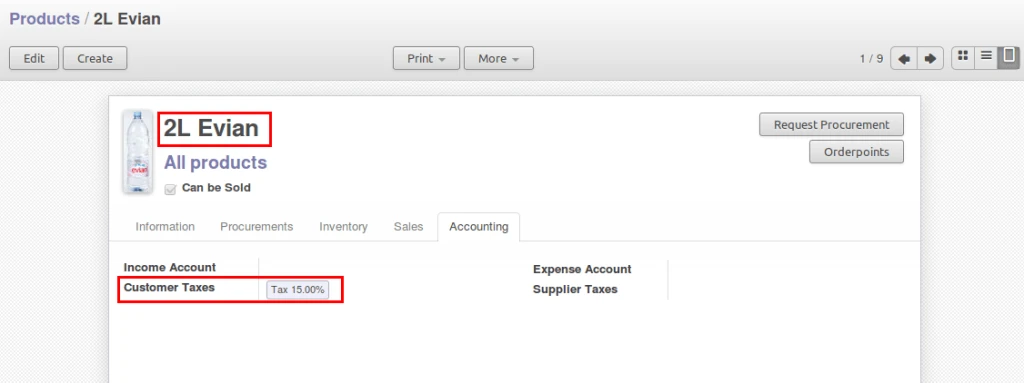
OpenERP Product Configuration
Now we will assign this Fiscal Position to particular customer. So once this customer is selected in order, it will apply on the products.
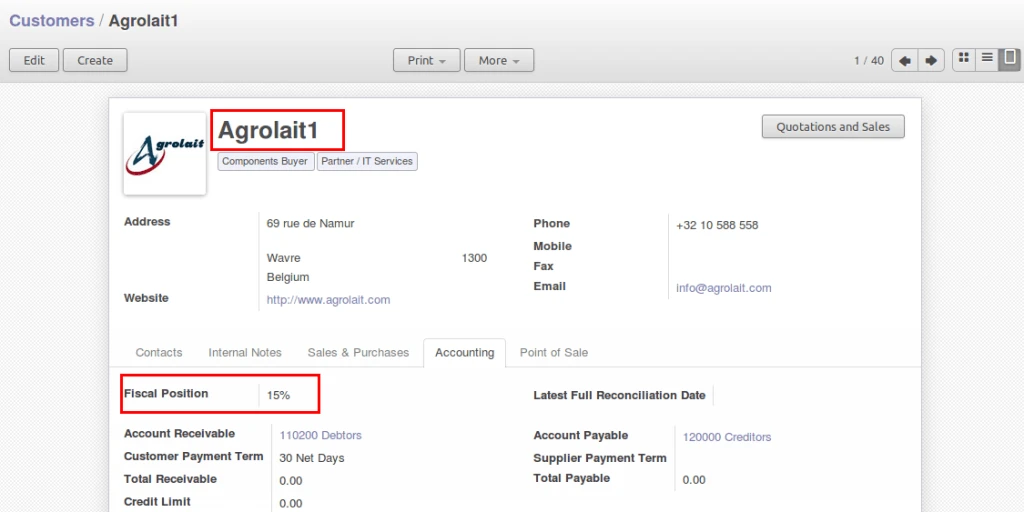
OpenERP Customer Form
Now if we check this fiscal position applied on Sales Order, the we have following total and tax applied on order.
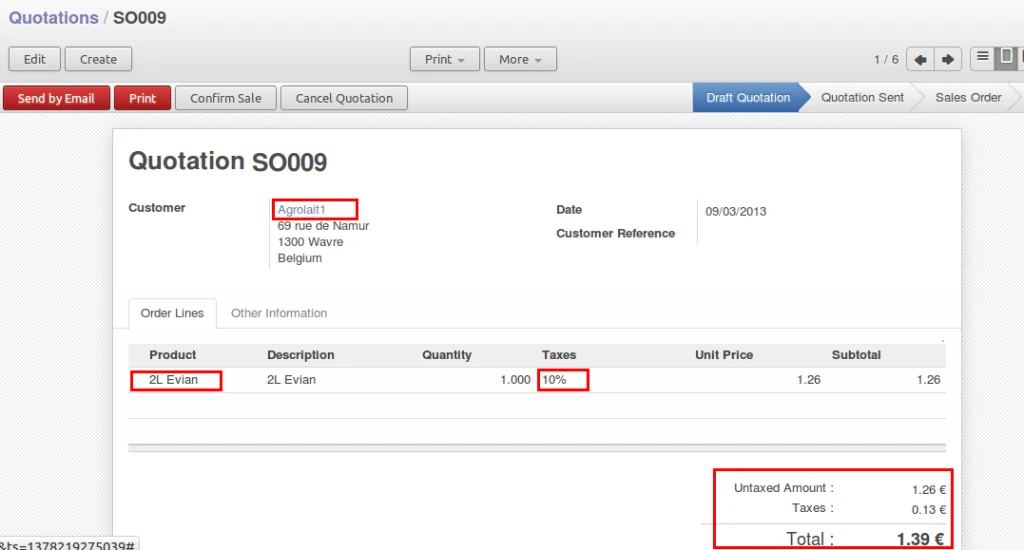
OpenERP Sales Order
Again, in below screen if we take same customer and product in POS, then we will have same amount in the order line.
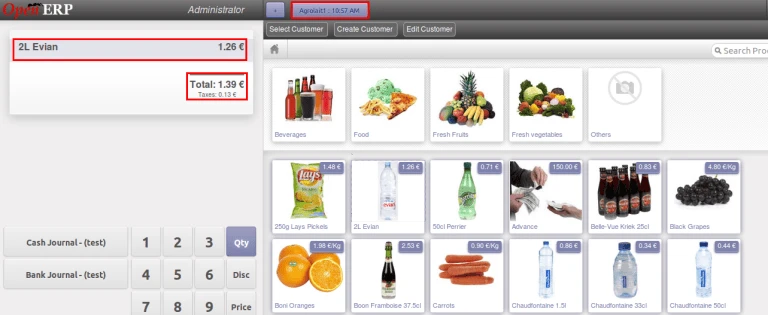
OpenERP Point of Sale
So this way Fiscal Position is working for OpenERP Point of Sale.


