Support product variation zoom in and out.
Move cursor on product image and scroll in and out.

Product gallery images LightBox popup slider.
Click on product image for open lightbox slider.

Support product variation zoom in and out.
Move cursor on product image and scroll in and out.
Product gallery images LightBox popup slider.
Click on product image for open lightbox slider.
How to use
User can login with Odoo Url, username, password and Odoo V12 database.
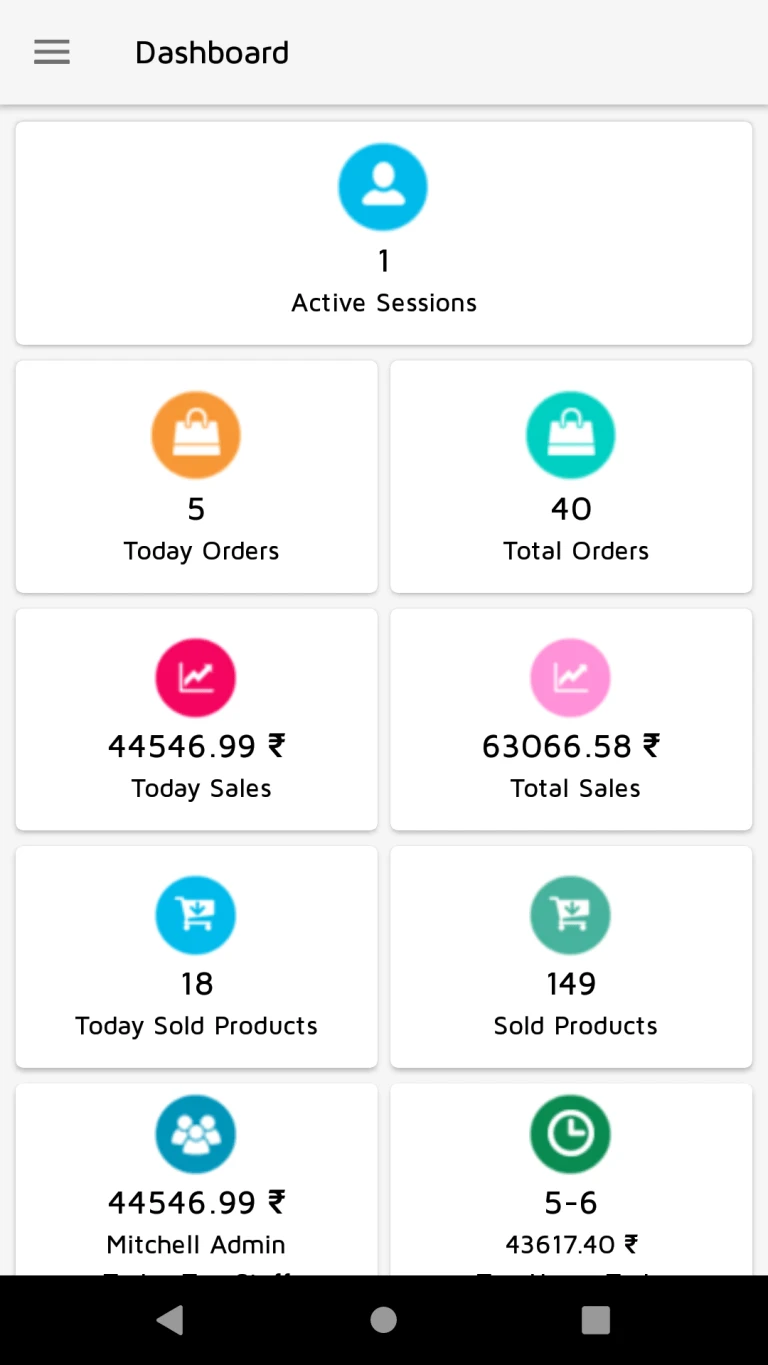
User can see various details like sale, sold products, orders, active sessions, salesperson name who sold highest today, hours in which highest sales, average customer spending and visit as per last 30 days.
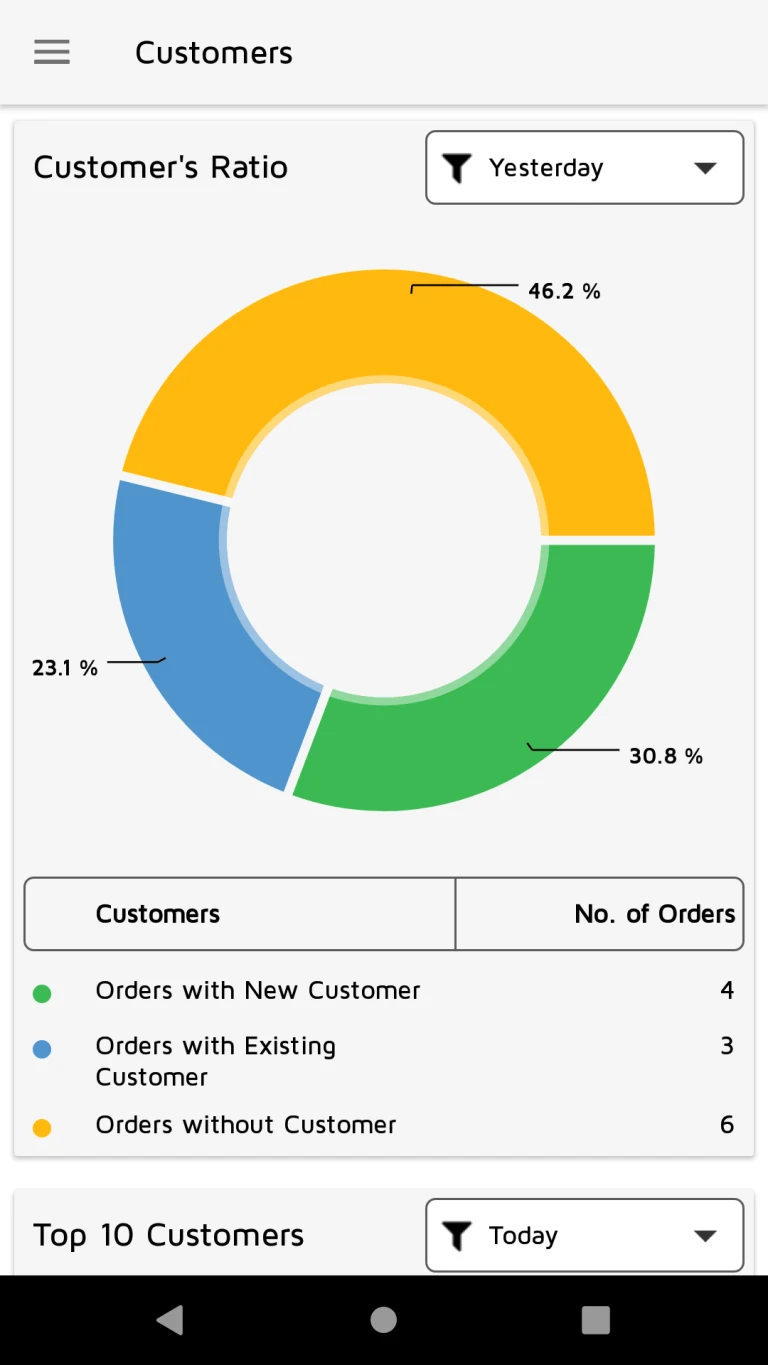
User can see customer’s ratio about orders with new customer, orders with existing customer and orders without customer.
User can see top 10 customer’s no. of orders and sales details.
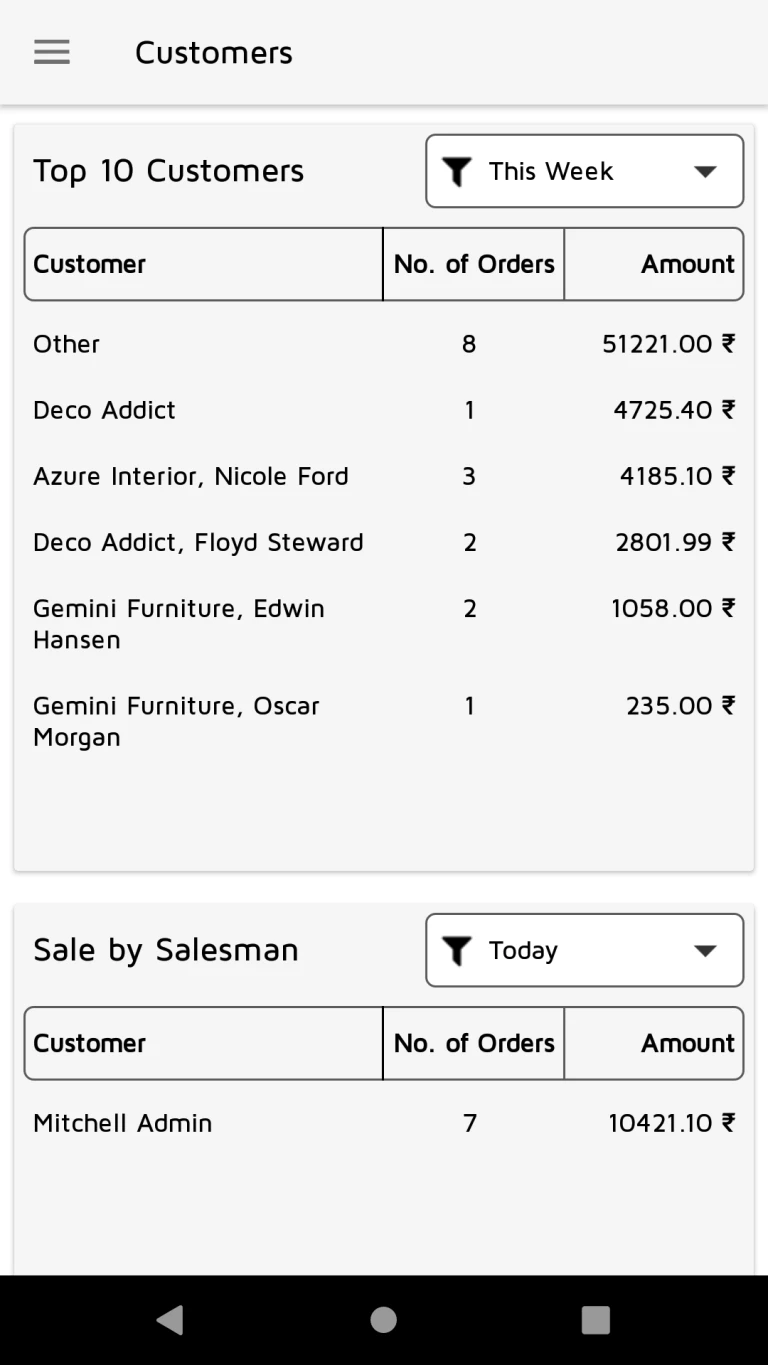
User can see top 10 salesman’s no. of orders and sales details.
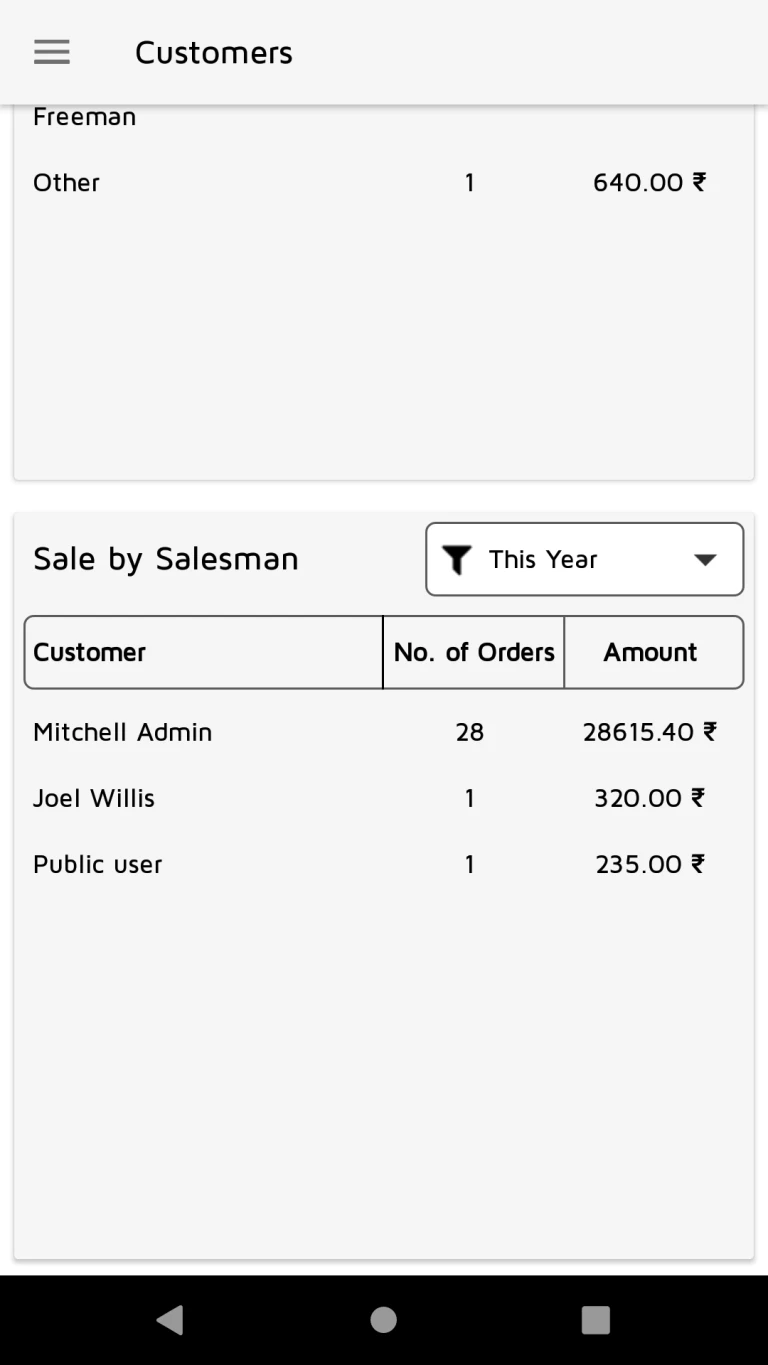
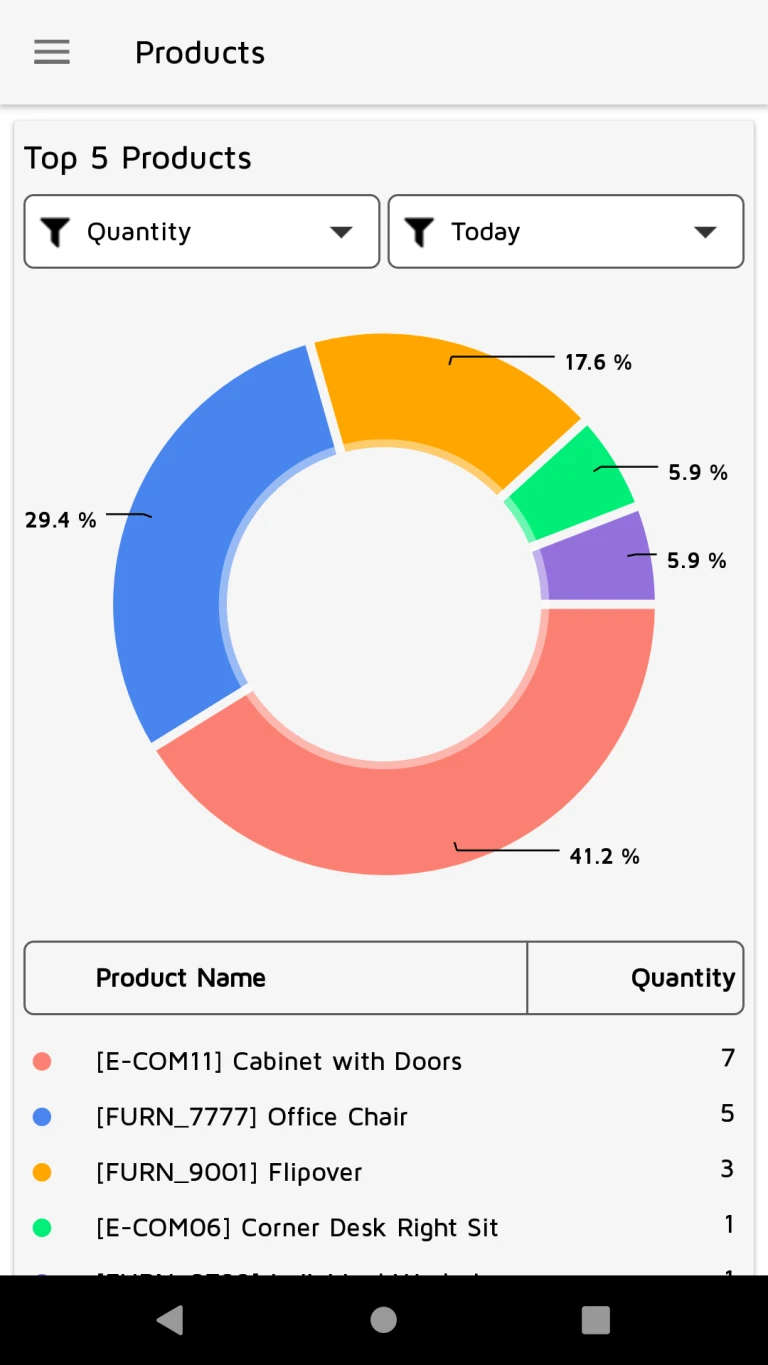
User can see top 5 products by quantity.
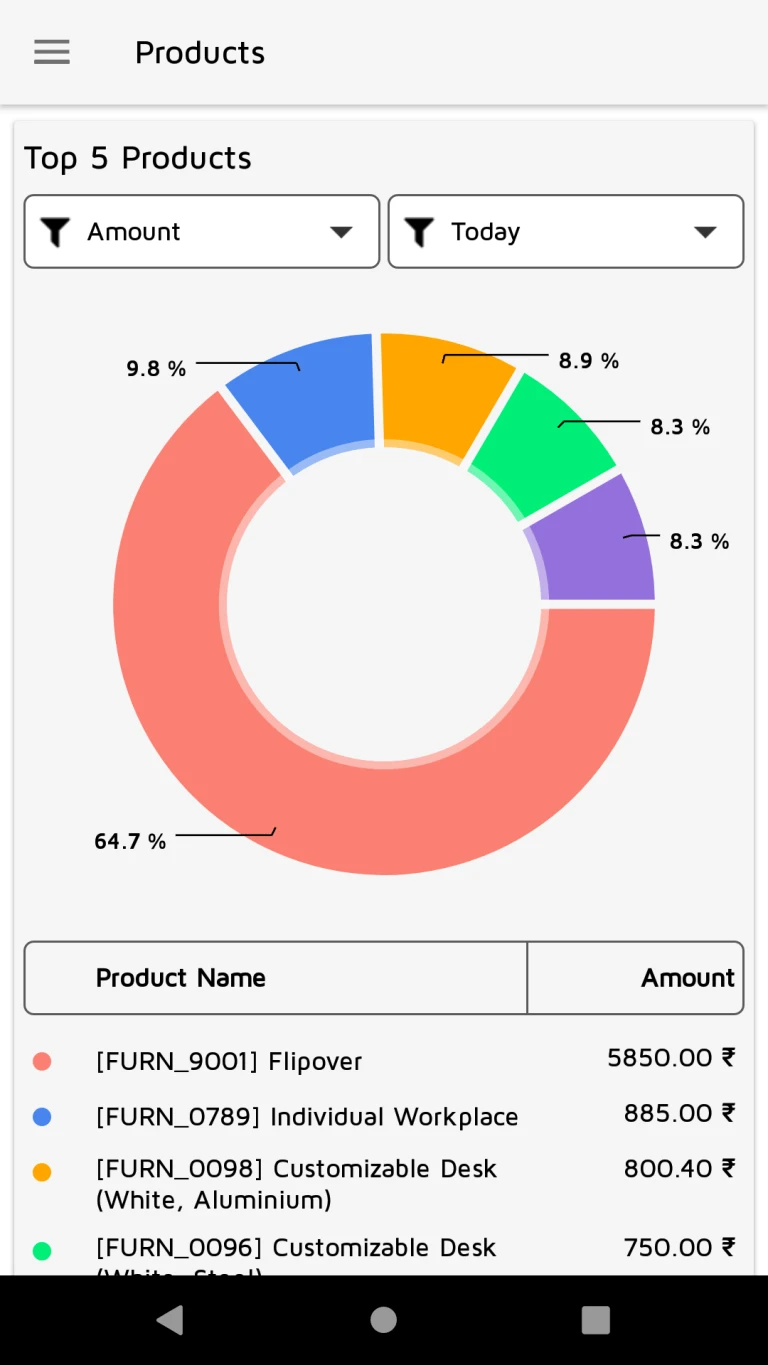
User can see top 5 products by amount.
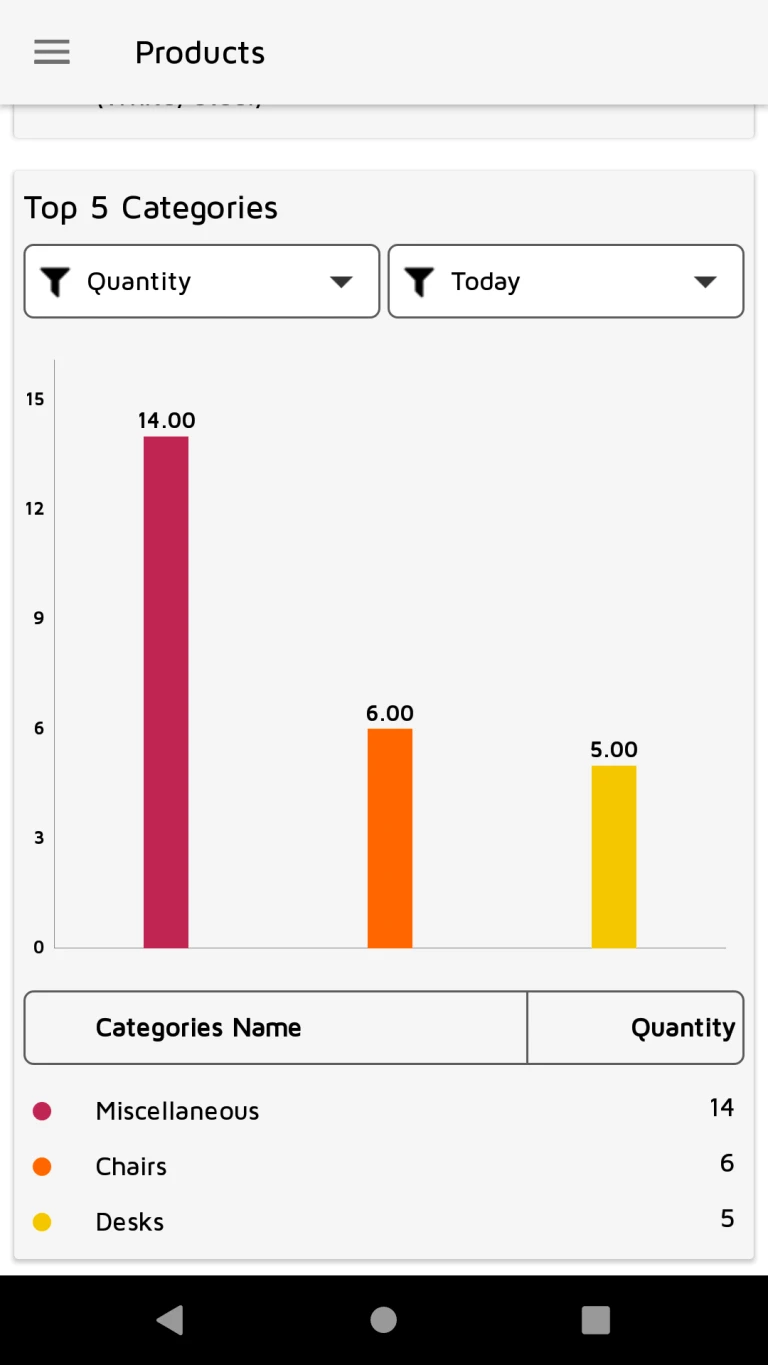
User can see top 5 categories by quantity.
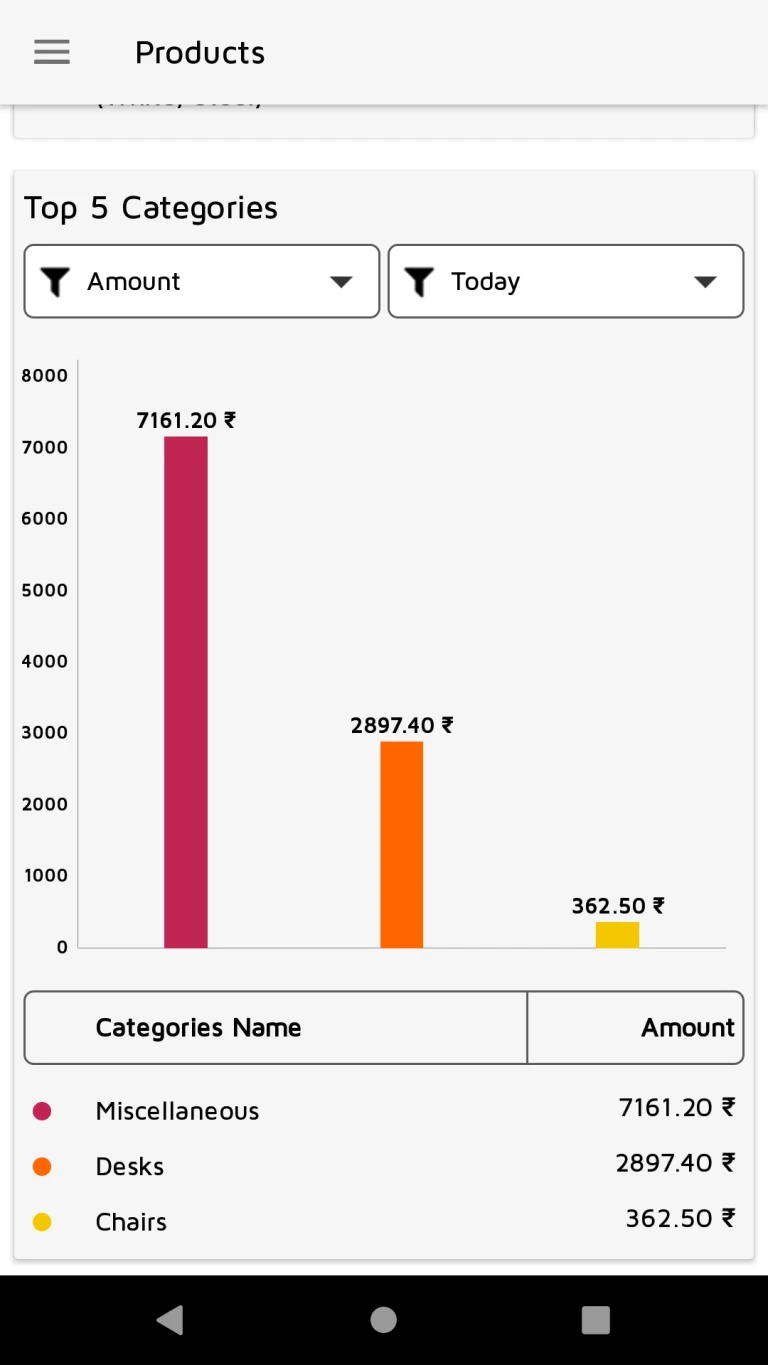
User can see top 5 categories by amount.
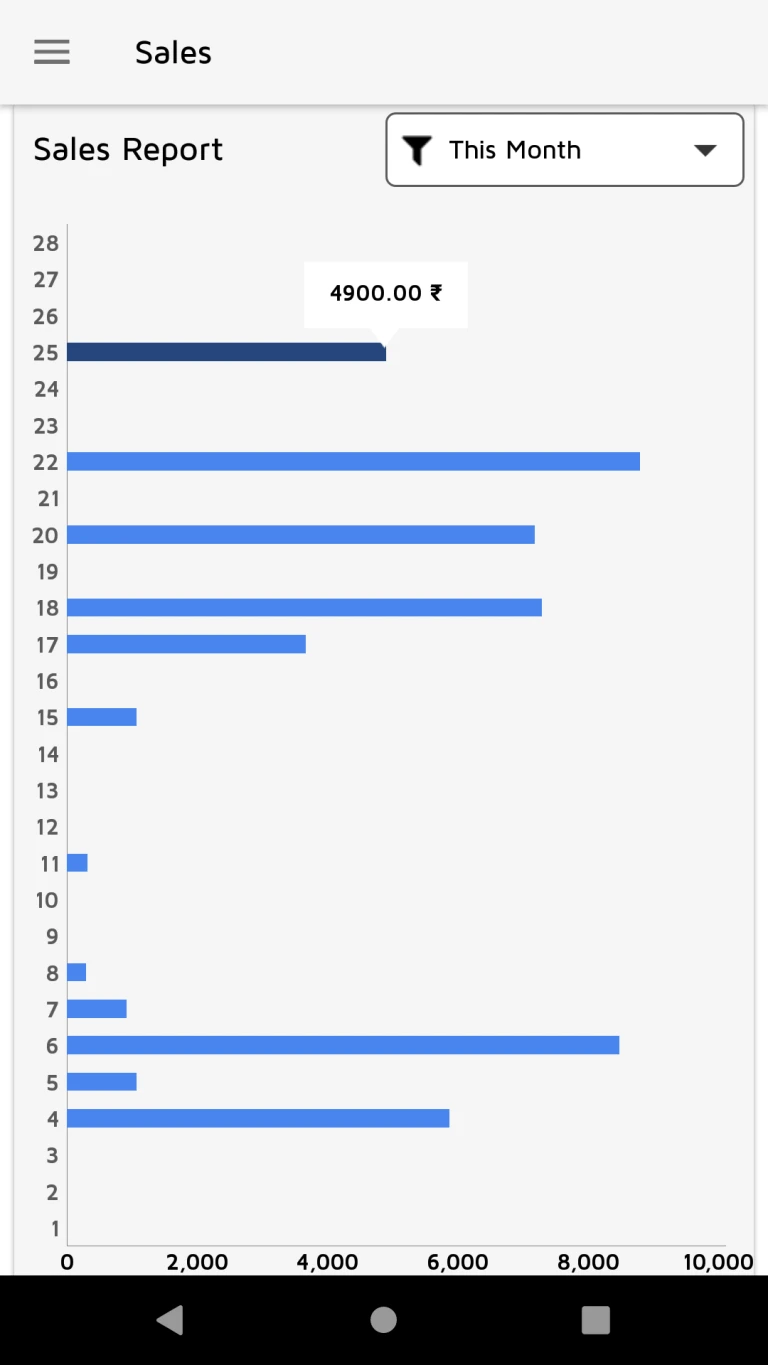
User can see monthly sales report.
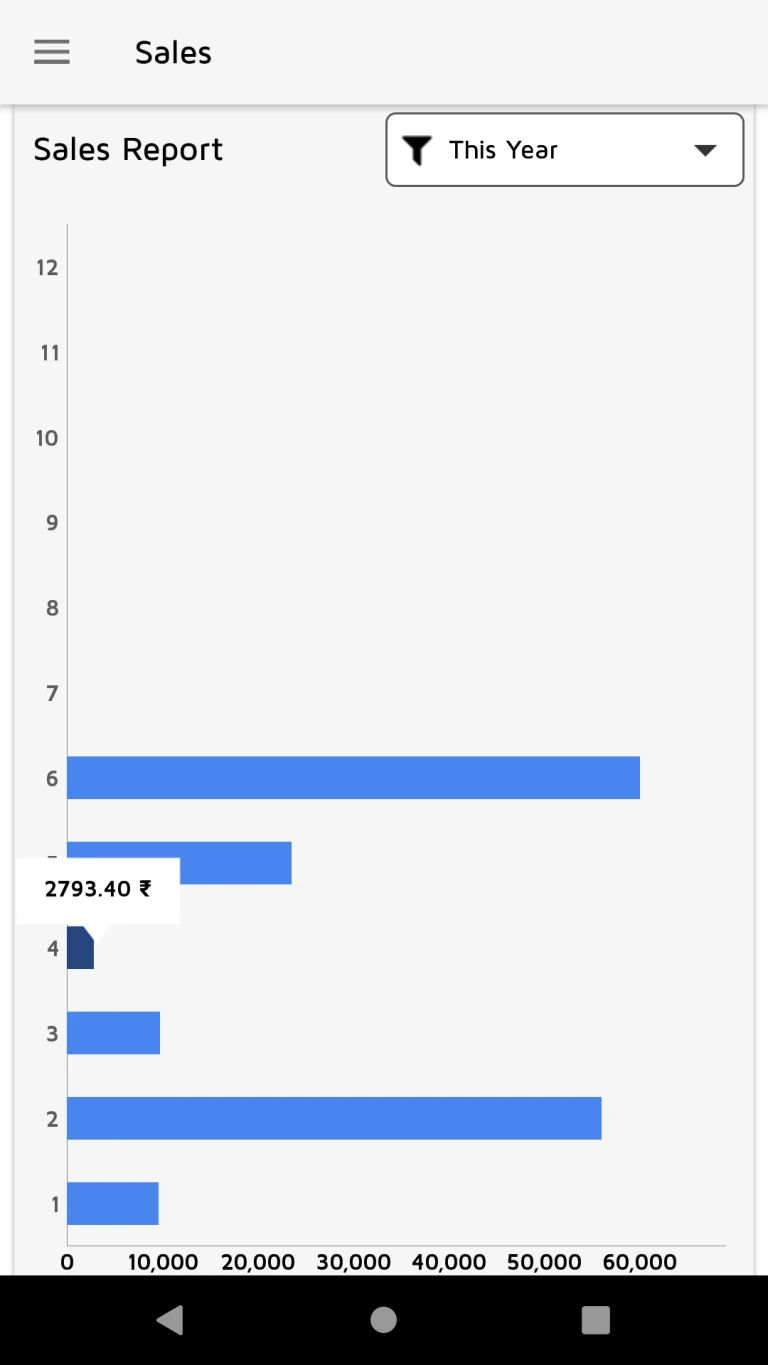
User can see yearly sales report.
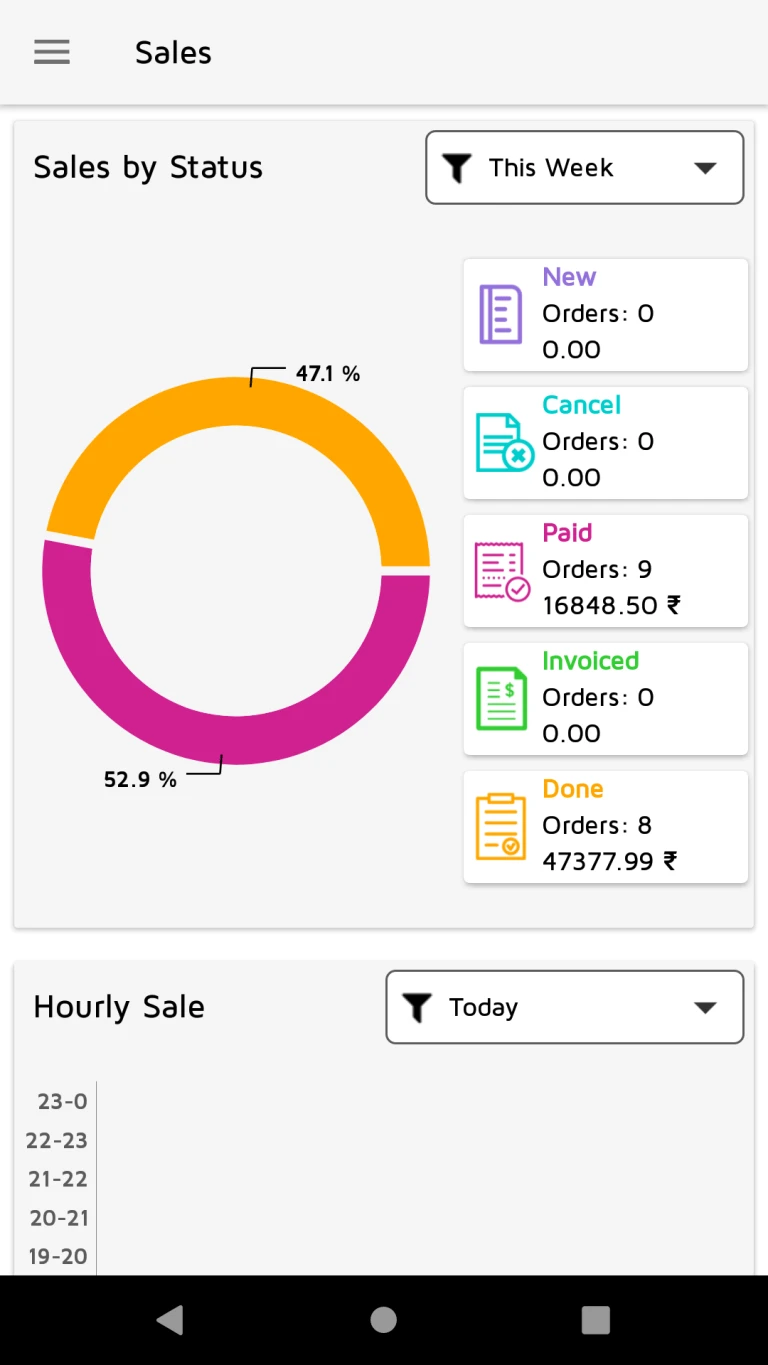
User can see sales and order details according it’s status.
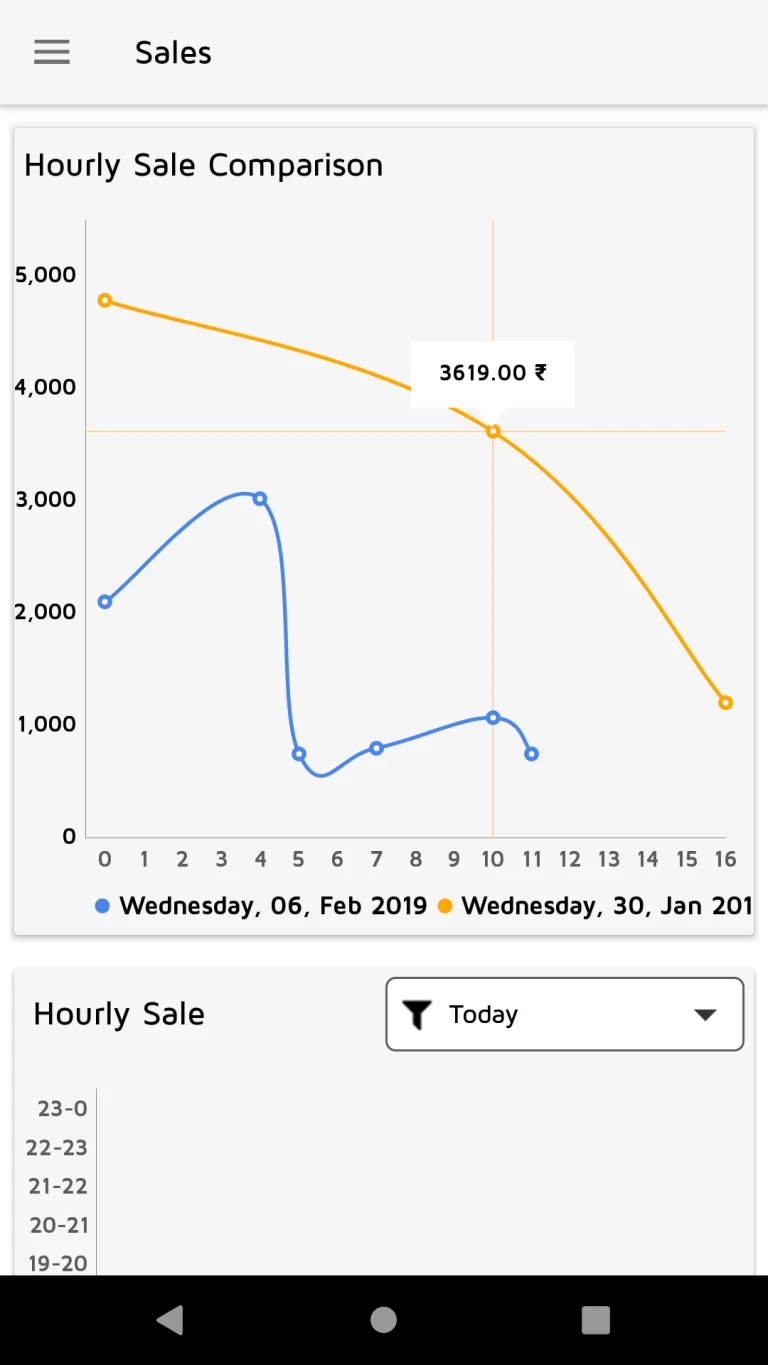
User can see hourly comparison of today and last 7th day of week.
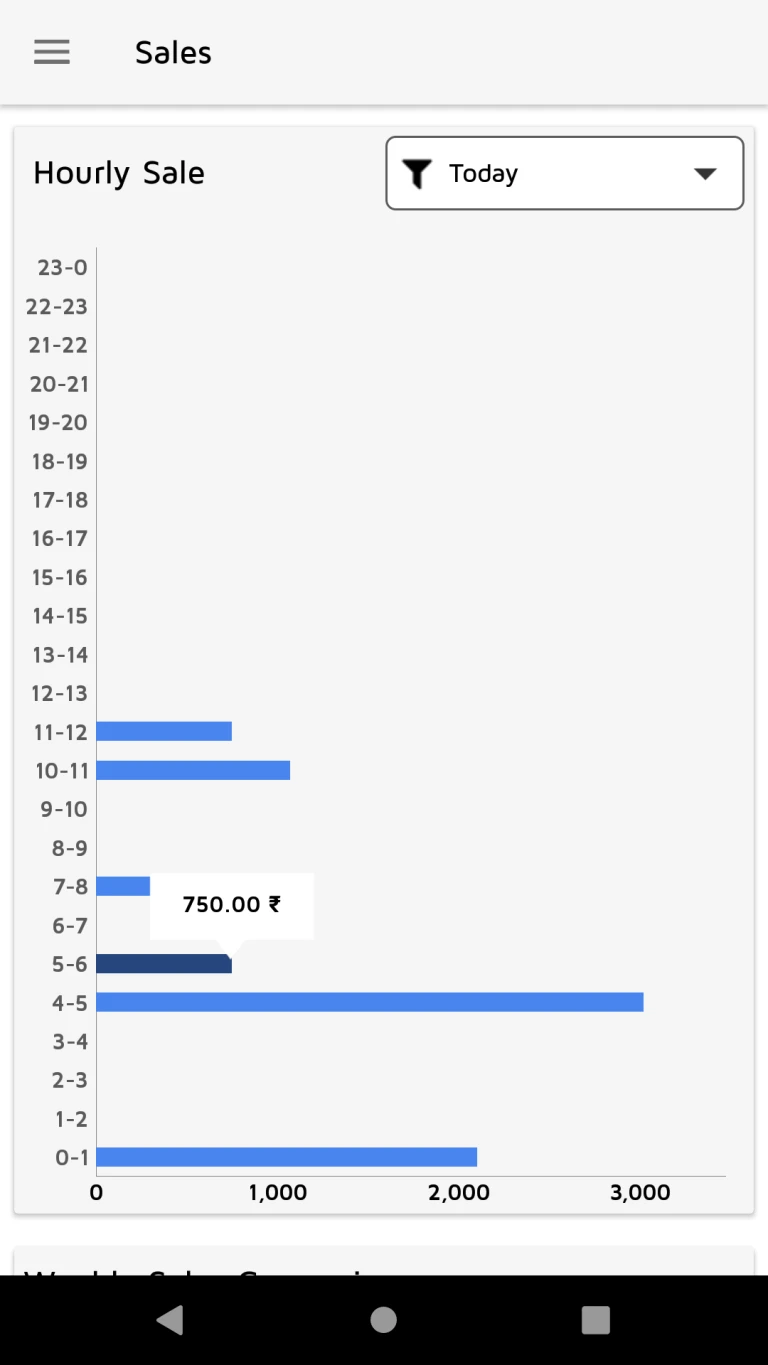
User can see hourly sale by today or selected date.
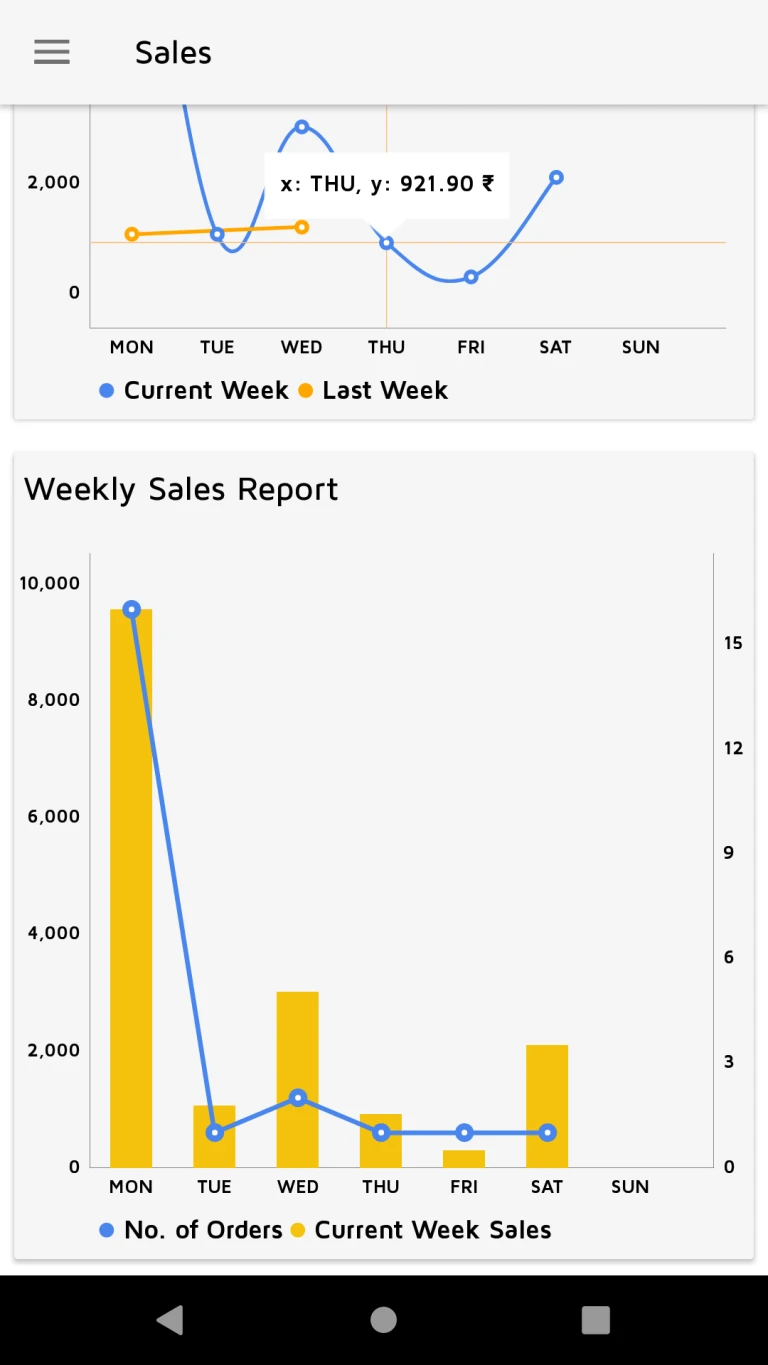
User can see weekly sales comparison of current week with last week.
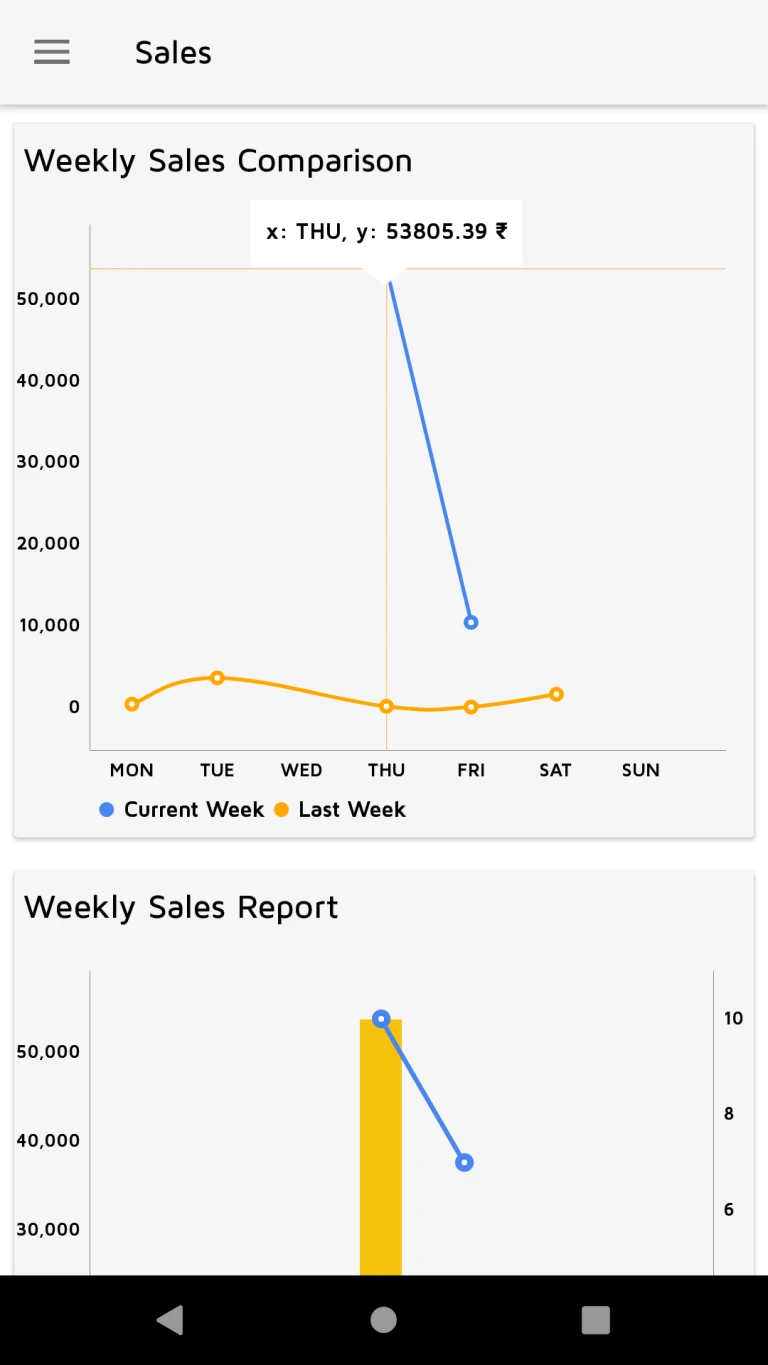
User can see sales and order details of current week by weekdays.
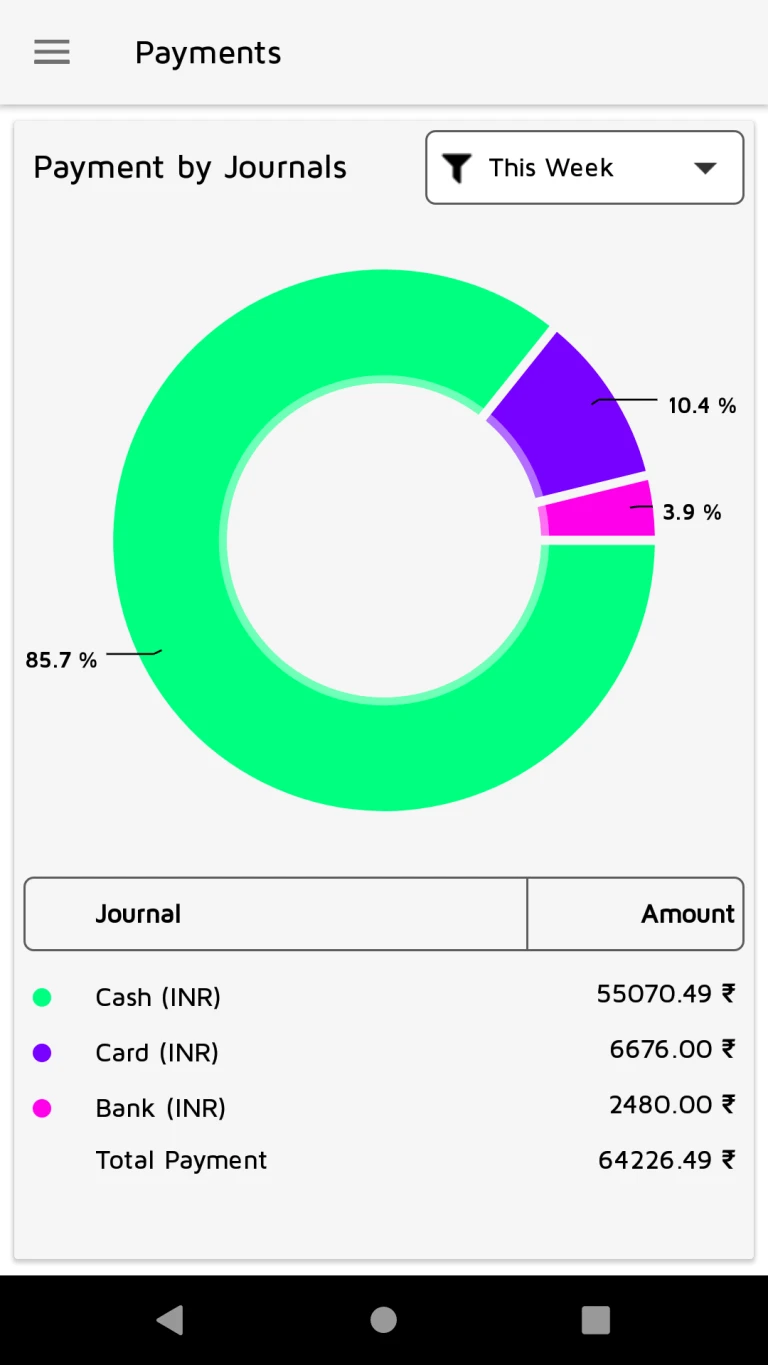
User can see payment information according to various accounting journal.
Features:-
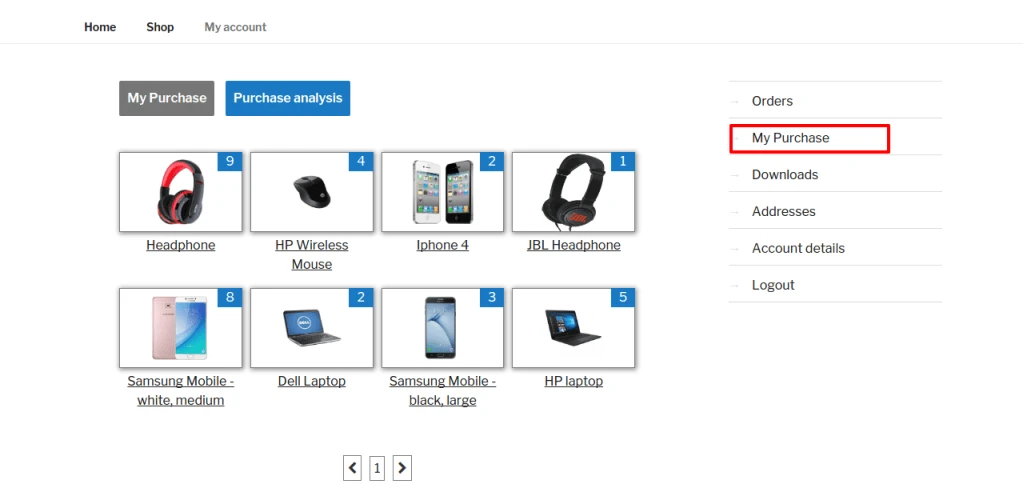
My Purchase tab display purchase products with quantity.
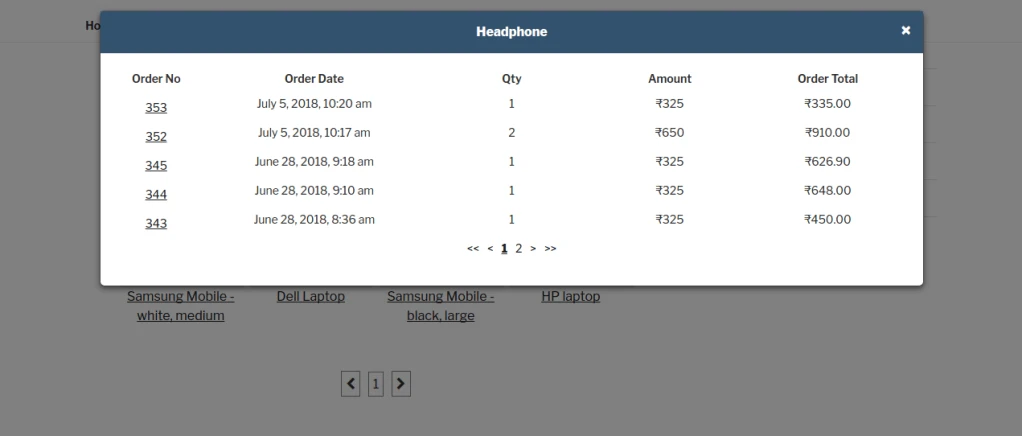
When click on product quantity that display selected product quantity and amount in different order.
Customer can view order information by clicking on “Order no”.
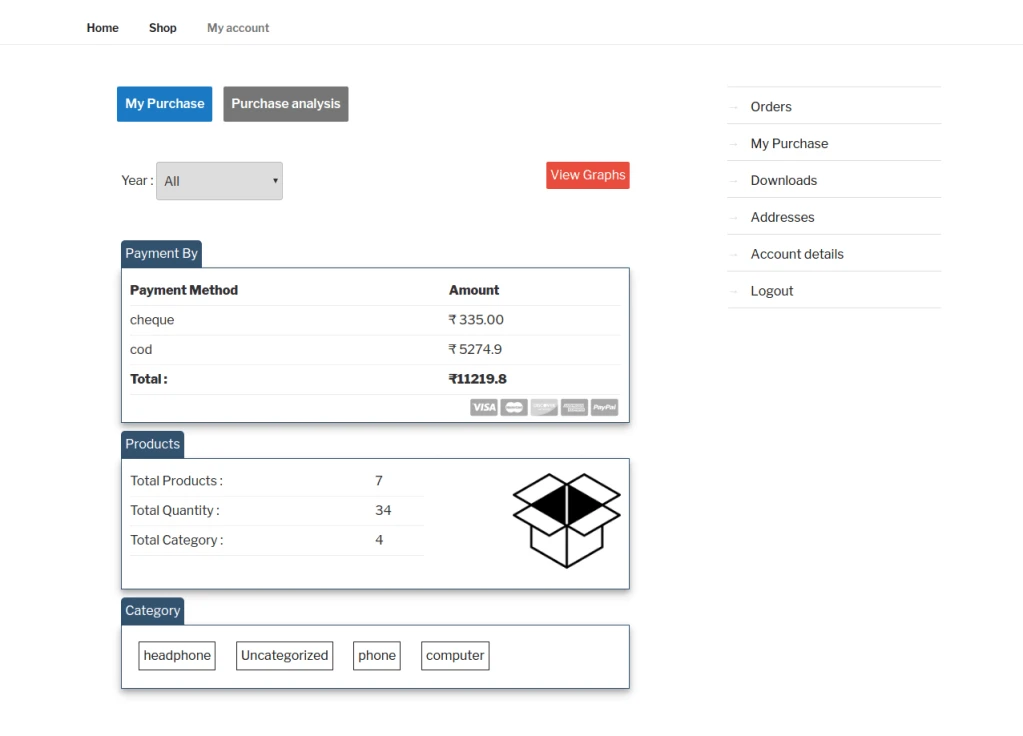
Purchase analysis tab display year filter and display payment method , product and category details for selected year.
Also we can see graph by clicking “View Graphs”.
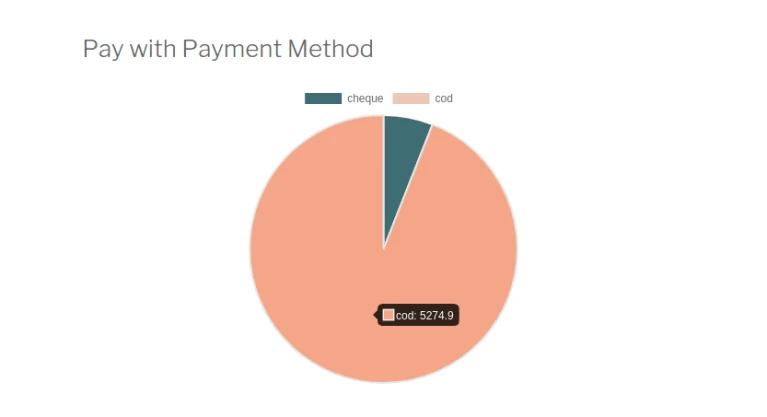
This pie chart display which different payment method customer used for pay order amount.
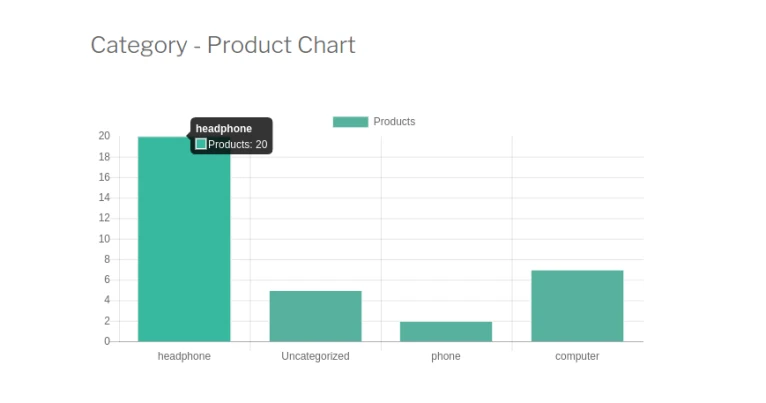
Above chart represent category wise product count which customer was purchase.
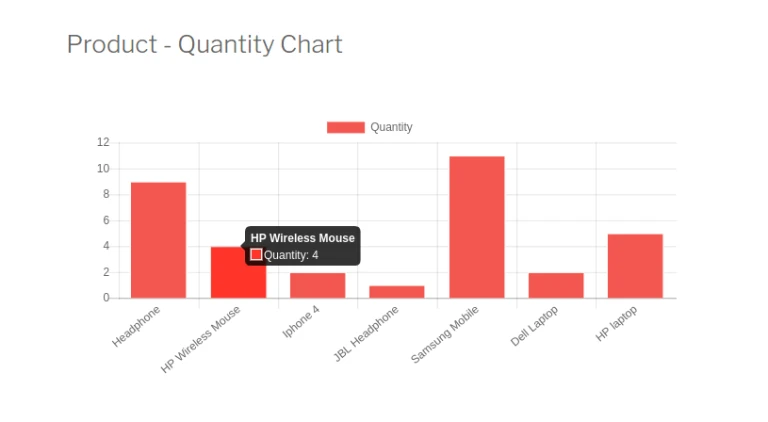
This chart show products and their quantity which customer was purchase.
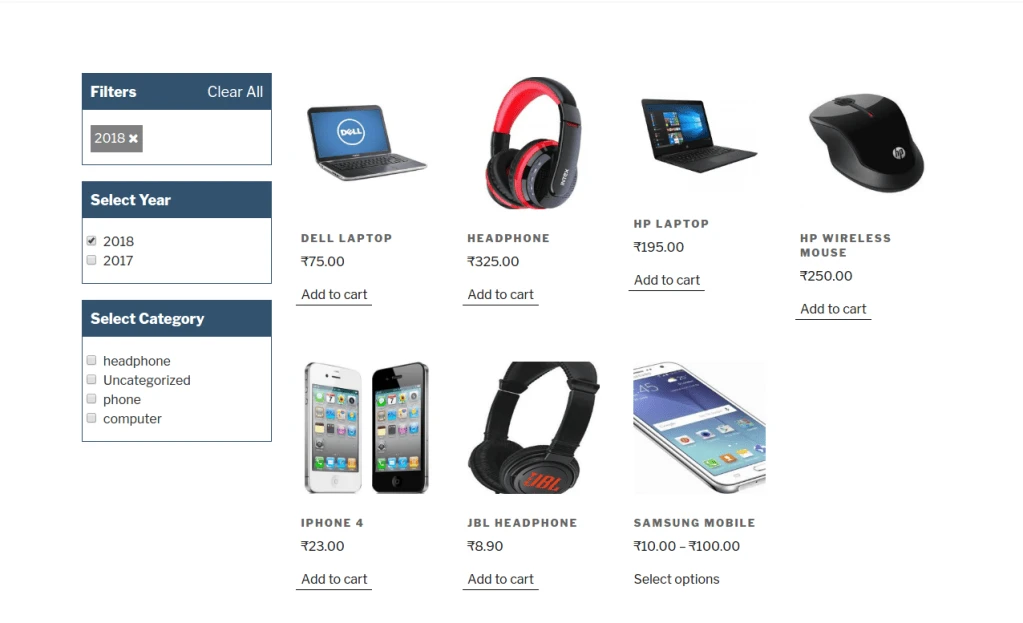
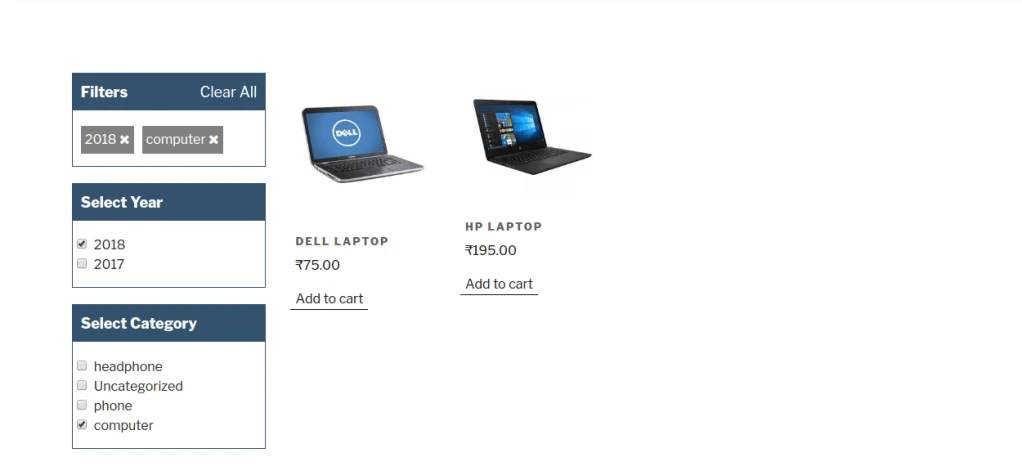
This is filter page for products.
Customer can select year and their category.

How to use
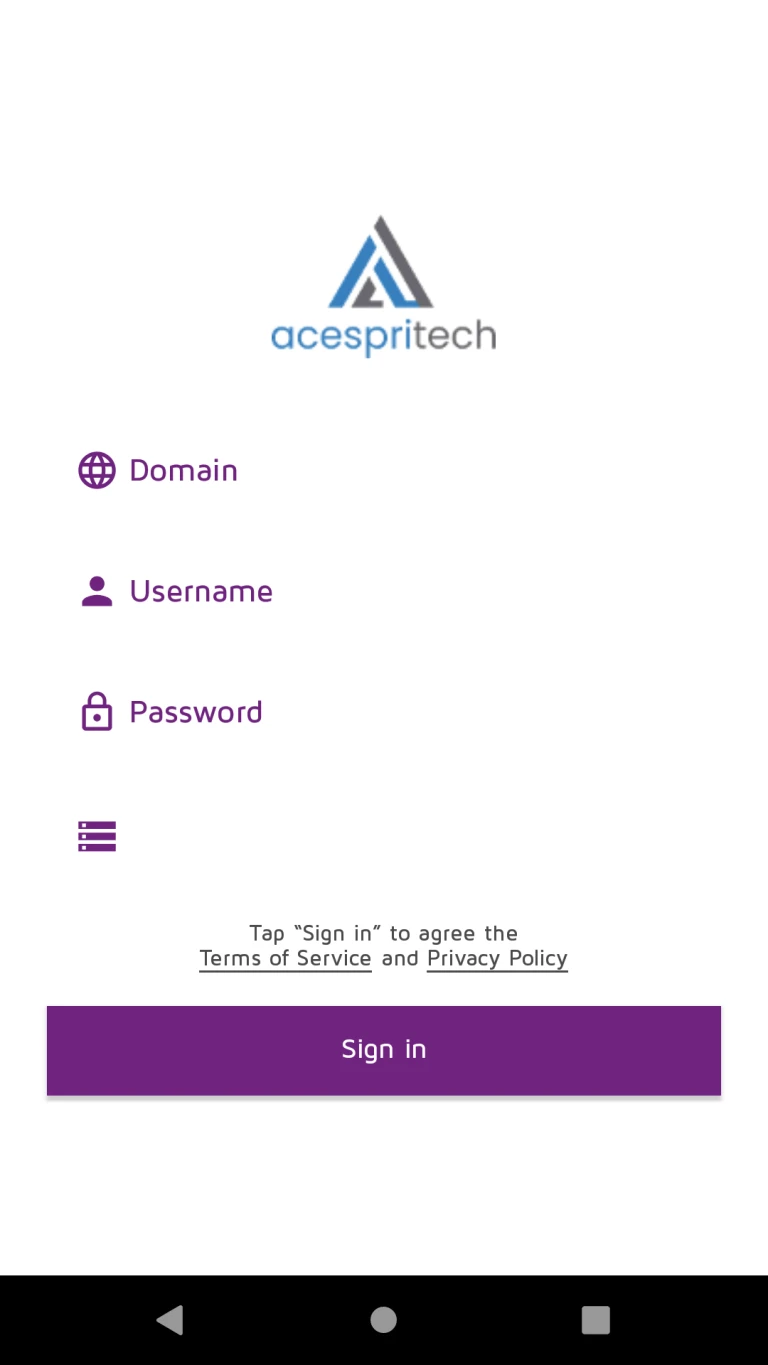
User can login with Odoo URL, username, password and Odoo version12 database.
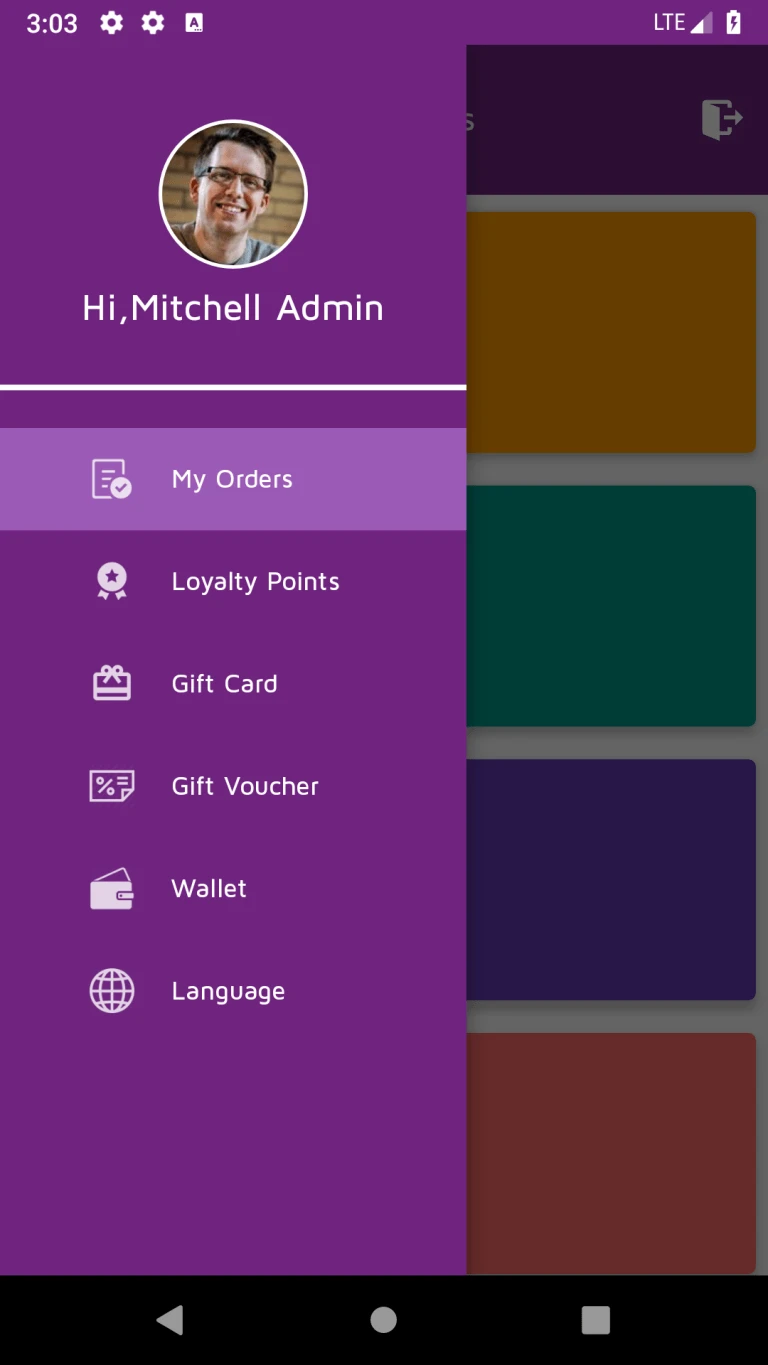
User can navigate between menus in application.
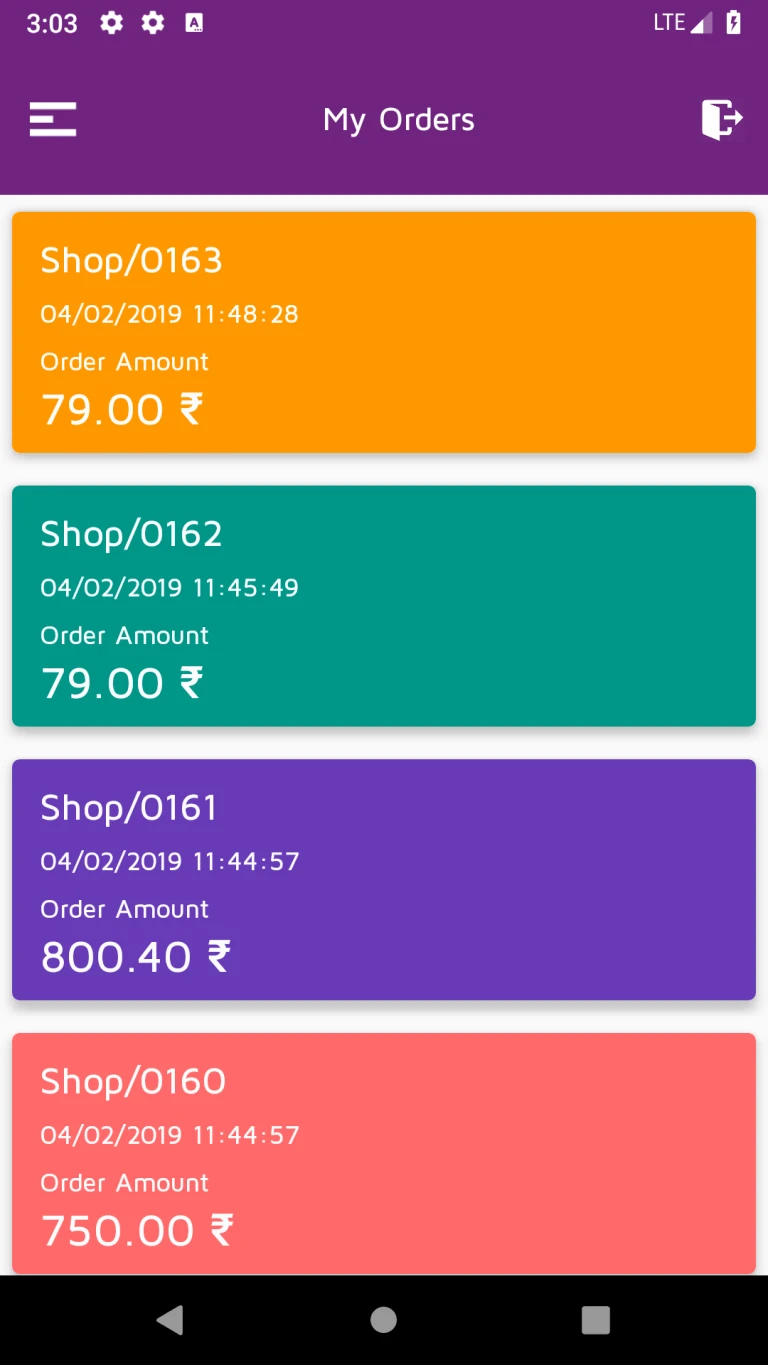
User’s list of orders will be displayed.
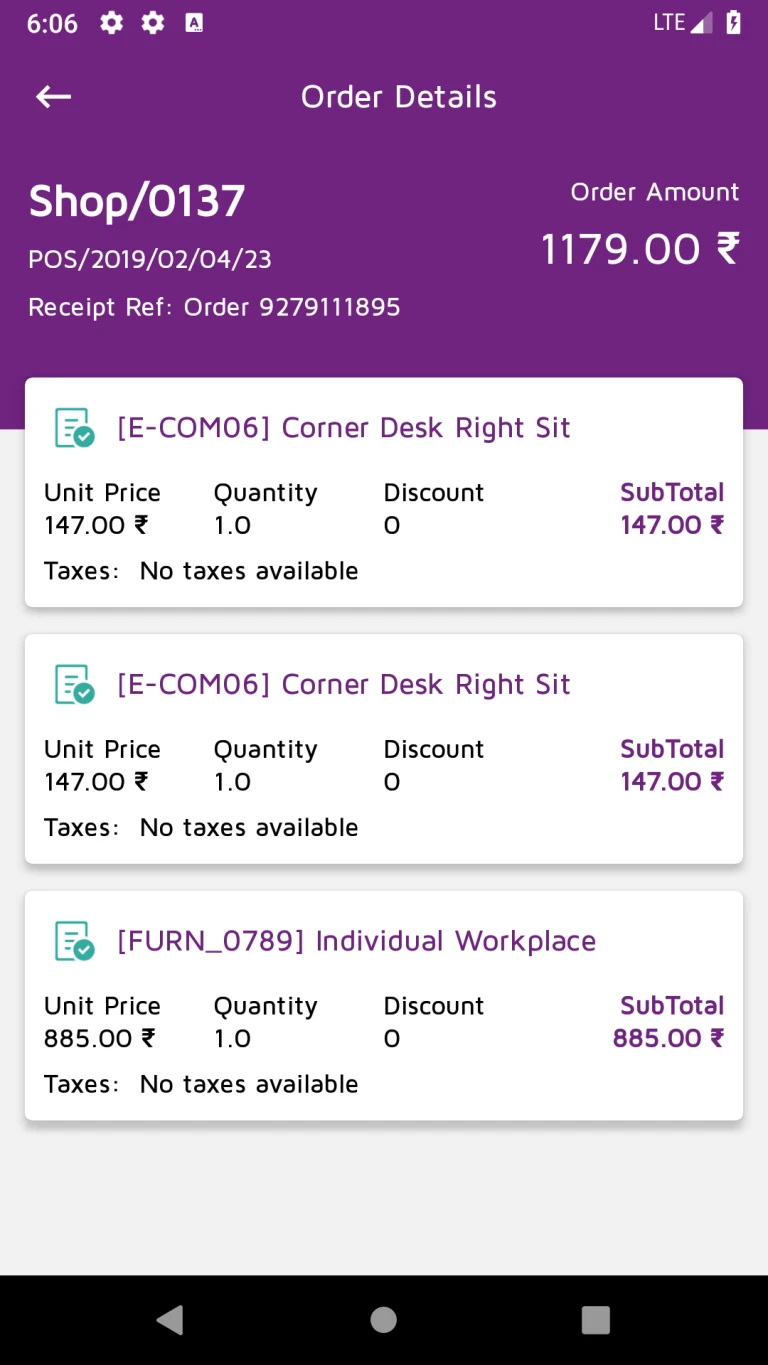
Order details like products, price, discount, taxes and order amount will be displayed.
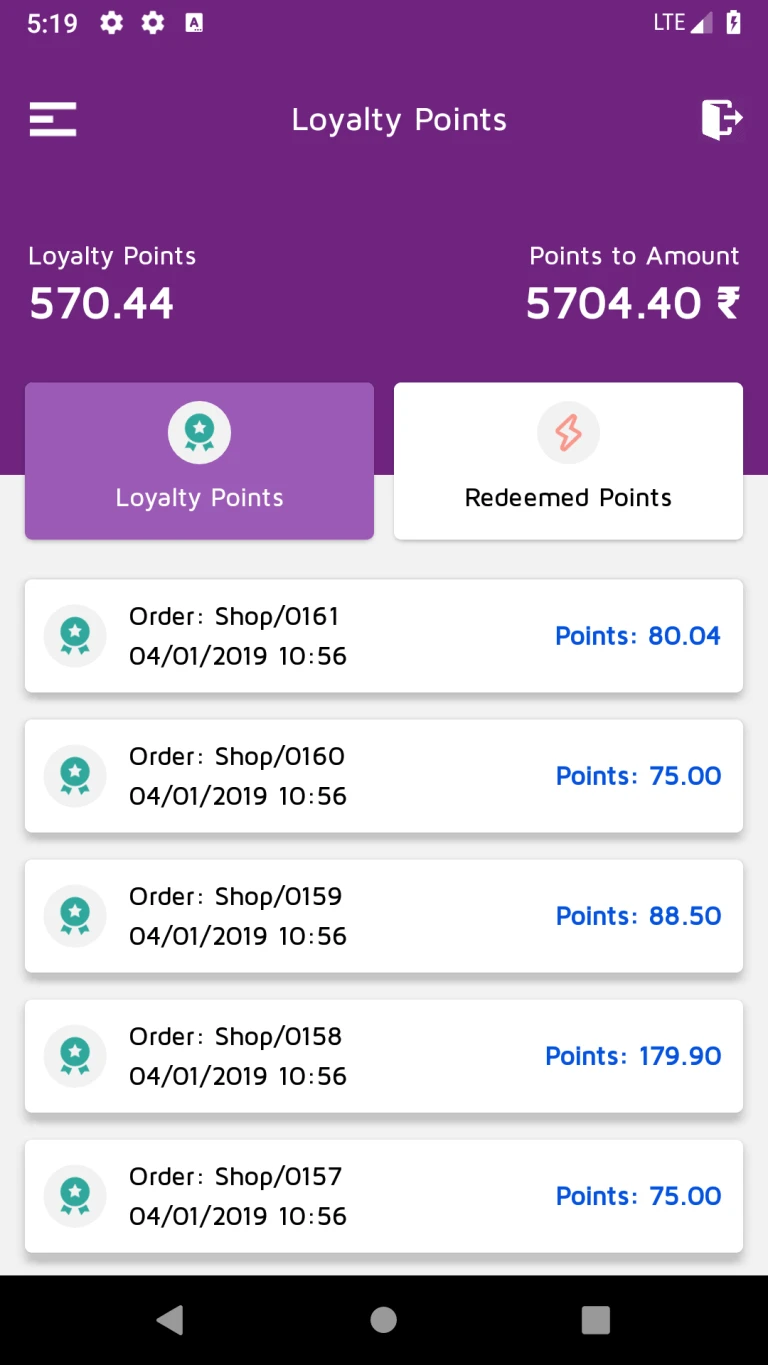
Loyalty points earned by user will be displayed.
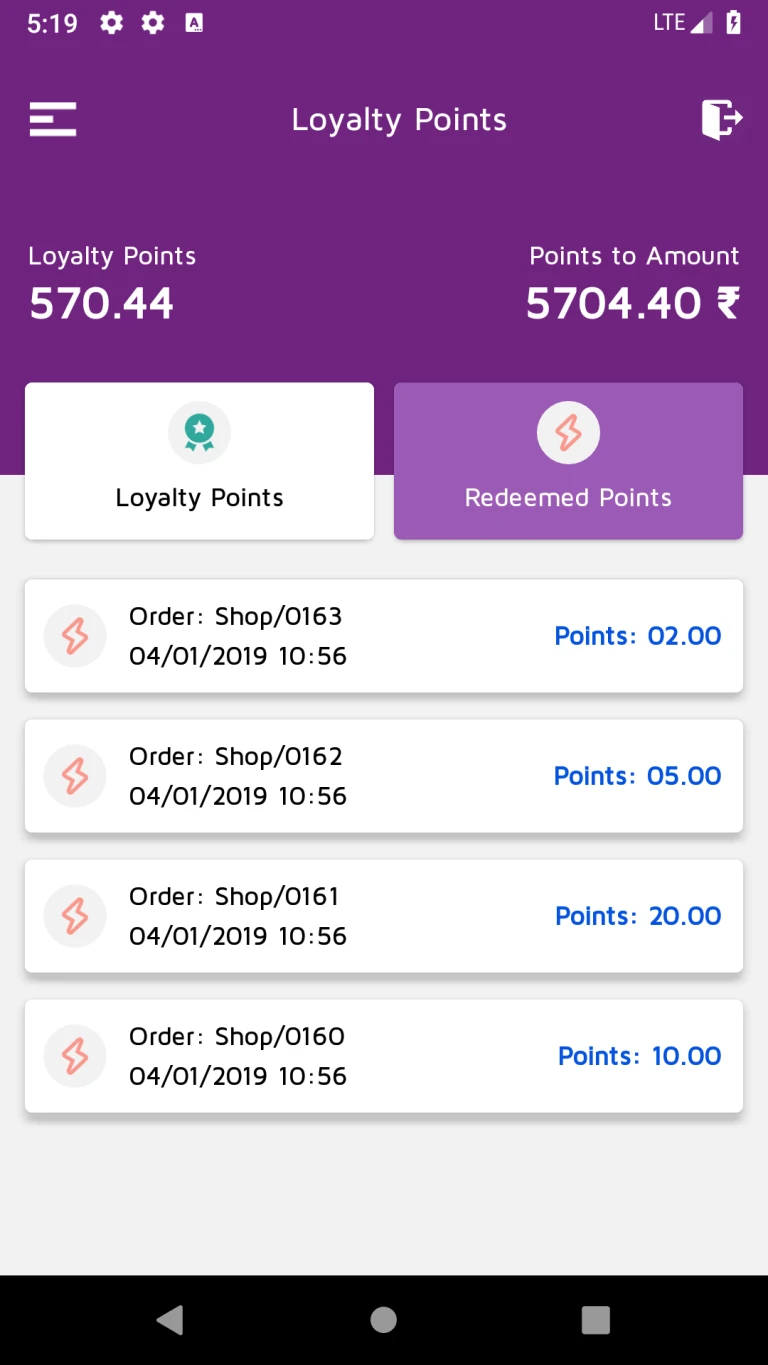
Loyalty points redeemed by user will be displayed.
User’s gift card will be displayed.
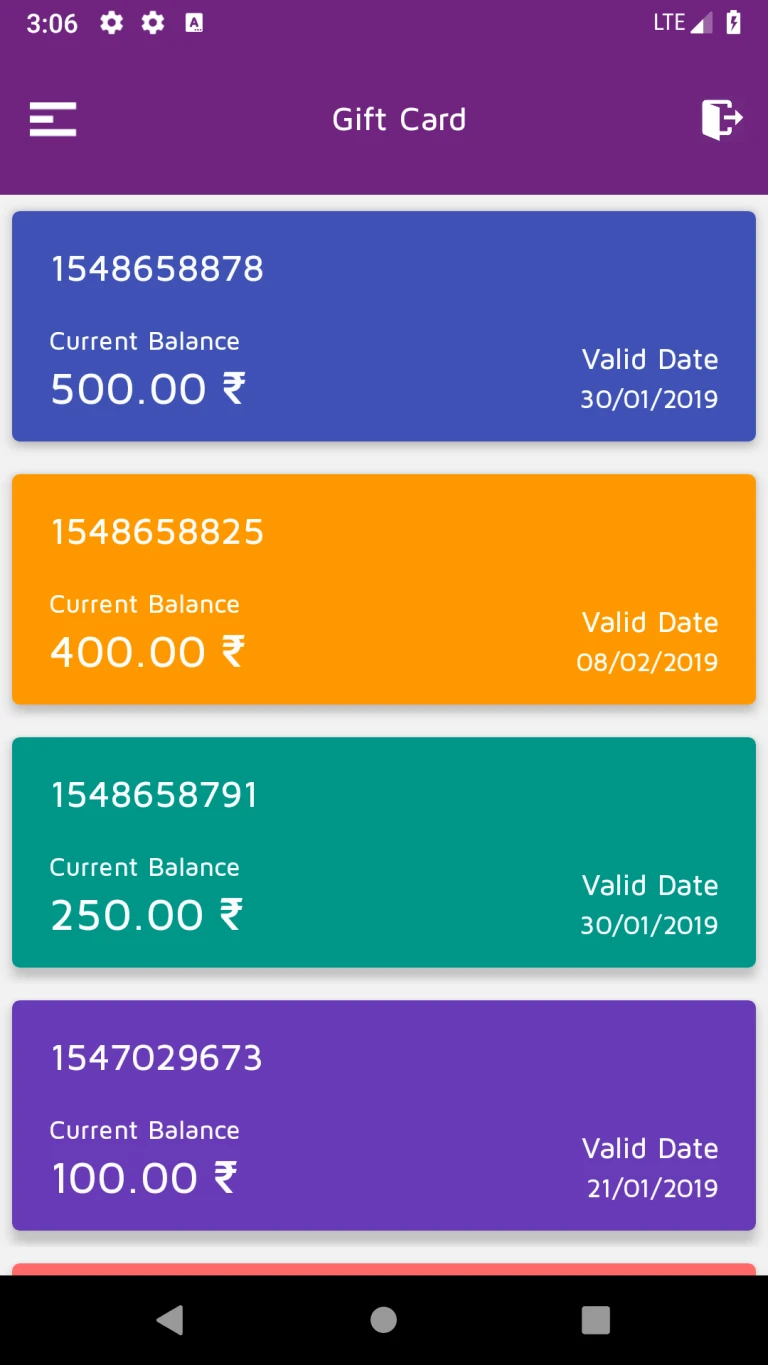
Gift card details will be displayed.
Used gift card details will be displayed.
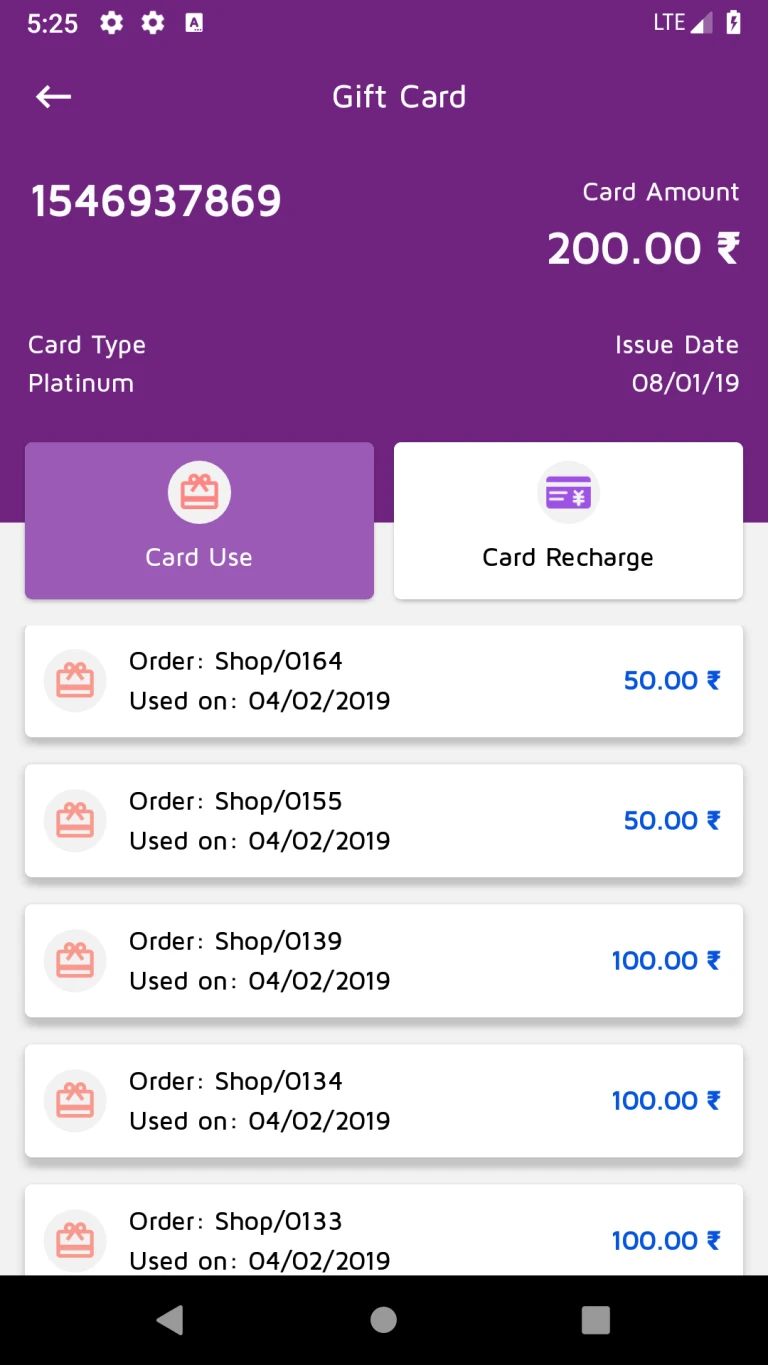
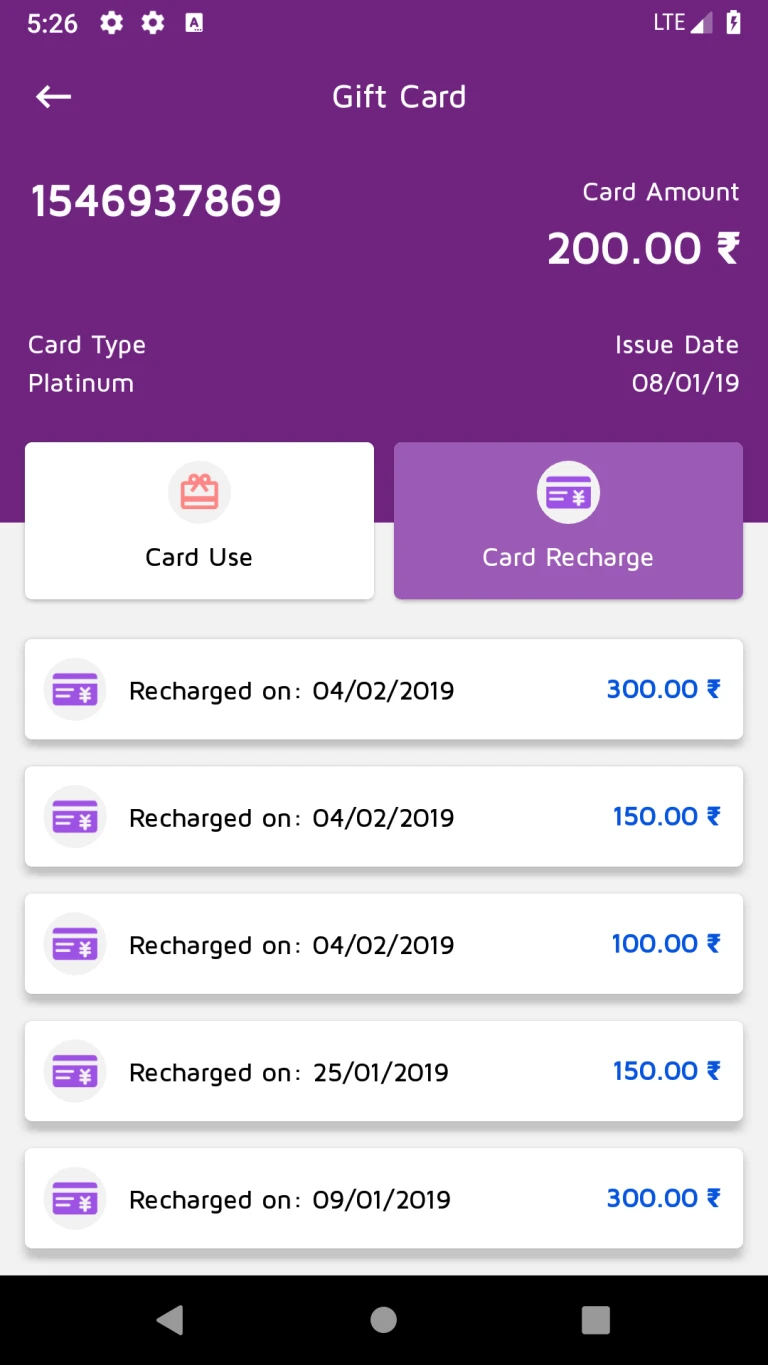
Recharge details of gift card will be displayed.
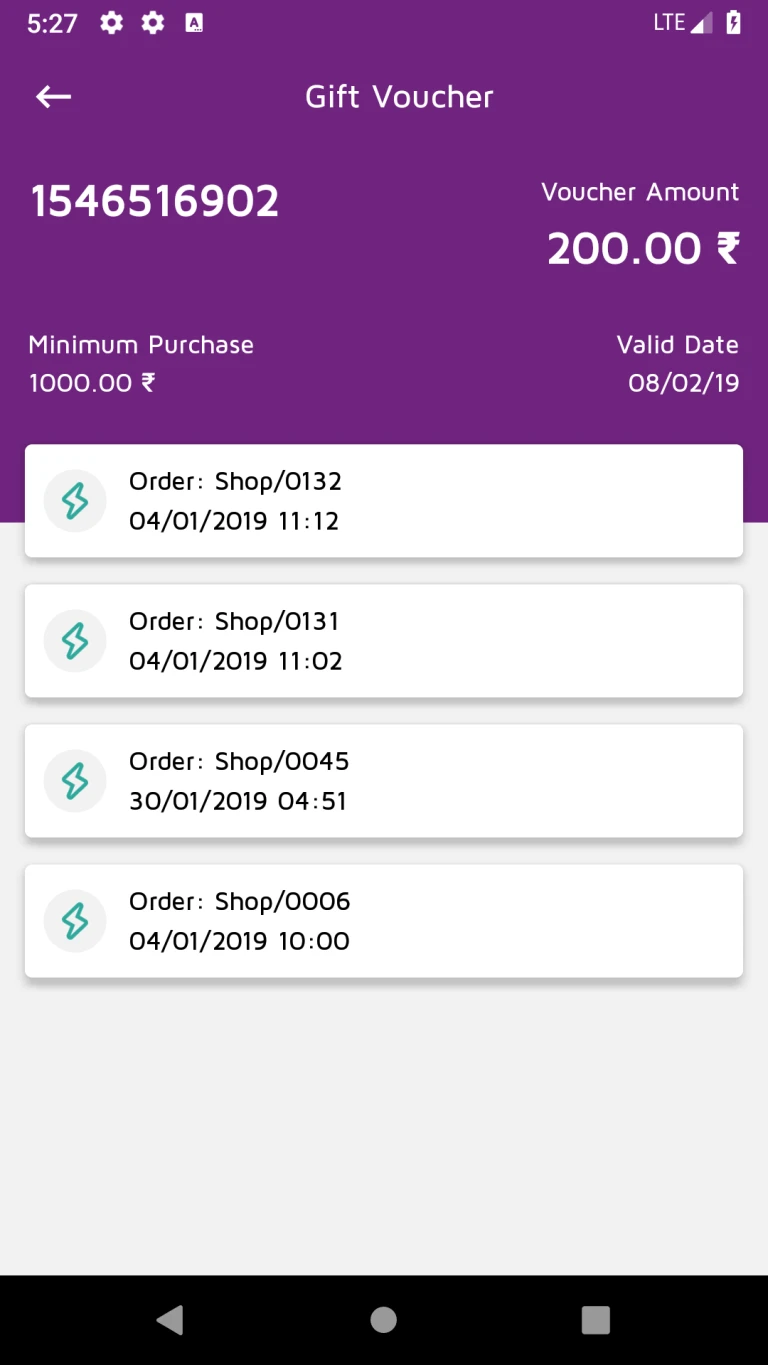
Vouchers will be displayed.
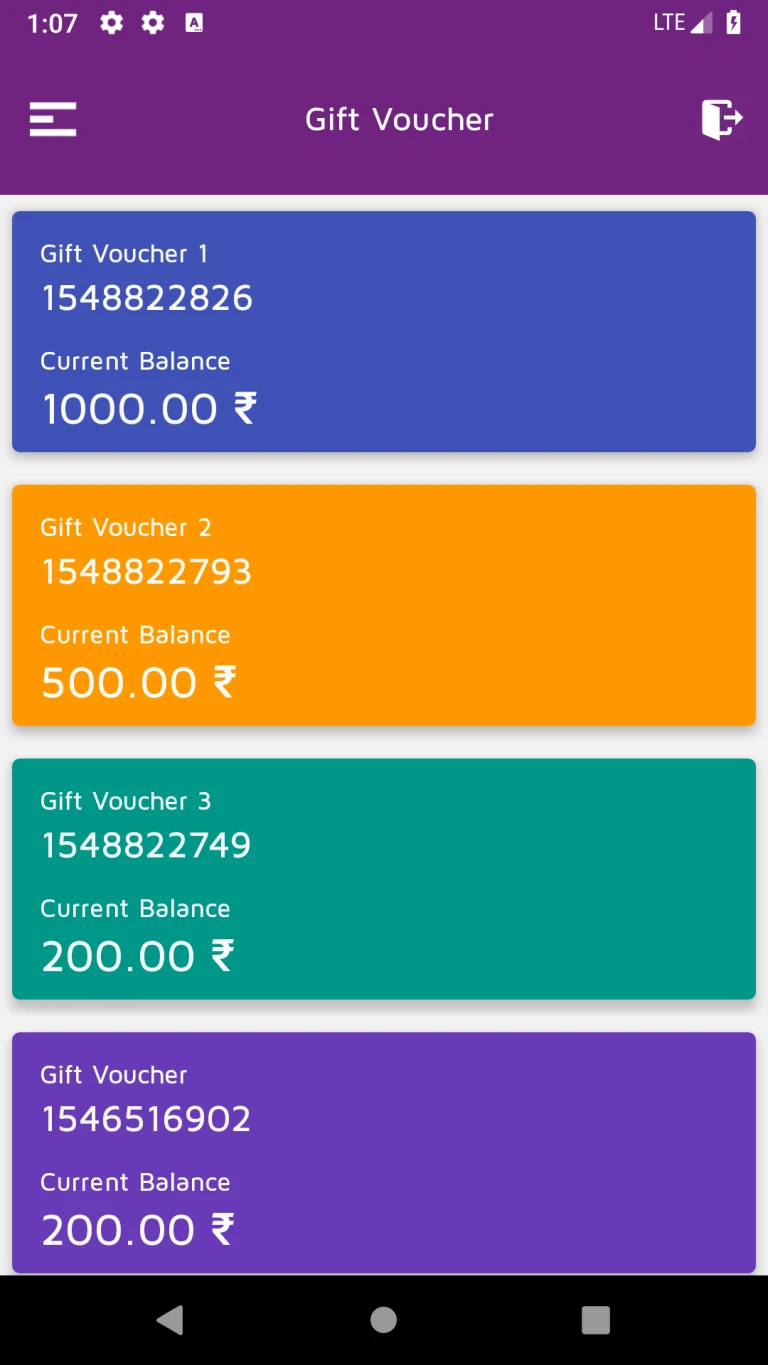
Voucher details redeemed by user will be displayed.
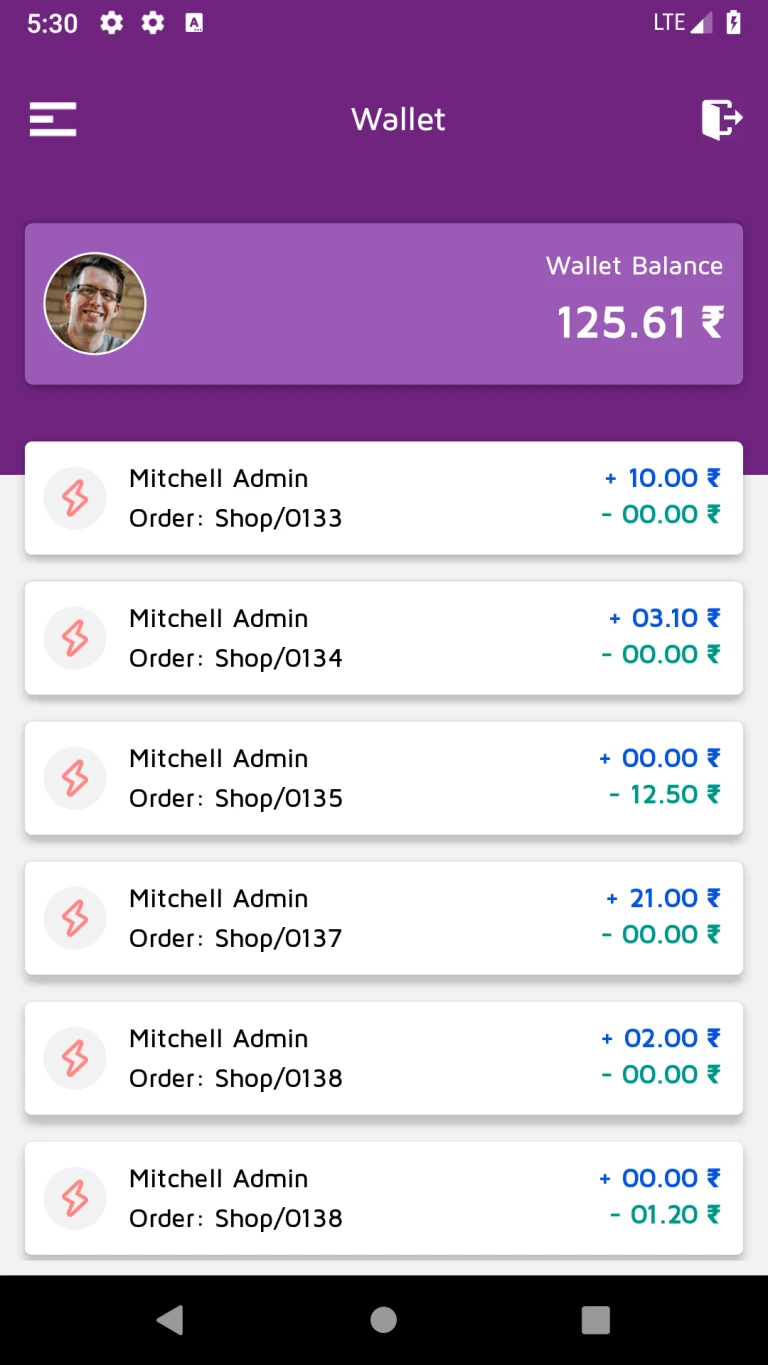
User’s wallet transaction details will be displayed.
Features:-
How to Use
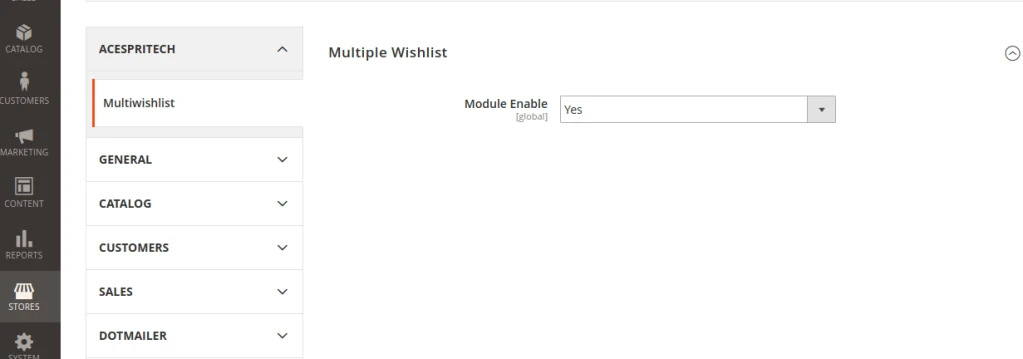
First go to the admin panel STORES –>Configuration –>ACESPRITECH–>Multiwishlist tab.and Enable module first and Save Config.
Go to Frontend and login first then click on “Multi Wishlist” Link , its display Default(My Wishlist)folder.
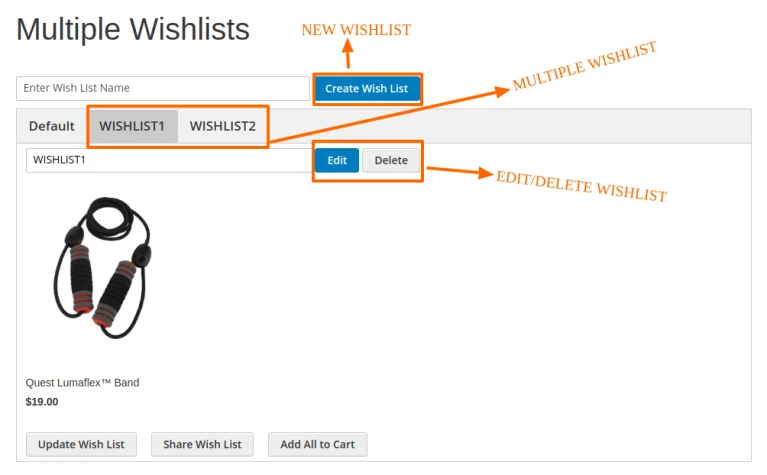
– Click on create wishlist button and adding multiple wishlist folder as u like.
– Also you Manage product in list like Remove,Move,Copy,Edit.
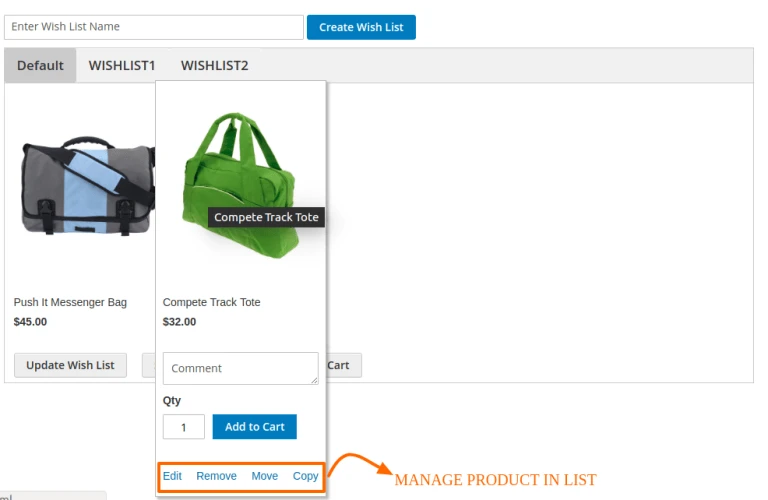
In product list page you can add product to your specific wishlist folder using click of add to wishlist icon.
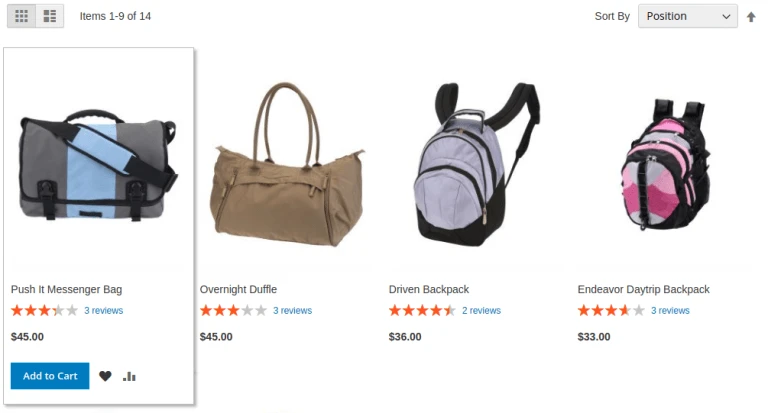
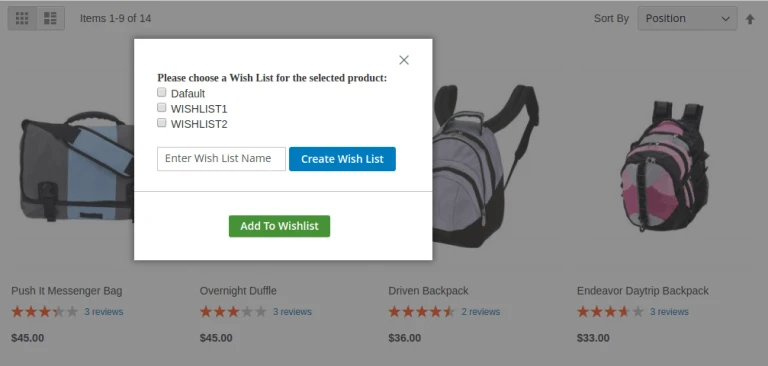
Also you can Edit / Delete Your wishlist folder easily.and also use can use our functiality of Add All To Cart and Update Wish List For adding Comment on Specific product.
How to use
Integration process need to configure Consumer Key and Consumer Secret also upload certificate File path.
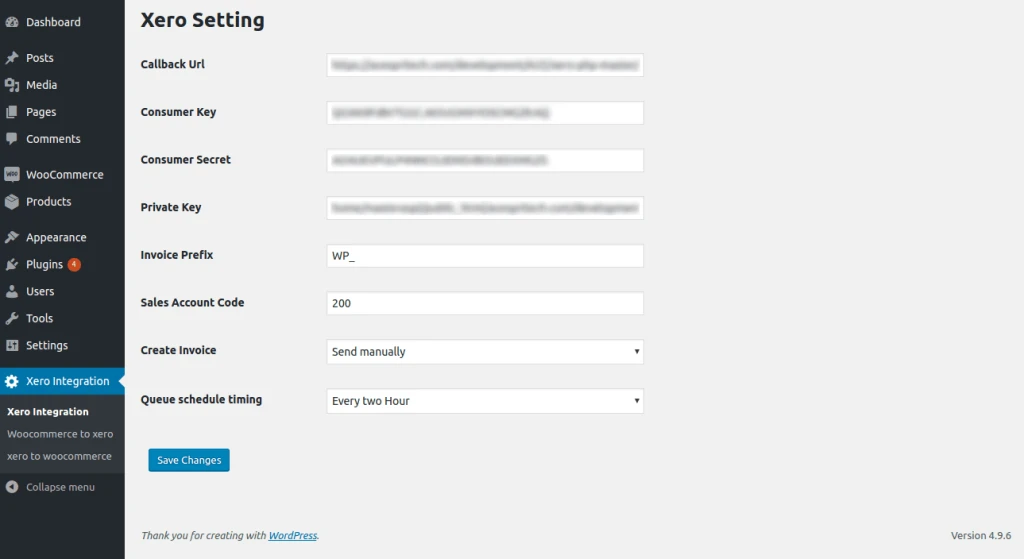
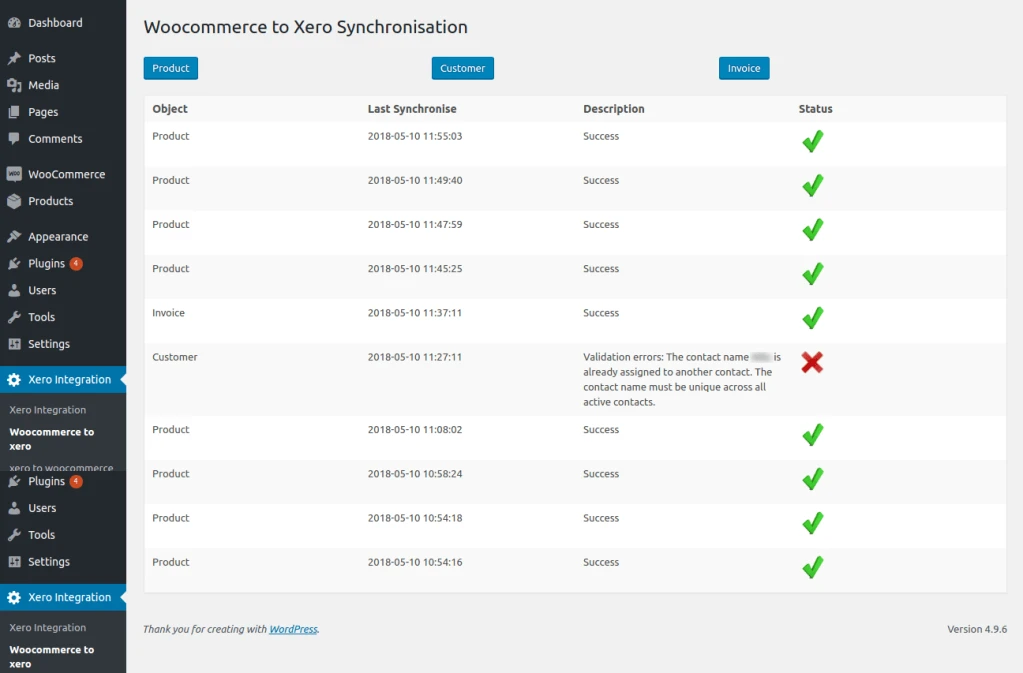
Woocommerce to Xero product , customer and invoice synchronization.
Show history of last synchronization details.
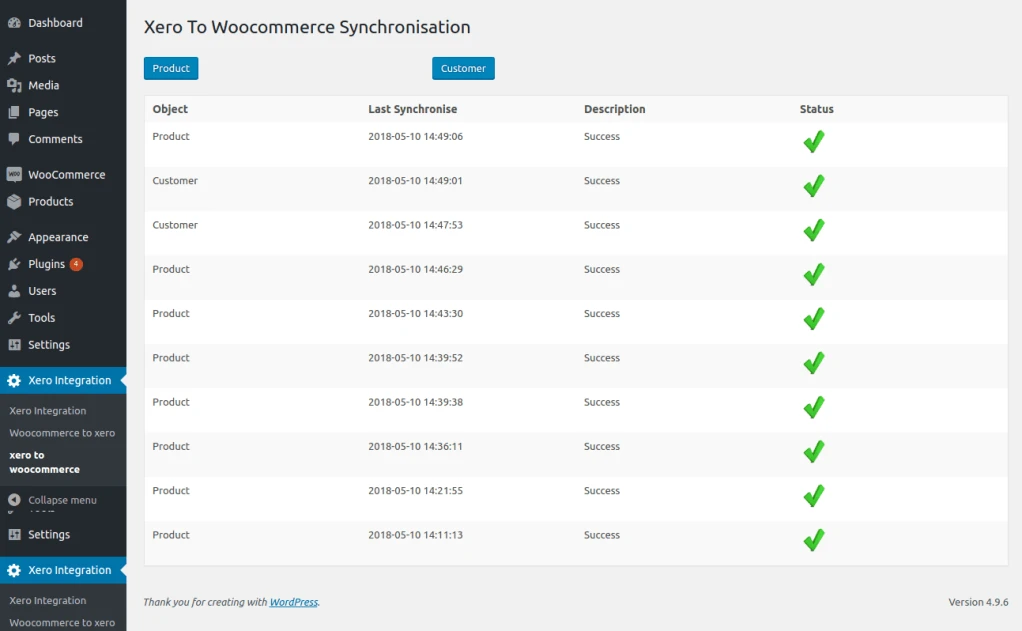
Xero to Woocommerce product and customer synchronization.
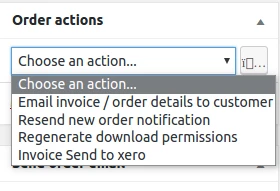
In admin Woocommerce order details page add action ‘ Invoice sent to Xero’ for manually sent invoice to Xero.
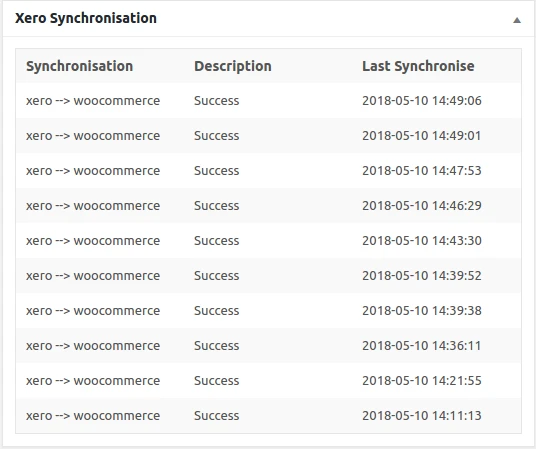
In admin dashboard see synchronization history.
How to use
To Login in APP, Odoo v12 instance should be running.
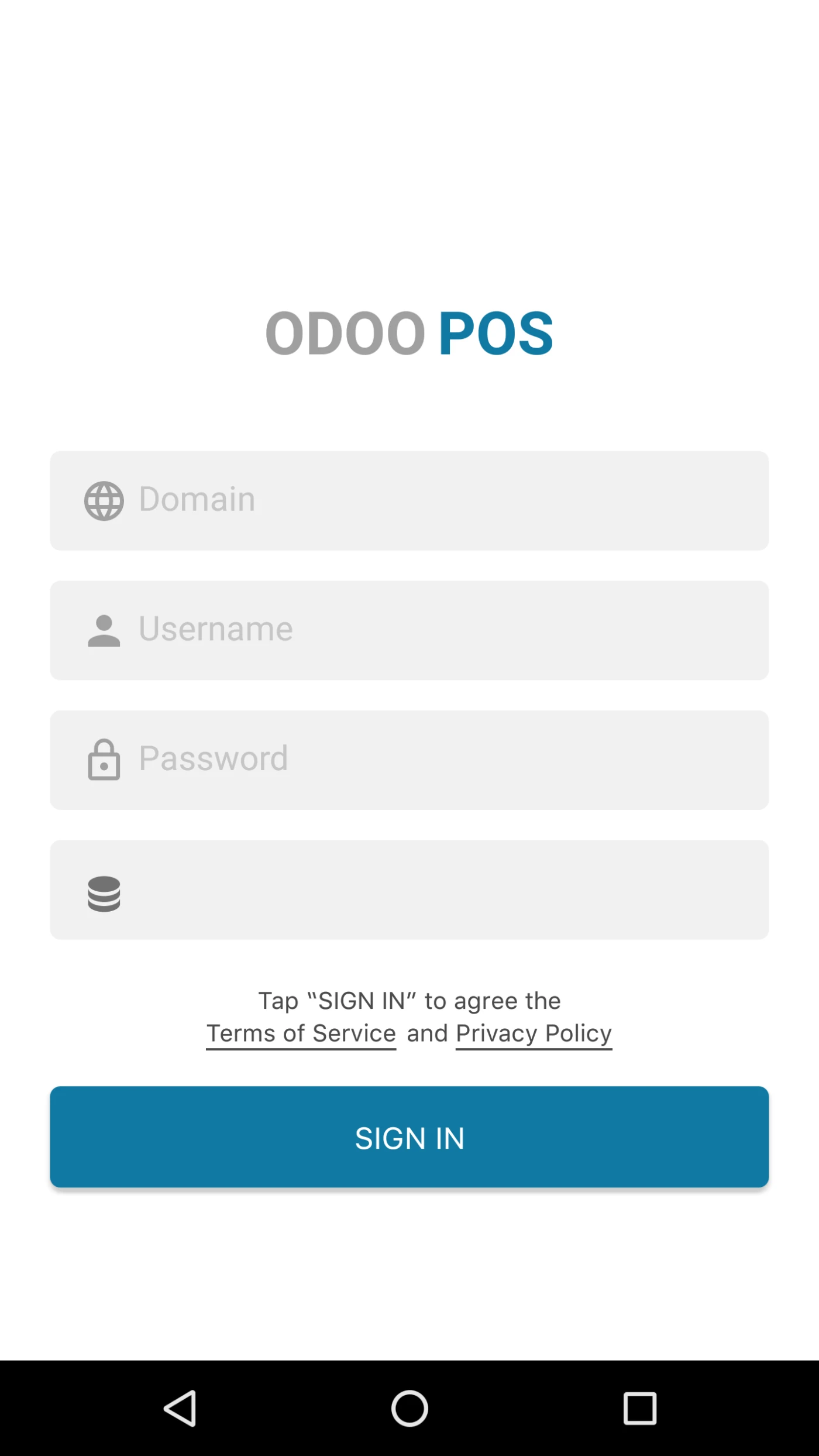
User can Login in APP with his Odoo URL, Username, Password and Database.
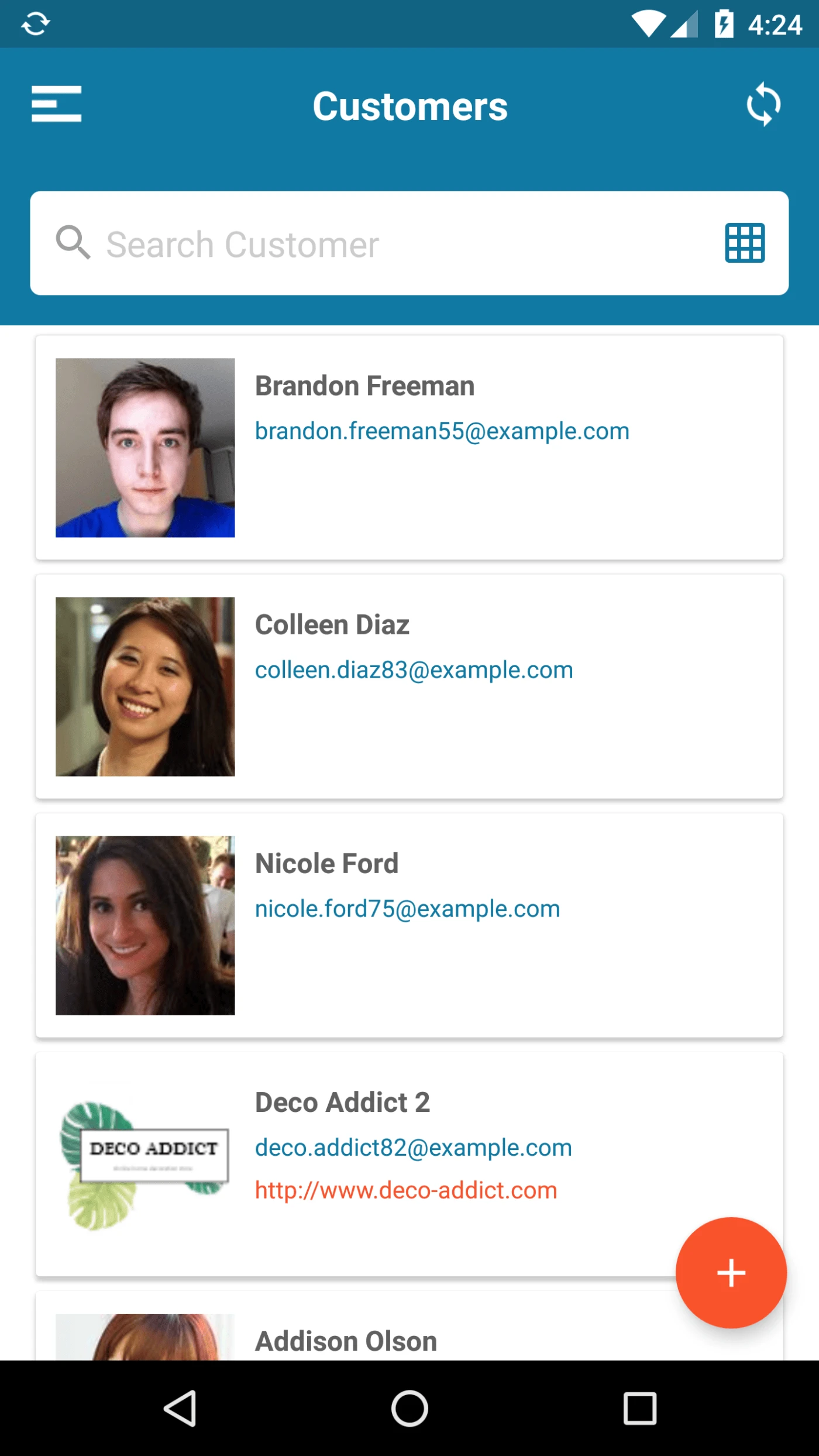
User can view List of Customers here.
User can switch Between Kanban and List view.
User can Create new Customer from Here.
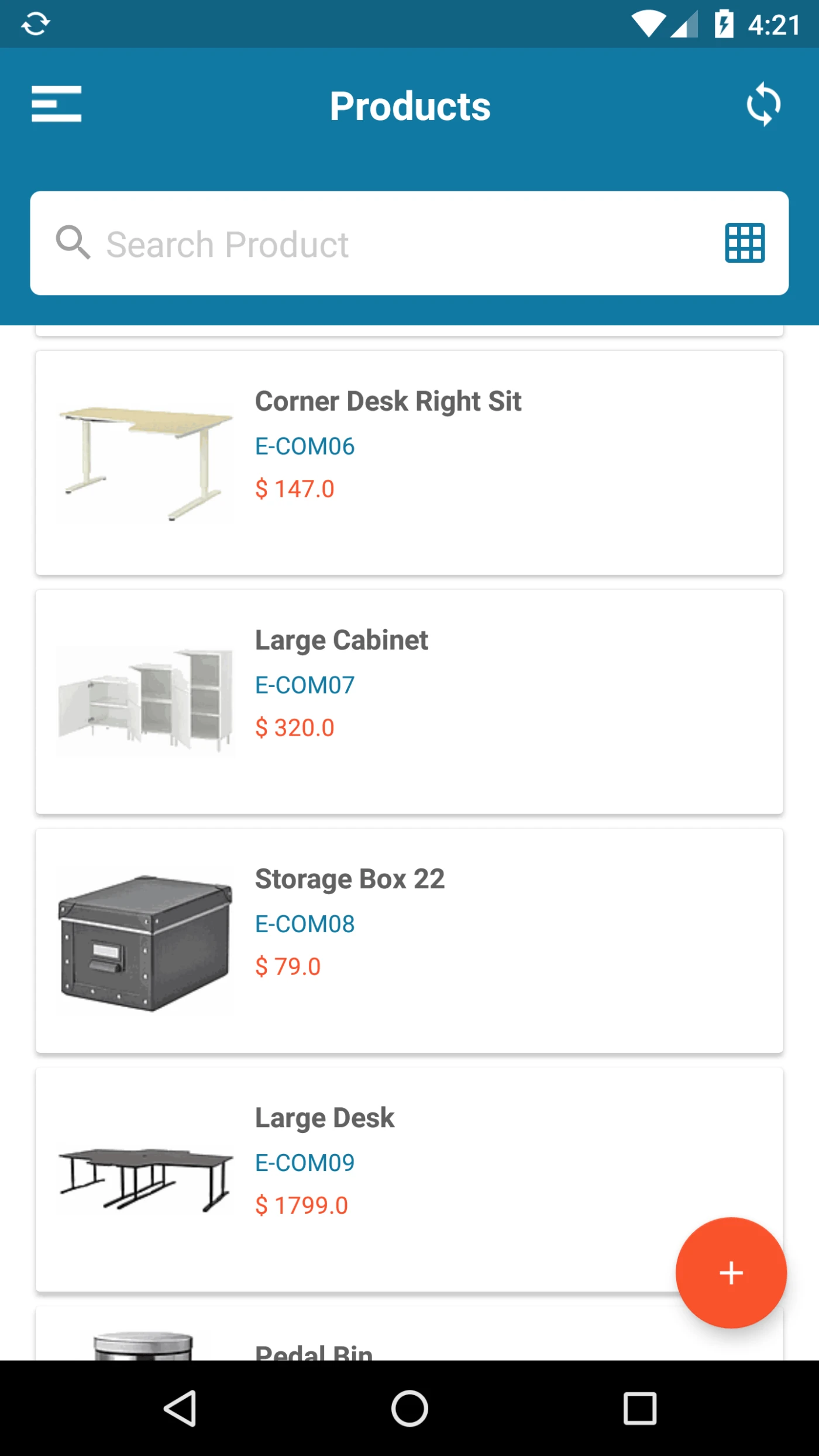
User can view List of Products here.
User can switch Between Kanban and List view.
User can Create new Products from Here.
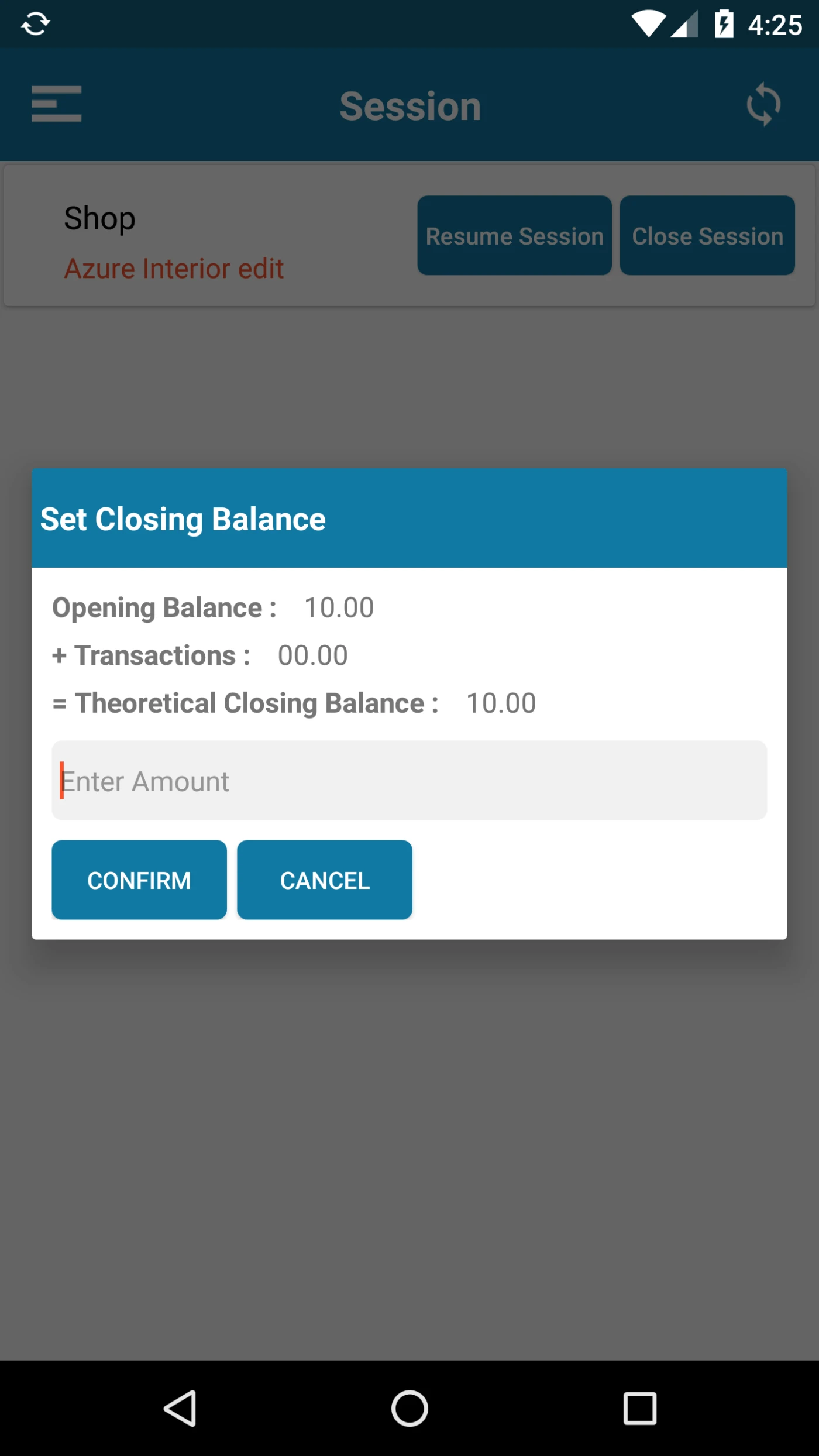
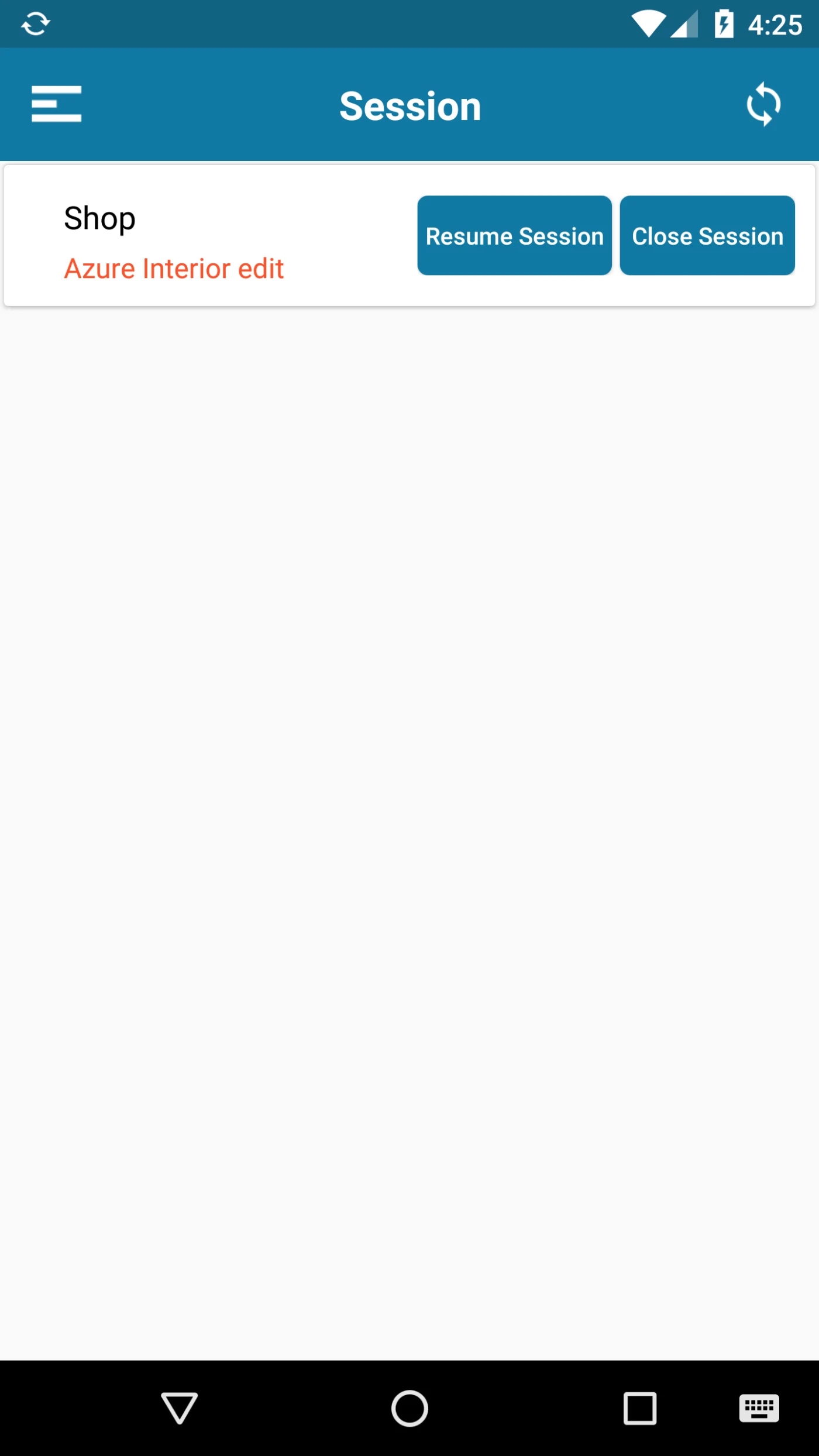
All POS Session will be Loaded Here. User can create, Open, Resume and Close the Session.
While Opening Session User can Enter Opening Balance.
While Closing Session User can Enter Session Balance.
User can view Balance details as well while Closing the Session.
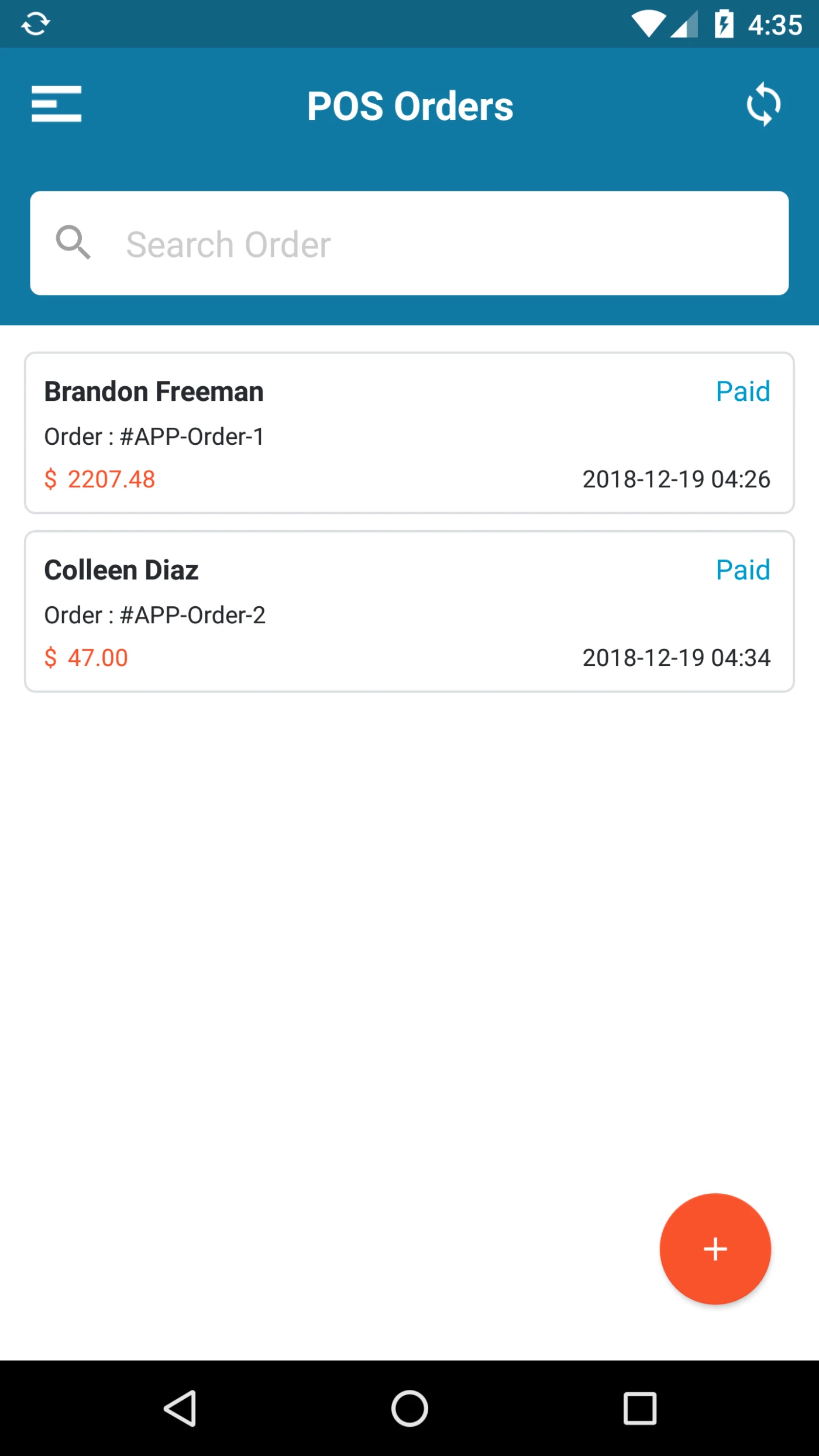
Here User can view orders created by him.
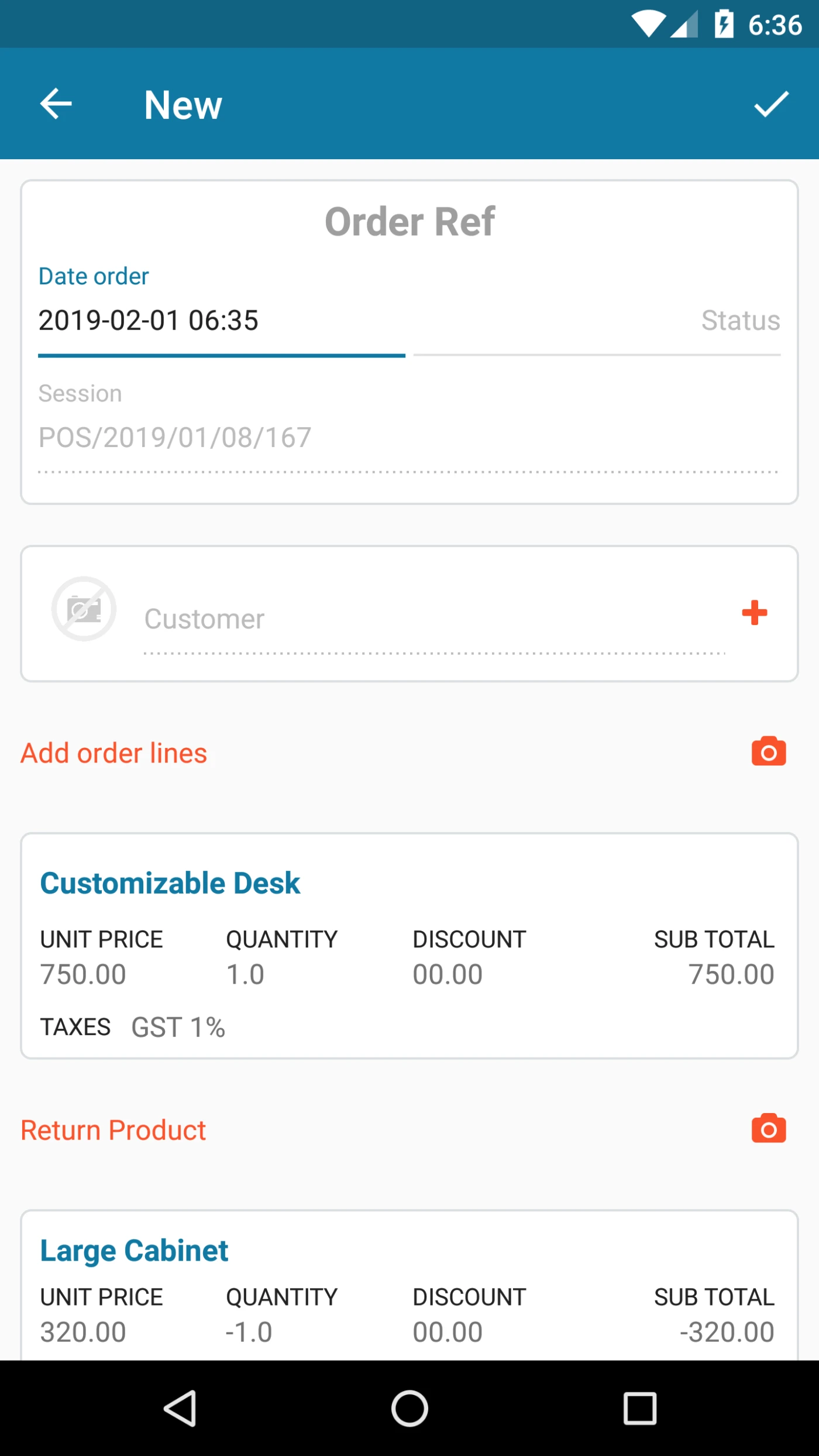
Here user can create order by selecting Customer, Products.
User can return products within same order. user can use Mobile camera to Scan Products.
User can give discount and taxes on Products as well.
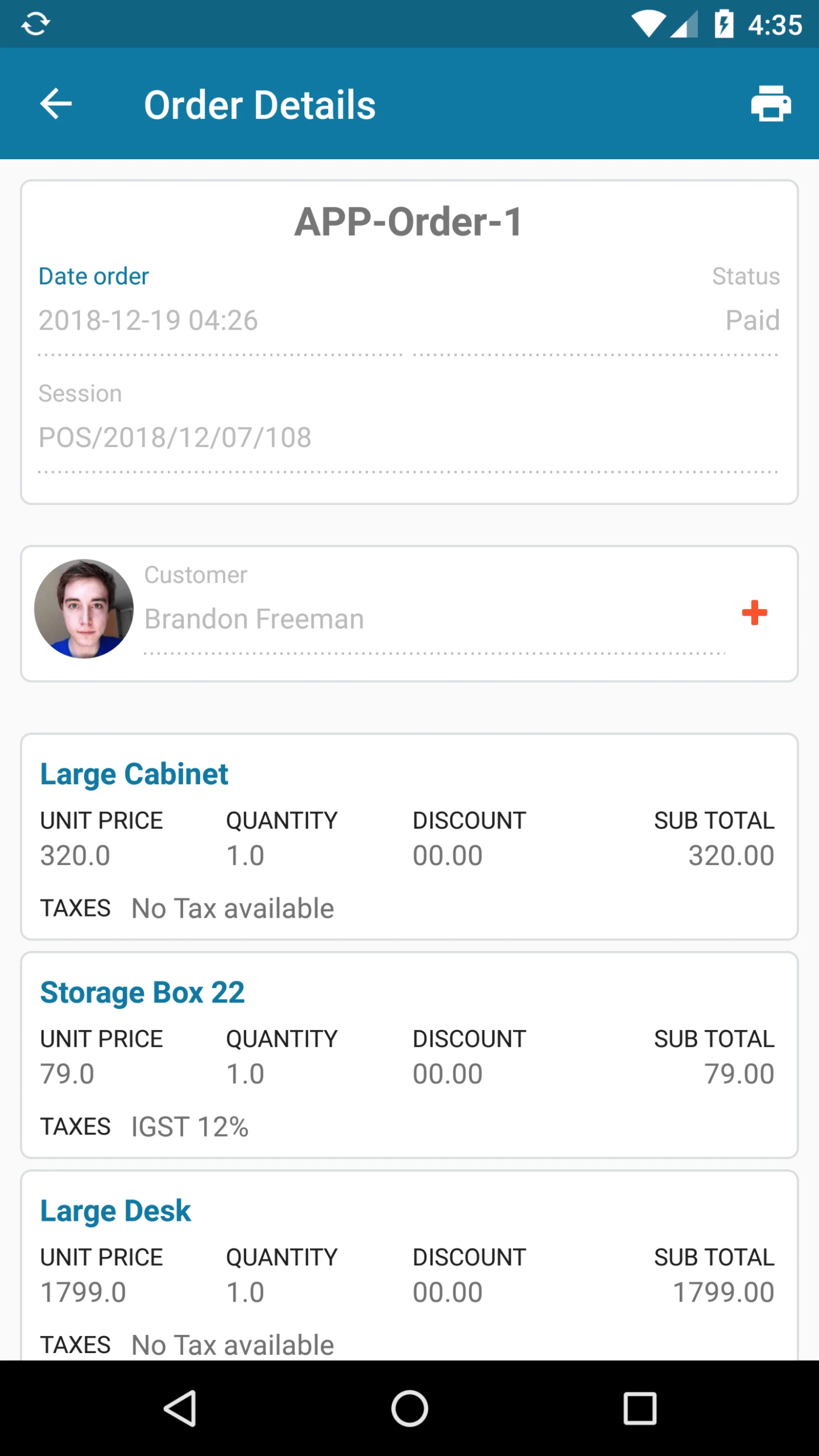
User can view order Details on this page
This page is displaying many order related information Like Order ref, Order Date, Status, Session Customer and Product Details.
from this page User can Add Discount as well.
User can Print order details from this page as well.
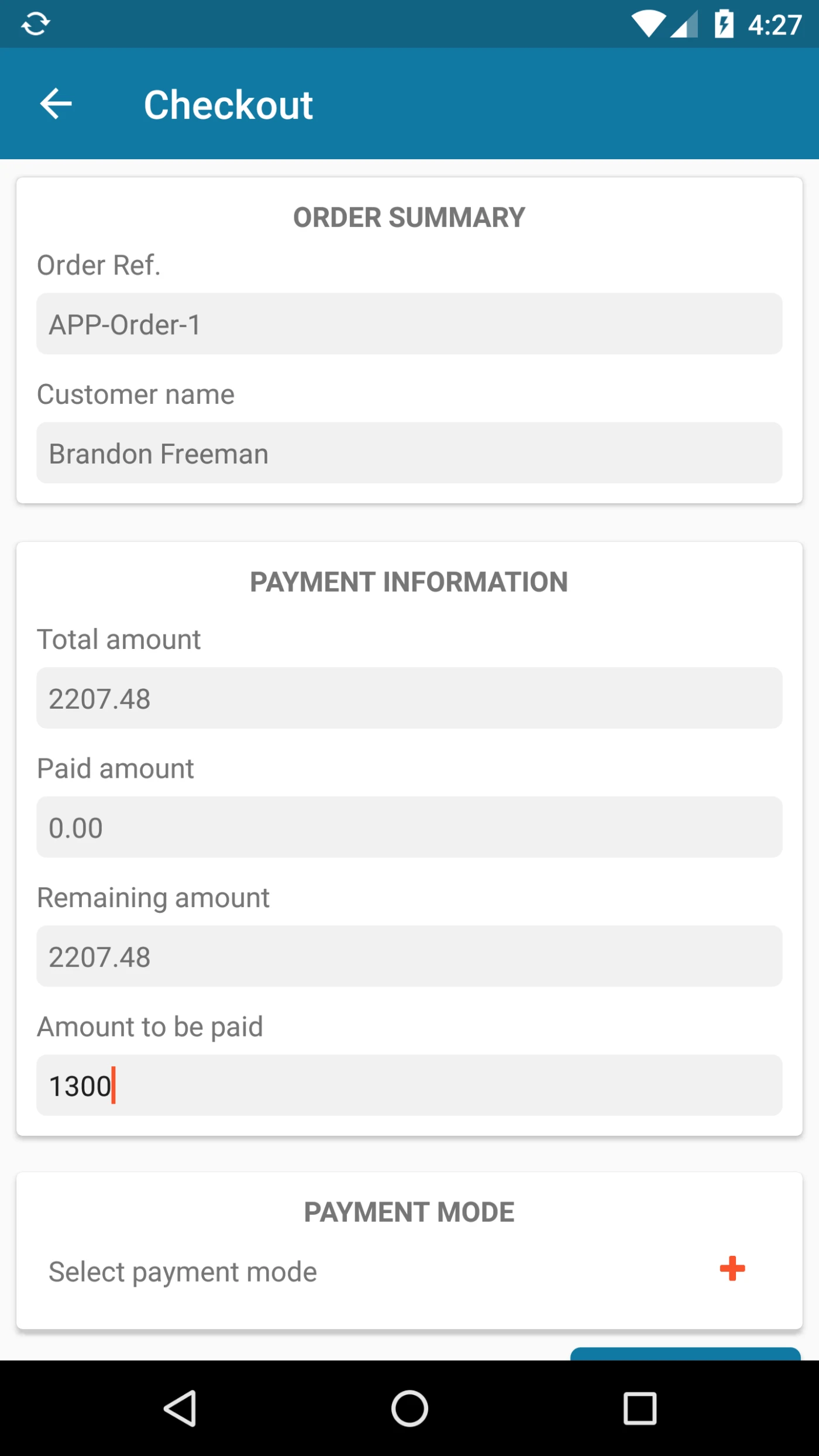
From this page User can Make Payment for the orders.
This page Displaying payment related information Like, Paid Amount, Total Amount , Remaining Amount.
User can Select Payment Method to make payment. Payment Methods are available based on Server configuration.
after successfull payment user can print Receipt using Bluetooth Printer.
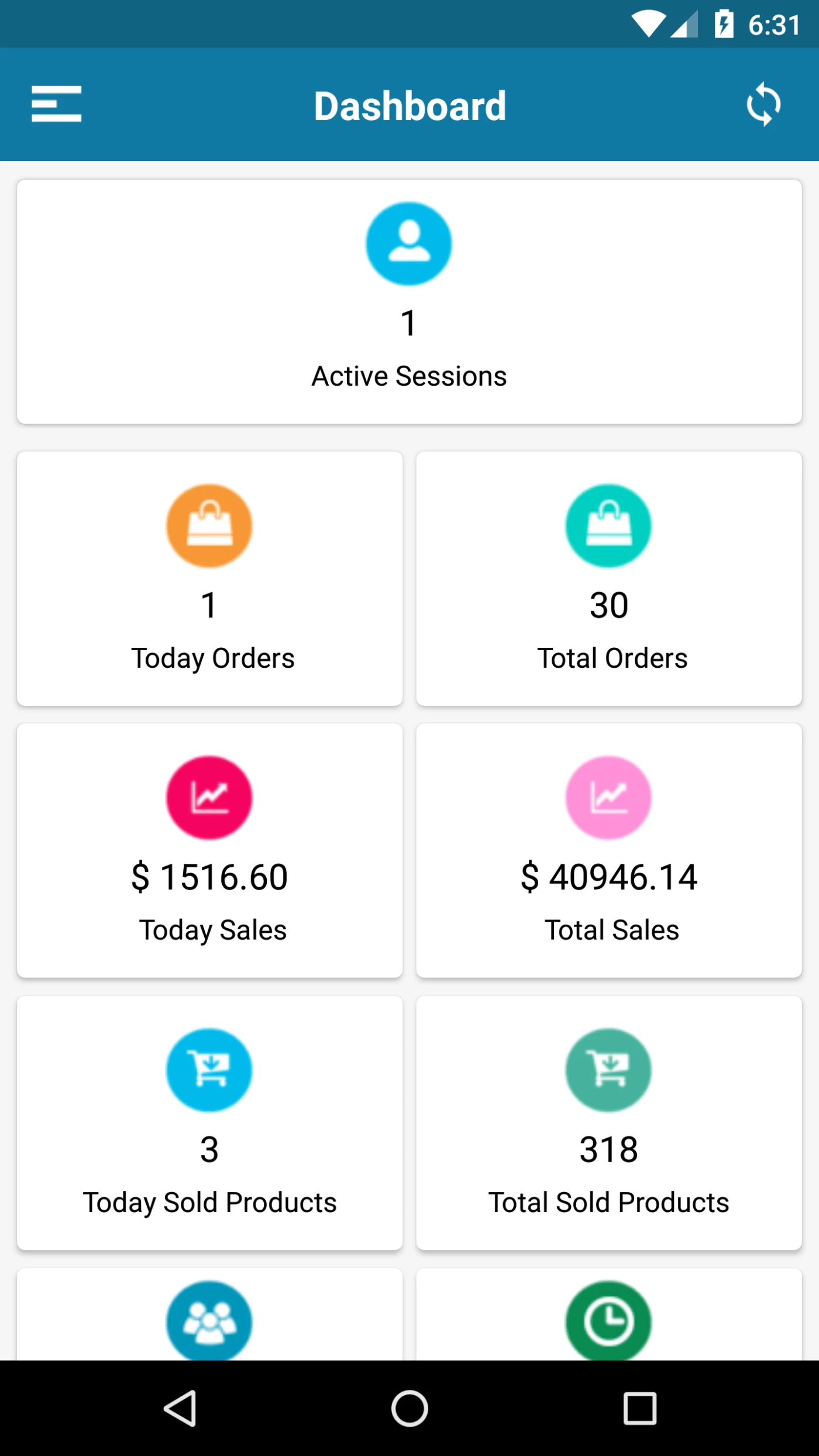
Active Session -Today’s Orders, Total Orders, Total Sales, Today’s Sales, Total Sold Products, Today’s Top staff, Top Hours Today, Average Customer spending, Average Customer visit