Note: While doing each and every perform into invoice click on apply or remove rounding button for rounding amount.
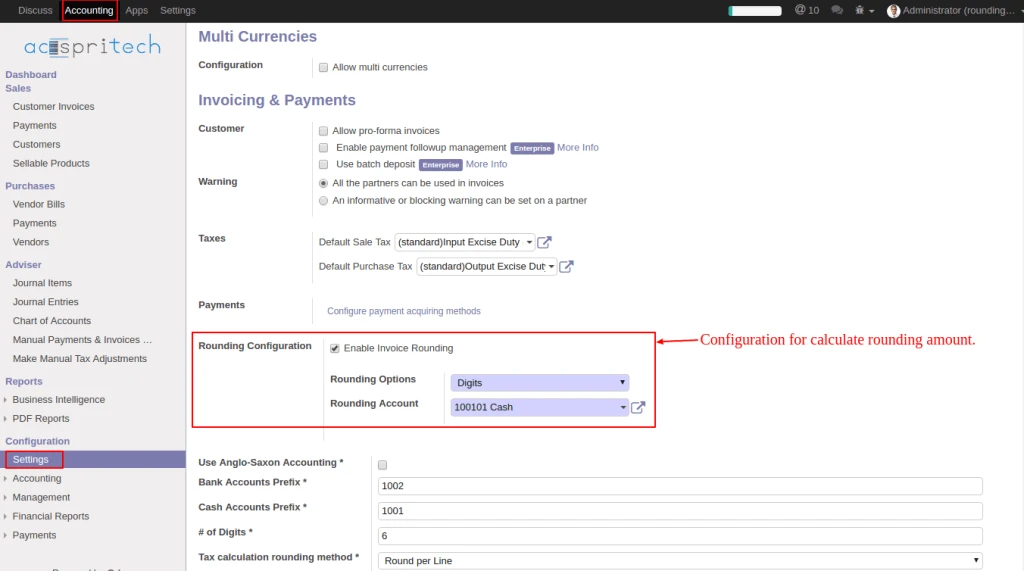
In Accounting configuration, checked “Enable Invoice Rounding”, select the (Rounding option and set Rounding Account).
Odoo account configuration
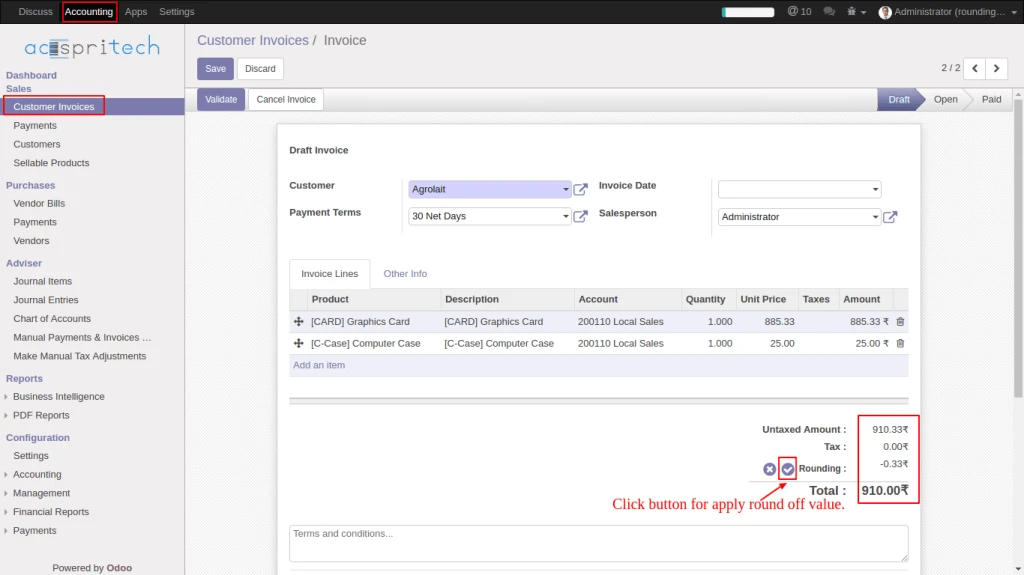
From Customer Invoice click on (rounding apply) button for calculate rounding amount.
Odoo applying round off
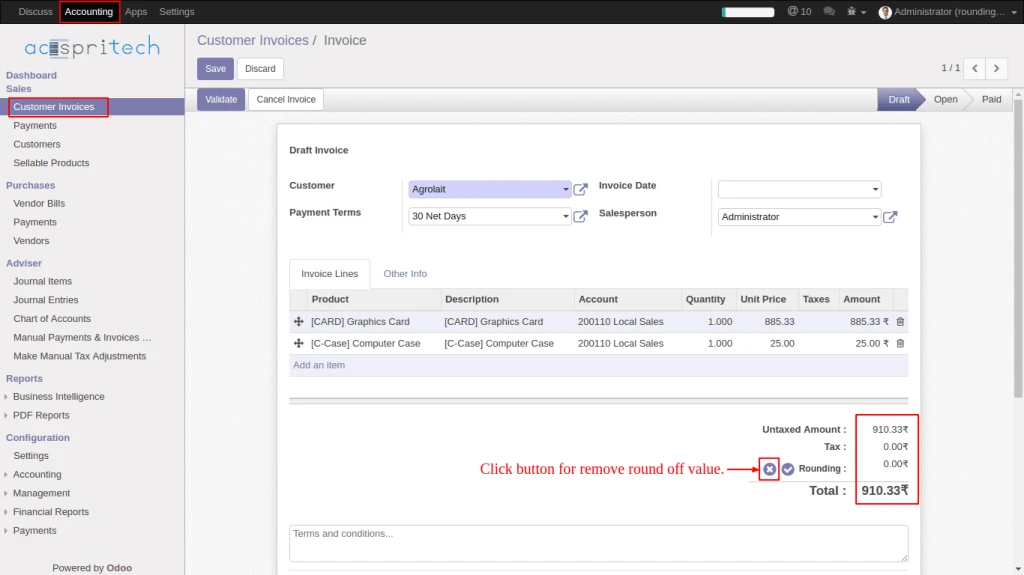
From Customer Invoice click on (rounding remove) button for remove rounding amount.
Odoo invoice remove round off
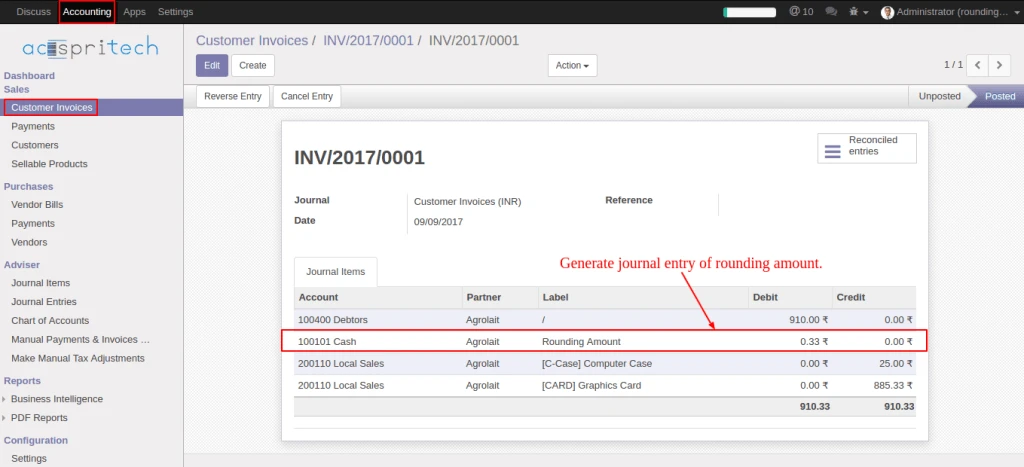
Once invoice validate generate journal entry of rounding amount.
Odoo journal entry
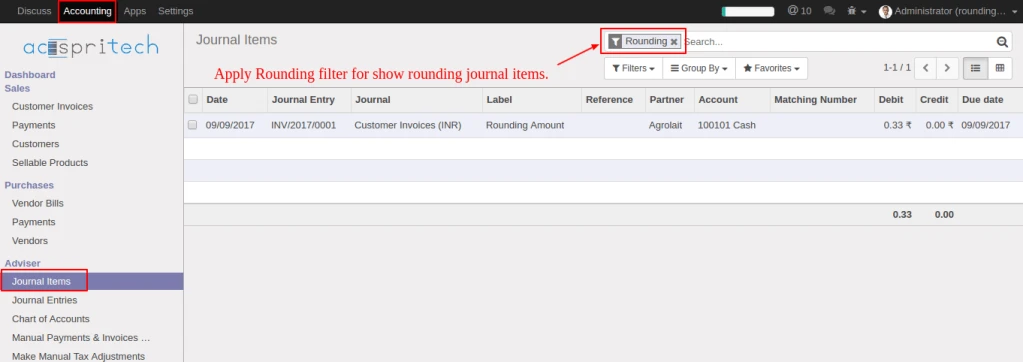
From journal items menu, select filter “Rounding” for display rounding journal entries.
Odoo filter journal entey
Share this:
Click to share on Facebook (Opens in new window)
Click to share on LinkedIn (Opens in new window)
Click to share on Twitter (Opens in new window)
Click to share on Reddit (Opens in new window)
Click to share on Tumblr (Opens in new window)
Click to share on Pocket (Opens in new window)
Click to share on Pinterest (Opens in new window)
More
Click to print (Opens in new window)
Click to email this to a friend (Opens in new window)
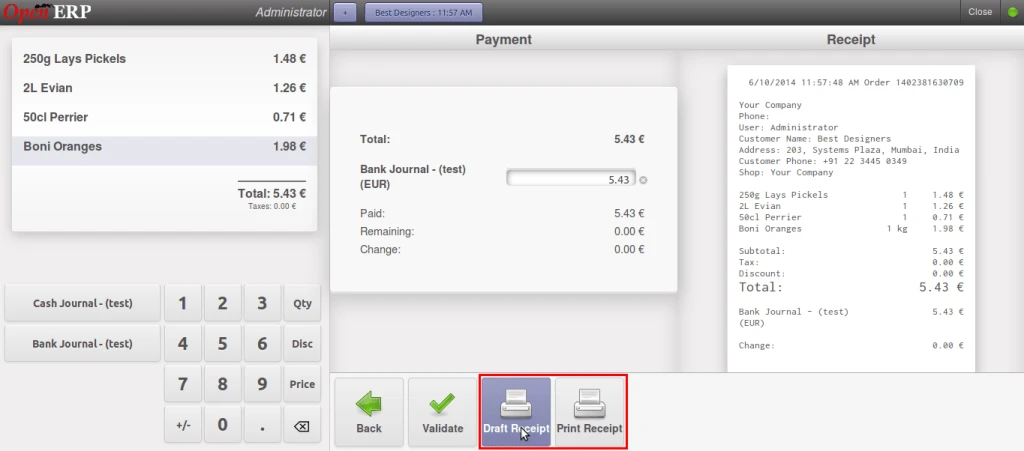
Sometimes it is required to print draft receipt before validating POS Order and that is what we have improved in our new development in OpenERP V7.
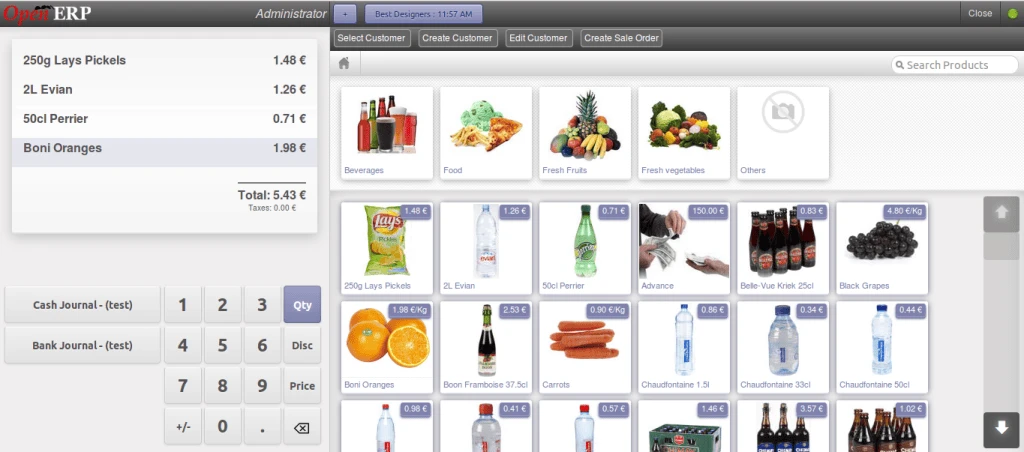
Here in below screen, we can see that we have selected customer, and few products.
OpenERP POS Normal Order
Now once we click on payment option, we will have two more options for Draft Receipt. We can see the Draft Receipt directly on screen like this, or we can print draft receipt also.
OpenERP POS Draft Receipt
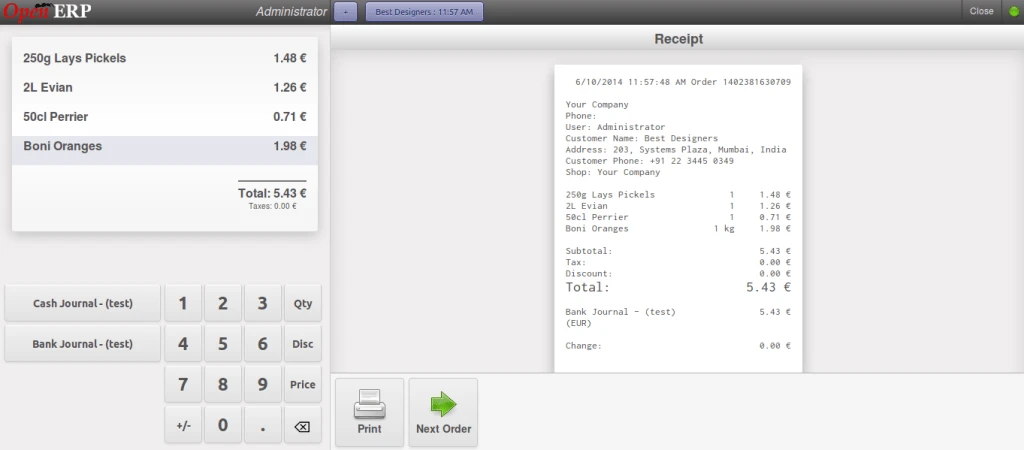
And here is the normal receipt which we can see after validation which is same as draft receipt.