We have implemented Odoo 8 with BluePay with more functionalities compare to V7 that we did. BluePay with OpenERP V7 In this development we have also made changes for POS Transaction. It is working based on TOKEN concept so it is storing only TOKEN into odoo database and that token will be use for future transactions.
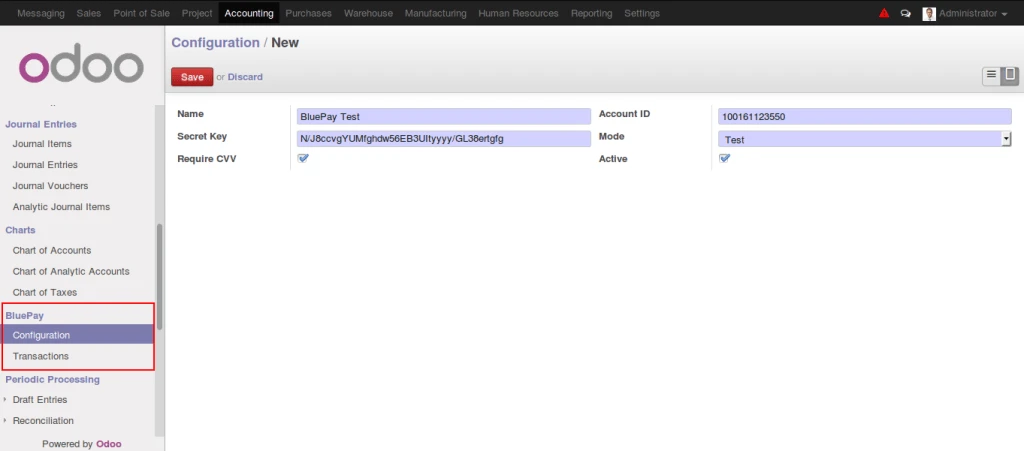
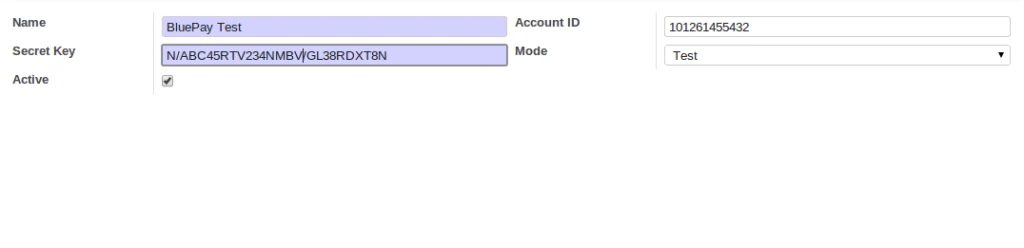
After installing module, it requires to configure Bluepay credentials into Odoo. It is also require to enable accounting journal for BluePay.
BluePay Configuration
There are 2 ways to generate TOKEN and make transactions.
(1) Generate Token from customer form
(2) Generate Token during payment process.
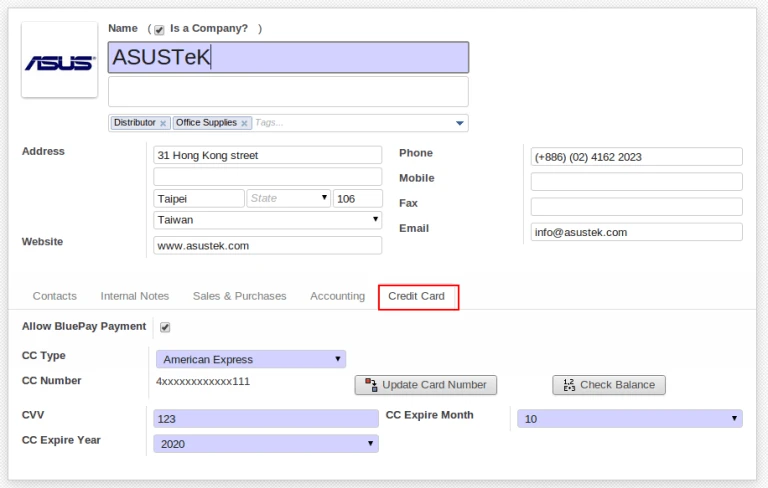
We have added new tab ‘Credit Card’ into customer form which is giving information that how many tokens stored into database with last 4 digits of credit card number.
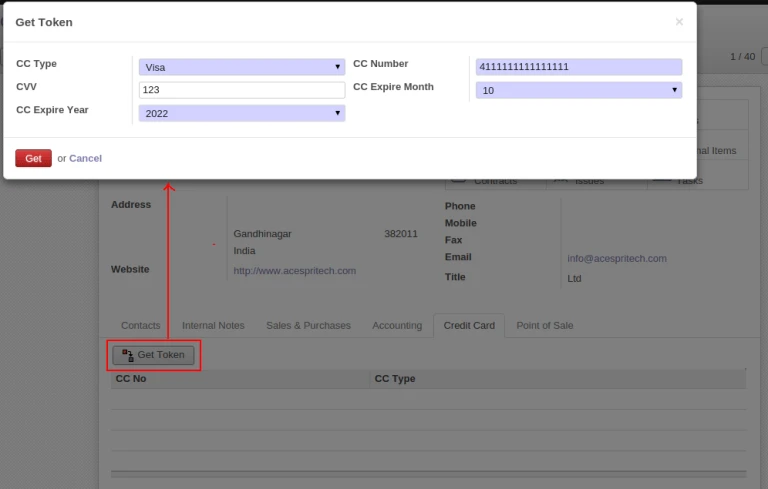
Get BluePay Tocken
There is one button ‘Get Token’ into credit card TAB which is asking for information related to credit card and send token request to Bluepay server and store it into database.
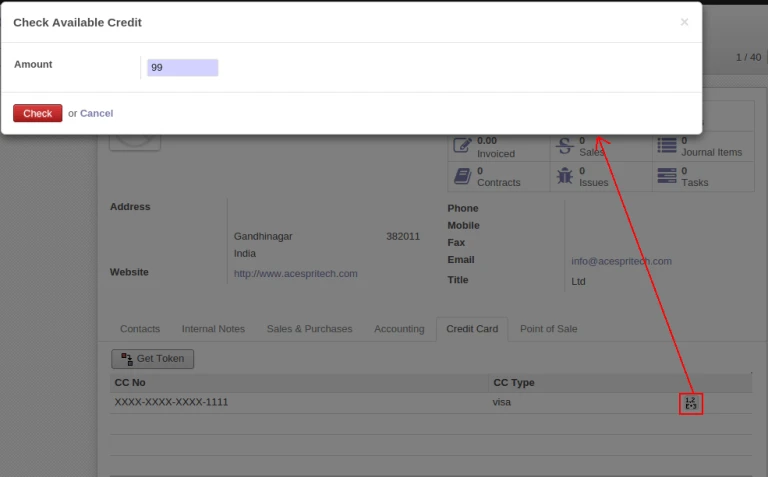
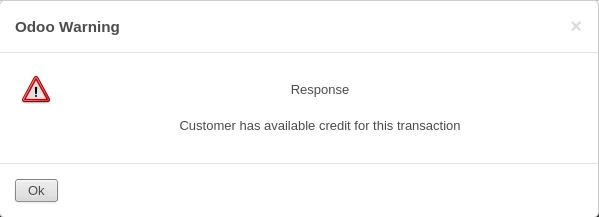
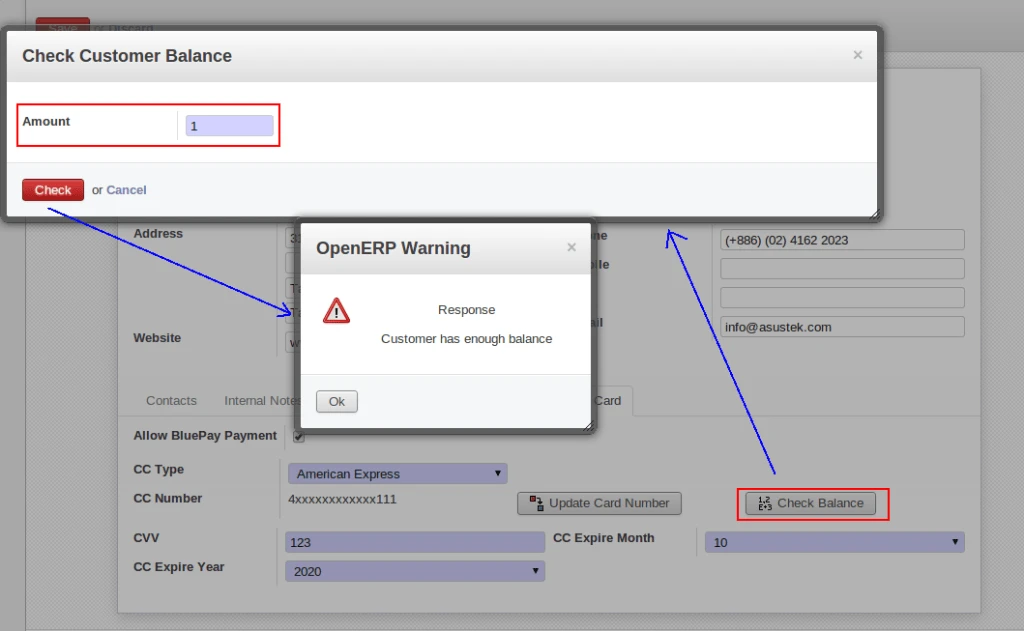
After generating token, you can check available balance with customer credit card and get appropriate message from server.
Check Customer BalanceCredit Card Balance Message
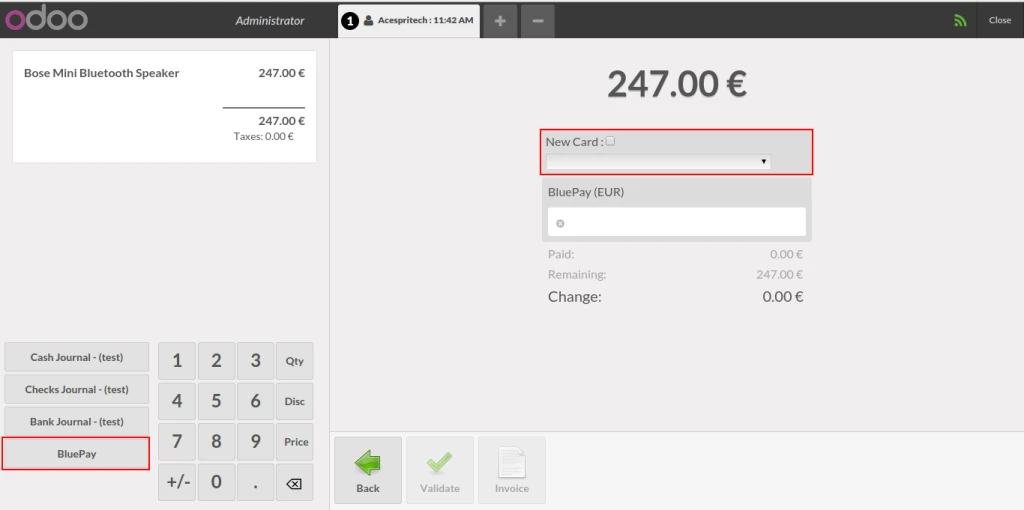
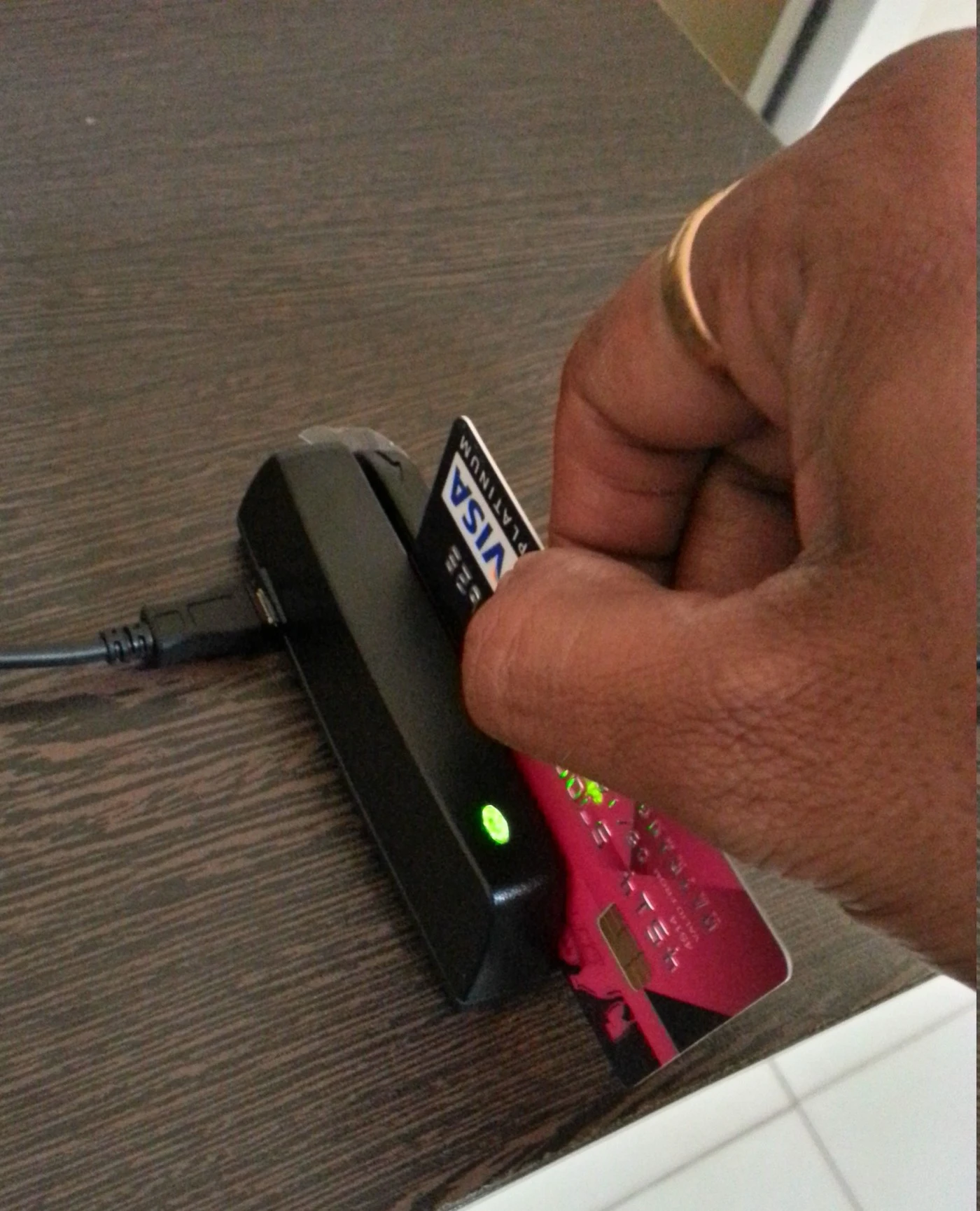
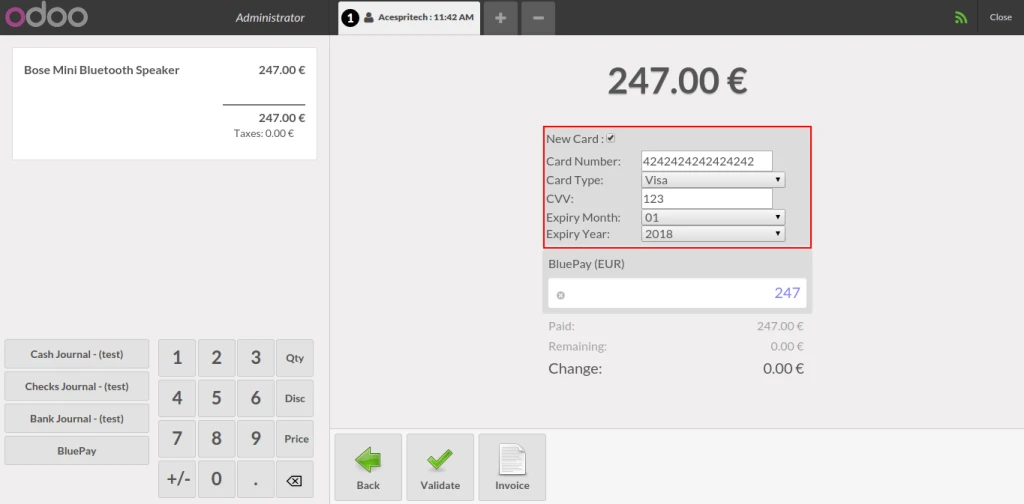
During payment process from POS, first it requires to select journal which is enable for Bluepay transactions. And you will get following screen for credit card payment. You can register new credit card during transaction and it will store into customer credit card token list.
POS Card SelectionSwipe Card for BluePay paymentPOS New card process
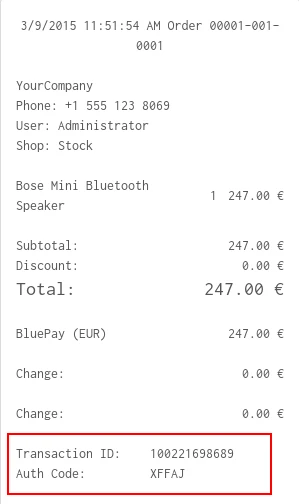
After successfull transaction, it is printing transaction id and auth code on POS receipt.
Odoo POS Receipt
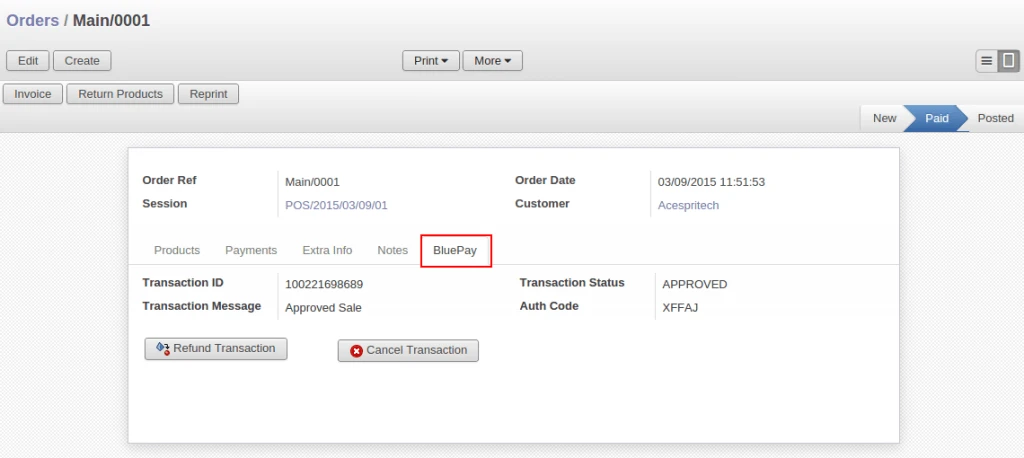
You can check all information in POS record and make refund or cancel transaction.
POS Order with BluePay information
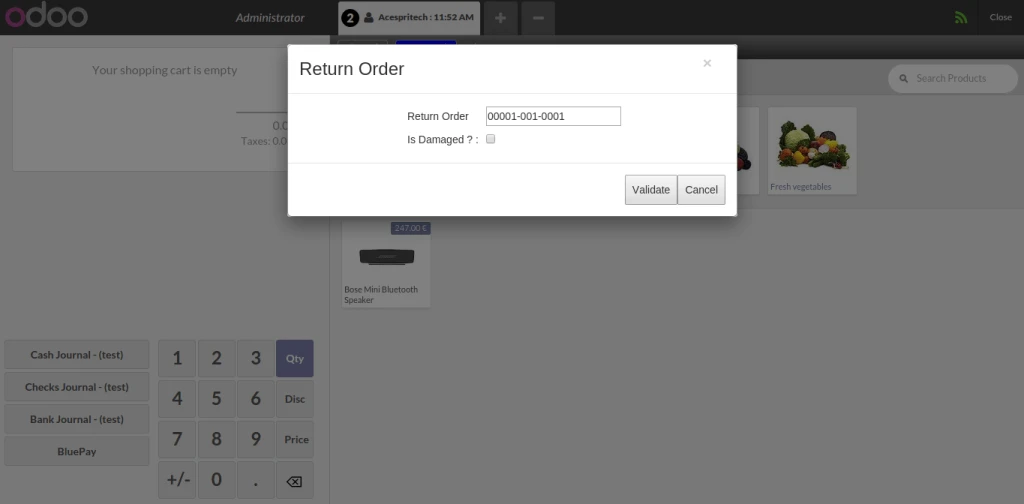
You can return order from POS interface based on receipt number and also move them to Scrap location.
POS Return process for bluepay
Same operations are possible to perform from Customer Payment form. (normal accounting process of Odoo)
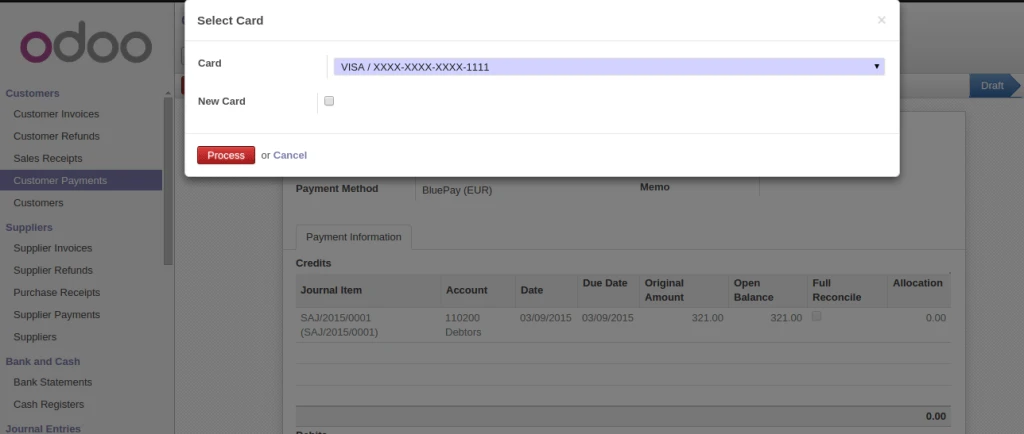
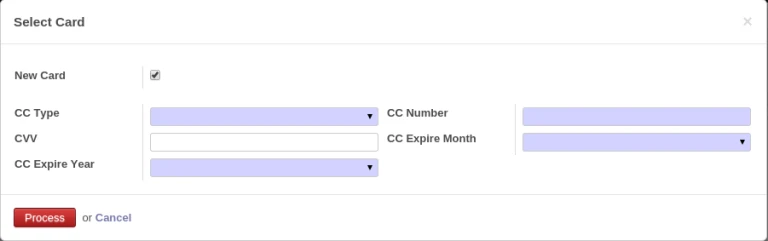
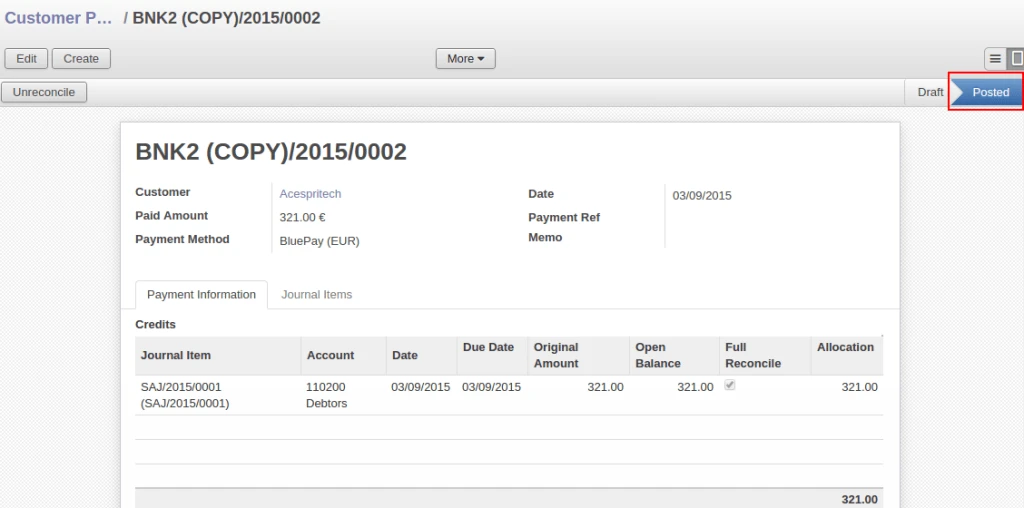
Odoo Payment VoucherPayment voucher with new cardBluePay Payment StatusOdoo customer payment voucher
Share this:
Click to share on Facebook (Opens in new window)
Click to share on LinkedIn (Opens in new window)
Click to share on Twitter (Opens in new window)
Click to share on Reddit (Opens in new window)
Click to share on Tumblr (Opens in new window)
Click to share on Pocket (Opens in new window)
Click to share on Pinterest (Opens in new window)
More
Click to print (Opens in new window)
Click to email this to a friend (Opens in new window)
SagePay is providing very good feature to process with Credit Card. It is not necessary to store credit card details into database.
SagePay server will provide you TOKEN like below {5C0DC8AD-DE7A-F65C-C53D-CC6C23BF3BEF}.
This TOKEN can be used for further transactions and make your work very easy. User can also remove current token and generate new one.
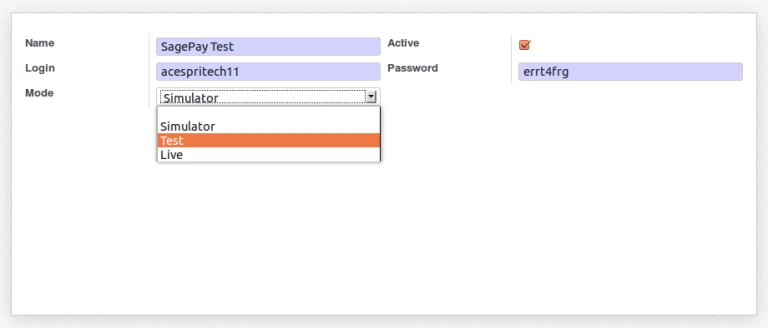
We have implemented functionality in such a way that we can store more than one TOKEN for customer. First we have to make configuration for SagePay server authentication.
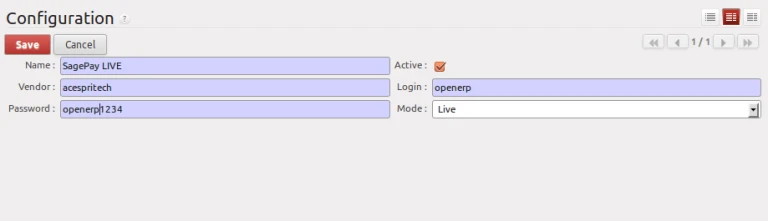
SagePAy Configuration
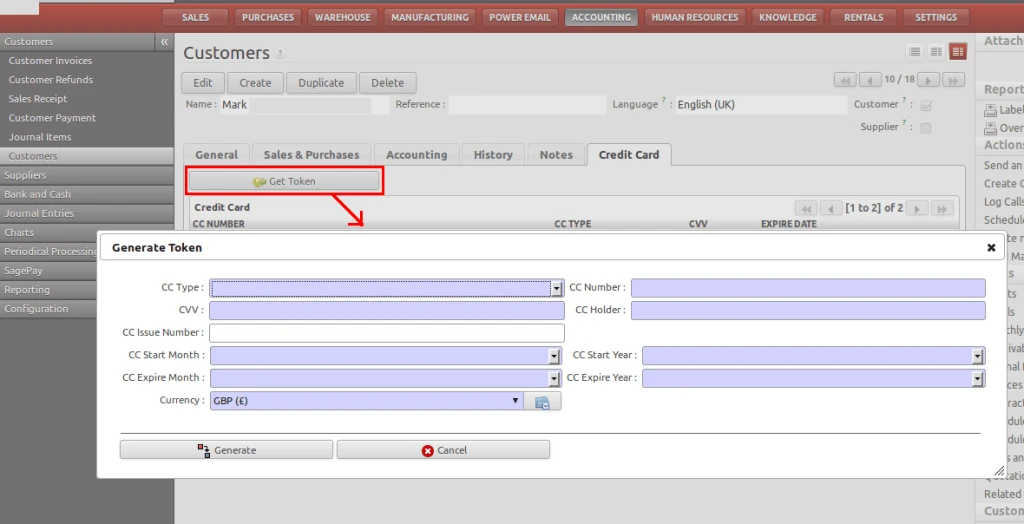
It requires to generate token from SagePay server. It will not store credit card number into database.
Generate SagePay Tocken
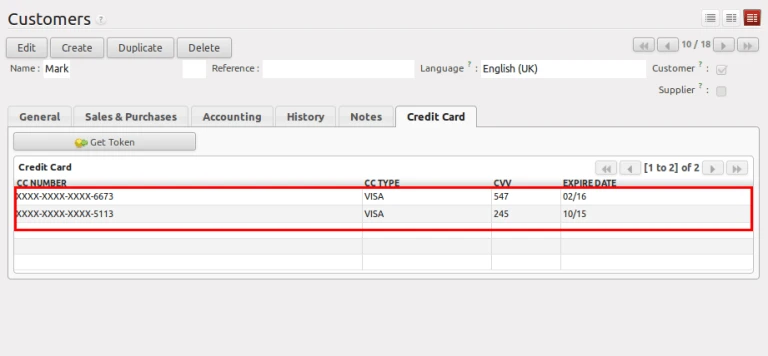
Once we will click on Generate button, it will store some required information into openerp database with TOKEN for further operations.
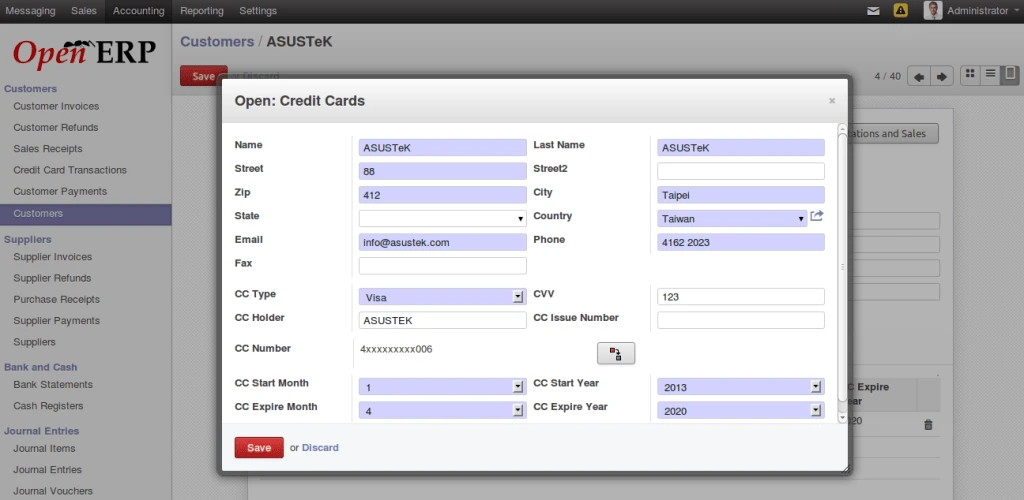
Credit Card details
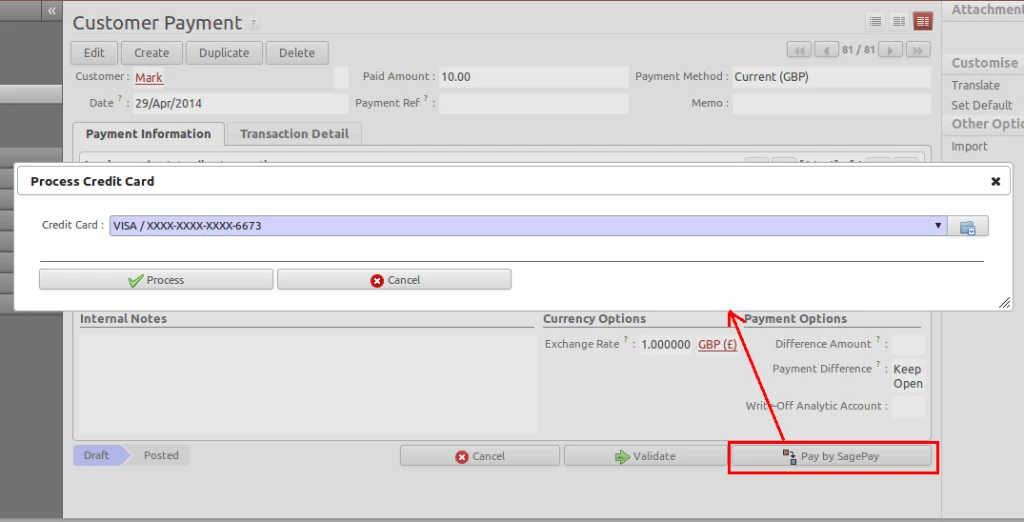
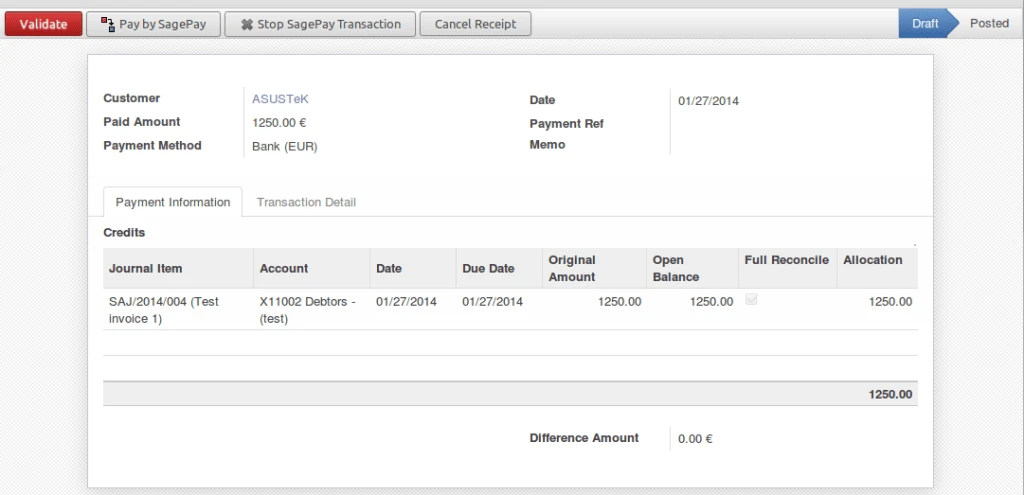
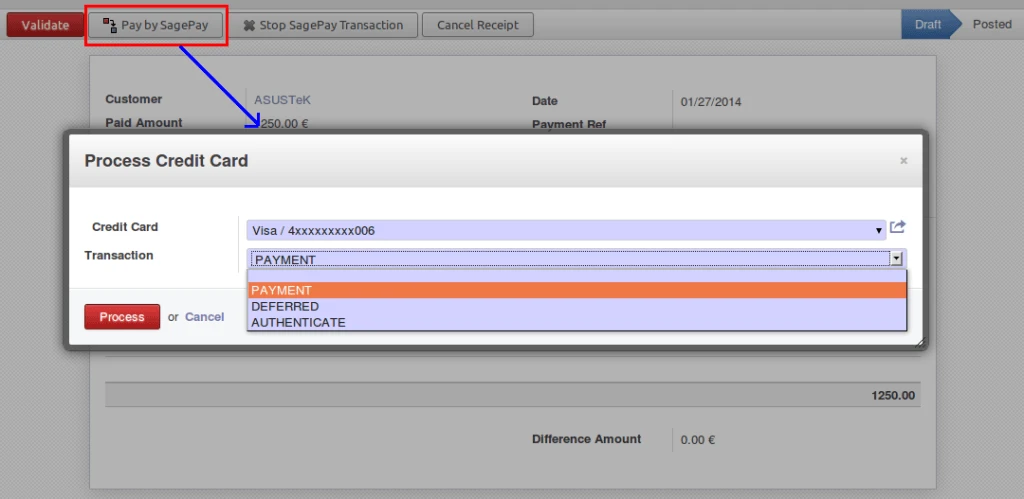
In Customer Payment, we will find new button “Pay by SagePay” which will open popup window like below screen. User can select one credit card to process with SagePay. It will display only valid credit card number which has TOKEN generated from server.
Credit Card Selection
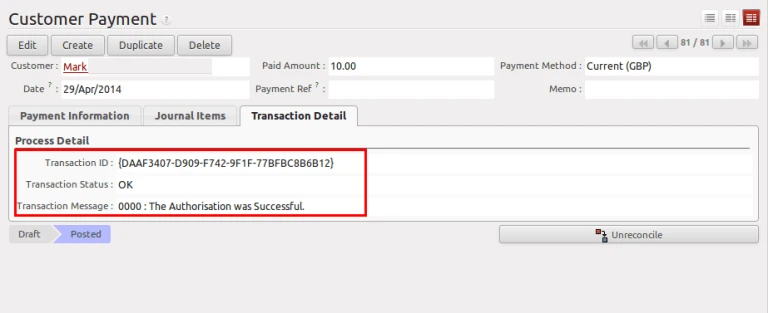
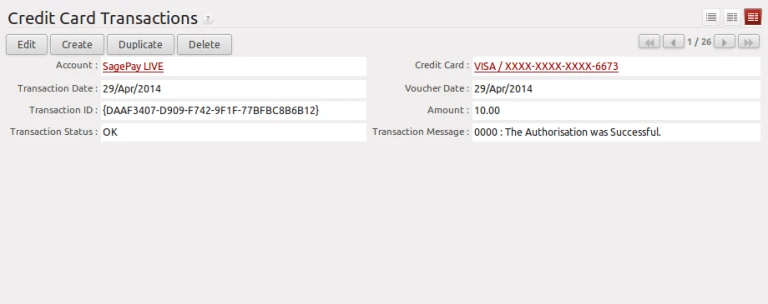
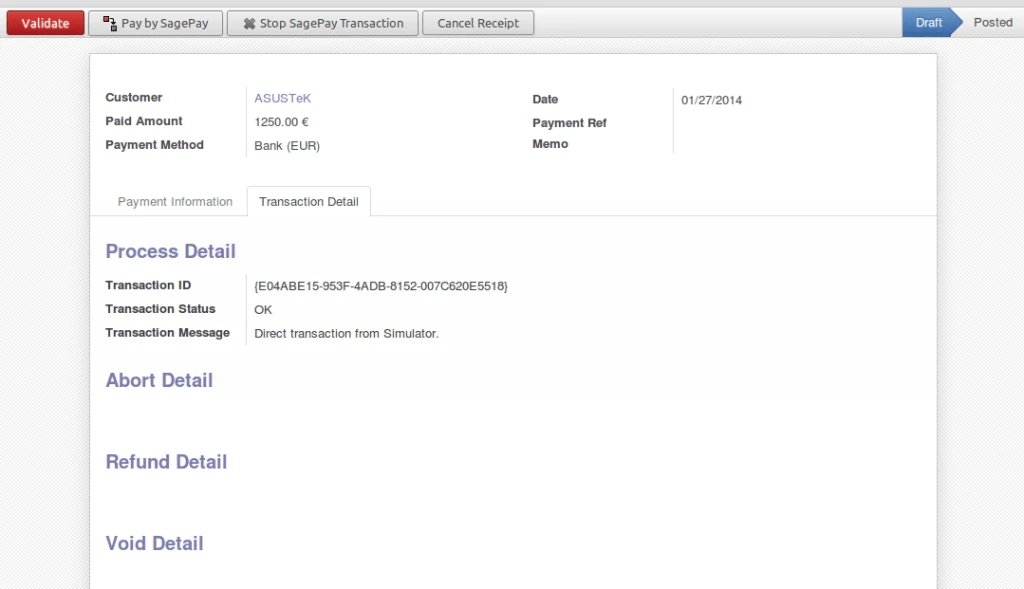
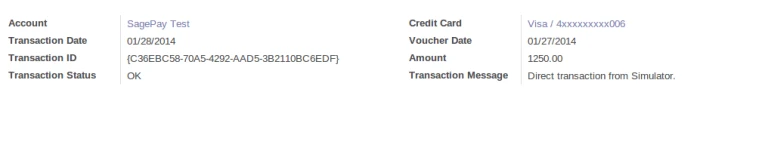
After successful transaction, sagepay server will return transaction ID and messages which are stored into Customer Payment for future reference.
SagePay Transaction Success
We are also keeping history of all successful transactions into OpenERP.
We have implemented solution for allowing payment process via SagePay from OpenERP. We will see how this module is developed.
We will start from configuration of SagePay account information. It is very important to select appropriate “MODE” of SagePay account.
SagePay Configuration
It is possible that customer may have more than one credit cards. We can configure credit card related information into Customer form itself. We are storing credit card number into database with encrypted format.
Credit Card Configuration
To process with sagepay, we have added option into OpenERP voucher form. We can easily make payment or stop it from here.
OpenERP Voucher
We are allowing to make three types of transactions with SagePay from OpenERP.
– Payment
– Deferred
– Authenticate
Further process will work according to selected transaction.
Payment Options
After making process, SagePay server will give response about transaction and we are storing that into database for future actions.
We are storing mainly following data:
– Transaction ID
– Transaction Status
– Transaction Message
Process Response
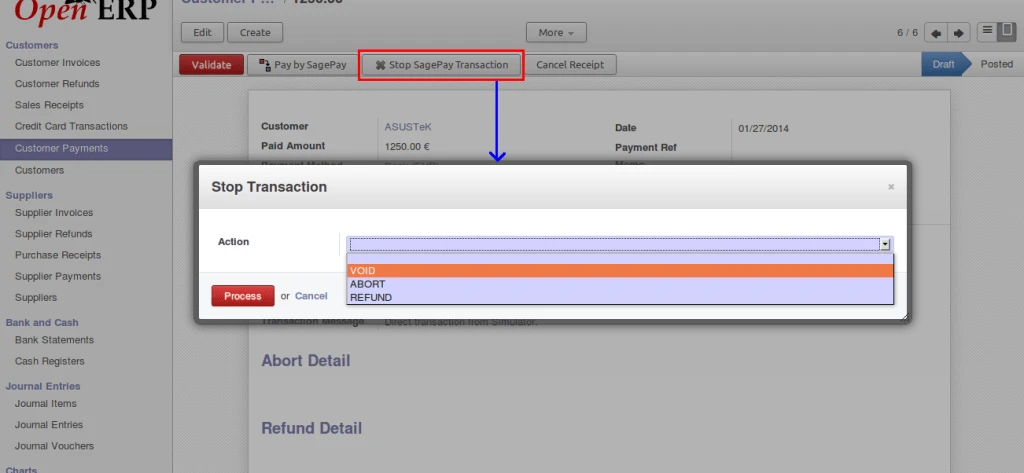
Now It is very easy to stop your transaction for any reason.
Stop Option
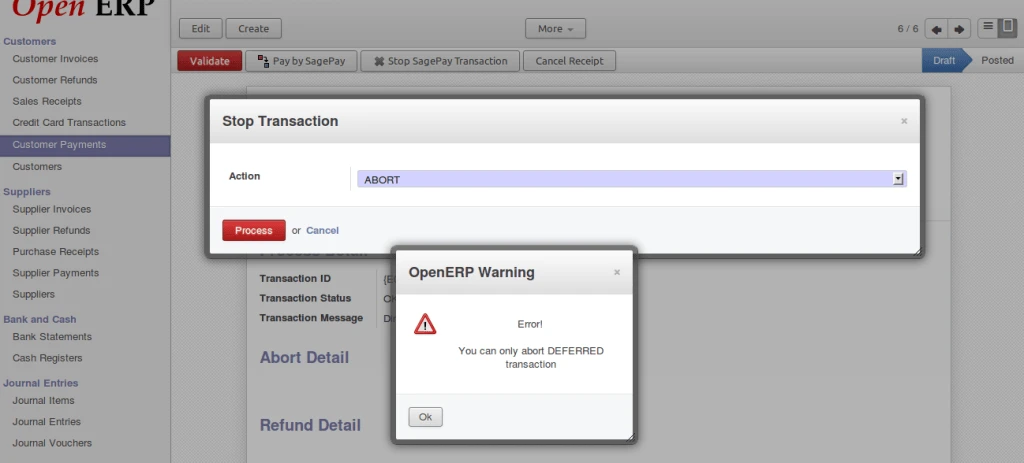
We are restricting user to make any invalid actions on transactions.
Error on abort payment
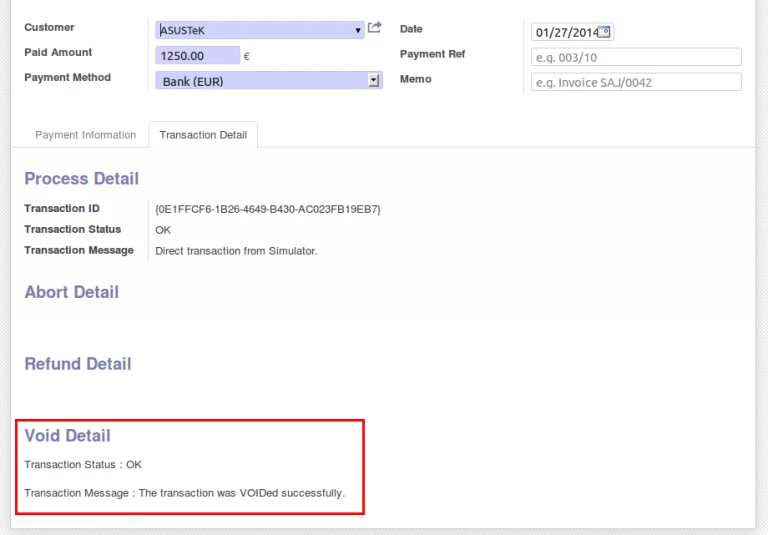
It is displaying VOID response from SagePay server. It is possible to perform on transactions which are registered with SagePay.
Void Message
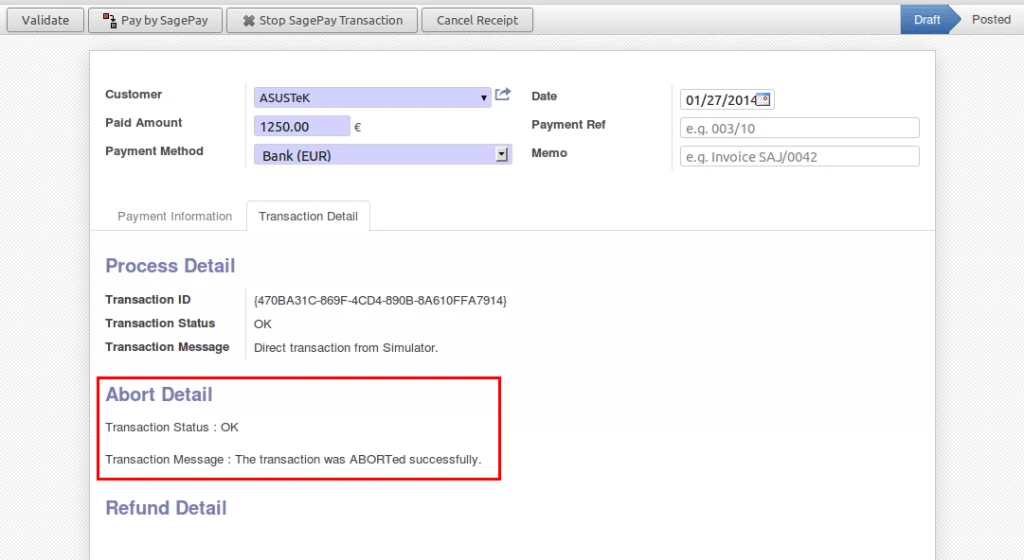
As mentioned above, it is possible to ABORT only DEFERRED transactions.
Deffered Abort
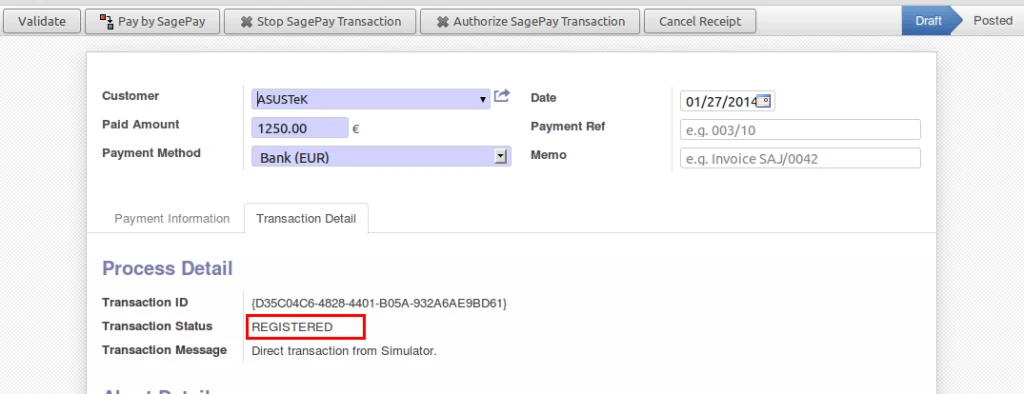
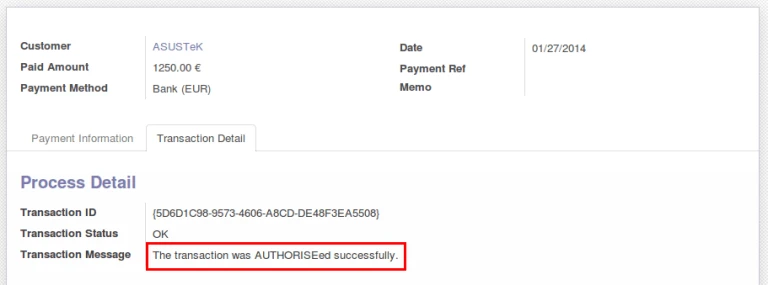
We are getting status “REGISTERED” for AUTHENTICATE type of transaction. And that transaction has to AUTHORIZE with SagePay.
Authenticate TransactionAuthorize Transaction
We are keeping record of each and every transaction with detail information in OpenERP.
Card History
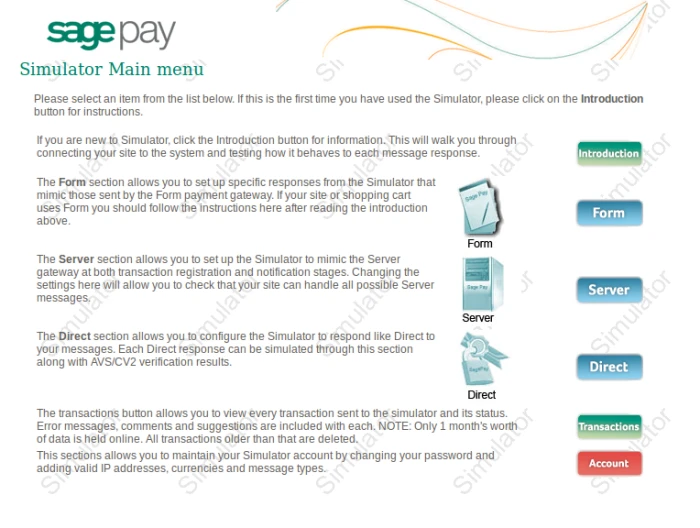
This is how SagePay Simulator page looking.
SagePay Home PAge
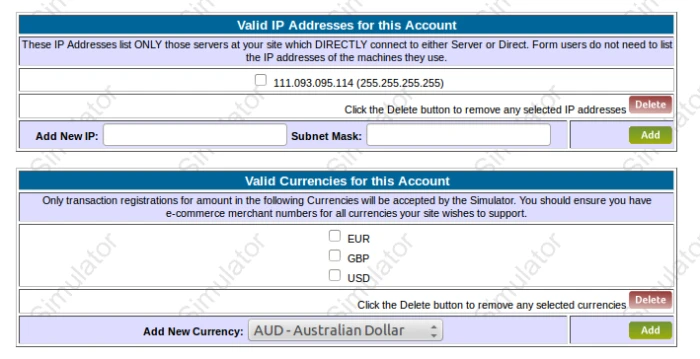
Here we have to Add IP address of our server or machine from where we are accessing our SagePay account through API. And also add appropriate Currency code for allowing transactions.
SagePay Website Amin
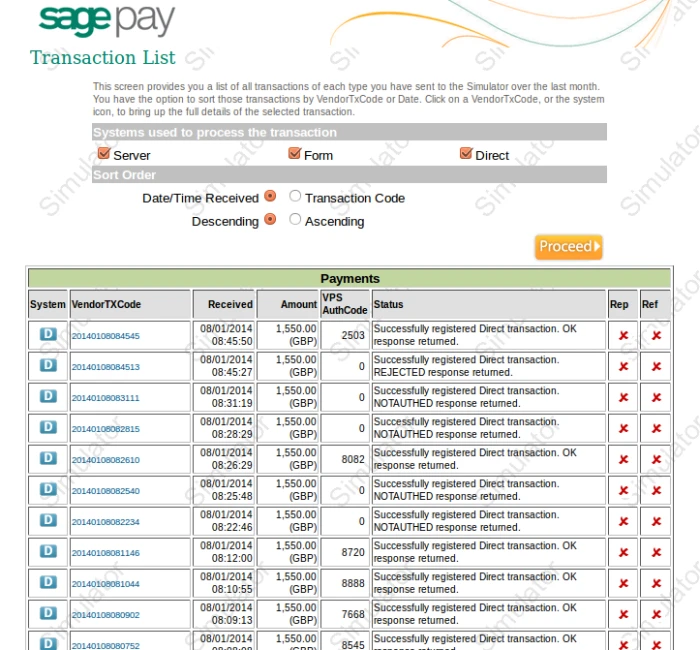
It is displaying list of transactions that is related with our account.
Recently we have made integration with OpenERP with Authorize.net for payment services. Now we have integrated OpenERP with another Payment services, BluePay. We can have more information from http://www.bluepay.com. With help of this module, it is very easy to process with credit card from OpenERP interface.
First of all we have to create account on BluePay and get required information and use those information to connect with BluePay from OpenERP. We have tested each transaction in TEST mode.
OpenERP BluePay Configuration
It requires credit card information to make transactions. We are storing required details into Customer form. We are using AES algorithm for securing credit card number into database.
OpenERP Customer Form
Sometimes it is require to know that customer has enough balance in his credit card or not. We are giving facility that user will enter amount that he has to check for particular customer and get relevant message.
Check Credit Card Balance
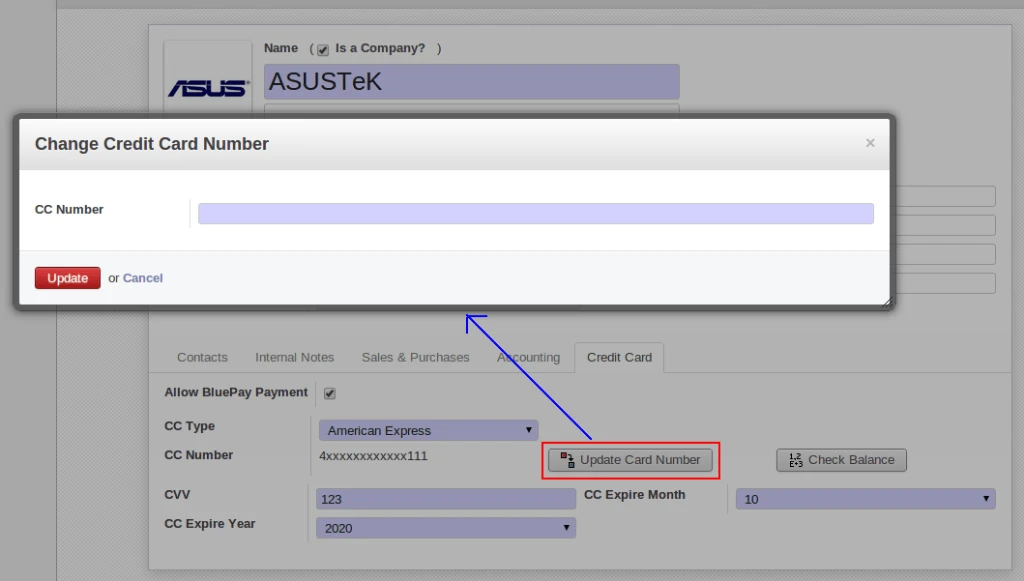
As we are storing credit card number in a secure way in database so it is not allow to change credit card number directly.
Check Credit Card Number
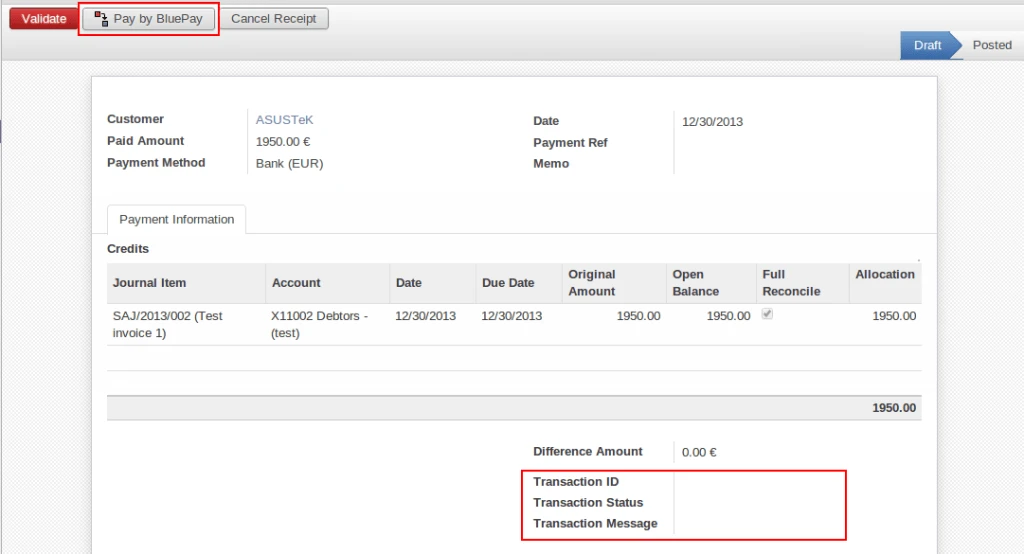
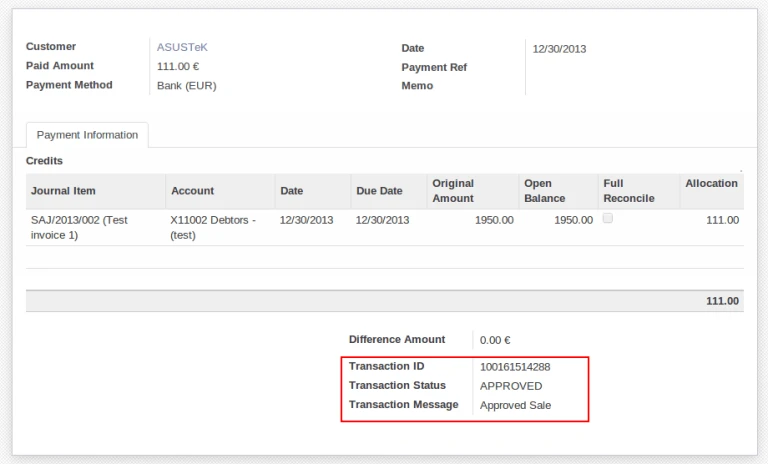
We have improved GUI of voucher for sending payment request to BluePay. It allows to send request only one time if it will succeed. And also stroing transaction related information into voucher for future purpose. It will cancel payment request with BluePay if we are going to cancel voucher.
OpenERP Account VoucherVoucher Process Completed
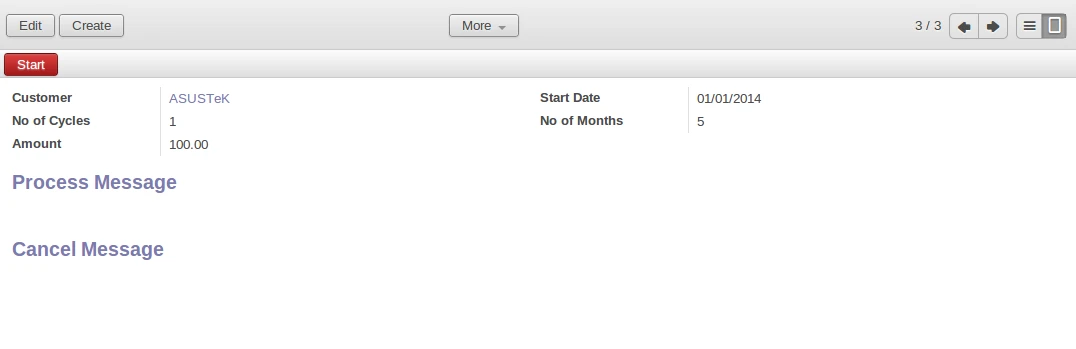
Sometimes it is require that customer wants to pay amount in installment. We are allowing to create recurring payment request with BluePay.
Recurrent Process
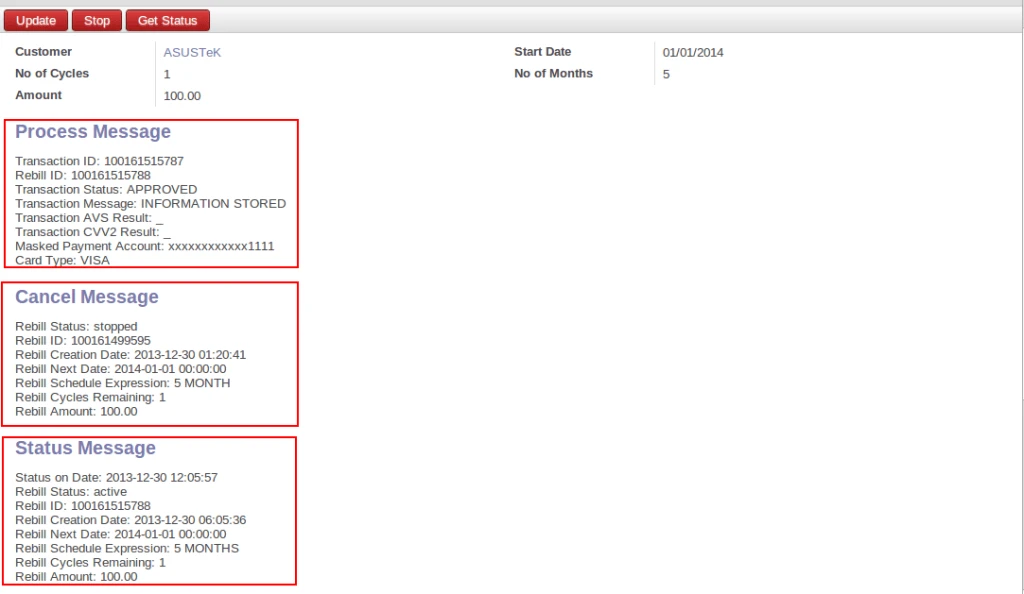
We are keeping track of messages for each and every transactions occur during recurring payment.
Recurrent Messages
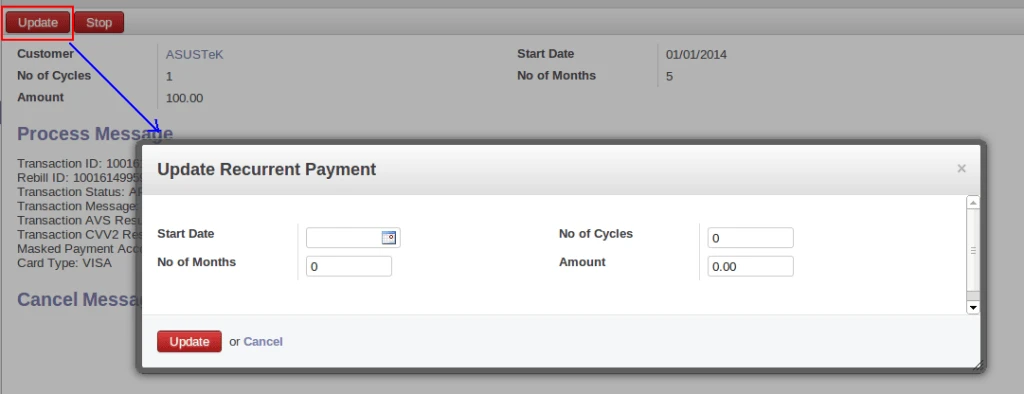
User can change any parameter during recurring payment process execution. And can cancel it also.
Update Recurrent Payment
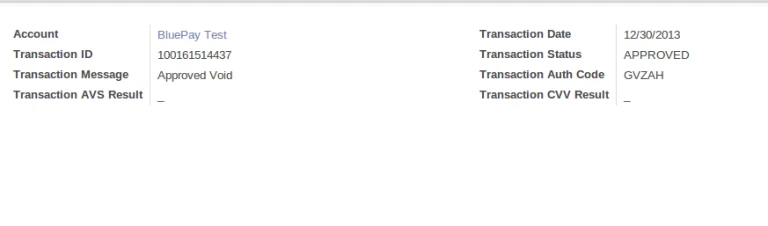
We are tracking details of each and every transactions with BluePay.
Transaction History
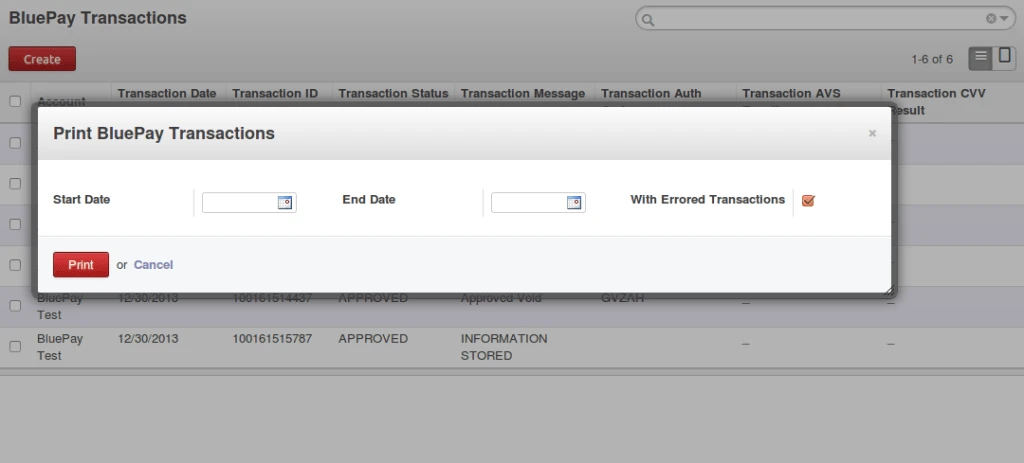
User can print transaction details on PDF report by entering date range and proper parameter selection.