In many industries it requires to distribute work between employees as per their skills and availability. Without proper management, we never know that how many total working hours in our company according to designation or job position and how many in use and pending.
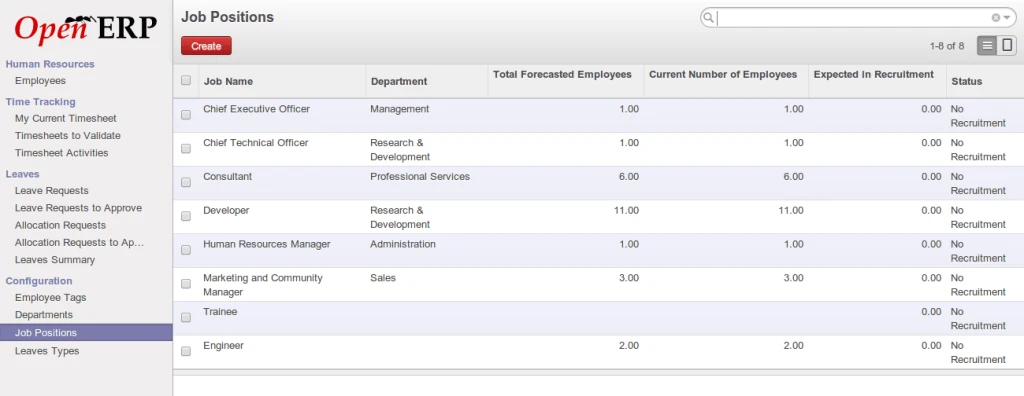
OpenERP Job Position
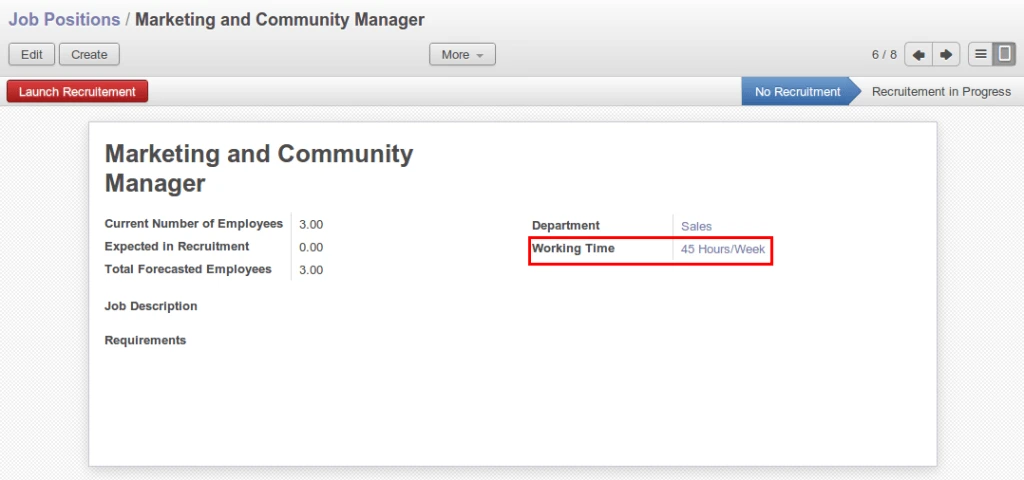
Here we are linking job position with working time.
Job Position Worktime
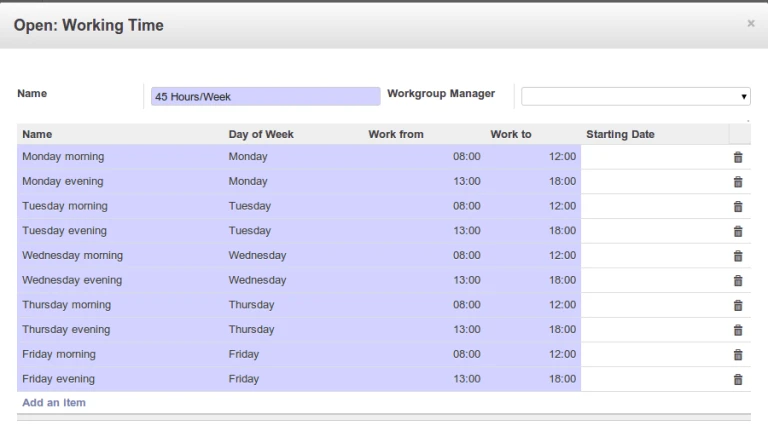
This is configuration detail of working time.
Working Time
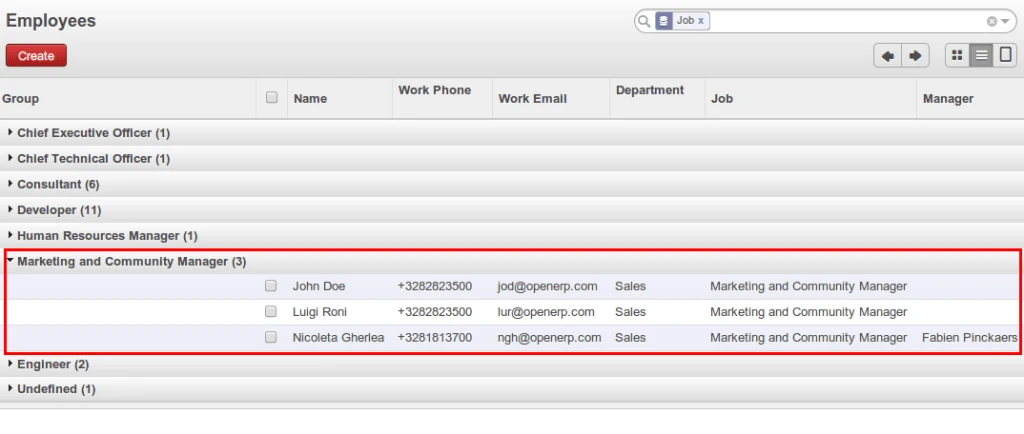
For our example, there are three employees related with Marketing job position.
OpenERP Employees
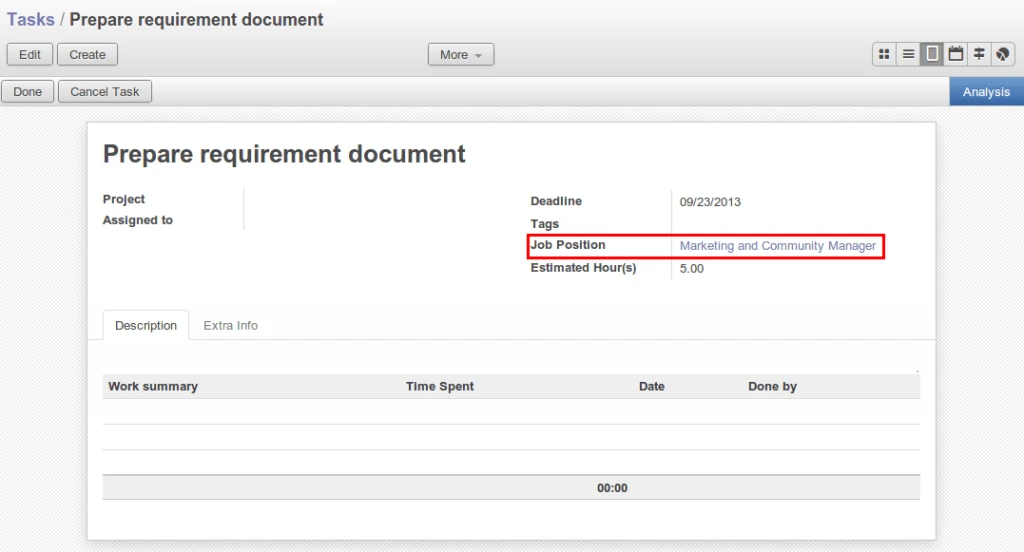
Now we are going to create Project Task for marketing employee. Still now this task is not assigned to any particular employee. This way we have created 2 Tasks.
OpenERP Project Task
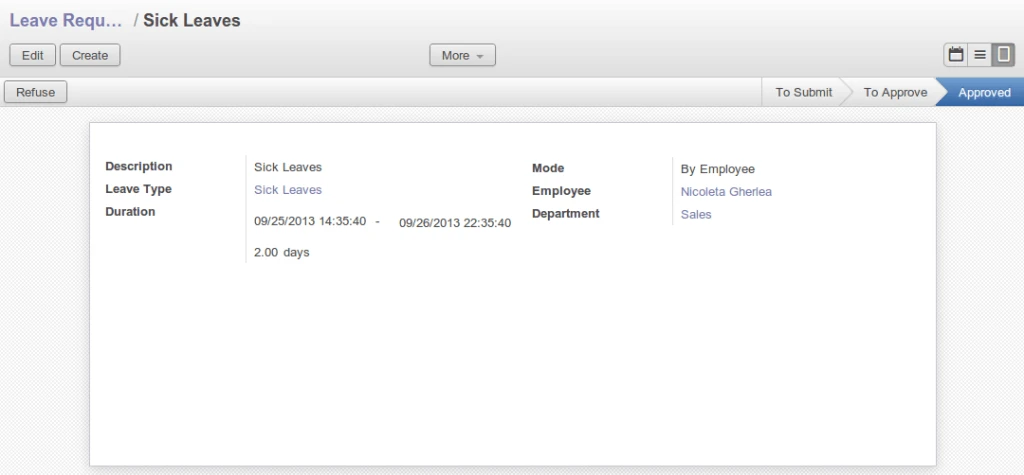
As you can see there is one approved leave request of employee who belongs to maketing designation.
OpenERP Leave Request
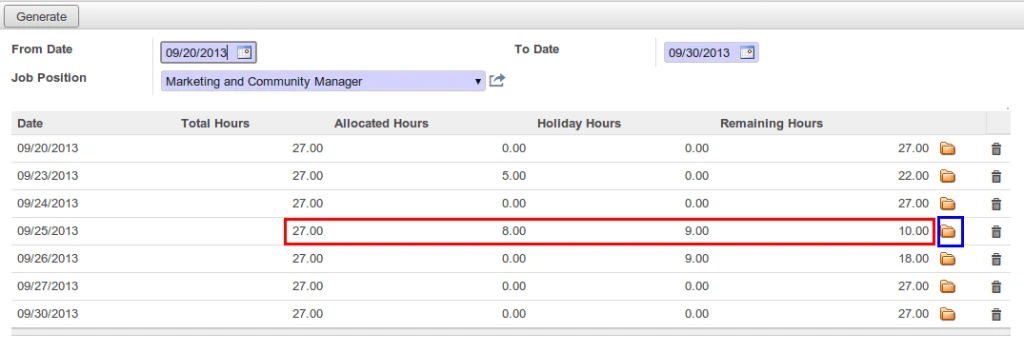
We can see now how many hours available with us for particular job position between some periods. There are total 3 employees related with that job position.
Working hours for 1 person for 1 day is 9 hours. so it is 9 * 3 = 27 hours for 3 persons.
Allocated Hours means total task hours assigned to that job position. Holiday Hours in below screen considered as approved leave of any employee related with that job position.
Job Position Status
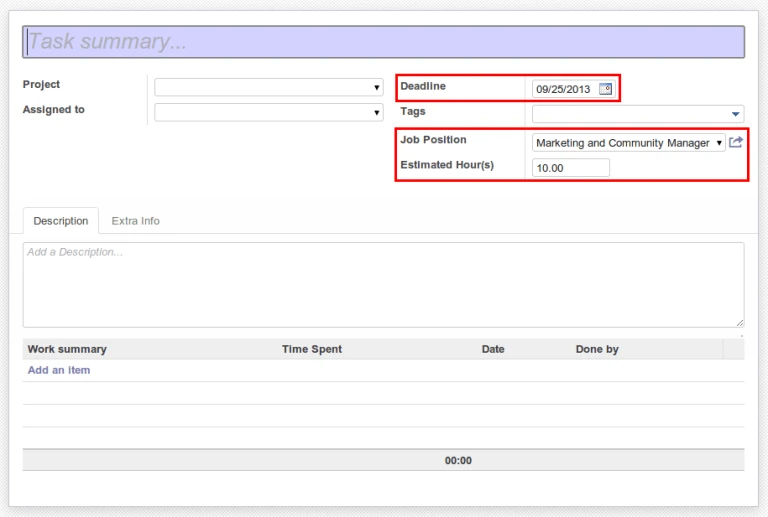
You can create directly task for remaining hours for same job position on particular date.
As we know OpenERP is such a strong and wide ERP and we can perform unbelievable implementation in it.
We have implemented a concept called ‘Roster Management’ which is mainly creating recurrent tasks of employees for certain projects and periods.
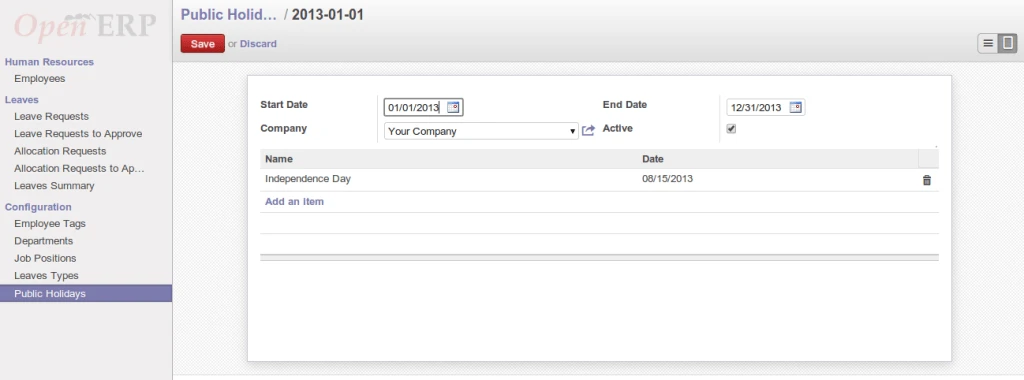
For any organization, it mainly require to define public holidays according to their country and region.
Public Holiday
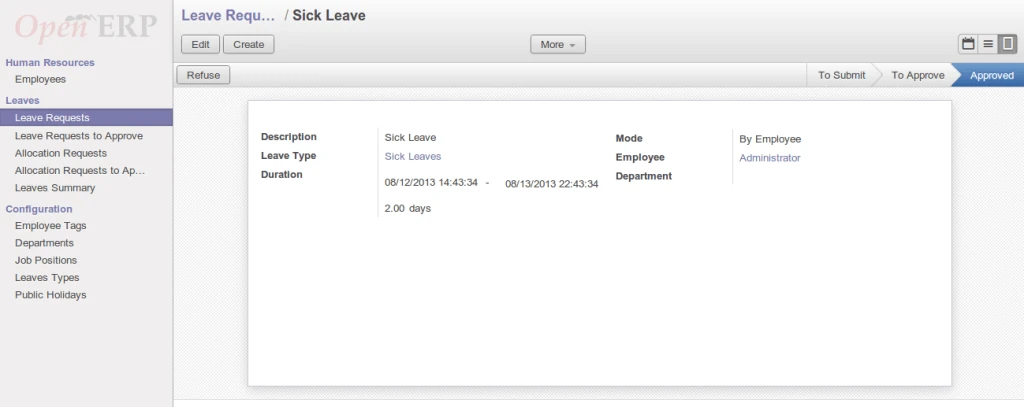
There is leave request by an employee which is already approved.
OpenERP Leave RequestGenerate Task
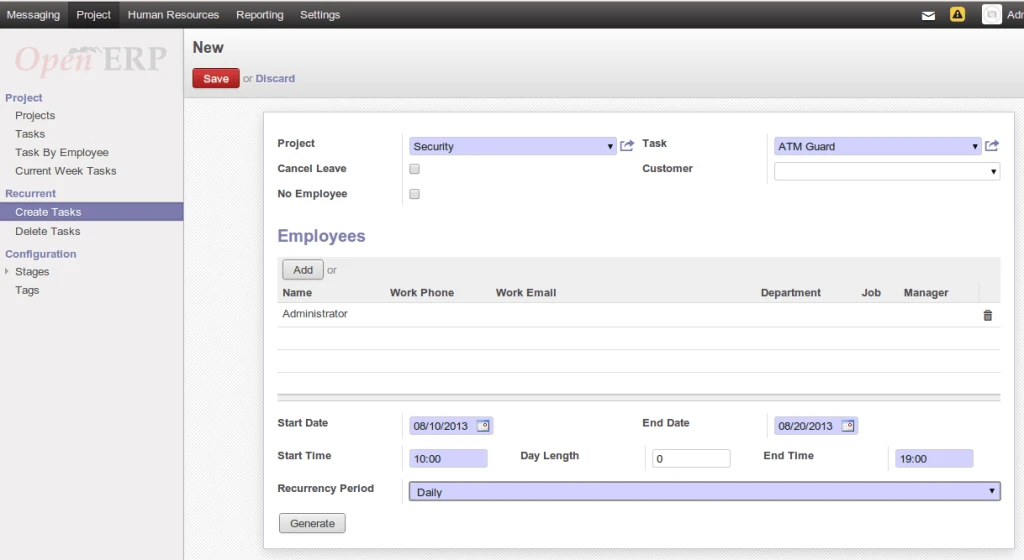
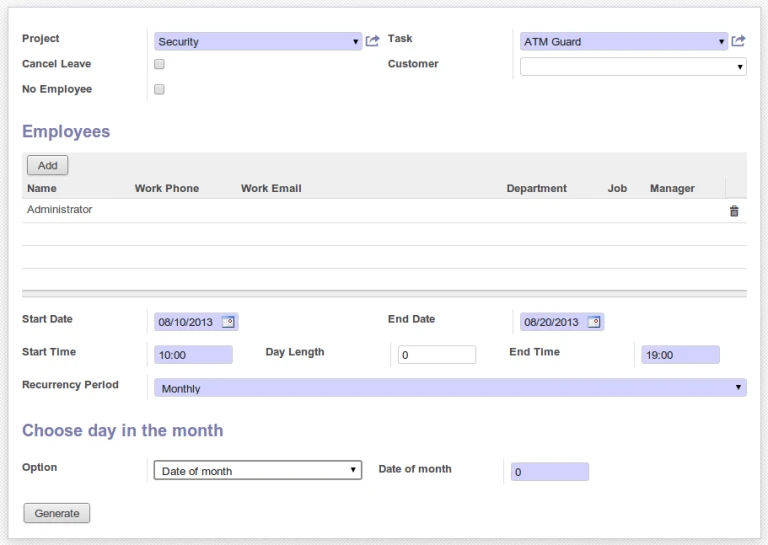
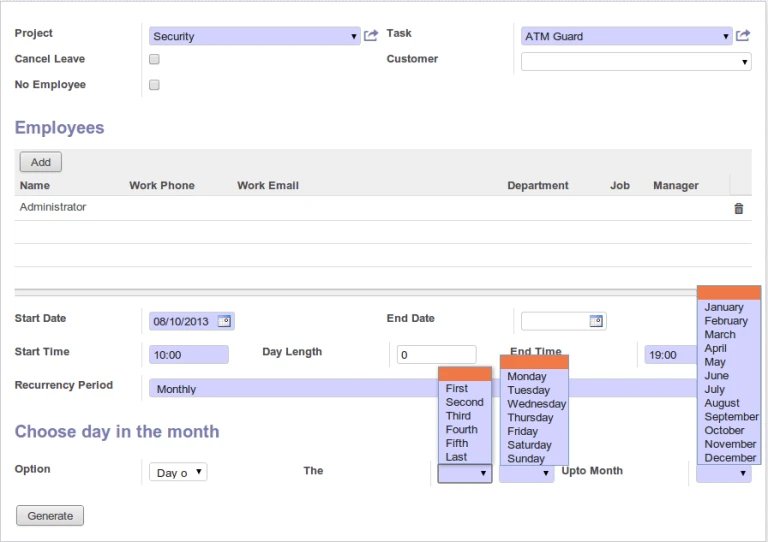
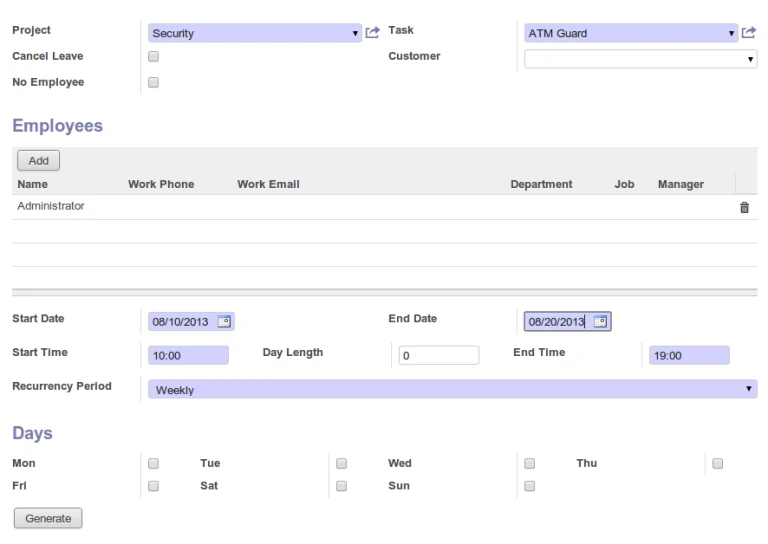
This is an important form for creating recurrent task.
Create Recurrent Task
Let’s check fields details here.
Cancel Leave – It will create task for employee and cancel employee leaves which are already approved and send an email to that particular employee also.
No Employee – It will create tasks without assigning any particular employee.
Start Date – This date will consider for starting date of creating task and check for employee leaves those already approved.
End Date – This date will consider for ending date of created task and check for employee leaves those already approved.
Start Time / End Time – Consider it for Task creation
Day Length – Sometimes task may span in more than 1 days. Default value is Zero.
Recurrency Period – Daily / Weekly / Monthly
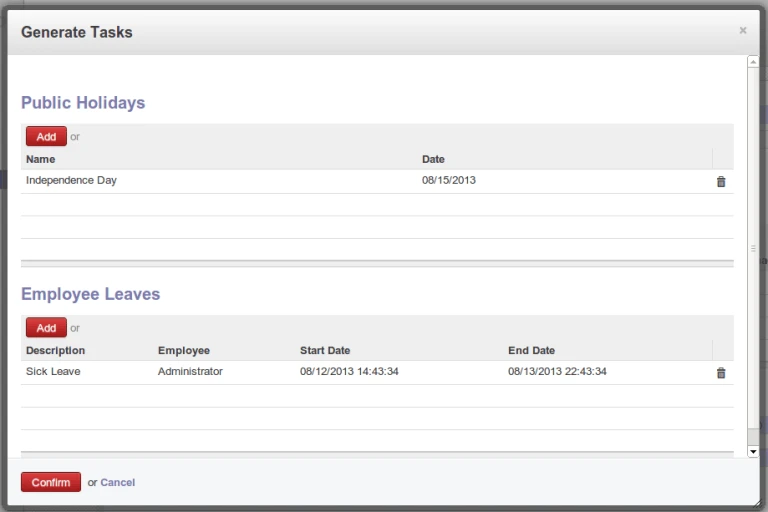
After click on Generate button, it will open following window. It will display Public Holidays as well as employee approved leaves. By default, it will not create any task for those dates which include in both sections. It will create task on holiday or leave if user remove it manually from list.
Generate Task
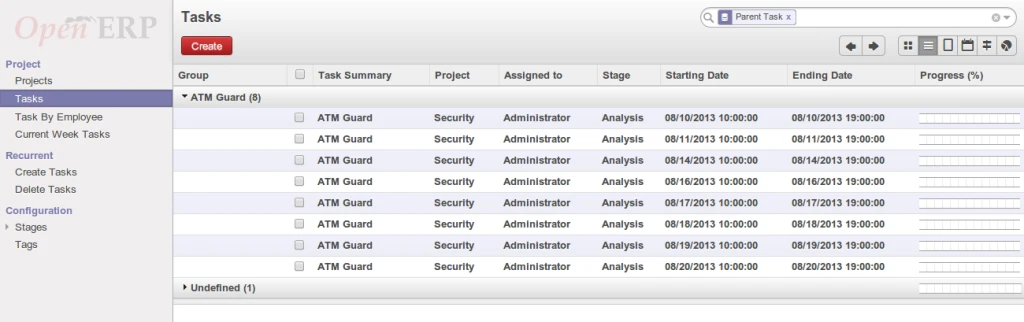
As you can see in following screen, there is no task created for 12, 13 and 15 date.
Recurrent Task
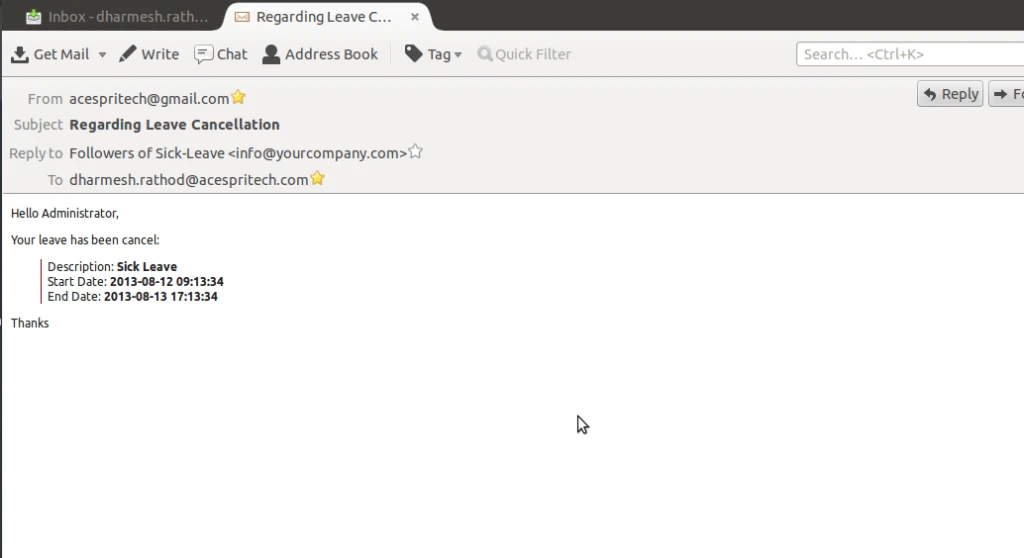
It is sending an email like below in case of employee leave has been cancel.
Cancel Leave Email
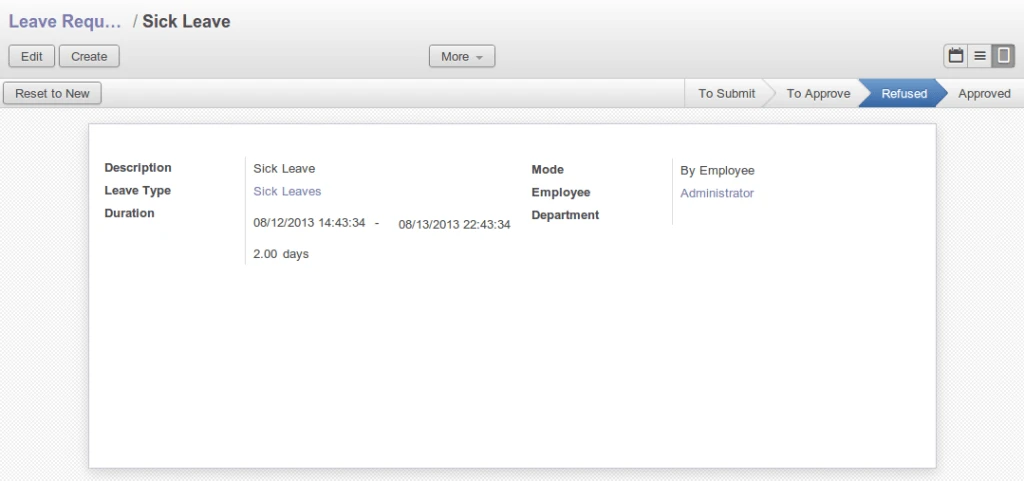
Employee’s cancelled leave
Refused Leave
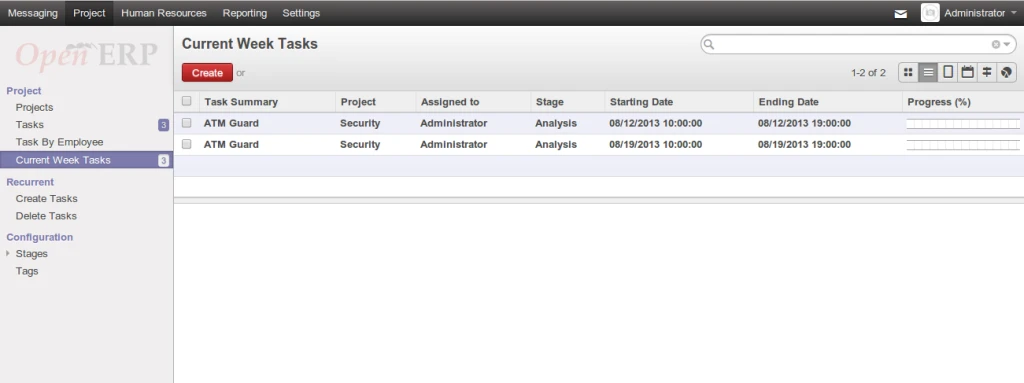
This menu display all tasks those start and end in current week. It consider week from Monday To Sunday.
Current Week Task
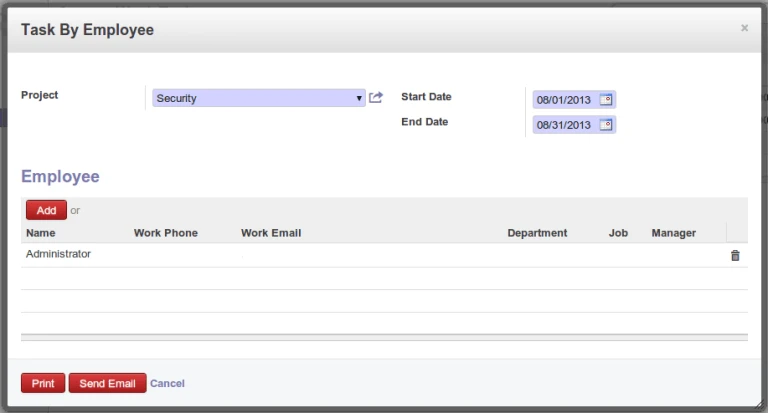
There is a facility to send an email or print tasks for employee for particular period.
Task by Employee
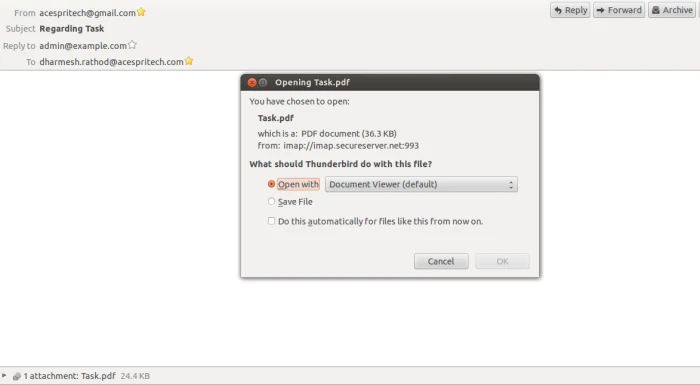
It is sending list of tasks in PDF file as a attachment to each employee on their working email address.
Task Email
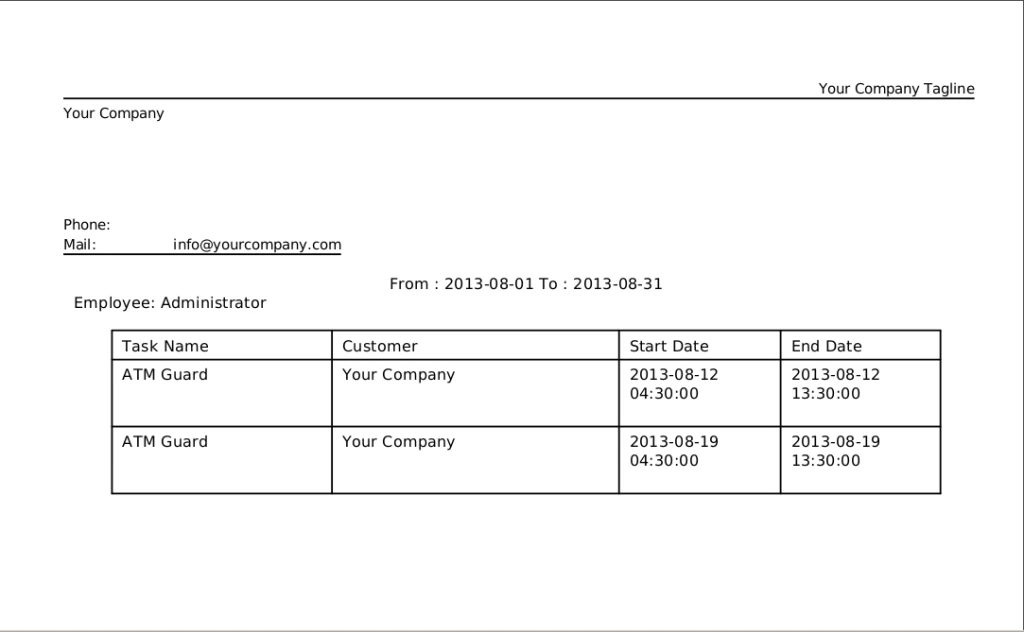
It is also possible to print in PDF report.
Employee Task Report
For monthly option we can have following:
– Date of Month
– Day of Month
Task DateMonthly Task
For weekly task creation, we have this following screen.