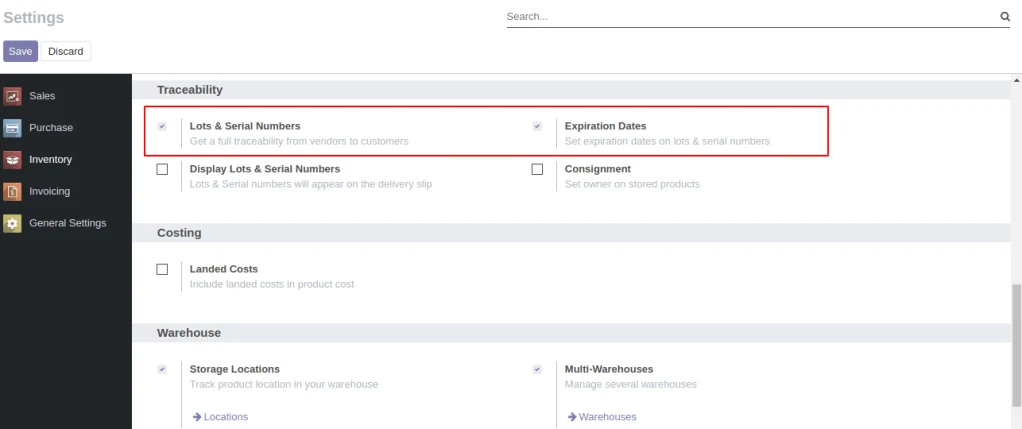
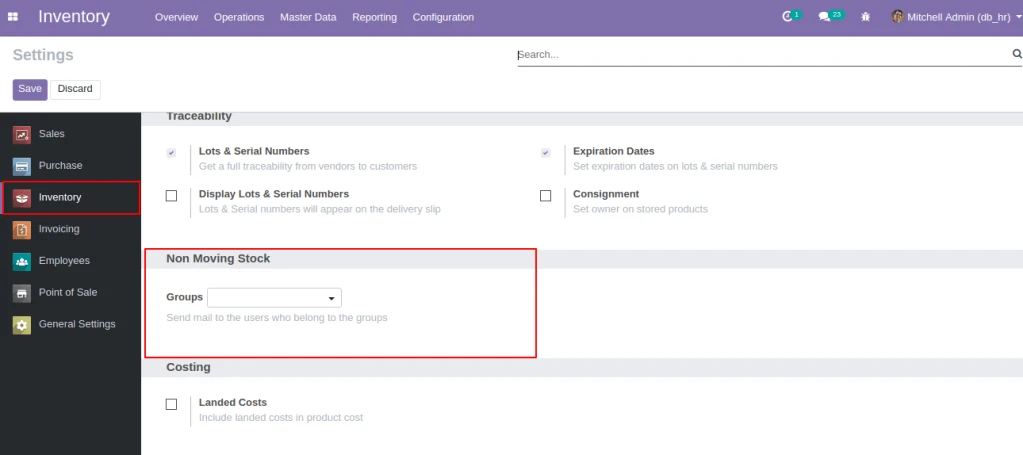
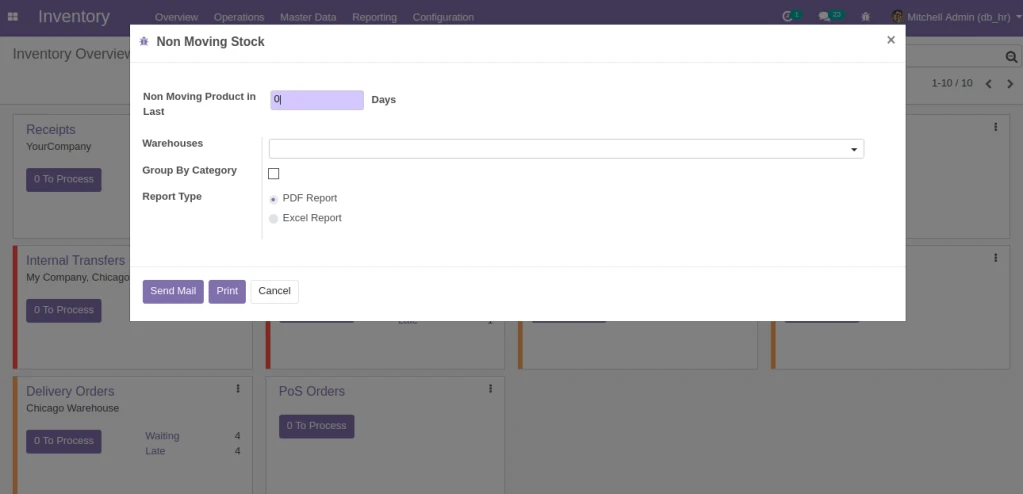
User need to enable Lots & Serial Numbers and Expiration Dates from Inventory/Settings/Traceability.
Configuration
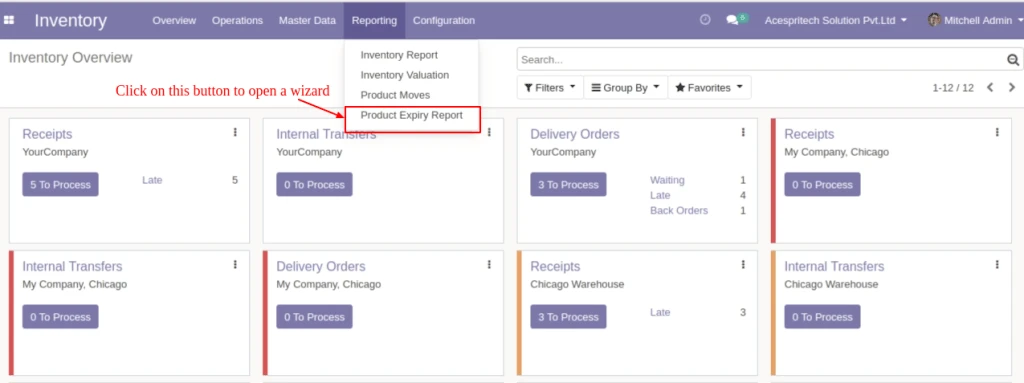
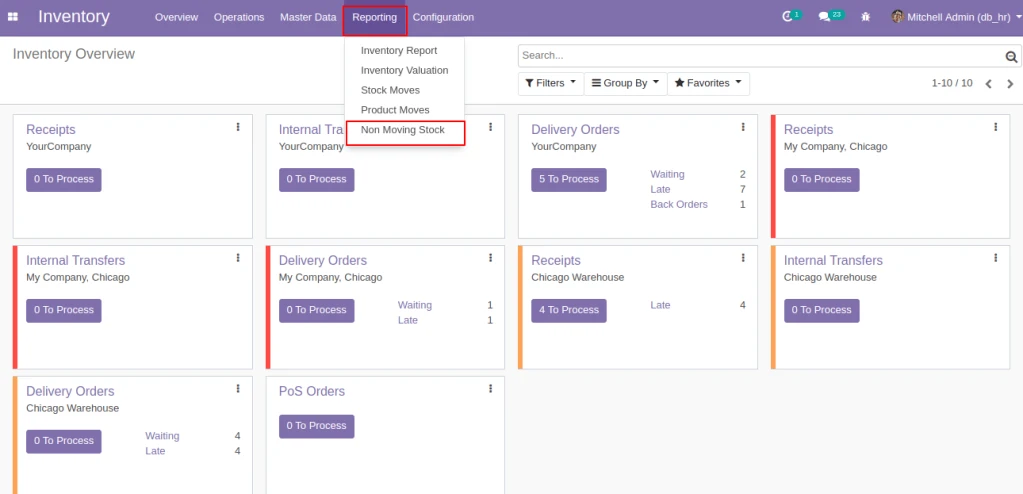
After selecting select the “Reporting” tab and then select the “Product Expiry Report” menu to open a wizard.
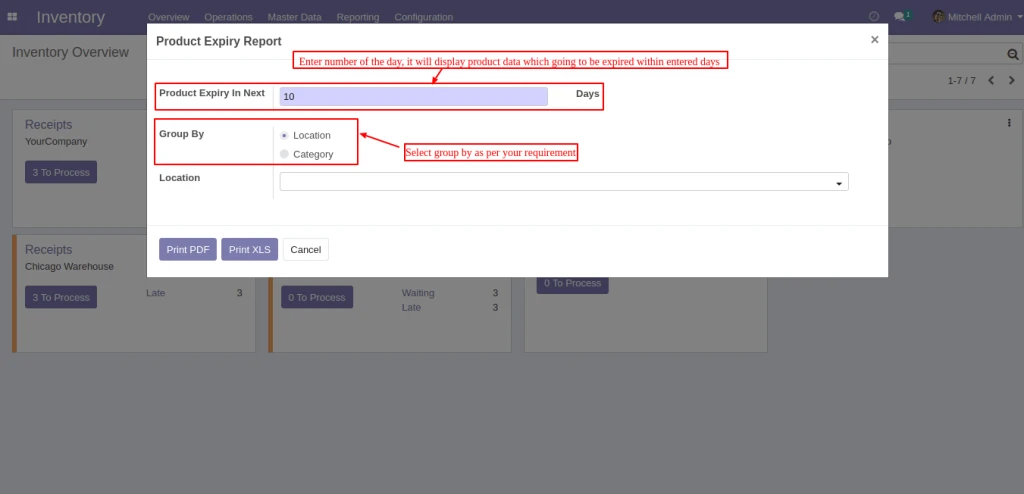
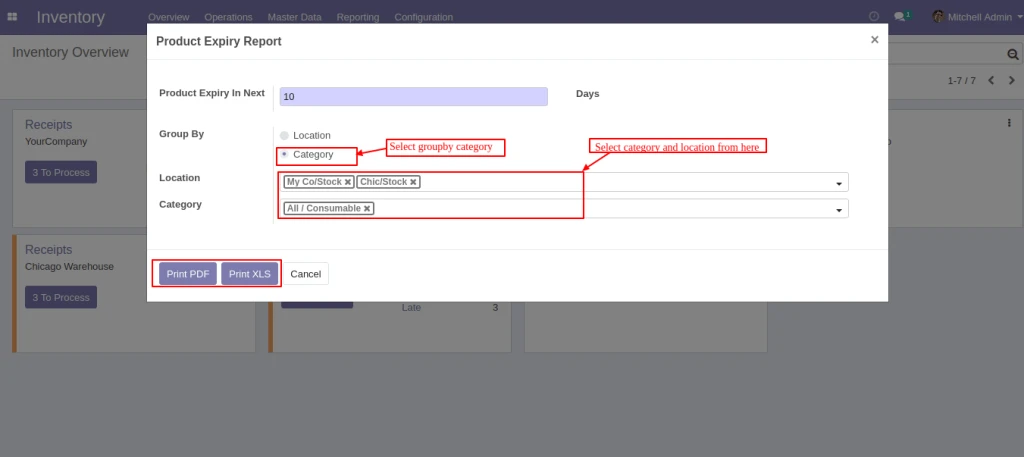
Product Expiry Report Wizard
Enter “Generate Report For(Days)” for display products which are being expiring expiring during entered days.And select “Group By” option by which you want to do group by of data.You can group by(Location) or group by(Category)
Product Expiry Days
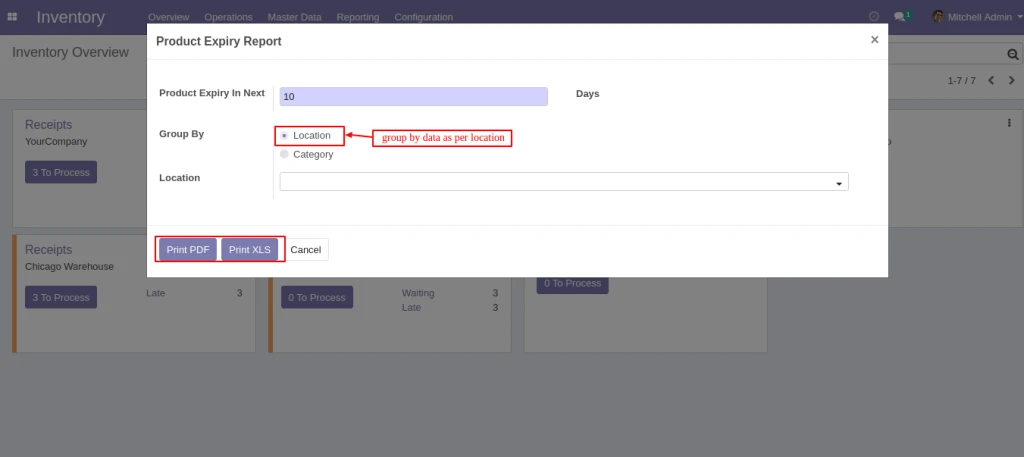
If you want to display data of specified location then select locations in “Location” field.If you want to display products of all locations which products are available then select nothing in “Category”. To print report click on “Print PDF” or “Print Excel” button.
Group by Location
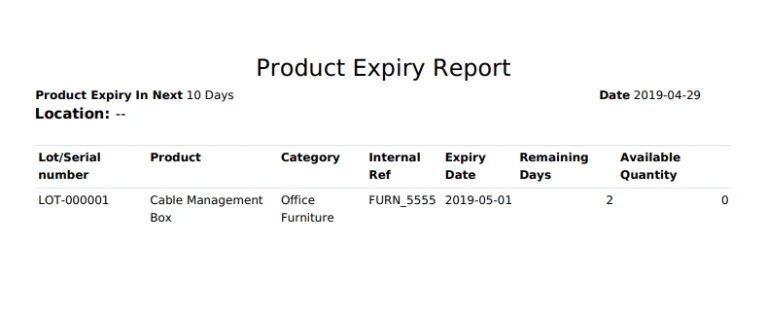
Display products which are group by “Location”.
Product Expiry Report
If you want to display data of specified category then select group by(Category) option and select categories in “Category” field.If you want to display products of all categories which products are available then select nothing in “Category”. To print report click on “Print PDF” or “Print Excel” button.
Commission calculation based on Product, Product category, Agent
Manage the commission based on Product Sell Price, Product Profit Margin.
Manage the commission payment.
How to use
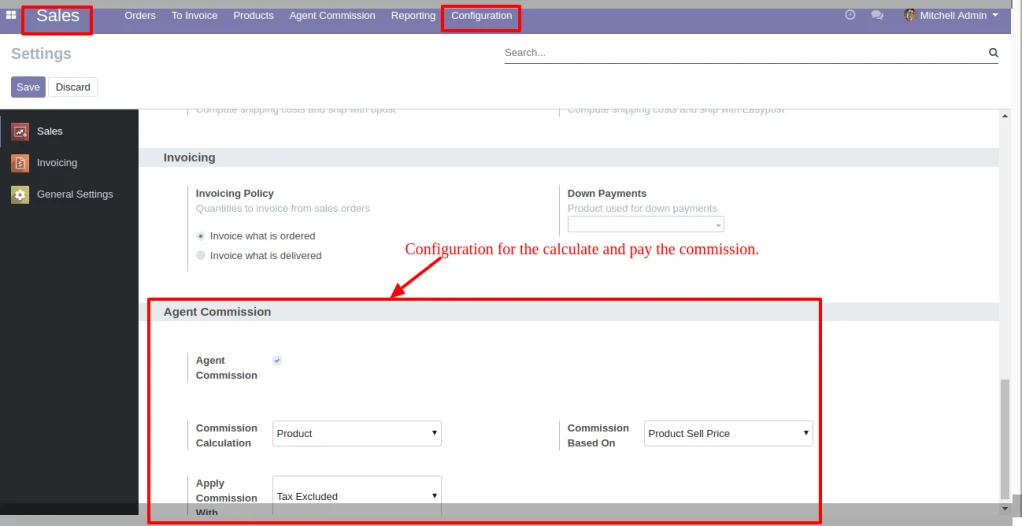
In Sales > Configuration, under the Agent Commission, set the option for Commission Calculation, Commission Based on and Apply Commission With. Based on this configuration the commission is calculate and paid.
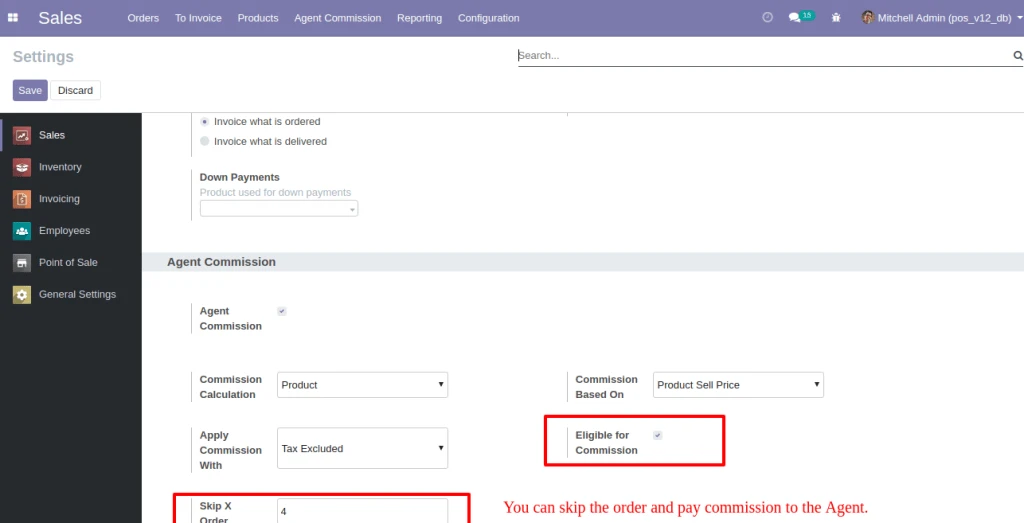
User can set the order that you want to skip. Based on this configuration the commission is calculate and paid.
Sale Configuration Skip Order
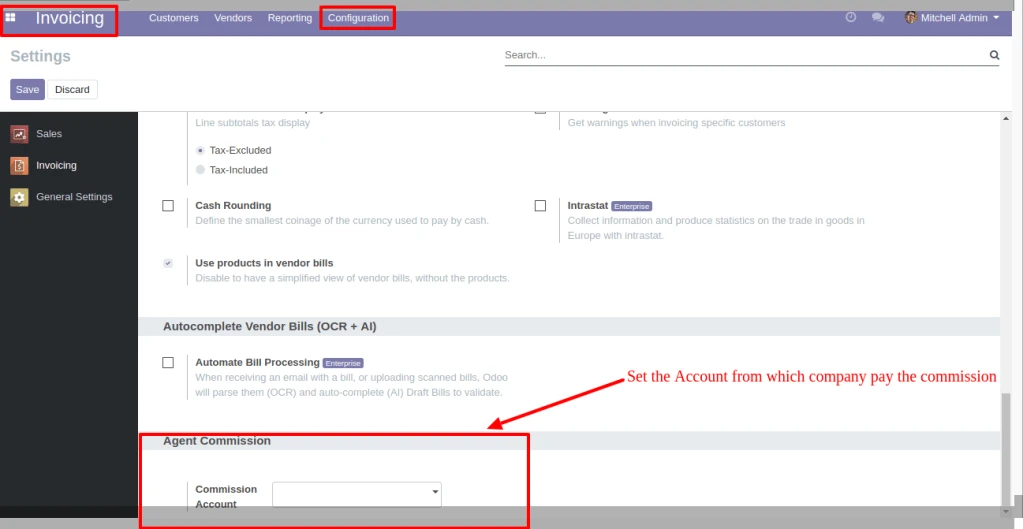
In Invoicing > Configuration, under the Agent Commission, set the option for Commission Account. Based on this configuration the commission is paid.
Invoice Configuration
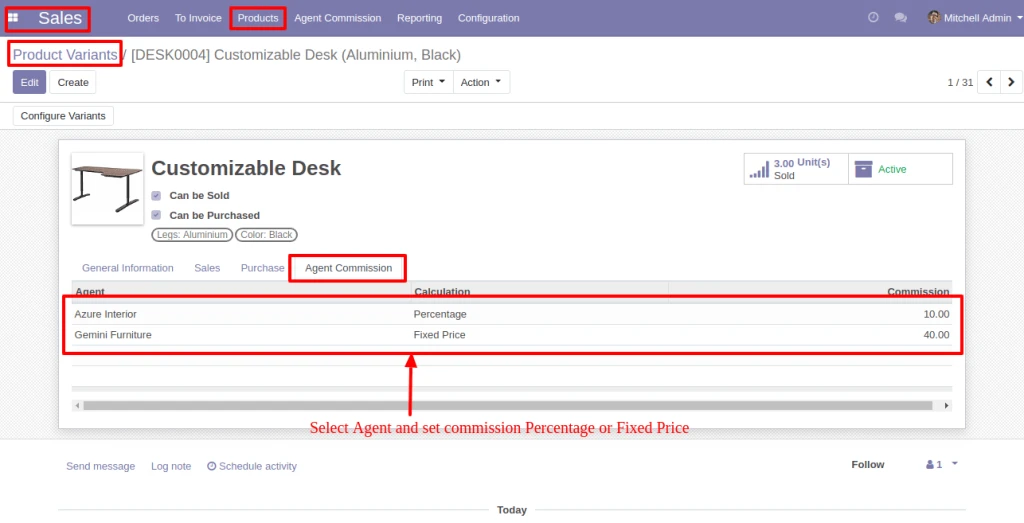
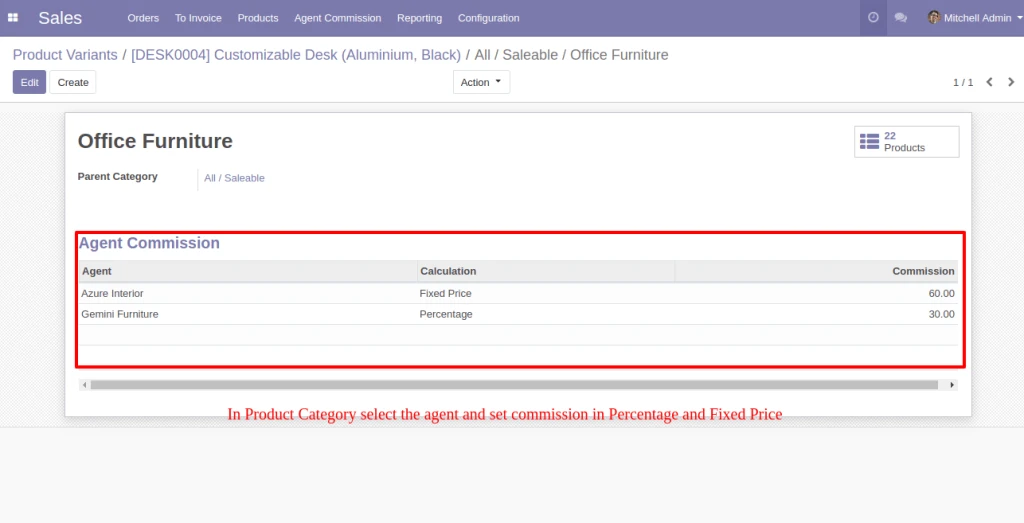
In Products, below the Agent Commission tab, select the Agent and set Compute Price as Fixed price or Percentage. The same configuration is also available in the Product Category and Customer.
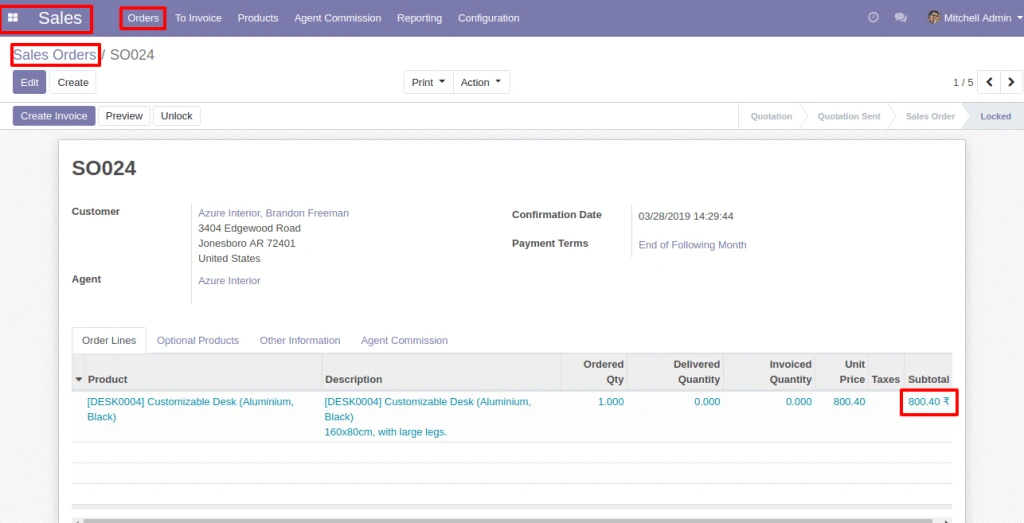
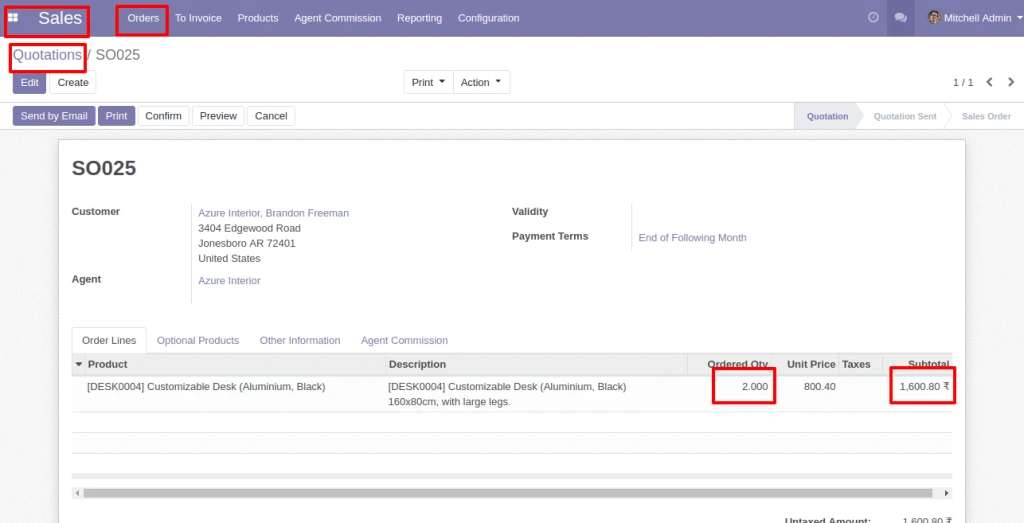
If Agent is selected in Sale Order, he will be eligible for commission as per the Configuration.
Product Variant
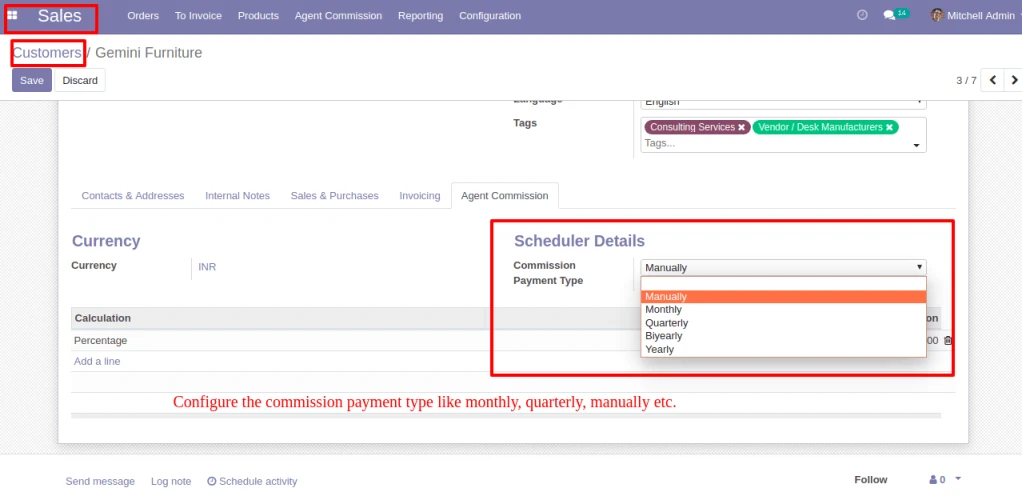
In Customer > Agent Commission, Configure the Commission Payment type like monthly, quarterly, manually etc.
Payment Type
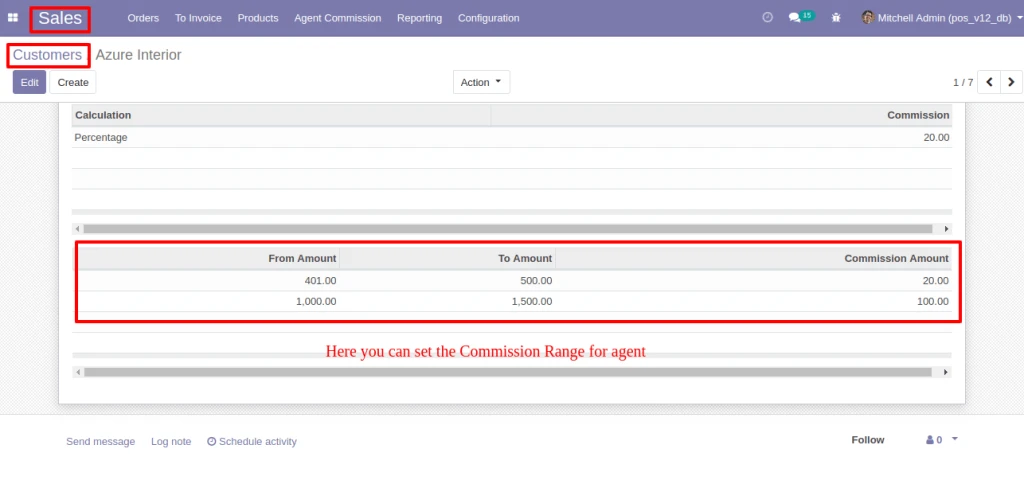
In Customer > Agent Commission, Configure the Commission Range, If Sale Order amount is between the range then Agent get commission which is configured.
Commission Range
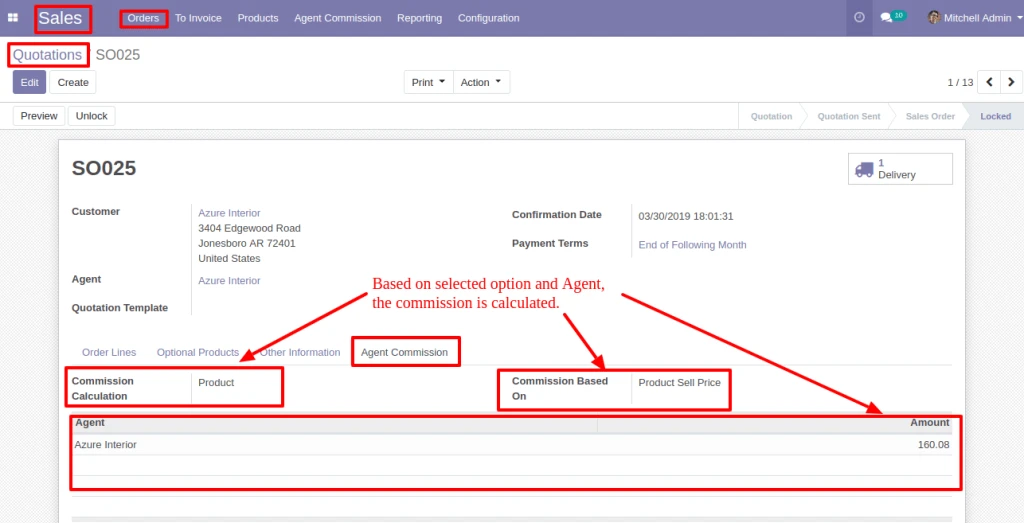
In Sale Order, below the Agent Commission tab, based on the Agent and commission calculation option, Commission is calculated.
Sale Order
If commission is based on ‘Product/Product Category/Agent’, Commission will be calculated for each Order Lines.
Product CategoryProduct CategorySale Order Commission
Note : If Commission is based on ‘Product/Product Category’, Commission will be calculated as per quantity for each order line.
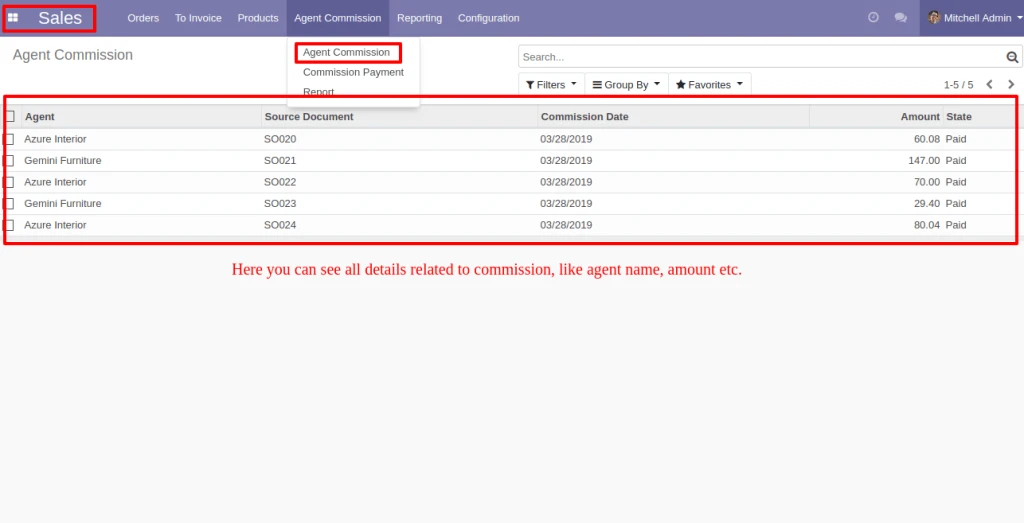
Into Agent Commission menu, you can see the Commission detail.
Agent Commission Details
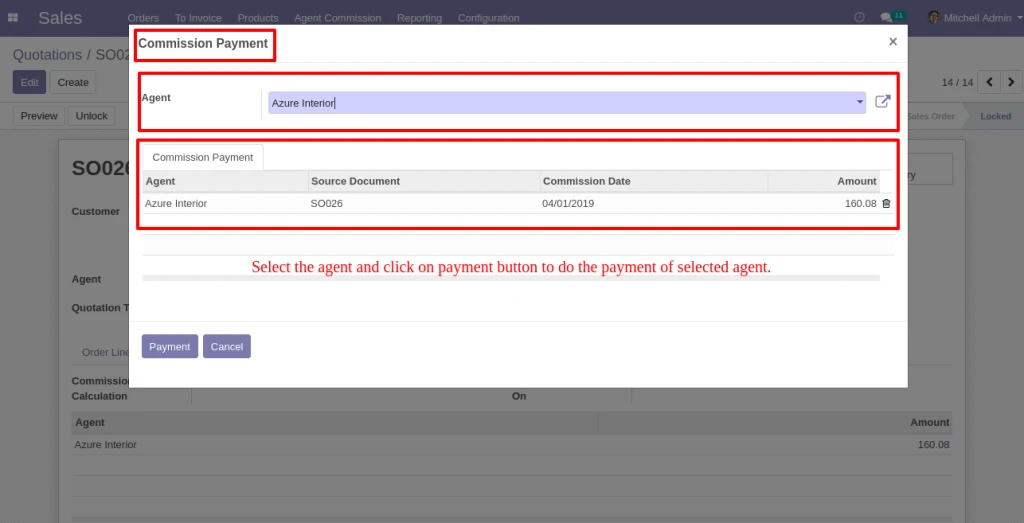
By Clicking on the Commission Payment, Vendor Bill can be generated by filterring Commission records.
Agent Payment
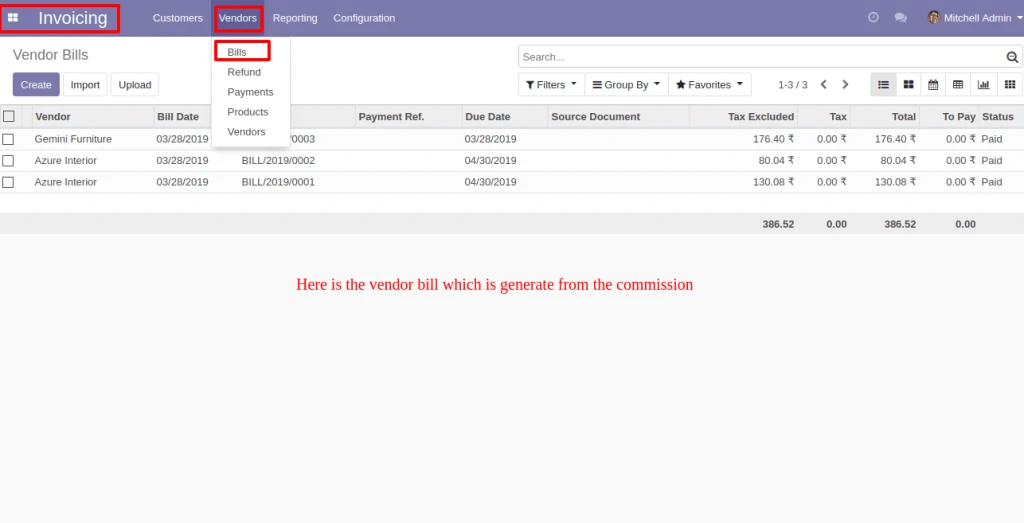
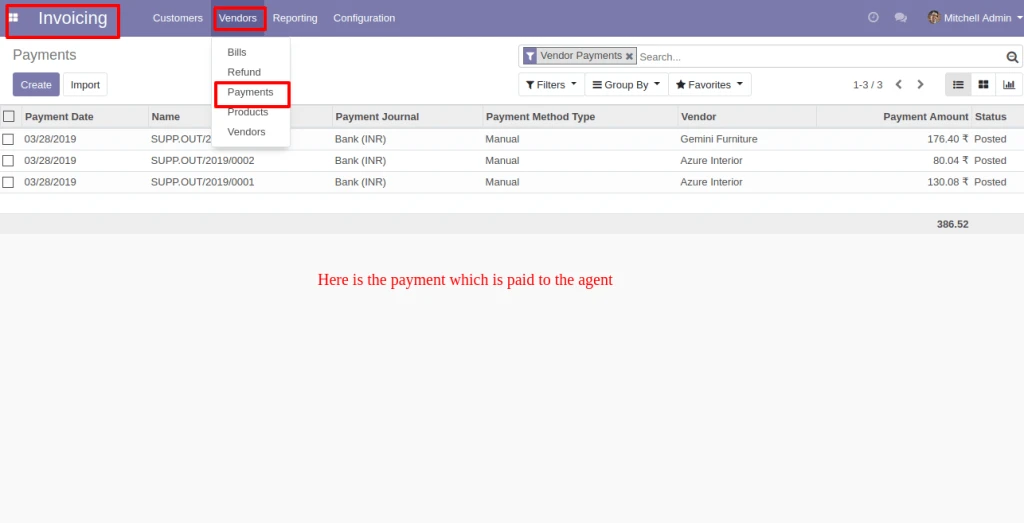
Here below is the Vendor bill which is generate from the Commission and related payment also be created.
Vendor BillPayment
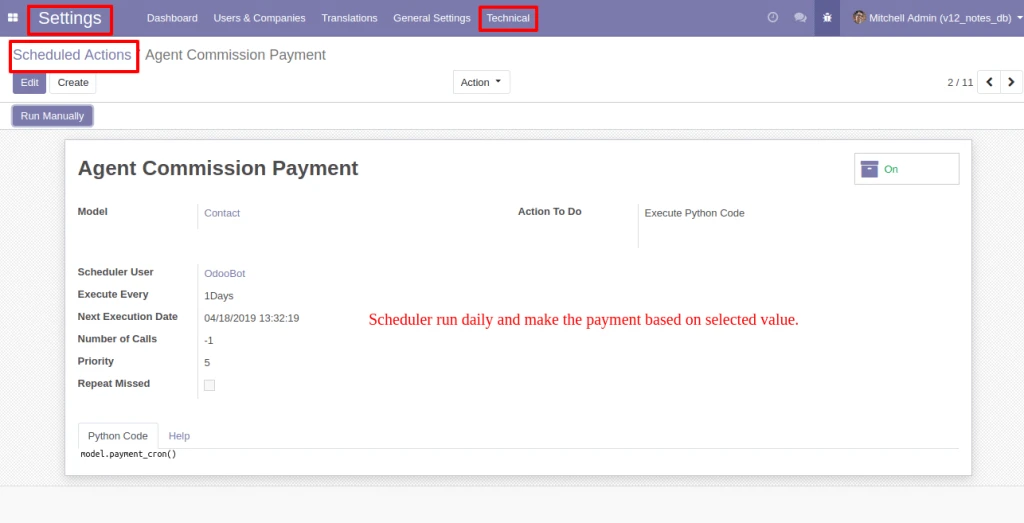
Schedular will run everyday and make the payment based on selected Payment Method(Monthly/Quarterly/Bi-Yearly/Yearly) in Agent form view.
Scheduler Run Daily
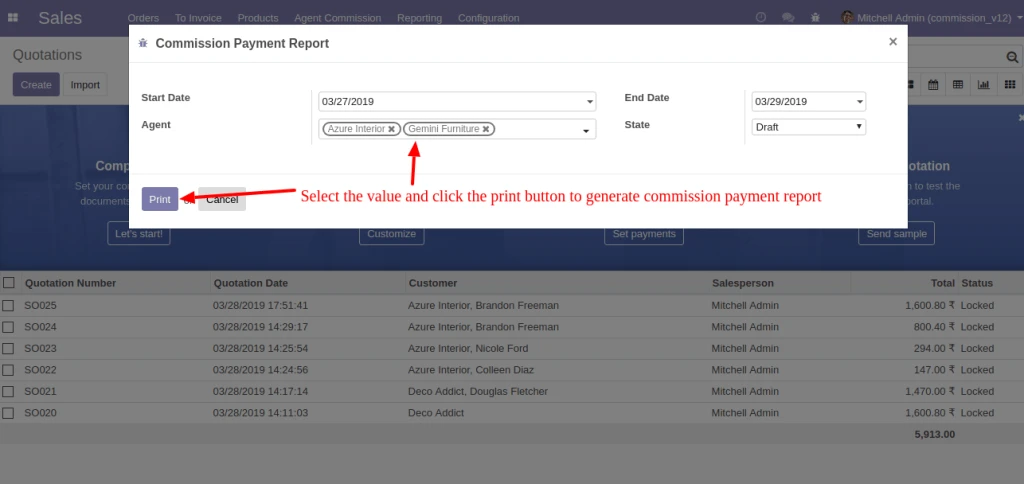
By clicking in Report menu, Commission Payment Report can be generated with having different filters as shown in image.
Commission Payment Report
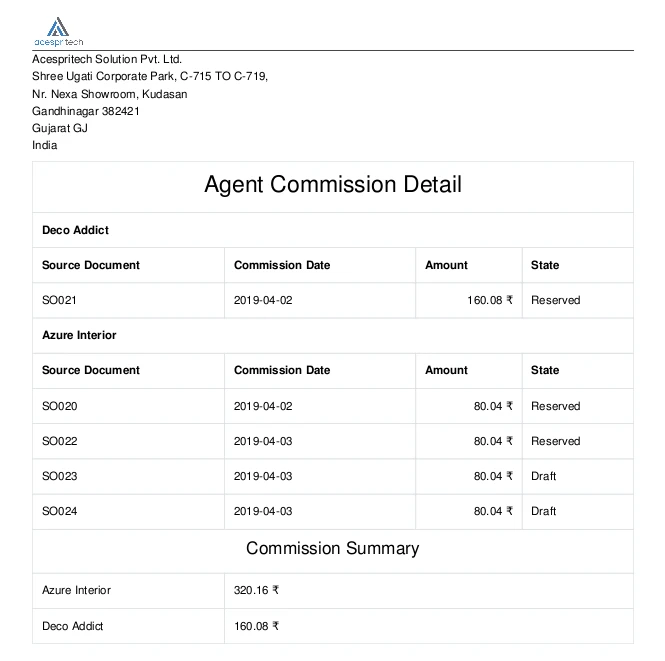
Here below is the Commission Report for selected Agent(s).
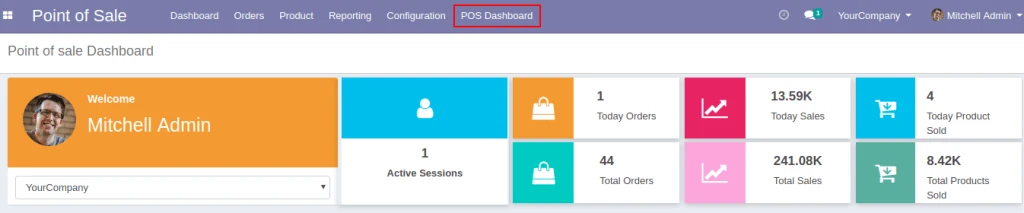
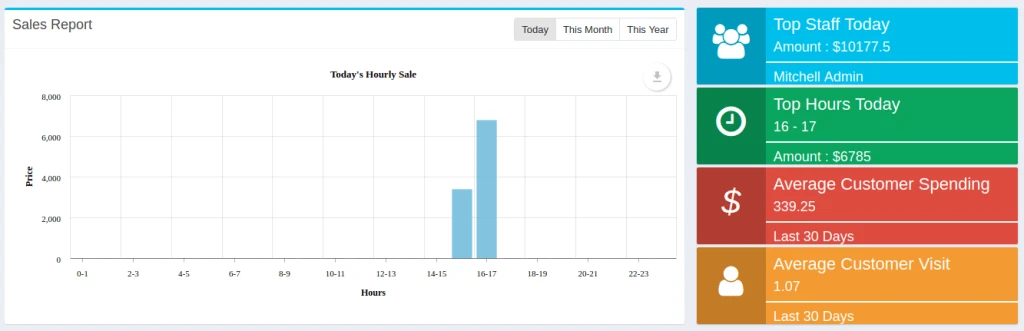
Click on the POS Dashboard in Point of Sale Menu to Open.
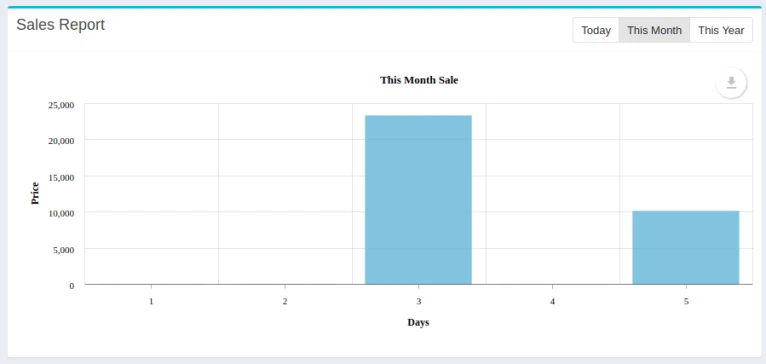
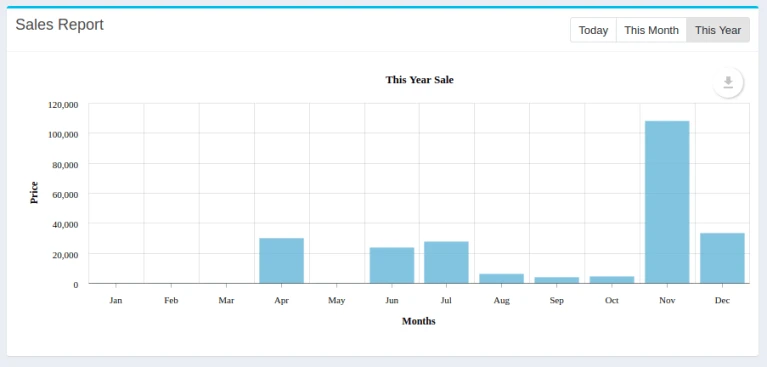
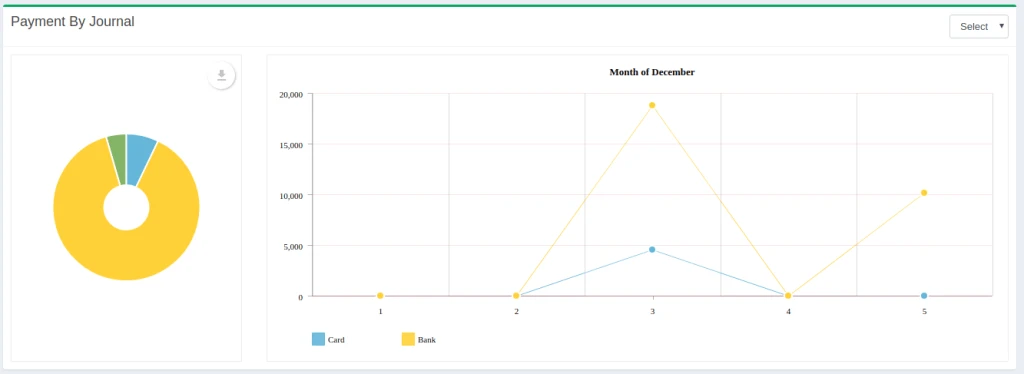
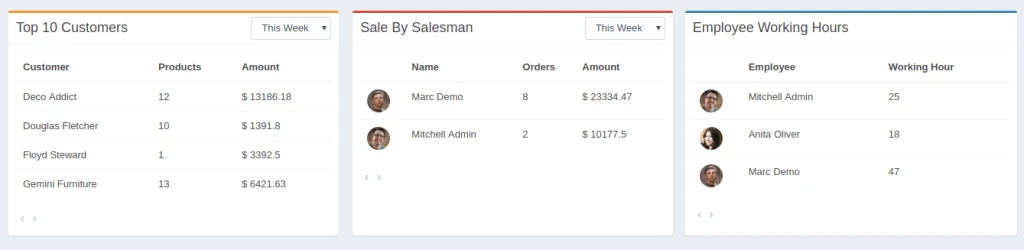
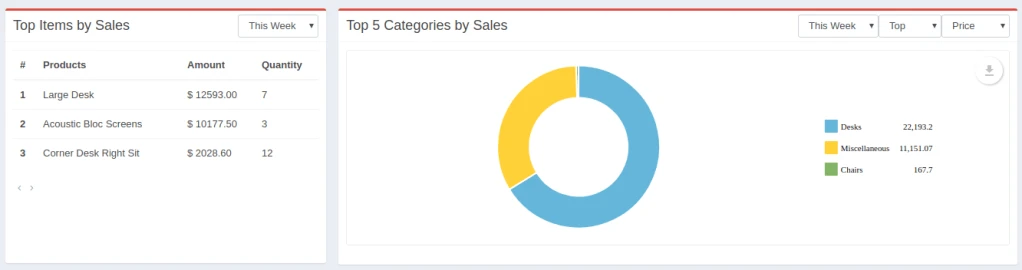
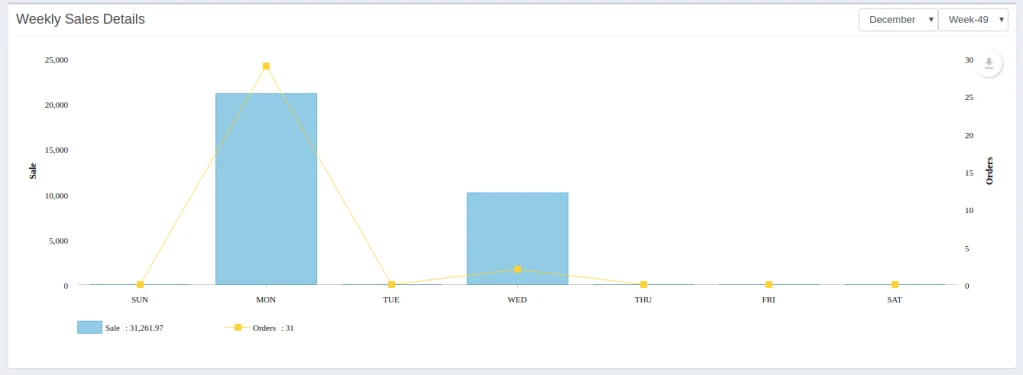
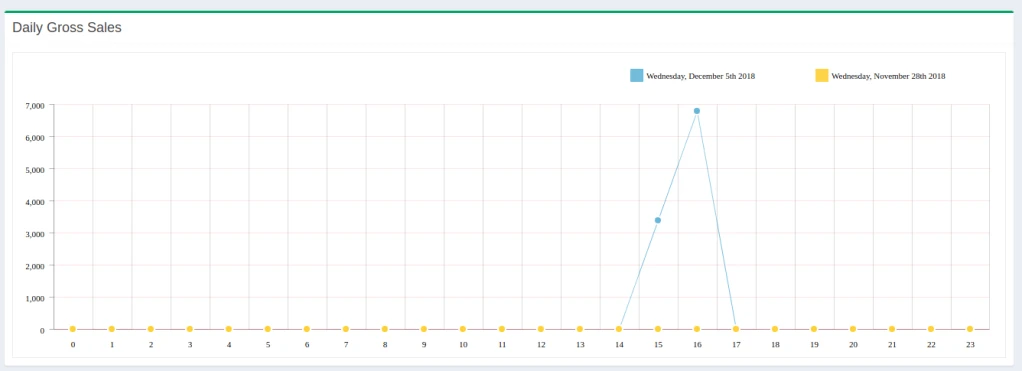
POS Backend Dashboard
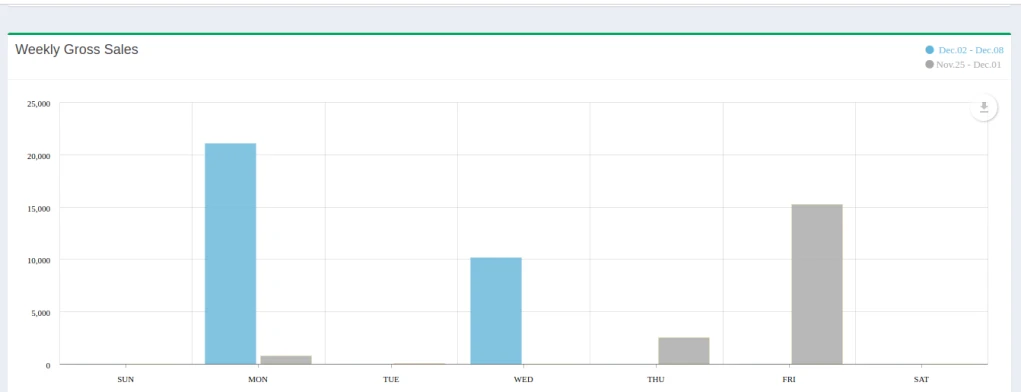
Here, user can see sales according to different filter like Today, Monthly or Yearly.
This display Salesperson name who sold highest today, Hours in which highest sales
Average Customer Spending and Visit as per last 30 days.
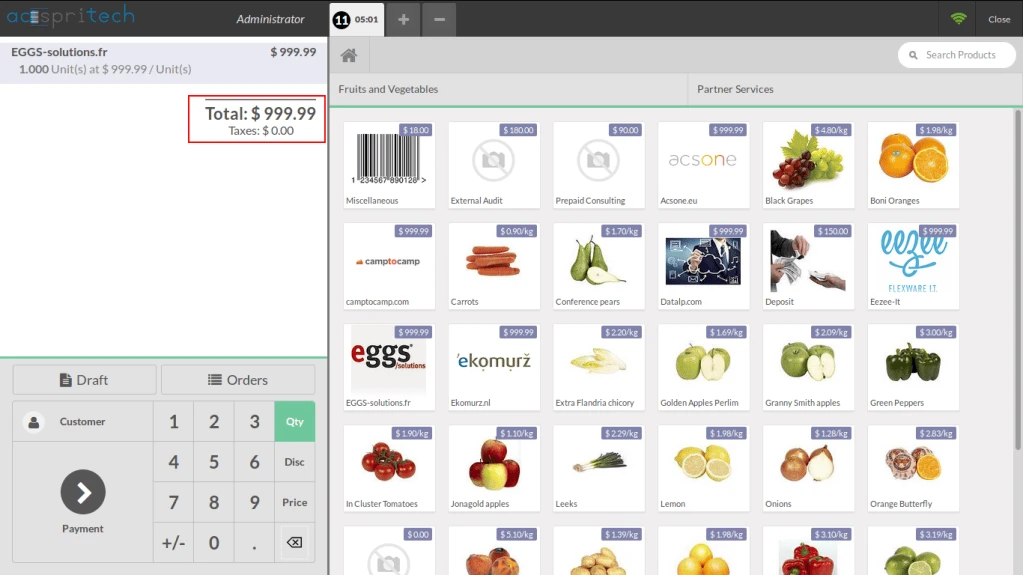
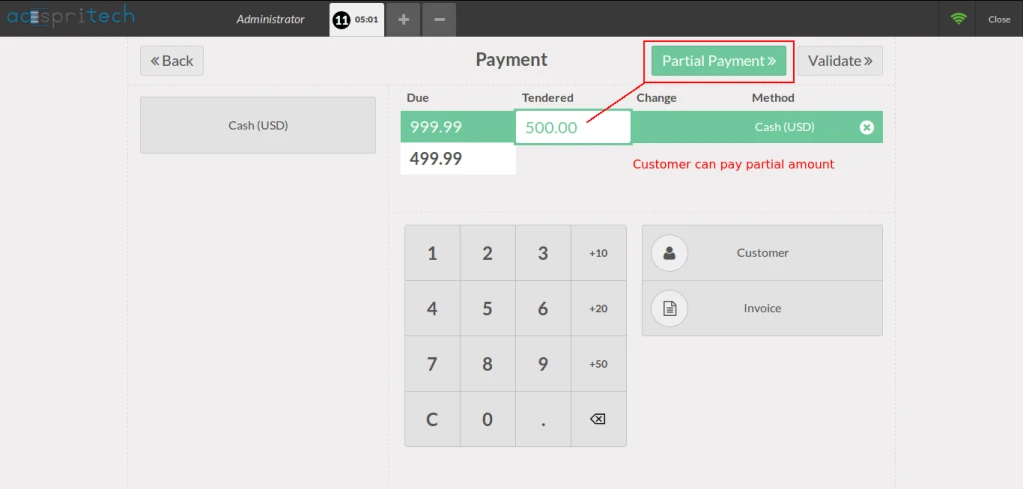
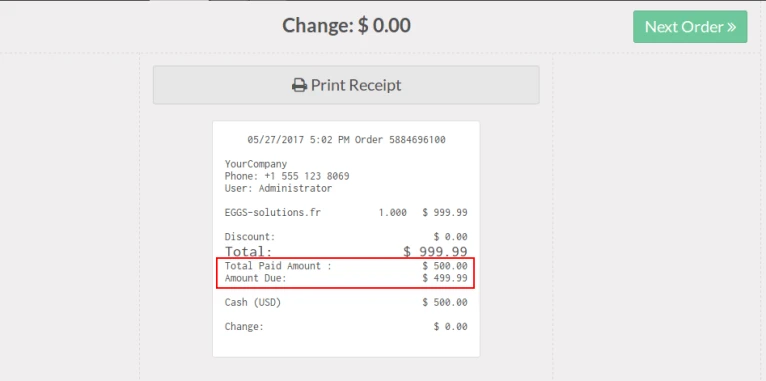
This module use mainly to do the partial payment for pos orders.
For example: Let say customer comes to the shop and he purchase
order total $200,but if he want to pay only $100 as half payment and
remaining due amounts pay to next day.
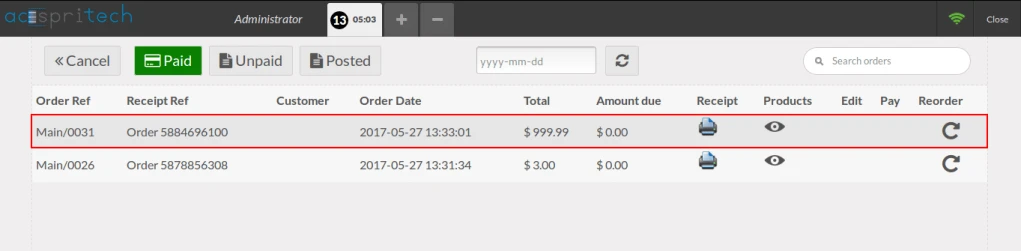
As well as user can view past pos orders, reorder the particular
drafted order and make a order as draft from POS. It is also possible
to re-print receipt and view products of order from pos order list.
There are some filtration based on state, date of order and also
searching functionality.
How to use
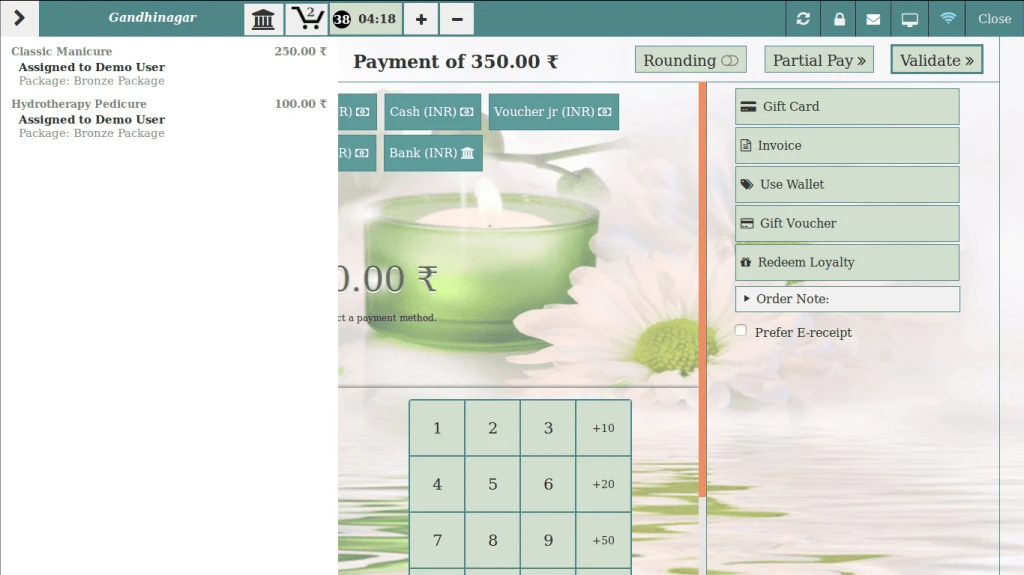
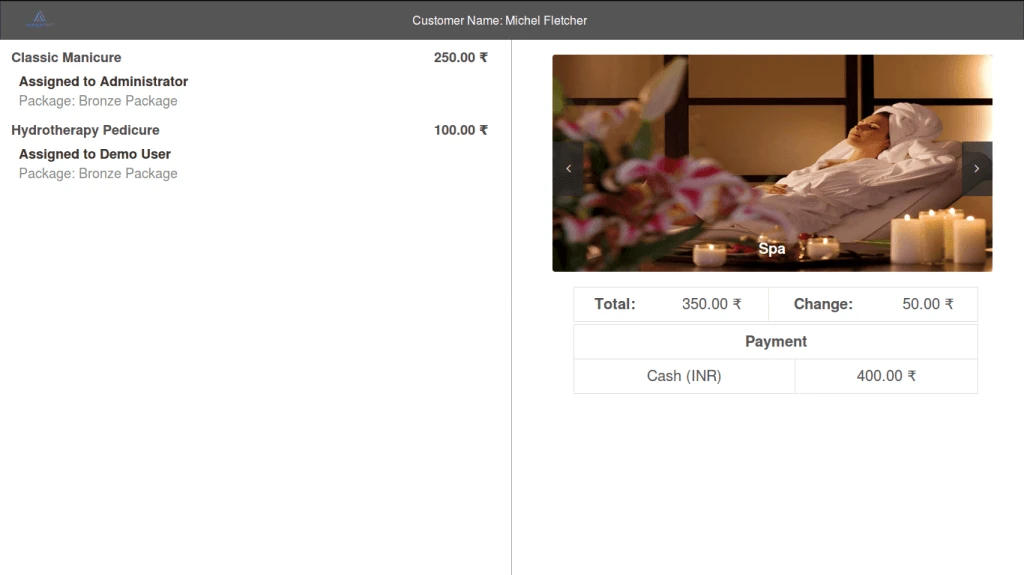
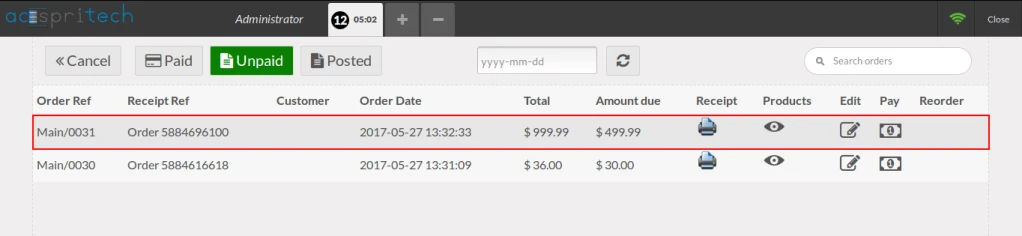
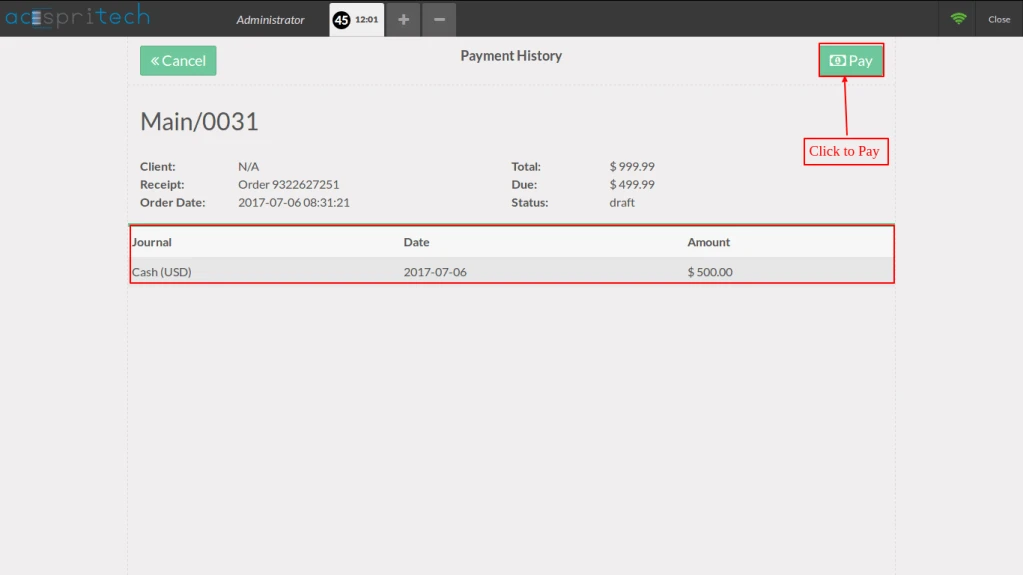
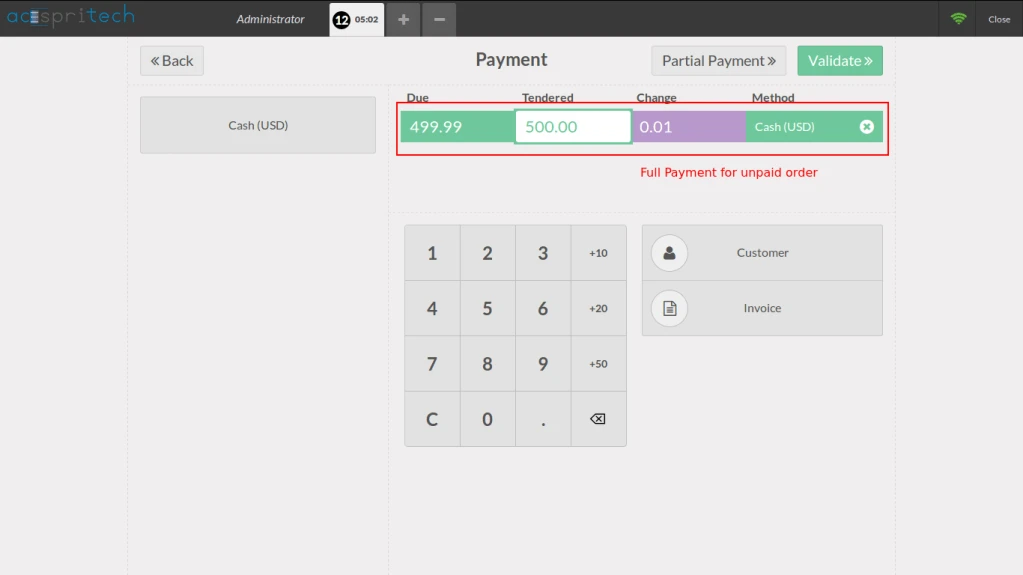
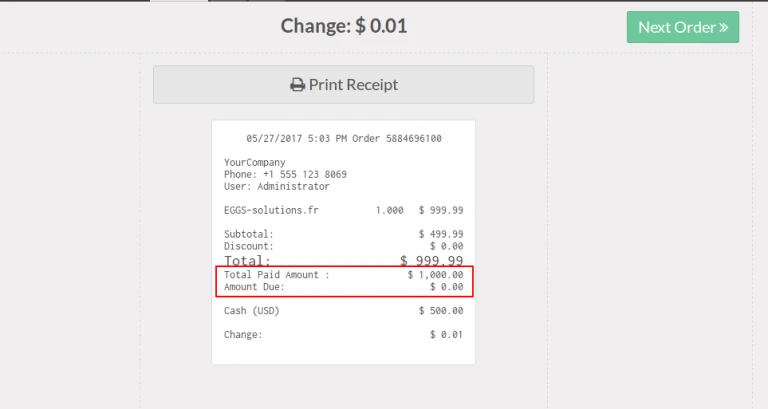
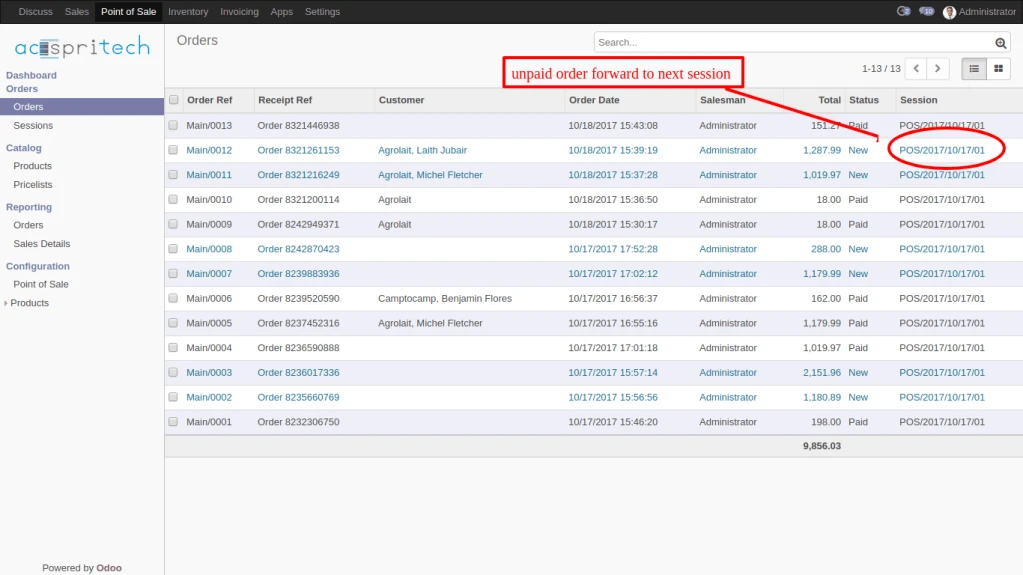
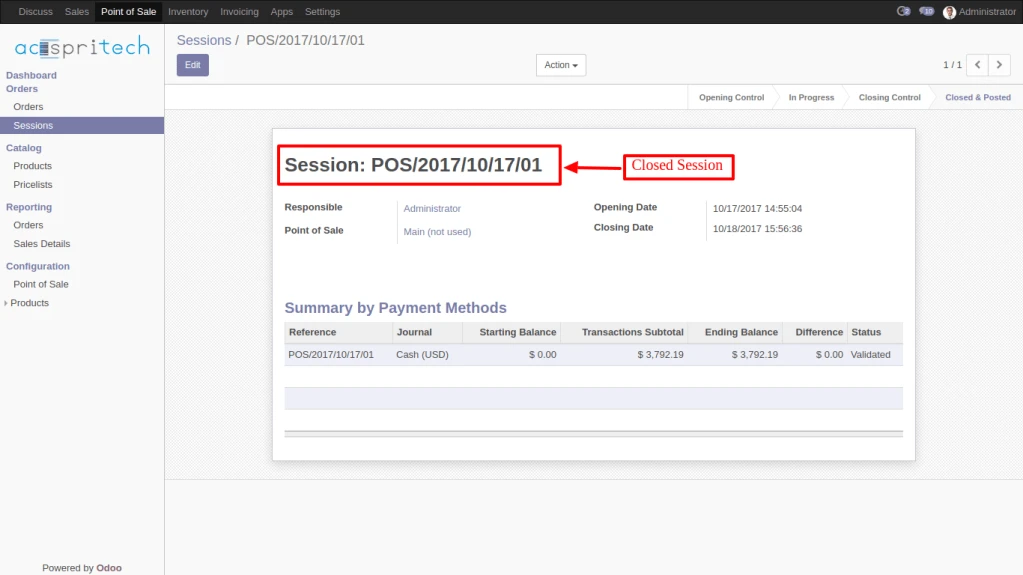
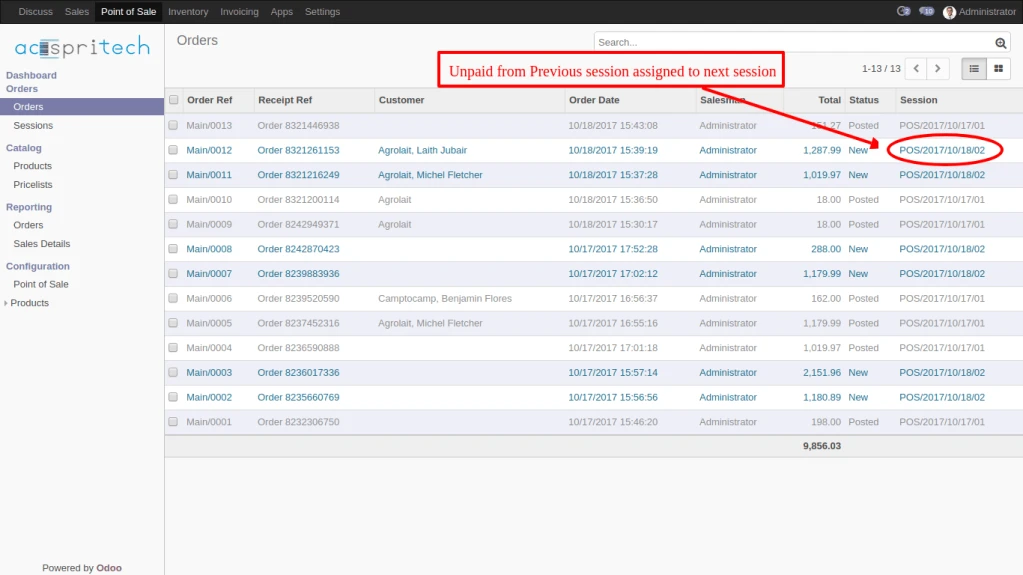
POS OrderPOS Partial Payment ScreenPartial Pay ReceiptUnpaid OrdersClient Payment HistoryPayment for Partial PayFull Pay Receipt of Unpaid OrderPaid OrdersUnpaid Orders Forward to Next SessionSession closedUnpaid Orders Assign to Next Session
Generate Mass Payment for customer/vendor invoice.
Manage the Journal Entry for mass payment.
Generate report for mass payment.
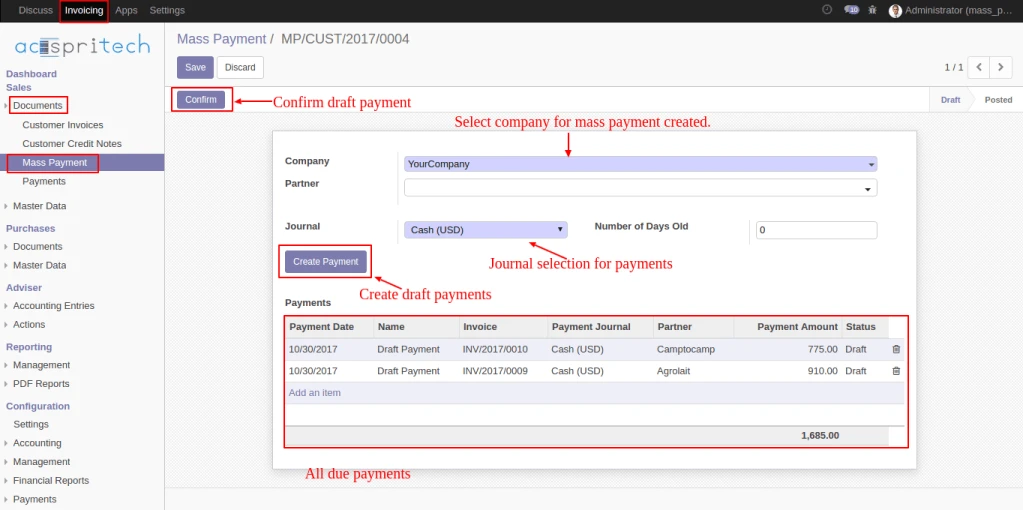
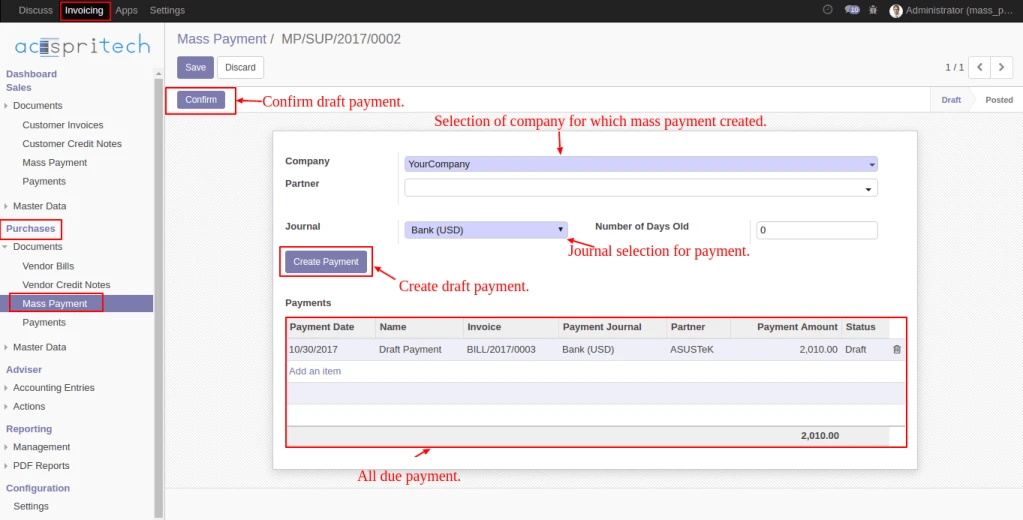
User need to fill appropriate fields and by click on “Create Payment” button.
Draft payments will generate for all due payments. by click on “Confirm” button, all payments
are posted,reconciled and journal entries will be created.
User need to select following fields.
Company – For which mass payment need to create.
Partner(optional) – For which partner(s) mass payment need to create.
Journal – Which journal is used in all payments.
Number of days old(optional) – field take integer. used for how many old days
invoice/bill fetched for payments.
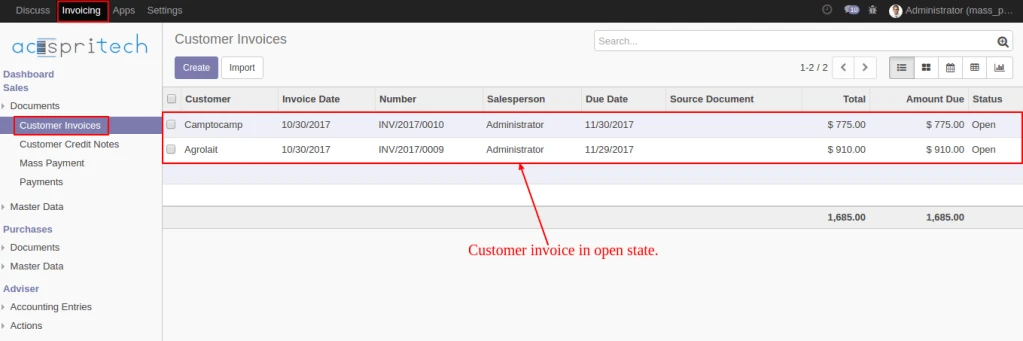
By clicking on “Create Payment” button. its will create draft payments for all due payments of customers whose invoices are in “Open” state.
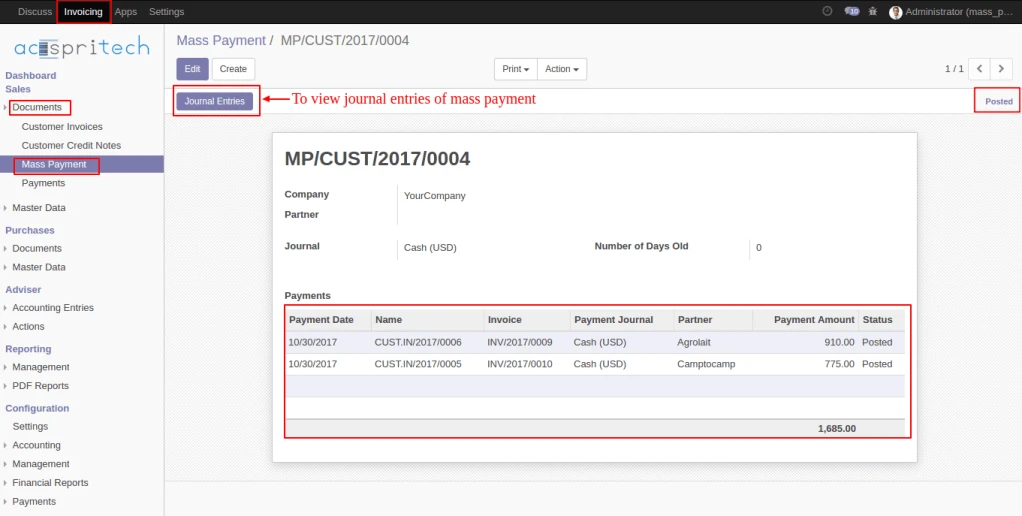
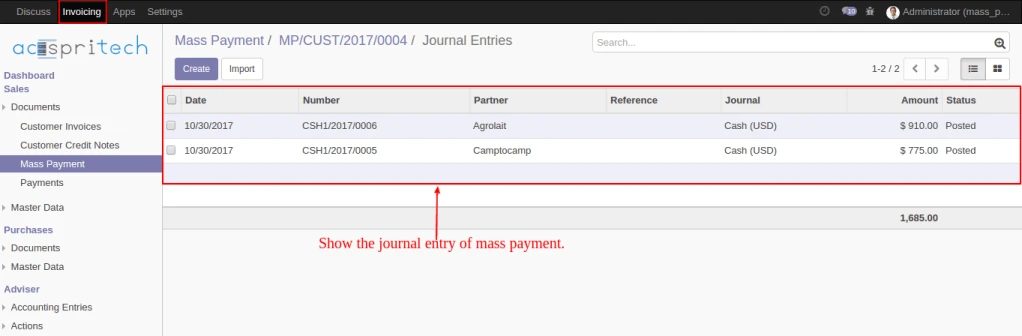
By Clicking on “Confirm” button. all customer payments entries will be posted, and journal entries will be created for each. on click “Journal Entries” button user can see all journal entries.
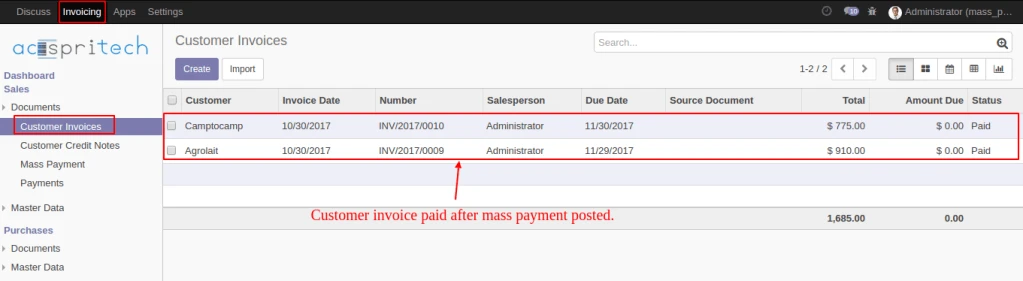
Here, We can see impact of customer mass payment on customer invoice.
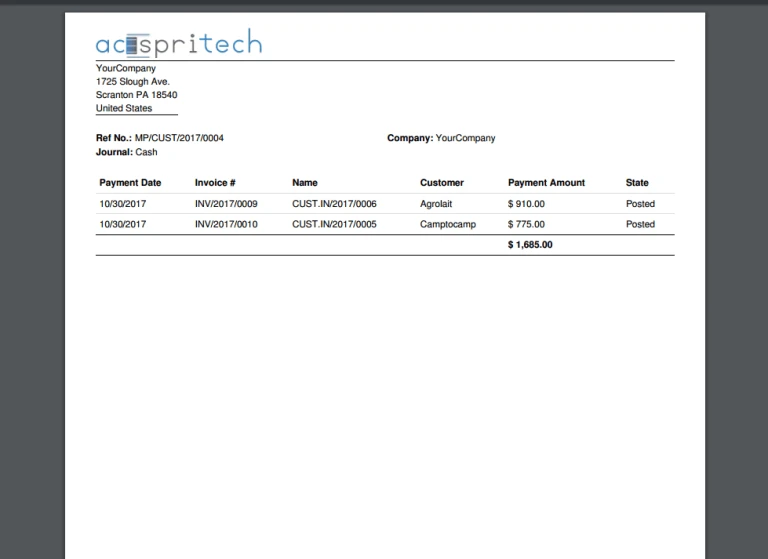
User can print report regarding mass payment.
Same thing to do for vendor mass payments. Here all due vendor payment will be fetch.
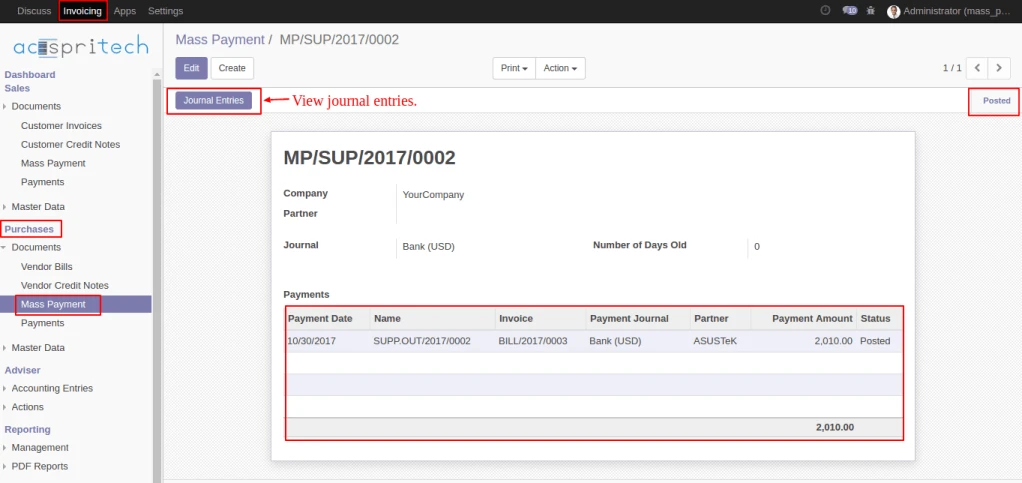
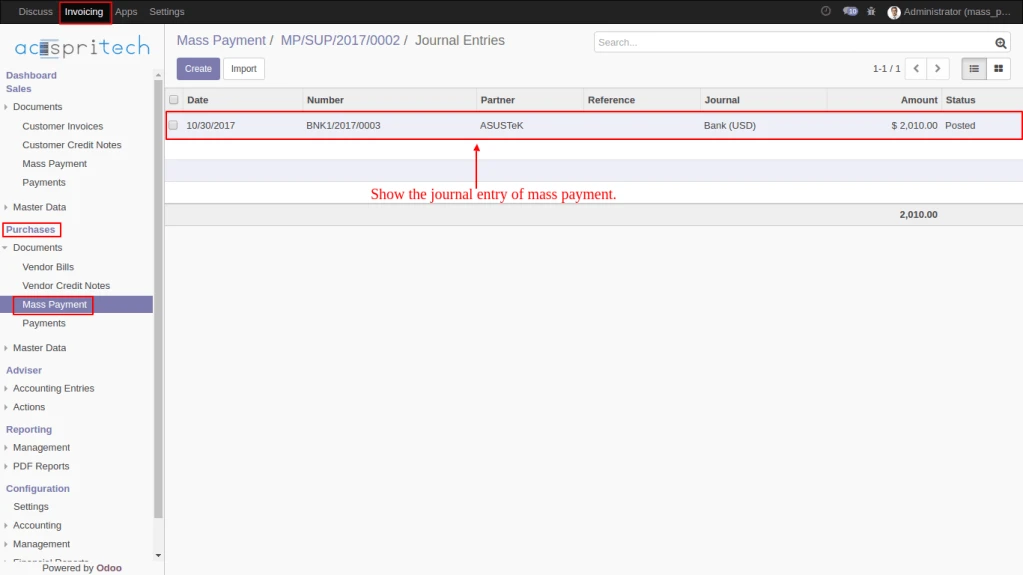
By Clicking on “Confirm” button. all vendor payments entries will be posted and journal entries will be created for each. on click “Journal Entries” button user can see all journal entries.
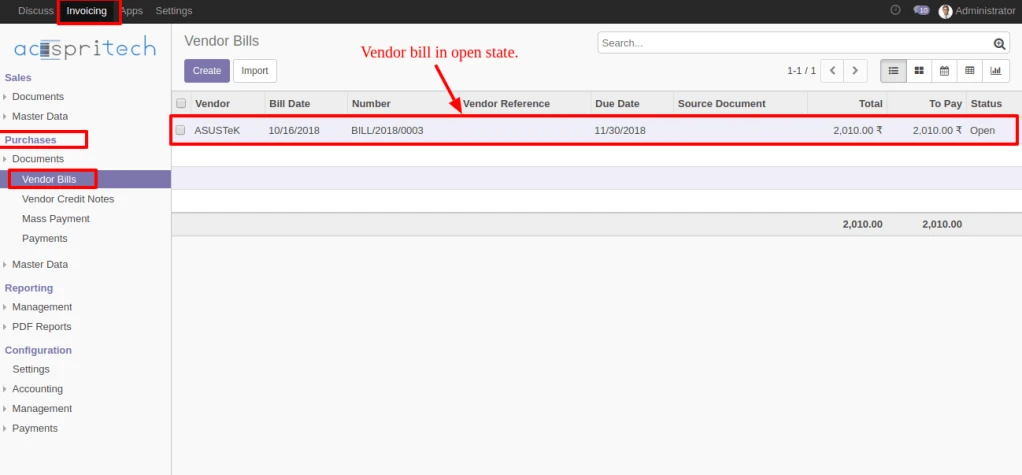
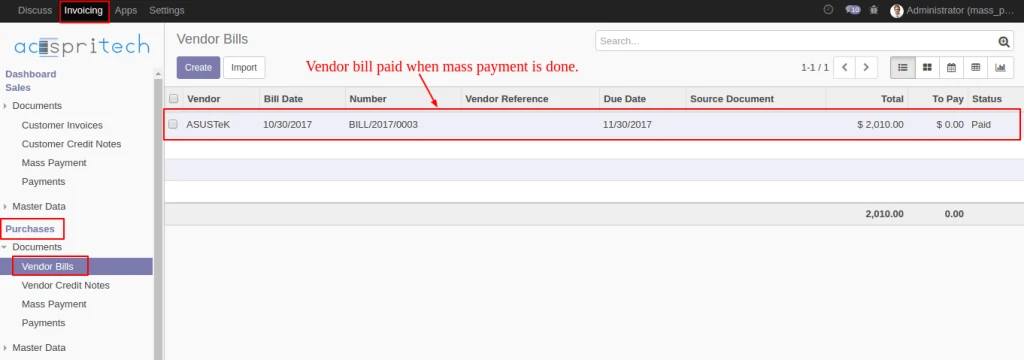
Here, We can see impact of vendor mass payment on vendor bills.