If you have already installed OpenERP and created database with the use of Web Client then after some initial configuration, immediate next step will be to install required modules. Now the question is how to install modules? Here we are with the Answer…
You may like to visit How to install OpenERP 6.1 and OpenERP 6.0 on Windows Vista and Windows 7 in 10 Minutes.
Once you finish the installation process, Open WebClient by using the URL: http://localhost:8069/web/webclient/home
Next step is to create the database,
Please visit our post on How to create database in OpenERP?
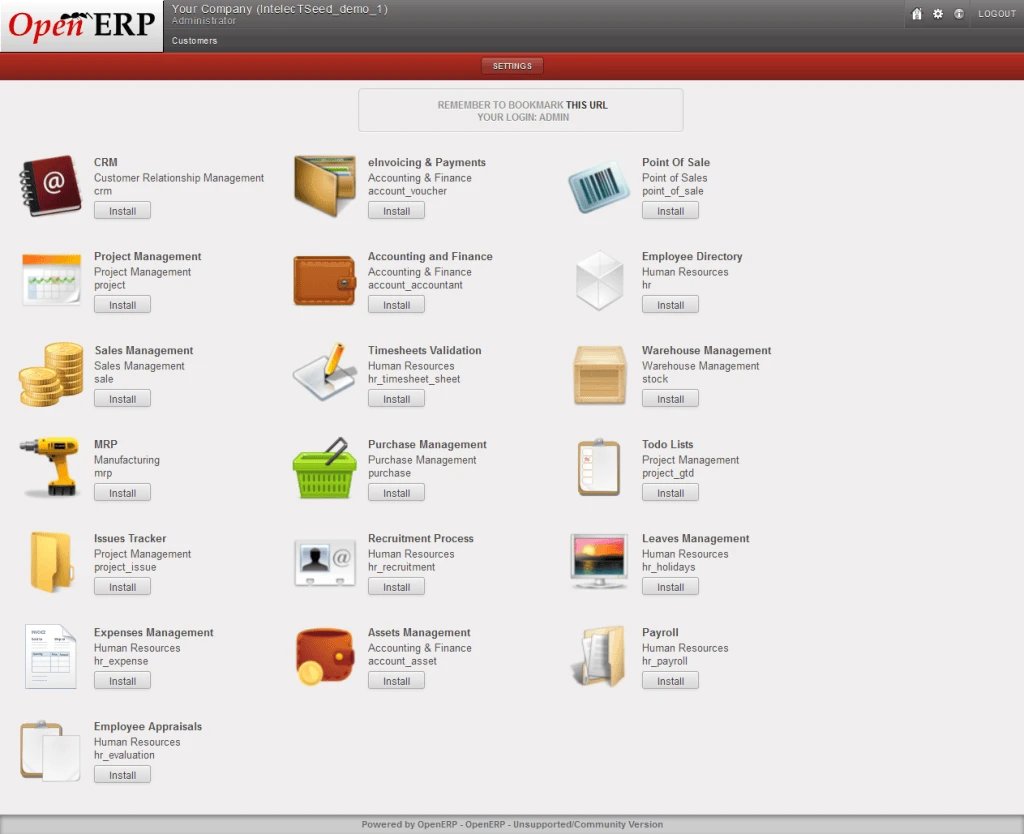
Open WebClient by using the URL: http://localhost:8069/web/webclient/home
Homepage – OpenERP Web Client
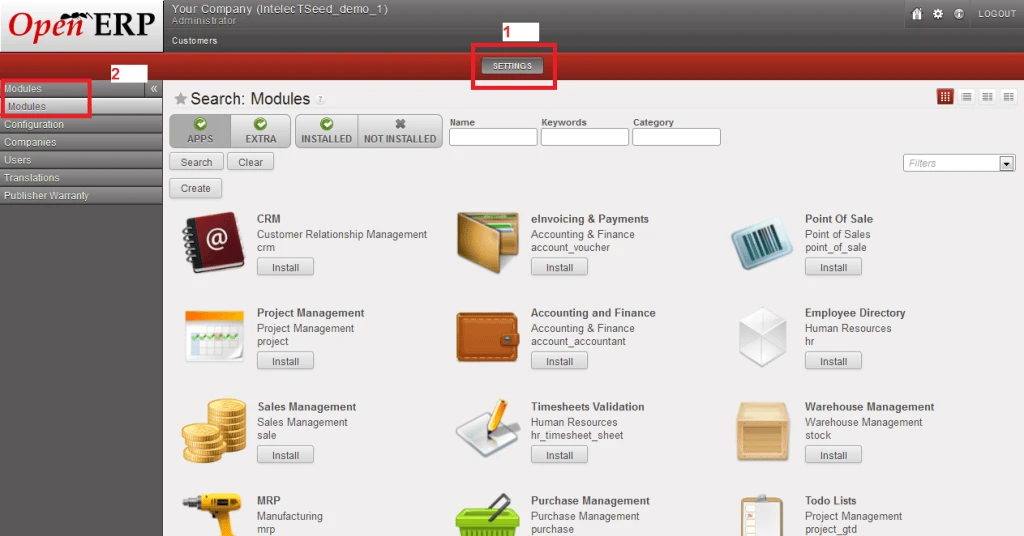
Click on the Settiings -> Modules -> Modules
Modules – OpenERP Web Client
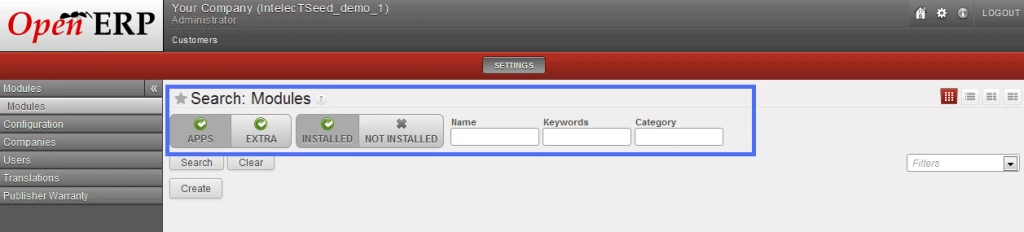
There are four filters available.
Filters – OpenERP Web Client
Apps -> List of Main Modules
Extra -> List of Extra Addons
Installed-> List of Installed Modules
Not Installed-> List of Not Installed Modules
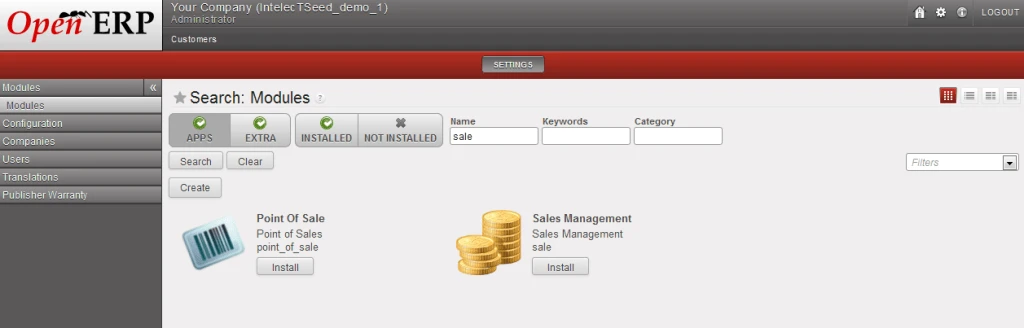
As of now No Module has been Installed; Click on Apps Filter and search for the Sale Module
Sale Module – OpenERP Web Client
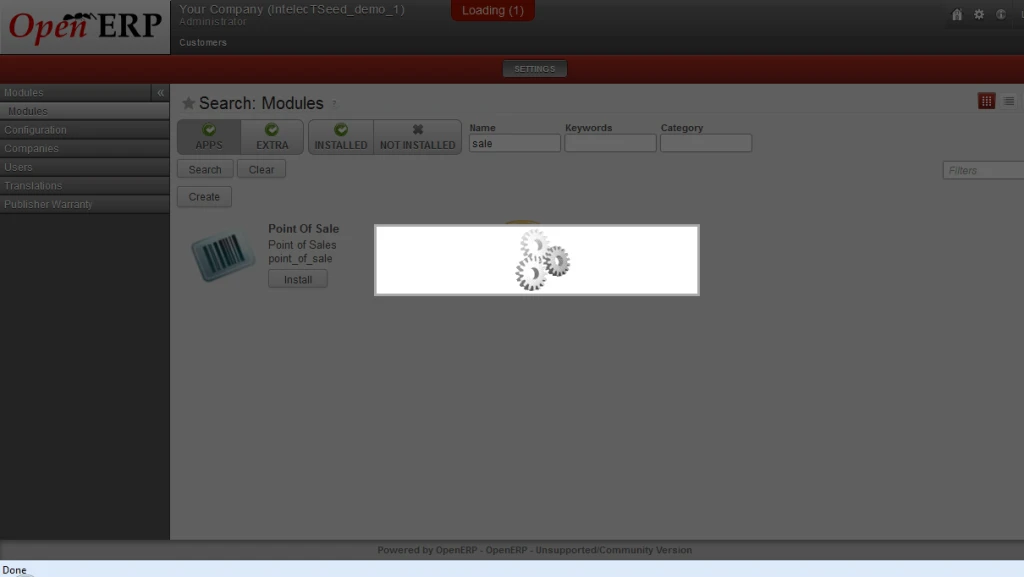
Now Click on Install button to install Sale Module.
Sale Module Installation in Progress – OpenERP Web Client
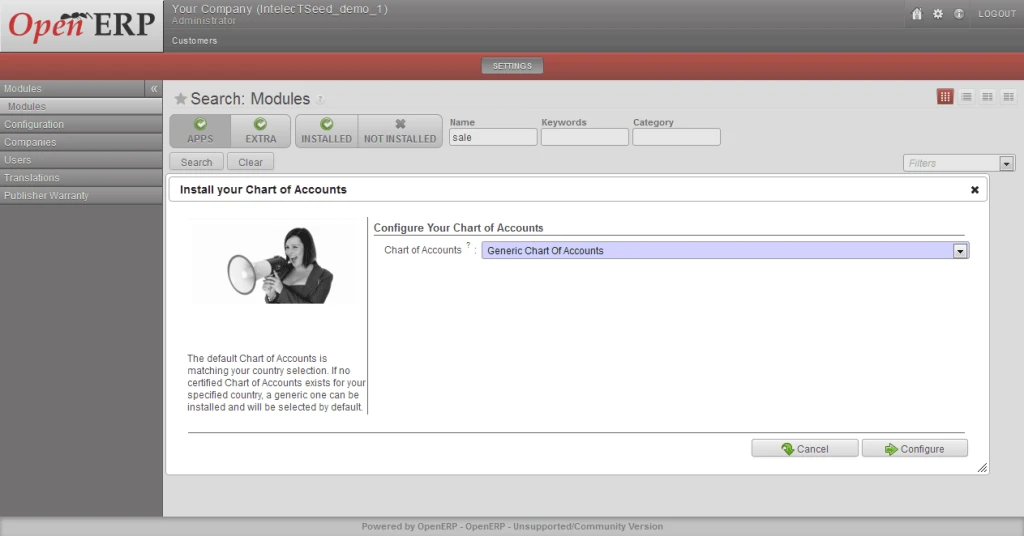
Once Sale Module will be installed, it will ask for “Install your Chart of Accounts”; Click Cancel.
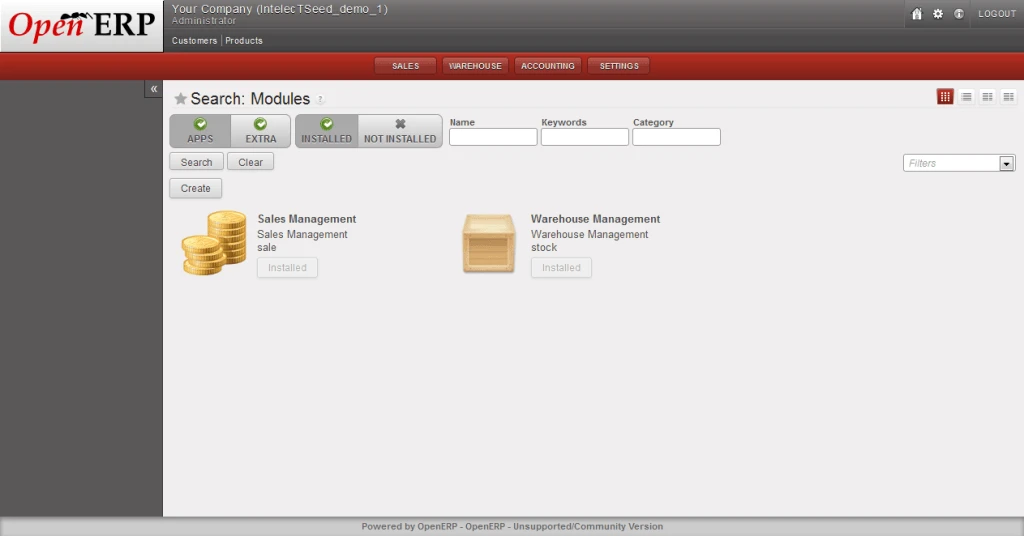
Sale Module Installed – OpenERP Web Client
Refresh the Window. Apply the Filter “Installed” and verify the installed Modules.
Sale Module Installed – OpenERP Web Client
Done!!! 🙂
Related articles
How to drop the database in OpenERP? (intellectseed.wordpress.com)
How to create database in OpenERP? (intellectseed.wordpress.com)
How to install OpenERP 6.1 and OpenERP 6.0 on Windows Vista and Windows 7 in 10 Minutes (intellectseed.wordpress.com)
Maintain log of Product sale price in OpenERP… (intellectseed.wordpress.com)