The ASPL Email PDF Invoice facilitates the invoice pdf generation and the download from the order page for the admin and user and email it with woocommerce order email.
Click here to download
Features:-
Automatically attach invoice PDF to WooCommerce emails.
Show / Download the order PDF invoice from the order admin page and user can download it from my-account order page
It’s work on order status update.
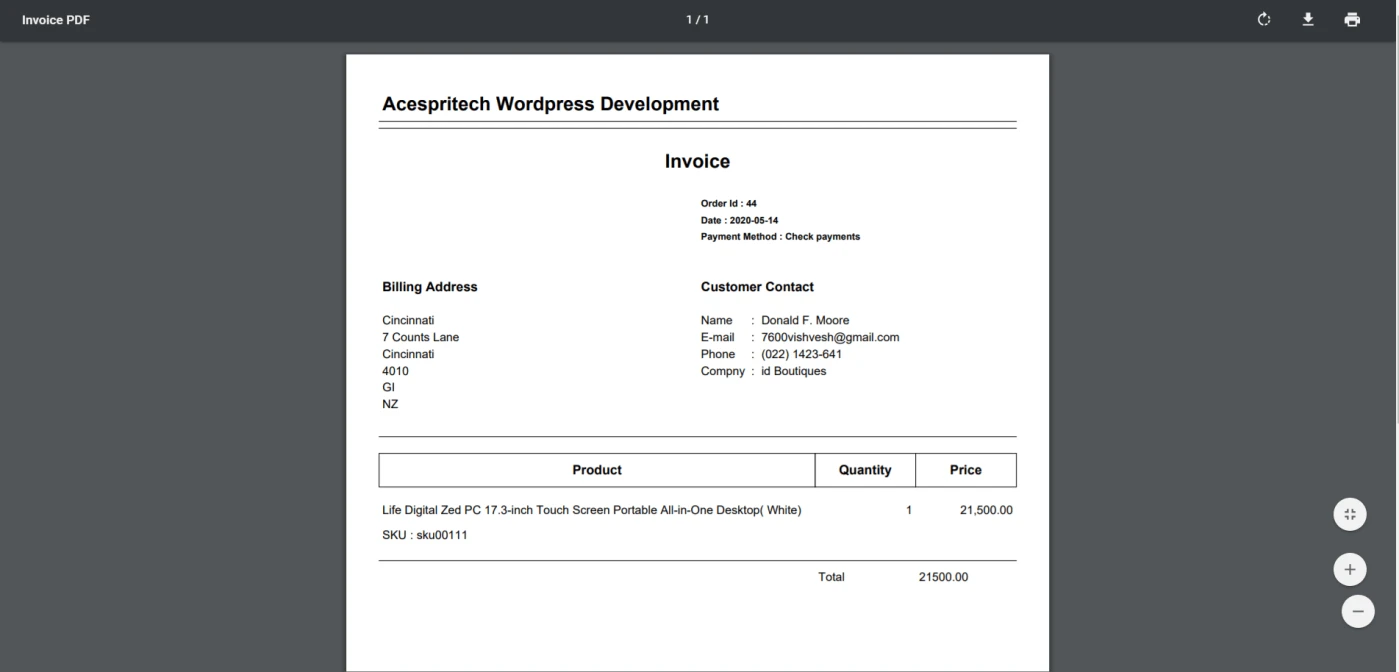
Invoice PDF View.
Invoice View
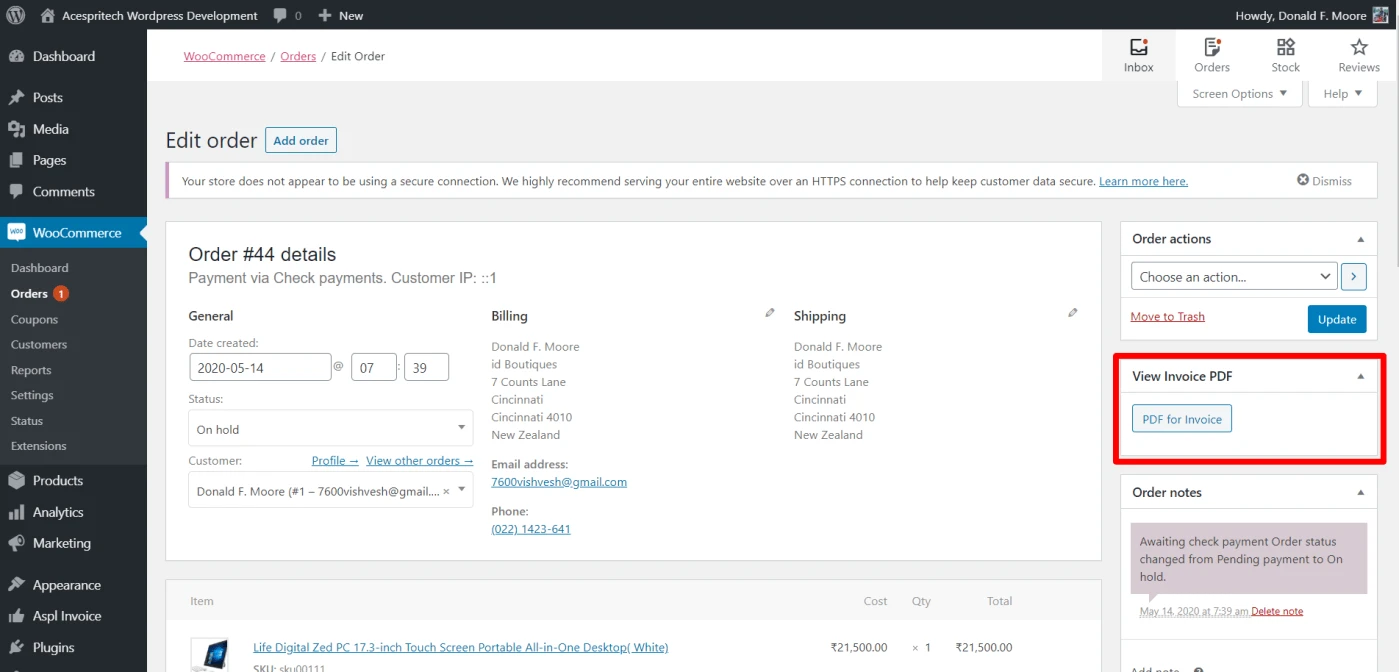
Display Metabox to show particular order invoice. Order Invoice
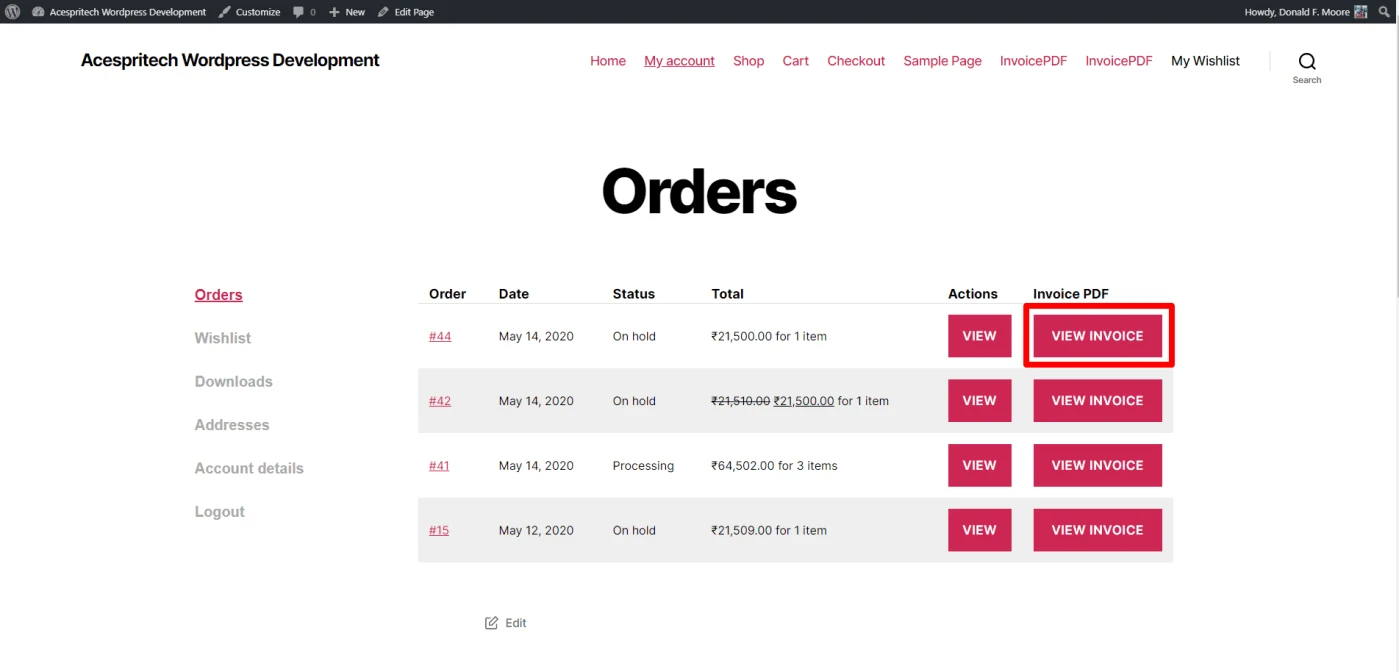
Display Invoice to user in myaccount area in order list.
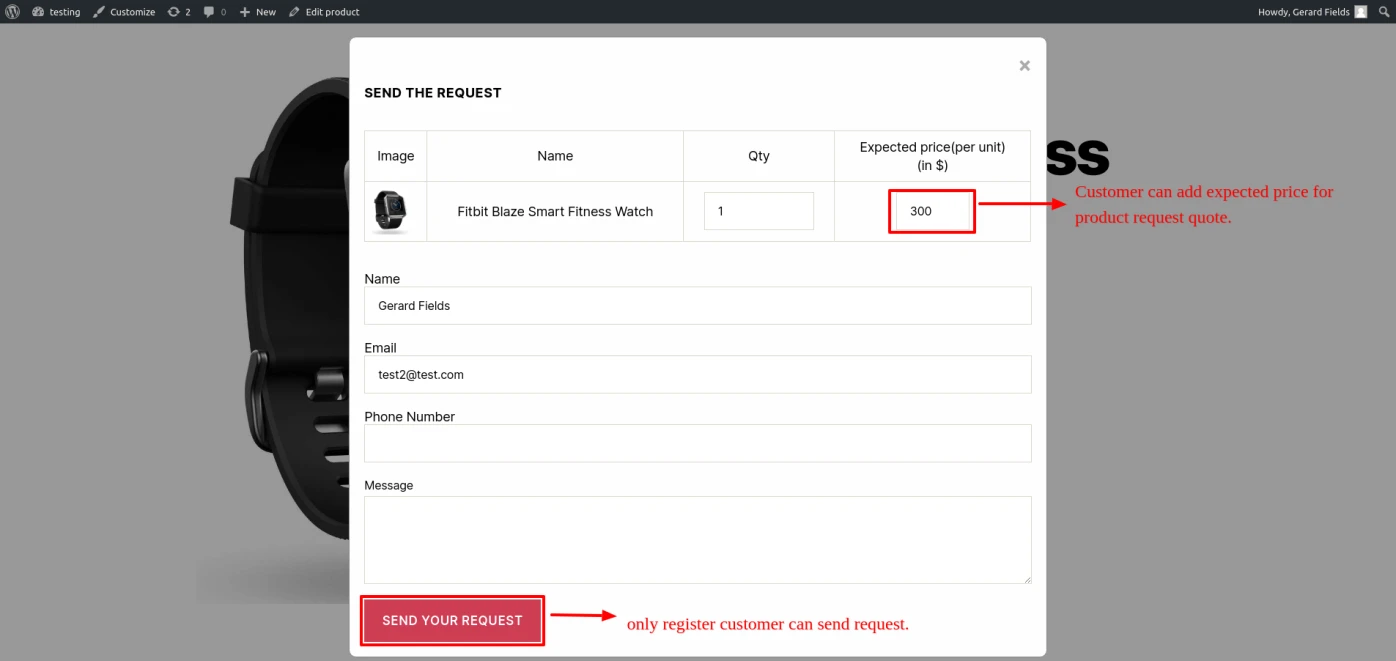
Product quote request submission for logged-in users only.
Provides a customizable form for users to submit a Product Quote.
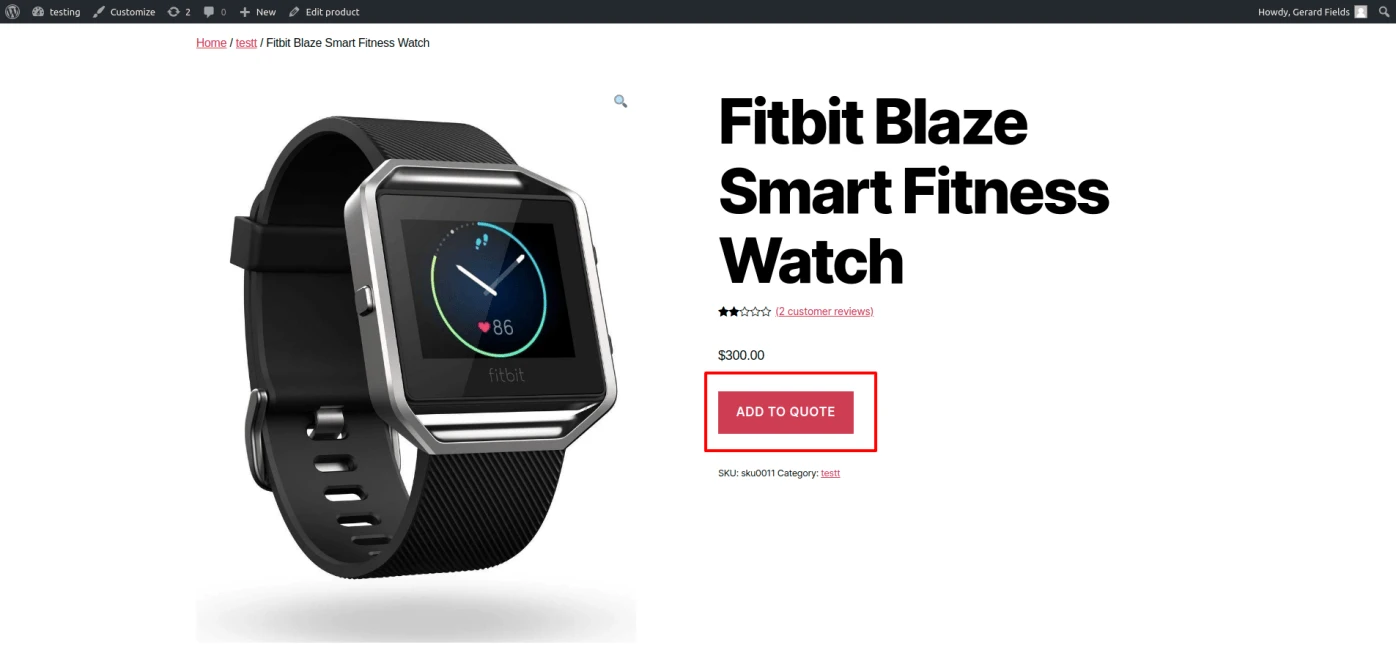
Display product add-to-quote button in product page.
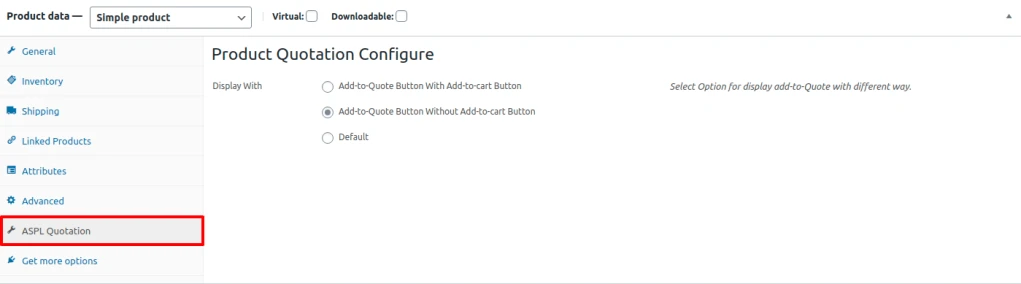
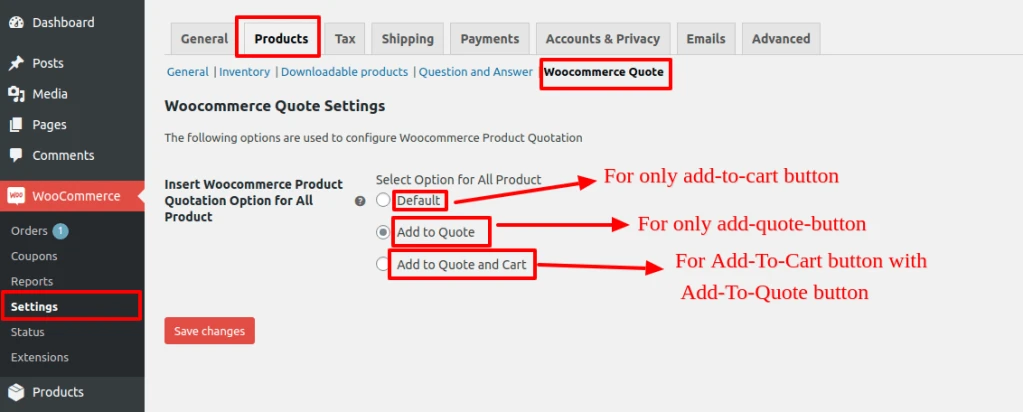
There are three option to set product quote button (1) add-to-quote with add-to-cart button (2)
add-to-quote button without add-to-cart button and (3) default.
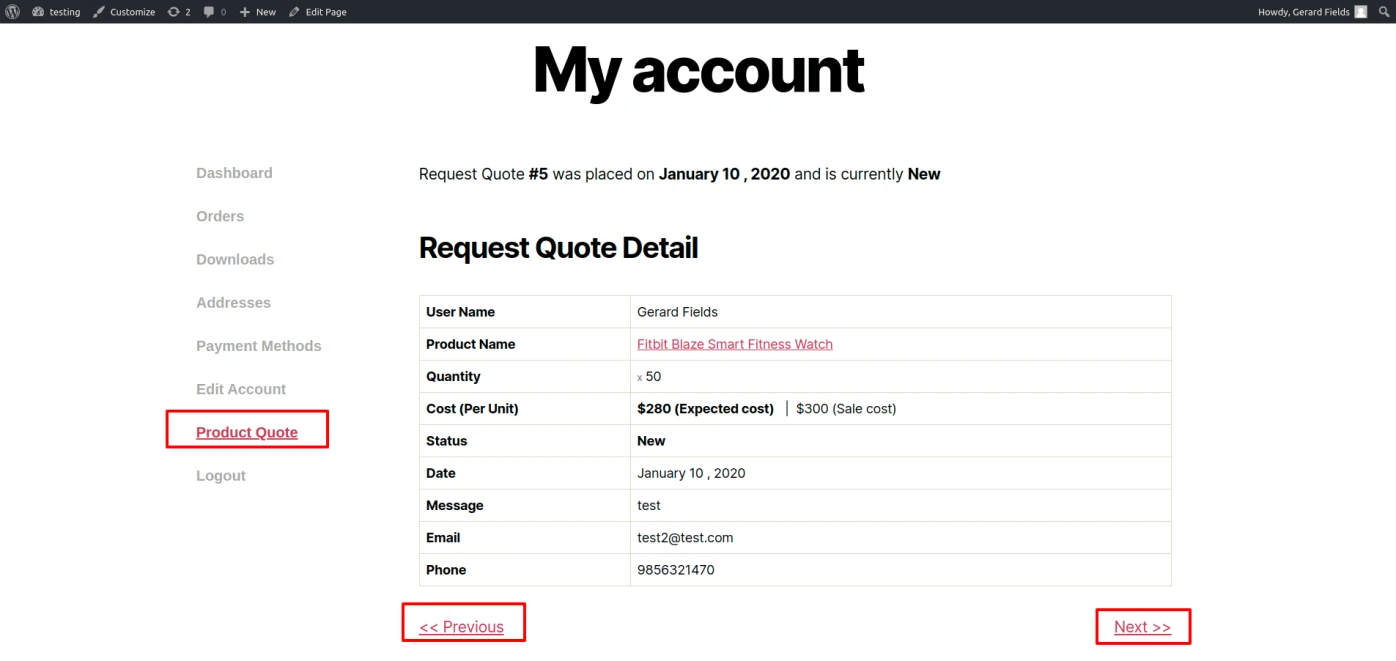
Display user all request quote detail in my-account area which is submitted with status.
Admin acn delete request of product quote and change status of Quote.
User get gmail whene Request status is update by admin.
Admin can Add To Quote Button for all page from
WooCommerce – Setting – Products – Woocommerce Quote.
Admin can configure add to quote button for particular product in product tab ‘ASPL Quotation’.
Product Configuration for Quotation
Admin can easily set product quote option with multiple way to display quote for all products form WooCommerce – Setting – Products – WooCommerce Quote.
Set Option for all Product
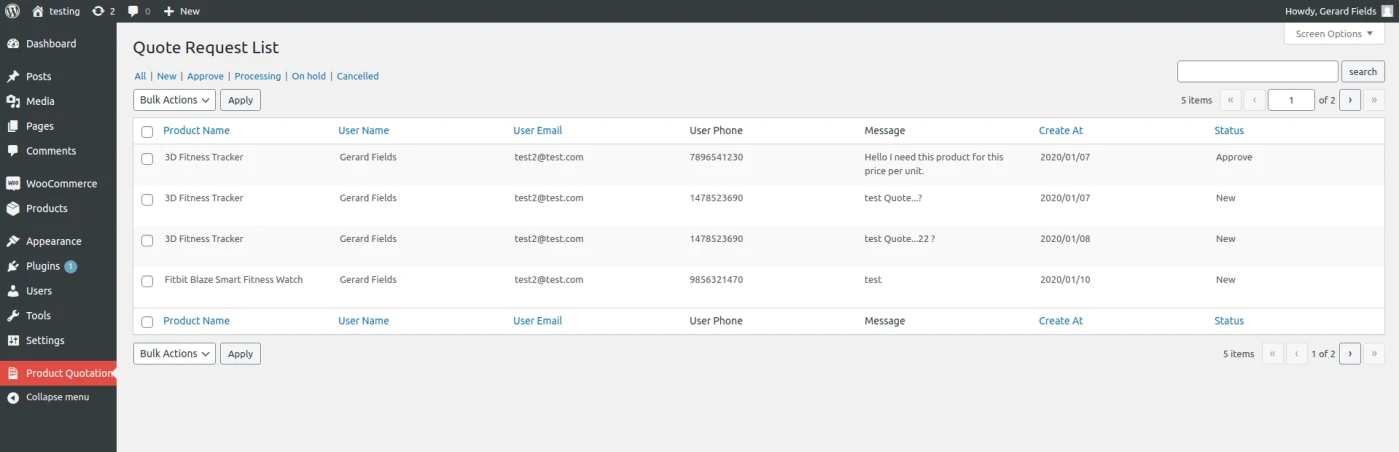
Admin can see the list of product request and edit or delete and update request status.
Product Request List
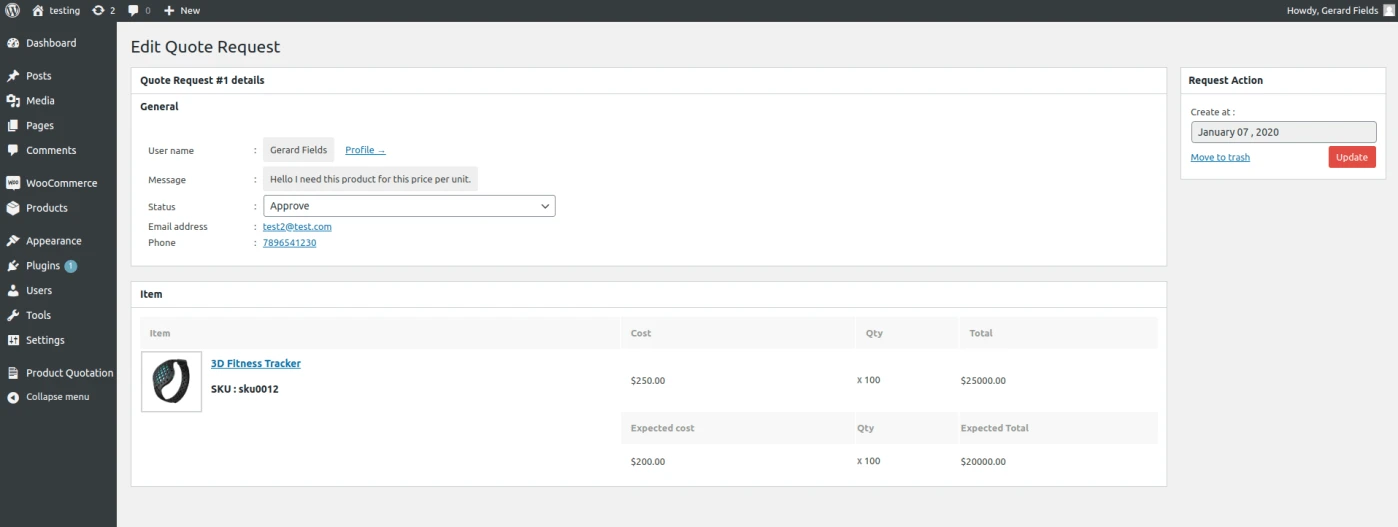
Admin can see all detail in edit page of request quote like customer profile, customer contact number, customer email id, customer request message and comparison between original and expected product price.
User get gmail when admin can change product quote status.
Product Quote Request Edit
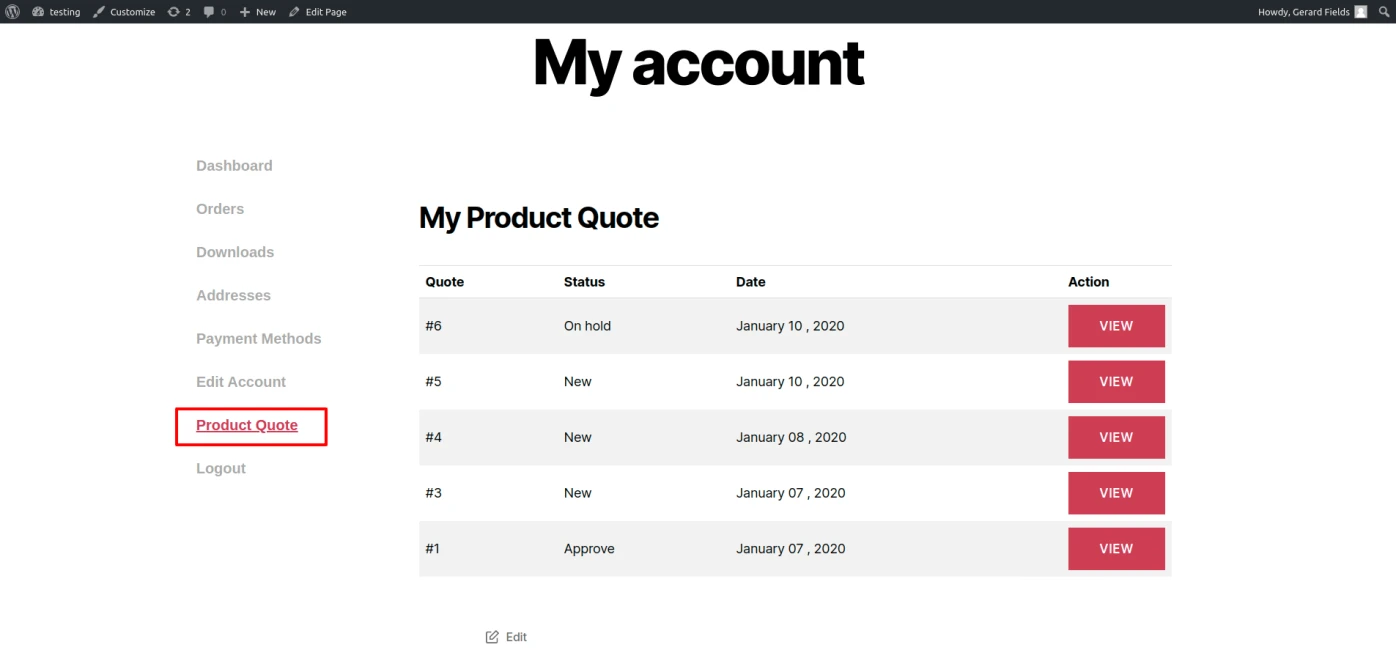
User can see his request quote list in my account area .
Product Quote Data User Side
User get all the detail of request quote one by one in product quote view page in my account area.
Product Quote Request Detail User Side
Button of add to quote is display in product page by admin configuration in product tabs.
Product Quote Button in Shop Page
User can click on add to quote button then open this quotation form to user can easily request for product quotation. (Only register user can send the product quote request)
This module help to know purchase analysis , product quantity with all orders with respective of price and total. simple as well as Variable products quantity analysis. Customer can also analyse products by particular year and categories.
Customer purchase analysis report in “My Account” section.
Report on all products in your orders and limit the report to only selected year.
Filter by years , products and category.
Report every single product in all orders with quantity.
Graph display payment method, category and product – quantity details in chart
format.
Work with simple product and variable products.
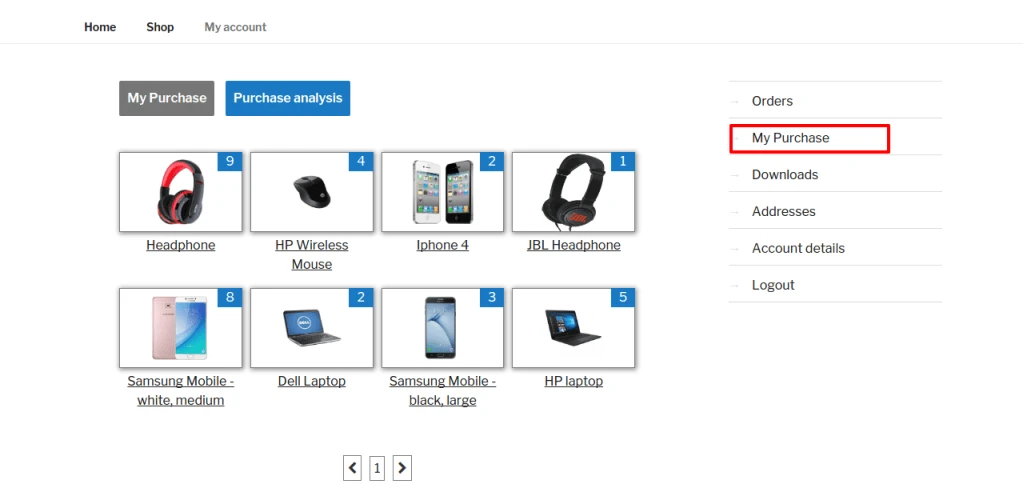
My Purchase tab display purchase products with quantity.
My Purchase Screen
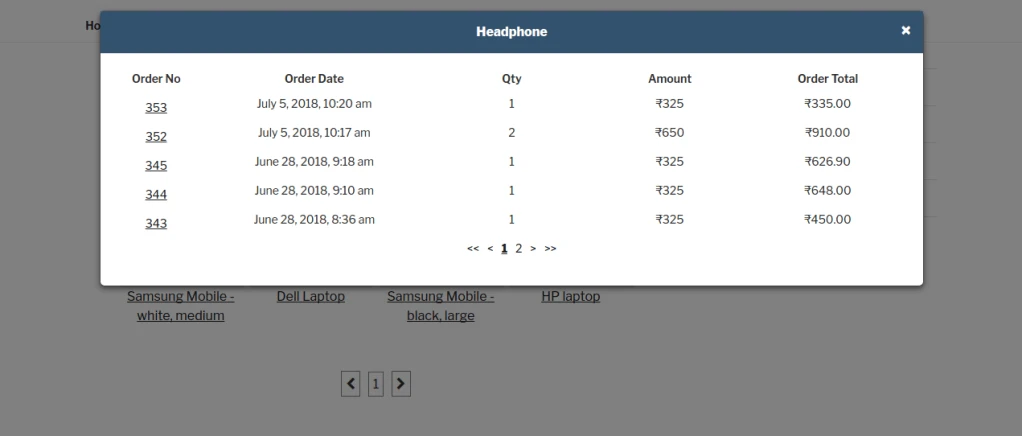
When click on product quantity that display selected product quantity and amount in different order.
Customer can view order information by clicking on “Order no”.
Product’s Order Details
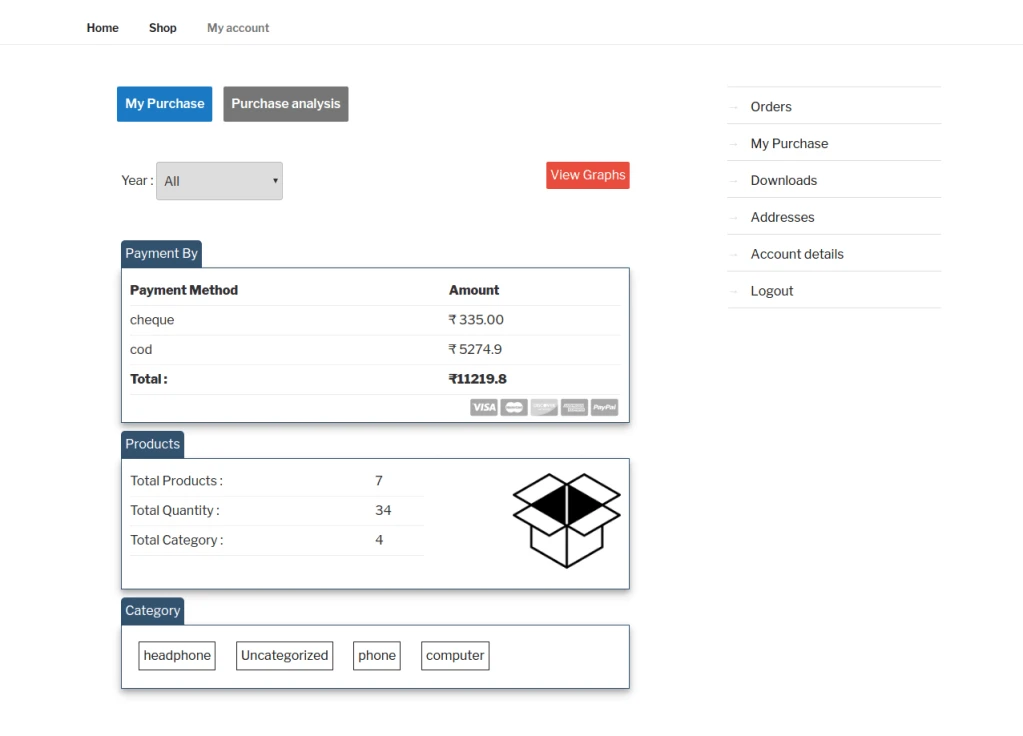
Purchase analysis tab display year filter and display payment method , product and category details for selected year.
Also we can see graph by clicking “View Graphs”.
Purchase Analysis Screen
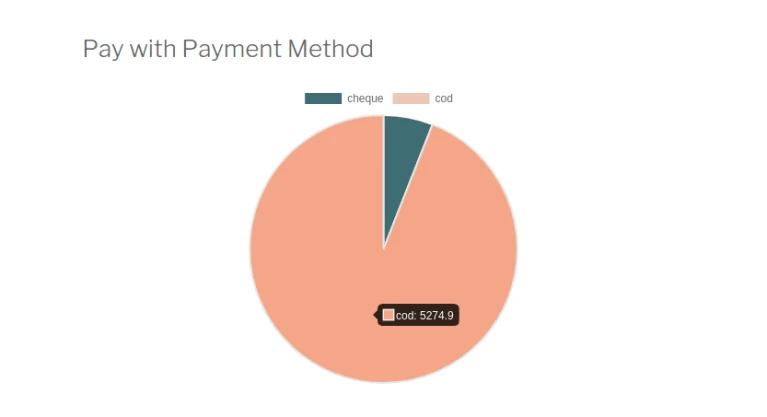
This pie chart display which different payment method customer used for pay order amount.
Payment Method Graph
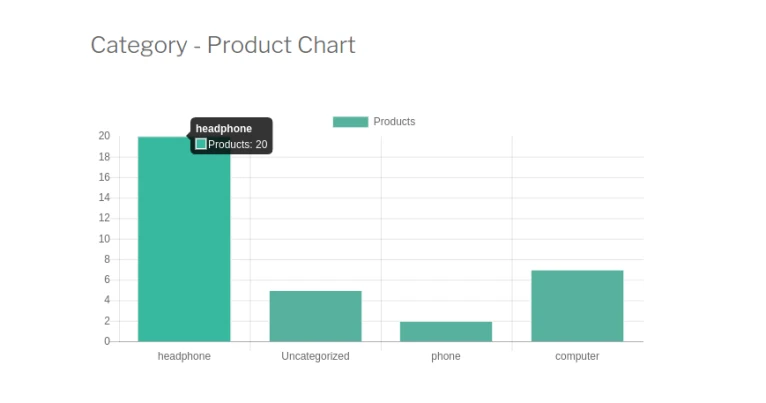
Above chart represent category wise product count which customer was purchase.
Product Graph
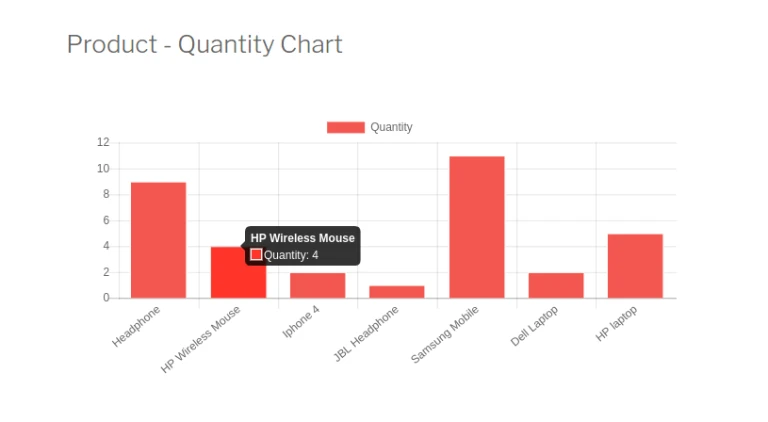
This chart show products and their quantity which customer was purchase.
Product Quantity Graph
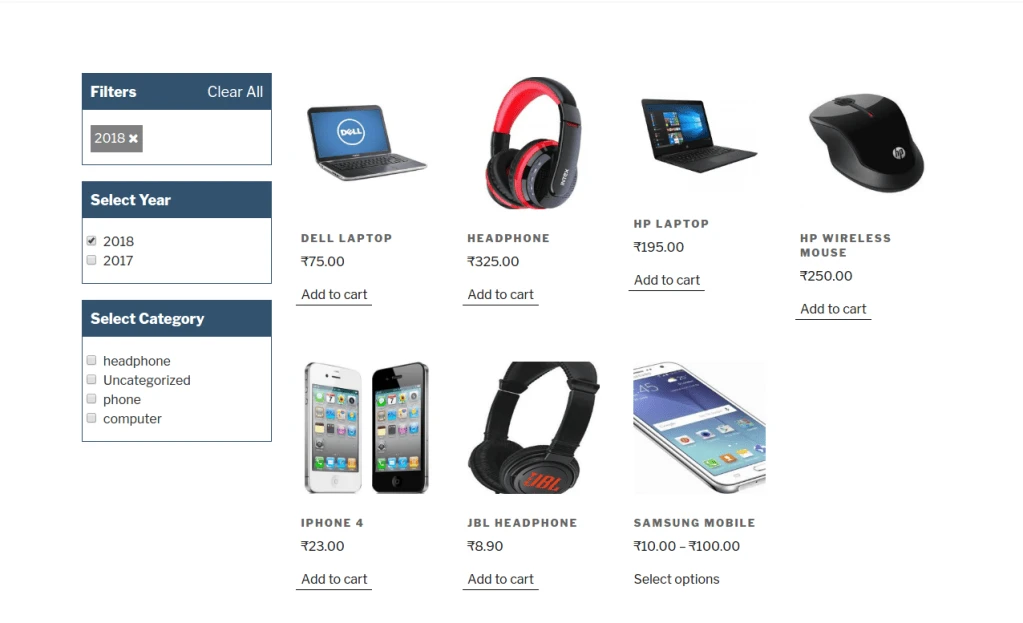
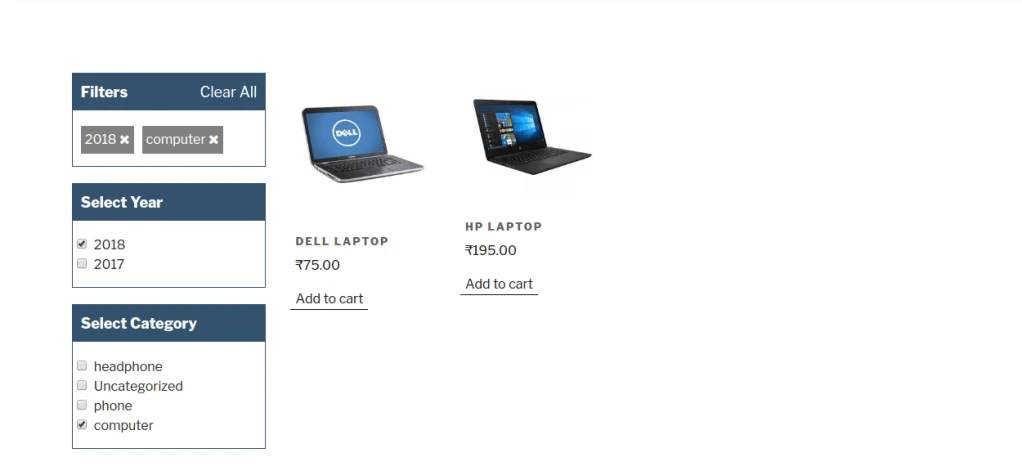
This is filter page for products.
Customer can select year and their category.
Product Filter PageProduct Filter Page
Purchase Analysis Graph View
Share this:
Click to share on Facebook (Opens in new window)
Click to share on LinkedIn (Opens in new window)
Click to share on Twitter (Opens in new window)
Click to share on Reddit (Opens in new window)
Click to share on Tumblr (Opens in new window)
Click to share on Pocket (Opens in new window)
Click to share on Pinterest (Opens in new window)
More
Click to print (Opens in new window)
Click to email this to a friend (Opens in new window)
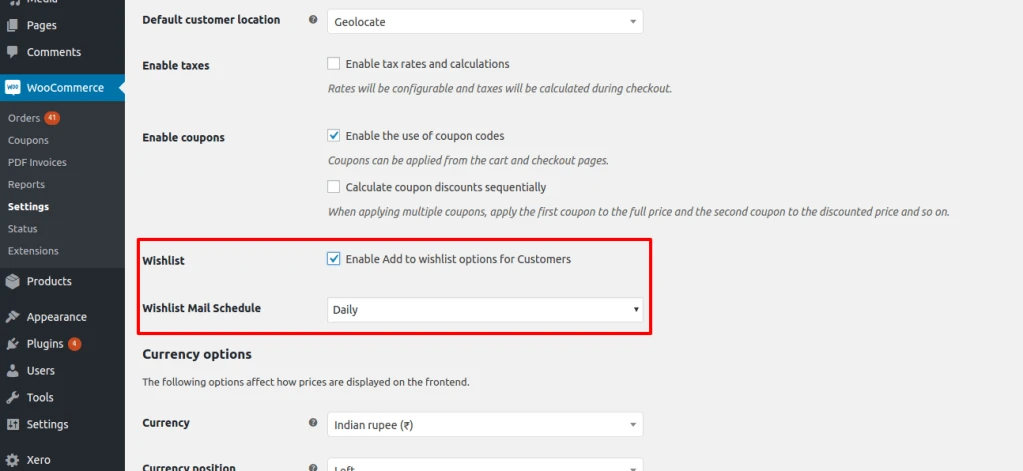
Create unlimited wishlist for easier control and tracking
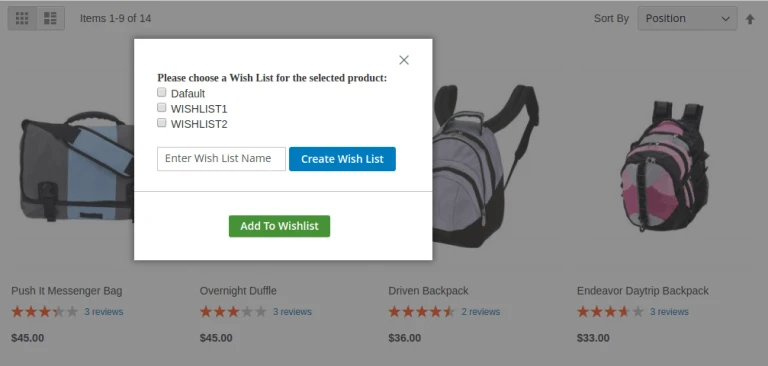
Add product to wishlist via convenient popup
Flexibly manage wishlist with more functions(Create New Wishlist,
Copy, Move, Delete).
How to Use
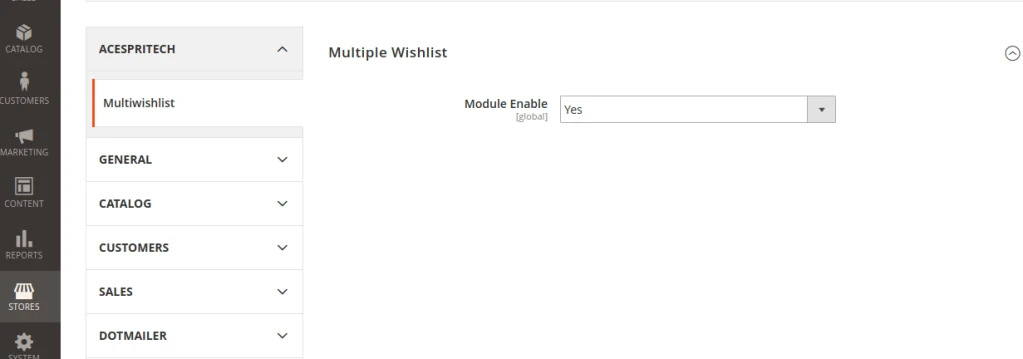
First go to the admin panel STORES –>Configuration –>ACESPRITECH–>Multiwishlist tab.and Enable module first and Save Config.
Configuration
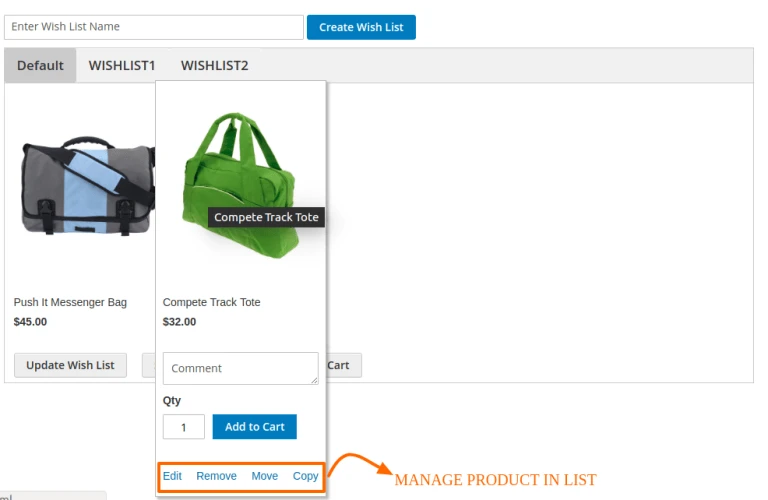
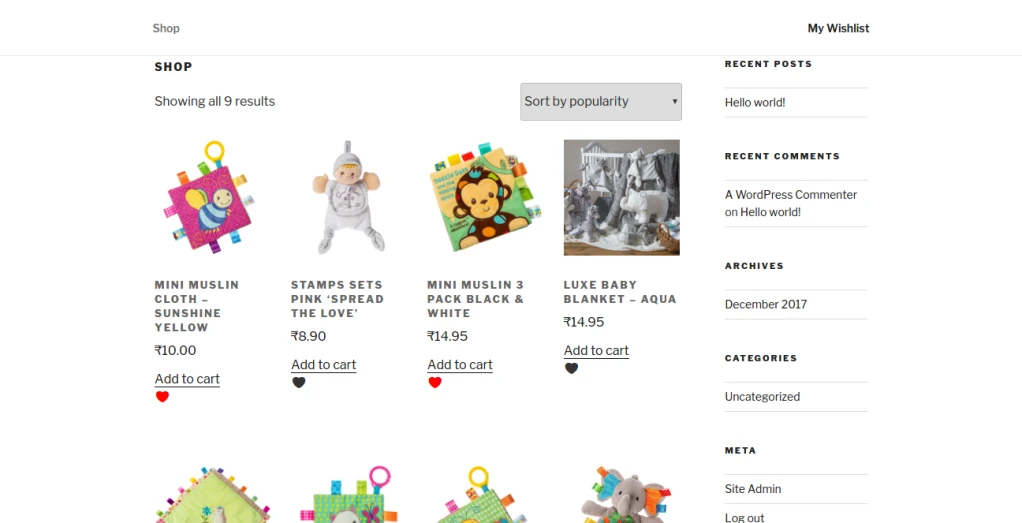
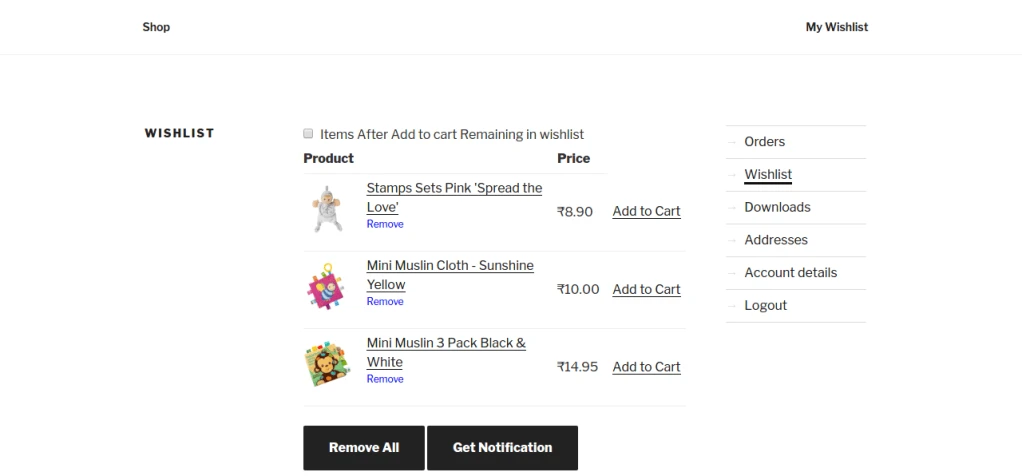
Go to Frontend and login first then click on “Multi Wishlist” Link , its display Default(My Wishlist)folder.
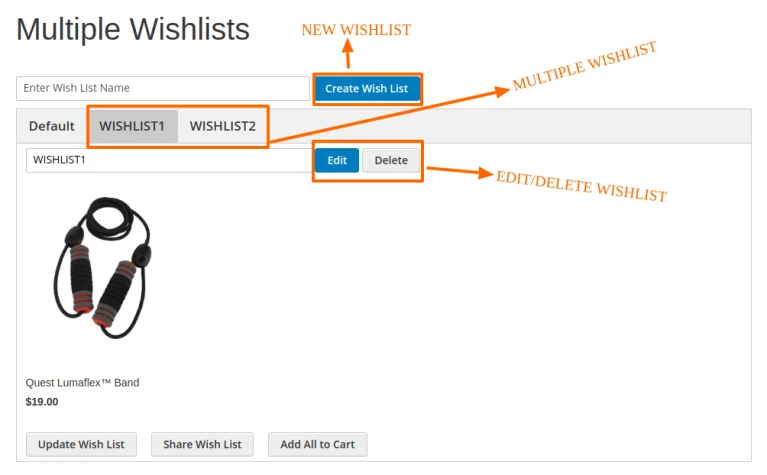
– Click on create wishlist button and adding multiple wishlist folder as u like.
– Also you Manage product in list like Remove,Move,Copy,Edit.
Multiple Wishlist Product Display
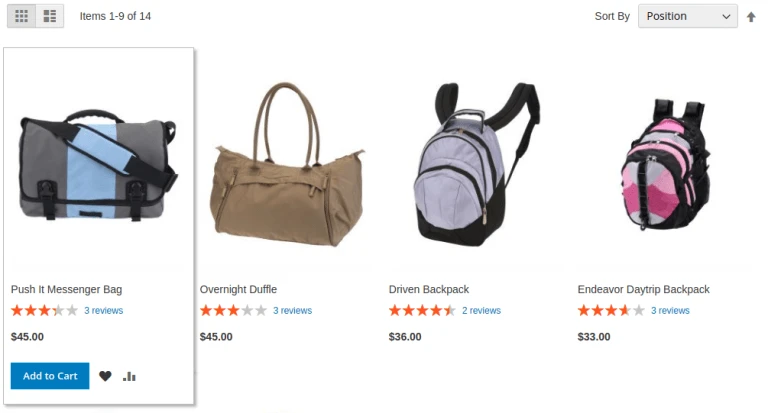
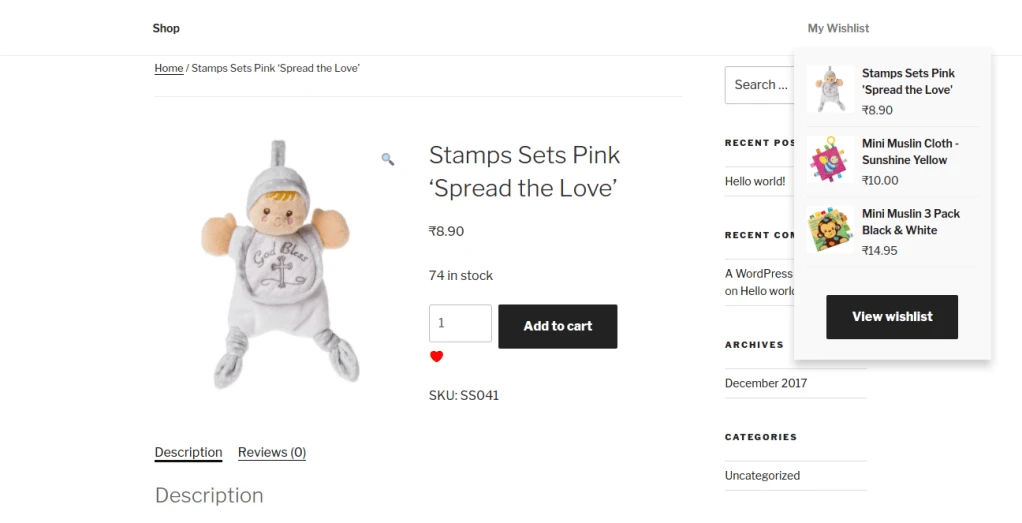
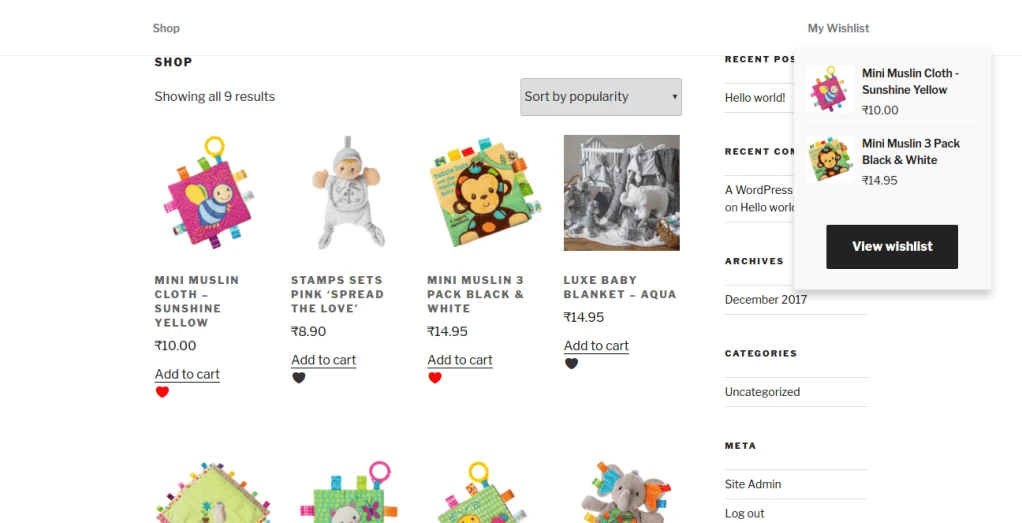
In product list page you can add product to your specific wishlist folder using click of add to wishlist icon.
Wishlist Button Wishlist Popupbar
Also you can Edit / Delete Your wishlist folder easily.and also use can use our functiality of Add All To Cart and Update Wish List For adding Comment on Specific product.
Step 1: How to Generate a Private/Public Key pair
Xero Developer Documentation provide details
Step 2 : Login to Xero for create Private Application
Login to your Xero account at : https://login.xero.com/
After Login to Xero go to https://api.xero.com/
Select ‘My Apps’ tabs.
Click on New App button.
Under ‘Add new app’ select Private app then give ‘App name’ and select ‘Organization’.
Publick Key: You have to upload your certificate file.
Accept terms and conditions and Create App.
We get “App Credentials” ‘Consumer Key’ and ‘Consumer Secret’.
Step 3 : Woocommerce configuration page setting
Log into your wordpress site admin panel go to Xero Integration.
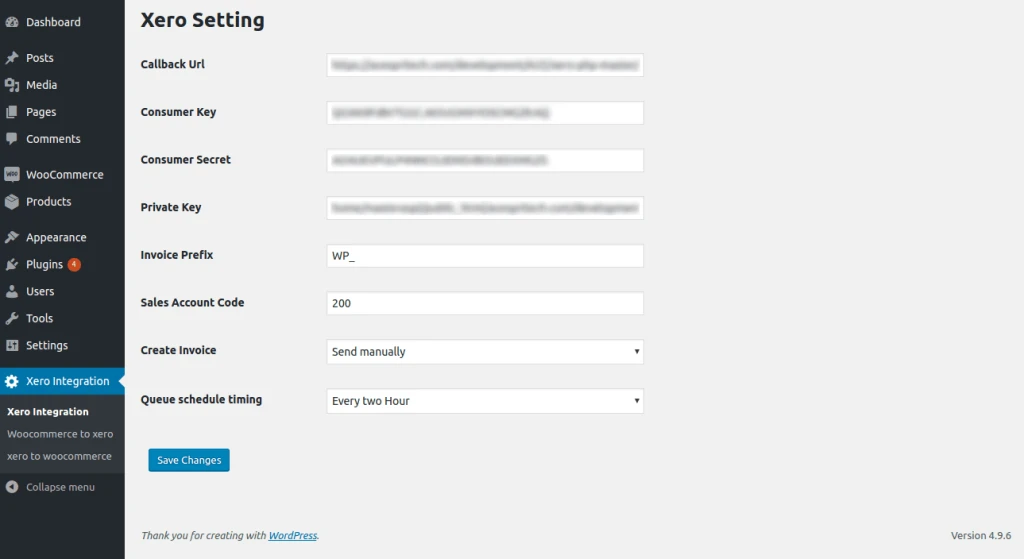
Xero Setting : Add configuration details.
Integration process need to configure Consumer Key and Consumer Secret also upload certificate File path.
Woocommerce Xero Setting
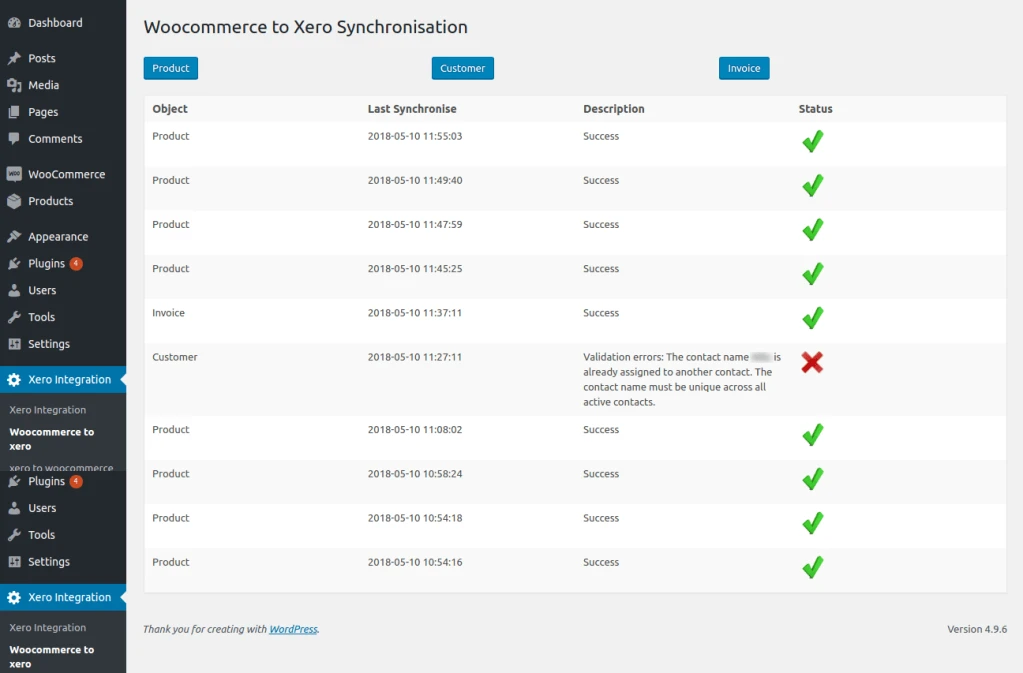
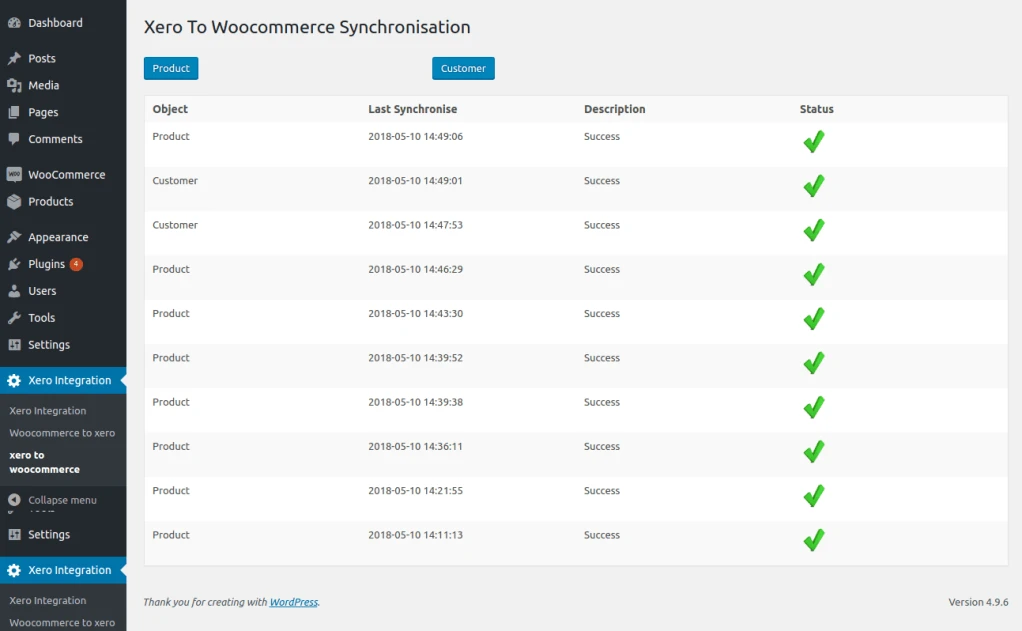
Woocommerce to Xero product , customer and invoice synchronization.
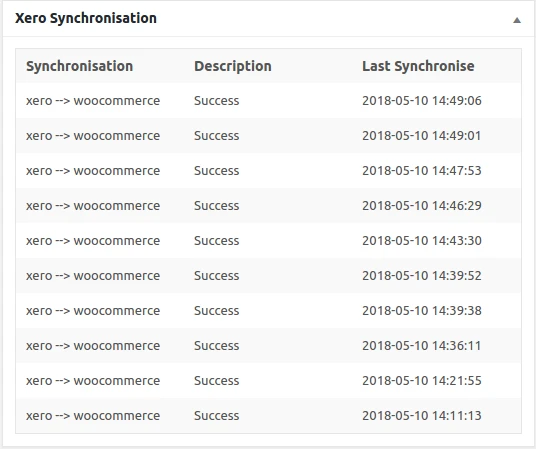
Show history of last synchronization details.
Woocommerce to Xero Synchronization
Xero to Woocommerce product and customer synchronization.
Xero to Woocommerce Synchronization
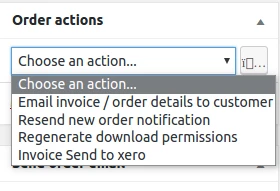
In admin Woocommerce order details page add action ‘ Invoice sent to Xero’ for manually sent invoice to Xero.
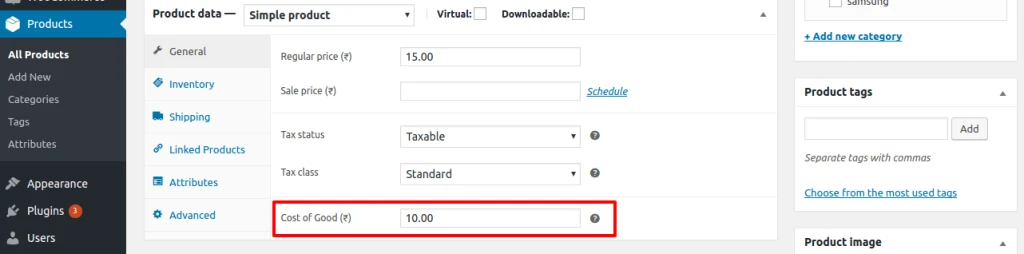
By configure “Cost Of Goods” you can set cost for any product in store.
Cost price help to track profit reports.
We can use cost price in WooCommerce.
WooCommerce detailed Profit report.
Filter by
Profit by date
Profit by product
Profit by category
Details of profit for every product sold.
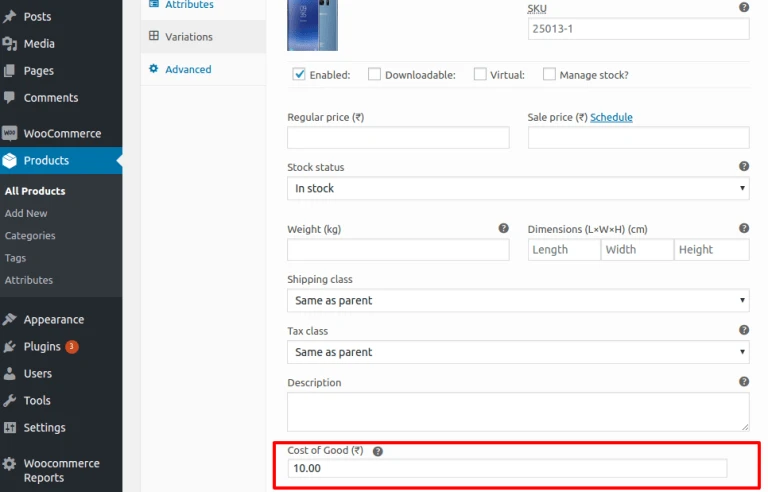
Simple Product Cost Configuration
You can add from the Product Edit screen where a new “Cost of Good” field is added in General tab for simple products and this should be product cost of good.
WooCommerce Cost Price Product
You can add cost of good for each variation product.
WooCommerce Cost Price Variation
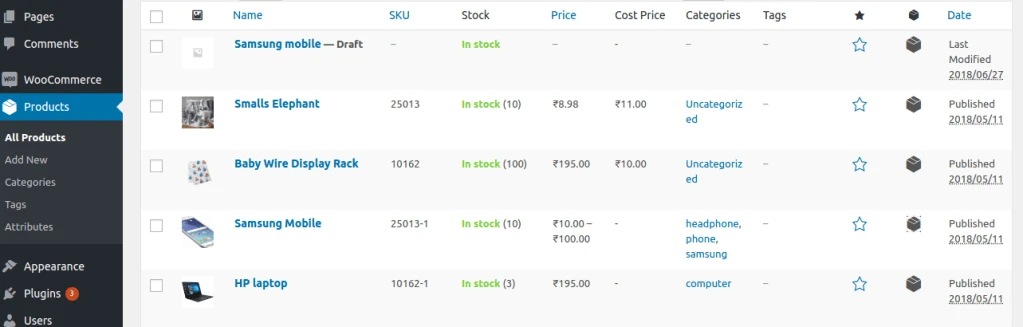
Product page display “Cost of Good” in column “Cost Price”.
Cost Price Product Page
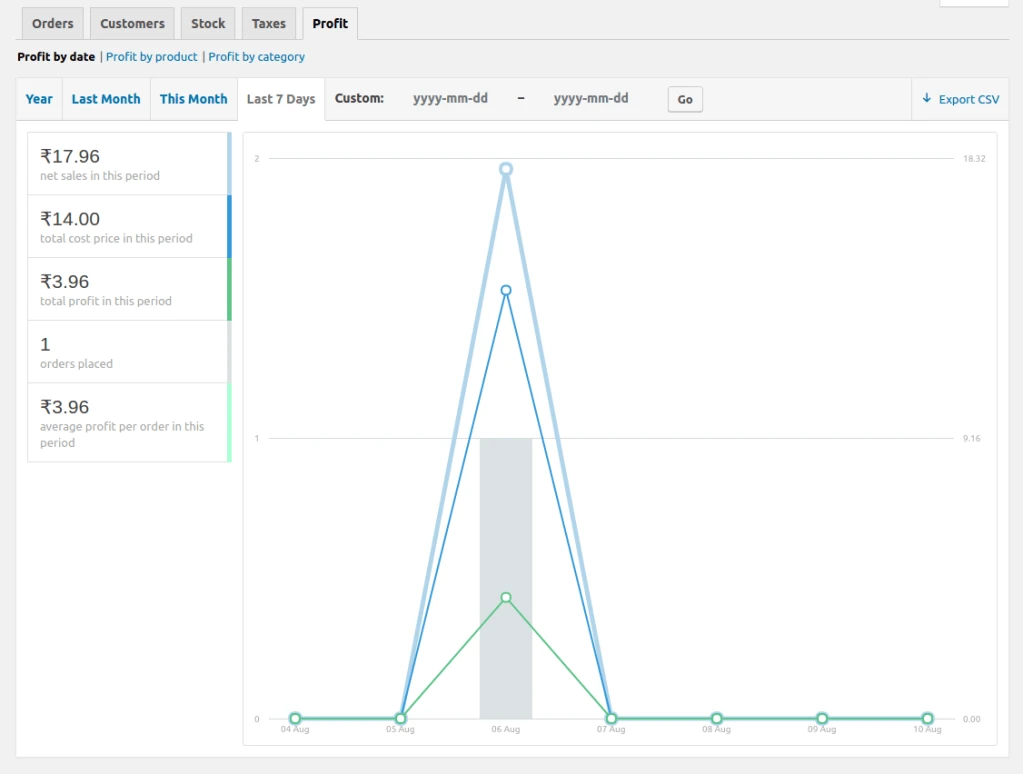
Profit report by Date
See your net sales, cost price, profit, and average profit per order for any date range.
WooCommerce Profit Report by Date
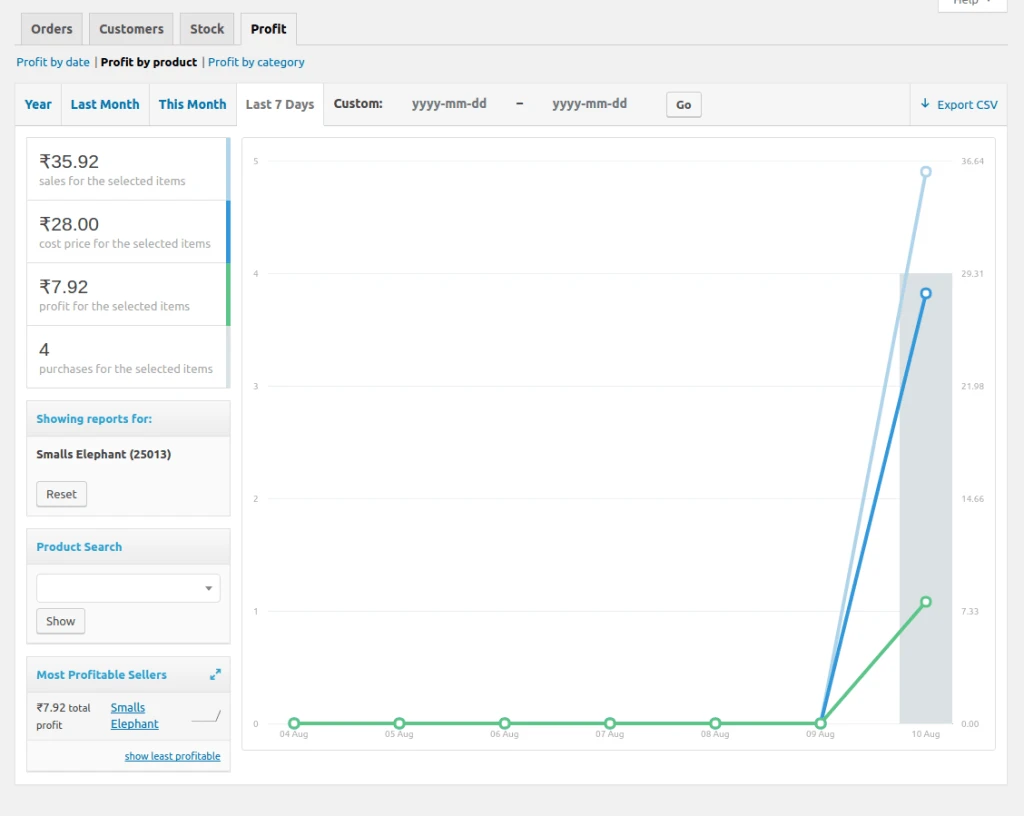
Profit report by product
Net sales for the selected item, total costs, total item profit, and total item purchases for the selected date range.
WooCommerce Profit Report By Product
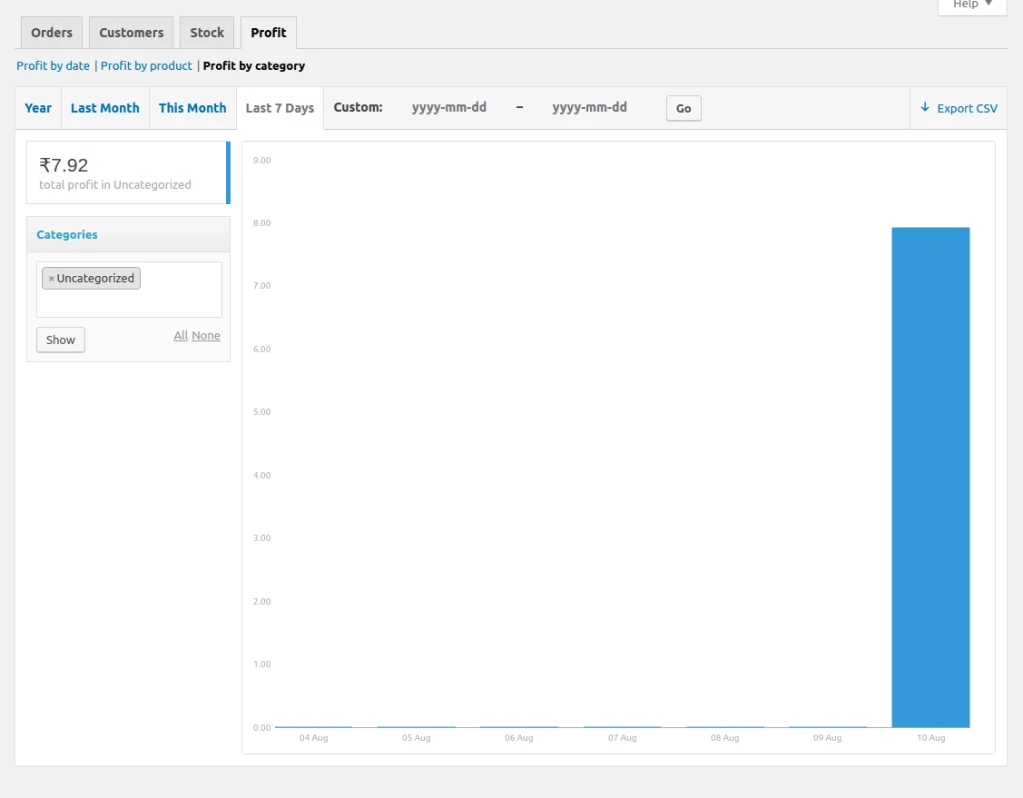
Profit report by category
See profit by product category. You can select one or more category for details.
Features:
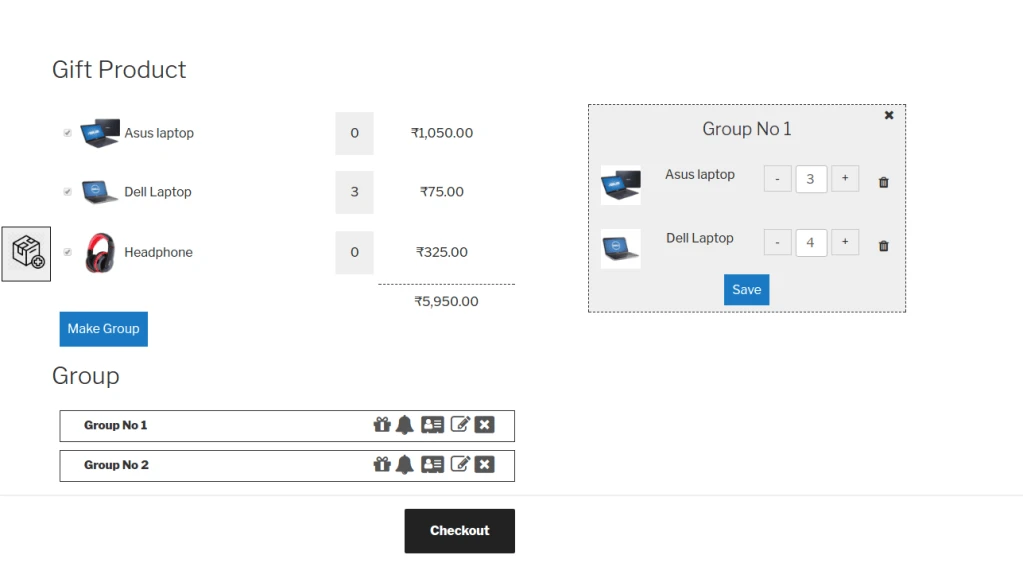
– We can select product for gift from list of cart products.
– Make One or more group and add different delivery address.
– Edit or delete group products and group also.
– Gift wrap option for groups.
– Email notification to customer when order place.
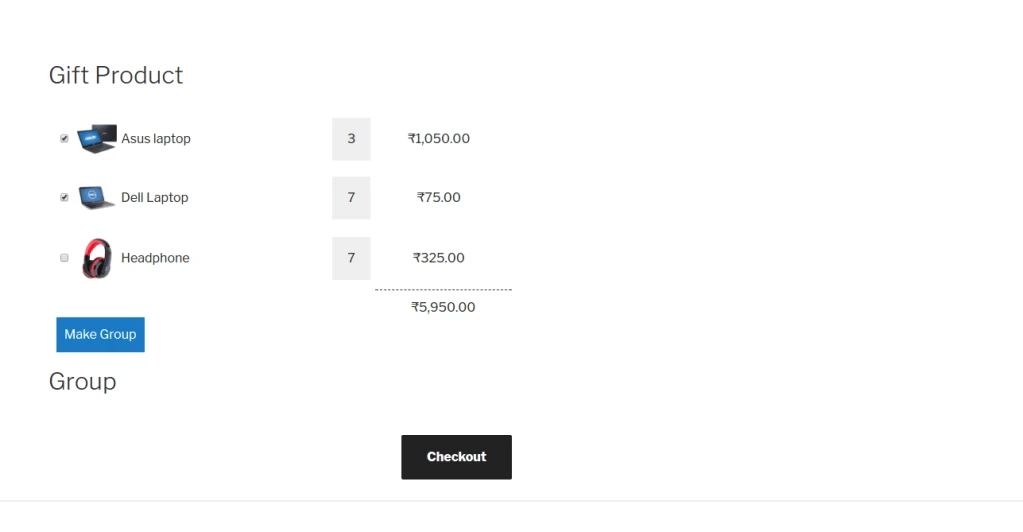
Page that display after cart page when click on ‘Proceed to Gift Product’.
gift_product_page
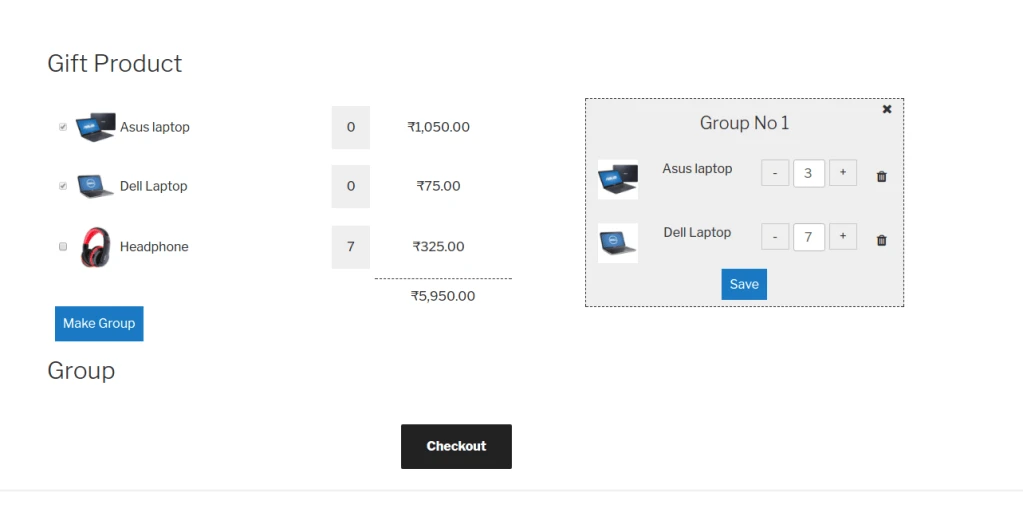
Select number of items from list and make group
gift_product_make_group
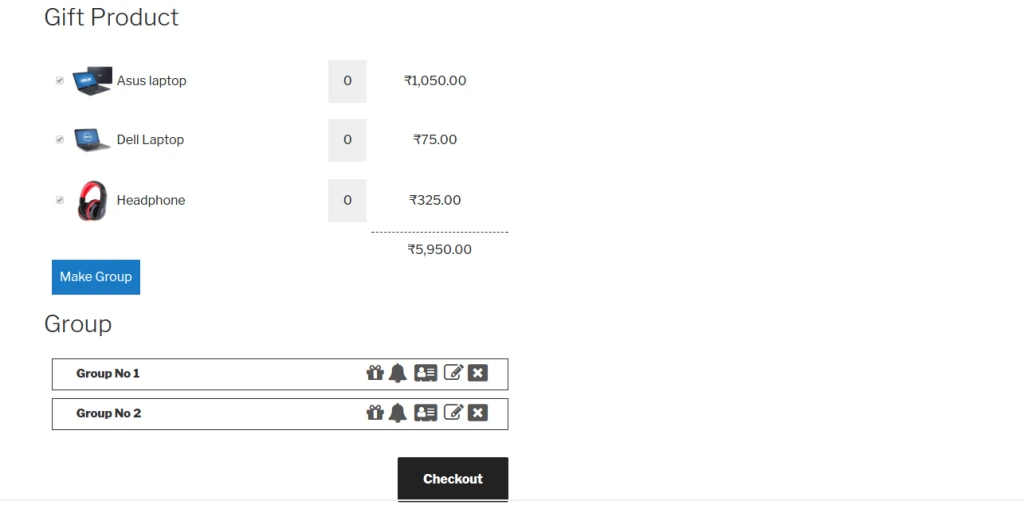
Display list of saved group in Group section.
gift_product_group
Customer can edit or delete group items and group also.
gift_product_edit_group
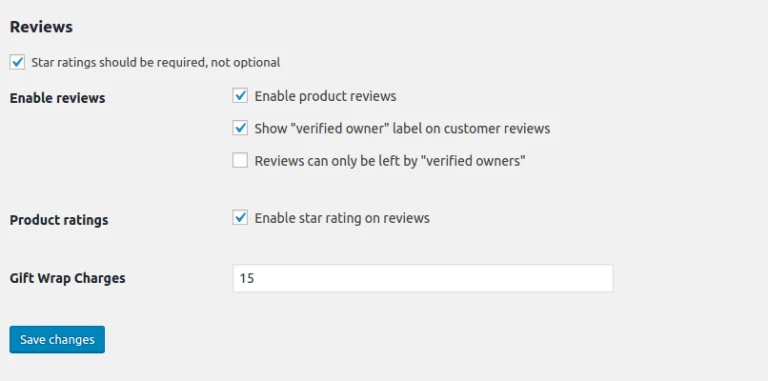
Wordpress -> admin menu -> WooCommerce -> Settings -> Product tab add gift wrap charges.
gift_product_admin
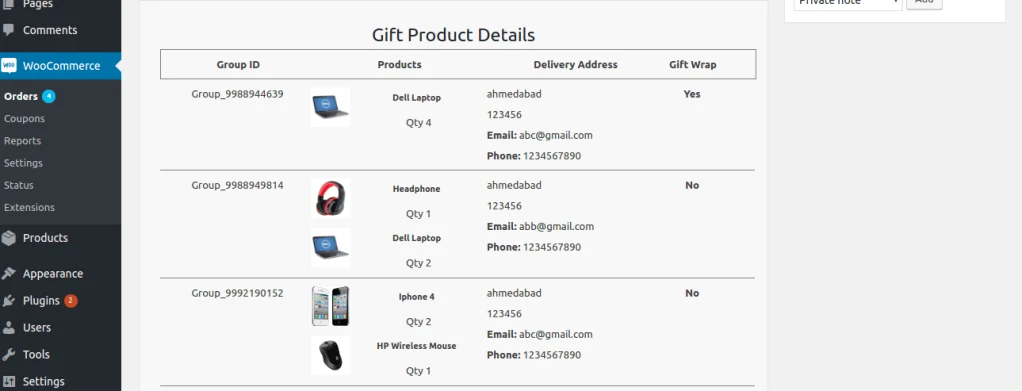
Gift Product details display admin side in order details page.