Make your website more attractive with badges inviting customers to buy. this
plugin helps to display product as ‘new’ label and product is ‘sold-out’. Admin
has an access to change Badges images and its position.
Click here to download
Features:-
Admin can include images of Badges.
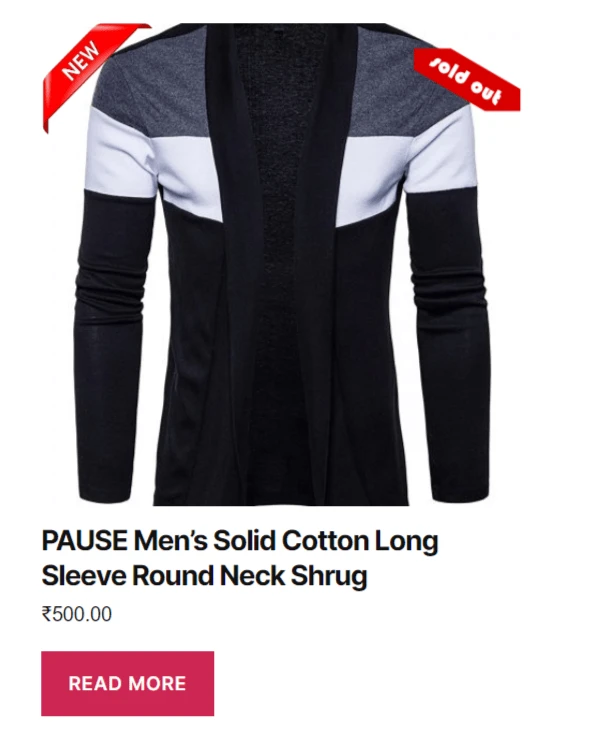
Badges display on the product image in a product loop – item.
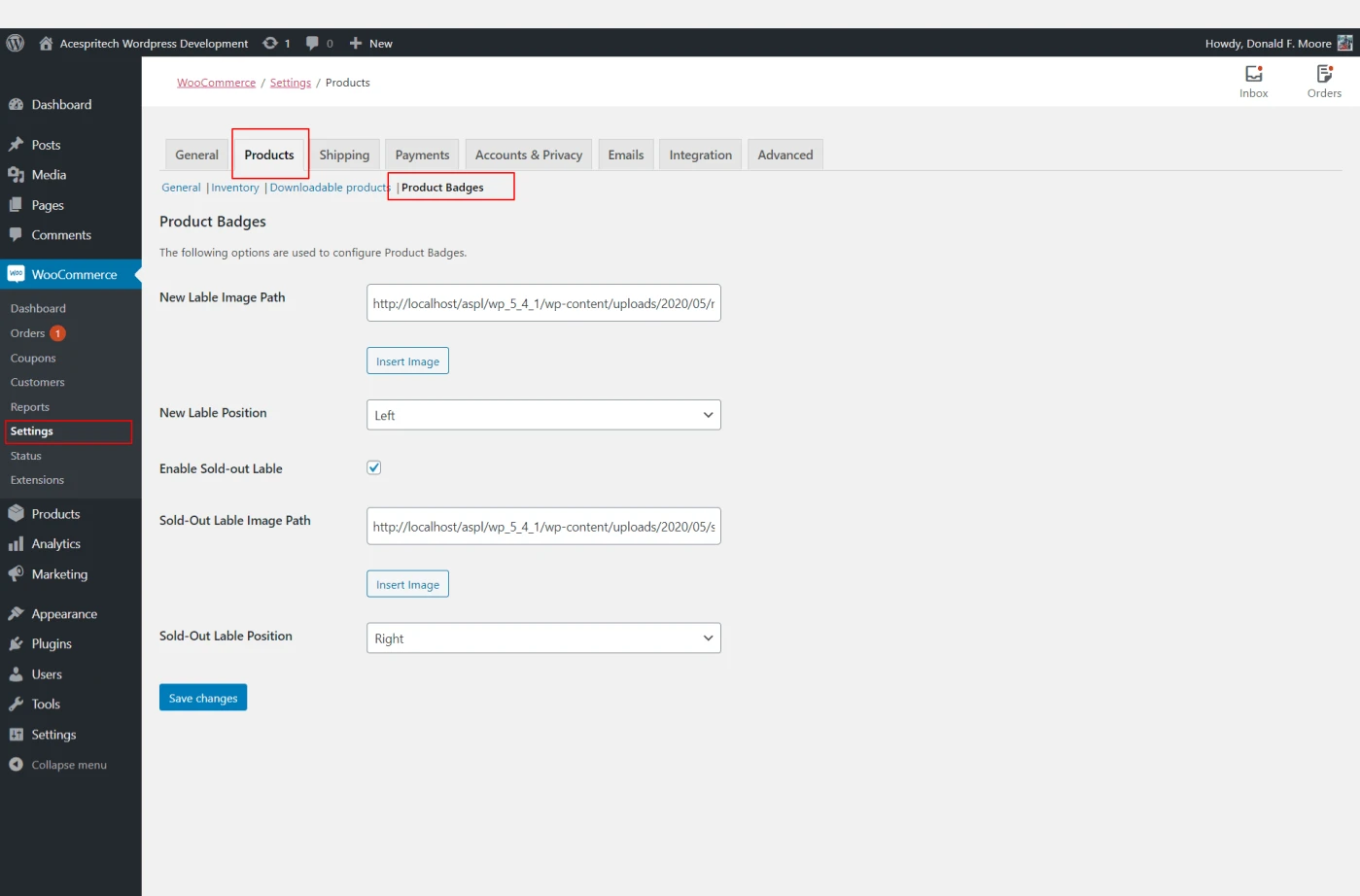
The admin has two options to set the position of Badges right side and left side.
The ‘sold-out’ functionality is display on product is out of stock and it’s enabled by setting.
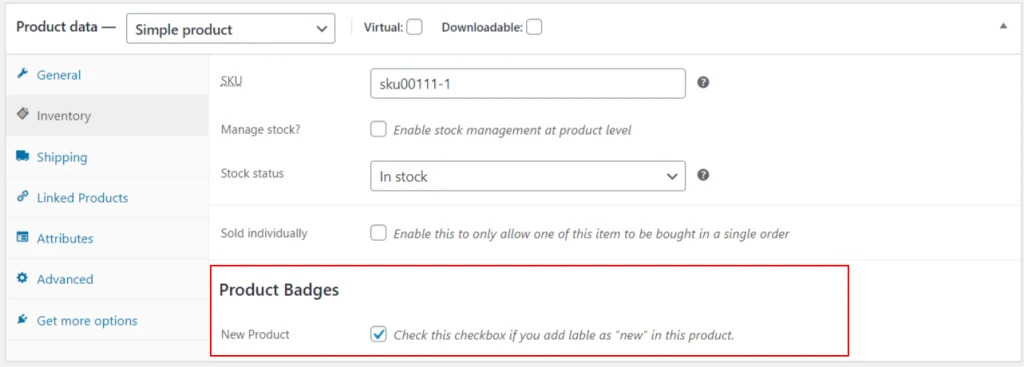
Admin can manage ‘new’ product label configuration by a product data tab.
Enable ‘new’ label for product.
Enable New liable Product
Setting page for Product Badges.
Setting Page for Product Badges
Setting page for Product Badges.
Front end Side Display Product Badges
Share this:
Click to share on Facebook (Opens in new window)
Click to share on LinkedIn (Opens in new window)
Click to share on Twitter (Opens in new window)
Click to share on Reddit (Opens in new window)
Click to share on Tumblr (Opens in new window)
Click to share on Pocket (Opens in new window)
Click to share on Pinterest (Opens in new window)
More
Click to print (Opens in new window)
Click to email this to a friend (Opens in new window)
ASPL Feedback System Plugin will help you to get the genuine and valuable
feedback from your potential user. This will play a vital role in your business
success.
Click here to download
Features:-
Admin can create multiple feedback template with bunches of
questions and multiple answer for that question.
Admin can add feedback page link in the menu and anywhere
in theme to customer feedback.
Admin is set to display template on the Feedback page.
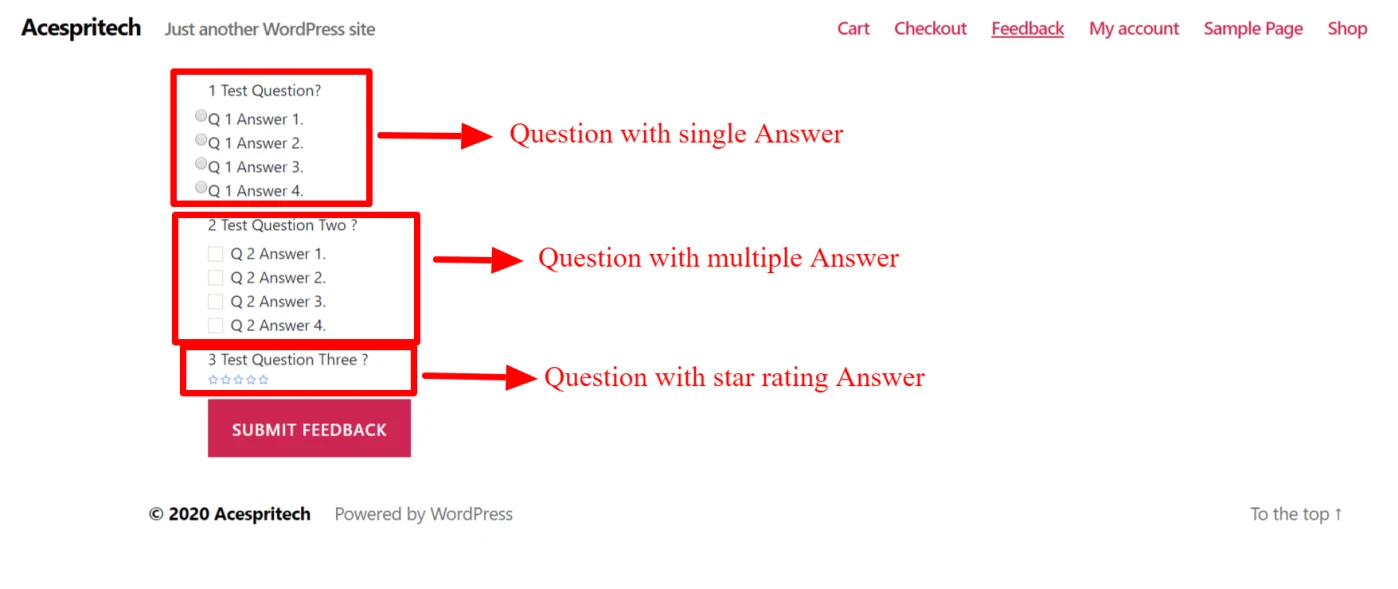
Customer get multiple options to submit one question’s answer.
Admin can have types of feedback template: For Products and General.
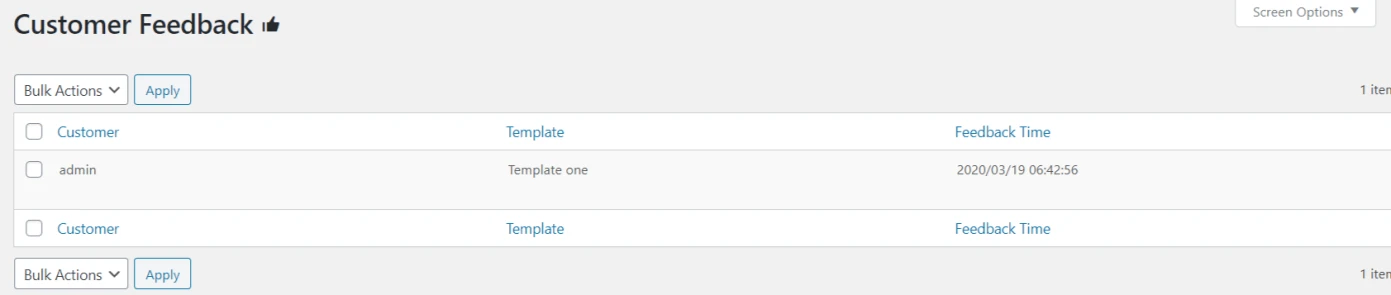
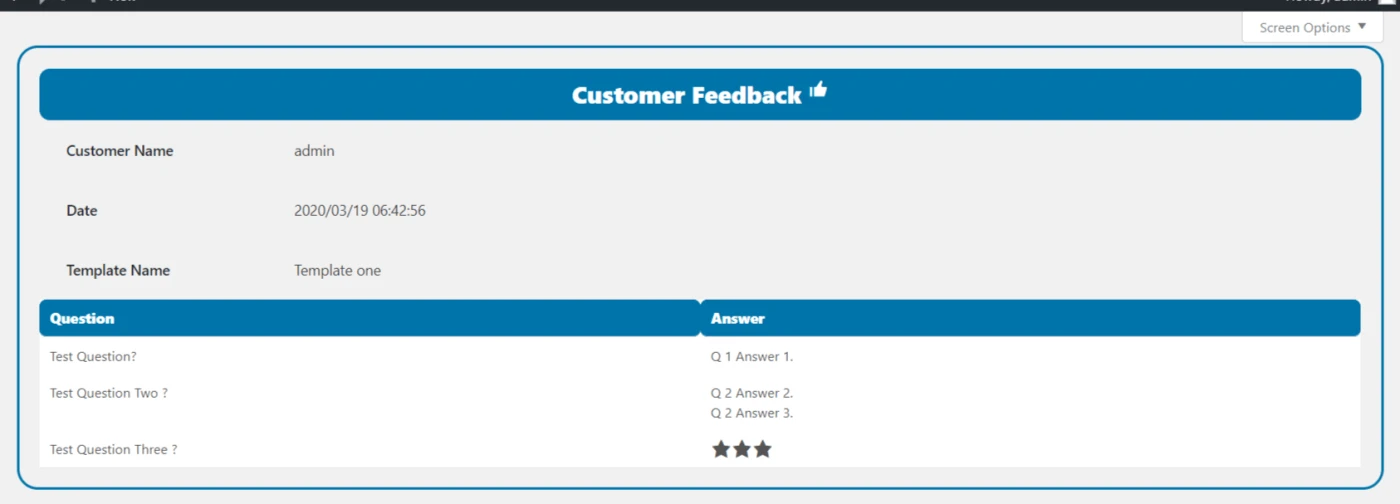
Display feedback template and Customer Feedback lists in table view.
Send E-Mail to customer for feedback on purchase product.
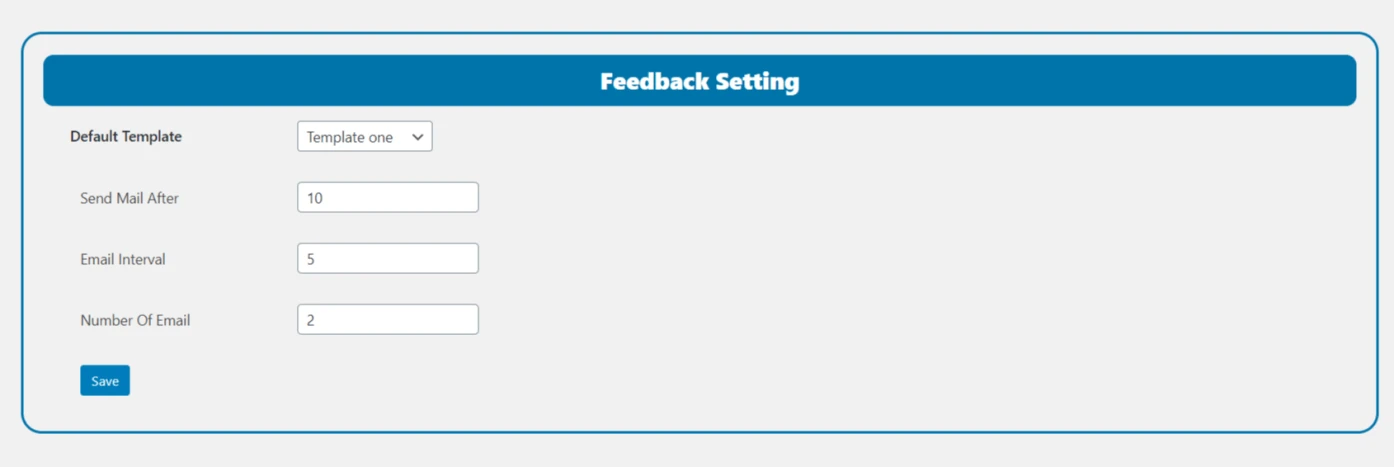
Admin is setting to set the duration for sending Email and the
limitation number of emails.
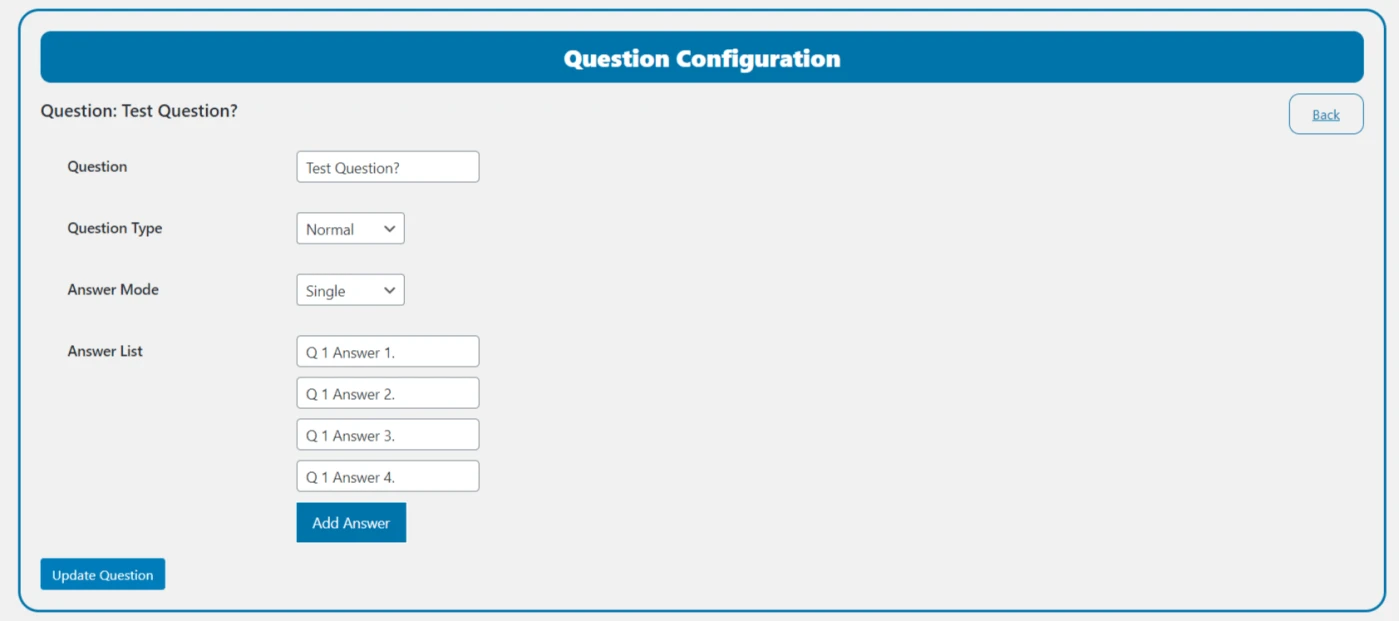
Admin can add view star rating option for the Question’s answer in feedback template.
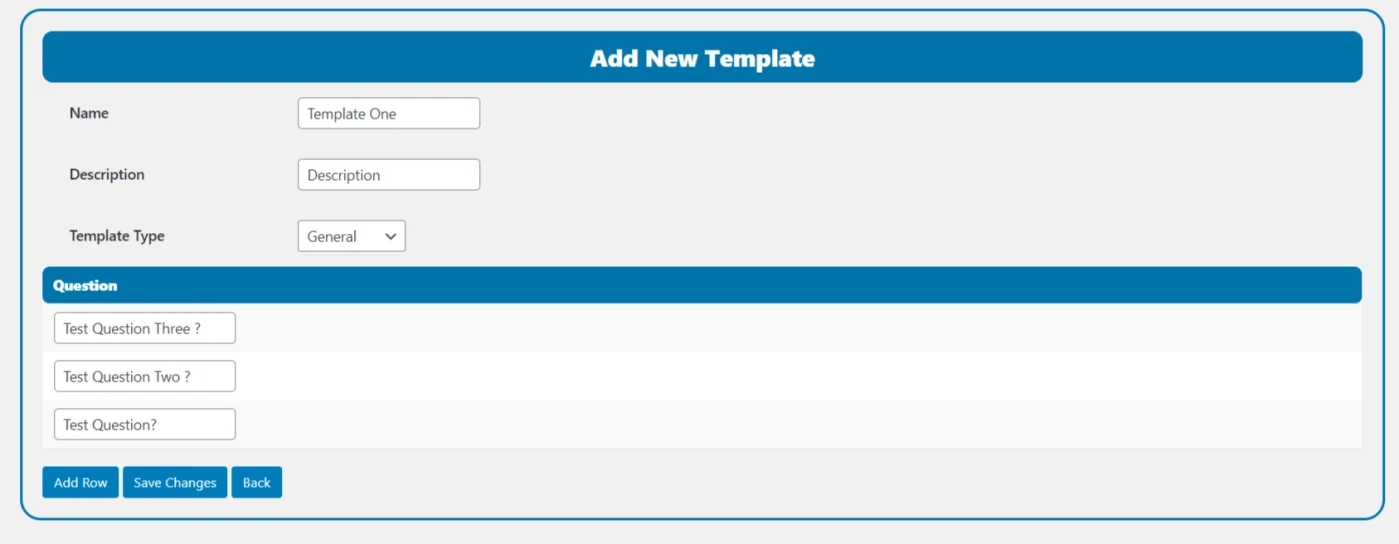
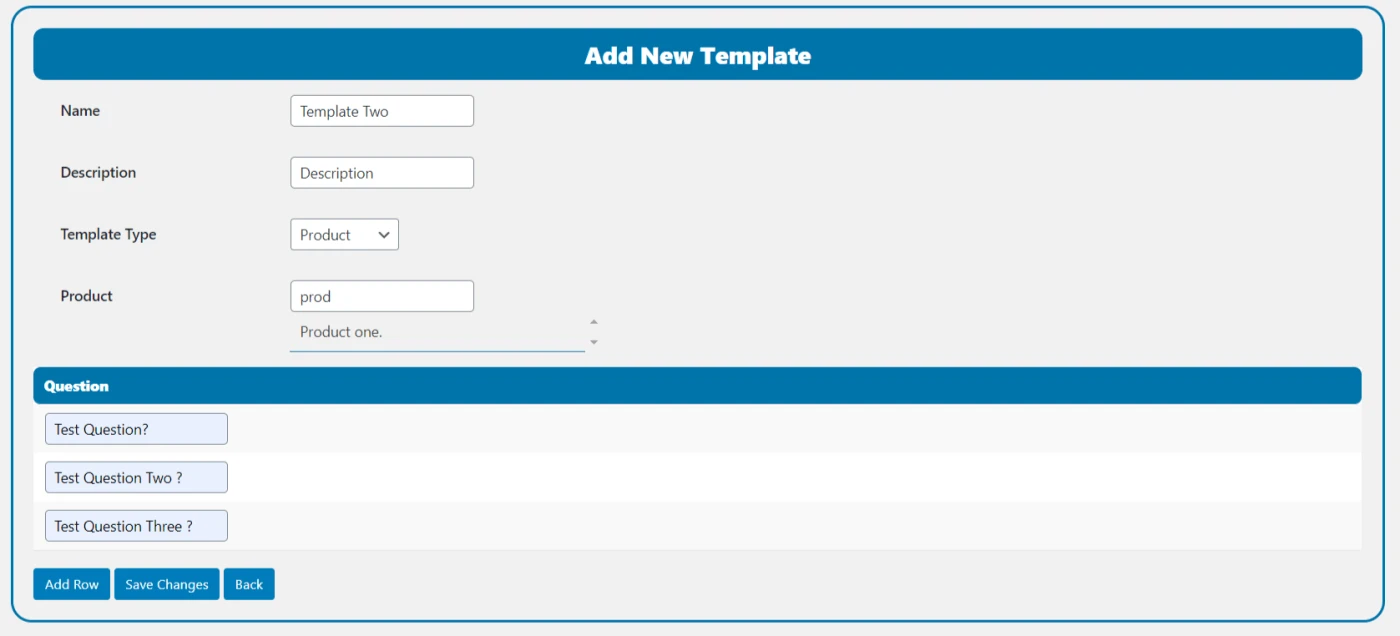
Create a new Template.
Create New template
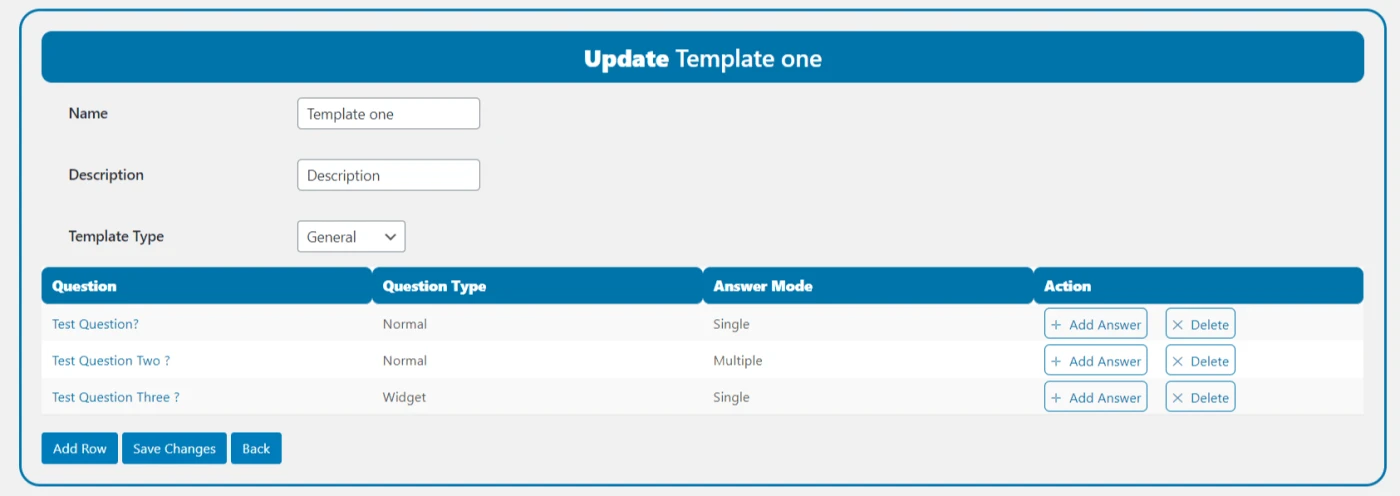
Update a Template.
Update Template
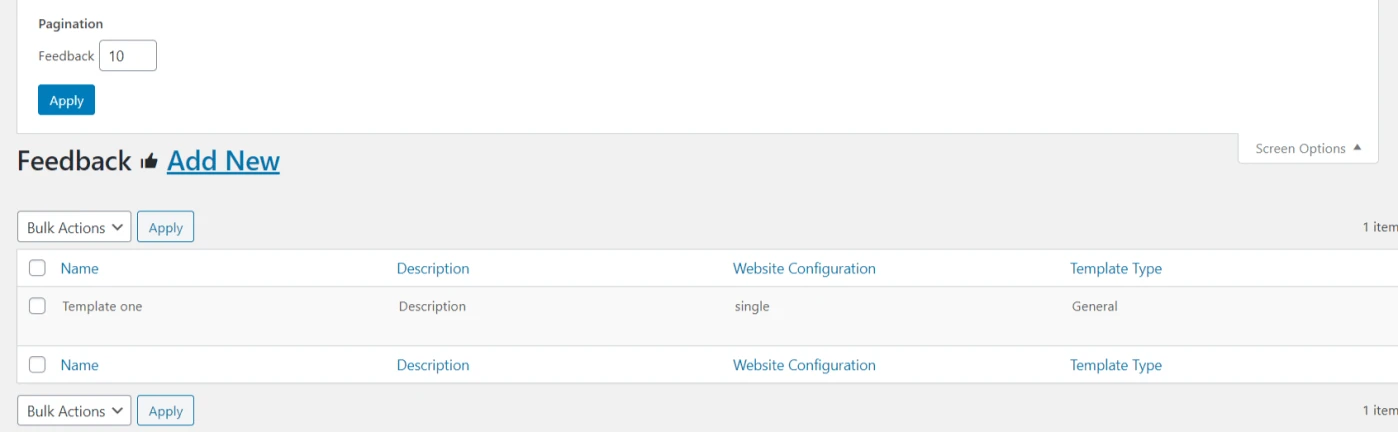
Template list for admin.
Template List for Admin
Add answer and configuration Question.
Add answer and Configuration Question
Feedback plugin setting page for send email or set
template.
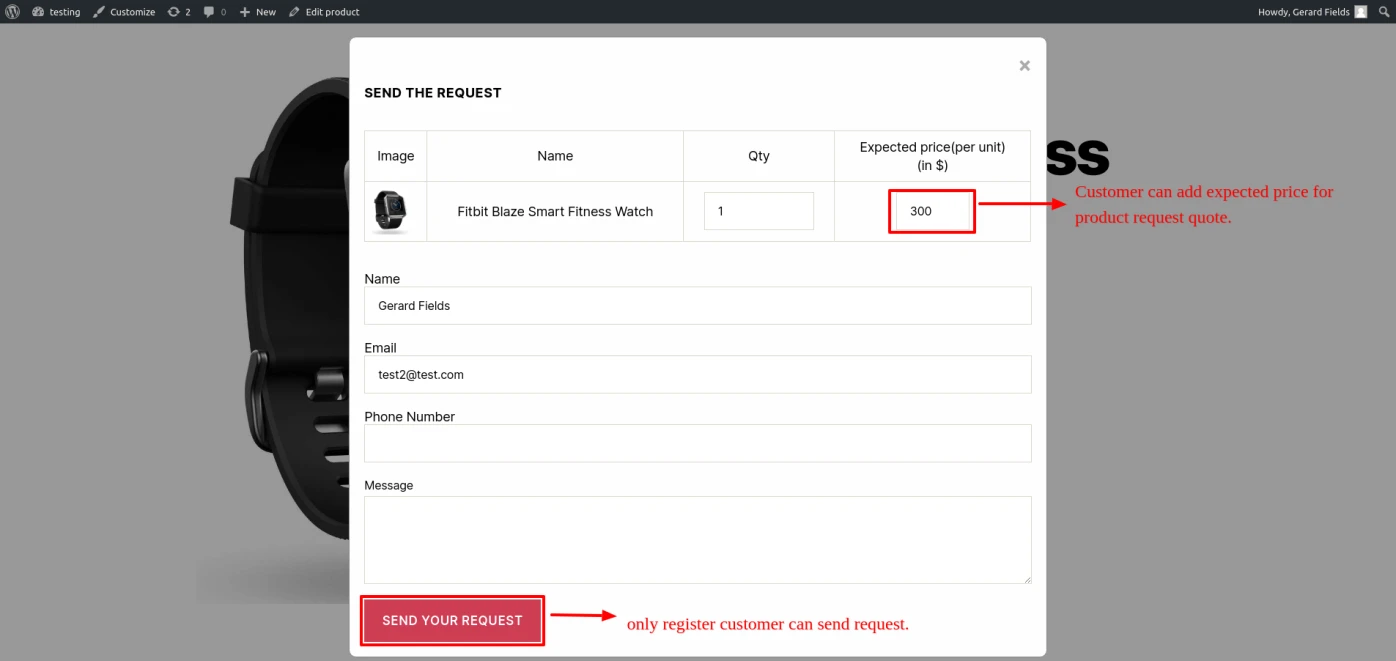
Product quote request submission for logged-in users only.
Provides a customizable form for users to submit a Product Quote.
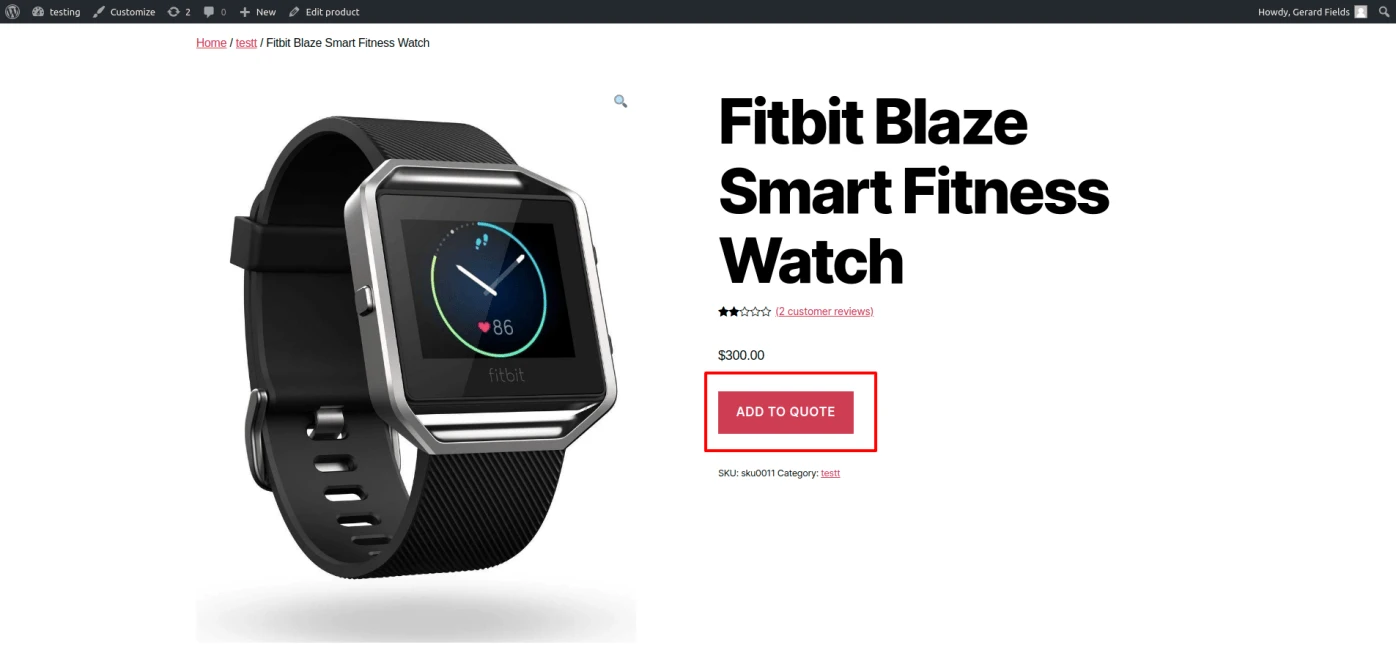
Display product add-to-quote button in product page.
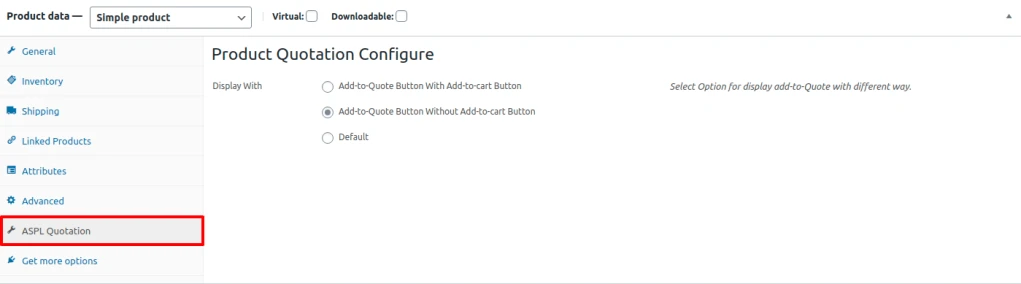
There are three option to set product quote button (1) add-to-quote with add-to-cart button (2)
add-to-quote button without add-to-cart button and (3) default.
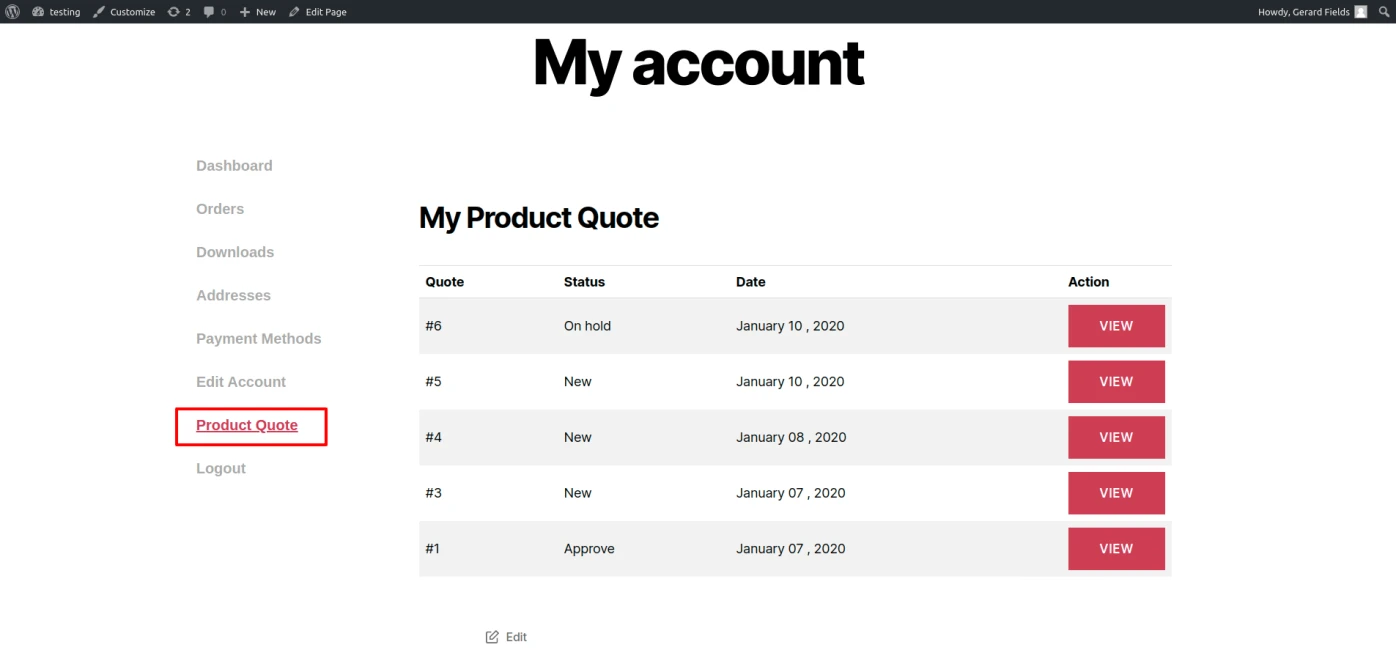
Display user all request quote detail in my-account area which is submitted with status.
Admin acn delete request of product quote and change status of Quote.
User get gmail whene Request status is update by admin.
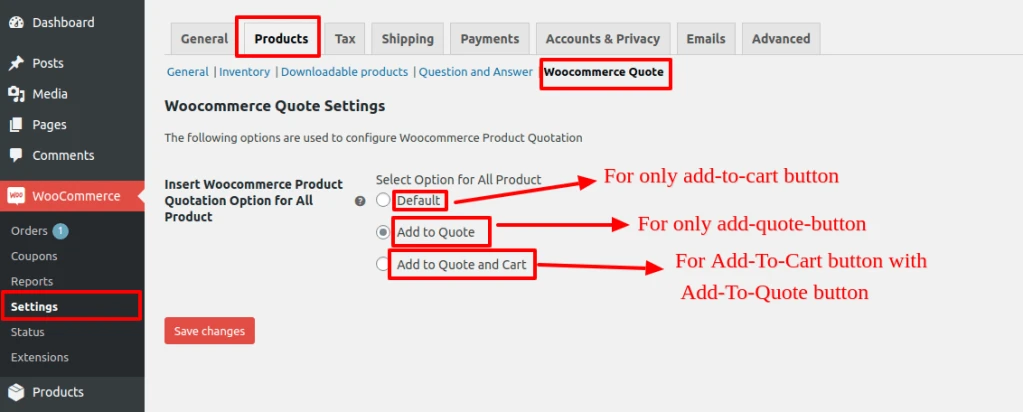
Admin can Add To Quote Button for all page from
WooCommerce – Setting – Products – Woocommerce Quote.
Admin can configure add to quote button for particular product in product tab ‘ASPL Quotation’.
Product Configuration for Quotation
Admin can easily set product quote option with multiple way to display quote for all products form WooCommerce – Setting – Products – WooCommerce Quote.
Set Option for all Product
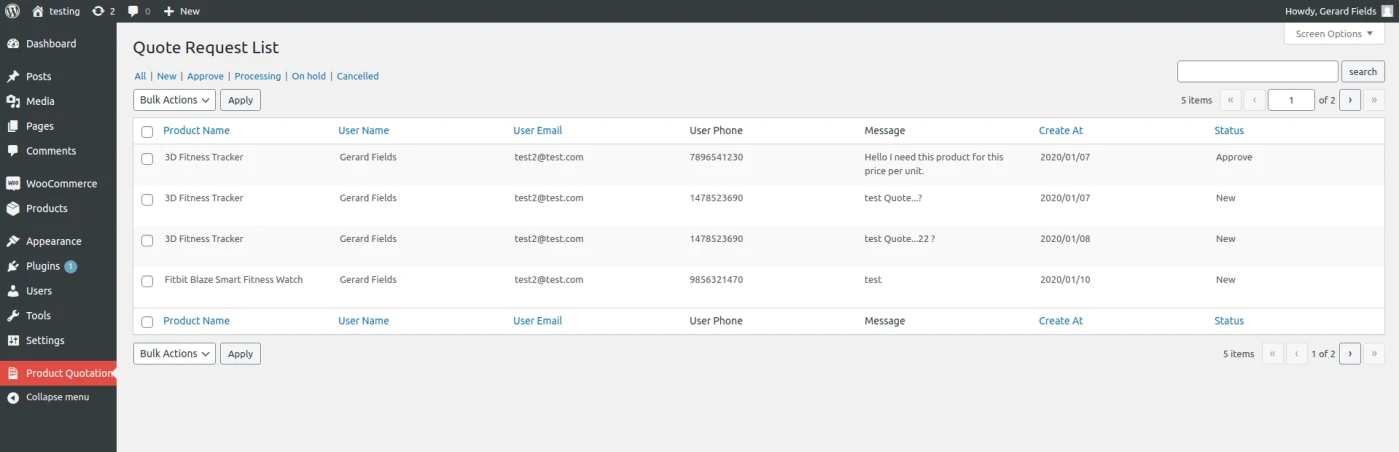
Admin can see the list of product request and edit or delete and update request status.
Product Request List
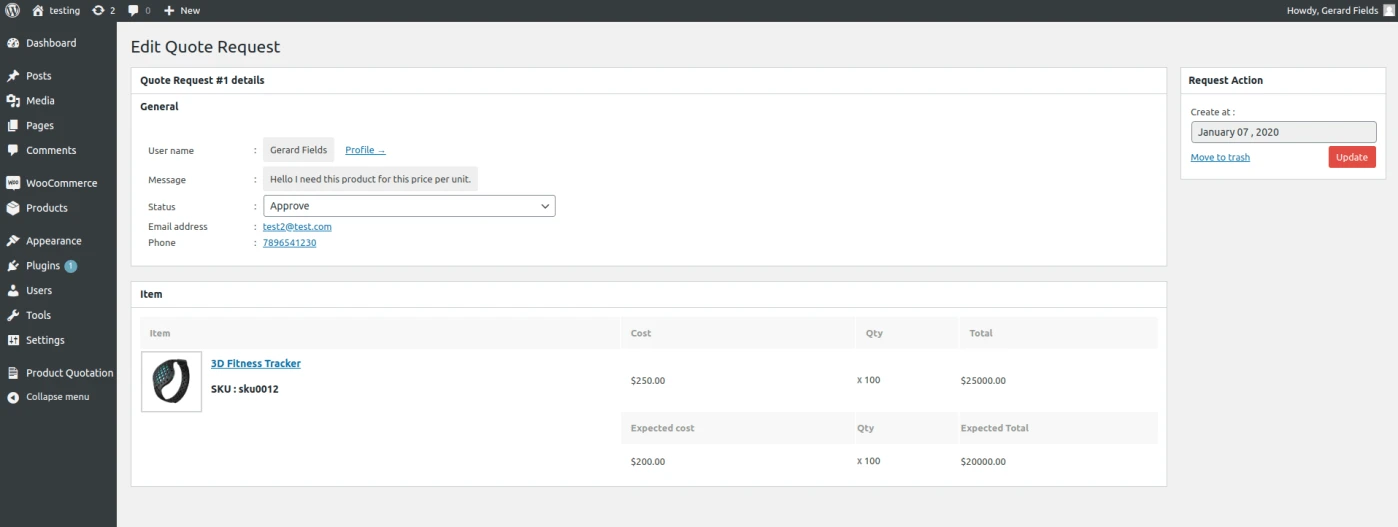
Admin can see all detail in edit page of request quote like customer profile, customer contact number, customer email id, customer request message and comparison between original and expected product price.
User get gmail when admin can change product quote status.
Product Quote Request Edit
User can see his request quote list in my account area .
Product Quote Data User Side
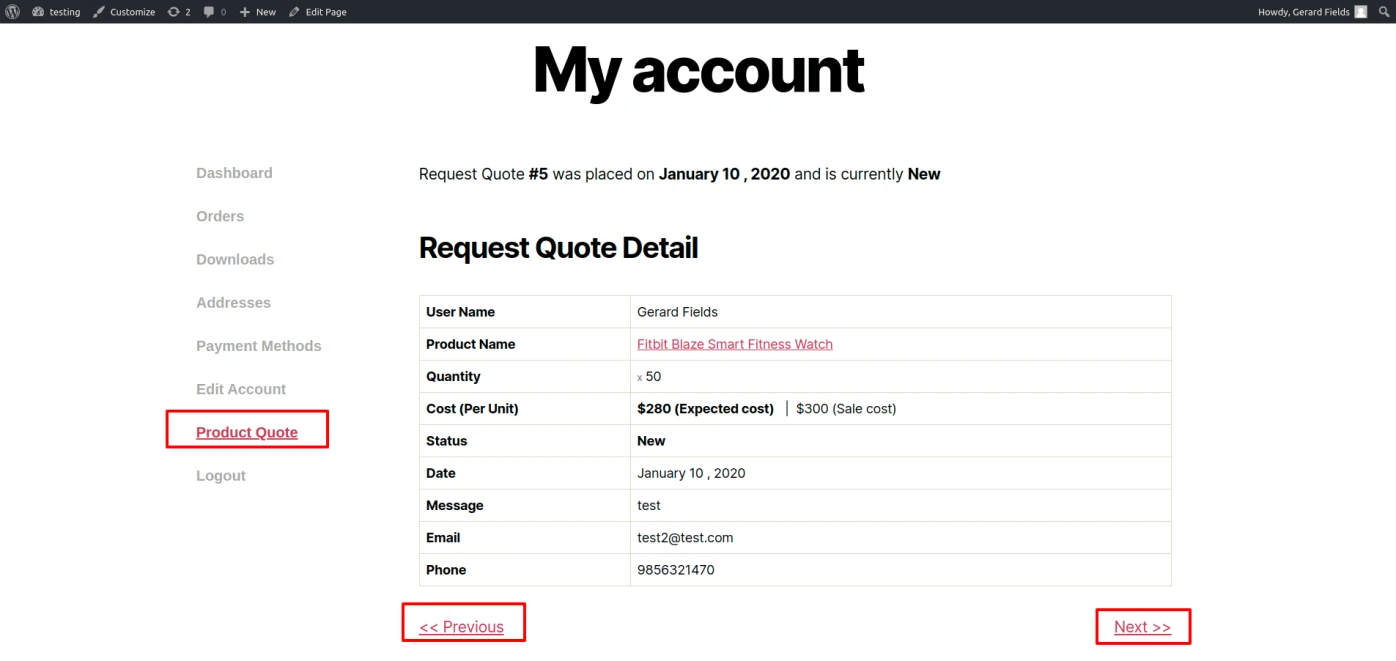
User get all the detail of request quote one by one in product quote view page in my account area.
Product Quote Request Detail User Side
Button of add to quote is display in product page by admin configuration in product tabs.
Product Quote Button in Shop Page
User can click on add to quote button then open this quotation form to user can easily request for product quotation. (Only register user can send the product quote request)
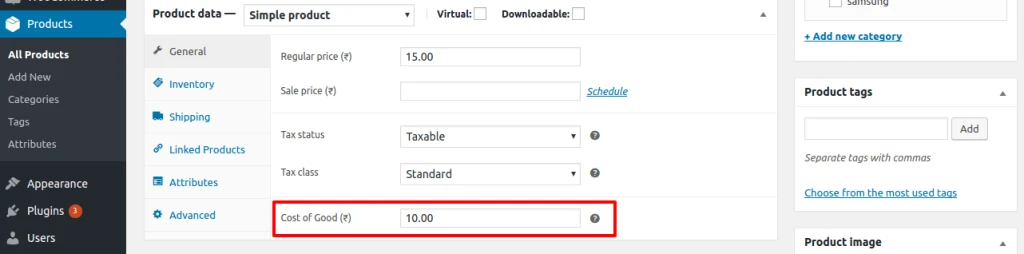
By configure “Cost Of Goods” you can set cost for any product in store.
Cost price help to track profit reports.
We can use cost price in WooCommerce.
WooCommerce detailed Profit report.
Filter by
Profit by date
Profit by product
Profit by category
Details of profit for every product sold.
Simple Product Cost Configuration
You can add from the Product Edit screen where a new “Cost of Good” field is added in General tab for simple products and this should be product cost of good.
WooCommerce Cost Price Product
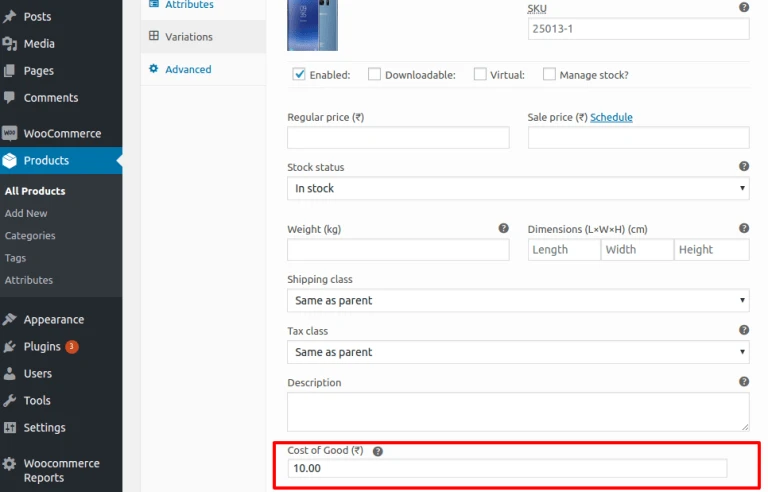
You can add cost of good for each variation product.
WooCommerce Cost Price Variation
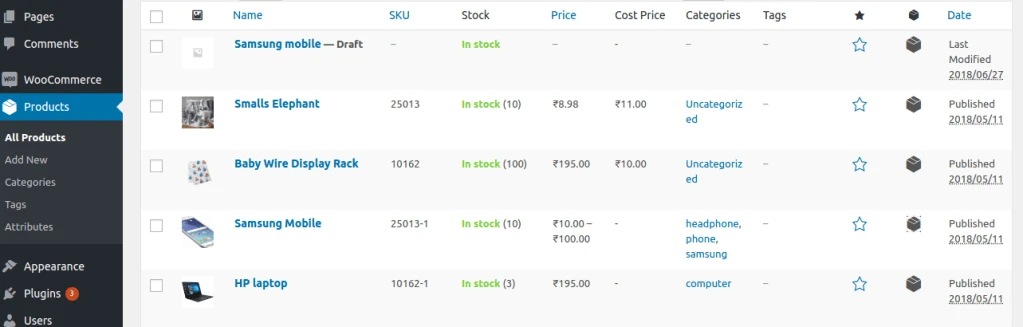
Product page display “Cost of Good” in column “Cost Price”.
Cost Price Product Page
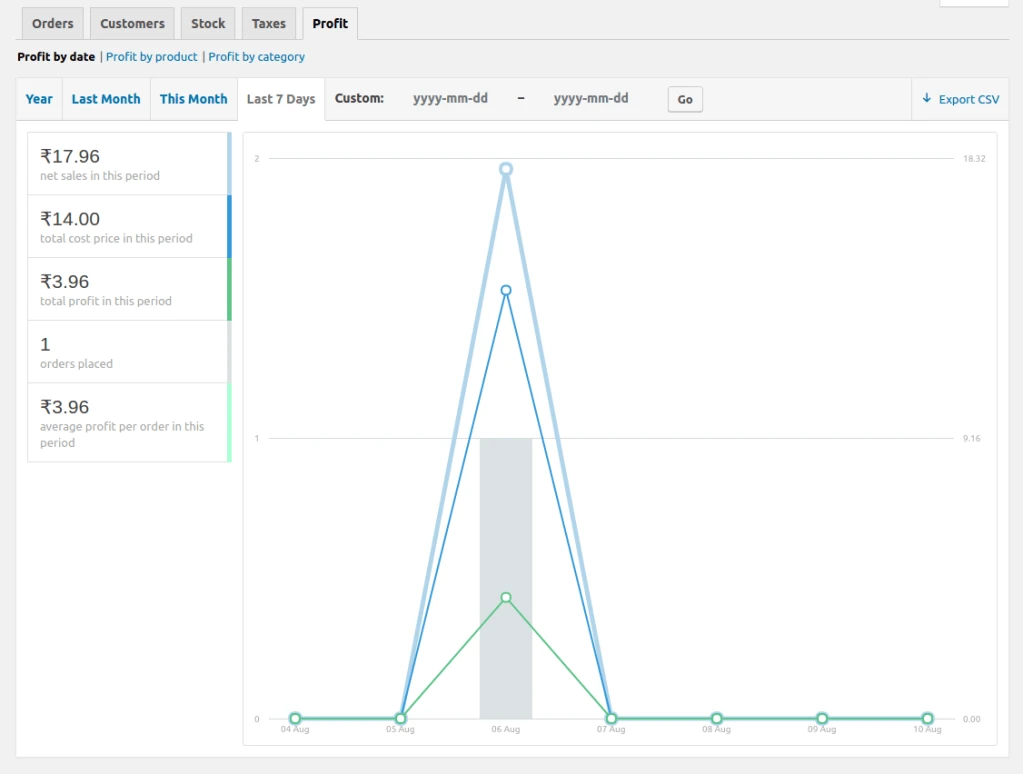
Profit report by Date
See your net sales, cost price, profit, and average profit per order for any date range.
WooCommerce Profit Report by Date
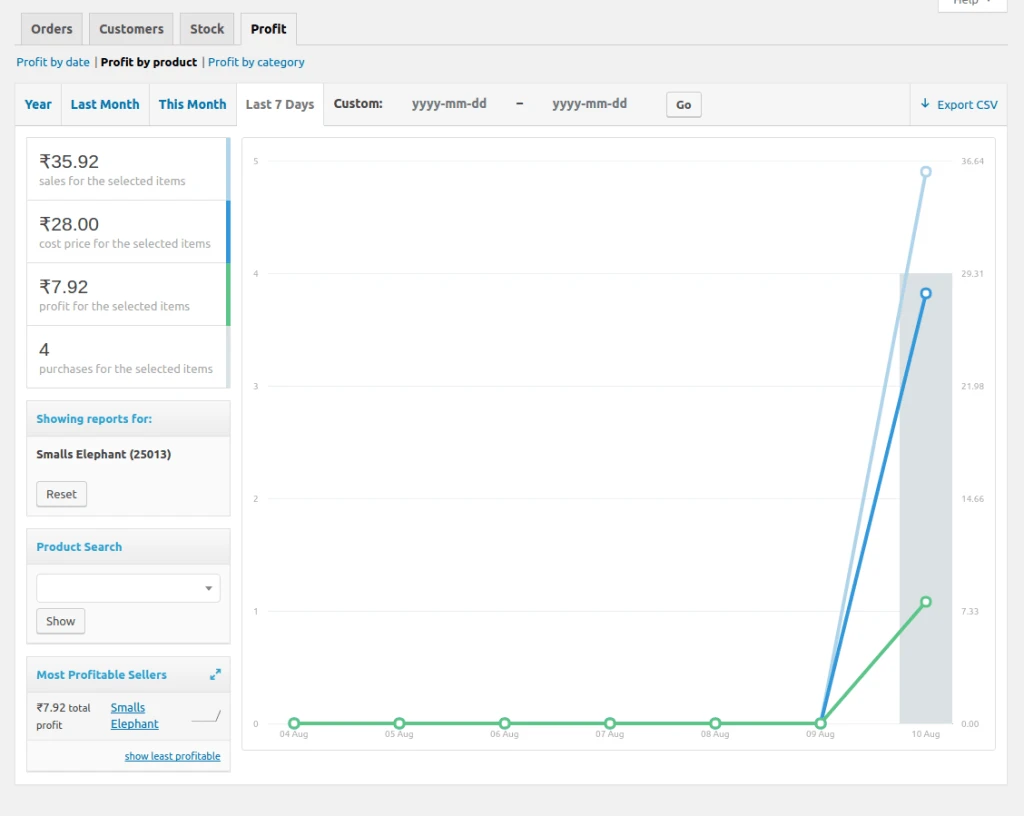
Profit report by product
Net sales for the selected item, total costs, total item profit, and total item purchases for the selected date range.
WooCommerce Profit Report By Product
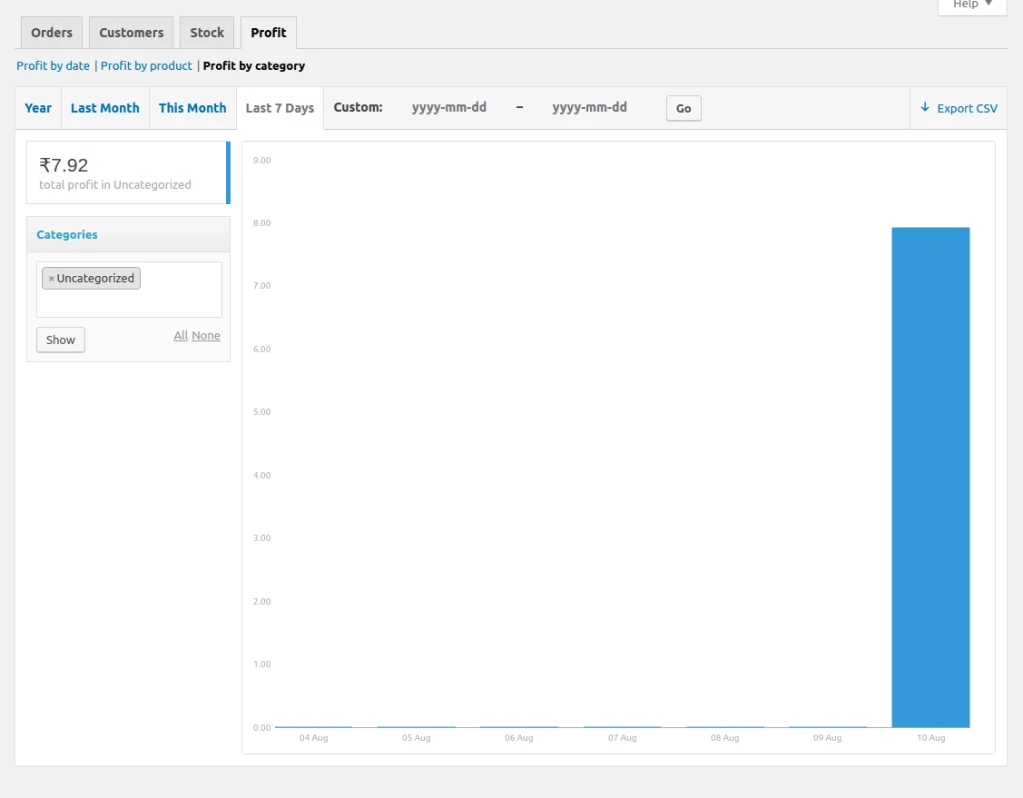
Profit report by category
See profit by product category. You can select one or more category for details.