Click here to download from Odoo Apps
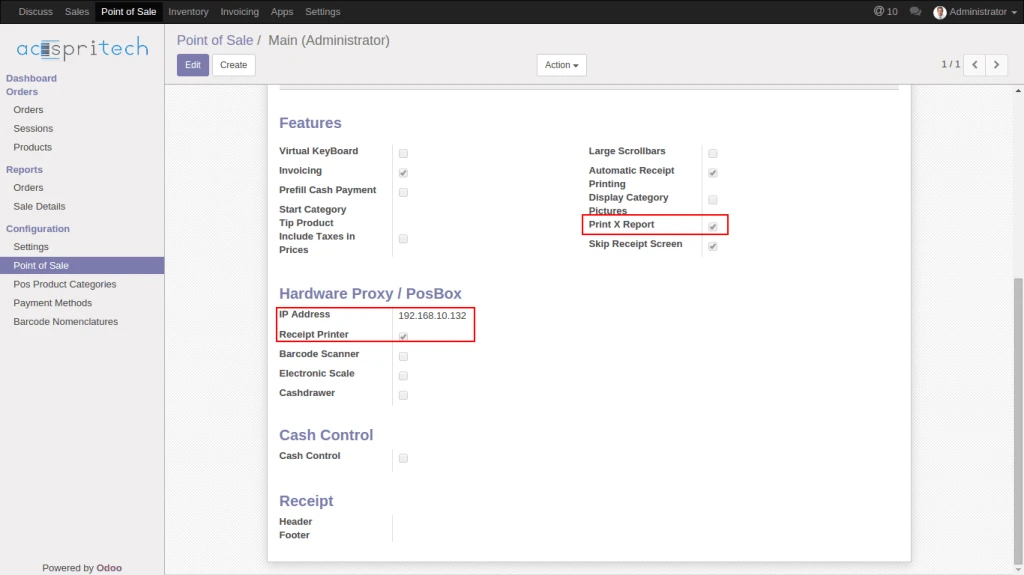
Configure Hardware Proxy / PosBox for the printer, If hardware is not connected or not configure then it will print in PDF format
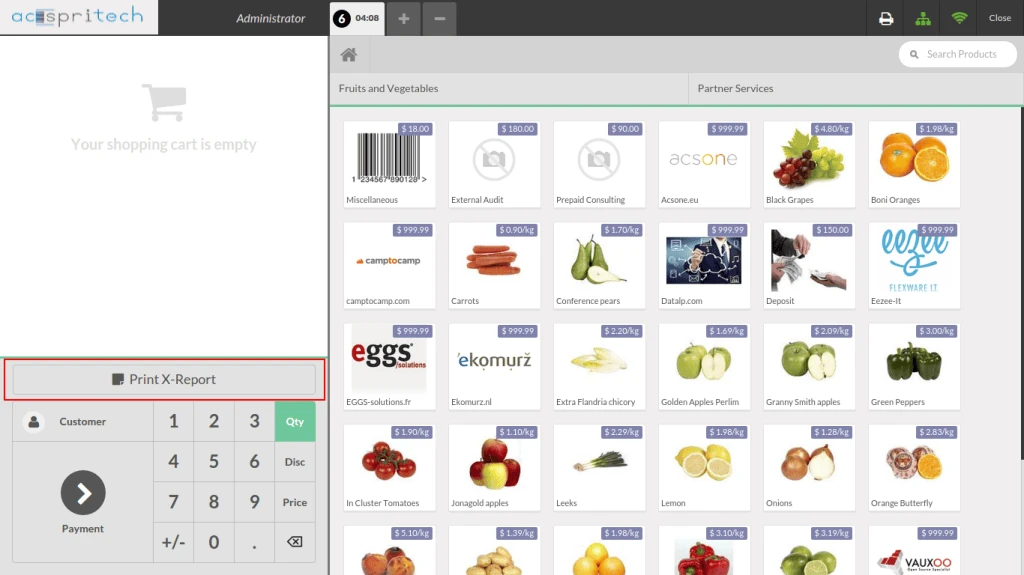
Print X-Report from below button
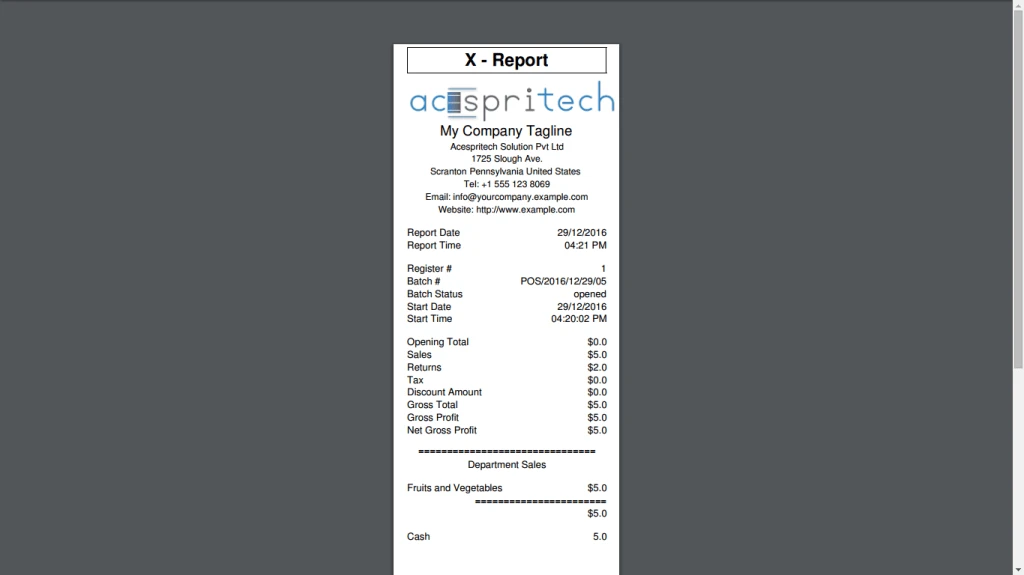
Here is the printed X-Report
Advertisements
Click here to download from Odoo Apps
Configure Hardware Proxy / PosBox for the printer, If hardware is not connected or not configure then it will print in PDF format
Print X-Report from below button
Here is the printed X-Report
How to install OpenERP 6.1 and OpenERP 6.0 on Windows Vista and Windows 7 in 10 Minutes
Download Windows Auto-Installer from http://www.openerp.com/downloads/
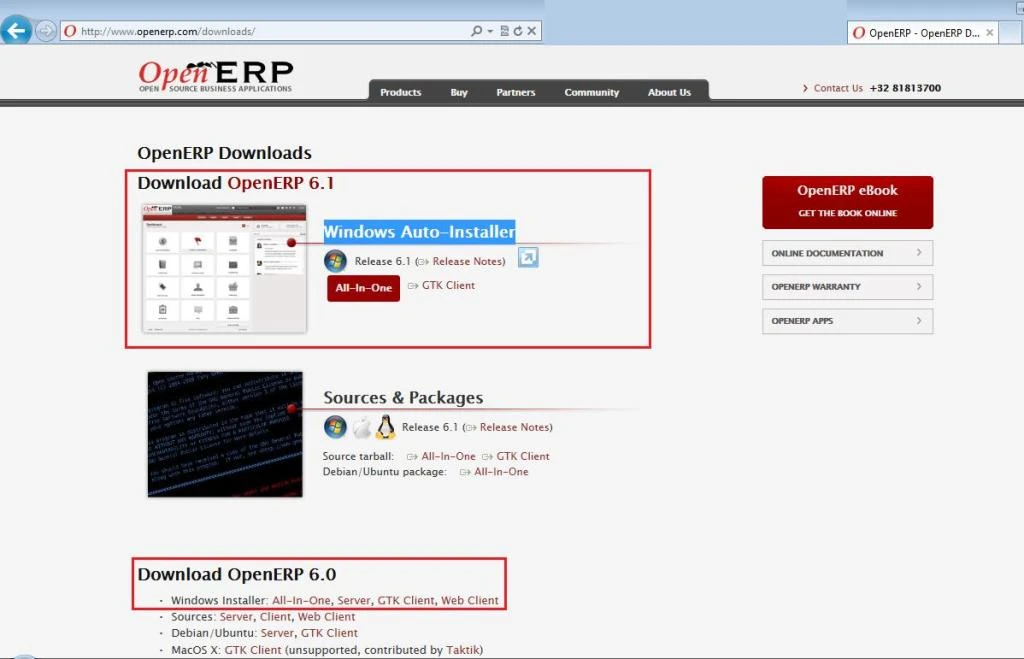
Click on the installer.
Select a language in which you want to install Open ERP.
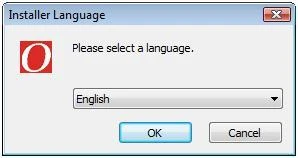
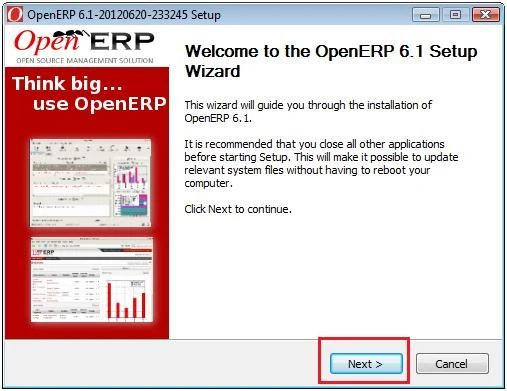
Click next in the following wizard.
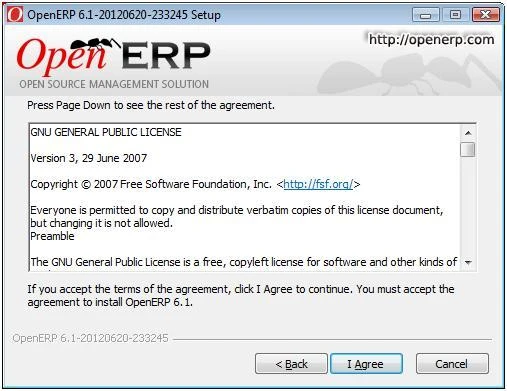
Accept the Terms of Agreement to install OpenERP 6.1 / 6.0
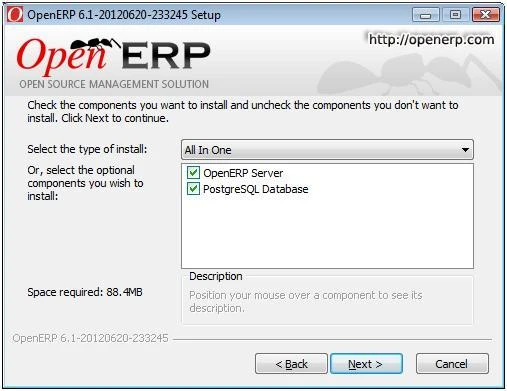
There are three types of installation are available to install OpenERP 6.1
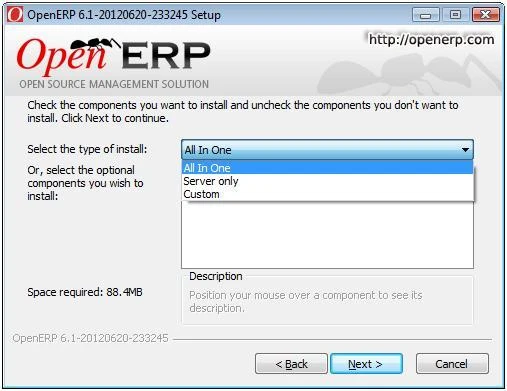
We select All in One installation.
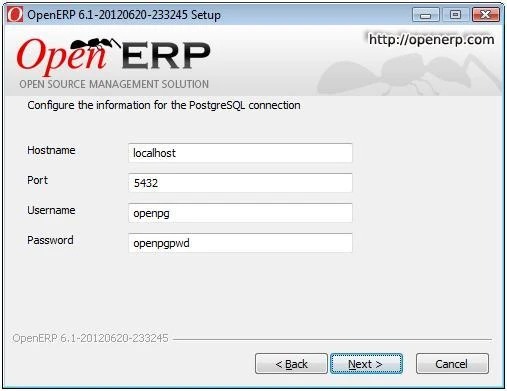
Keep the default values for Hostname, Port, Username and Password.
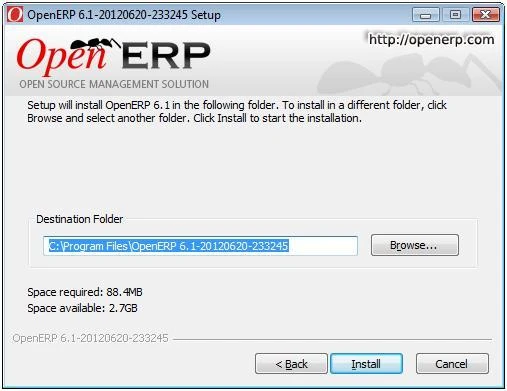
Select the destination folder where you want to keep all modules related to OpenERP 6.1 and click Install.
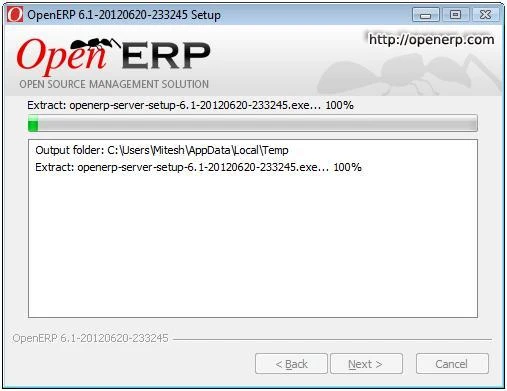
It will take 5-10 minutes to complete the installation.
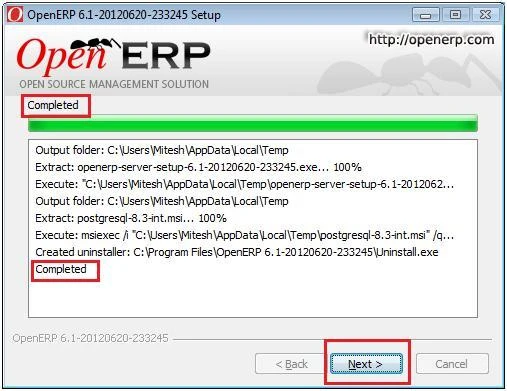
Finish the installation.
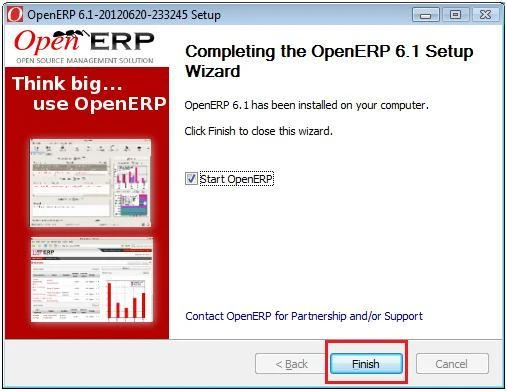
We are ready to go…
http://localhost:8069/web/webclient/home
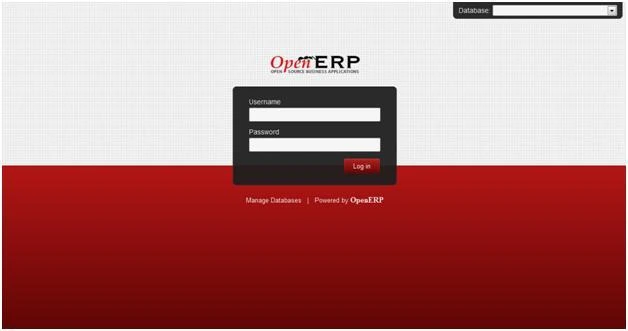
Done!!!
🙂
Assume that we are running our business in OpenERP and managing all our processes in good way. We are selling products to our customers and update product price according to market. When we have started our business, we were sell product X in 10 USD but now we are selling the same product in 50 USD. It shows that our business is going good way and also getting new customers.
But we have one big question in our mind is that how this price has been changed from 10 USD to 50 USD means at what time we have changed price of our product. We have no track for this change. Just to overcome from this situation we have implemented a solution.
After installing module, you will see “Product Rate” menu at this location : “Configuration/Products”
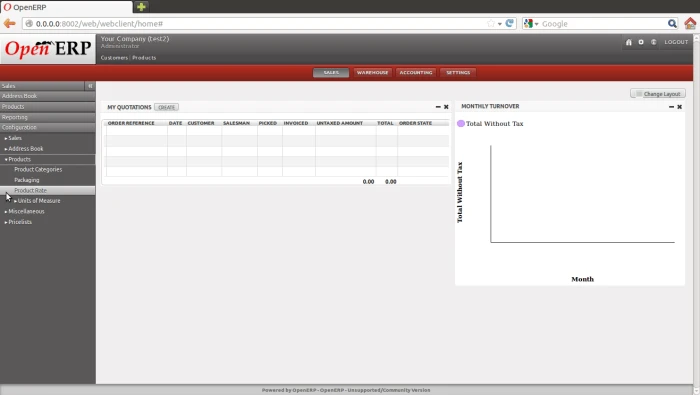
Now select product that you want to configure. We have just added some prices as per date.
Latest price is selected according to last date.
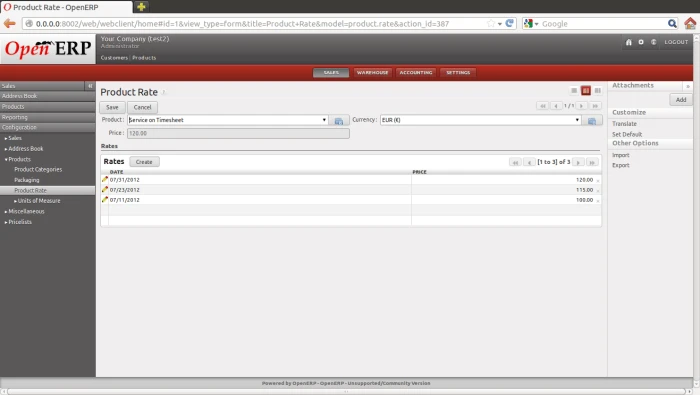
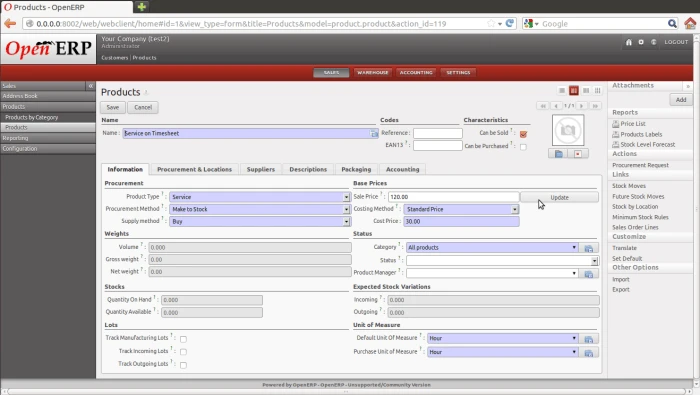
Now just open product form. You will see “Update” button besides Sale Price field. User can also enter price manually. Sale Price will update from configuration table after click on “Update” button.
Pricelist is just an option by which we can set the price for particular product with some additional calculation like taxes.