Skip to content

Acespritech Solutions Pvt Ltd

Applying Intellect in Open source

  • Home
  • Odoo
    • Odoo Videos
  • Django
  • Android
  • Magento
  • WordPress
Home2012December13

Day: December 13, 2012

Bank Reconciliation in OpenERP

December 13, 2012March 27, 2013 Acespritech Solutions Pvt. Ltd. Accounting Account, Accounting, Bank, Cash, Journal, OpenERP, Reconciliation, Write-off

A Bank reconciliation is a process that explains the difference between the bank balance shown in the bank statement as supplied by the bank, and the corresponding amount shown in the organization’s own accounting records at a particular time.

Differences may occur just because of some unknown charges by bank or any transaction or anything made by company.

It may be necessary to go through and match every single transaction in both sets of records since the last reconciliation, and see what transactions remain unmatched. The necessary adjustments should then be made in the cash book, or any timing differences recorded to assist with future reconciliations.

For this reason, and to minimize the amount of work involved, it is good practice to carry out such reconciliations at reasonably frequent intervals.

We will check one of the way that will show how Bank Reconciliation works in OpenERP.

First of all, we will start by creating invoices.
In below screen, we can see that there are two OPEN invoices.
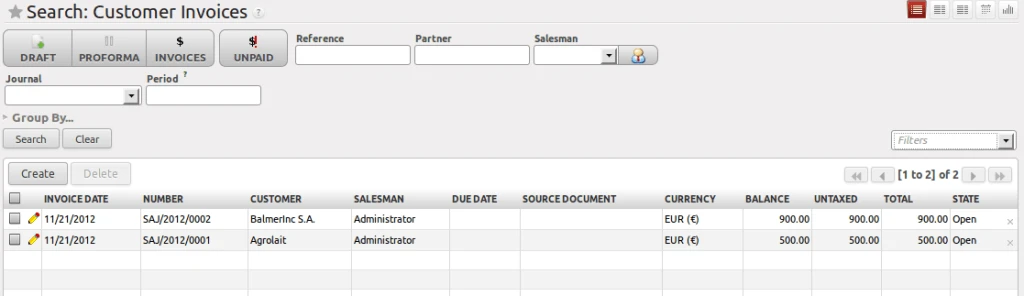
1.open_invoices

Now open Bank Statement from the menu Accounting > Bank & Cash > Bank Statement. We will find the screen as shown here.

As per following screen in Transaction tab, Statement Lines contains one line having partner is the one of our OPEN invoice partner.

Here two options are there, that we can insert statement lines from csv file “if provided by bank” or we can do manual entry.

Please note that we have created Statement line amount is less amount (which is 450.00) than the Invoice amount (which is 900.00) to better understand the reconciliation process.

There is a field called Ending balance which contain the total amount which we got from bank statement. We can enter in advance if we have that amount.
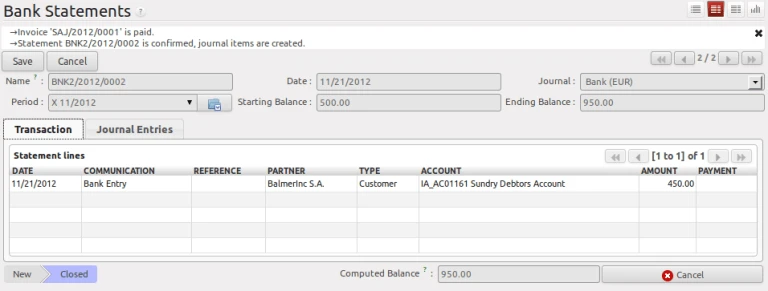
2.bank_statement_less_than_invoice

Once we confirm the Bank Statement, we will have Journal Entries of the entered amount.

Now to process the reconciliation, we will select Manual Reconciliation from the menu Accounting > Periodical Processing > Reconciliation.
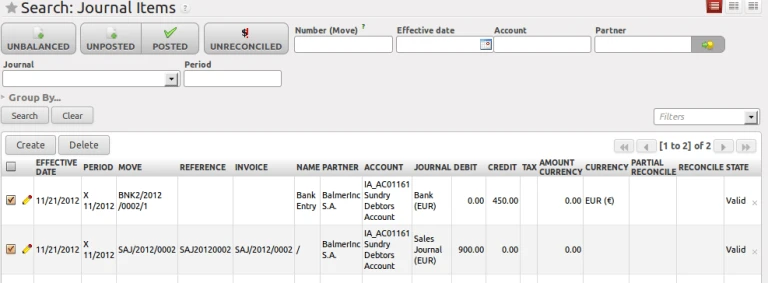
3.journal_items_manual_reconciliation

List of statements which should have reconciliation have to be done will be displayed here. Just select all related entries and execute a wizard called “Reconcile Entries” from the right side panel in the “Action”.

Following screen will be displayed with the amount to be credit, debit and write-off.
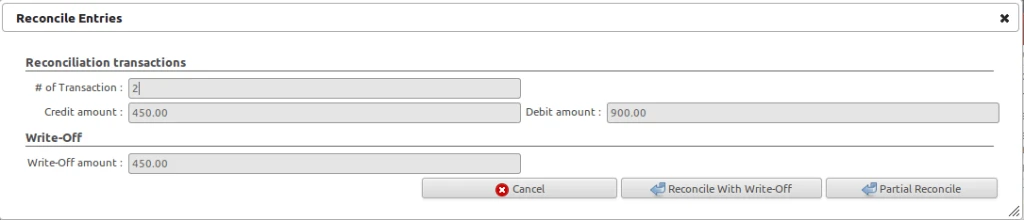
4.manual_reconciliation

We have two options here are: Reconcile with Write-Off and Partial Reconcile.

If we go for partial reconcile option then we have to wait for the remaining bank statements to be reconciled later.

Another option is Reconcile with Write-Off as shown in below screen.

5.reconcile_writeoff

We have to select Proper Journal and Account here.

Just press Reconcile button and we will get our entries reconciled and will be removed from Manual Reconciliation list.

Now we can check the unposted entry in our Journal Entries and can process accordingly.
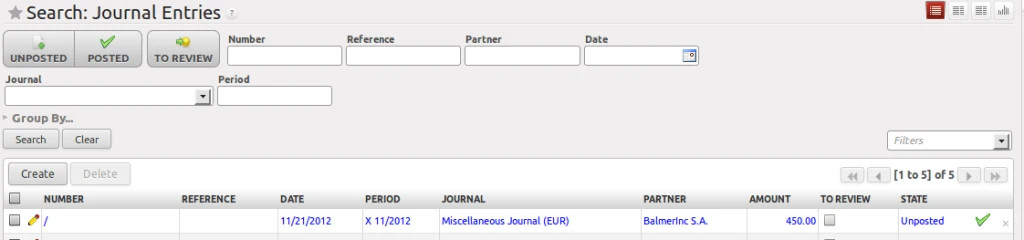
6.journal_entry

Here we have done with the Bank Reconciliation.


Advertisements

Share this:

  • Click to share on Facebook (Opens in new window)
  • Click to share on LinkedIn (Opens in new window)
  • Click to share on Twitter (Opens in new window)
  • Click to share on Reddit (Opens in new window)
  • Click to share on Tumblr (Opens in new window)
  • Click to share on Pocket (Opens in new window)
  • Click to share on Pinterest (Opens in new window)
  • More
  • Click to print (Opens in new window)
  • Click to email this to a friend (Opens in new window)

Like this:

Like Loading...
2 Comments

Any Query ?

  • Contact US

Play Store (Android App)

PLAY STORE

Search

Categories

  • Accounting
  • Android
  • CentOS
  • Configuration
  • Django
  • Magento
  • News
  • Odoo
  • Open Source
  • OpenERP 7.0
  • OpenERP Installation
  • OpenERP Videos (YouTube)
  • PHP / Python
  • Point of Sale (POS)
  • PostgreSQL
  • Product
  • Quotation
  • Sale
  • SMTP
  • Stock
  • Ubuntu
  • Uncategorized
  • Views
  • Website
  • Windows
  • Woocommerce
  • How to enable customer email verification on registration in magento 2
  • How to backup and restore OpenERP database ?
  • Odoo Sales Commission
  • Odoo POS Promotion
  • OpenERP Web: Enhancement in Gantt Chart
  • Odoo POS Customer Screen
  • Disable Decimal Points in OpenERP
  • Android POS Dashboard V12
  • OpenERP Point of Sale: Gift Coupon Feature
  • OpenERP 7 Point of Sale : Enhancement in Pricelist

Recent Posts

  • Odoo Biometric Integration using Digital Persona
  • Magento Favourite Product
  • Magento Product Label
  • Android Tablet Application for Odoo POS
  • Magento Quick View
Follow Acespritech Solutions Pvt Ltd on WordPress.com

Enter your email address to follow this blog and receive notifications of new posts by email.

Join 520 other followers

RSS Feeds

RSS Feed RSS - Posts

RSS Feed RSS - Comments

Advertisements
Create a free website or blog at WordPress.com.
Cancel
loading Cancel
Post was not sent - check your email addresses!
Email check failed, please try again
Sorry, your blog cannot share posts by email.
Privacy & Cookies: This site uses cookies. By continuing to use this website, you agree to their use.
To find out more, including how to control cookies, see here: Cookie Policy
%d bloggers like this: